By Gianluca Bonomo — Technology Trainer and Instructor
Published on
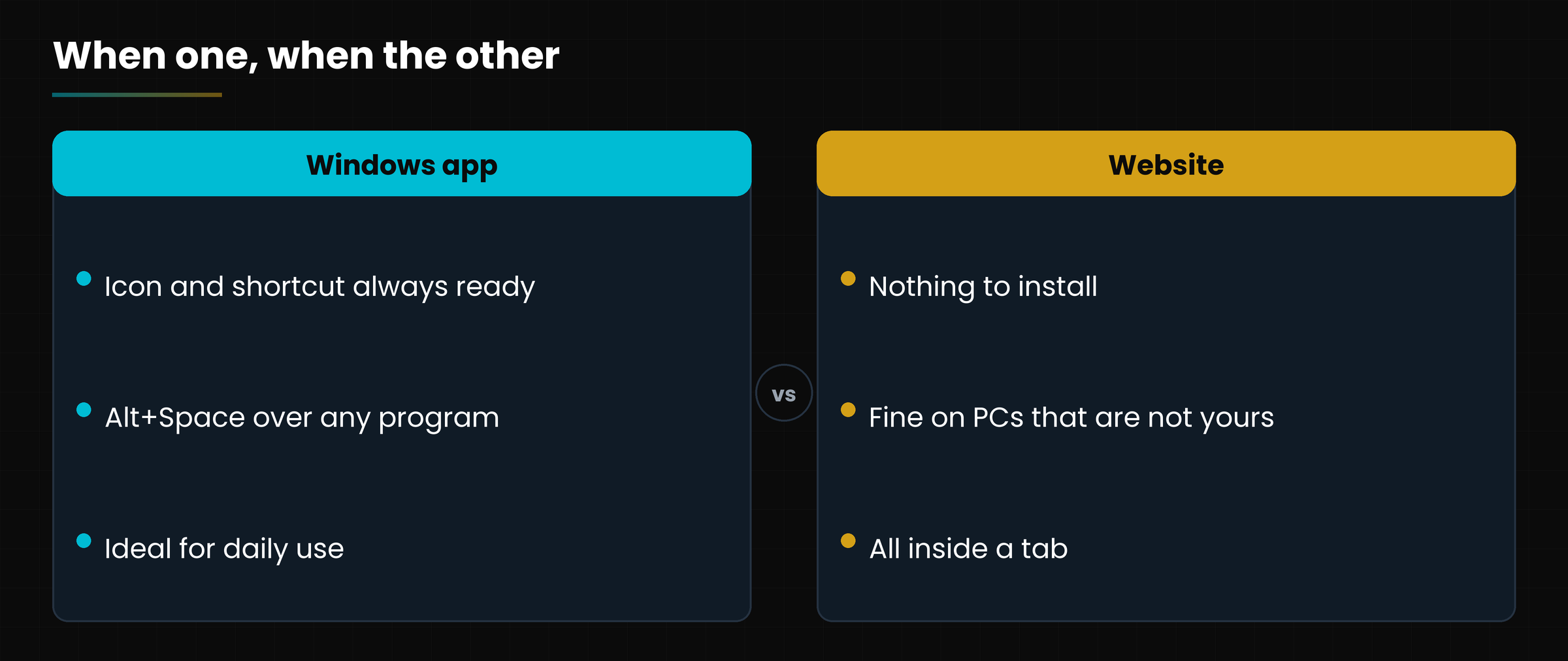
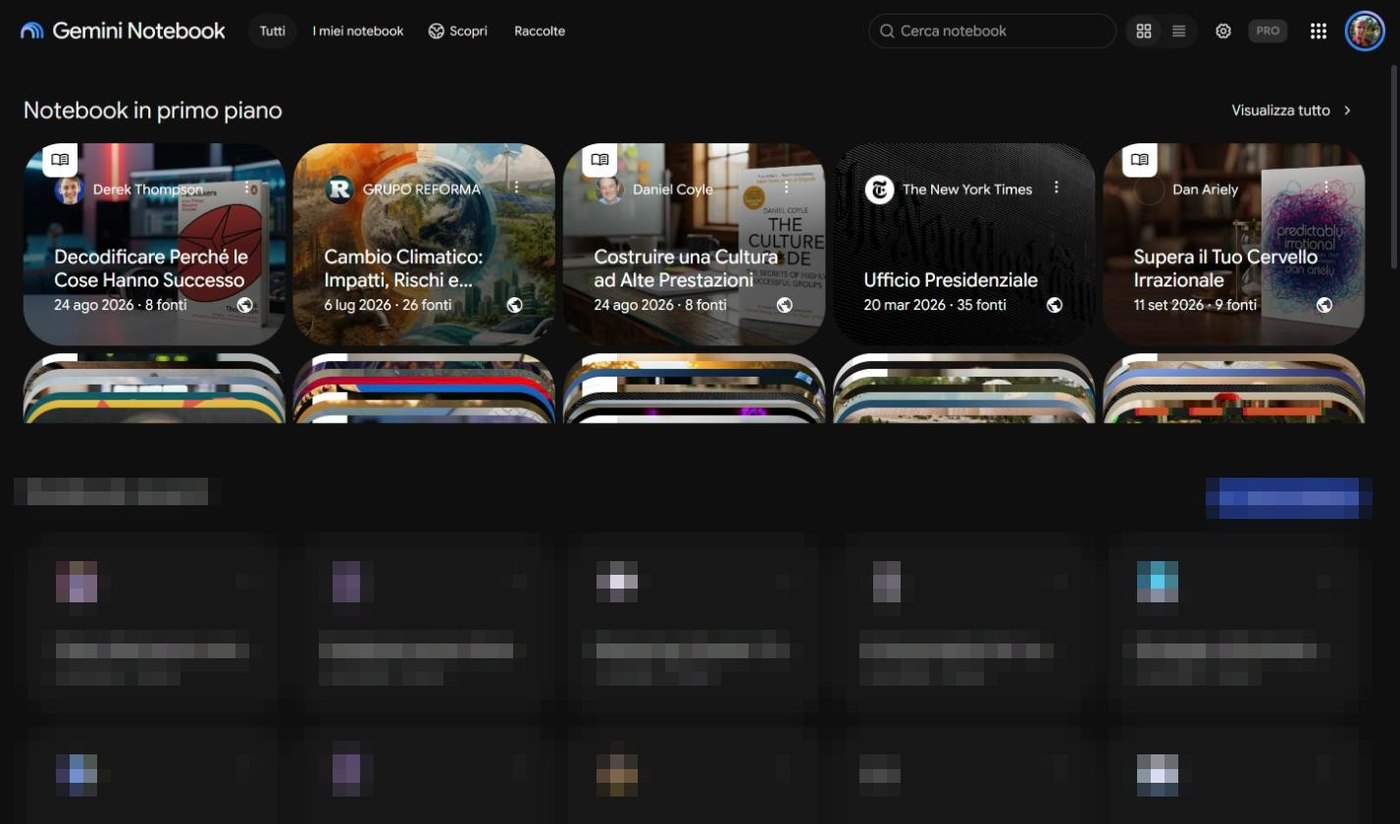
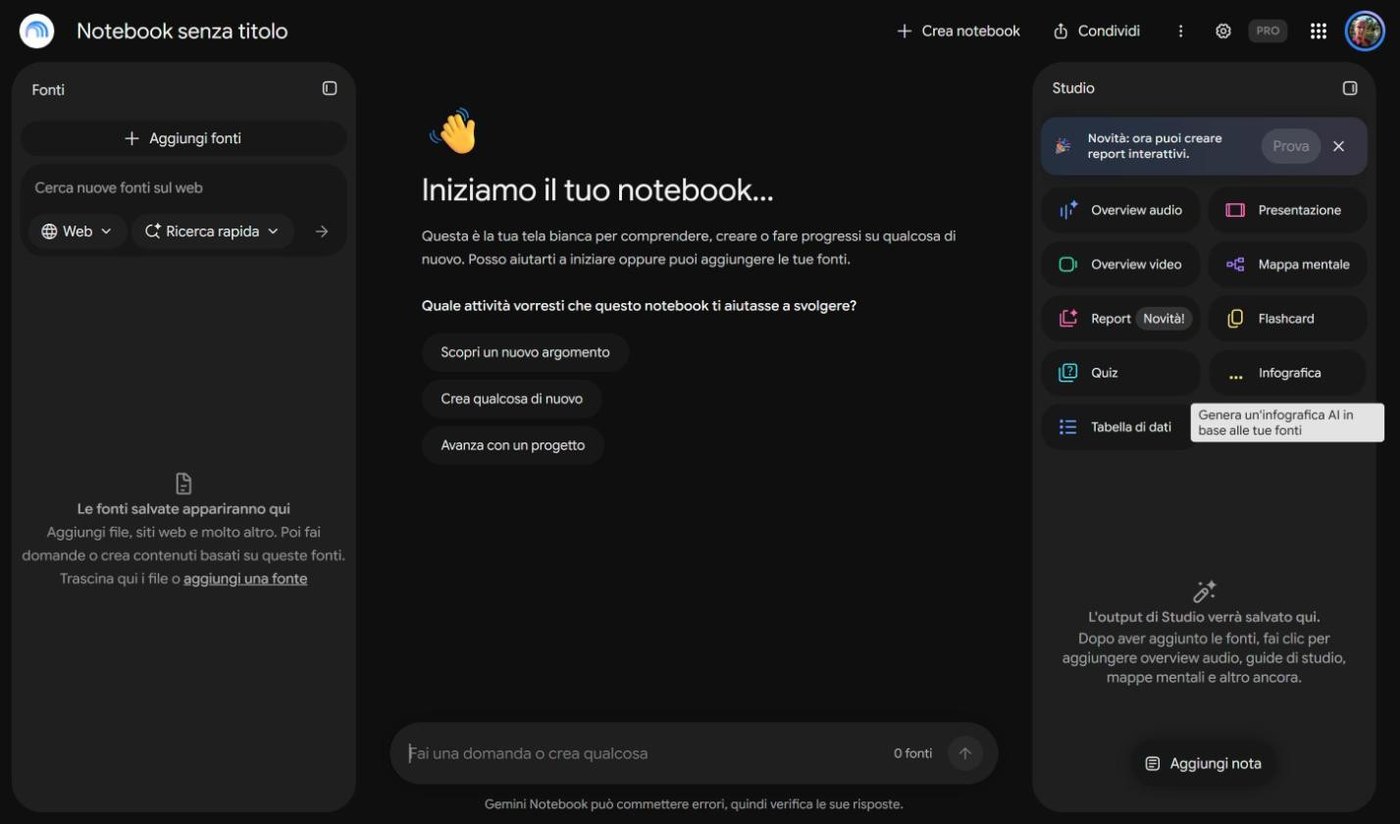
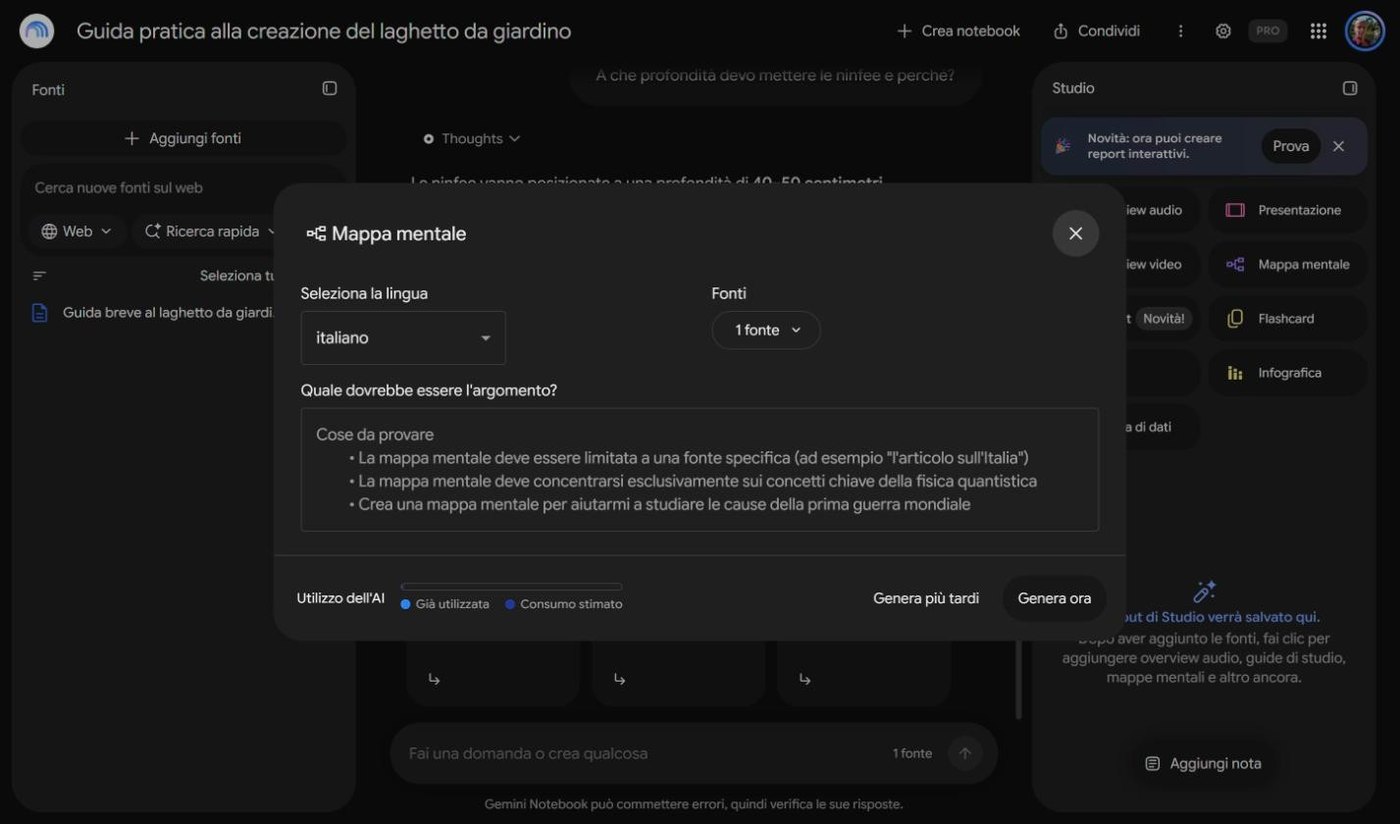
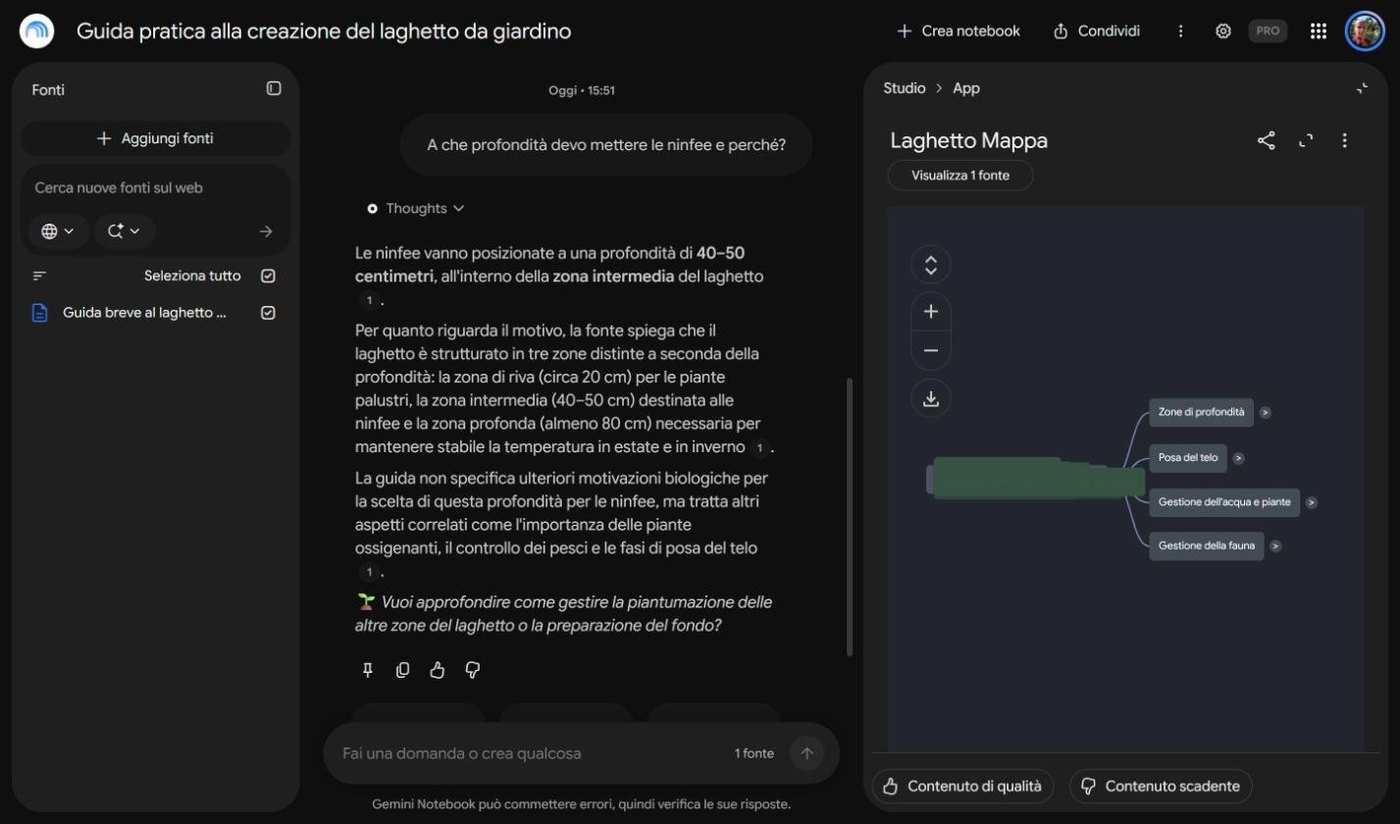
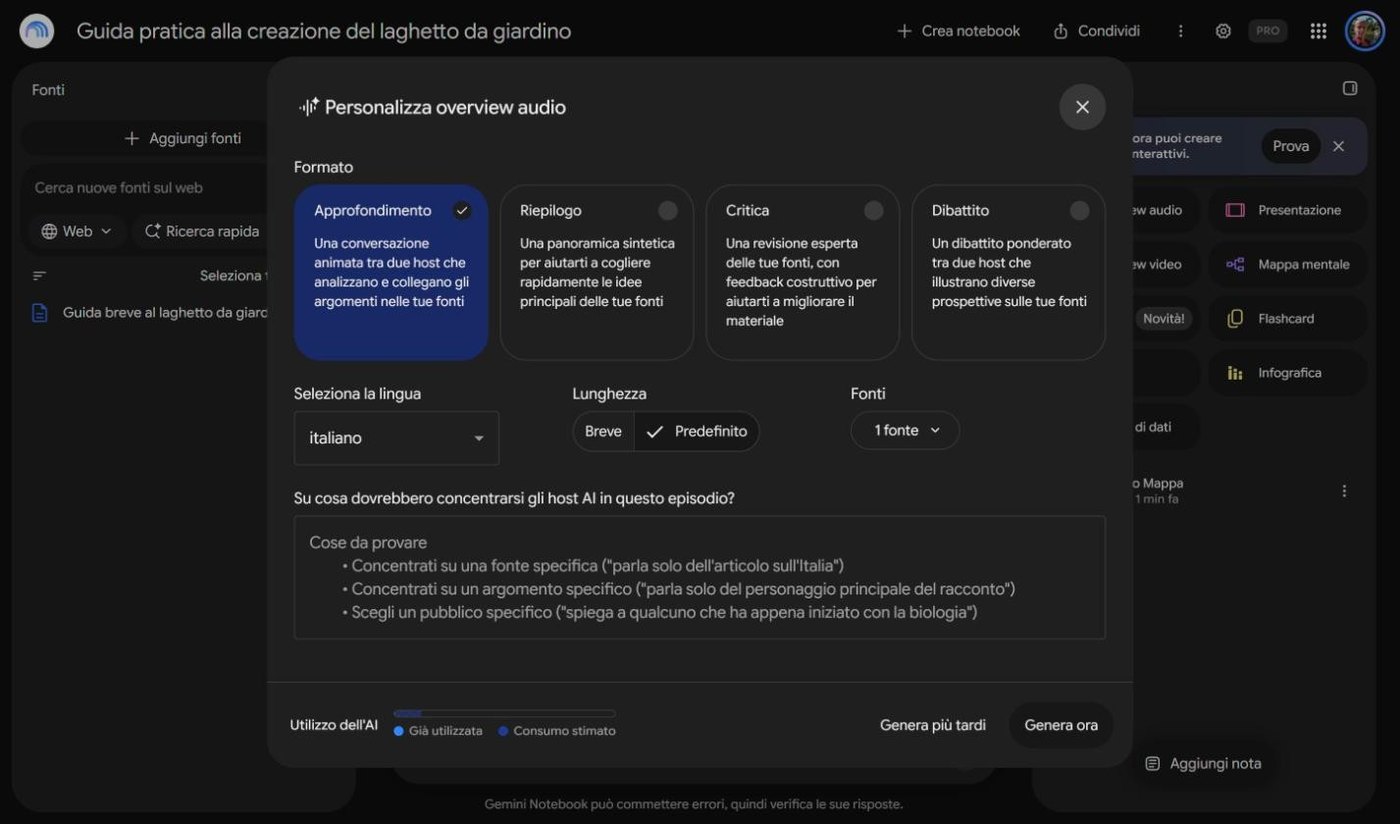
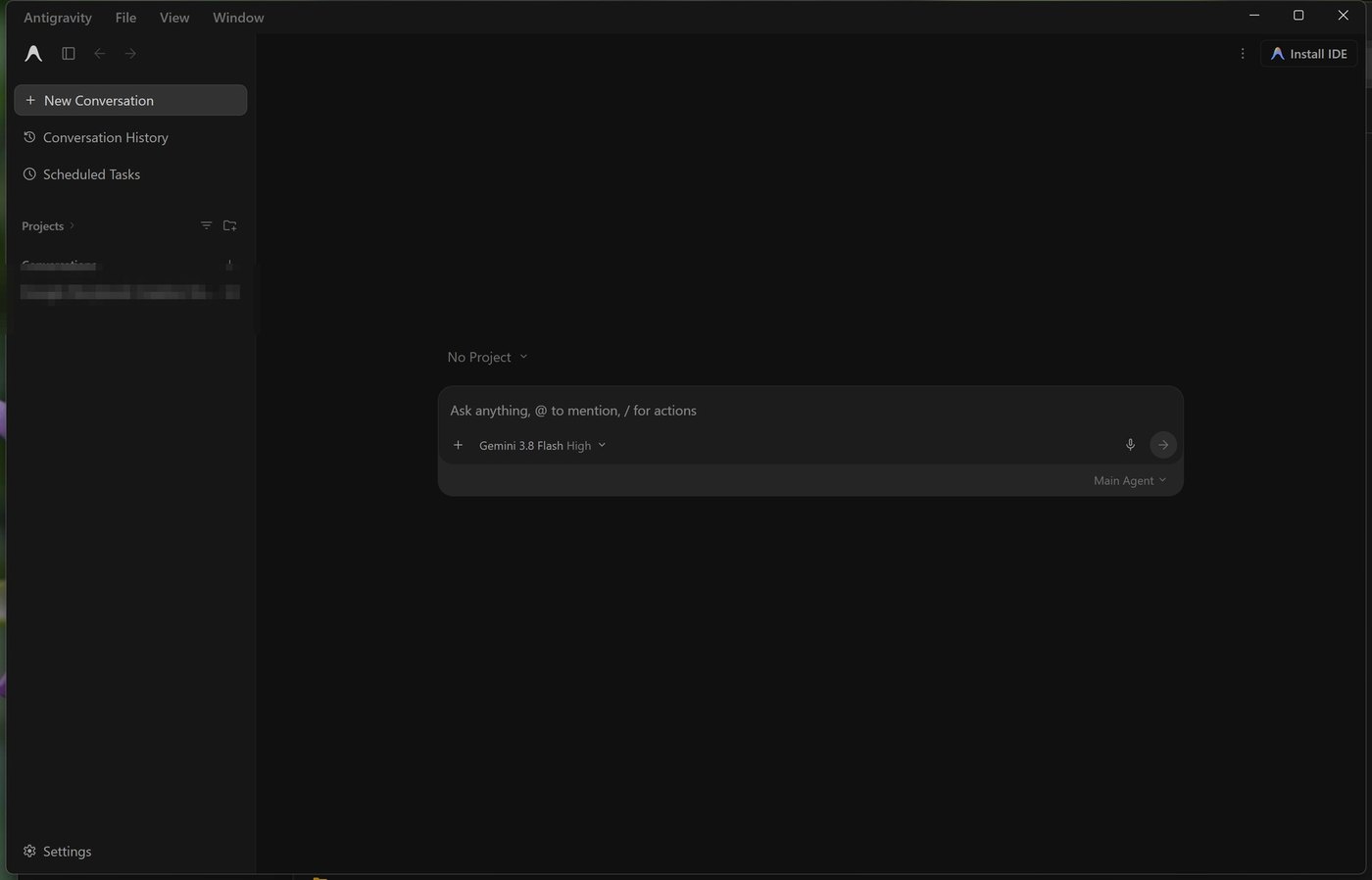
Gemini is Google's artificial intelligence, and today it is no longer a single thing: it is a website, a Windows app, a smart notebook for studying (Gemini Notebook, the new name of NotebookLM) and even an assistant that works on your computer like a colleague, Antigravity. Beginners get lost quickly among names, menus and subscriptions.
This course takes you by the hand. Every lesson is built on real screenshots, taken in October 2026 on the Italian interface, with one example that keeps coming back: building a small garden pond. Few difficult words, plenty of steps to repeat with your own hands.
How to use this handout
This handout gathers, in written and ordered form, everything covered in the lesson. You do not need to memorise it: it is there so you can find things again calmly, later, when the lesson is over and a question is left hanging.
How to browse this document online: You can move between lessons with the index below, one at a time. Every technical term listed in the glossary shows its definition on mouse hover. At the bottom of the page you will find the unified glossary.
Who it is for, what you will learn and how to follow the eleven lessons
Lesson goal
Understand who the course is for, what you learn in each lesson and how to follow it, and prepare accounts, tools and working folders.
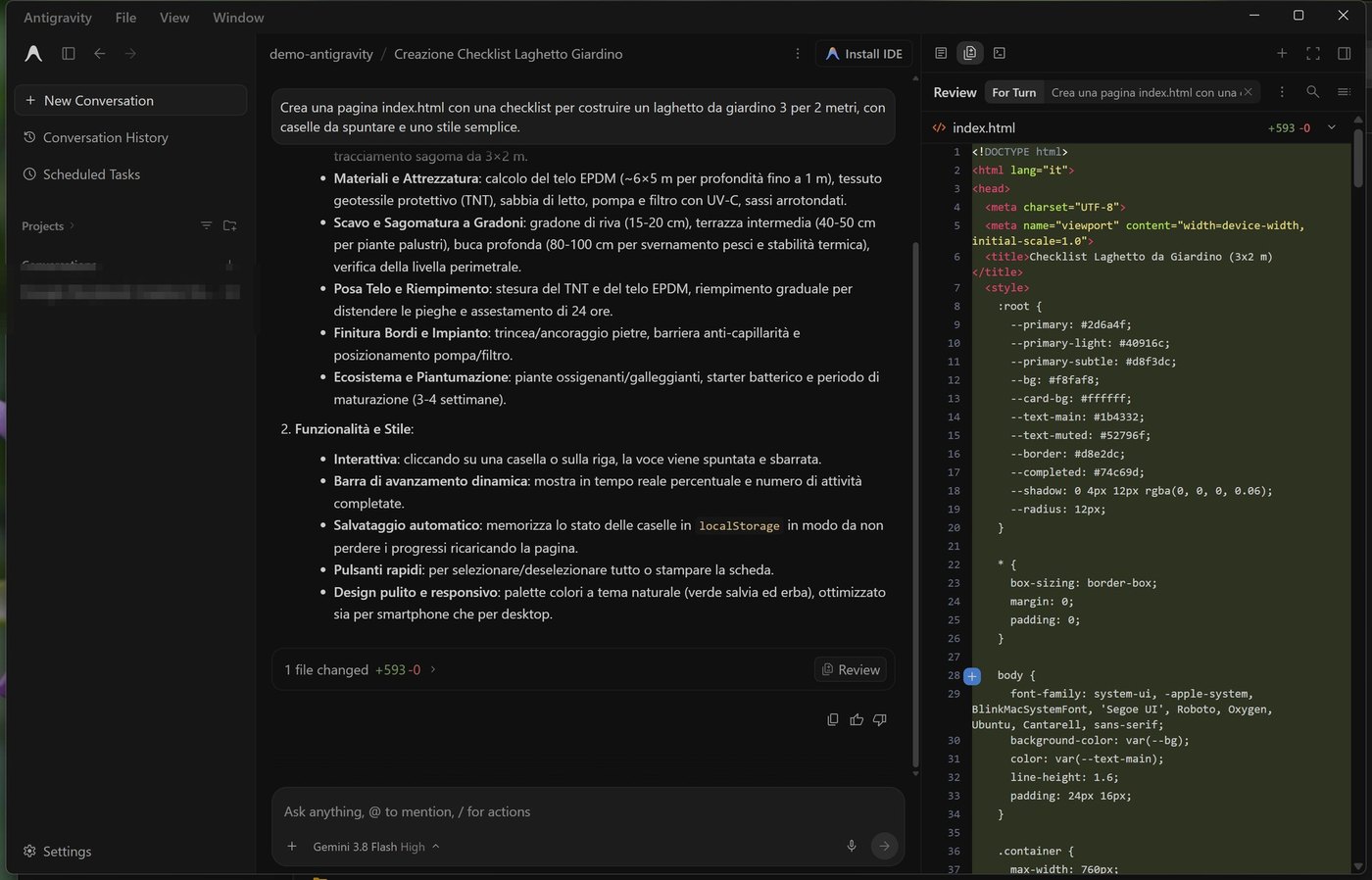
What you will be able to do
Know what each lesson contains and in which order to follow them.
Understand which tools and accounts you need before starting.
Choose the study pace that suits you best.
Prepare the working folder and the initial checks.
1. Why this course
Gemini today is a website, an app, a notebook for studying and an assistant that works on the computer. And every month something changes.
Imagine Marta, who wants to build a pond in her garden. She has heard that Gemini can help. She opens the website and finds models with odd names, a sidebar full of entries, a very long settings menu. Then she reads that there is a Windows app, that NotebookLM changed name, that Gems will become skills, that there is something called Antigravity. And she stops: where do I start?
This course is for her, and for anyone who recognises the scene. It is not a list of features: it is a path in order, with real screenshots taken in October 2026 on the Italian interface, examples that keep coming back (the pond, of course) and exercises you can redo right away.
In plain words
The course gives you a map. The tools will change name and look, but the map, that is the criterion to choose and check, will remain useful.
2. Who it is for and what you need
The course is designed for beginners and for those who already use Gemini «by feel» and want to understand what they are doing. No computing skills are needed.
What you need to follow the course.
What you need
Why
A Google account
For Gemini on the web, in the app and in Gemini Notebook. A personal account is fine.
An up-to-date browser
For most lessons (Chrome, Edge or similar).
A PC with Windows 10 or 11
For the Gemini app (lesson 8) and for Antigravity (lesson 10). The other lessons work from any computer.
An empty folder
For the Antigravity tests: create it yourself, away from your documents.
A real project of your own
A hobby, a job, a trip: the examples work better with a real story.
How much it costs
Almost the whole course can be followed with the free plan. Some features, such as video creation or the Sparkagent, according to Google require a Google AI subscription. In the lessons I flag it every time, and you do not have to pay.
3. What you will learn
At the end of the course you will be able to:
Choose the right model and plan, and check the usage limits.
AskGemini effectively, attaching files and photos, and verify the answers.
UseDeep Research, Guided Learning and Canvas, and create images, video and music.
Personalise Gemini with context, Gems and skills, and get ready for the change of 17 November 2026.
Connect Google apps sensibly and schedule repeated actions.
Study your documents with Gemini Notebook, the new name of NotebookLM.
Make an agent like Antigravity work on your computer, safely.
4. The programme, lesson by lesson
Eleven lessons, to be followed in order because each one builds on the previous. Below you find the complete programme, with the length and what you will be able to do at the end.
The programme. In total 10 hours and 45 minutes of lessons, plus introduction and conclusions: about 11 and a half hours.
No.
Lesson
Length
What you will be able to do afterwards
1
Gemini: models and plans
60 min
Recognise the models, choose the plan and read the limits.
2
Gemini on the web: first steps
60 min
Have the first conversation and manage chats and settings.
3
Prompts and attachments: asking Gemini well
60 min
Write requests in four steps and attach files.
4
Research and study with Gemini
60 min
Do research, learn step by step and polish documents.
5
Creating with Gemini: images, video and music
60 min
Describe and create content, using it responsibly.
6
Gems, skills and personalisation
60 min
Create a Gem and a skill, and get ready for 17 November.
7
Gemini and Google apps
60 min
Connect apps sensibly and create scheduled actions.
8
The Gemini app for Windows
60 min
Install the app and use it with Alt+Space.
9
Gemini Notebook (the new NotebookLM)
60 min
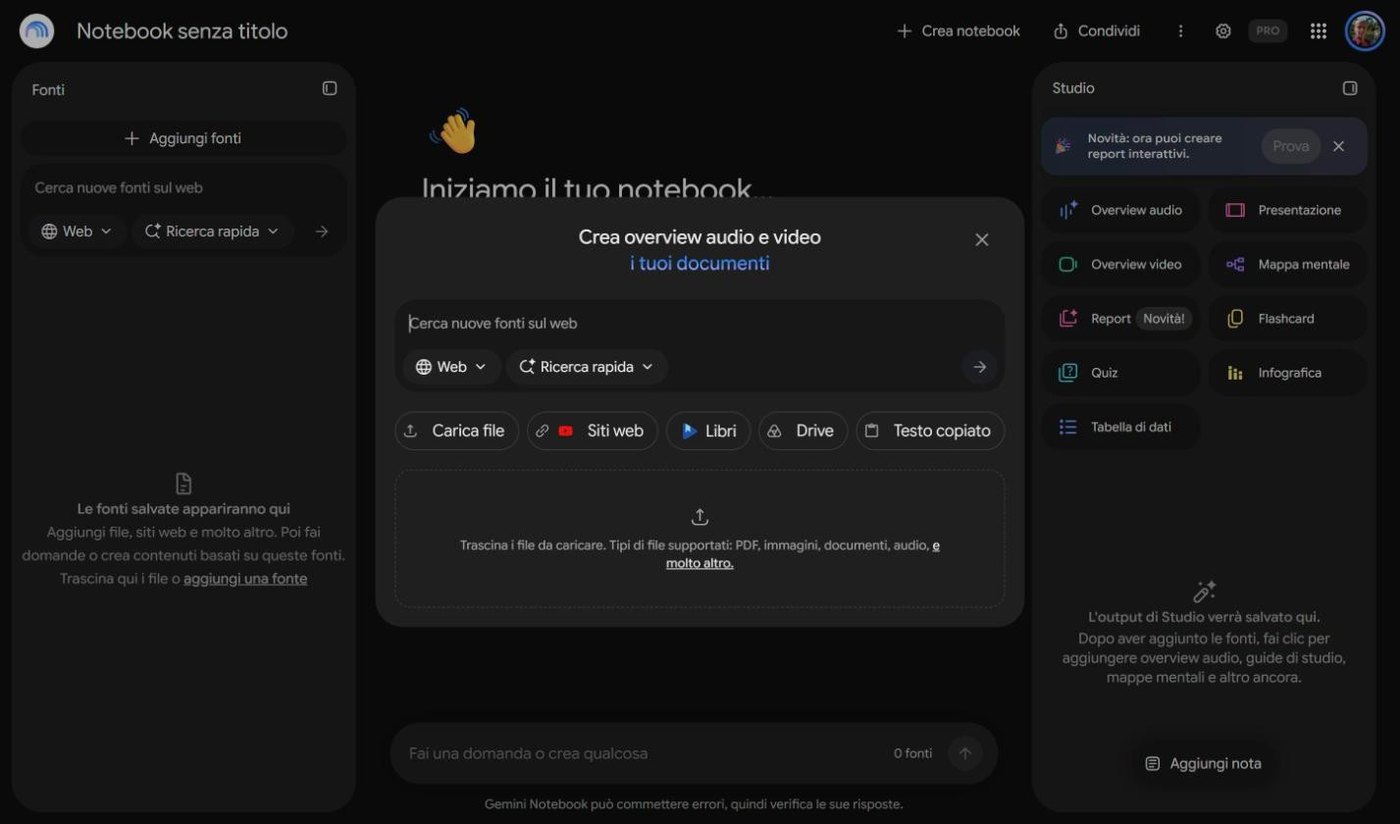
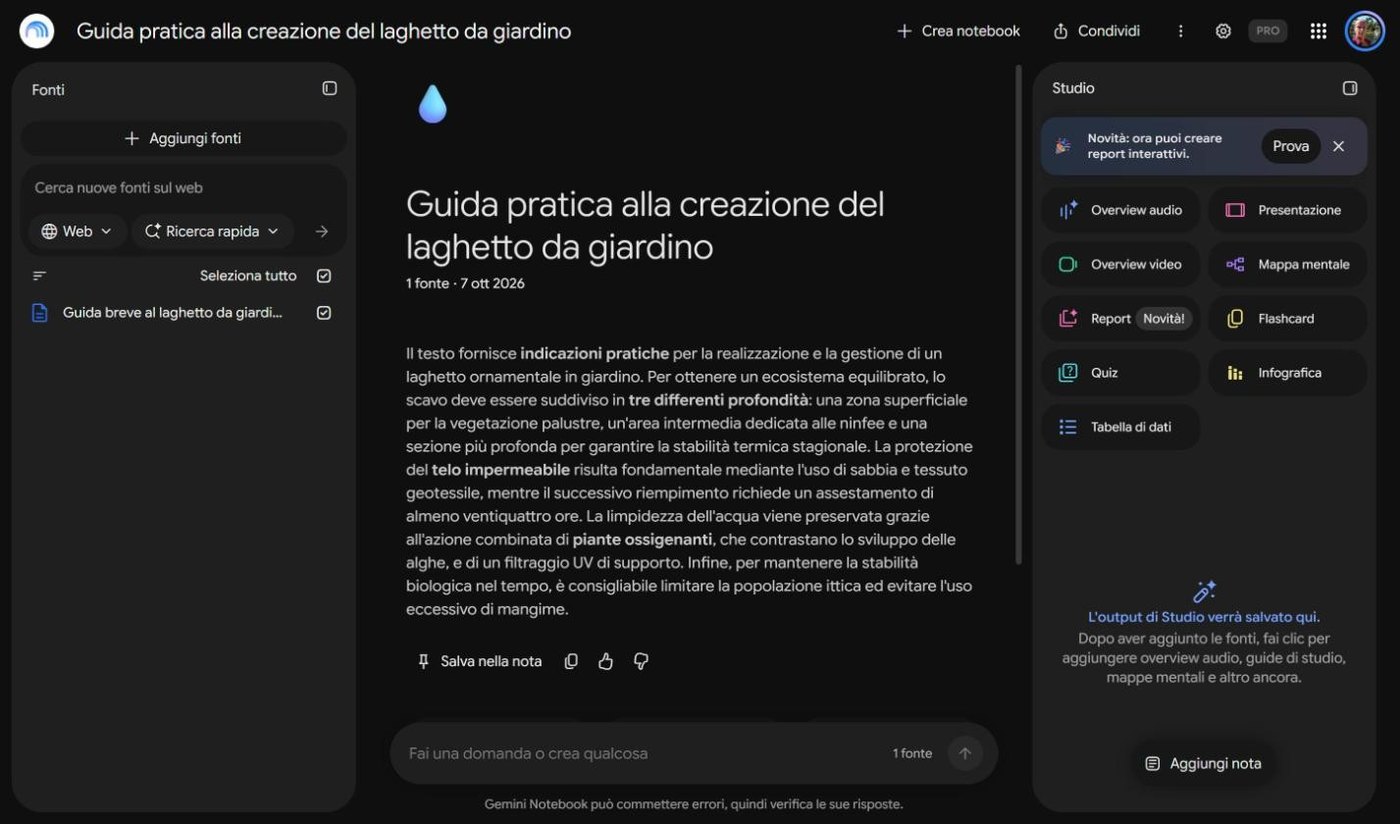
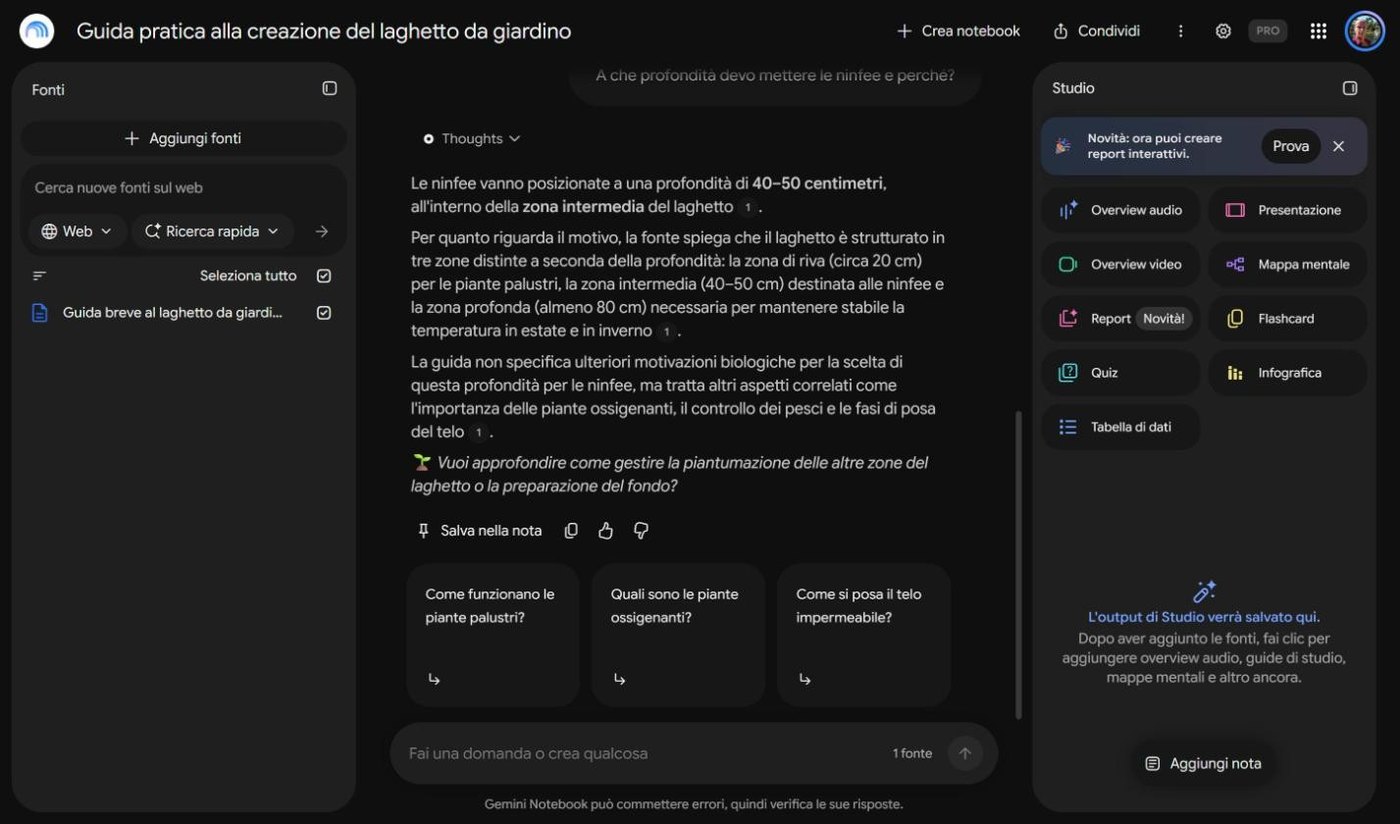
Create a notebook, question the sources and generate maps.
10
Antigravity: the assistant that works on your computer
60 min
Assign a task to an agent, manage permissions and review.
11
Gemma: Google's artificial intelligence on your computer
45 min
Understand open models and when local AI is worthwhile.
Diagram
The course path in four stages
The course path in four stages
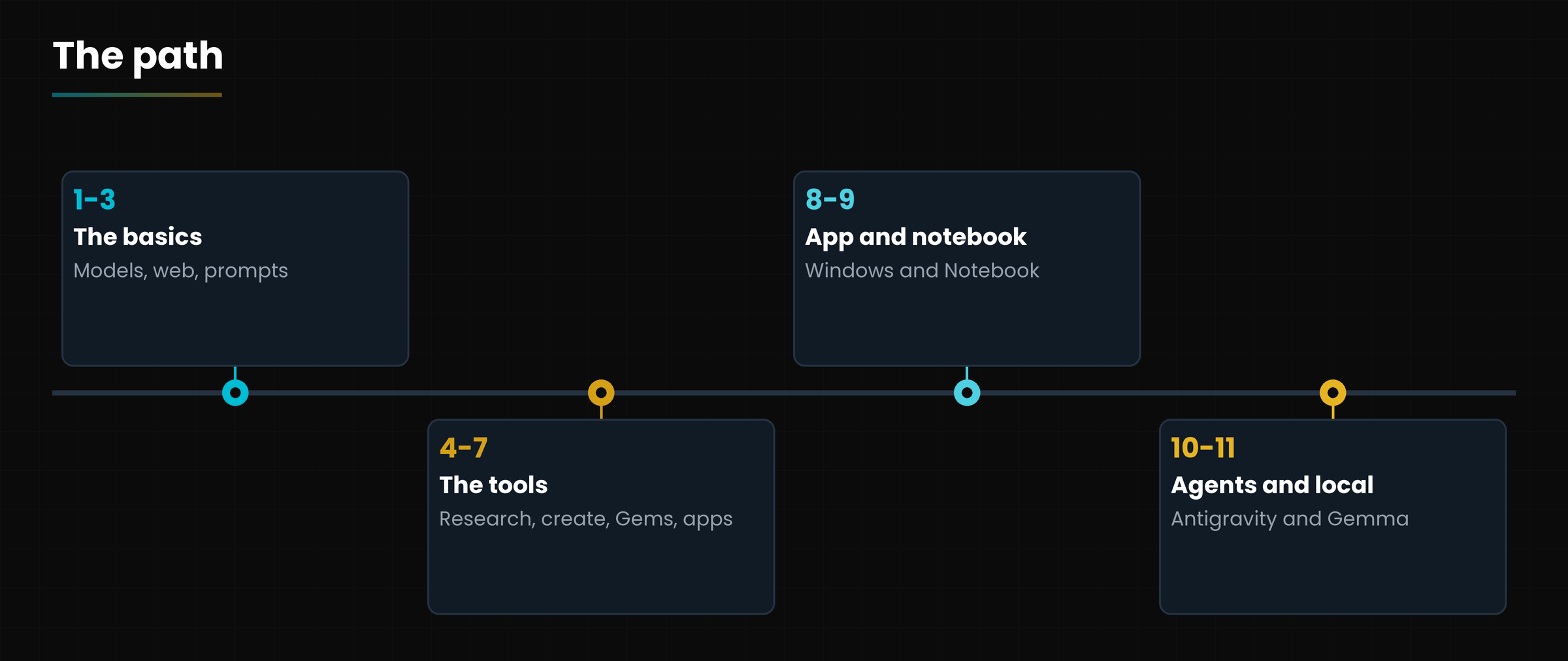
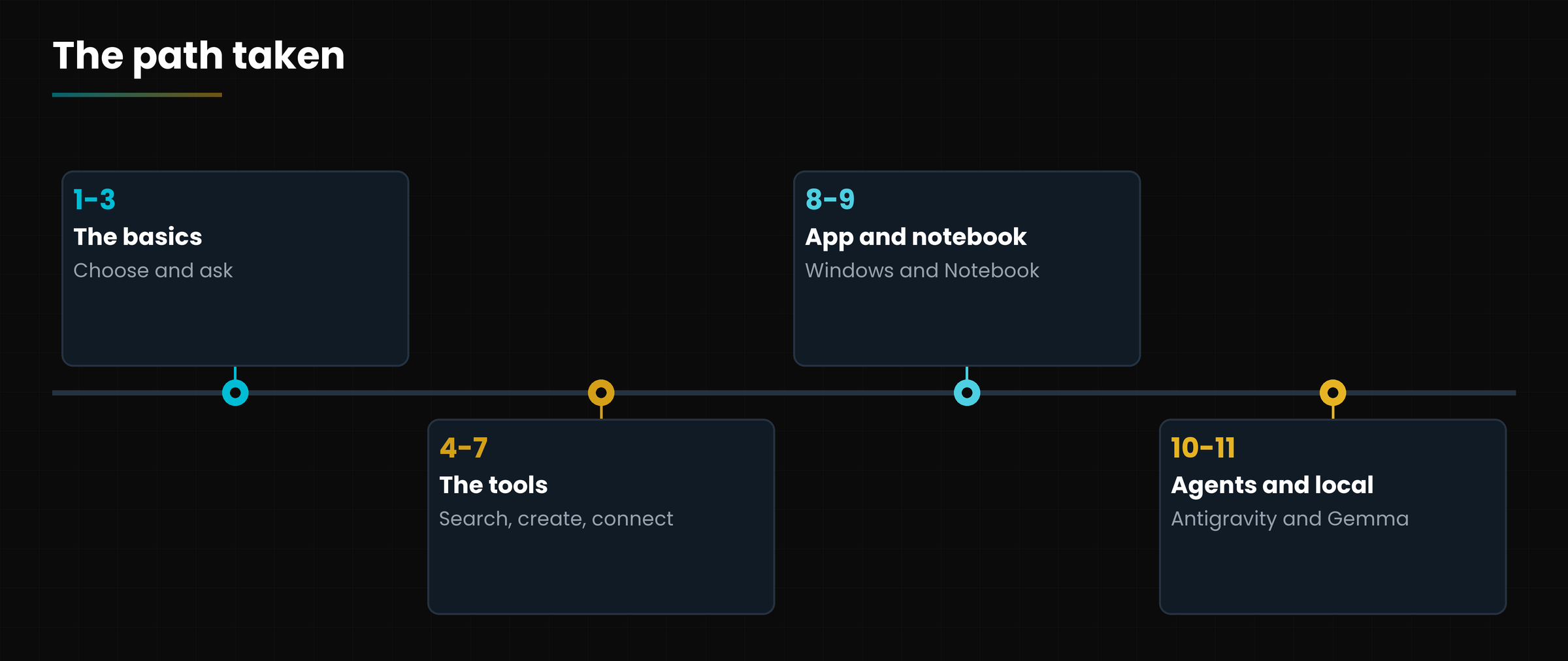
The thread is this: first we understand the tools (lessons 1-3), then we use them for research and creativity (4-5), we personalise and connect them (6-7), we use the app and the notebook (8-9) and finally we make an agent work and look at open models (10-11).
5. How to follow the course
Every lesson has the same format, so you always know where to find things.
The handout (Word and PDF): the complete explanation, with screenshots. Read it with the computer on.
The slides, in dark and light versions, to revise or to explain to others.
The video of about five minutes, which sums up the lesson.
The exercise at the end of the handout: 15-30 minutes to really do what you read.
The frequently asked questions and the glossary, for the most common doubts.
Recommended pace: one lesson a week, or two if you have more time. An hour of reading plus an hour of practice.
Do the exercises. You learn more in twenty minutes of trying than in two hours of reading.
Use a single project for the whole course: the pieces fit together and you see the work grow.
Always check.Gemini can be wrong: the fourth step of every request is verification.
The screenshots have a date
All screenshots and data are from 7 October 2026, on the Italian interface and with a Google AI Proplan. If your menus are different, it is not your mistake: Gemini changes fast. Follow the criterion, not the pixel.
6. Who is telling you
My name is Gianluca Bonomo, I am an Teacher and communicator on IT and AI. On gianlu.it I write and teach artificial intelligence, Excel and productivity, and I wrote the book *Niente paura è solo AI* (in Italian). As the fixed example of the course I chose a simple, concrete case, building a small garden pond: it only serves to give the steps a real story, and you can replace it with your own project.
Preparation
Twenty minutes to start with everything ready.
Open gemini.google.com and sign in with your Google account. If you do not have an account, create a personal one.
Create on your computer a «Gemini Course» folder where to save notes, useful answers and exported documents.
Choose your fixed project for the whole course (a hobby, a job, a trip) and write it in one line.
Open the settings menu and look at Usage limits and Manage subscription: note your plan.
Check whether you have Windows 10 or 11, and whether the Gemini app and Antigravity are installed (not compulsory now).
If you want to try Antigravity, already create a new, empty folder for the tests, away from your documents.
Watch out
Have you chosen the fixed project of the course?
Do you know which Google AI plan you have?
Questions that come up in class
Do I have to pay to follow the course?
No: almost everything can be followed with the free plan. Some features require a Google AI subscription, and I flag it in the lessons.
Do I need experience with artificial intelligence?
No, we start from zero. All you need is the will to try and to check.
Can I follow the course on a Mac or from a phone?
Almost everything yes, because Gemini and Gemini Notebook work in the browser. The app (lesson 8) and Antigravity (lesson 10) are shown on Windows.
Can I skip a lesson?
Better not, but if you already know the topic, read the recap and do the exercise. Lessons 1-3 are the base of all the others.
What if my screen is different from the course's?
Gemini changes often. Look for the feature by name and follow the criterion explained: screenshots are just examples.
Lesson glossary
The words you meet in this lesson, explained in one line.
Term
What it means
Agent
An AI assistant that acts, for example on your computer, like Antigravity.
Gemini
Google's artificial intelligence: the models, the app and the tools built around them.
Gemini Notebook
The new name of NotebookLM: the tool to work on your own documents.
Model
The artificial «brain» that generates the answers.
Prompt
The text you write to ask Gemini something.
Further reading
The sources used to build this handout: if a figure interests you, go to the source and check it.
Gemini, Gemini Notebook, the Gemini for Windows app and Antigravity: the author's tests and screenshots
7 October 2026
Google's official pages on plans, the Windows app, Gemini Notebook, Antigravity and Gemma
consulted on 7 October 2026
Watch out
Course checked on 7 October 2026. Features, names and prices change often: the individual lessons give the dates and sources of the data.
Who is who among Flash, Pro and subscriptions, before you spend a single euro
Lesson goal
Understand what Gemini really means, recognise the models in the app's selector and choose the right plan without being confused by version numbers.
What you will be able to do
Explain in plain words the difference between Gemini as a family of models and Gemini as an app.
Recognise Flash-Lite, Flash, Pro and extended reasoning in the selector, and say what each one is for.
Compare the free, Plus, Pro and Ultra plans and decide which one to start from.
Read the usage limits page to see how much «fuel» you have left.
1. What Gemini is (and why it has so many names)
Gemini is a brand, not a single program: like Fiat, which makes the Panda but also the delivery van.
If you have tried to understand Gemini by reading the news, you have probably got confused. One day it is «Google's chatbot», the next it is «a model», then «an app», then «a subscription». They are all right, because the word is used for three different things.
The models: the real artificial «brains», trained by Google (for example Flash and Pro).
The app and the website: the window where you talk to those brains, at gemini.google.com and in the Windows app.
The tools built around them: Gemini Notebook for studying, Antigravity to let an agent work on your computer, the open Gemma models.
In plain words
The model is the engine. The app is the dashboard. The subscription decides how many miles you can drive.
In this course we will see every piece, one at a time. Today we tidy the garage: which engines exist, how much they cost and which one you really need.
2. The models: light, balanced, powerful
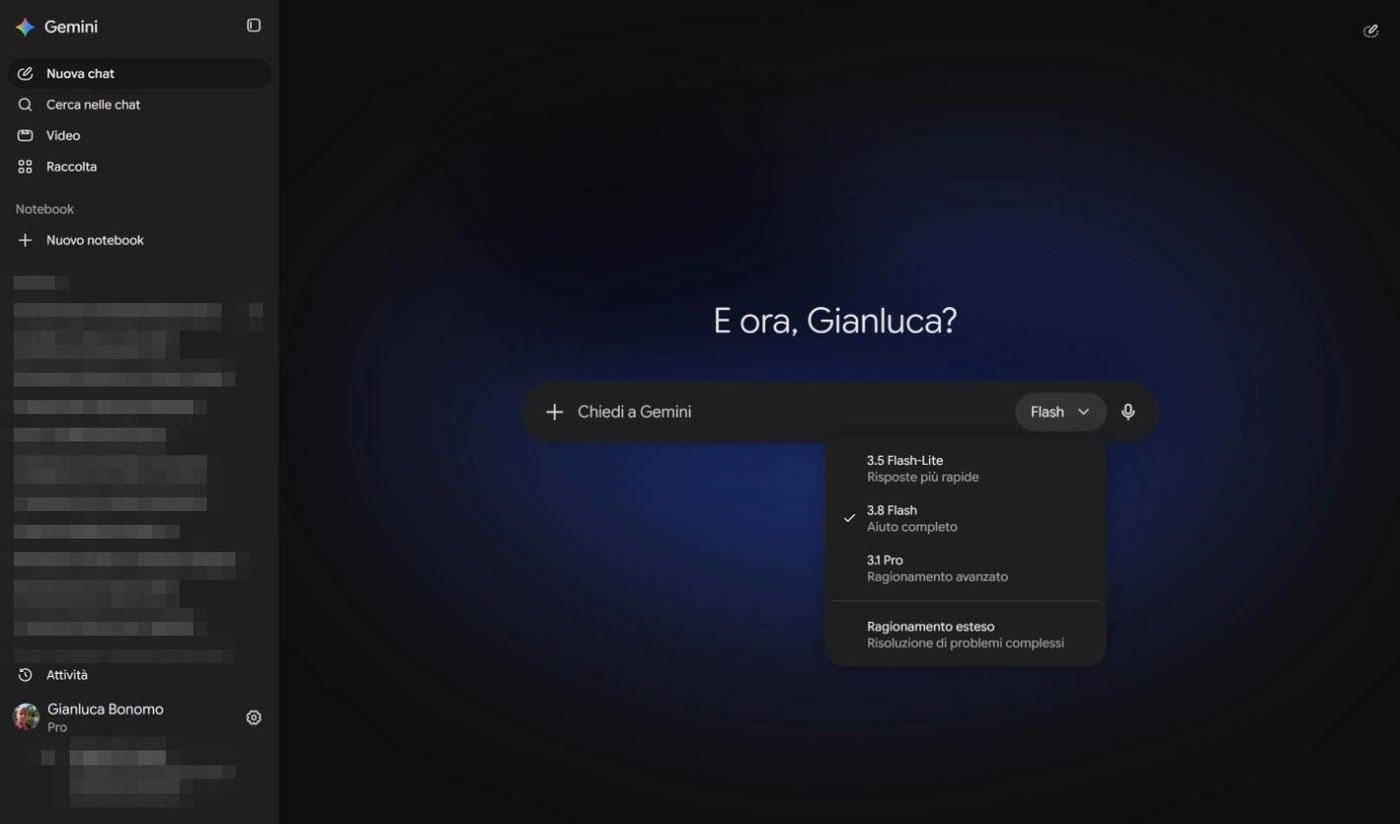
When you open Gemini on the web, next to the writing box you find a word, for example Flash, with a small arrow. That is the model selector. Click it and a small menu opens: the list of engines available on your account.
SCREENSHOT
Drop-down menu of models: 3.5 Flash-Lite, 3.8 Flash, 3.1 Pro and Extended reasoning
The model selector in Gemini on the web (7 October 2026, Google AI Pro plan). The interface is in Italian.
On my account, that day, the list said this. Each entry has a name and a short description written by Google.
The models shown in the selector. Descriptions are the ones displayed by Gemini, translated.
Menu entry
Google's description
Comparison
3.5 Flash-Lite
Faster answers (Risposte più rapide)
The bicycle: quick for errands near home.
3.8 Flash
Complete help (Aiuto completo)
The family car: fine for almost everything.
3.1 Pro
Advanced reasoning (Ragionamento avanzato)
The truck: slower, but it carries heavy loads.
Extended reasoning (Ragionamento esteso)
Solving complex problems
The same truck, with a driver who stops to study the map.
2.1 The number does not tell you who is best
Look closely: there is a 3.8 Flash and a 3.1 Pro. A higher number does not mean «more powerful»: it shows the generation. The name (Flash-Lite, Flash, Pro) shows the role. A new Flash may be more up to date than an older Pro, but it is still built to be nimble, not for the longest reasoning.
Names change fast
Version numbers change every few months, and Google retires old models. Do not memorise «3.8»: learn the criterion. Light for speed, balanced for everyday work, powerful for hard problems. Data checked on 7 October 2026.
Diagram
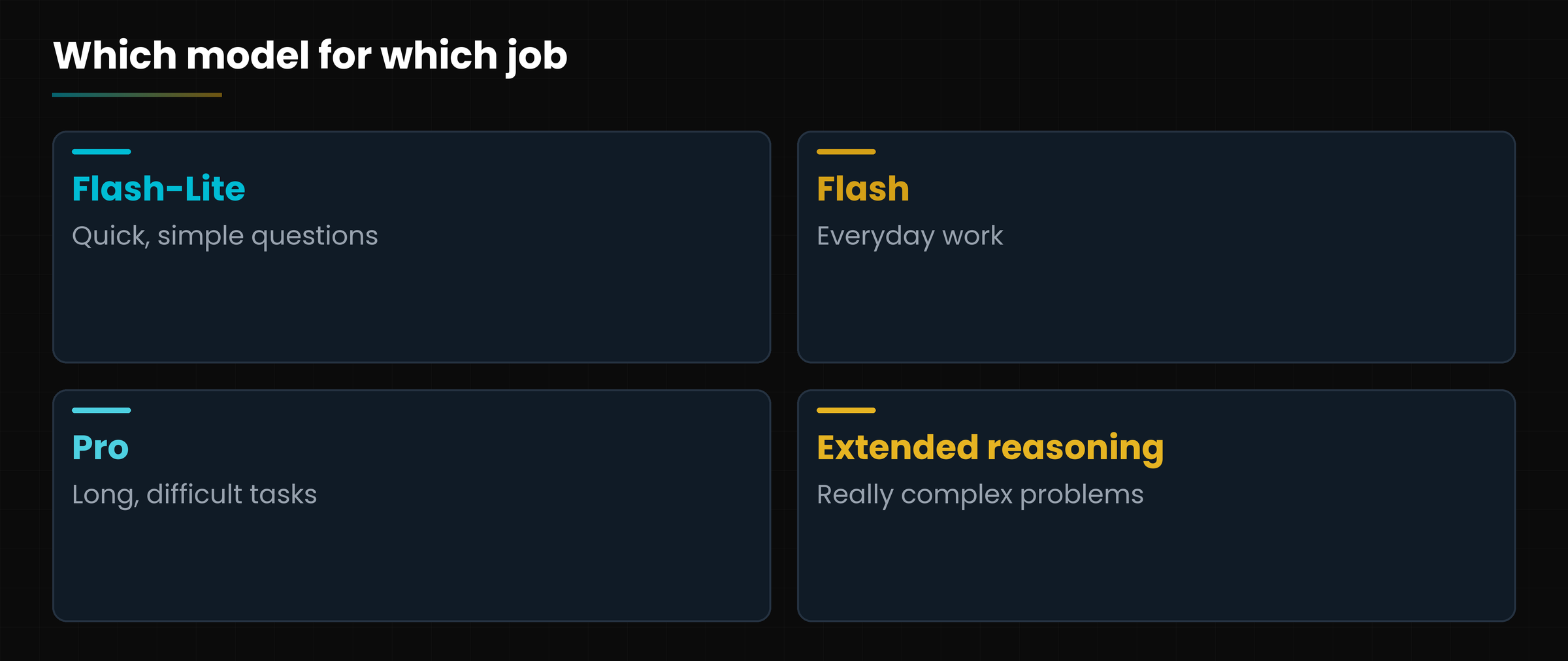
Four roles, four choices
Four roles, four choices
3. The plans: free, Plus, Pro and Ultra
Gemini can be used for free, but paid plans widen the limits and add features. The simplest way to see them is to think of a gym membership: with the free one you get in and use the basic machines; with the pricier ones you get more visits, more classes and the weights room.
Google AI plans, Italian page checked on 7 October 2026. Prices and limits may change.
Plan
Indicative price in Italy
What changes
Free
0 euros
Gemini on the web and in the app, with Flash and variable access to Pro. Images, Deep Research, Live, Canvas and Gems included, with lower limits.
Google AI Plus
about 4.99 euros a month
Limits roughly double the free plan, video generation, more storage.
Google AI Pro
about 21.99 euros a month
Limits roughly four times the free plan, the Pro model and much more storage. It is the plan I use.
Google AI Ultra
from about 99.99 euros a month
Much higher limits and early access to new things, such as Deep Think. Meant for people who work with AI all day.
Always check the official price
The figures in the table are the ones seen on the official plans page on 7 October 2026, in Italy. Before subscribing open gemini.google/subscriptions and read the current price: they change often, especially with promotions, and they differ from country to country.
3.1 And if it is a company account?
If you use Gmail and Google Drive with a work account (Google Workspace), the administrator decides what is switched on. In that case the privacy and data rules change: ask whoever manages the account before pasting confidential documents.
4. Usage limits: the fuel tank
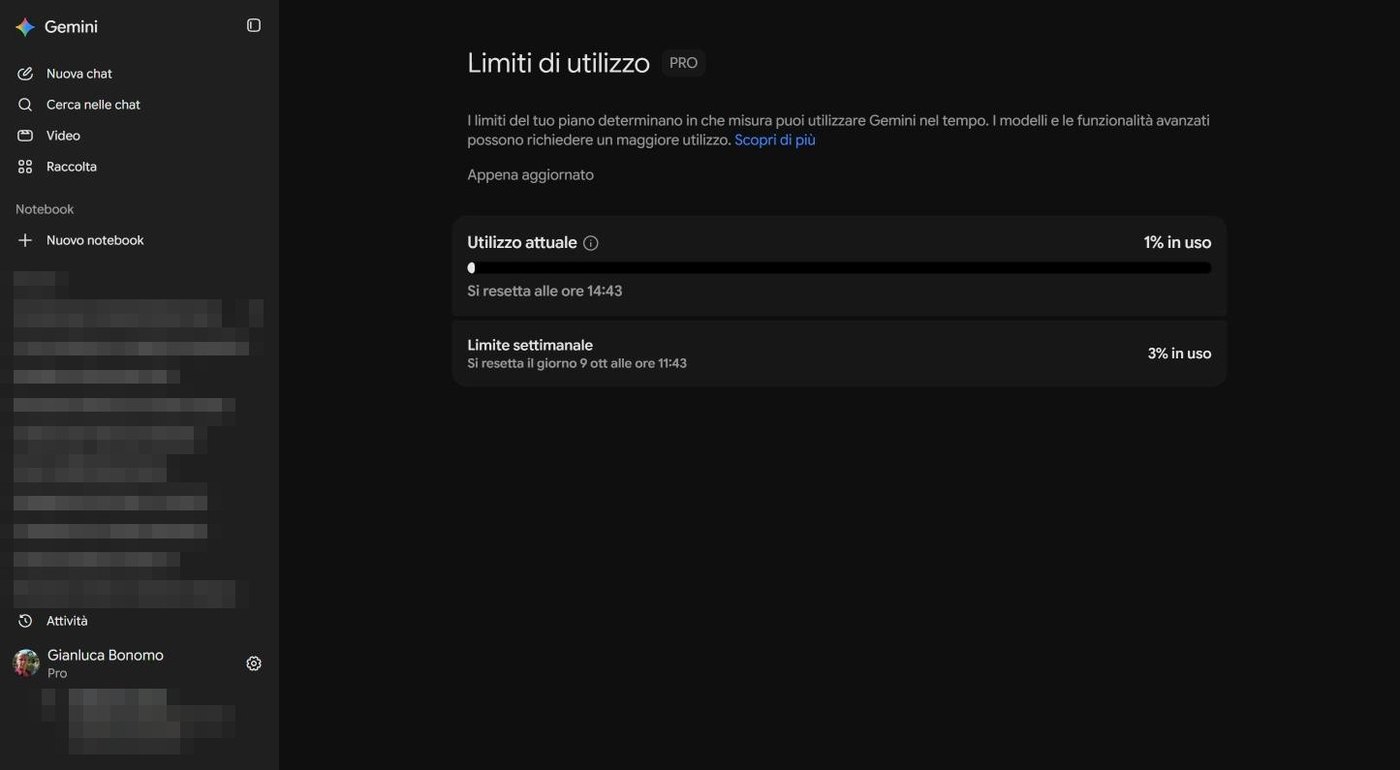
Every plan has a fuel tank. The more you ask, the emptier it gets; then it refills by itself. Gemini shows it in plain sight: from the settings menu (the cog at the bottom left) choose Limiti di utilizzo (Usage limits).
SCREENSHOT
Gemini Usage limits page showing the current usage and weekly limit bars
The usage limits page: current usage, with the refill time, and weekly limit.
The page has two bars. Current usage is the short tank, with the time it refills; Weekly limit is the long one, with the reset day. The day I took the screenshot I was at one per cent and three per cent: I had just started.
Long requests and the most powerful models use more than a short question to Flash.
Images, video and Deep Research weigh more than a normal chat.
If you always run out of tank, that is the signal to consider a higher plan, not before.
5. How to choose without going crazy
Here is a practical rule: start from the free plan and change only when you feel the need. A three-by-two-metre pond does not need an Olympic swimming pool pump.
Use Flash to write, summarise, translate and answer everyday questions.
Move to Pro when the task has many pieces to hold together (a plan, an analysis, a long text).
Try extended reasoning when Pro's answer feels hasty on a really complicated problem.
Consider Plus or Pro when you often hit the limits, need video or want more room in your Google Drive.
Skip Ultra unless AI is your daily work tool.
A real case
Marta is building a pond. With Flash she asks for the list of materials. With Pro she gets a work plan over three weekends, with estimated costs. All the other questions, a thousand little things, she asks Flash-Lite while her hands are covered in soil.
Hands-on exercise
Fifteen minutes, a Google account and the website gemini.google.com.
Open gemini.google.com and sign in. Click the model name next to the writing box and note the entries you see, with their description.
Write the same question with two different models, for example Flash and Pro: «Explain to a child why the water in a pond turns green in spring».
Compare the two answers: length, clarity, time taken. Which one do you prefer for this task?
Open the settings menu, go into Usage limits and note the current and weekly usage percentage.
Write in one line which plan you have (or which one seems right for you) and why.
Watch out
Can you say what each model in the list is for?
Did you find the usage limits page?
Questions that come up in class
Is Gemini free?
Yes, there is a free plan with Gemini on the web and in the app. Paid plans raise the limits and add features, such as video generation.
What is the difference between Gemini and Google AI Pro?
Gemini is the artificial intelligence; Google AI Pro is the subscription that gives you higher limits, more storage and the most powerful model. It is like the difference between the engine and the gym membership.
Why is 3.8 Flash newer than 3.1 Pro?
Because the number shows the generation, not the power. Flash and Pro are two different roles: a Flash version may come out after a Pro version.
Can I change model in the middle of a conversation?
Usually yes: the selector is always next to the writing box and applies to the following requests. If the answer changes a lot, remember that the new model may read the earlier conversation differently.
Is Gemini Notebook the same as Gemini?
No: it is the new name of NotebookLM, a tool for studying your own documents. We look at it in lesson 9. From the Gemini app, however, you open it from the sidebar.
Lesson glossary
The words you meet in this lesson, explained in one line.
Term
What it means
Extended reasoning
A mode in which the model takes more time to think about complex problems.
Flash
The family of fast models for everyday use.
Model
The artificial «brain» trained by Google that generates the answers.
Plan
The subscription (free or paid) that decides limits and features.
Pro
The family of more powerful models, built for difficult tasks.
Usage limit
The ceiling of requests you can make in a given period, which refills by itself.
Further reading
The sources used to build this handout: if a figure interests you, go to the source and check it.
Google, Google AI plans (gemini.google/subscriptions)
Italian page checked on 7 October 2026
Gemini app on the web, model selector and Usage limits page
author's screenshots, 7 October 2026
Watch out
Data and prices checked on 7 October 2026, on the Italian site (euro prices). Model names, limits and prices change often: always check Google's official pages before subscribing.
Your first conversation, the menus, finding your chats again, and privacy
Lesson goal
Open Gemini on the web, have your first conversation, find and organise your chats, and know what is behind each entry of the settings menu.
What you will be able to do
Recognise the parts of Gemini's main screen.
Ask a question, read the answer and continue the conversation with a follow-up.
Search, pin, rename, share and delete a chat.
Know where privacy, limits, memory, connected apps and the subscription are.
1. The front door
To start you do not need to install anything: a browser and a Google account are enough.
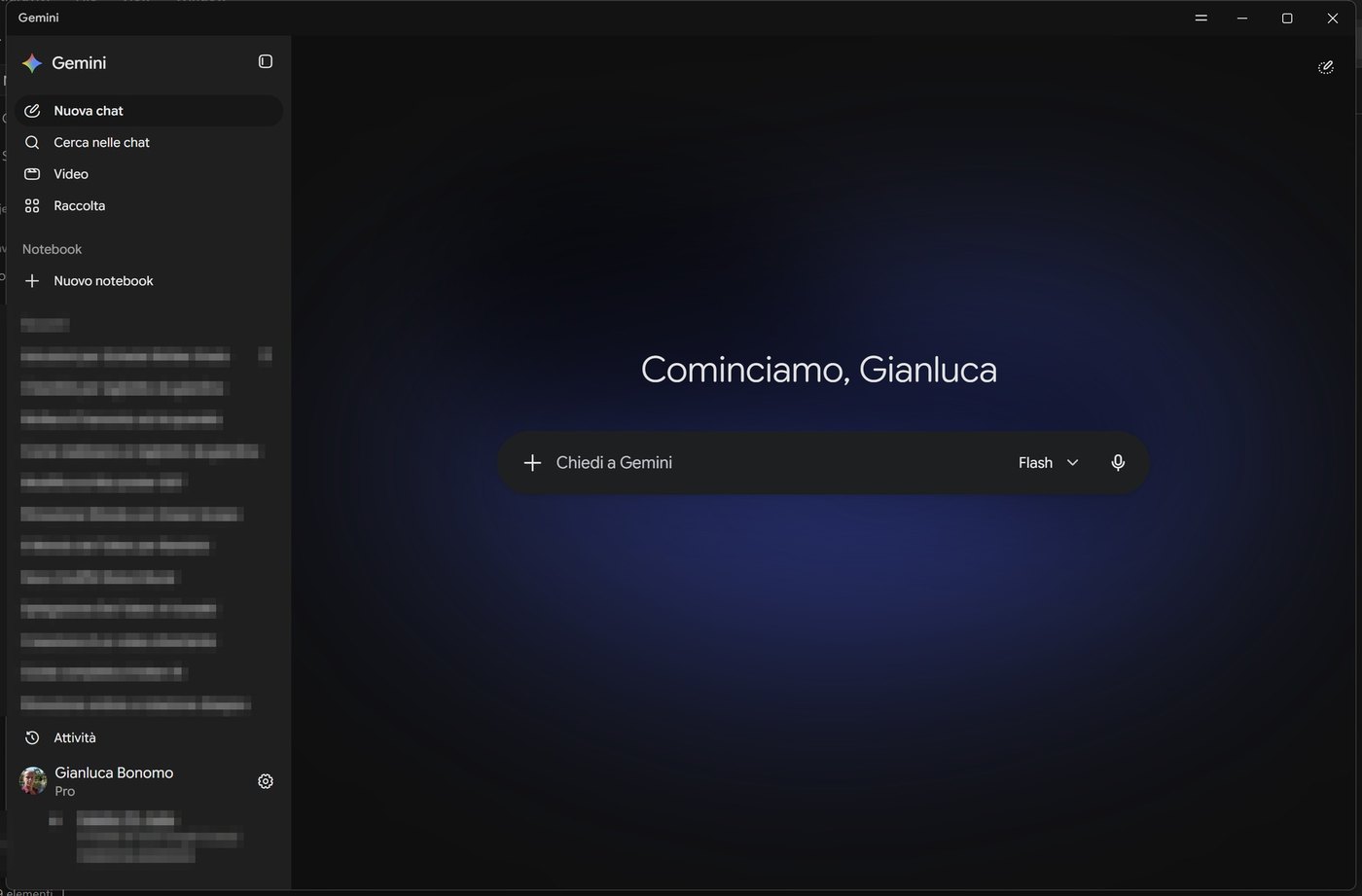
Open your browser and go to gemini.google.com. If you already have Gmail or an Android phone you are all set: you sign in with the same account. From then on all conversations are tied to the account, not to the computer. If tomorrow you open Gemini on another PC, or in the Windows app we cover in lesson 8, you find the same chats.
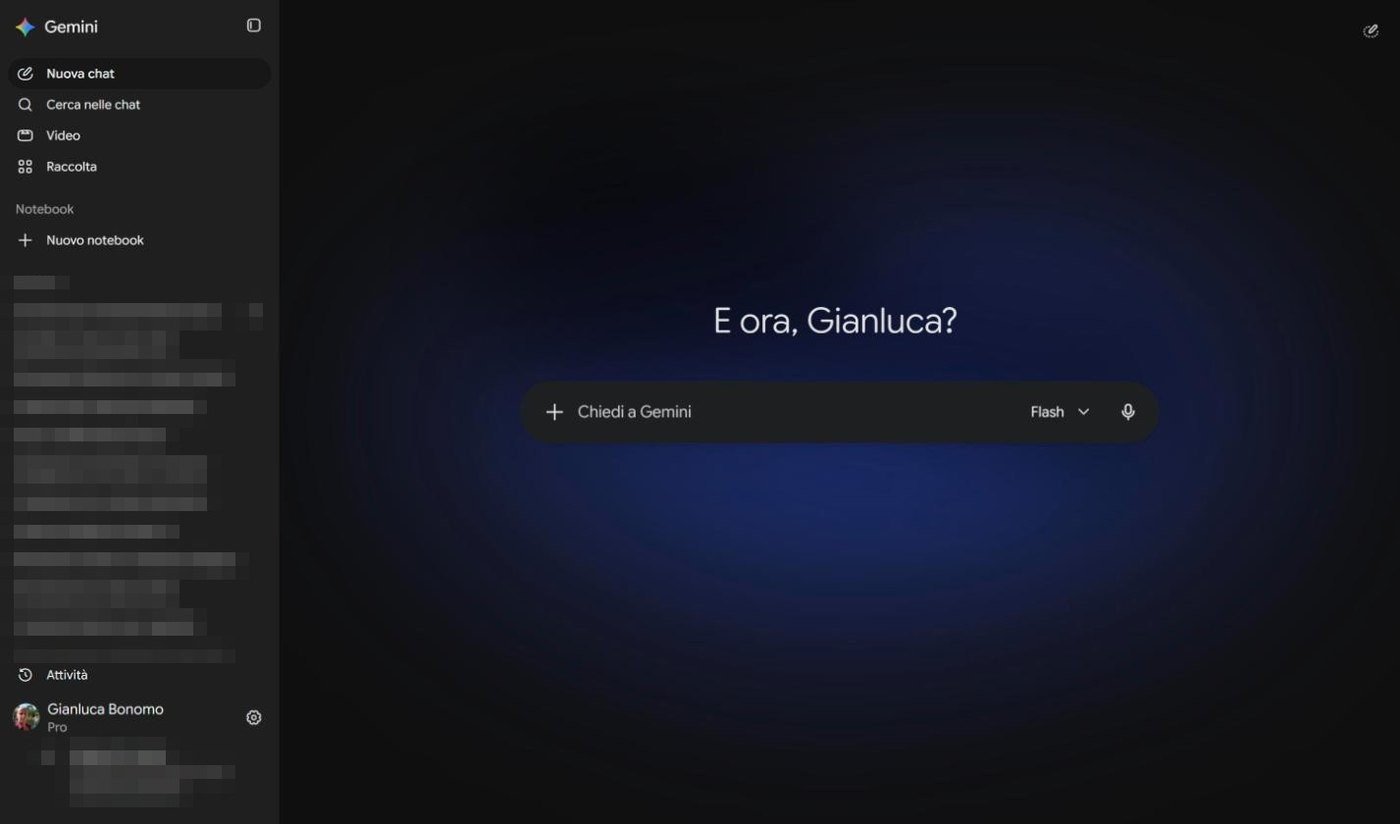
SCREENSHOT
Gemini home with sidebar, writing box and model selector
Gemini's start screen on the web. Recent chats in the sidebar have been blurred. The interface is in Italian.
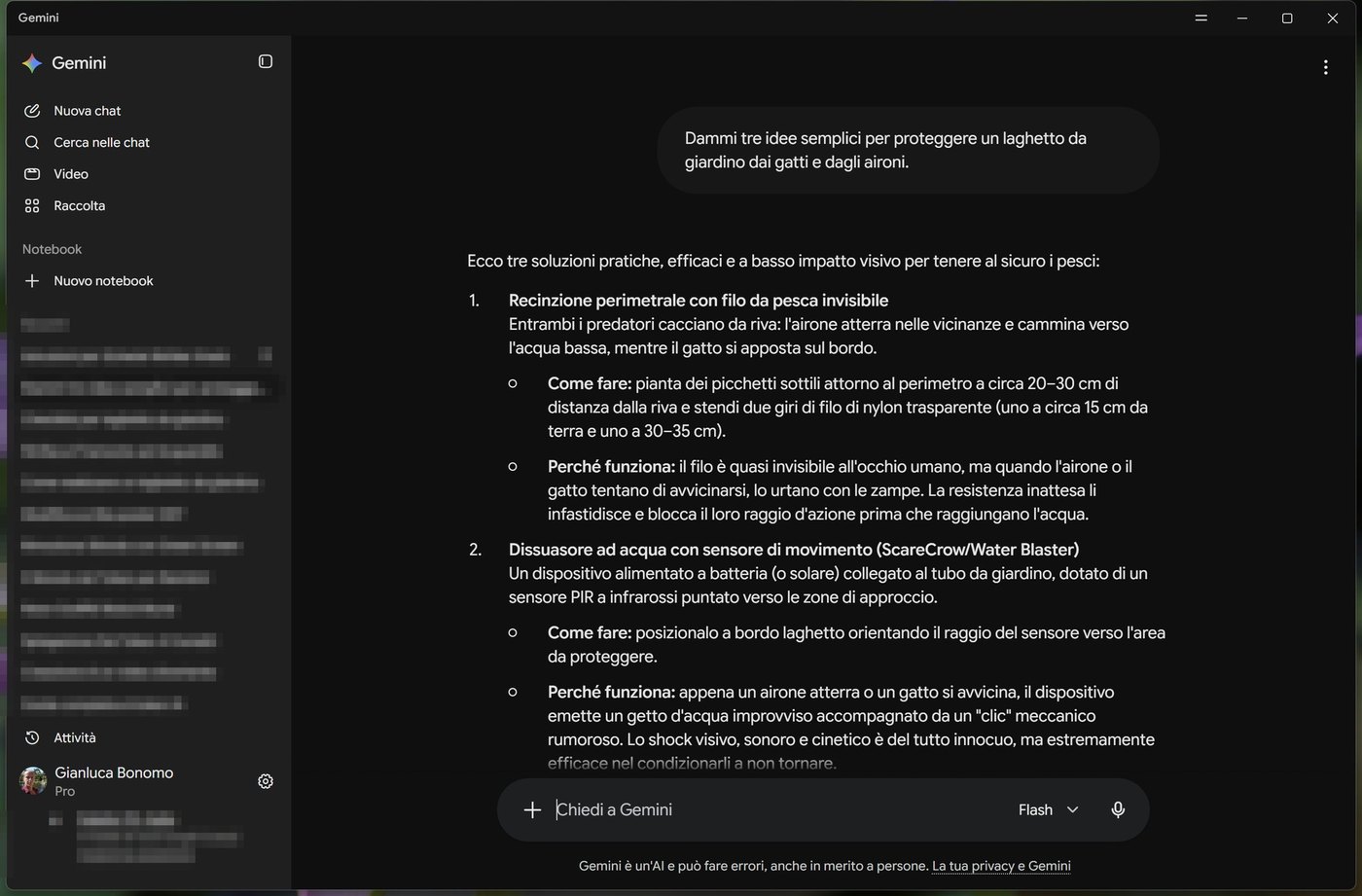
Here is what you see, from left to right.
Sidebar: Nuova chat (New chat), Cerca nelle chat (Search chats), Video, Raccolta (Library), the Notebook section, then the list of recent chats.
Attività (Activity) and account at the bottom of the bar, with the settings cog.
Writing box in the middle, with the + button to attach files and choose tools, the model selector and the microphone.
The greeting, which changes every time («E ora, Gianluca?», «Cominciamo»...). It means nothing: it is just courtesy.
In plain words
Gemini is a chat with an assistant who has read an enormous amount. You write, it answers, and the conversation stays saved.
2. The first conversation
Let's try it with a real case. Imagine you want to dig a small garden pond of three metres by two, and you do not know where to start. Click in the box and write your request in your own words. I wrote this (in Italian, my language):
I am planning a small garden pond of 3 metres by 2. Give me the 5 main steps to dig it and prepare the bottom, in a simple way.
— The prompt I used (translated)
Press Enter and wait a few seconds. Gemini writes the answer as it goes and gives the chat a title (here «Come realizzare un laghetto da giardino», How to build a garden pond), which immediately appears among the recent chats.
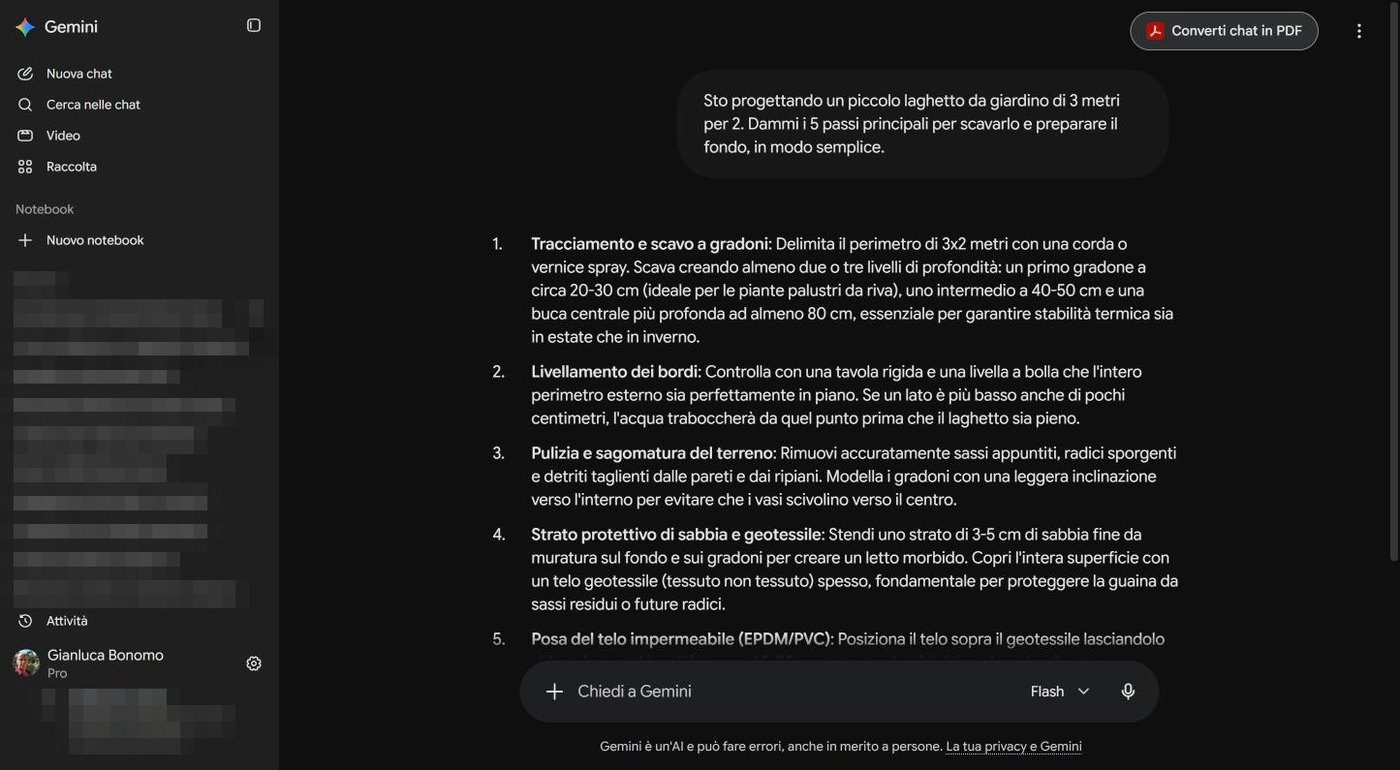
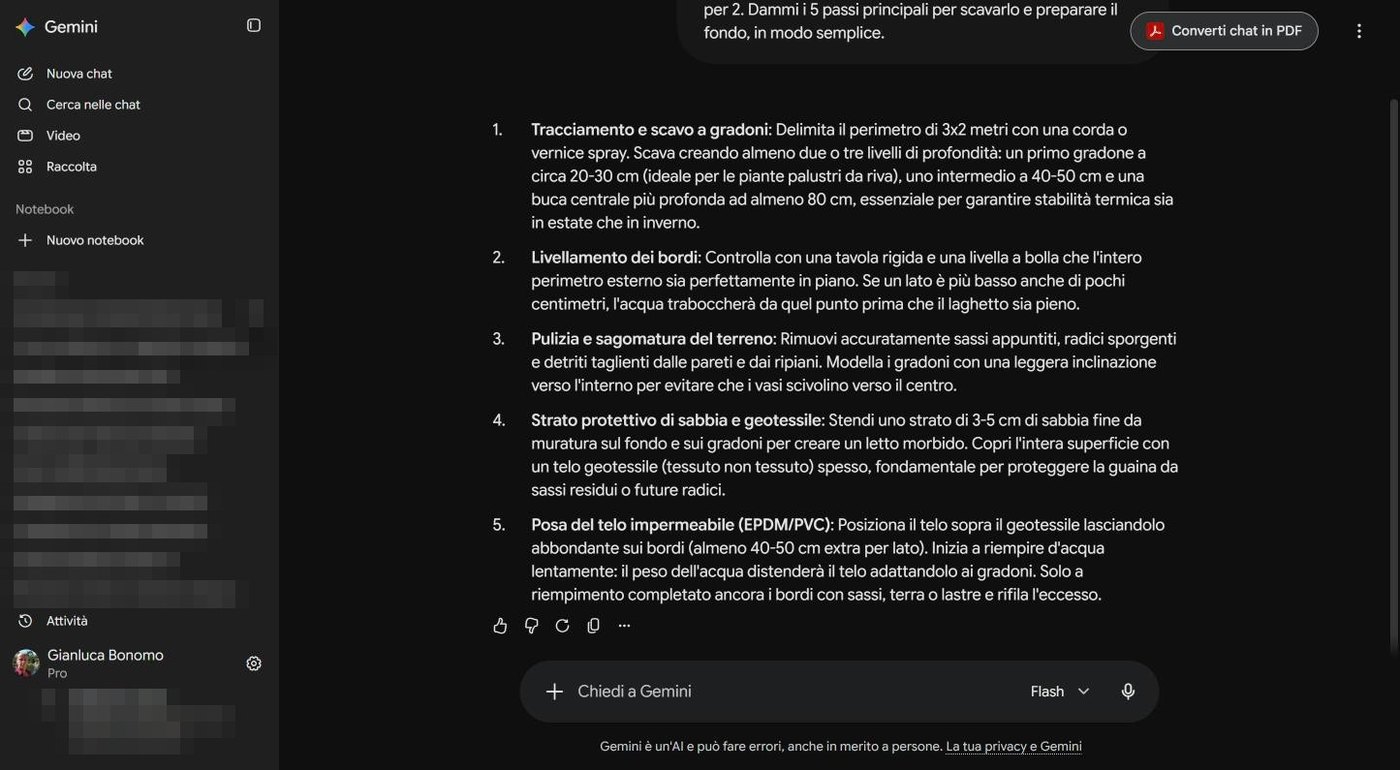
SCREENSHOT
Chat with an answer of five numbered steps about digging a pond
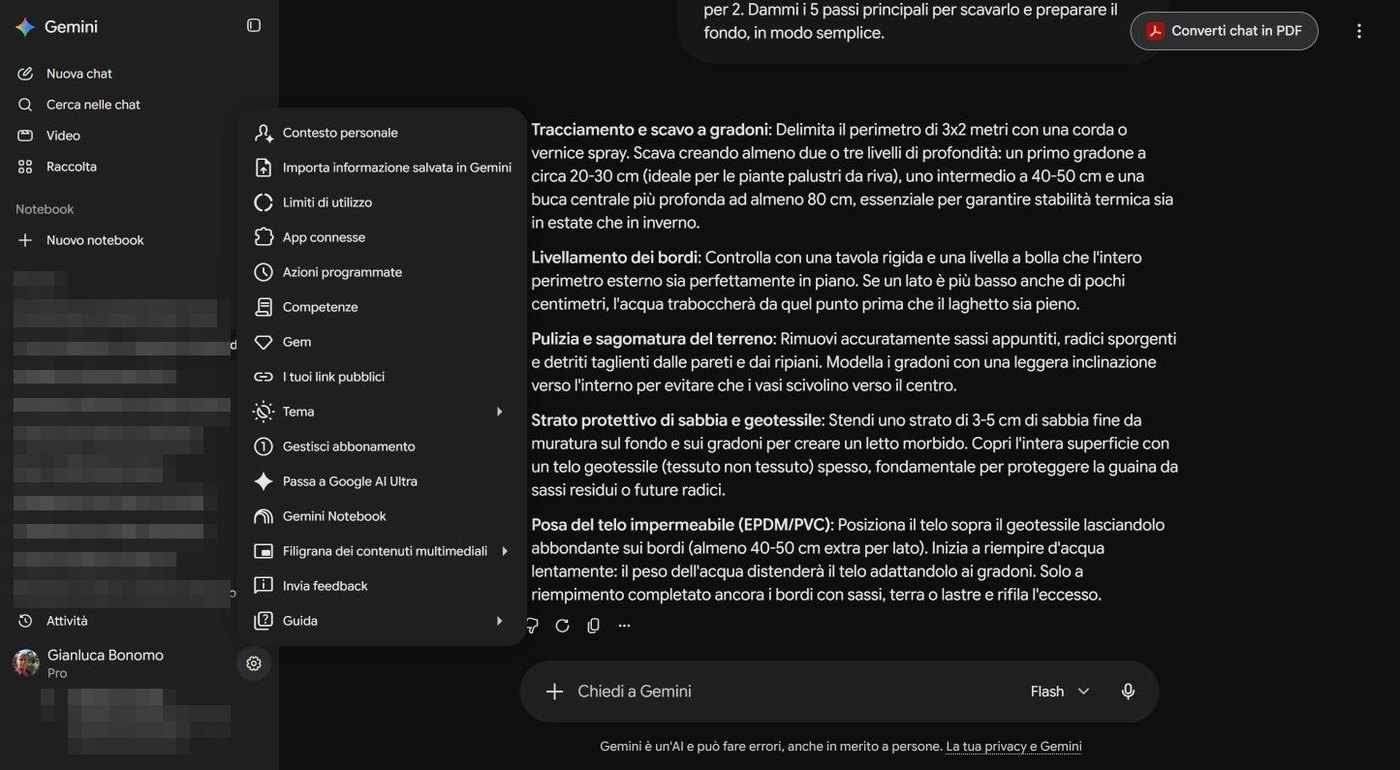
The first answer: five numbered steps, from marking out the dig to laying the liner.
Notice the form: a numbered list, key words in bold, measurements (steps at 20-30 centimetres, 40-50, and a central hole of at least 80). Why? Because I asked for «five steps» and «in a simple way». You decide the shape of the answer with your request.
2.1 Continuing the conversation
The nice part is that Gemini remembers what you said in that chat. You can write «Explain point 3 better» or «Rewrite it for a ten-year-old» without repeating everything. If you change subject, open a New chat: one subject per chat keeps everything tidier and more precise.
Gemini can be wrong
At the bottom of the page there is a sentence worth reading every time: «Gemini is an AI and can make mistakes, including about people». Measurements, prices, product names and regulations must always be checked on a reliable source before you spend money or dig holes.
3. The icons under the answer
At the bottom of every answer there is a row of small icons. They are few, but they save a lot of time.
SCREENSHOT
Row of icons under the answer: thumbs up, thumbs down, regenerate, copy, more
The icons under the answer: thumbs up, thumbs down, regenerate, copy and more actions.
The actions under an answer. The entries hidden behind the three dots may vary.
Icon
What it is for
Thumbs up / down
You tell Google whether the answer was useful. It helps improve the service; it does not change the answer in front of you.
Circular arrow
Regenerate: asks Gemini to try again. Useful when the first answer does not convince you.
Copy
Copies the text to the clipboard, ready to paste into Word, an email or a file.
Three dots
Other actions, for example sharing or exporting. They change depending on the type of answer.
At the top right you also find the Converti chat in PDF (Convert chat to PDF) button: it turns the whole conversation into a document, handy to keep a guide or send it to a friend.
4. Finding and organising chats
After a few weeks you have dozens of chats. To keep track you have three tools. The first is Cerca nelle chat (Search chats), in the sidebar: type a word and Gemini searches your conversations.
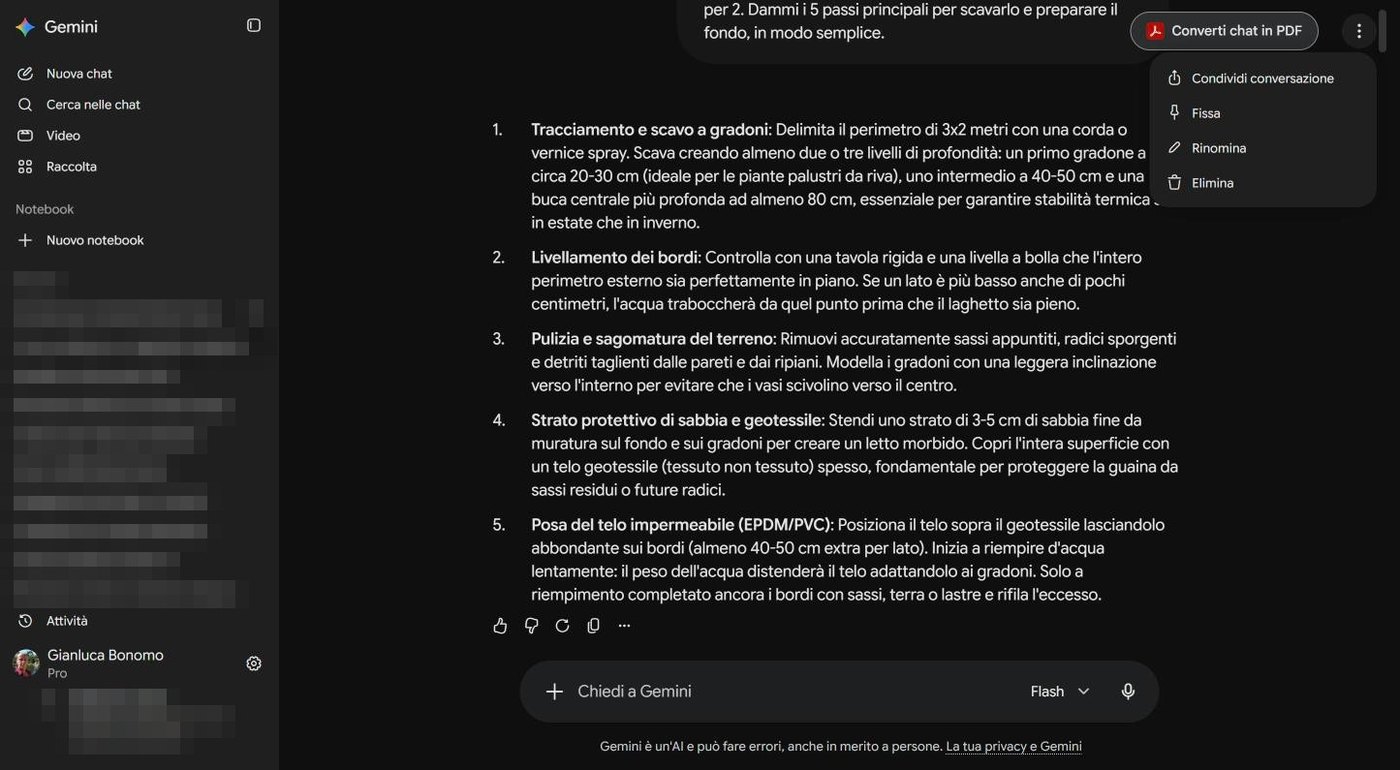
The other two are in the three-dot menu at the top right, when a chat is open.
Pin: the chat stays at the top of the list, like a sticky note on the fridge. Ideal for guides you consult often.
Rename: Gemini picks a title, but you can give your own, clearer one.
Share conversation: creates a link you can send to someone. Anyone with the link can read.
Delete: removes the chat. Think before confirming: do not count on getting it back.
Shared links stay out there
When you share a chat with a link, that link stays valid until you remove it. In the settings menu there is the entry I tuoi link pubblici (Your public links), where you see everything you have shared and can revoke it. Take a look now and then.
5. The settings menu, entry by entry
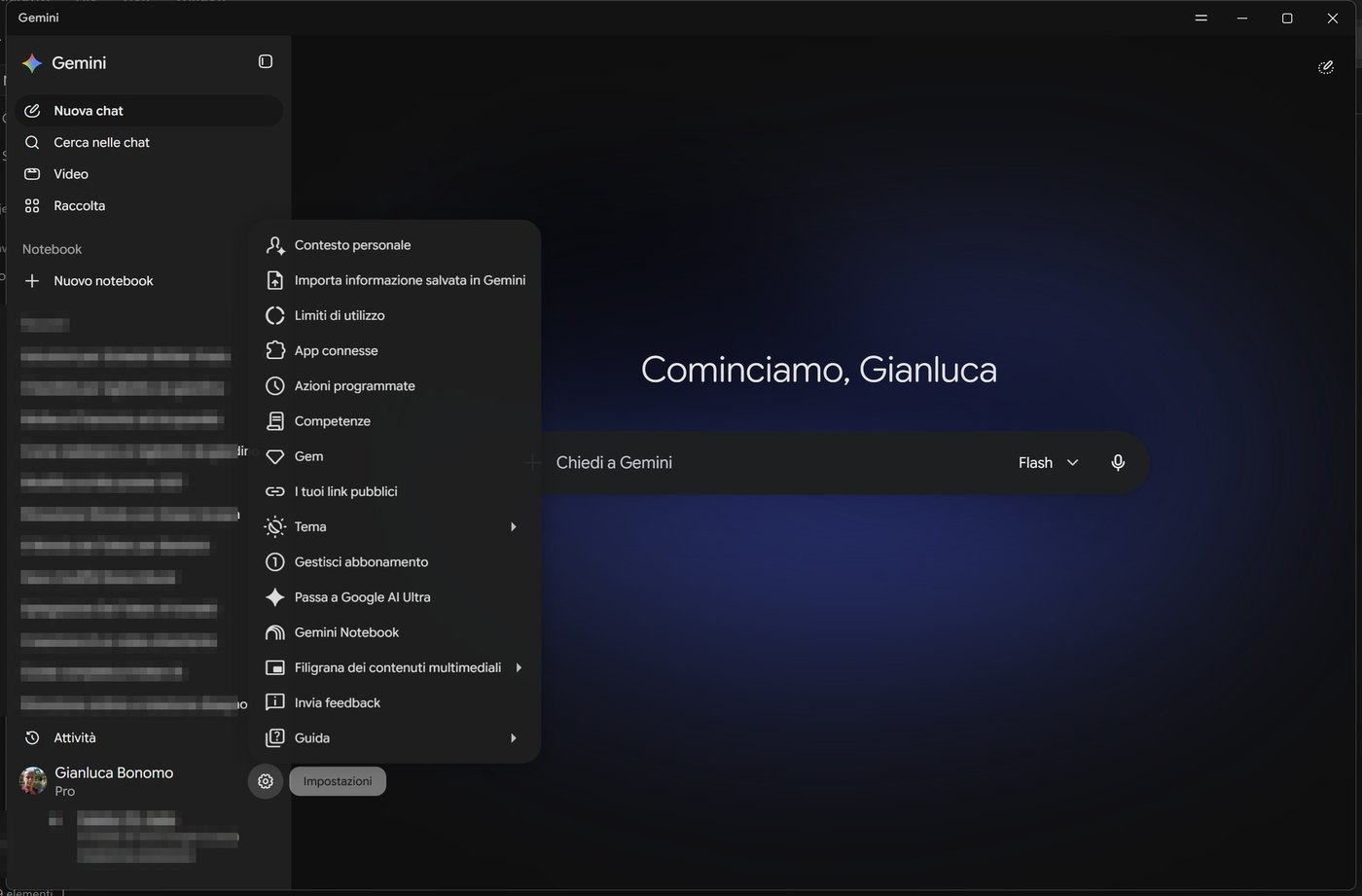
At the bottom left, next to your name, there is a cog. Click it: a long menu opens. It looks like a jungle, but every entry has a precise place in the course.
SCREENSHOT
Gemini settings menu with all entries
Gemini's settings menu, with the main entries.
The settings menu entries on 7 October 2026. The list may change.
Entry
What you find
Where we cover it
Contesto personale (Personal context)
Memory of past chats and fixed instructions for Gemini.
Lesson 6
Importa informazione salvata in Gemini (Import saved information)
To import into Gemini information and preferences saved elsewhere.
Lesson 6
Limiti di utilizzo (Usage limits)
The short and the weekly tank.
Lesson 1
App connesse (Connected apps)
Gmail, Calendar, Drive and other apps Gemini can access.
Lesson 7
Azioni programmate (Scheduled actions)
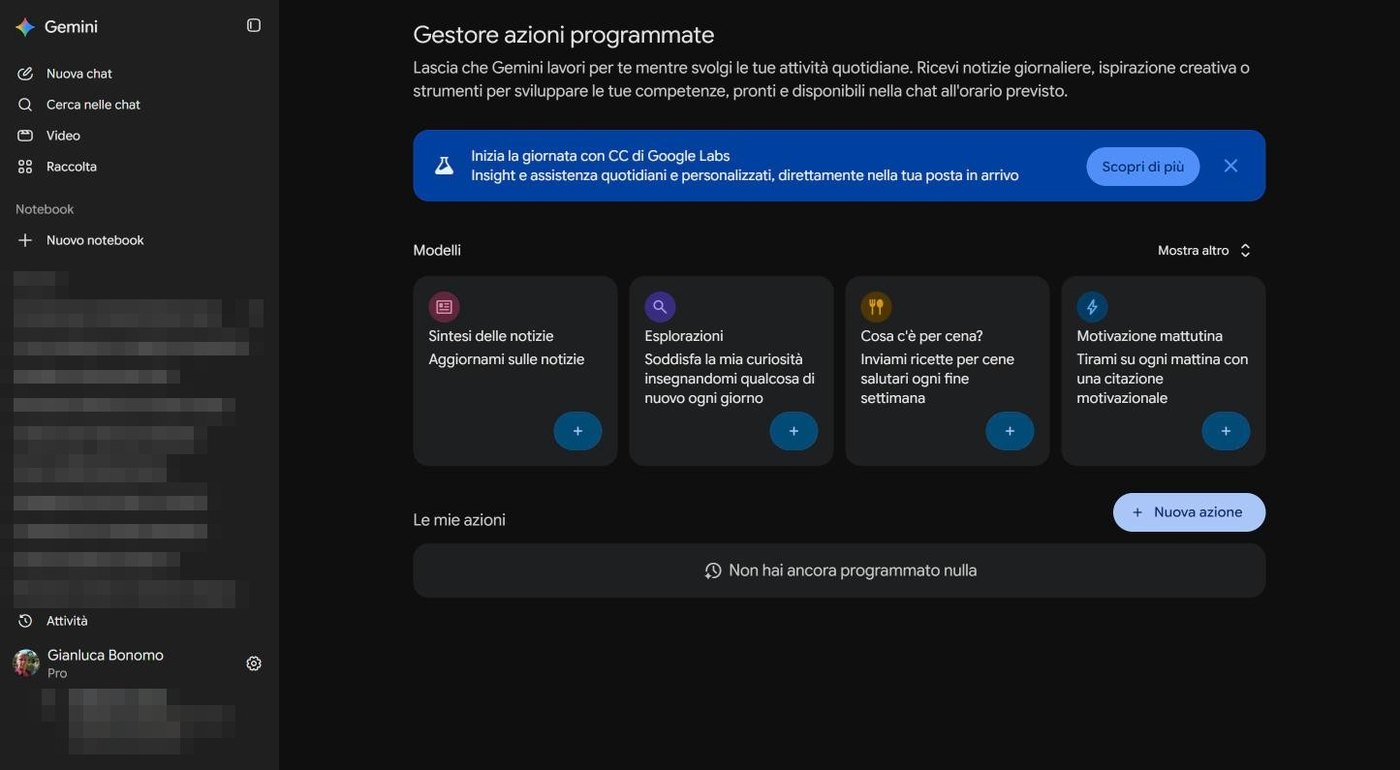
Tasks Gemini does on its own at a set time.
Lesson 7
Competenze and Gem (Skills and Gems)
Reusable instructions and tailor-made assistants.
Lesson 6
I tuoi link pubblici
The list of chats you have shared.
This lesson
Tema (Theme)
Light, dark or automatic look.
This lesson
Gestisci abbonamento (Manage subscription)
Your Google AI plan.
Lesson 1
Gemini Notebook
Quick access to the new NotebookLM.
Lesson 9
Filigrana dei contenuti multimediali (Media watermark)
Information on the watermark that marks AI-created content.
Lesson 5
Invia feedback and Guida (Send feedback and Help)
You report a problem or read the official help.
This lesson
6. Privacy: what to write and what not
Everything you write leaves your computer and travels to Google's servers. That is normal, it is how it works, but it asks for a little common sense. The rule I give my students is the sign on the fence: if you would not hang it outside your house, do not paste it into the prompt.
No passwords, codes, card numbers or identity documents.
No confidential data of customers or colleagues, unless you are authorised.
Caution with medical and legal information about other people.
At the bottom of the sidebar there is the Attività (Activity) entry: it takes you to the page where Google shows the history of your requests and the settings on what is saved and for how long. Open it once, calmly, and decide for yourself. Your own data appears there, so do not share screenshots of it.
The idea in one line
Gemini is like a brilliant colleague who talks to everybody: give it the information you would give a friendly stranger.
Hands-on exercise
Twenty minutes to go all the way round with a test conversation.
Open gemini.google.com and sign in with your Google account.
Write a request about a real project of yours, with the number of points and the tone you want. For example: «Give me 5 steps to prepare the vegetable garden in spring, in a simple way».
Ask a follow-up about the point that interests you most, without repeating the context.
Click the circular arrow to regenerate the answer and compare the two versions.
Rename the chat with a title of your own and pin it at the top of the list.
Open the settings menu and look at I tuoi link pubblici and Attività, without changing anything.
Watch out
Does the chat appear among the recents with the title you chose?
Can you say where a conversation is deleted?
Questions that come up in class
Do I absolutely need a Google account?
Yes, as a rule you need a Google account to use Gemini and save chats. A personal one is fine: you do not need Workspace.
Can I find my chats on another computer?
Yes: conversations are tied to the account. I made them on the web and found them identical in the Windows app.
Can I delete a conversation?
Yes, from the chat's three-dot menu with the Delete entry. To delete in bulk or decide how long things are kept, go through the Activity page.
Why does Gemini say wrong things so confidently?
Because it builds the most probable text; it does not check facts like an encyclopaedist. For measurements, prices and regulations, always verify.
Can I share a chat with a friend?
Yes, with Share conversation: you get a link. Anyone who has it can read it, so do not use it for chats with personal data.
Lesson glossary
The words you meet in this lesson, explained in one line.
Term
What it means
Activity
The page where you see and manage the history of your requests to Gemini.
Chat
A conversation with Gemini, saved in the list of recents.
Pinned chat
A chat that stays at the top of the list.
Prompt
The message you write to Gemini: your request.
Public link
The address with which anyone can read a chat you have shared.
Further reading
The sources used to build this handout: if a figure interests you, go to the source and check it.
Gemini on the web (gemini.google.com)
author's screenshots, 7 October 2026
Google, privacy notice for the Gemini apps
read the up-to-date version for your country
Watch out
Interface checked on 7 October 2026, in Italian and with a Google AI Proplan. Menu entries may change with updates and differ from one account to another. Labels are shown in Italian as on screen, with an English gloss.
How to write requests that work and how to let Gemini read your files
Lesson goal
Learn to write a complete request in four steps, attach files and photos, choose the right model and check the answers before using them.
What you will be able to do
Recognise why a vague request produces a vague answer.
Write a prompt with context, goal, format and verification.
Attach a file, a photo or a Drive document and ask Gemini to read it.
Refine an answer with follow-up questions and judge how reliable it is.
1. Why the answer is vague
Gemini cannot read your mind: it works only with what you write.
Imagine walking into a trattoria and telling the waiter: «Bring me something good». You get the most common dish, which is almost never the one you had in mind. With Gemini the same thing happens: if you write «tell me about ponds», you get a generic summary, because the system has to guess who you are, what you need and how long you want it.
In plain words
Every piece of information you do not give, Gemini invents. Better to give it yourself.
The good news is that writing a good request takes just a four-step method, which you learn in ten minutes.
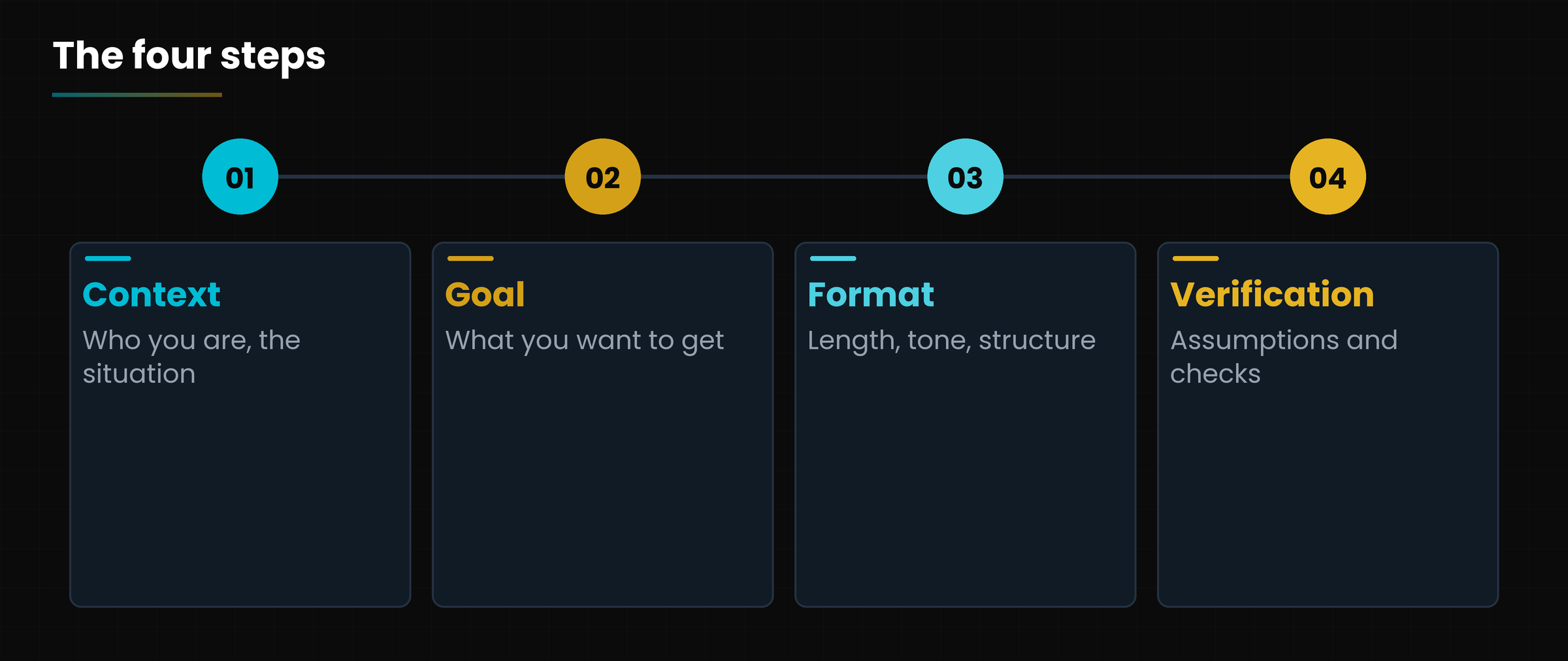
2. The four steps: context, goal, format, verification
Diagram
The four steps of an effective prompt
The four steps of an effective prompt
The four-step method, with an example for each.
Step
Question it answers
Example with the pond
1. Context
Who are you and what is the situation?
«I have a 40-square-metre garden near Turin, in half shade, and I have never built a pond.»
2. Goal
What do I want to get?
«I want a plan to build a 3-by-2-metre pond in two weekends.»
3. Format
What should the answer look like?
«Numbered list, at most 10 points, short sentences, with difficult words explained.»
4. Verification
How do I check the result?
«At the end list the assumptions you made and the things I should check with a nurseryman.»
Before and after
Before: «How do you build a pond?»
After: «I have a 40-square-metre garden near Turin, in half shade, and I have never built a pond. I want a plan to build a 3-by-2-metre one in two weekends. Answer with a numbered list of at most 10 points, short sentences, explaining difficult words. At the end list the assumptions you made and the things to check with a nurseryman.»
Notice that the «after» is not harder: it is just more complete. And the fourth step, verification, is the one almost everybody skips. A text that sounds good is not necessarily true: asking Gemini to state its assumptions turns a self-confident answer into a checkable one.
3. Attaching files, photos and documents
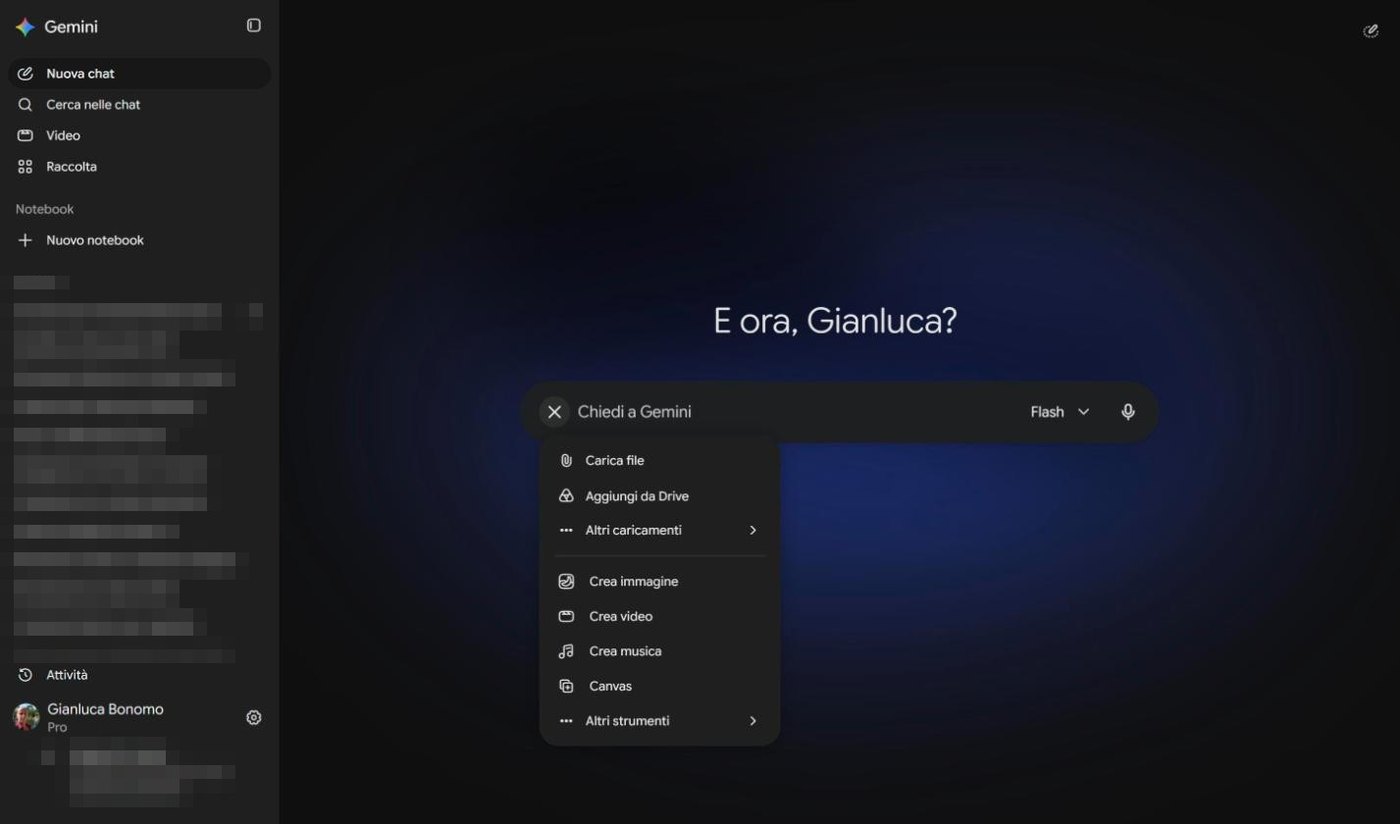
Sometimes the context does not fit in two lines: it is a photo of the garden, a quote in PDF, a table. That is why next to the writing box there is the + button.
SCREENSHOT
Menu with Upload file, Add from Drive, More uploads, Create image, Create video, Create music, Canvas and More tools
The + button menu: attachments at the top, creation tools below. Interface in Italian.
The menu has two halves. At the top are the ways to bring in your materials; below, the tools to create something (images, video, music, Canvas), which we see in lessons 4 and 5.
Carica file (Upload file): pick a file from your computer, for example a PDF, a photo or a document.
Aggiungi da Drive (Add from Drive): take a file straight from your Google Drive, without downloading it.
Altri caricamenti (More uploads): other sources to take material from.
3.1 What you can ask about an attachment
«I am attaching a photo of the garden: in which corner does the pond make most sense and why?»
«Summarise this quote in five lines and tell me which items seem the most expensive.»
«This table is messy: rewrite it cleanly, with one column per material.»
Be careful what you attach
An attached file leaves your computer like any text. Do not attach documents with personal or confidential data of others (contracts, payslips, medical records) unless you are authorised. If in doubt, delete the sensitive data before uploading.
4. Choosing the right model for the request
In lesson 1 we saw the models. Now we use them. A practical rule: do not send the truck to buy bread.
Which model for which task.
Task
Recommended model
Why
A quick question, a definition, a short translation
Flash or Flash-Lite
Fast answer and low consumption.
Rewriting a text, summarising a document, a work plan
Flash
Balance between quality and speed.
A long document with many pieces to connect, an analysis
Pro
Holds more information together.
A calculation or reasoning with many steps
Extended reasoning
Takes the time to check the steps.
A real case
To work out how much waterproof liner a 3-by-2-metre pond needs, up to 80 centimetres deep, with steps (a simple calculation but full of traps), I use extended reasoning and then recheck by hand with a tape measure and a sheet of paper.
5. Conversing: the request improves as you go
Nobody writes the perfect request first time, not even people who do this for a living. The trick is to treat the first answer as a draft. Then you work with follow-up questions. Here are five moves I use all the time.
Get it to ask you. Write: «Before answering, ask me three questions you need to understand my case better.» Gemini interviews you and the final answer is much more targeted.
Ask for alternatives. «Give me three different versions, a shorter one, a more technical one, a funnier one.»
Show an example. «Write in the style of this text» and paste a paragraph of yours.
Narrow down. «Now cut it in half and remove every difficult word.»
Ask what it does not know. «Which of this information can you not know for certain?»
Remember also the circular arrow from lesson 2: if an answer does not convince you, sometimes it is enough to have it regenerated. But if it keeps being wrong, do not insist: change the request.
6. The fourth step: verifying
Gemini is brilliant at writing sentences that sound right. That is its strength and its risk: sometimes it invents a fact with the same confidence with which it states a true one. Experts call it a hallucination.
Always ask for the assumptions and the things to check.
For numbers, measurements, prices, dates and regulations, find a second source (an official site, a book, an expert).
If the answer concerns health, money or law, treat Gemini as a first draft, never as a decision.
Ask it to cite sources, then open them yourself: a link that does not exist is an alarm bell.
The idea in one line
Gemini saves you time writing. Checking remains your job.
Hands-on exercise
Twenty minutes, a real task from your work or home and, if you like, a file to attach.
Choose a task you do often, for example answering an email, preparing a quote or organising a job in the garden.
Write the request the way you would today, in one line. Save the answer.
Rewrite it with the four steps: context, goal, format, verification. Compare the two answers.
Attach a file or a photo with the + button (even a photo taken with your phone is fine) and ask for a summary or an opinion.
Ask: «Before answering, ask me three questions» and reply. Notice how much the answer changes.
Ask for the assumptions made and check at least one fact on a second source.
Watch out
Did you write the format (length, tone, structure)?
Did you verify a fact outside Gemini?
Questions that come up in class
Does a longer prompt work better?
No: precision matters. Five lines with the right information beat a page of waffle.
What kind of files can I attach?
Documents, PDFs, photos and more: the + button menu shows the options on your account. Supported formats change over time and with the plan.
Does Gemini keep the files I attach?
Files become part of the conversation. To learn how they are handled and for how long, read the privacy notice for the Gemini apps and the Activity page.
Can I use Gemini in Italian and English together?
Yes, you can write in one language and ask for the answer in another. For important texts, have a person read them.
What if the answer still does not convince me?
Almost always the format is missing, or written vaguely. Add an example of the result you want: it is the most powerful technique.
Lesson glossary
The words you meet in this lesson, explained in one line.
Term
What it means
Assumption
Information that Gemini takes as true without you having told it.
Attachment
A file or photo you add to the request so Gemini reads it.
Hallucination
An answer that sounds right but contains invented facts.
Prompt
The text you write to Gemini: the request with its context.
Regenerate
Asking Gemini to answer the same request again.
Further reading
The sources used to build this handout: if a figure interests you, go to the source and check it.
Gemini on the web, + button menu and model selector
author's screenshots, 7 October 2026
Google, guide to using Gemini and privacy notice for the Gemini apps
to be consulted in the up-to-date version
Watch out
Interface checked on 7 October 2026. Accepted file formats and the entries of the + menu may change with updates. Labels are shown in Italian as on screen, with an English gloss.
Deep Research, Guided Learning and Canvas: three tools for three jobs
Lesson goal
Know when to use Deep Research, Guided Learning and Canvas, start them from the tools menu and take the results out of Gemini.
What you will be able to do
Find Deep Research, Guided Learning and Canvas in the tools menu.
Start an in-depth research job and judge the report.
Use Guided Learning to learn a new subject, not just to get a summary.
Create a document in Canvas, edit it and export it.
1. Where the tools are
A normal chat is a conversation. The tools are different instruments, one for each job.
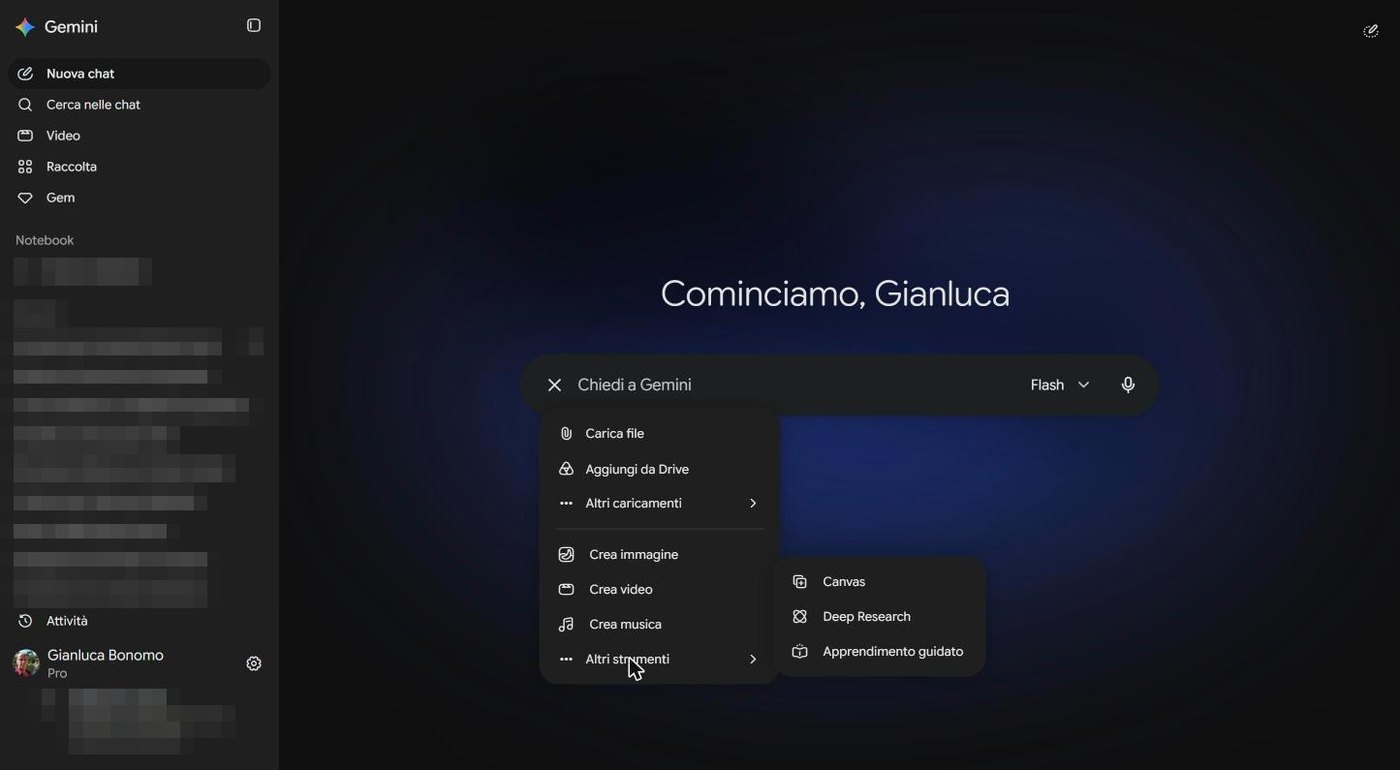
Click the + button next to the writing box and then Altri strumenti (More tools): a second menu opens with Canvas, Deep Research and Apprendimento guidato (Guided learning).
SCREENSHOT
Plus button menu with the More tools submenu: Canvas, Deep Research, Guided learning
The More tools menu with Canvas, Deep Research and Guided learning. Interface in Italian.
The menu changes with the window
Depending on the height of the browser window, Canvas sometimes appears inside More tools and sometimes directly in the main menu. Do not worry: the entries are always the same. I checked the menu on 7 October 2026.
When you pick a tool, a label appears in the box (for example Deep Research) and stays until you remove it. To go back to the normal chat just click the small cross.
2. Deep Research: the researcher who works for you
When you ask a normal question, Gemini answers in a few seconds with what it already knows. With Deep Research something else happens: Gemini prepares a research plan, reads many web pages, compares the information and in the end writes a complete report. Imagine sending a tireless assistant to the library and finding on your desk a write-up with the sources.
SCREENSHOT
Writing box with the Deep Research label and the Sources and File buttons
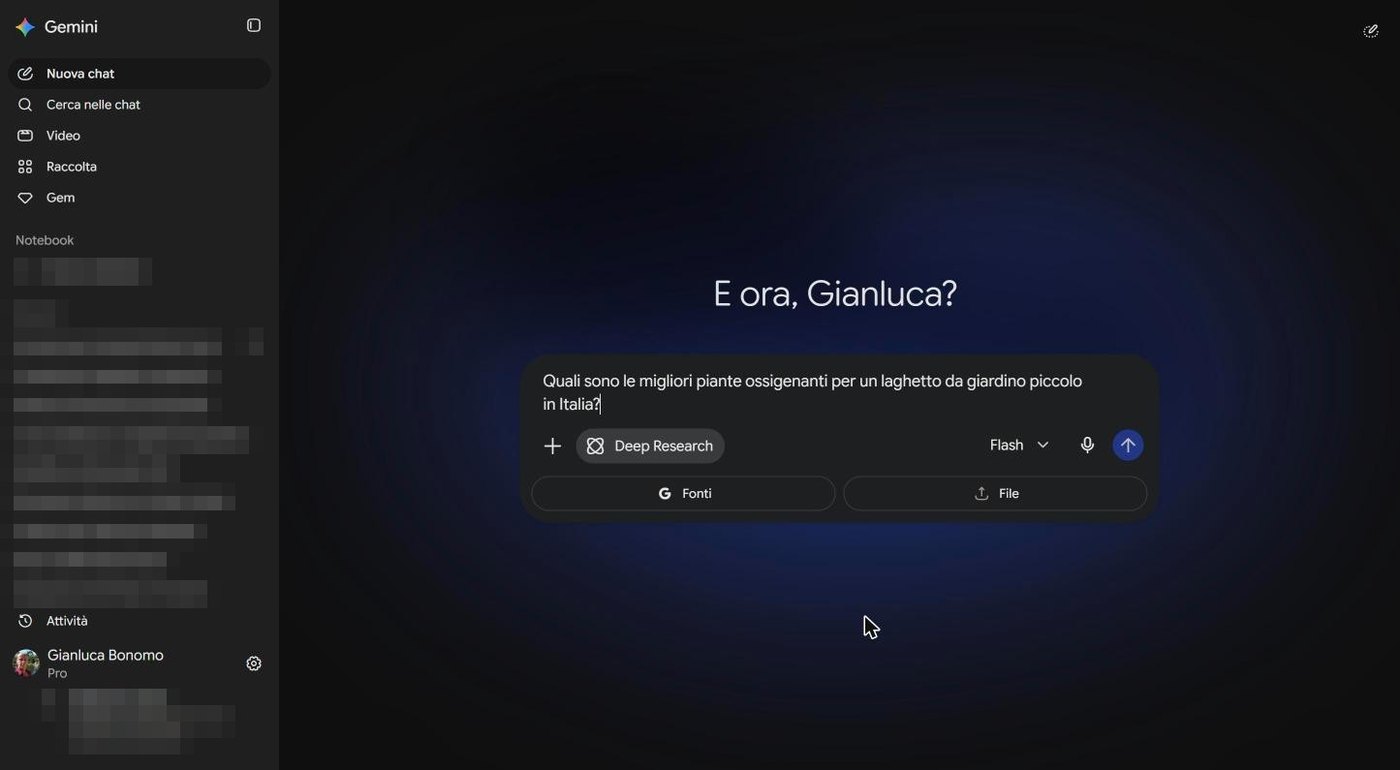
The Deep Research box: «Che cosa vuoi cercare?» (What do you want to search?), with the Fonti (Sources) and File buttons.
2.1 How to use it, step by step
From the tools menu choose Deep Research. The box changes and asks: «What do you want to search?».
With the Fonti (Sources) button choose where to search. Google says that by default there is web search, and apps such as Gmail, Drive and Notebook can be added. With File you can attach your own documents.
Write the question, with context and goal (use the four steps from lesson 3).
Gemini shows you a plan: you can edit it, then you start the research.
Wait. According to Google it usually takes five to ten minutes, more for complex topics. You can leave the chat and come back later.
Read the report, open the sources and, if you like, export it to Docs.
A suitable question
«What are the best oxygenating plants for a small garden pond, in Italy? Compare at least five species and tell me which ones are easy to find in nurseries.»
It can get stuck
During my test for this course the research stayed «waiting», without showing the plan. It happens: if nothing happens after a few minutes, open a new chat and repeat the request. Keep in mind that Deep Research uses far more than a normal question: check the limits page now and then (lesson 1).
And remember the fourth step of the method: verify. The report looks like a degree thesis, but it is still a text written by an AI. Open at least two of the cited sources and check that they really say what the report claims.
3. Guided Learning: the teacher, not the encyclopaedia
There is a big difference between getting an answer and learning. An encyclopaedia gives you the answer; a good teacher asks questions, starts from what you know and takes you along step by step. Guided learning is the second thing.
SCREENSHOT
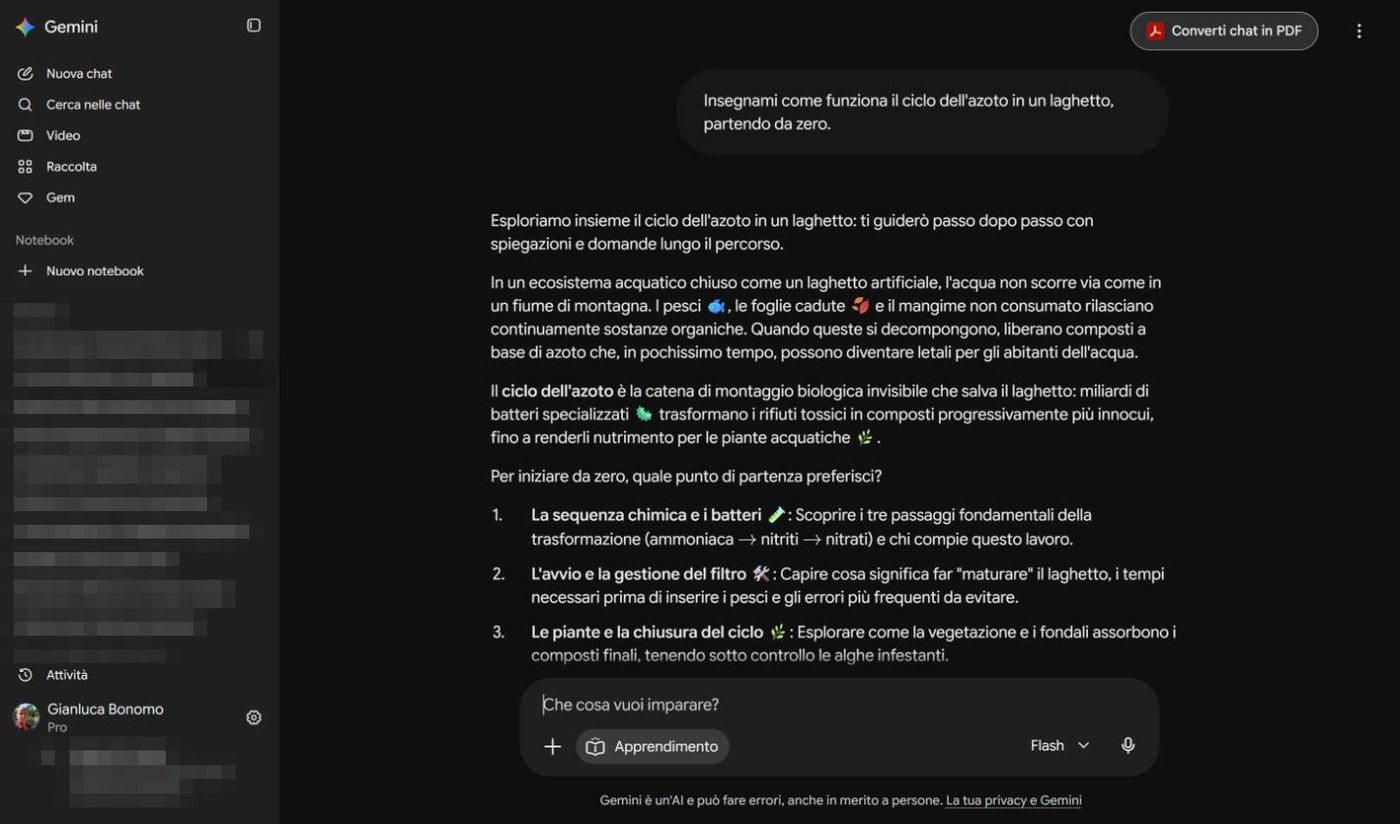
Guided learning answer about the nitrogen cycle with three numbered paths
Guided learning: instead of dumping everything, Gemini proposes three paths and asks where to start.
I wrote: «Teach me how the nitrogen cycle works in a pond, starting from zero». Gemini did not pour a lecture over me. It explained in a few lines why the problem exists (fish, fallen leaves and uneaten food release substances that become dangerous) and then asked where I wanted to start, offering three numbered paths: the chemical sequence and the bacteria, starting up and managing the filter, the plants and closing the cycle.
In the box appears the label Apprendimento (Learning) and the question «Che cosa vuoi imparare?» (What do you want to learn?).
Answer its questions: that is how it understands your level.
You can ask at any moment: «Quiz me» or «Ask me three questions to see if I understood».
It works for school subjects, for a hobby, for a new program to learn.
The idea in one line
With a normal chat you get answers. With Guided learning you build skill, one step at a time.
4. Canvas: the workbench next to the chat
Have you ever tried to polish a long text inside a chat? Every correction is a new message, and the text gets lost among the others. Canvas solves the problem: it opens a worksheet next to the conversation, where the document stays still and you edit it calmly.
SCREENSHOT
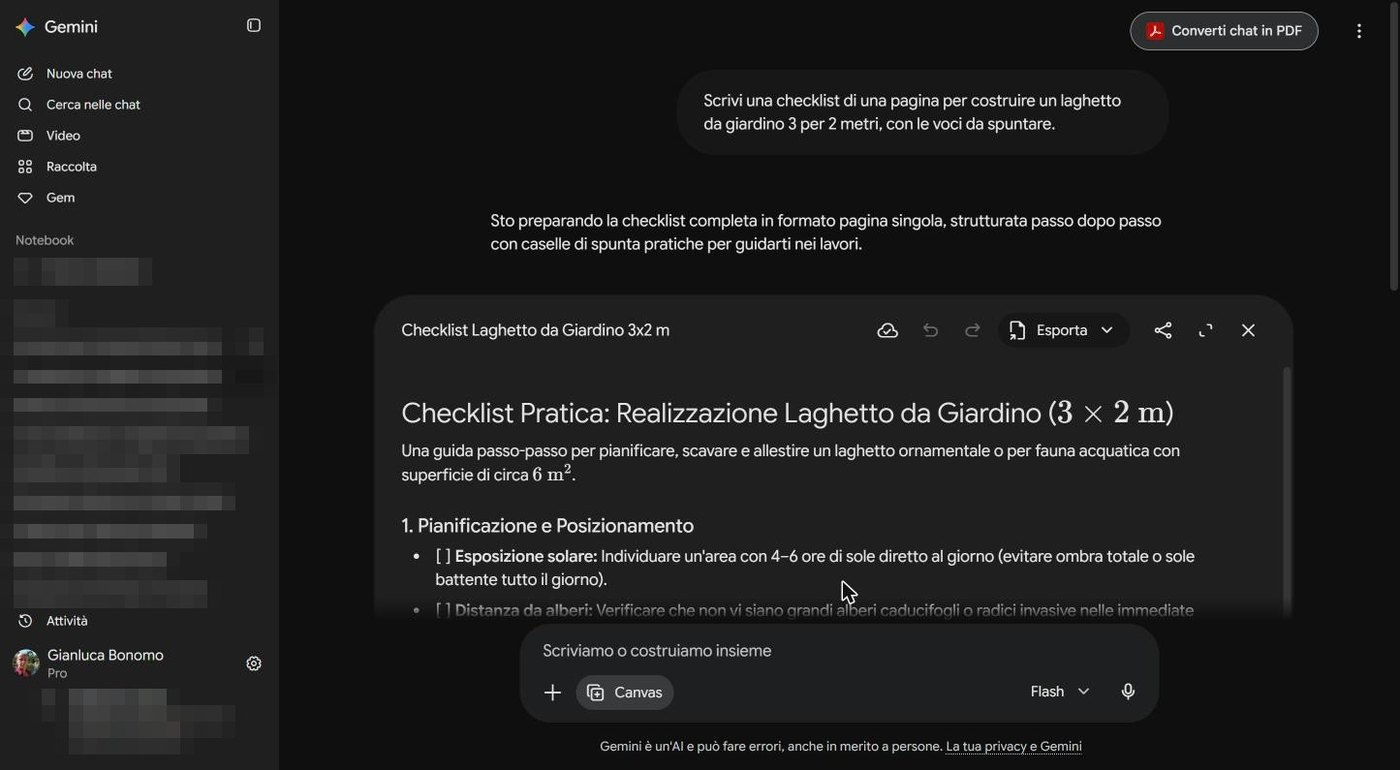
Canvas with the document Checklist Laghetto da Giardino 3x2 m
Canvas with the checklist to build a 3-by-2-metre pond, conversation on the left.
I chose Canvas and asked: «Write a one-page checklist to build a 3-by-2-metre garden pond, with items to tick». About ten seconds later the document was ready, with a title, a short introduction and numbered sections (planning and positioning, then the following phases).
4.1 What you can do in the sheet
Edit the text by hand, as in an editor, or ask Gemini to change a piece (for example: «Make section 2 shorter»).
Undo and redo changes with the arrows at the top.
Enlarge the sheet to full screen or share it.
Export the work with the Esporta (Export) button.
SCREENSHOT
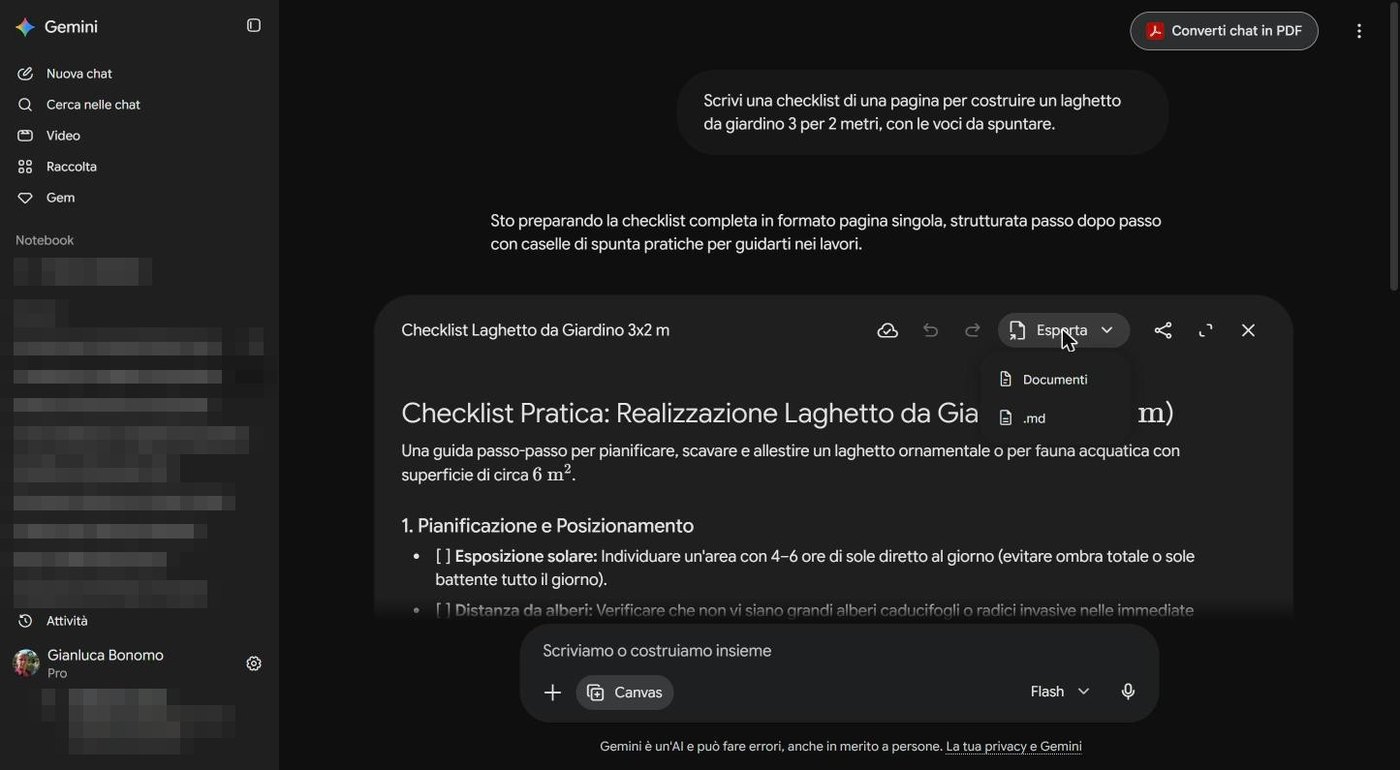
Canvas Export menu with Docs and .md
The Export button: the two choices are Documenti (Google Docs) and .md.
The two routes are Documenti, that is Google Docs in your Drive, handy if you then work with Word or with other people, and .md, a text file with simple formatting, which you see in programs such as advanced notepads. For a document to print or send by email, the first is almost always the right choice.
Not only texts
According to Google, Canvas also works for code and small apps. In this course we use it for documents; for code we will see a more suitable tool, Antigravity, in lesson 10.
5. Which tool for which job
How to choose the right tool.
I need...
I use
Why
A quick answer or an idea
Normal chat
In a few seconds, without using much.
A report with sources on a broad topic
Deep Research
Makes a plan, reads many sites and writes the write-up.
To learn a subject from zero
Guided learning
Takes you along with questions and paths.
To write and polish a document
Canvas
The text stays still and you edit it calmly.
To work only on my own documents, with citations
Gemini Notebook
Answers only from your sources (lesson 9).
In practice a complete job can use them all, in sequence. For Marta's pond: Deep Research to choose the plants, Guided learning to understand the filter, Canvas to write the checklist and take it to Docs.
Hands-on exercise
Twenty-five minutes, three tools, one project.
Choose a topic you really care about (a hobby, a job, a trip).
Open Deep Research from the More tools menu and ask a question with context and goal. Let it work and, when it is ready, open two sources and check one fact.
Open a new chat with Guided learning and ask to be taught something on the same topic starting from zero. Answer its questions and at the end ask it to quiz you.
Open Canvas and ask for a checklist or a one-page sheet on the topic.
Edit one item by hand and ask Gemini to shorten a section.
Export the document to Docs and open it in your Drive.
Watch out
Did you verify at least one source of the report?
Does the exported document open in Google Docs?
Questions that come up in class
How long does Deep Research take?
According to Google, usually five to ten minutes, more for complicated topics. You can leave the chat and come back later.
Can I trust the Deep Research report?
It is an excellent starting point, not a verdict. Open the cited sources and check the important data, especially numbers, regulations and prices.
Does Deep Research use much of my limits?
Yes, far more than a normal question. If you have a free plan, keep it for the research that really matters.
Is Guided learning a different model?
No: it is a mode, a different way to run the conversation, which uses Gemini's models.
Where does the document I create in Canvas end up?
It stays in the conversation. To have it as a file, use Export and choose Docs or .md.
Lesson glossary
The words you meet in this lesson, explained in one line.
Term
What it means
Canvas
A worksheet next to the chat to create and polish documents.
Deep Research
The tool that prepares a research plan, reads many sources and writes a report.
Export
Taking a document out of Gemini, for example into Google Docs.
Guided learning
A mode in which Gemini teaches you step by step, with questions and paths.
Source
The page or document an item of information was taken from.
Further reading
The sources used to build this handout: if a figure interests you, go to the source and check it.
Google, How Deep Research works in the Gemini app
help page consulted on 7 October 2026
Gemini on the web, tools menu, Canvas and Guided learning
author's tests and screenshots, 7 October 2026
Watch out
Interface checked on 7 October 2026. The Deep Research timing is the one given by Google. The order of menu entries may change with the window size. Labels are shown in Italian as on screen, with an English gloss.
From a description in words to the result: Nano Banana 2, Omni and Lyria 3.5
Lesson goal
Create images, video and music with Gemini by writing effective descriptions, choose format and style, and use the results correctly and responsibly.
What you will be able to do
Open the Create image, Create video and Create music tools from the + menu.
Write a description with subject, style, light and framing.
Adjust aspect ratio and options (video orientation, music length and genre).
Know the limits of use: real people, copyright, watermark.
1. Three creative studios in the same place
Images, video and music: the right words are enough, like when you tell an idea to an artist friend.
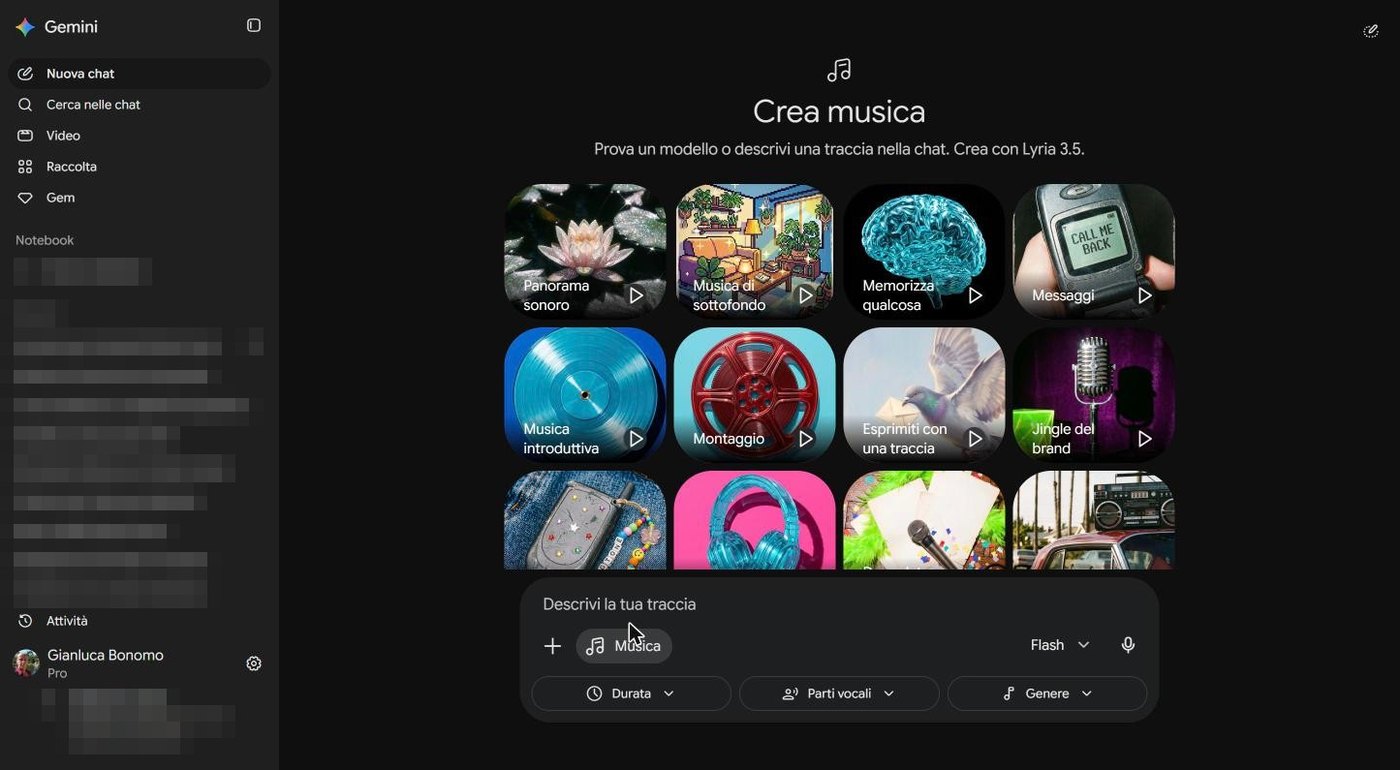
In the + menu of the writing box, below the row of attachments, you find three entries: Crea immagine (Create image), Crea video (Create video), Crea musica (Create music). Each opens a page with ready-made examples and a box where you describe what you want. In the sidebar, under Search chats, there is also the Video entry, a direct access to the Create video page.
The engine names are the ones shown by Gemini on 7 October 2026 at the top of each page and may change.
Tool
Engine name (as Gemini shows it)
What it produces
Create image
Nano Banana 2
Images and photos, also editing a photo of yours.
Create video
Omni
Short videos from a description.
Create music
Lyria 3.5
Music tracks with or without vocals.
Video and subscription
Google has announced that some features, such as video creation with Omni, require a Google AI subscription. Check on your account what is included in your plan (lesson 1).
2. Images: the recipe with five ingredients
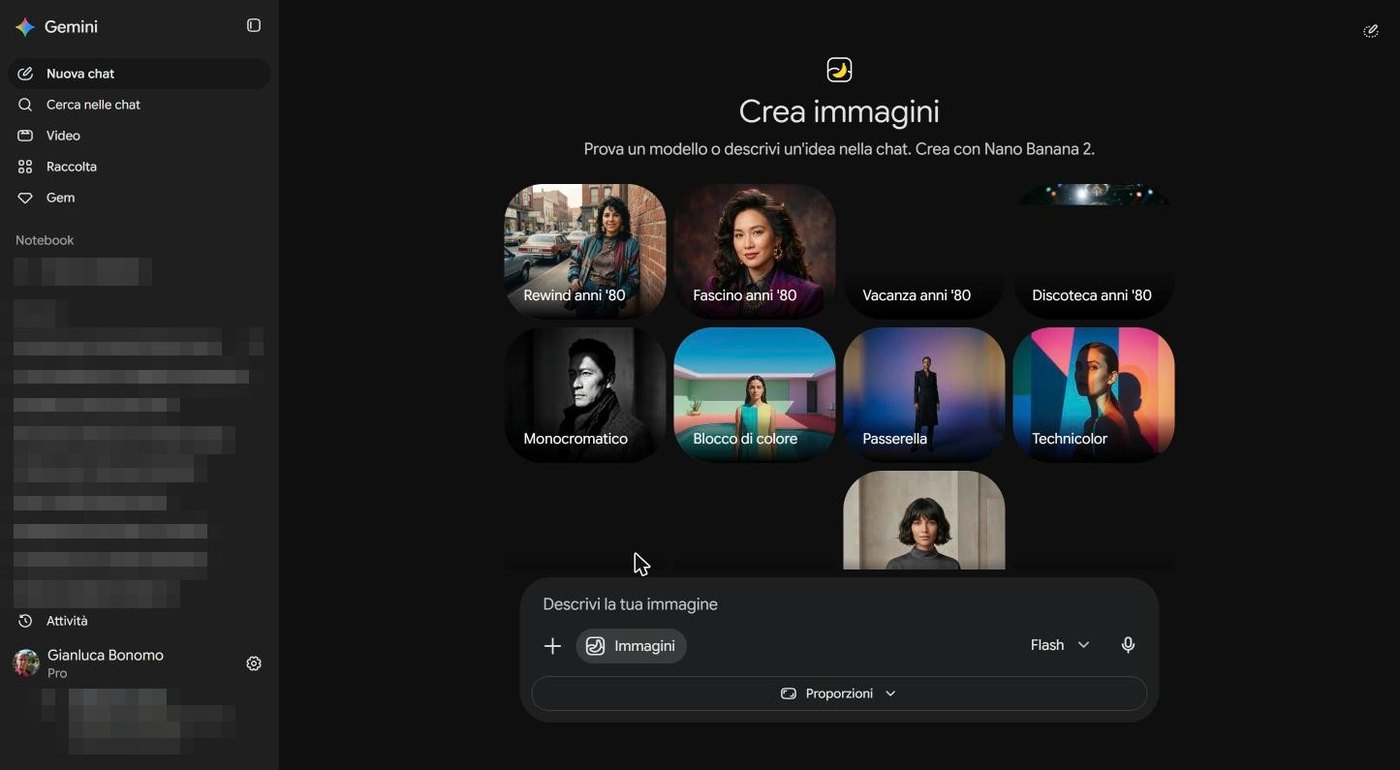
Open Create image. Above the box you find many sample thumbnails (80s styles, monochrome, runway and others): click one and Gemini uses it as a starting point. If you start from zero instead, describe in your own words.
SCREENSHOT
Gemini Create images page with sample styles and the Aspect ratio button
The Create images page, with sample styles and the Proporzioni (Aspect ratio) button. Interface in Italian.
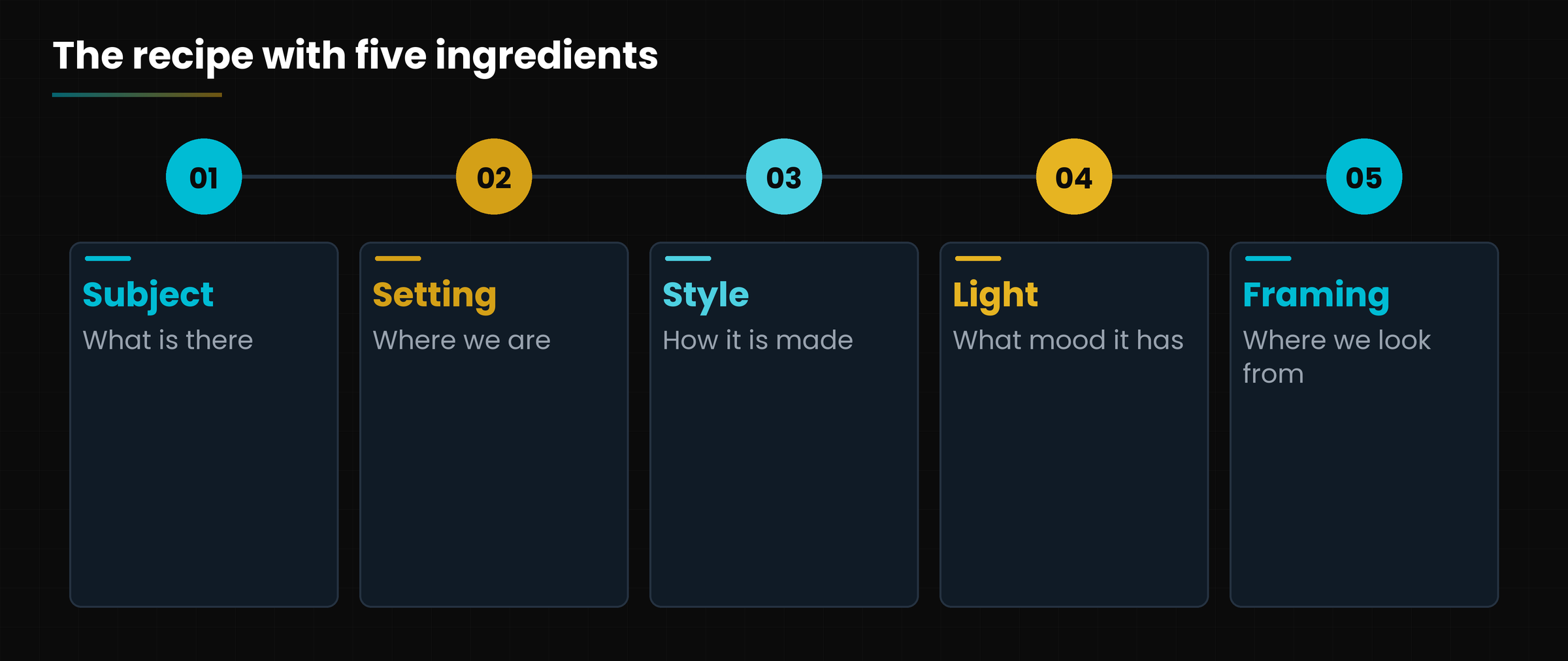
A good description is like a recipe. There are five ingredients: subject, setting, style, light and framing. You do not need all of them every time, but the more you add, the less Gemini has to guess.
The five ingredients of a good description.
Ingredient
Question
Example
Subject
What is in the image?
«A garden pond with pink water lilies»
Setting
Where are we?
«in a country garden»
Style
How is it made?
«watercolour style»
Light
What mood does it have?
«warm sunset light»
Framing
From where do we look?
«seen from above, close-up on the water lilies»
Diagram
The five ingredients of an image description
The five ingredients of an image description
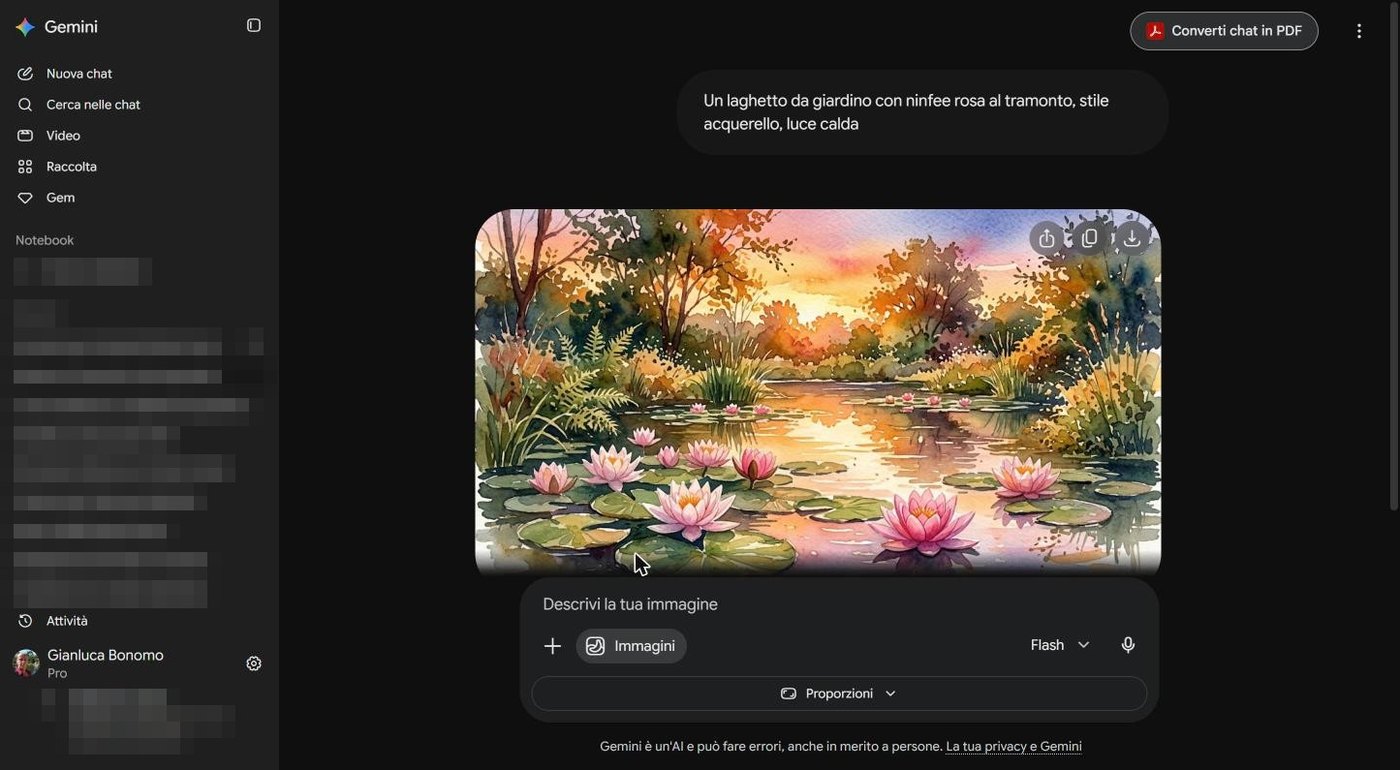
I wrote a single line (in Italian): «A garden pond with pink water lilies at sunset, watercolour style, warm light». About twenty seconds later this image appeared.
SCREENSHOT
Chat with a watercolour of a pond with pink water lilies at sunset created by Gemini
The image created by Gemini from the description above. Icons to share, copy and download appear on the image.
2.1 Polishing the result
Continue in the same chat: «Make the sky more purple», «Add a frog on a leaf», «Remove the people».
With the Proporzioni (Aspect ratio) button choose the shape of the image (for example wider for a banner, taller for a story).
You can upload a photo of your own with the + button and ask for edits: change the background, remove an object, turn it into a drawing.
If you do not like it, do not insist on the same sentence: change the style or the light.
3. Video: a few seconds, many decisions
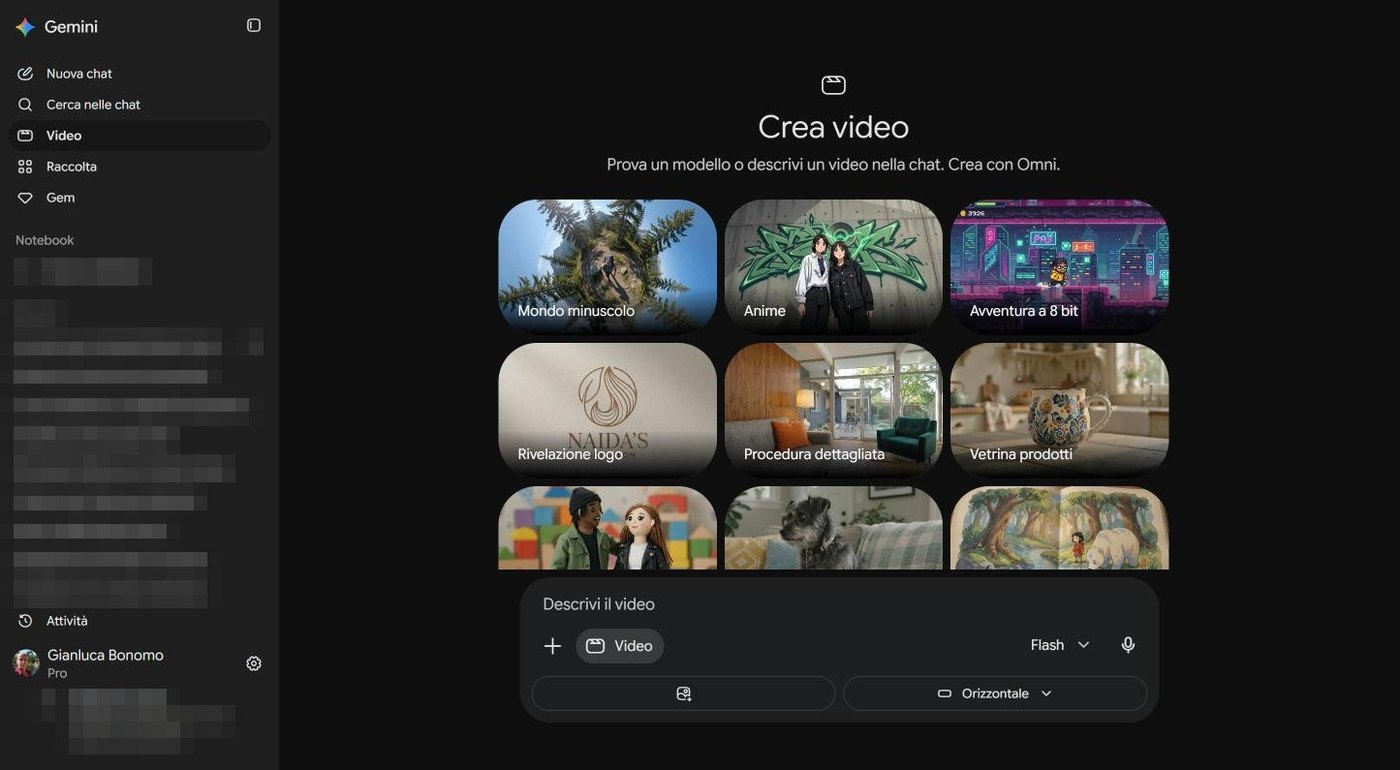
The Create video page works like the images one: ready examples (such as Tiny world, Anime, 8-bit adventure, Logo reveal, Product showcase) and a box where you describe the scene. Below the box are the options, for example orientation: Orizzontale (Horizontal) for YouTube, or vertical format for social media.
SCREENSHOT
Gemini Create video page with examples and the Horizontal option
The Create video page, with the examples and the orientation option.
A video is an image that moves, so to the image description you add movement and rhythm: «the camera slowly lowers toward the water», «a dragonfly crosses the frame from left to right».
A description for a video
«A garden pond at dawn, mist over the water, a water lily opening slowly. Fixed shot, golden light, calm mood. Short length.»
I did not generate one for you
To avoid using up my limits, in this course I showed the page but did not generate a video. When you try, start with short descriptions: videos weigh far more than images on the tank from lesson 1.
4. Music: from a hum to a soundtrack
Create music is the surprise of the family. You describe a track in words and Gemini composes it. The page offers examples (background music, intro music, brand jingle, soundscape) and, below the box, three options to adjust.
SCREENSHOT
Gemini Create music page with the options Length, Vocals and Genre
The Create music page, with the options Durata (Length), Parti vocali (Vocals) and Genere (Genre).
Length: how long the track should last.
Vocals: with or without a voice.
Genre: the musical style.
To describe music think of three things: mood («relaxing, like a garden in the morning»), instruments («acoustic guitar and a bit of piano») and what it is for («for a one-minute video about my pond»). A ten-second jingle for your channel is a great first experiment.
5. Using them well: people, rights and watermark
Creating is easy, but using things with judgement is your job. Here are three recommendations, from an older brother.
Real people. Do not ask for images or videos of real people (colleagues, relatives, public figures) without their permission. Fake images of real people can do damage, even unintentionally.
Rights and trademarks. Do not ask to copy an artist's work or a company's logos. If you use the results for work, read Google's terms of service on commercial use.
Say it is made with AI. If you publish an image created by Gemini, say so. In the settings menu there is the entry Filigrana dei contenuti multimediali (Media watermark), which explains how Google marks content created with AI.
The idea in one line
Gemini gives you the palette. The responsibility for what to paint and publish stays yours.
Hands-on exercise
Twenty minutes, the five-ingredient recipe and a project of yours.
Choose a subject you love (your garden, a dish, your shop) and write the description with the five ingredients.
Open Create image from the + menu and paste the description. Look at the result and change only the light or the style, then compare.
Try changing the aspect ratio with the Proporzioni button for a banner version.
Upload a photo of yours and ask for a simple edit (for example, removing an object from the background).
Open Create music and describe a jingle of a few seconds for your project: mood, instruments, what it is for.
Before publishing anything, reread the three recommendations: real people, rights, disclosure.
Watch out
Did the result really change when you modified light or style?
Did you decide whether to declare that the image is made with AI?
Questions that come up in class
Can I use images created by Gemini for work?
It depends on Google's terms of service and on your case. For commercial use (shop, advertising, books) read the up-to-date terms and, in important cases, ask a professional.
Why does the image sometimes have a wrong detail?
Because generators struggle with hands, long texts and very small details. Ask for a precise correction in the same chat, or regenerate.
How much do images, video and music use?
More than a normal question, and videos far more than images. The Usage limits page (lesson 1) shows you the tank.
Can I edit a photo of mine?
Yes: you upload it with the + button and describe the edit. Do not upload photos of other people without their consent.
Are the created contents recognisable as AI-generated?
Google states that it marks content with a watermark. For the details open the Media watermark entry in the settings.
Lesson glossary
The words you meet in this lesson, explained in one line.
Term
What it means
Aspect ratio
The shape of the image: wide, square or tall.
Lyria 3.5
The name Gemini shows for the engine that creates music.
Nano Banana 2
The name Gemini shows for the engine that creates and edits images.
Omni
The name Gemini shows for the engine that creates video.
Watermark
A mark, visible or invisible, that flags content created by AI.
Further reading
The sources used to build this handout: if a figure interests you, go to the source and check it.
Gemini on the web, Create images, Create video and Create music pages
author's screenshots and tests, 7 October 2026
Google, The Gemini app is now available for Windows (blog)
for the statement that some video features require a Google AI subscription
Watch out
Interface checked on 7 October 2026. The engine names (Nano Banana 2, Omni, Lyria 3.5) are those shown by Gemini that day and change with updates. A video and a music track were not generated for this course. Labels are shown in Italian as on screen, with an English gloss.
Teach Gemini how you work and get ready for the Gems-to-skills move on 17 November
Lesson goal
Tell personal context, Gems and skills apart, create a tailor-made assistant and a reusable skill, and know what changes when Gems move to skills.
What you will be able to do
Set up memory and personal instructions in Personal context.
Create a Gem with a name, description and well-written instructions.
Create a skill and call it with the / bar.
Prepare your Gems for the move to skills planned from 17 November 2026.
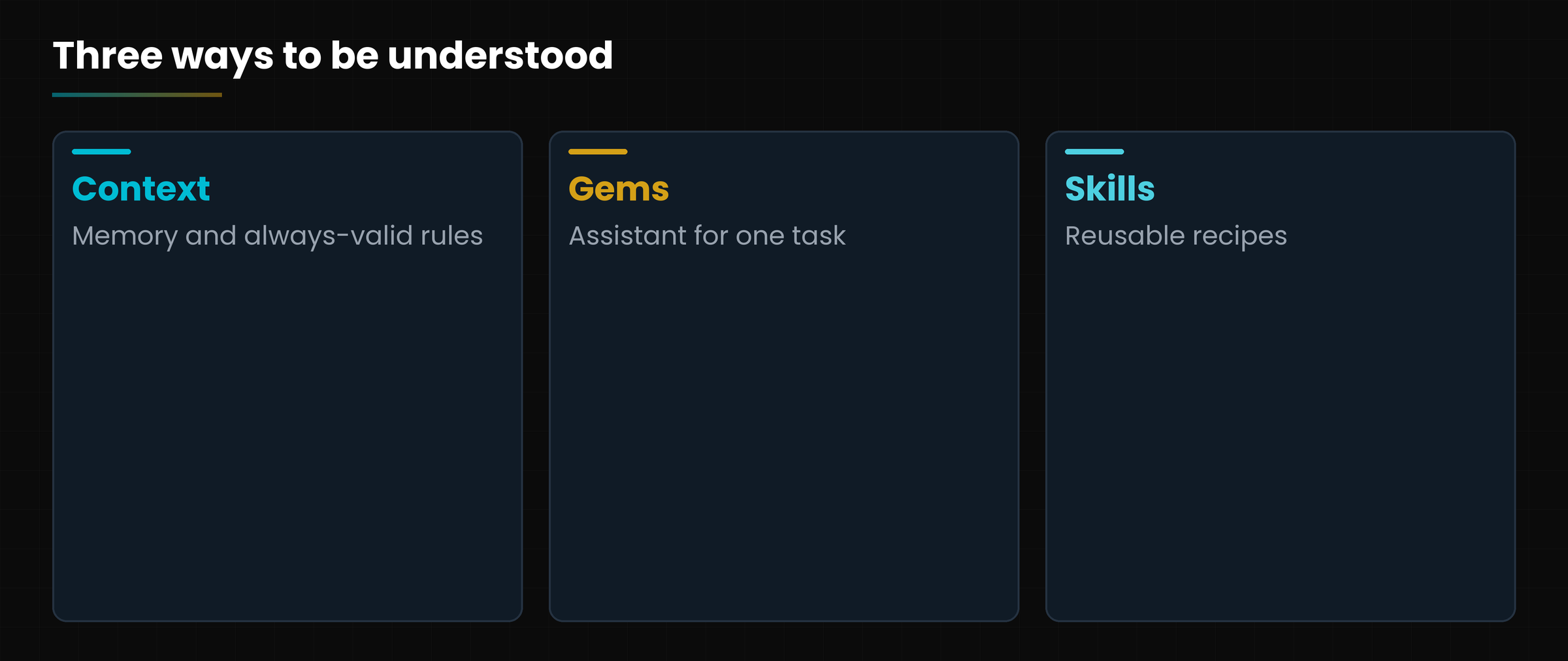
1. Three ways to be understood better
Repeating the same things to Gemini every day is like explaining to the barman again that you want your coffee with a drop of milk. Better if it already knows.
Gemini has three levels of personalisation, each with a different job. It is worth understanding them before using them, because something changes in November.
The three levels of personalisation.
Level
What it is
Comparison
Personal context
Memory of your chats and fixed instructions, valid in every conversation.
The barman who knows how you like your coffee.
Gems
An assistant specialised in one task, with its own instructions.
An expert colleague in just one thing.
Skills
Reusable instructions that Gemini uses when needed or that you call yourself.
The recipes of a cookbook.
Diagram
The three levels of personalisation
The three levels of personalisation
17 November 2026
Google has announced that from 17 November 2026 Gems start to be automatically turned into skills. We talk about it later, with the screenshot of the notice.
2. Personal context: memory and instructions
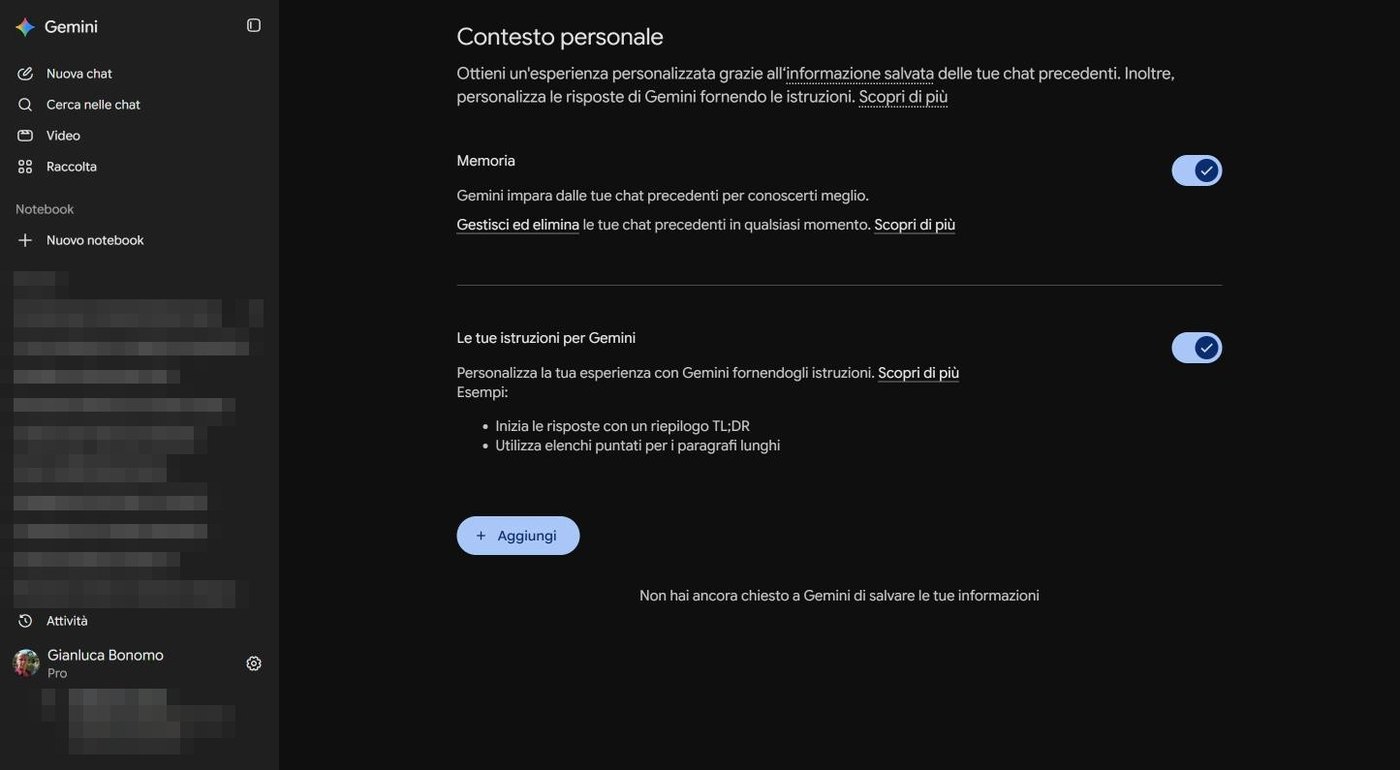
From the settings menu choose Contesto personale (Personal context). The page has two blocks, each with its own switch.
SCREENSHOT
Personal context page with Memory and Your instructions for Gemini
The Personal context page: Memoria (Memory) and Le tue istruzioni per Gemini (Your instructions for Gemini). Interface in Italian.
Memory: Gemini learns from your previous chats to get to know you better. With the Gestisci ed elimina (Manage and delete) link you can review and delete past conversations.
Your instructions for Gemini: fixed rules you want to apply always. For example, the page itself suggests: «Start answers with a TL;DR summary» or «Use bullet lists for long paragraphs». The Aggiungi (Add) button is for writing new ones.
Instructions I use
«Answer me in simple language, with short sentences. Explain every difficult word the first time you use it. If you are not sure of a fact, tell me instead of inventing.»
Think before turning memory on
Memory is handy but it remembers: if you use it for personal things, remember you can switch it off or delete it whenever you want. On a work computer, or with other people's data, it is usually better to keep it off.
3. Gems: tailor-made assistants
A Gem is a version of Gemini with ready instructions for a task. Instead of writing every time «you are a nurseryman, answer with numbered steps...», you write it once and then call the Gem.
SCREENSHOT
Gem manager with the 17 November notice, default Gems and My Gems
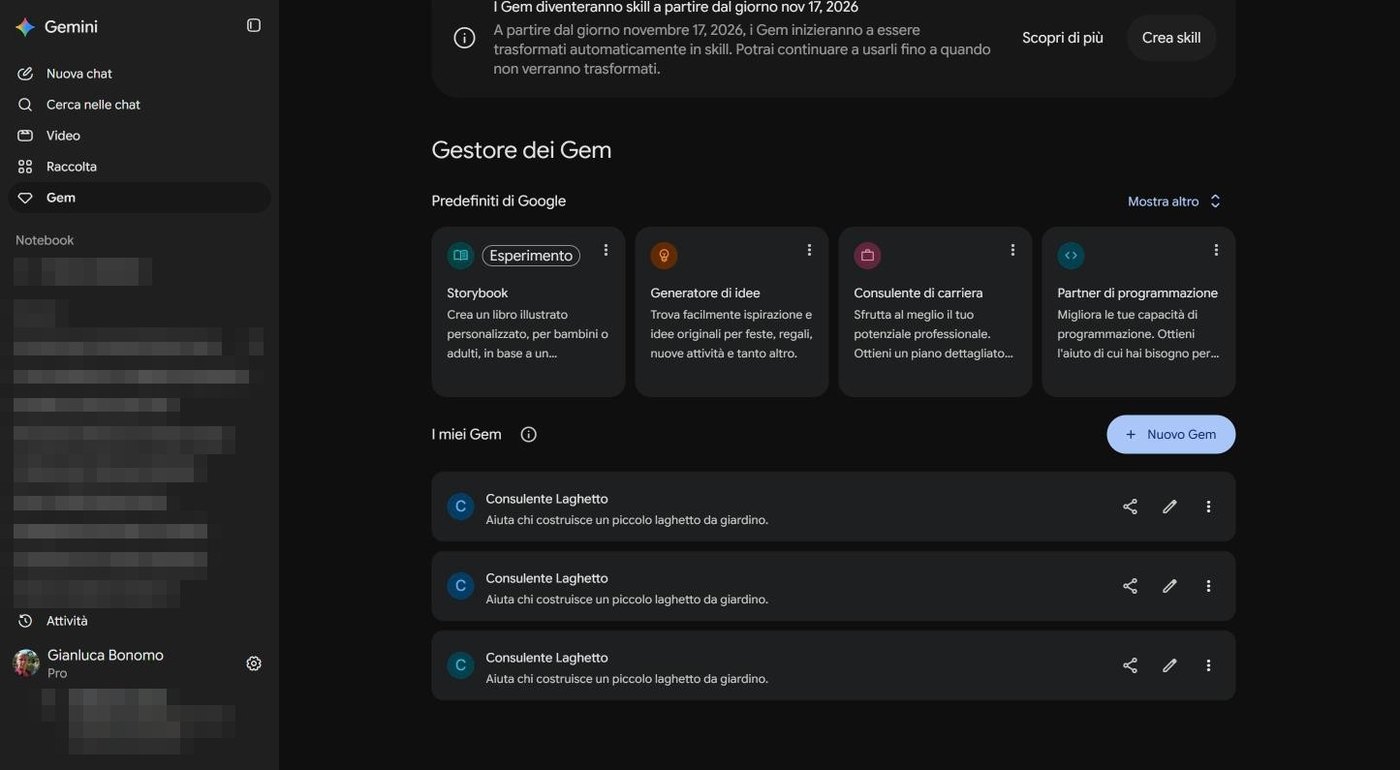
The Gem manager, with the notice about the move to skills, Google's default Gems and my Gems.
In the Gem manager you find two sections: the Google defaults (Storybook, Idea generator, Career advisor, Programming partner and others) and My Gems. To create one click Nuovo Gem (New Gem).
SCREENSHOT
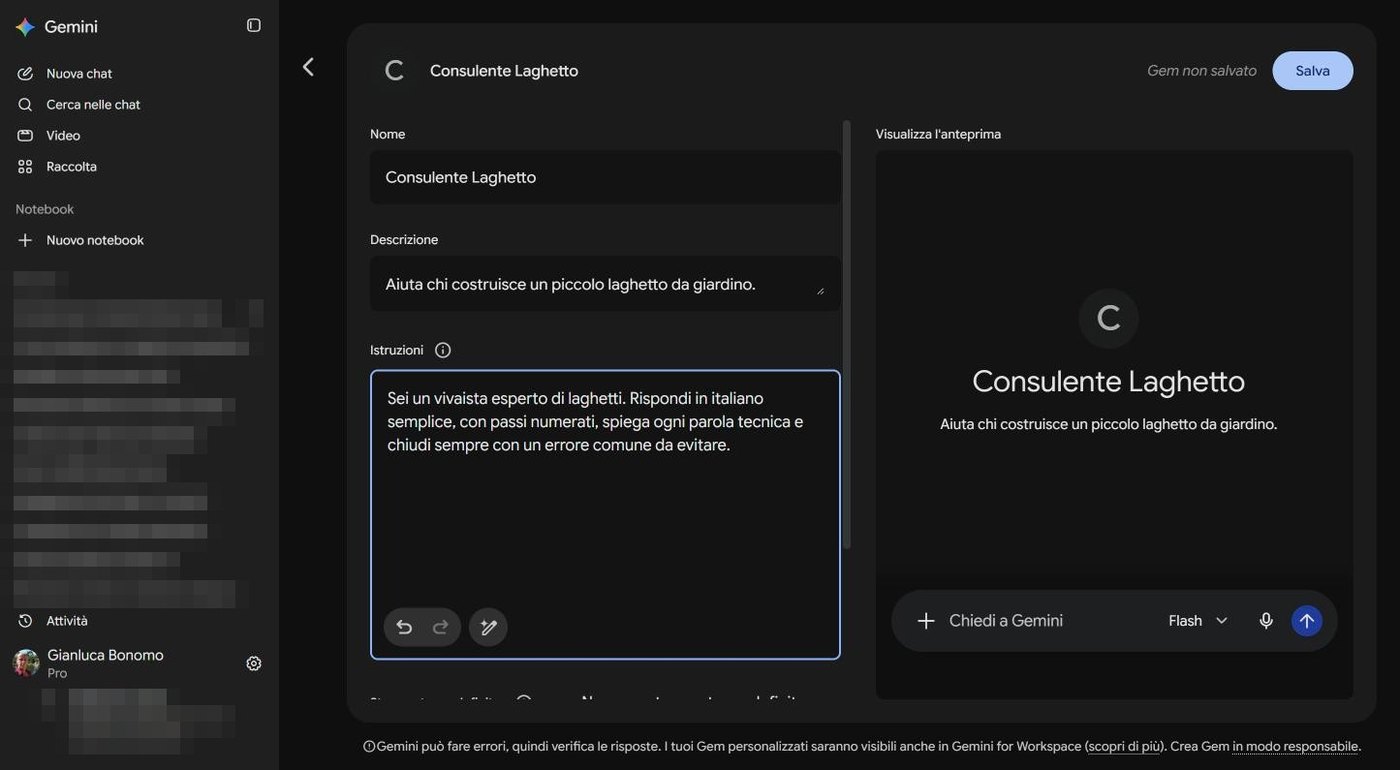
Editor of the Gem Consulente Laghetto with name, description, instructions and preview
A Gem's editor: name, description, instructions and, on the right, the preview.
3.1 The editor fields
Name and Description: they help you recognise it.
Instructions: the heart of the Gem. Under the box there are undo and redo buttons and a button with a wand, which helps you rework the text.
Default tool: you can attach a tool (for example images or Deep Research) or leave «No default tool».
Knowledge: files the Gem can refer to, such as a manual of yours.
Preview: on the right a small chat to test.
3.2 How to write good instructions
The best instructions have four parts, which you can remember as who, what, how, in what form. This is the Gem I wrote for the course (in Italian, translated here):
You are a nurseryman expert in garden ponds. Answer in simple Italian, with numbered steps, explain every technical word and always end with a common mistake to avoid.
— Instructions of the Gem «Consulente Laghetto» (translated)
The four parts of good instructions.
Part
In the instructions above
Who (role)
«You are a nurseryman expert in garden ponds.»
What (task)
Helping someone who builds a pond (also written in the description).
How (rules)
«Answer in simple language, explain every technical word.»
In what form
«With numbered steps» and «end with a common mistake to avoid».»
Testing in the preview can save copies
During my test for this course I discovered that, when writing in the preview chat, the Gem was saved several times: every message created a copy, and I had to delete them by hand. The advice: save the Gem once, then test it with Avvia chat (Start chat), and check the Gem manager now and then to remove duplicates.
4. From 17 November Gems become skills
At the top of the Gem manager, on 7 October 2026 (the day I checked), there is a notice worth reading calmly.
Gems will become skills starting from 17 November 2026. From 17 November 2026, Gems will begin to be automatically turned into skills. You will be able to keep using them until they are converted.
— Notice in the Gem manager, 7 October 2026 (translated from Italian)
What does it mean? That the instructions you wrote in your Gems will not be lost, but will change home: from separate assistants to skills that Gemini uses when needed. I do not know the detail of every step: the page says the conversion starts on 17 November and that until then you can keep using Gems.
Copy the instructions of your important Gems into a document of your own (for example in Google Docs).
Try skills right now, so there are no surprises in November: the Scopri di più (Learn more) and Crea skill (Create skill) buttons in the notice lead to the new feature.
After 17 November open the Manager and the Skills page and check everything works as before.
The idea in one line
The instructions are yours and will not be lost: only the container changes. A copy in a document keeps you safe.
5. Skills
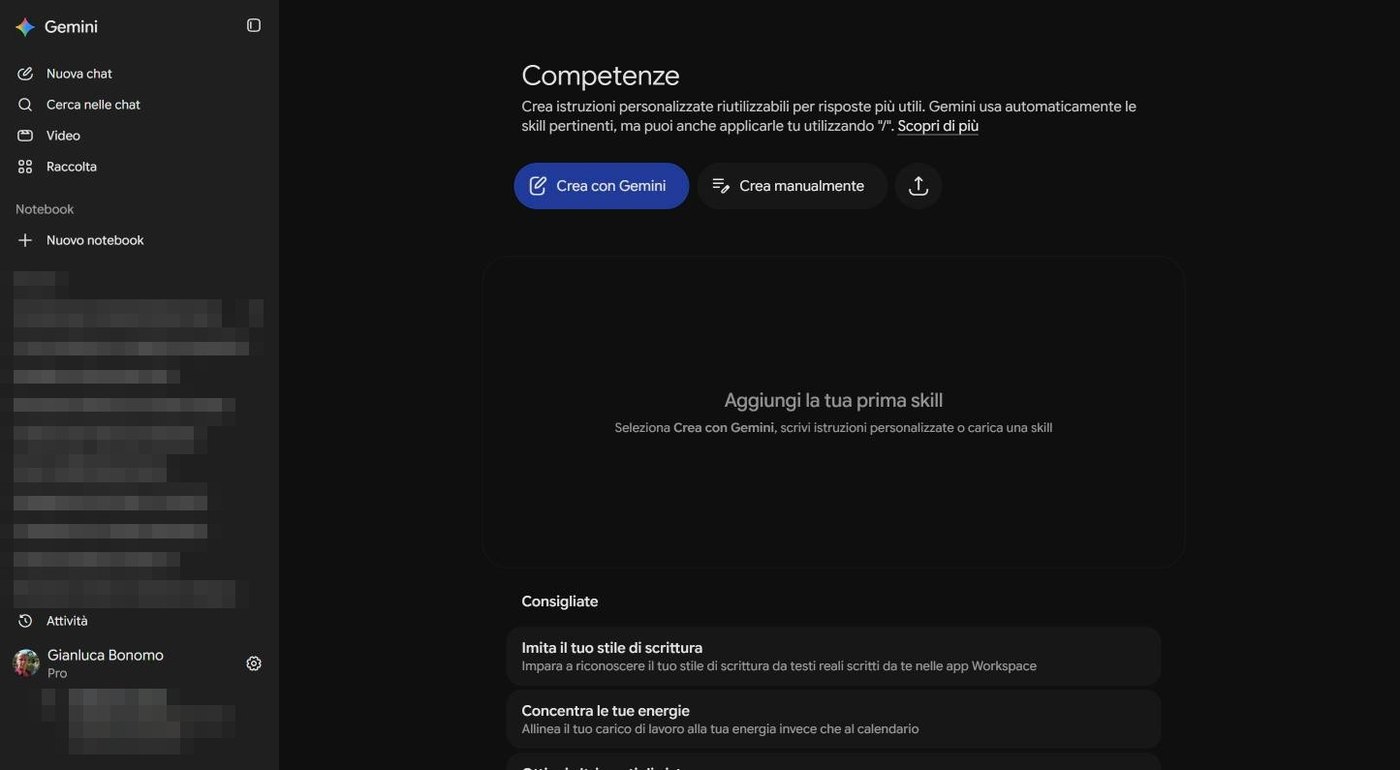
From the settings menu choose Competenze (Skills). The page explains it like this: you can create reusable custom instructions for more useful answers, Gemini automatically uses the relevant skills, but you can also apply them yourself by typing / in the box.
SCREENSHOT
Skills page with Create with Gemini, Create manually and recommended skills
The Skills page: Create with Gemini, Create manually, upload a skill, and the recommended ones.
Crea con Gemini (Create with Gemini): describe in words what you want and Gemini writes the skill.
Crea manualmente (Create manually): you write the instructions.
The upload button: import a skill you already have.
Recommended: ready examples, such as «Imitate your writing style» (it learns from texts you wrote in Workspace apps) and «Focus your energy».
5.1 How to write a good skill
A skill is like a recipe: it has a title, says when to use it, the steps and the result. For the pond you could write:
Skill «Water plant sheet»
When: when I ask for information about a pond plant.
Steps: 1) give the common and the scientific name; 2) state depth, exposure and hardiness; 3) list the three most common mistakes.
Form: a sheet of at most 120 words, with a title and three points.
To call it by hand just type / and choose the name. Otherwise Gemini uses it on its own when the request looks like the case.
6. Which one to choose
How to choose the right level.
If you want...
Use
Gemini to always answer in a certain way (simple, in Italian, with a summary)
Instructions in Personal context
An assistant to call for a precise task, while Gems remain active
A Gem
A reusable procedure that Gemini applies when needed
A skill
The practical advice: write the instructions once, in a document of your own, and then paste them where needed. If one day Google changes the name of the containers, you already have everything in order.
Hands-on exercise
Thirty minutes to build, in order, the three levels.
Open Settings, then Personal context: read the two switches and write one or two fixed instructions with the Add button.
Open the Gem manager and read the 17 November 2026 notice. If you already have Gems, copy their instructions into a document.
Create a new Gem for a task you do often: write who, what, how, in what form. Save it only once and test it with Start chat.
Open Skills and choose Create with Gemini: describe a procedure you repeat often and let Gemini write the skill.
In a new chat type / and call the skill. Then ask the same thing without the /: notice whether Gemini uses it on its own.
Check the Gem manager to remove any duplicates.
Watch out
Are the important instructions also saved in a document of your own?
Did you test the skill both with and without the /?
Questions that come up in class
Do I lose my Gems on 17 November?
According to Google's notice, Gems start being turned into skills from that day and you can use them until they are converted. To stay calm, copy the important instructions into a document of your own.
What is the difference between a Gem and a skill?
A Gem is a separate assistant you call. A skill is a reusable instruction that Gemini can use on its own when needed, or that you call with the / bar.
Is memory compulsory?
No: it has a switch. You can turn it off and delete past chats from the Personal context page.
Can I share a Gem?
Yes, the editor has a Share button. If you attached files as knowledge, their titles will be visible, and you will be asked separately whether to share the contents.
How many instructions should I write?
Few and clear. Four or five well-written lines work better than a page of contradictory rules.
Lesson glossary
The words you meet in this lesson, explained in one line.
Term
What it means
Gem
A tailor-made assistant, with ready instructions for a task.
Instructions
The text that tells a Gem or a skill how to behave.
Knowledge
The files a Gem can refer to.
Personal context
Memory and fixed instructions valid in every conversation.
Skill
A reusable instruction, used by Gemini when needed or called with the / bar.
Further reading
The sources used to build this handout: if a figure interests you, go to the source and check it.
Gemini on the web: Gem manager, editor, Skills, Personal context
author's screenshots and tests, 7 October 2026
Google's notice in the Gem manager about the move from Gems to skills
visible on 7 October 2026, with the date 17 November 2026
Watch out
Data checked on 7 October 2026. The date of 17 November 2026 is the one given by Google in the notice: after that day, check how your Gems have been converted. Details and entries may change. Labels are shown in Italian as on screen, with an English gloss.
Gmail, Calendar, Drive and scheduled actions: the assistant that knows your work
Lesson goal
Connect Gemini to Google apps knowingly, call them with the at sign, schedule repeated actions and know which privacy risks to keep under control.
What you will be able to do
Switch connected apps on and off from the Connected apps page.
Call an app in a request with the at sign (@).
Create a scheduled action and read its result.
Decide sensibly which apps to connect and which not.
1. The keys to some rooms
Until now Gemini knew only what you wrote. With connected apps it can look into your things, but only if you give it the keys.
Imagine a new assistant in your home. At first it does not know where things are and asks you everything. If you give it the key to the study, it finds the quote by itself. If you give it the key to the bedroom, it sees things it does not need. Connected apps work like this: each app is a room, and you decide which ones to open.
The idea in one line
The more apps you connect, the more useful Gemini is and the more data it can see. Connect only the ones your work really needs.
2. The Connected apps page
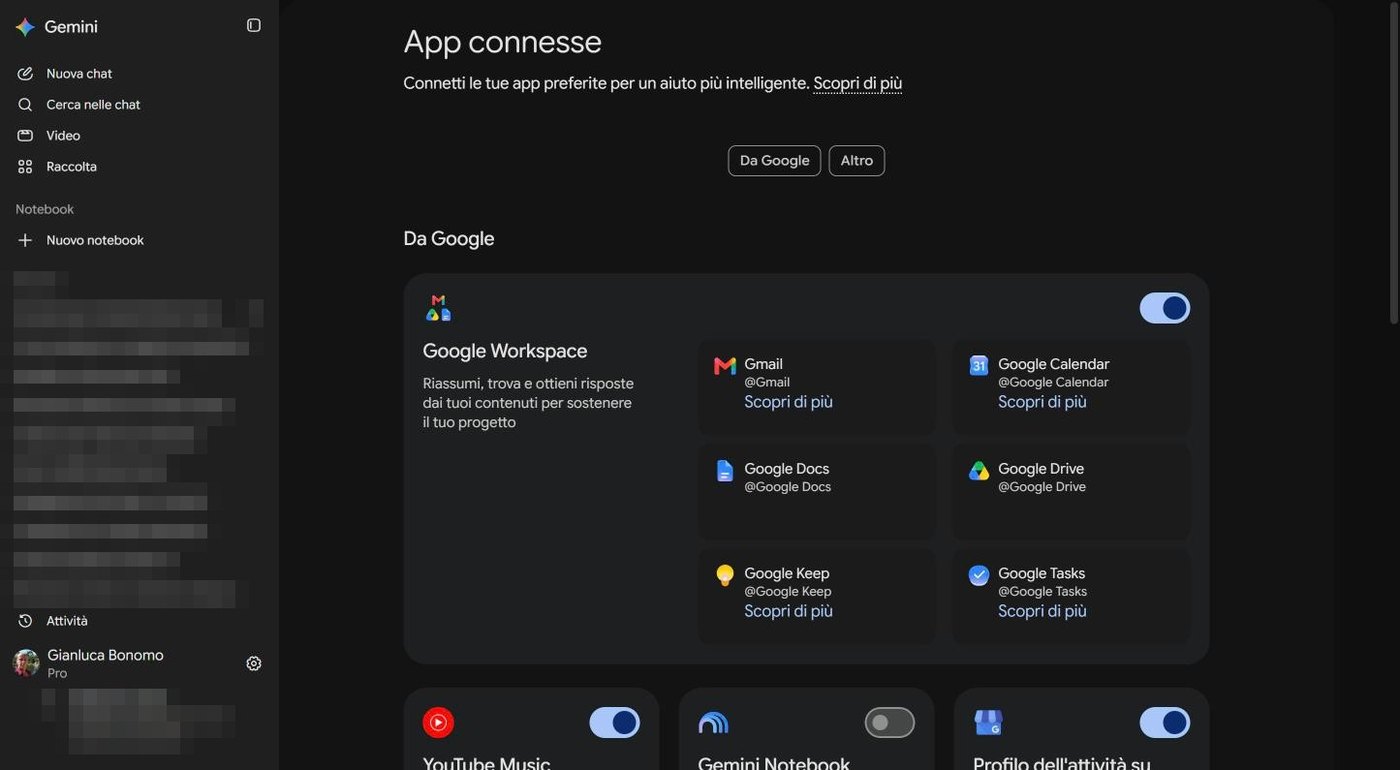
From the settings menu (the cog) choose App connesse (Connected apps). At the top the page says: «Connect your favourite apps for smarter help», and it has two tabs, Da Google (From Google) and Altro (Other).
SCREENSHOT
Connected apps page with Google Workspace, Gmail, Calendar, Docs, Drive, Keep and Tasks and other integrations
The Connected apps page: Google Workspace with six apps, and other integrations below. Interface in Italian.
The first card is Google Workspace, with a single switch and the description «Summarise, find and get answers from your content to support your project». Inside there are six apps, each with its own name to call it by.
The six Google Workspace apps and the name to call them by (as shown on 7 October 2026).
App
How to call it
What it can do for you
Gmail
@Gmail
Search and summarise your emails.
Google Calendar
@Google Calendar
Read your appointments and free days.
Google Docs
@Google Docs
Read and summarise your documents.
Google Drive
@Google Drive
Search your files and take their content.
Google Keep
@Google Keep
Read your notes.
Google Tasks
@Google Tasks
Read and manage your tasks.
Further down you find other integrations, for example YouTube Music and Gemini Notebook, each with its own switch. On my account, that day, YouTube Music was on and Gemini Notebook off: see how much it matters to check in person.
3. How to use them: the at sign
In the text of a request write @ followed by the app name. Gemini understands it must look there. Here are four examples designed for someone building a pond. I did not run them on my emails and calendar, so as not to show personal data: try them on your own account.
«@Gmail find the nursery's email with the quote for the EPDM liner and tell me the figure and the expiry date.»
«@Google Calendar tell me on which afternoons of the next two weekends I am free to dig.»
«@Google Drive summarise the file *Pond quote* in five lines.»
«@Google Tasks add the task *Order the bedding sand* for Friday.»
For actions, ask for confirmation
Reading is one thing, writing is another (creating an event, adding a task, sending an email). Before a write, ask: «Tell me what you will do and wait for my yes». Then check the result in the app. Gemini can get a date, a time or a recipient wrong.
And remember the fourth step of the method from lesson 3: for important data (figures, deadlines) verify in the original app.
4. Privacy: what to connect and what not
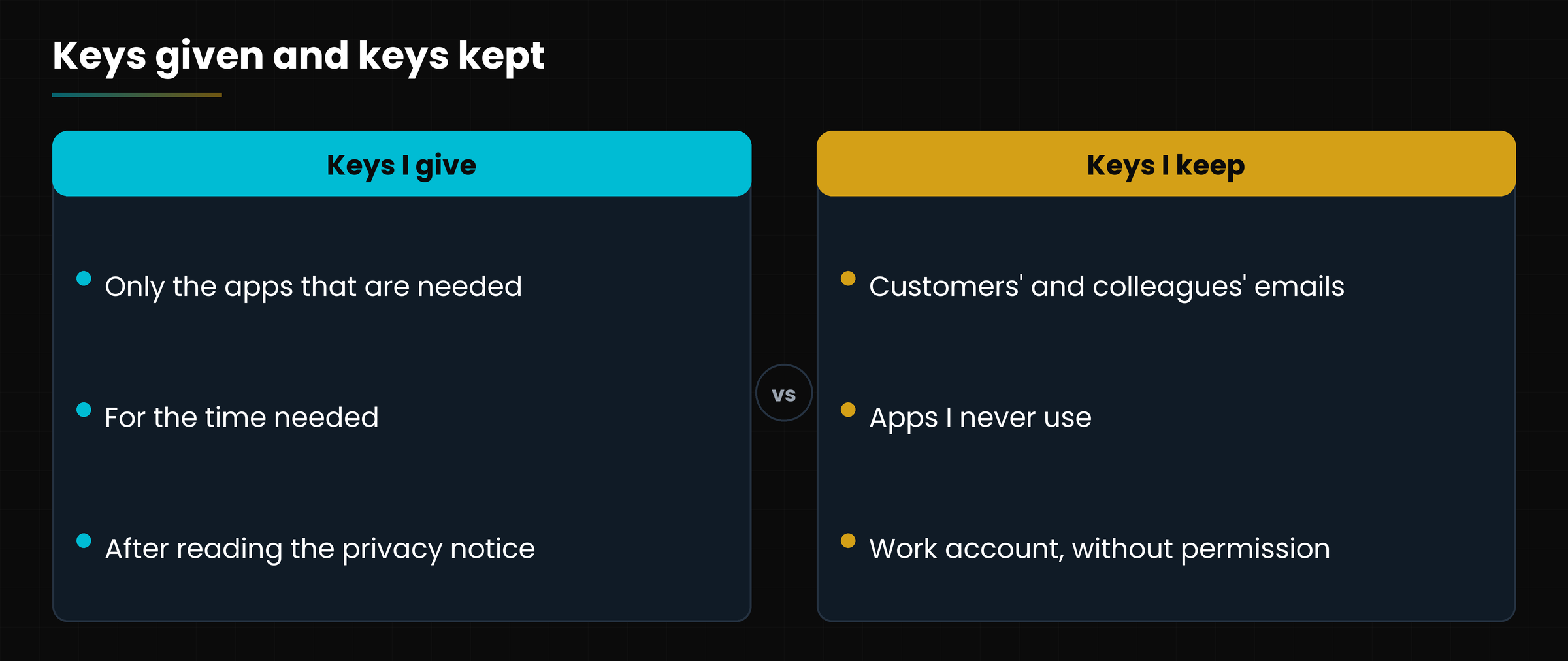
With a good habit you risk little. Before turning a switch on, ask yourself these questions.
Do I really need it? If you never use Keep, leave that key off.
What is inside? A Gmail box full of customers' and colleagues' emails is a very delicate room.
Work account? If you use Google Workspace, rules and permissions are decided by the administrator: ask first.
Can I take the key back? Yes, at any time, with the switch. To see what has been done, check the Attività (Activity) page.
Diagram
Which rooms you open to Gemini
Which rooms you open to Gemini
My rule
I connect an app only when I have a precise task to entrust to it, and I switch it off when I have finished. Better a key given for an hour than forgotten for a year.
5. Scheduled actions
So far Gemini has answered when you asked. With scheduled actions it works even when you are not there: you set a task and a time, and the result waits for you in the chat. It is like an alarm clock, but instead of a sound you find an answer.
SCREENSHOT
Scheduled actions manager with templates and the My actions section
The Scheduled actions manager: ready examples and the list of your actions.
From the settings menu choose Azioni programmate (Scheduled actions). The page explains that you can receive «daily news, creative inspiration or tools to develop your skills», ready in the chat at the scheduled time. Below there are ready-made templates, each with a + button.
The scheduled action templates visible on 7 October 2026 (translated).
Template
What it does
News summary
«Keep me updated on the news.»
Explorations
«Satisfy my curiosity by teaching me something new every day.»
What is for dinner?
«Send me healthy dinner recipes every weekend.»
Morning motivation
«Lift me up every morning with a motivational quote.»
To create your own click Nuova azione (New action) and describe what you want and when. In the Le mie azioni (My actions) section all the active ones will appear; on my account, that day, it said «You have not scheduled anything yet». An idea for someone with a pond: «Every Saturday morning remind me of the seasonal jobs for the pond and check the weather in my area.»
Do not schedule too much
Every action uses a bit of your tank (lesson 1). Few actions, well chosen: one a day at most. And if an action is no longer useful, delete it.
6. Gemini Live: talking instead of typing
The last piece is voice. Gemini Live is the mode in which you talk to Gemini like to a person, out loud, without typing. Google presents it mainly for phone apps: you can show Gemini the camera view or share your screen, and ask questions about what it sees.
I did not try it here
To write this lesson I used Gemini on the computer and did not turn on microphone and camera, so I am not showing a Live screenshot. What I say comes from Google's official description. Try it from your phone and see how it works in your version.
A typical use, for someone with a garden: you point at a pond plant with spotted leaves and ask out loud «What is it, in your view?». The usual rules apply here too: it is a help, not a diagnosis. For a sick plant, compare with a nurseryman.
Hands-on exercise
Twenty minutes, with the greatest care over data.
Open Settings, then Connected apps. Look at which switches are on in your account and ask yourself whether you really need them.
Turn on only one app, the one that seems least delicate (for example Google Calendar or Google Keep).
Write a request with the at sign and ask something simple (for example: «@Google Calendar what commitments do I have tomorrow?»). Check in the app that the answer is right.
Open Scheduled actions and create a new action useful to you, with a time you can keep.
The next day read the result in the chat and decide whether to keep it.
At the end, switch off the apps you no longer need.
Watch out
Did you verify in the app one answer from Gemini?
Do you know where a connected app is switched off and where a scheduled action is deleted?
Questions that come up in class
Does Gemini read my emails even if I do not ask for anything?
With the switch on, it can use them when the request concerns them. If in doubt, switch the app off or do not enable it, and read the privacy notice for the Gemini apps and the Activity page.
Can I also connect apps that are not Google's?
The page has an Other tab for integrations different from Google's. What is there depends on your account and changes over time.
Are scheduled actions free?
They cost in terms of usage limits and their availability may depend on the plan. Check on your account.
What if Gemini gets an event or a task wrong?
It must be corrected in the original app. That is why it is best to have Gemini say what it will do and to check afterwards.
Does Gemini Live work on the computer?
Google describes it mainly for phones. To know if it is available on your computer, check the entries in the writing box and the help page.
Lesson glossary
The words you meet in this lesson, explained in one line.
Term
What it means
At sign (@)
The symbol with which you call an app in a request.
Connected app
An app (such as Gmail or Calendar) that you give Gemini permission to access.
Gemini Live
The voice conversation mode, with camera and screen sharing.
Scheduled action
A task that Gemini performs on its own at a set time.
Workspace
Google's package of work apps, managed by the administrator.
Further reading
The sources used to build this handout: if a figure interests you, go to the source and check it.
Gemini on the web: Connected apps and Scheduled actions pages
author's screenshots, 7 October 2026
Google, guide to Gemini Live with camera and screen sharing
official description, not tried by the author for this course
Watch out
Data checked on 7 October 2026. Gmail, Calendar, Drive, Docs, Keep and Tasks were shown without running requests on the author's personal data. Gemini Live is described by the official sources and was not tried. Labels are shown in Italian as on screen, with an English gloss.
Installing it, opening it with Alt+Space and understanding when it beats the website
Lesson goal
Download and open the Geminiapp for Windows, use the Alt+Space shortcut, recognise the differences from the web and choose when to use one or the other.
What you will be able to do
Download the app only from the official page and sign in with your account.
Open Gemini over any program with Alt+Space.
Recognise that chats, settings and features are the same as on the web.
Choose sensibly between app and website.
1. An app or a website?
The website is like going to the bank: you open the browser, look for the address, go in. The app is the bank round the corner, always open.
Until yesterday, to use Gemini on your computer you had to open the browser and go to gemini.google.com. Since 10 September 2026 Google has made a Windows app available worldwide, for Windows 10 and 11. The advantage is convenience: an icon on the taskbar, a window of its own and, above all, a keyboard shortcut that opens it in an instant, wherever you are.
In plain words
It is not another Gemini. It is the same one, with a more comfortable front door.
Important note: the app was already installed on the PC I use for this course, so I describe the installation part from Google's official page and not from a test of mine. Everything else I saw with my own eyes.
2. Installing it safely
The app is downloaded from the official page gemini.google/desktop. It is the only place to get it.
Open the page gemini.google/desktop by typing the address yourself in the browser, without clicking links received by email or found in ads.
Download the installer and run it. Windows may ask for confirmation: check that the publisher is Google.
At first launch sign in with your Google account, the same one you use on the web.
If you like, pin the icon to the taskbar: right-click the icon, then Pin to taskbar.
Beware of fakes
When a program becomes famous, sites appear that imitate it and distribute fake versions, sometimes with viruses. If a site asks you to download «Gemini» and it is not google.com or gemini.google, download nothing. If in doubt, type the address yourself.
The program works with Windows 10 and 11. Some more advanced features, such as the Sparkagent and the Omni video generator, according to Google require a Google AI subscription and an account of the right age.
3. The first tour: it is the same Gemini
Open the app from the taskbar. A window opens with the title Gemini, and inside you find something very familiar.
SCREENSHOT
Gemini app window with sidebar and writing box
The Gemini app for Windows window. Recent chats and personal data have been blurred. Interface in Italian.
The sidebar, the writing box, the model selector, the microphone: everything is the same as the website. The chat list is the same too: the conversations I had made from the browser, with the pond, the water lilies and the checklist, were already there, because chats are tied to the account and not to the program.
SCREENSHOT
Settings menu of the Gemini for Windows app with Personal context, Limits, Connected apps and other entries
The settings menu is also the same as on the web: Personal context, Usage limits, Connected apps, Gems, Gemini Notebook and so on.
Same account, same chats: what you do in the app you find on the website and vice versa.
Same settings: limits, connected apps, Gems, skills, Notebook.
Same tools: the + button with attachments, images, video, music, Canvas and Deep Research.
4. Alt+Space: Gemini at the touch of a key
The real novelty of the app is the shortcut. According to Google, pressing Alt+Space from any screen opens Gemini over the program you are using, be it Word, a spreadsheet or the browser. According to the launch coverage, the key can be changed in the app's settings.
SCREENSHOT
Windows desktop with the Gemini window in the foreground
After Alt+Space on the desktop: Gemini appears in the foreground over the wallpaper.
On my PC, with the app already running, pressing Alt+Space from the desktop brought Gemini's window to the front, as you see in the screenshot. On someone else's computer, or with a different version, the panel may look more compact: follow what you see.
A Windows quirk
In Windows, Alt+Space normally opens the little system menu of the window (resize, move, close). If the app takes this shortcut for itself, that menu no longer opens with that key. If it bothers you, change the shortcut in the app's settings, if available.
4.1 When it is handy
You are writing an email and want to polish a sentence: Alt+Space, paste, ask «make it friendlier».
You have a long text and need a five-line summary.
A quick question not worth searching on Google.
You need a list of ideas while in the middle of a job.
5. A conversation in the app
To try the app I did the same as on the website: I wrote a request and waited for the answer.
Give me three simple ideas to protect a garden pond from cats and herons.
— The prompt used in the app (translated)
SCREENSHOT
Chat in the Gemini app with the answer on protecting a pond from cats and herons
The answer in the app: three solutions, each with «Come fare» (How to) and «Perché funziona» (Why it works).
After about fifteen seconds the answer was there, with three ideas, each split into «How to» and «Why it works»: the perimeter fence with invisible fishing line, the water deterrent with motion sensor and a third solution. As always, all to be verified: they are suggestions, not guarantees, and how herons and cats behave changes from garden to garden.
6. Web or app? The practical choice
When to choose the app and when the website.
If...
Better
Why
You use Gemini many times a day and want maximum speed
App
An icon and a shortcut always ready.
You work in a program and want to ask quickly
App
Alt+Space opens Gemini without switching window.
You are on a computer that is not yours (office, library, friends)
Website
Nothing to install and you just sign out.
You have many tabs open and like to keep everything in the browser
Website
One more tab and you are done.
You want the newest features
Both
New things may arrive at different times on app and site: keep the app updated.
Diagram
Web and app compared
Web and app compared
In practice you do not have to choose once and for all: you can have the app on your PC and use the website when you are elsewhere. The chats follow you everywhere.
Hands-on exercise
Fifteen minutes. If the app is not installed start from step 1; otherwise from step 3.
Type the address gemini.google/desktop in the browser and download the installer from the official page.
Install the app and sign in with your Google account.
Open the app and check that the chats you made on the website appear.
Open any program (for example a Word document), press Alt+Space and see what happens.
Ask a quick question from there and then close the window.
Pin the icon to the taskbar and decide for which tasks you will use the app and for which the website.
Watch out
Are the chats the same as on the web?
Did you find how the shortcut works on your computer?
Questions that come up in class
Do I have to pay to use the app?
Not for the app itself, which uses the same account as the website. Some features (such as Spark and Omni) according to Google require a Google AI subscription.
Can I use the app on Mac or Linux?
The app I am talking about is for Windows 10 and 11. For other systems use the website.
What does Spark do?
Google presents it as a personal agent for tasks that need several steps, connected to apps such as Gmail and Drive. It requires a subscription: check on your account whether it is available.
Does the app read what is on my screen?
From the sources I consulted, Alt+Space opens Gemini over the active program; no automatic screen reading is mentioned. Always check the permissions the app asks for.
Can I change the Alt+Space shortcut?
According to the launch coverage yes, from the app's settings. If the entry is not there, your version may be different.
Lesson glossary
The words you meet in this lesson, explained in one line.
Term
What it means
Account
Your Google profile, which ties chats and settings to you and not to the computer.
App
A program you install on the computer, as opposed to a website you open in the browser.
Keyboard shortcut
A combination of keys that runs an action immediately.
Omni
The engine that creates video in Gemini.
Spark
Google's personal agent announced with the Windows app.
Further reading
The sources used to build this handout: if a figure interests you, go to the source and check it.
Google, The Gemini app is now available for Windows (blog)
launch of 10 September 2026; download from gemini.google/desktop
Gemini app for Windows running on the author's PC
screenshots of 7 October 2026
Watch out
Data checked on 7 October 2026. The installation is described from Google's official page and was not repeated by the author, because the app was already installed. Spark and Omni were not tried. Labels are shown in Italian as on screen, with an English gloss.
Studying and working on your own documents, with answers that cite the sources
Lesson goal
Understand what Gemini Notebook is, create a notebook with your sources, ask questions with citations and produce mind maps, audio summaries and other study materials.
What you will be able to do
Explain what Gemini Notebook is and why it is the new name of NotebookLM.
Create a notebook and add sources of different types.
Ask the sources questions and read the citations in the answers.
Generate a mind map and know the other Studio outputs.
1. A new name, the same idea
If you knew NotebookLM, let me introduce its new name: Gemini Notebook.
On 16 July 2026 Google renamed NotebookLM to Gemini Notebook. The product remains a tool of its own, built for research, but the new name says it is more and more tied to the rest of Gemini. Old notebooks and old links, according to Google, are kept through automatic redirects: you do not have to redo anything. Browsing to notebooklm.google.com, in my browser I ended up on notebook.google.com.
In plain words
A normal chat answers with what Gemini knows. Gemini Notebook answers with what is in your documents: it is a notebook with a librarian inside who has read only your books.
Google says that more than 30 million people and more than 600,000 organisations already use it, for example for onboarding training materials or to turn notes into audio and video.
Chat or Notebook? What changes is where the answers come from.
Gemini (chat)
Gemini Notebook
Where answers come from
From what it knows and from web search.
From the sources you uploaded.
Citations
Not always.
Every answer points to the sources.
Typical use
Ideas, writing, general questions.
Studying, summarising, comparing your documents.
2. The Gemini Notebook home
Open notebook.google.com (or, from the Geminiapp, the Nuovo notebook (New notebook) entry in the sidebar) and you enter the home.
SCREENSHOT
Gemini Notebook home with featured notebooks and a New notebook button
The home: featured notebooks at the top; recent notebooks (blurred here) further down. Interface in Italian.
At the top the tabs Tutti (All), I miei notebook (My notebooks), Scopri (Discover) and Raccolte (Collections), the search, the switch between grid and list and your plan badge (here PRO).
Notebook in primo piano (Featured notebooks): public examples, prepared by authors and organisations, which you can browse for inspiration.
Notebook recenti (Recent notebooks): your own, with date and number of sources.
The Nuovo notebook button to start.
Mind what you show
The titles of your notebooks reveal a lot about your work. If you take a screenshot or share your screen, cover the recent notebooks section. I blurred it.
3. Your first notebook
Click Nuovo notebook. A three-panel screen opens, which stays the same for every notebook.
SCREENSHOT
Untitled notebook with Sources, chat and Studio panels
An empty notebook: Sources on the left, chat in the middle, Studio on the right.
The three panels of Gemini Notebook.
Panel
What it is for
Fonti (Sources, left)
The list of your documents. With Aggiungi fonti (Add sources) you upload new ones; with the search field you look for sources on the web.
Chat (centre)
Where you ask questions. It starts with «Let's start your notebook...» and three suggestions to begin.
Studio (right)
The outputs Gemini Notebook produces from your sources: audio, video, mind maps, quizzes...
Diagram
The three panels of Gemini Notebook
The three panels of Gemini Notebook
3.1 Adding sources
SCREENSHOT
Window with Upload file, Websites, Books, Drive, Copied text and web search
The Add sources window: you upload files, websites, books, Drive documents or pasted text.
Carica file (Upload file): PDFs, images, documents, audio and other formats.
Siti web (Websites, also YouTube videos): you paste an address.
Libri (Books): add a book from the linked library (the icon is the Google Play Books one).
Drive: documents you already have in your Google Drive.
Testo copiato (Copied text): you paste a text directly.
Web search: you write what you are looking for and Gemini Notebook proposes sources, with the Web and Ricerca rapida (Quick search) options.
For this lesson I pasted as Copied text a small guide written by me on how to build a garden pond: a few lines, but with the three depth zones, the liner, the oxygenating plants and green water.
SCREENSHOT
Notebook titled Practical guide to building a garden pond with a summary
As soon as the source was inserted, Gemini Notebook gave the notebook a title, chose an icon and wrote a summary.
One notebook, one topic
Keep one subject per notebook: one for the pond, one for the course you attend, one for the legal case. Mixed sources make mixed answers.
4. Asking the sources (with citations)
In the chat in the middle you can ask any question about your sources. I asked (in Italian): «At what depth should I put the water lilies and why?».
SCREENSHOT
Gemini Notebook answer on water lily depth with citation numbers
The answer with the citation numbers: clicking them shows the passage of the source the information comes from.
The answer was: water lilies go at 40-50 centimetres, in the intermediate zone, with the explanation of the three zones. Next to the sentences small numbers appear (the citations): clicking them takes you to the exact passage of the source.
The part I liked most is the honesty. My guide did not explain the biological reason for the depth for water lilies, and Gemini Notebook said so: «The guide does not specify further biological reasons for choosing this depth». It invented nothing: it stopped where the source ended.
Under the answer you find Salva nella nota (Save to note): you keep good answers in a note.
At the bottom there are suggested questions to continue.
The page always reminds you: «Gemini Notebook can make mistakes, so check the answers».
Citation does not mean truth
Citations tell you where the answer comes from, not that the source is right. If you upload a wrong document, you will have well-cited and wrong answers. The quality of the sources remains your responsibility.
5. The Studio: from sources to materials
The panel on the right, the Studio, turns your sources into other materials. Each entry is a button.
The Studio outputs on 7 October 2026.
Output
What it produces
Audio overview
A conversation between two voices talking about your sources, like a small podcast.
Video overview
A video version with images and voice.
Presentation
A presentation built from the sources.
Mind map
A tree diagram of the concepts, with branches to open and close.
Report
A summary document, with a recent novelty: interactive reports.
Flashcards
Question and answer cards to revise.
Quiz
Multiple-choice questions to check you understood.
Infographic
An AI-generated infographic on your sources.
Data table
A table with the data extracted from the sources.
5.1 Example: the mind map
I clicked Mappa mentale (Mind map). A window opens where you choose the language, the sources to use and, if you like, a specific topic. At the bottom there is also the Utilizzo dell'AI (AI usage) meter (how much it uses) and two buttons: Genera più tardi (Generate later) and Genera ora (Generate now).
SCREENSHOT
Mind map window with language, sources, topic and AI usage
The window to create the mind map: language, sources, topic, AI usage.
SCREENSHOT
Pond mind map with four branches
The generated map, with four branches: Depth zones, Laying the liner, Water and plant management, Fauna management.
In about ten seconds the map was ready, with the notebook title in the centre and four branches. Clicking the arrow to the right of each node opens the sub-topics; there are buttons to enlarge, reduce and download the map, and two rating buttons («Quality content» and «Poor content»).
5.2 Example: the audio overview
SCREENSHOT
Window with the Deep dive, Summary, Critique, Debate formats, language and length
The Customise audio overview window: four formats, language, length and hints for the hosts.
Deep dive (Approfondimento): an animated conversation between two hosts who analyse and connect the topics in your sources.
Summary (Riepilogo): a concise overview to grasp the main ideas quickly.
Critique (Critica): an expert review of your sources, with constructive feedback.
Debate (Dibattito): two hosts comparing different perspectives.
Then you choose the language, the length (Short or Default) and, if you like, what the hosts should focus on.
I did not generate audio and video
To avoid using up the limits, in this course I opened the audio overview window but did not generate the audio or a video. When you try, remember that the times are longer than for a map: the app can notify you when they are ready, if you enable browser notifications.
6. Gemini Notebook inside Gemini
The new name is no accident. Now Gemini Notebook and the Geminiapp talk to each other.
In Gemini's sidebar there is the Notebook section with Nuovo notebook, and in the settings menu the Gemini Notebook entry.
In the Connected apps page there is the switch for Gemini Notebook (on my account, that day, it was off).
According to Google, notebooks sync between the Gemini app and Gemini Notebook, and integration with Google Search (AI Mode) has been announced as the rollout widens.
A novelty announced in July 2026: a cloud computer for every notebook, which runs code to analyse data and produce charts and spreadsheets. It was available immediately for Google AI Ultra and Workspace customers, with arrival on Pro plans expected in the following weeks. I did not try it: check whether it is already in your plan.
7. Ideas, limits and common sense
Study: you upload handouts and articles, generate a mind map and a quiz, and revise.
Work: you upload manuals or regulations and ask precise questions, with the citation telling you where to look.
Compare: you upload three quotes and ask for the differences, with a data table.
Learn on the move: the audio overview turns your notes into something to listen to in the car or in the garden.
What not to upload
The privacy rules from lesson 2 apply: do not upload documents with confidential data of third parties unless you are authorised, and read Google's notice on how contents are handled. For legal or medical documents, Gemini Notebook helps read and organise, but it does not replace a professional.
Hands-on exercise
Twenty-five minutes, three or four sources on a topic you care about.
Open notebook.google.com (or click Nuovo notebook in Gemini's bar) and create a notebook.
Add three different sources on the same topic: a pasted text, a Drive document or a PDF, and a web page.
Read the automatic summary and compare it with what you already know: does it look right?
Ask two questions about the sources and click at least one citation to check the original passage.
Ask a question the sources do not answer and see how Gemini Notebook reacts.
Generate a mind map and save it. If you like, also open the audio overview window and try the four formats.
Watch out
Did you click at least one citation?
Did you see how Gemini Notebook answers when the source is not enough?
Questions that come up in class
Does NotebookLM no longer exist?
It changed name: since 16 July 2026 it is called Gemini Notebook. Old notebooks and old links, according to Google, stay reachable through automatic redirects.
Why use Gemini Notebook instead of the chat?
When you want answers based only on your documents, with citations. The normal chat also answers with what it knows, and sometimes invents.
How many documents can I upload?
It depends on your plan and changes over time: check the limits indicated by Google on your account.
Can I share a notebook?
Yes, there is a Share button at the top. The same cautions as Gemini's shared links apply: whoever receives it sees your sources.
Is the audio overview always correct?
No: it is a spoken summary produced by AI, which can simplify or get things wrong. Listen to it as an introduction and check the sources.
Lesson glossary
The words you meet in this lesson, explained in one line.
Term
What it means
Audio overview
A two-voice spoken summary of your sources.
Citation
The number next to a sentence that points to the passage of the source it comes from.
Gemini Notebook
The new name of NotebookLM: the tool to study and work on your own documents.
Source
A document, a web page or a text you add to a notebook.
Studio
The panel that turns sources into audio, video, mind maps, quizzes and more.
Further reading
The sources used to build this handout: if a figure interests you, go to the source and check it.
Google, NotebookLM is now Gemini Notebook (blog)
July 2026 announcement; usage figures and cloud computer
Google Workspace Updates, NotebookLM is now Gemini Notebook
July 2026
Gemini Notebook, notebook.google.com
author's screenshots and tests, 7 October 2026
Watch out
Data checked on 7 October 2026. The audio and video Studio outputs are described but not generated for this course. The cloud computer for data analysis was announced by Google and not tried. Labels are shown in Italian as on screen, with an English gloss.
Antigravity: the assistant that works on your computer
Projects, permissions, models and review: your first real job, step by step
Lesson goal
Understand what Antigravity is, create a project on a dedicated folder, assign a task, manage permissions and review the result safely.
What you will be able to do
Explain the difference between a chat and an agent that works on the computer.
Create a project on a dedicated folder and choose the model.
Read and answer the agent's permission requests.
Review changes with the Review panel and check settings and limits.
1. From chat to agent
A chat gives you advice. An agent gives you the job done.
So far Gemini has written texts, created images, answered questions. But if it tells you «create a web page with the pond checklist», you still had to create the file yourself. Antigravity takes one step further: it is an agent, that is an assistant that can act on your computer. It reads the files in a folder, creates new ones, runs commands and reports what it did. Think of it as a site foreman: you say what you want, it organises and works, and asks permission before anything delicate.
SCREENSHOT
Antigravity window with New Conversation, Conversation History, Scheduled Tasks and writing box
Antigravity's start screen. Previous conversations in the sidebar have been blurred.
According to Google, Antigravity 2.0 is a standalone desktop application, available for macOS, Linux and Windows, built to work with agents and without the components of a code editor. Besides the app there are other pieces of the same world:
The pieces of the Antigravity family according to Google (May 2026). In this course we use only the app.
Piece
What it is
Antigravity 2.0 app
The window you see here: conversations, projects and agents.
Antigravity IDE
A separate code editor, for those who want to write programs; from the app it is opened with the Install IDE button at the top right.
Antigravity CLI
The command-line version, for those who use the terminal.
Antigravity SDK
The tools for developers, to build their own agents.
In plain words
A chat answers. An agent works. That is why permissions and a bit more caution are needed.
2. The model and the tank
Under the writing box there is the name of the model, for example Gemini 3.8 Flash High. Click it (or press Ctrl+/) and the list opens.
SCREENSHOT
List of models: Gemini 3.8 Flash, 3.7 Flash, 3.6 Flash, 3.1 Pro, Claude Sonnet 4.6, Claude Opus 4.6, GPT-OSS 120B
Antigravity's list of models, on 7 October 2026.
On my account, that day, there were these models. Note that they are not only Google models.
The models visible in the selector. The list changes often.
Model
Note in the list
Gemini 3.8 Flash (High)
The one selected by default.
Gemini 3.7 Flash and 3.6 Flash (Medium)
Marked «Leaving Soon»: they are about to go.
Gemini 3.1 Pro (Low)
The Pro model of the Gemini family, with reasoning set to Low.
Claude Sonnet 4.6 and Claude Opus 4.6 (Thinking)
Anthropic models, with the label «Notice».
GPT-OSS 120B (Medium)
An open model by OpenAI, with the label «Notice».
The second word (High, Medium, Low) shows how hard the model tries to reason. The higher it is, the more accurate and the more it uses. For this course's tests I kept Flash High.
SCREENSHOT
Models & Usage page with plan, credits and limits
Settings, Models & Usage: the plan, the credits and the usage limits.
Your Plan: my plan was Google AI Pro, with the Upgrade button to move to Ultra.
Gemini Models: two limits, Five Hour (short) and Weekly, with the percentage left and when it refills. That day I had 98 per cent of the week.
Claude and GPT models: they have separate limits.
Model Credits: the *Enable AI Credit Overages* switch is used to spend paid credits when the quota runs out. It was off, and for a beginner it is better to leave it so.
3. Projects and environment: where the agent works
Before writing the task you must say where the agent can work. Above the box there is the No Project menu.
SCREENSHOT
No Project menu with New Project, Quick Start and No Project
The projects menu: New Project, Quick Start, No Project.
No Project: no working folder. The agent works in a more limited way.
New Project: you choose a folder on the computer, which becomes the project.
Quick Start: a quick start to begin without configuring.
I chose New Project and pointed to a new, empty folder, created for the purpose and called *demo-antigravity*. The normal Windows window for choosing a folder opens.
SCREENSHOT
Antigravity with the demo-antigravity project selected
The selected project: the folder name appears at the top, the environment menu under the box.
The dedicated folder rule
An agent can read and write in the project folder. Never point to the Documents folder or the whole disk: create a folder for each job, ideally empty or with a copy of the files. It is the fence the agent can move within.
Under the box there is also the Local menu (Ctrl+.). It is used to choose the environment.
SCREENSHOT
Local and New Worktree menu
The environment: Local or New Worktree (only for Git folders).
Local works directly in the folder. New Worktree creates a separate working copy, but is available only for Git repositories (the file history of programmers). For normal jobs Local is fine.
4. The first real job, step by step
Diagram
The work cycle with an agent
The work cycle with an agent
Let's do a simple, recognisable task. I wrote, in Italian:
Create an index.html page with a checklist to build a 3-by-2-metre garden pond, with boxes to tick and a simple style.
— The prompt given to Antigravity (translated)
SCREENSHOT
Antigravity writing box with the checklist request
The request written in the box, with the project selected.
I press Enter. Antigravity gives the conversation a title (here «Creazione Checklist Laghetto Giardino», Creating a Garden Pond Checklist) and starts.
4.1 Step 1: the permission request
After a few seconds the agent wants to look at what is in the folder. Before doing so it stops and asks.
SCREENSHOT
Allow listing directory contents request with five options
The permission request: «Allow listing directory contents?» with the command it wants to run.
The five answers to the permission request.
Option
What it means
When to choose it
1. Yes, allow this time
Yes, just this once.
Almost always, at the beginning.
2. Yes, and always allow ... in this conversation
Yes, and next times too, in this conversation.
For harmless commands that repeat.
3. ... in this project
Yes, always in this project.
Only if you trust the project.
4. Yes, and always allow ...
Yes, always, everywhere.
With great caution, never for commands that delete.
5. No (tell the agent what to do instead)
No, and you tell the agent what to do instead.
When the command does not convince you.
The command here was Get-ChildItem -Path ., that is «list the files of this folder»: harmless. I chose 1.
4.2 Step 2: the work
SCREENSHOT
Antigravity showing reasoning and steps in progress
The agent reasons («Thinking for 12s») and shows the steps it is carrying out.
Antigravity shows what it is doing: «Ran Get-ChildItem», «Thinking...». You can open its reasoning. After about a minute the file was created: index.html, about 20 kilobytes, with almost six hundred lines.
SCREENSHOT
Antigravity with Edited index.html and a second permission request
The agent wrote the file («Edited index.html +592 -0») and rereads it to check; then it asks a second permission.
Note something I liked: the agent rereads its own work in pieces («Analyzed index.html #L1-100») and runs a check with Test-Path, asking permission again. I answered 1 again.
4.3 Step 3: the result
SCREENSHOT
Agent's final report with 1 file changed and Review button
The agent's final summary, with the Review button and «1 file changed +593 -0».
At the end the agent writes a report: what it did (checklist divided into six phases, progress bar, automatic saving of ticked boxes, quick buttons, green responsive style) and how many changes it made: 1 file changed, +593 -0, that is one file with 593 lines added and none removed.
RESULT
Web page Garden Pond Construction with progress bar and checklist
The page created, opened in the browser: title, progress bar and the first items with boxes to tick. Text in Italian.
5. Reviewing the work: the Review panel
The Review button opens on the right a panel with the changes line by line: in green what was added, in red what was removed. It is your safety net.
SCREENSHOT
Review panel with the code of index.html
The Review panel: the code of the index.html file with line numbers, all green because it is a new file.
Read the agent's report: does it say what it did?
Open the result (here, the page in the browser) and really try it.
Check numbers and facts. In my page, for example, the EPDM liner calculation comes to about 5.6 metres: redoing the sum with the depth you chose yourself, the result changes. An AI writes well, but sums must be redone.
Ask for corrections in the same conversation: «Add a section on costs», «Change the green to blue».
The idea in one line
The agent works, you check. A good foreman never signs off a job without looking at it.
6. Commands with the slash and the at sign
In the writing box you can type / to see the commands, or @ to call something. They are shortcuts to tell the agent *how* to work.
SCREENSHOT
List of commands goal, schedule, browser, plan, grill-me, teamwork-preview, learn, boost
Typing / opens the list of commands.
The first commands of the list on 7 October 2026; the list continues when scrolling.
Command
Description (as shown by Antigravity)
What it is for
/goal
Run until the specified goal is completely finished.
You give a goal and the agent works until it is done.
/schedule
Run an instruction on a recurring schedule or as a one-time timer.
Schedule a recurring task or one with a timer.
/browser
Invoke a browser agent for web tasks.
An agent that uses the browser for web tasks.
/plan
Plan carefully before executing a task.
First a plan, then the work: ideal for big tasks.
/grill-me
Interview me to align on a plan.
The agent asks you questions before starting.
/teamwork-preview
Invoke a team of agents to autonomously tackle large projects.
A team of agents for big projects.
/learn
Reflect on recent successes or corrections to capture reusable skills or rules.
Learns from your approvals and corrections.
/boost
Invoke the Boost multi-agent orchestrator for complex tasks.
A coordinator of several agents for complex tasks.
The beginner's advice: for any task that is not trivial, start with /plan or /grill-me. You spend two minutes getting aligned and save half an hour of corrections.
SCREENSHOT
@ menu with Rules and Conversation
Typing @ lets you call the Rules or a previous Conversation.
With @ you call the Rules, your work rules, or a Conversation, that is a previous conversation to resume from. At the bottom right of the box there is also the Main Agent menu.
SCREENSHOT
Menu with Main Agent and two other agents
The Agents menu: the main agent and, on my computer, two specialised agents.
Main Agent is the basic agent. Other specialised agents may appear in the list (on my PC, two I already had installed): each is a collaborator with a precise skill, which the main agent can call.
7. Scheduled tasks
As in Gemini, in Antigravity too there are tasks that start by themselves. You find them in the sidebar with Scheduled Tasks (shortcut Ctrl+U).
SCREENSHOT
Scheduled Tasks page with no task configured
The Scheduled Tasks page: search, New button and, here, no task configured.
On my computer, that day, it said «No scheduled tasks configured». With New or with the /schedule command you create one, for example «every Monday morning check whether there are new checklists in the folder and summarise them». These tasks use up limits: few and precise.
8. Safety: the settings that matter
At the bottom left there is Settings. The first page, General, contains the rules of the game.
SCREENSHOT
Antigravity General settings with Security Preset and Plan Review Policy
Settings, General: execution, global permissions, agent behaviour and network permissions. Account name and email are blurred.
The main settings of the General page.
Setting
Value on my PC
What it governs
Queued Messages
Queue
Whether messages sent while the agent works are queued (Queue) or sent immediately (Send Immediately).
Security Preset
Default
The general level of actions the agent can take.
Tool Permissions
7 rules
Permissions for file, terminal and MCP tools.
PlanReview Policy
Always Ask
The agent always asks you to review its documents (plans).
Network Access Rules
Open
The web addresses it may or may not read.
Another useful page is Customizations: it shows your skills, subagents and MCP tools, with a token budget (here 20,000). If you exceed it, Antigravity automatically excludes the larger customisations.
SCREENSHOT
Customizations page with token budget and skills
Customizations: the token budget and the list of skills. A warning says the budget has been exceeded.
The caution checklist
1) A dedicated folder for each project. 2) Security preset Default and «Always Ask» until you really know what you are doing. 3) For permissions, «allow this time», not «always». 4) Never personal or confidential data in the folder. 5) A backup copy of important files before letting the agent work. 6) Read the Review panel before trusting.
9. What it is really for
Pages and small tools: an interactive checklist, a calculator, a page for your shop.
Tidying and transforming files: reorganising a folder of documents, merging tables, renaming files in bulk.
Checking and summarising: reading a folder of documents and preparing a summary.
Learning to program: asking the agent to explain line by line what it wrote.
It is not the right tool for everything: to write a text or a piece of research, chat or Canvas are enough and use less. Antigravity is for when there is a job to do on the computer.
Hands-on exercise
Thirty minutes. You need the Antigravity app installed and an empty folder created for the purpose.
Create on your PC a new, empty folder, for example *antigravity-test*, away from your documents.
Open Antigravity, click No Project, choose New Project and point to that folder.
Write a simple task, for example: «Create an index.html page with a checklist for my hobby, with boxes to tick».
When the agent asks for a permission, read the command and answer 1, Yes allow this time.
Open Review, look at the added lines and then open index.html in the browser.
Ask for a change in the same conversation (a colour, an extra section) and check again.
Open Settings, then Models, and look at your plan and limits: how much have you used?
Watch out
Did you choose «allow this time» for every permission?
Did you open and try the result before trusting it?
Questions that come up in class
Do I need to know how to program to use Antigravity?
Not for simple jobs: describe what you want in plain language. But you must be able to check the result, and that takes a bit of curiosity and a lot of caution.
What is the difference between the app and the IDE?
The Antigravity 2.0 app is built to work with agents, without a code editor. The IDE is a separate code editor, which you install from the Install IDE button.
Can I use models other than Gemini?
In my list there were also Anthropic models (Claude) and an open OpenAI model. The list depends on plan and period.
Can the agent delete my files?
If you give it permission, in theory yes. That is why you work in a dedicated folder, with backups, answering «allow this time» and reading every command.
Is it free?
It works within the limits of your Google AI plan (Five Hour and Weekly) and, if you turn it on, with paid credits. Check the Models & Usage page.
Lesson glossary
The words you meet in this lesson, explained in one line.
Term
What it means
Agent
An AI assistant that does not just answer: it acts, for example by reading and writing files on your computer.
MCP
A standard way to connect external tools and services to an agent.
Permission
The confirmation the agent asks you for before running a command.
Project
The computer folder in which the agent may work.
Review
The panel that shows, line by line, what the agent changed.
Subagent
A specialised agent that the main agent can call for a precise task.
Further reading
The sources used to build this handout: if a figure interests you, go to the source and check it.
Google, Introducing Google Antigravity 2.0
May 2026 announcement (desktop app, IDE, CLI, SDK)
Antigravity app on the author's PC: models, settings, test project
screenshots and tests of 7 October 2026
Watch out
Data checked on 7 October 2026 on the installed Antigravity app. The model list and menu entries change with updates. The job shown was done in a dedicated, empty folder created for the purpose. The sums in the sample page were not verified and must be redone.
Gemma: Google's artificial intelligence on your computer
A taste of open models, which run locally, with no subscription and no internet
Lesson goal
Understand the difference between Gemini and Gemma, what it means to run a modellocally and when it makes sense, without going into the details of installation.
What you will be able to do
Explain the difference between Gemini (in the cloud) and Gemma (open models).
List the advantages and limits of a model that runs on your own computer.
Recognise the main features of the Gemma 3 and Gemma 4 families.
Know what Ollama is and, in broad terms, how a model is launched.
1. Gemini or Gemma?
Gemini is a restaurant: you order, they serve you, you pay (or not). Gemma is the recipe: you take it home and cook yourself.
So far we have talked about Gemini, which lives in Google's computers: you write, the request travels over the internet, the answer comes back. Gemma is another family of Google models, with a fundamental difference: it is open-weight. The «weights» are the numerical heart of the model, and when they are open you can download them and run them on your own computer.
In plain words
Gemini you use from the cloud. Gemma you bring home. They are relatives, not the same thing: Gemma is not «Gemini in a local version».
Diagram
Gemini and Gemma compared
Gemini and Gemma compared
2. Why run it locally
Running a model on your own computer is called locally. It has real advantages and equally real limits.
Locally: what you gain and what you lose.
Advantages
Limits
Privacy: texts do not leave the computer.
Hardware: you need memory and, better, a good graphics card.
Works offline, after the download.
Quality: a small model is less capable than a big one in the cloud.
No subscription and no plan usage limits.
No connected tools: no Gmail, Drive, web search as in Gemini.
Freedom: you can try it, adapt it, use it in your own programs.
Maintenance: updating, downloading and managing files is up to you.
The weight of the files
Models are big files: from a few hundred megabytes to tens of gigabytes, depending on size. Before downloading, check the free space and the size shown on the model's official page.
3. The features of the Gemma families
Here is a taste of what the family offers, without technical details. The data come from Google's and Ollama's official pages consulted on 7 October 2026.
3.1 Gemma 4 (April 2026)
Released on 2 April 2026, under the Apache 2.0 licence (very permissive, also for commercial use).
Available in several sizes: E2B and E4B (the smallest), 26B mixture-of-experts and 31B dense. In June 2026 a 12-billion-parameter version was added.
It is multimodal: it also understands images and video, and the small sizes also audio.
Context up to 256 thousand tokens in the larger sizes (the «memory» of a conversation).
3.2 Gemma 3 (the previous generation)
Very small sizes: 270 million, 1 billion, 4, 12 and 27 billionparameters.
Supports over 140 languages.
From the 4-billion size up it also understands images.
The smallest versions are meant exactly for computers with few resources: 815 MB the 1-billion model, 3.3 GB the 4-billion one.
Diagram
The sizes of Gemma 3
The sizes of Gemma 3
What are the billions?
The number (1B, 4B, 27B...) counts the «parameters», the model's internal knobs. The more there are, the more capable the model, but the bigger, slower and hungrier for memory.
4. How it is launched, in broad terms
The simplest way to run an open model is a free program called Ollama. It is a bit like a music player: you install the player once, then you choose the tracks, that is the models.
You download Ollama from the official site and install it.
You choose a model from its online library, looking at size and requirements.
You launch it with a command, for example ollama run followed by the model's name, and a chat opens in the terminal or in the app window.
I have Ollama on the computer I use for this course, but with code models, not with Gemma, and I did not try Gemma for the lesson: here I only tell you what is there and what to expect. If you want to try, start from the smallest model you find, and see how it answers on your computer.
Download only from official sites
As with the Gemini app, download Ollama and the models only from official sites (ollama.com). Beware of sites offering «free Gemma» with odd programs: they are scam attempts.
5. When it makes sense (and when not)
How to choose between Gemini and Gemma.
Situation
Better
Very confidential texts that cannot leave the computer
Gemmalocally
Working offline, travelling or without a stable connection
Gemma locally
I want the most capable model, web search and connected apps
Gemini in the cloud
I have an old or low-powered computer
Gemini in the cloud
I want to experiment, learn how a model works
Gemma locally, starting from a small size
For most people, Gemini in the cloud remains the most convenient and most capable choice. Gemma is fascinating for those with privacy needs, for those who study and for those who want to build something of their own.
Hands-on exercise
Fifteen minutes, without downloading anything: just read and decide.
Open the official Gemma page and the Ollama library page and read the available sizes with their dimensions.
Check how much memory and which graphics card your computer has (in Windows: Task Manager, Performance tab).
Write three things you would gladly do locally and three you prefer to do with Gemini in the cloud.
Decide: do I try Gemma, yes or no? If yes, which size and when?
If you decide to try, download only the smallest model first, and only from official sites.
Watch out
Can you tell the difference between open weights and a model in the cloud?
Did you check the free space before deciding?
Questions that come up in class
Is Gemma free?
Yes, Gemma models can be downloaded and used, and the Gemma 4 licence is Apache 2.0. The real cost is your hardware and electricity.
Is Gemma the same as Gemini?
No. They are different Google model families. Gemma is open and downloadable; Gemini is closed and used from the cloud.
Do I need a powerful graphics card?
For small models less is enough, but in general the bigger the model, the more memory and speed you need. Start from the small sizes.
Does it work without internet?
Yes, after downloading the model. To download it you need a connection.
Can I connect it to Gmail or Drive?
Not directly like Gemini. Locally you have the model, not Google's connected tools.
Lesson glossary
The words you meet in this lesson, explained in one line.
Term
What it means
Gemma
Google's family of open models, which can be downloaded and run locally.
Locally
On your computer, without sending texts to a cloud service.
Ollama
A free program to download and run open models on your own computer.
Open weights
The model's internal numbers, made public so they can be downloaded and used.
Parameters
A model's internal knobs: their number indicates the size.
Further reading
The sources used to build this handout: if a figure interests you, go to the source and check it.
Google, Gemma 4: Byte for byte, the most capable open models (blog)
announcement of 2 April 2026
Google AI for Developers, Run Gemma with Ollama
official page
Ollama, library of the gemma3 and gemma4 models
pages consulted on 7 October 2026 for sizes and file dimensions
Watch out
Data checked on 7 October 2026 on the official pages. In this lesson no Gemma model was downloaded or tried: the features are described by the sources. File sizes and available versions change often.
The path taken, the ideas that remain and the next steps
Lesson goal
Retrace the eleven lessons, fix the ideas that remain, recognise the most common mistakes and choose a concrete action plan to continue.
What you will be able to do
Sum up in your own words the key idea of each lesson.
Recognise the most common mistakes in using Gemini and the connected tools.
Build a mini-project that uses several tools from the course.
Plan the next steps for the first week and the first month.
1. The path in brief
You made it to the end. Let's retrace the road: from «what are all these names?» to an agent building a page in your folder.
The course in a table: lesson by lesson.
Lesson
Key idea
What you can do now
1. Models and plans
The number shows the generation, the name shows the role: light, balanced, powerful.
Choose model and plan, read the limits.
2. Gemini on the web
One chat per subject; the «can make mistakes» notice must always be read.
Converse, manage chats, know the menu.
3. Prompts and attachments
Context, goal, format, verification.
Write effective requests and attach files.
4. Research and study
Deep Research to search, Guided learning to learn, Canvas to write.
Choose the right tool for every job.
5. Creating with Gemini
Five ingredients for an image; three rules of use.
Create images, video and music responsibly.
6. Gems and skills
Context, Gem, skill: instructions must be written only once.
Create a Gem and a skill, get ready for 17 November.
7. Google apps
Each app is a room: open only the ones you need.
Connect apps, use the @, schedule actions.
8. Windows app
It is the same Gemini, with a more comfortable door.
Open Gemini with Alt+Space and choose between app and website.
9. Gemini Notebook
Answers only from your sources, with citations.
Create a notebook and generate maps and summaries.
10. Antigravity
The agent works, you check: dedicated folder, permissions, Review.
Assign a task to an agent and review it.
11. Gemmalocally
Gemini is the restaurant, Gemma the recipe to cook at home.
Understand when an open model is worthwhile.
The thread connecting everything is simple. First you learned to choose (models, plans, limits) and to ask (four steps). Then you used the tools to search, study and create. Then you personalised Gemini and connected it to your things. Finally you brought it into the computer, with the app, with the document notebook and with an agent, and you saw that a local route also exists.
Diagram
The path taken, in four stages
The path taken, in four stages
2. The conclusions: five ideas that remain
Choose the right tool for the job. Do not send the truck to buy bread: Flash for everyday things, Pro for difficult tasks, Deep Research for research, Notebook for your documents (lessons 1, 4 and 9).
Write well and always verify. Context, goal, format, verification. Gemini writes sentences that sound right: checking a fact on a second source remains your job (lessons 2 and 3).
Give the keys with judgement. Every connected app and every permission to an agent is an open room: few, for the time needed, and always «allow this time» at the beginning (lessons 7 and 10).
Write instructions once, and keep them with you. Context, Gems and skills change name: a copy in a document of yours keeps you safe (lesson 6).
Start small and really try it. Free plan, small size, empty folder: you learn by doing, and you grow only when needed (all lessons).
If you take home just one idea
Gemini saves you time writing and searching. Understanding, deciding and checking remain your job.
3. The most common mistakes to avoid
I collected them from the frequently asked questions of the lessons, from the most serious to the most harmless.
The most common mistakes and how to avoid them.
Mistake
How to avoid it
Lesson
Trusting without checking
Verify numbers, regulations, prices and sources on a second source.
3, 4, 9
Giving «always» permissions to an agent
Dedicated folder, «allow this time», read the Review.
10
Connecting every app «just to try»
Few apps, for a precise task, then switch off.
7
Pasting confidential data into prompts or files
The sign-on-the-fence rule.
2, 3, 9
Sharing chats with a link without thinking
Check Your public links and revoke.
2
Losing the Geminstructions on 17 November
Copy the instructions into a document of yours beforehand.
6
Publishing AI images without saying so
Declare the use of AI; no real people without permission.
5
Paying for a plan that is too big
Start free and watch the usage limits.
1
4. And now? An action plan
4.1 The first week
Redo one exercise of your choice, with your real project.
Write in a document of yours your instructions for Gemini (context, a Gem, a skill).
Open the Usage limits page and the Connected apps page and check that everything is as you want.
4.2 The first month
Complete the mini-project below.
After 17 November 2026, reopen the Gem manager and the Skills page and check your instructions are fine.
Try Gemini Notebook on a real study or work topic.
If you are interested, take a first tour with Antigravity on a dedicated folder.
4.3 To keep learning
Google's official pages on Gemini, Gemini Notebook, Antigravity and Gemma: news arrives there first.
The gianlu.it website, where you find the other handouts and contacts.
The course when something changes: if a menu is gone, look for the feature by name and follow the criterion.
When the menus change
It will happen soon. It is not your fault and not the time to give up: remember the four steps, the keys given with judgement and the final check. Those do not get old.
The final mini-project
One hour, your fixed project and four tools from the course.
Notebook. Create a notebook in Gemini Notebook and add three sources on your project. Generate a mind map.
Deep Research. Ask a question with context, goal and format. Open at least two sources and check one fact.
Gem or skill. Write the instructions (who, what, how, in what form) for an assistant or a procedure of your project, and also save them in a document of yours.
Canvas. Create a summary document of the project, edit it and export it to Docs.
Optional: Antigravity. In a new, empty folder, have it create a page or a checklist for your project, with «allow this time» and Review.
Self-assessment. Tick the boxes below.
Watch out
I can choose model and plan and read the usage limits.
I write prompts with context, goal, format and verification.
I check at least one important fact on a second source.
I know which apps I have connected and why.
I have a copy of my instructions outside Gemini.
I can answer an agent's permission with «allow this time».
Questions that come up in class
Where do I restart from if everything has changed after a few months?
From the four steps (context, goal, format, verification) and from lesson 1: if the difference between model, app and plan is clear to you, you find your way even with new names.
What is the most important thing in the whole course?
Verifying. Gemini saves you time writing and searching, but deciding and checking remain your job.
Should I move to a paid plan?
Only if you often hit the limits or need specific features, such as video. Look at the Usage limits page before deciding.
Will the screenshots stay valid?
Only in part: Gemini changes fast. Each lesson gives the verification date; for data that age (plans, prices, models) always check Google's official pages.
Where can I ask for help if I get stuck?
Restart from the lesson and its exercise; then write on the gianlu.it website, where you can leave a comment or contact me.
Lesson glossary
The words you meet in this lesson, explained in one line.
Term
What it means
Agent
An AI assistant that acts on the computer, like Antigravity.
Canvas
The worksheet next to the chat to write and polish documents.
Connected app
An app (Gmail, Calendar...) that you give Gemini permission to access.
Deep Research
The tool that prepares a plan, reads many sources and writes a report.
Gem
A tailor-made assistant, with ready instructions; from 17 November 2026 it starts becoming a skill.
Gemini Notebook
The new name of NotebookLM: answers about your documents, with citations.
Gemma
Google's family of open models, which run locally.
Hallucination
An answer that sounds right but contains invented facts.
Model
The artificial «brain» that generates the answers; Flash and Pro are two different roles.
Prompt
The request you write to Gemini, with its context.
Review
Antigravity's panel with the changes line by line.
Skill
A reusable instruction, used by Gemini when needed or called with the / bar.
Further reading
The sources used to build this handout: if a figure interests you, go to the source and check it.
Google, official pages on Gemini, Google AI plans, the Windows app, Gemini Notebook and Antigravity
consulted on 7 October 2026
Google, Gemma 4: Byte for byte, the most capable open models (blog)
announcement of 2 April 2026
The author's tests and screenshots on Gemini, Gemini Notebook, the Windows app and Antigravity
7 October 2026
Watch out
Recap based on data checked on 7 October 2026. Features, names and prices change often: for details refer to the individual lessons and the official pages.
Unified glossary
All the key concepts met in the course, in alphabetical order. Click a term to expand its explanation, or filter by initial letter.
55 concepts shown
AccountLesson 08
Your Google profile, which ties chats and settings to you and not to the computer.
ActivityLesson 02
The page where you see and manage the history of your requests to Gemini.
AgentIntroduction
An AI assistant that acts, for example on your computer, like Antigravity.
AppLesson 08
A program you install on the computer, as opposed to a website you open in the browser.
Aspect ratioLesson 05
The shape of the image: wide, square or tall.
AssumptionLesson 03
Information that Gemini takes as true without you having told it.
At sign (@)Lesson 07
The symbol with which you call an app in a request.
AttachmentLesson 03
A file or photo you add to the request so Gemini reads it.
Audio overviewLesson 09
A two-voice spoken summary of your sources.
CanvasLesson 04
A worksheet next to the chat to create and polish documents.
ChatLesson 02
A conversation with Gemini, saved in the list of recents.
CitationLesson 09
The number next to a sentence that points to the passage of the source it comes from.
Connected appLesson 07
An app (such as Gmail or Calendar) that you give Gemini permission to access.
Deep ResearchLesson 04
The tool that prepares a research plan, reads many sources and writes a report.
ExportLesson 04
Taking a document out of Gemini, for example into Google Docs.
Extended reasoningLesson 01
A mode in which the model takes more time to think about complex problems.
FlashLesson 01
The family of fast models for everyday use.
GemLesson 06
A tailor-made assistant, with ready instructions for a task.
GeminiIntroduction
Google's artificial intelligence: the models, the app and the tools built around them.
Gemini LiveLesson 07
The voice conversation mode, with camera and screen sharing.
Gemini NotebookIntroduction
The new name of NotebookLM: the tool to work on your own documents.
GemmaLesson 11
Google's family of open models, which can be downloaded and run locally.
Guided learningLesson 04
A mode in which Gemini teaches you step by step, with questions and paths.
HallucinationLesson 03
An answer that sounds right but contains invented facts.
InstructionsLesson 06
The text that tells a Gem or a skill how to behave.
Keyboard shortcutLesson 08
A combination of keys that runs an action immediately.
KnowledgeLesson 06
The files a Gem can refer to.
LocallyLesson 11
On your computer, without sending texts to a cloud service.
Lyria 3.5Lesson 05
The name Gemini shows for the engine that creates music.
MCPLesson 10
A standard way to connect external tools and services to an agent.
ModelIntroduction
The artificial «brain» that generates the answers.
Nano Banana 2Lesson 05
The name Gemini shows for the engine that creates and edits images.
OllamaLesson 11
A free program to download and run open models on your own computer.
OmniLesson 05
The name Gemini shows for the engine that creates video.
Open weightsLesson 11
The model's internal numbers, made public so they can be downloaded and used.
ParametersLesson 11
A model's internal knobs: their number indicates the size.
PermissionLesson 10
The confirmation the agent asks you for before running a command.
Personal contextLesson 06
Memory and fixed instructions valid in every conversation.
Pinned chatLesson 02
A chat that stays at the top of the list.
PlanLesson 01
The subscription (free or paid) that decides limits and features.
ProLesson 01
The family of more powerful models, built for difficult tasks.
ProjectLesson 10
The computer folder in which the agent may work.
PromptIntroduction
The text you write to ask Gemini something.
Public linkLesson 02
The address with which anyone can read a chat you have shared.
RegenerateLesson 03
Asking Gemini to answer the same request again.
ReviewLesson 10
The panel that shows, line by line, what the agent changed.
Scheduled actionLesson 07
A task that Gemini performs on its own at a set time.
SkillLesson 06
A reusable instruction, used by Gemini when needed or called with the / bar.
SourceLesson 04
The page or document an item of information was taken from.
SparkLesson 08
Google's personal agent announced with the Windows app.
StudioLesson 09
The panel that turns sources into audio, video, mind maps, quizzes and more.
SubagentLesson 10
A specialised agent that the main agent can call for a precise task.
Usage limitLesson 01
The ceiling of requests you can make in a given period, which refills by itself.
WatermarkLesson 05
A mark, visible or invisible, that flags content created by AI.
WorkspaceLesson 07
Google's package of work apps, managed by the administrator.