You open Claude for the first time and find a box and lots of buttons, with no instructions. Almost everything you need is already there, but you must know where to look.
In this guide you tour the whole interface, on the website and in the desktop app, and find the settings that really matter, starting with the privacy one.
Download the handoutPrintable PDF version of this lesson, with exercise and glossary.
Download the handout as PDFGoal
Find your way around Claude's interface, on the website and in the desktop app, and set privacy, models and permissions knowingly.
What you will be able to do
- Recognise the elements of the screen and the sidebar.
- Choose model and effort to fit the work.
- Search, organise and delete chats, and use incognito.
- Use projects, artifacts, skills and connectors.
- Decide privacy and safety settings, including the one on training.
Contents
- What Claude is and where you open it
- The main screen and the sidebar
- The writing box: attachments, models, effort and voice
- Conversing, searching and working incognito
- Projects, Artifacts and Scheduled tasks
- Customize, Cowork and Claude Code
- Desktop only: menus, shortcuts and windows
- Privacy: the setting that decides on training
- The other Settings, one by one
- Desktop only: Claude Code, Cowork and System
- The settings to check right away
- A guided tour of the interface
- Questions that come up in class
- Glossary
- Further reading
1. What Claude is and where you open it
Claude is an AI assistant: you type or talk, it answers. Before learning the buttons, you need to know where to find them.
Claude reads what you type and the files you give it, thinks about the request and produces a text, an analysis, a document, code or a web page. No special commands are needed: just say what you want to get. The same account works everywhere: chats, projects and settings are the same on the web and in the app.
1.1 Two doors to the same Claude
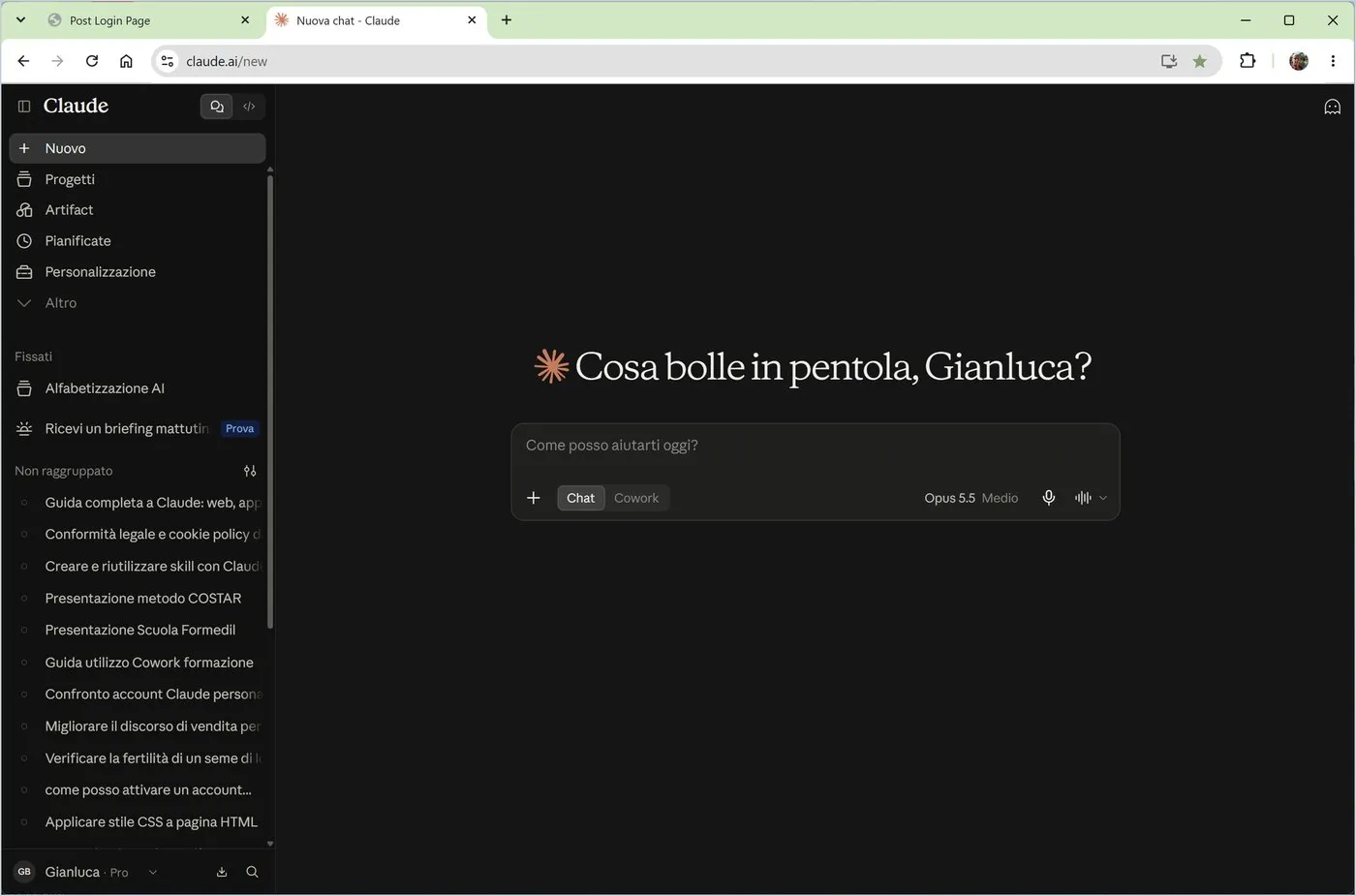
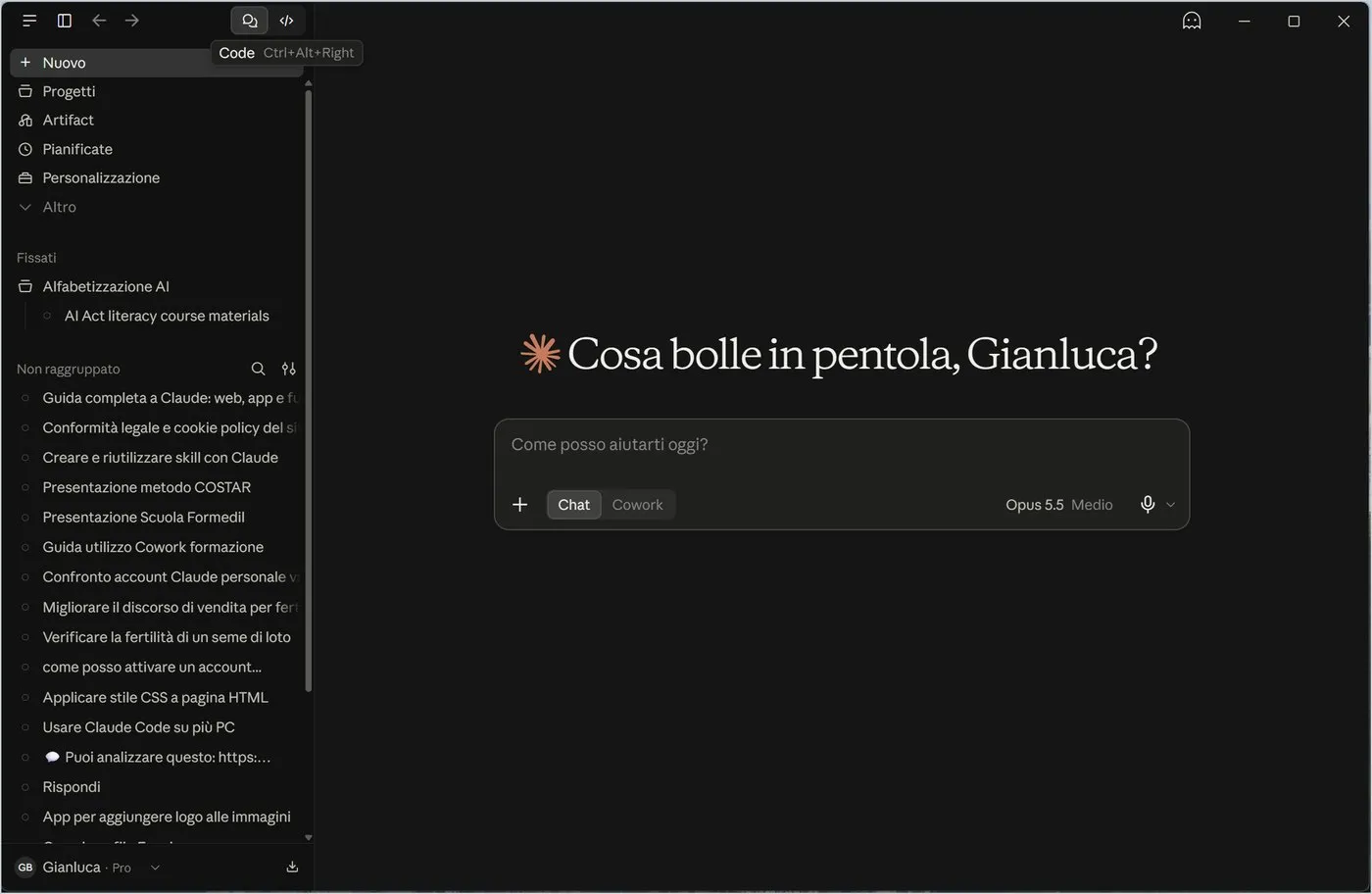
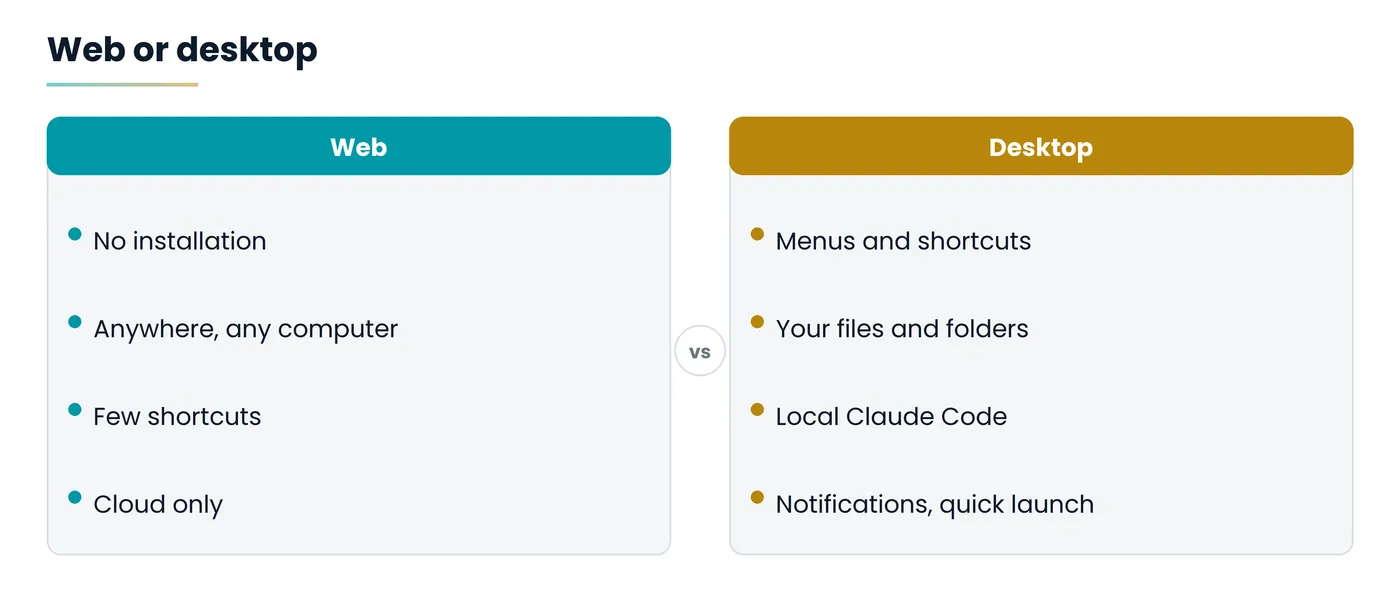
The web version opens in any browser at claude.ai: no installation, ideal on a computer that is not yours. The desktop app is a program you install, with its own window, menus, keyboard shortcuts and access to the files on your computer.
| If you want to... | Use |
|---|---|
| Try Claude without installing anything | Web |
| Work with the files on your computer | Desktop |
| Use Claude Code on a project on your PC | Desktop |
| Open Claude from any program with a shortcut | Desktop |
| Check a task from another device | Web |
The interface itself says so under the box: Claude is an AI and can make mistakes, so always check the answers. Dates, numbers, regulations and names must be verified.
2. The main screen and the sidebar
Fifteen elements to recognise at a glance: after this section you will know where everything is.
The figure numbers the elements of the desktop app. The web version is identical, without the Windows title bar, and with the app download button and the search lens at the bottom left.
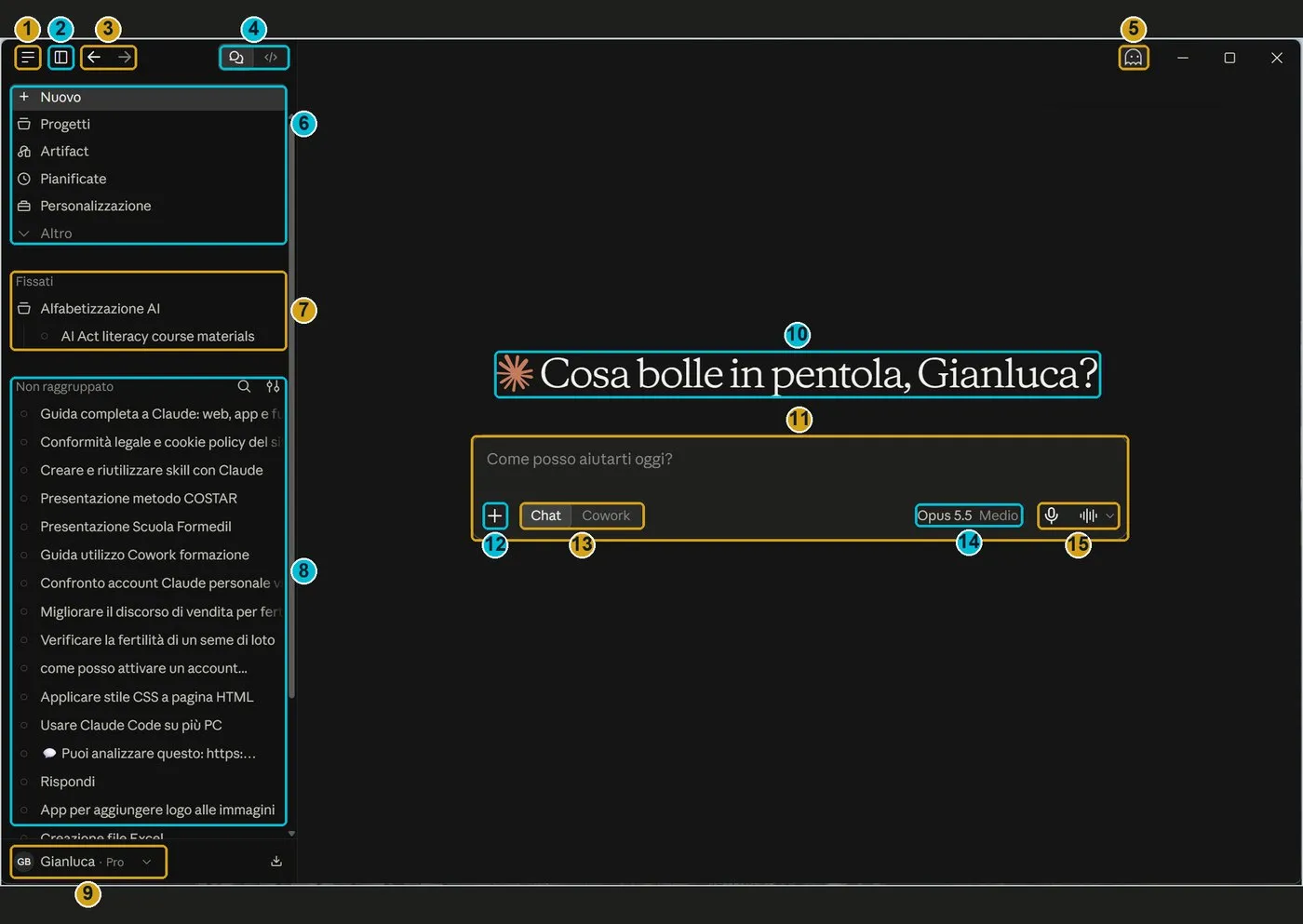
| No. | Element | What it is for |
|---|---|---|
| 1 | Program menu | Desktop only: File, Edit, View, Go, Help |
| 2 | Sidebar | Shows or hides the list, with Ctrl+B |
| 3 | Back and Forward | Desktop only: like in a browser |
| 4 | Chat / Code | Switches between chats and Claude Code |
| 5 | Incognito | A chat that is not saved or used for training |
| 6 | Main entries | New, Projects, Artifacts, Scheduled, Customize, More |
| 7 | Pinned | Chats and projects locked at the top |
| 8 | Chat list | All conversations, with search and filters |
| 9 | Your account | Name, plan and the menu with Settings |
| 10-15 | Work area | Greeting, writing box, +, Chat/Cowork, model and voice |
2.1 The entries at the top
- New: opens an empty chat (Ctrl+N in the app).
- Projects: collections of chats, files and instructions on one topic.
- Artifacts: everything you created with Claude.
- Scheduled: tasks that run by themselves at set times.
- Customize: skills, connectors and plugins.
- More: hides the less-used entries; you also choose which ones to show here.
2.2 Managing chats
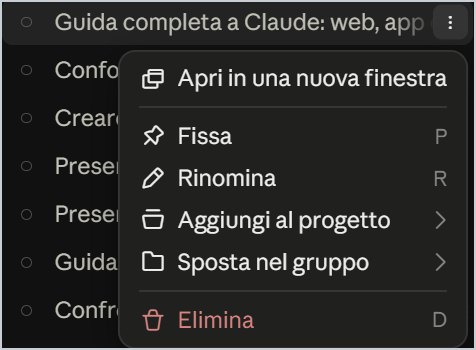
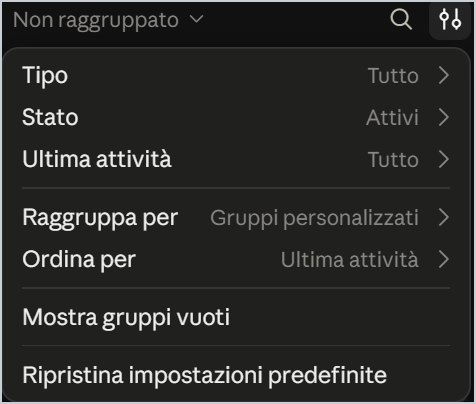
When you hover over a chat, the three dots appear: the menu lets you pin it, rename it, put it in a project, move it to a group or delete it. The letters on the right (P, R, D) are shortcuts while the menu is open. The two sliders next to the lens open filters and sorting.
2.3 Your account
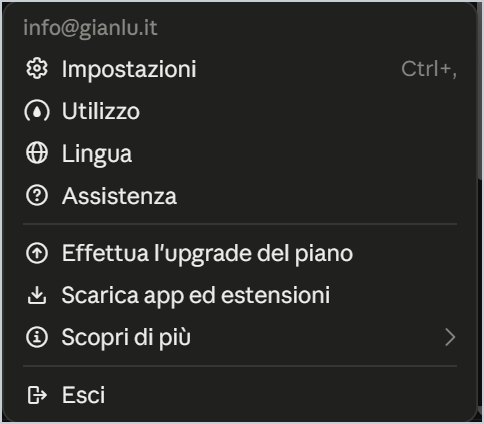
At the bottom left, your name opens the account menu: Settings (Ctrl+comma in the app), Usage (how much of your limit you used), Language, Help, plan upgrade, app download and Sign out.
3. The writing box: attachments, models, effort and voice
Everything starts here: one box with a few buttons, each with a precise job.
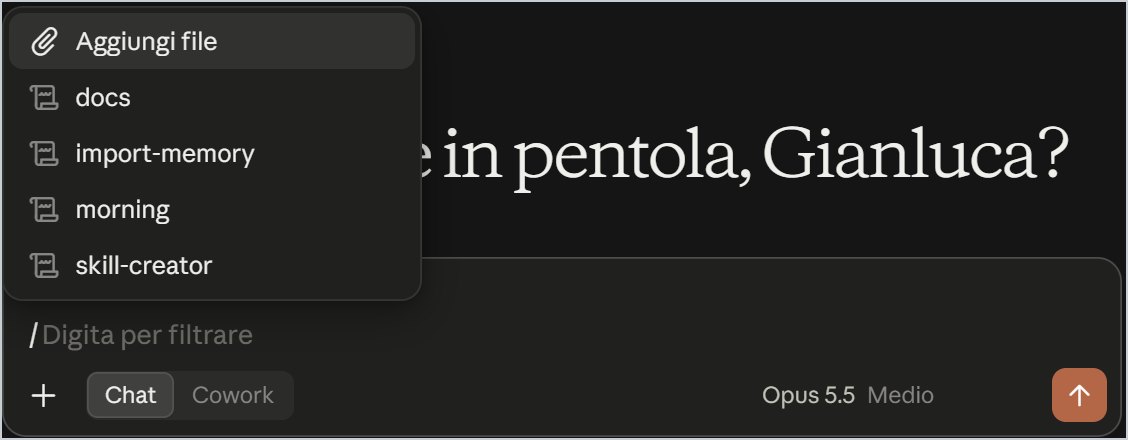
Write the request the way you would say it out loud. To start a new line without sending, use Shift+Enter; to send, Enter. If you type a slash /, the list of installed skills opens (Claude's work «recipes»).
3.1 The + button
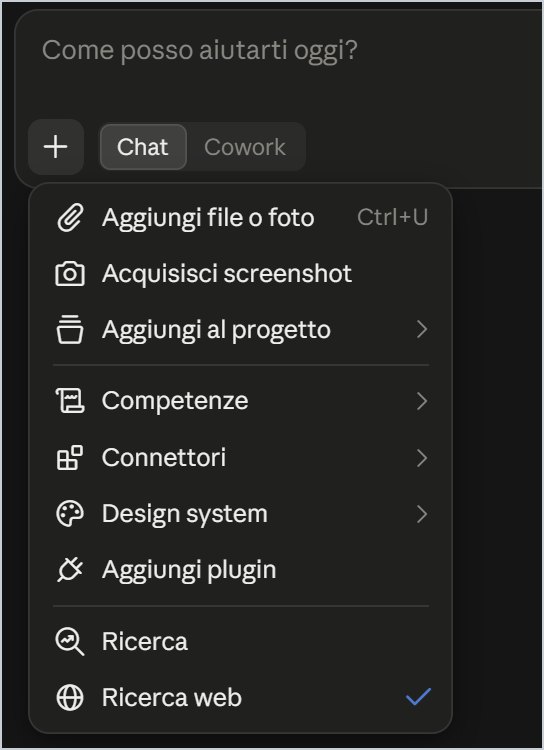
- Add files or photos (Ctrl+U): PDF, Word, Excel, images, text; you can also drag them into the window.
- Take a screenshot: captures part of your screen and attaches it.
- Add to project: moves files and request into a Project.
- Skills, Connectors, Design system, Plugins: call the features of Customize.
- Research and Web search: with the tick, Claude checks up-to-date sources on the Internet.
3.2 The model
The button with the model name (for example «Opus 5.5, Medium») opens the list. As of October 2026 you find Fable 5.1 (the hardest challenges, with usage credits on the Pro plan), Opus 5.5 (complex work and everyday tasks), Sonnet 5.5 (more efficient for simpler tasks) and Haiku 4.5 (the fastest). Below, More models holds the earlier versions.
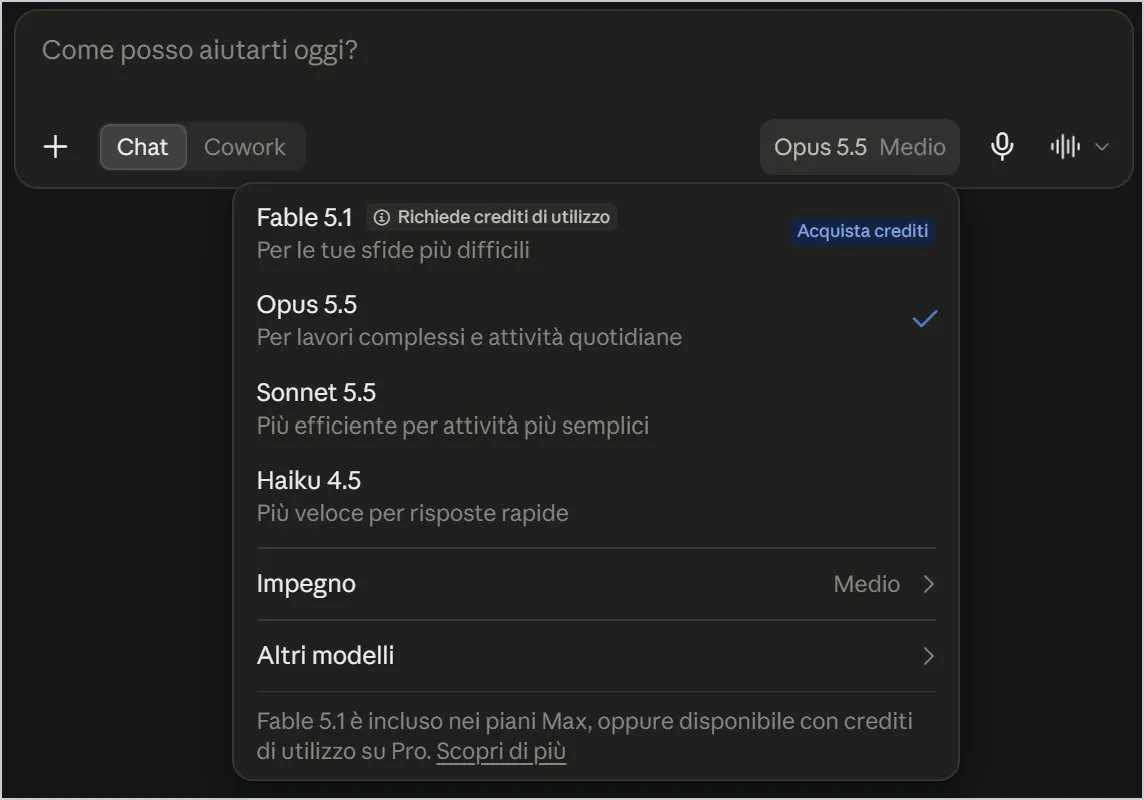
The model is how capable the assistant is; effort is how long it thinks before answering. Model names change fast: remember the criterion, light, balanced, powerful.
3.3 Effort
The Effort entry says it clearly: more effort means deeper answers, but takes more time and uses your limits faster. The Max level uses five and a half times the normal amount or more.
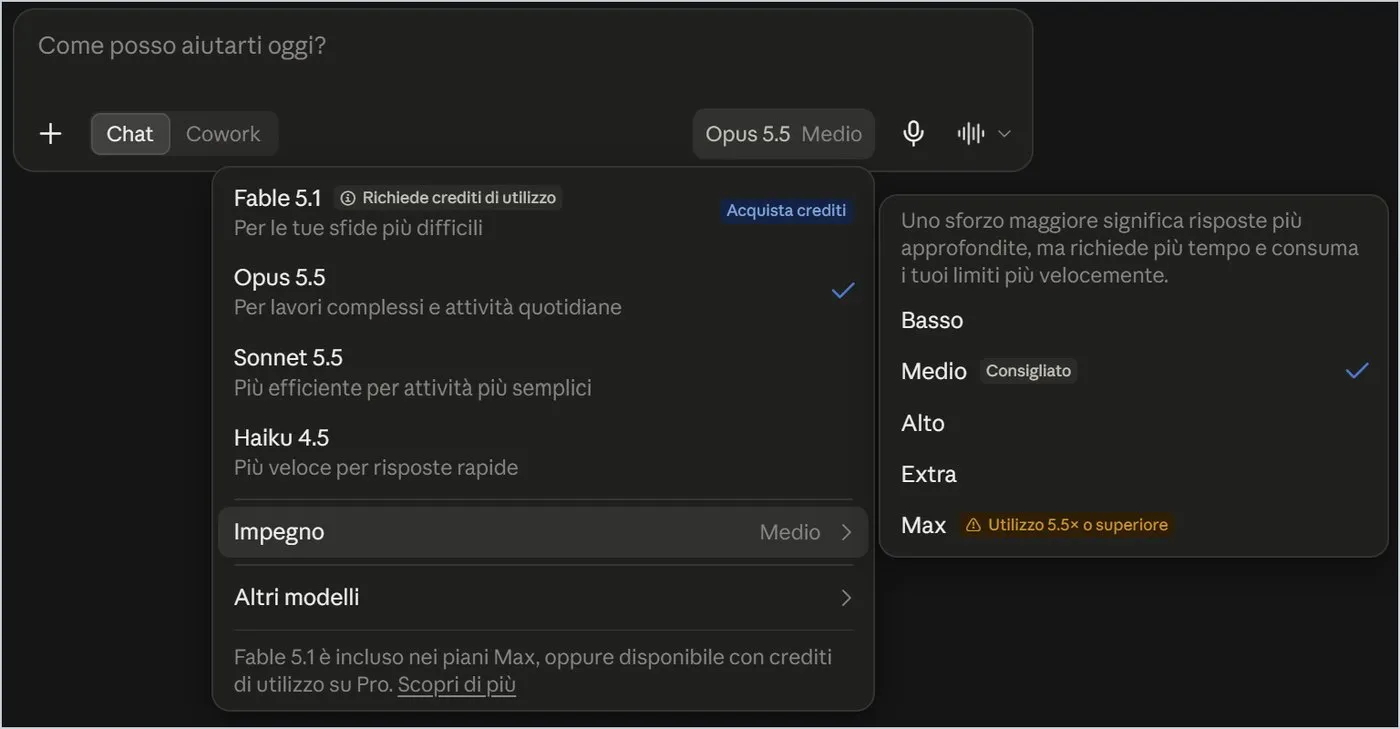
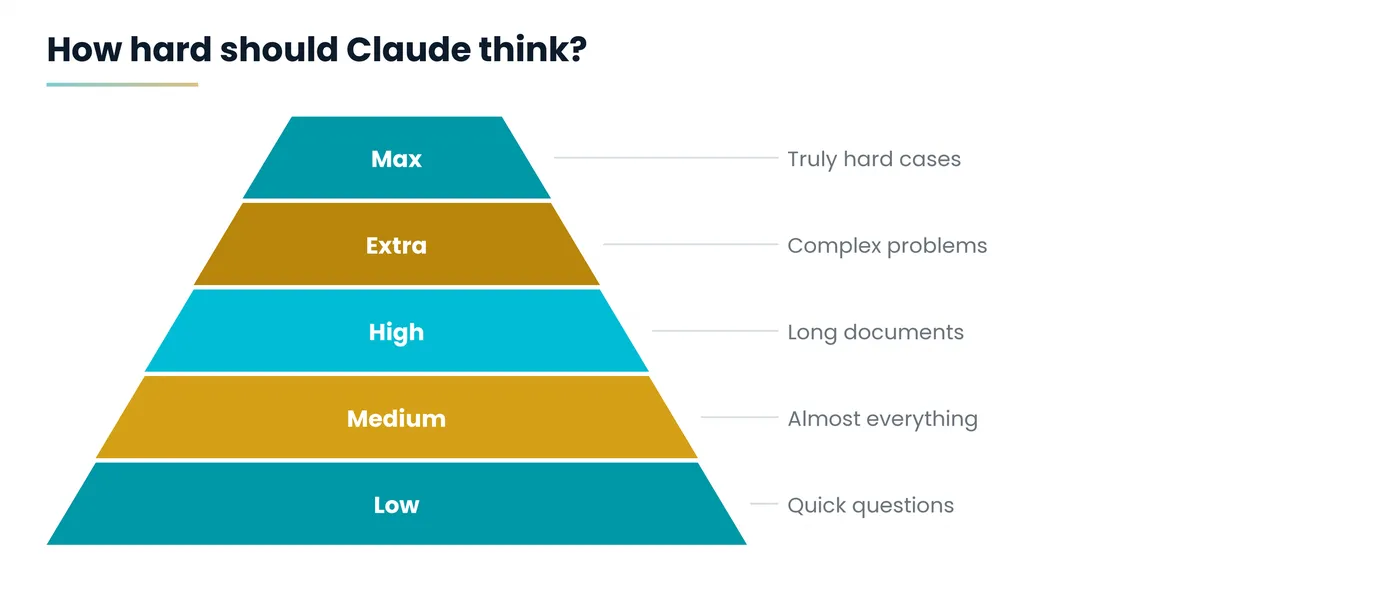
For almost all work Medium, the recommended level, is enough. Raise the effort only when the answer is shallow, lower it for quick questions.
3.4 Voice
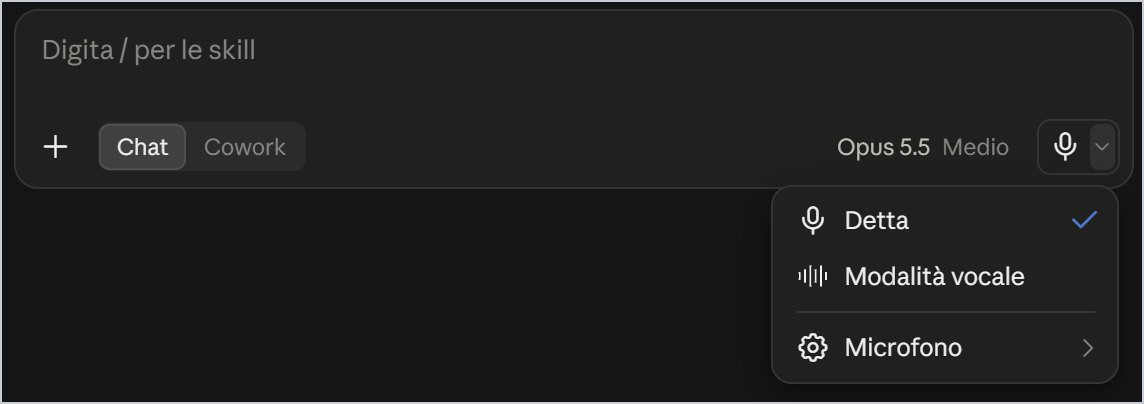
The microphone on the right opens three options: Dictate (your voice becomes text, Ctrl+D in the app), Voice mode (a spoken conversation) and Microphone (which one to use). Voice language, style and speed are chosen in Settings.
4. Conversing, searching and working incognito
After the first message, the screen turns into the actual chat.
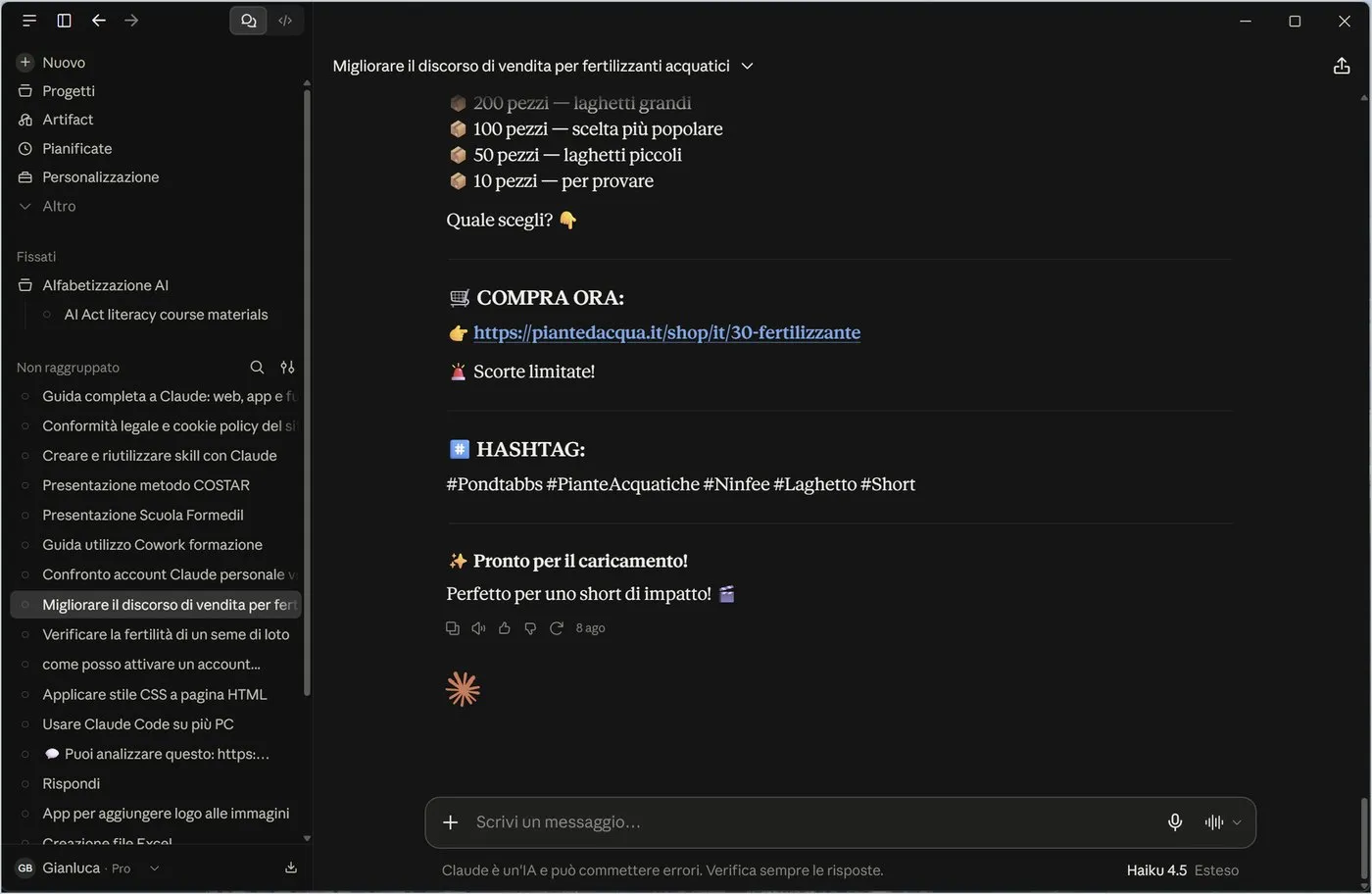
- Chat title: at the top, proposed by Claude after the first exchange; the small arrow opens actions on the conversation.
- Share: the icon at the top right creates a link; the links you made are managed in Settings, Privacy.
- Bar under the reply: copy the text, read it aloud, like or dislike (feedback), regenerate.
- Box at the bottom: to continue the dialogue; on the right you see the model and reasoning in use.
If the answer does not convince you, say what to change («shorter», «more formal», «add an example»). Claude takes the whole conversation into account.
4.1 Search
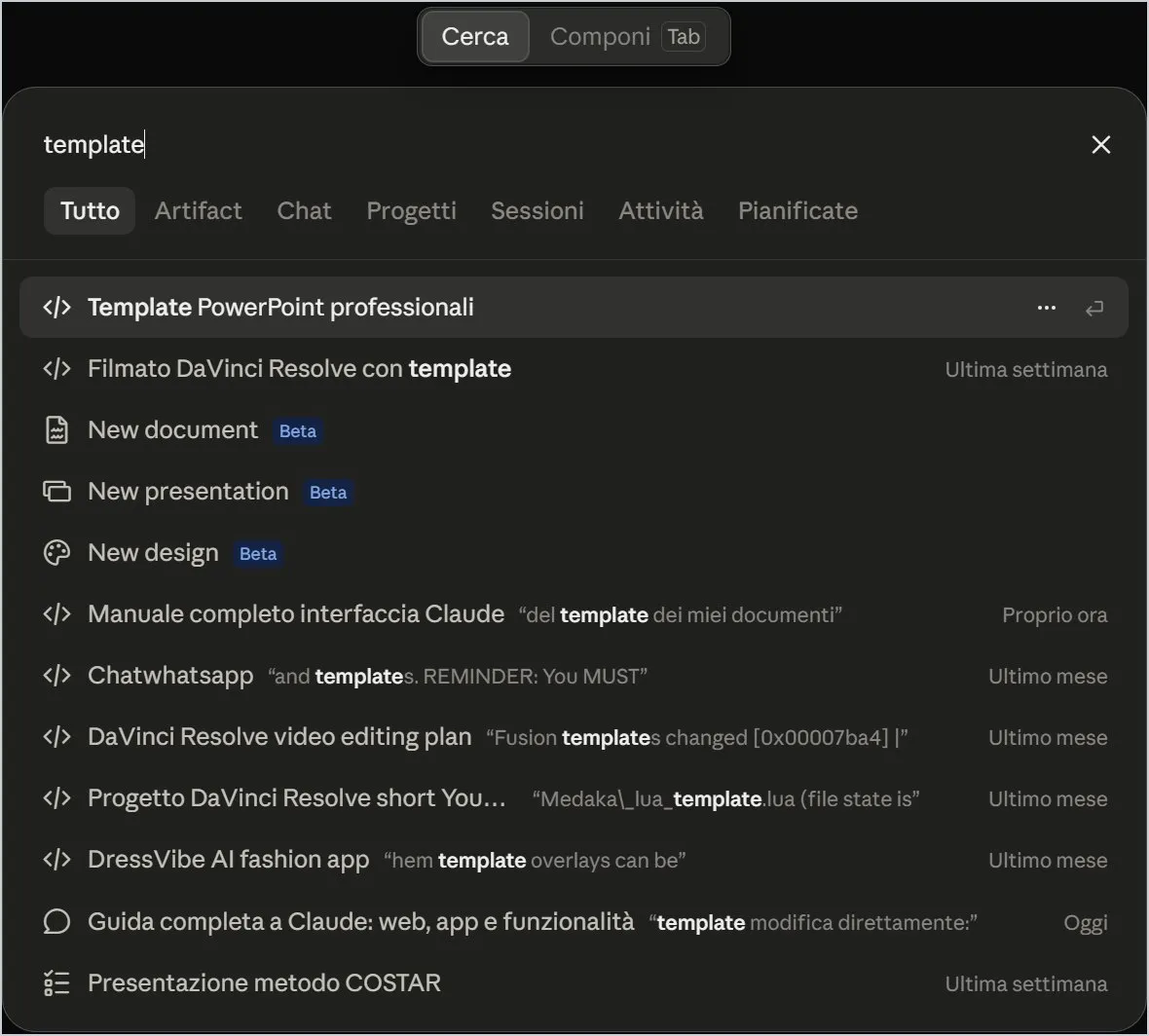
The lens (or Ctrl+Shift+K in the app) opens a window that searches chats, Artifacts, projects, sessions and tasks. Under each title you see the snippet with the word found and the date. The Tab key switches from Search to Compose.
4.2 Incognito chats
The ghost icon at the top right (Ctrl+Shift+I in the app, where a separate window opens) starts a conversation that leaves no trace. The screen says so: it does not appear in history or search and it is not used to train Claude.
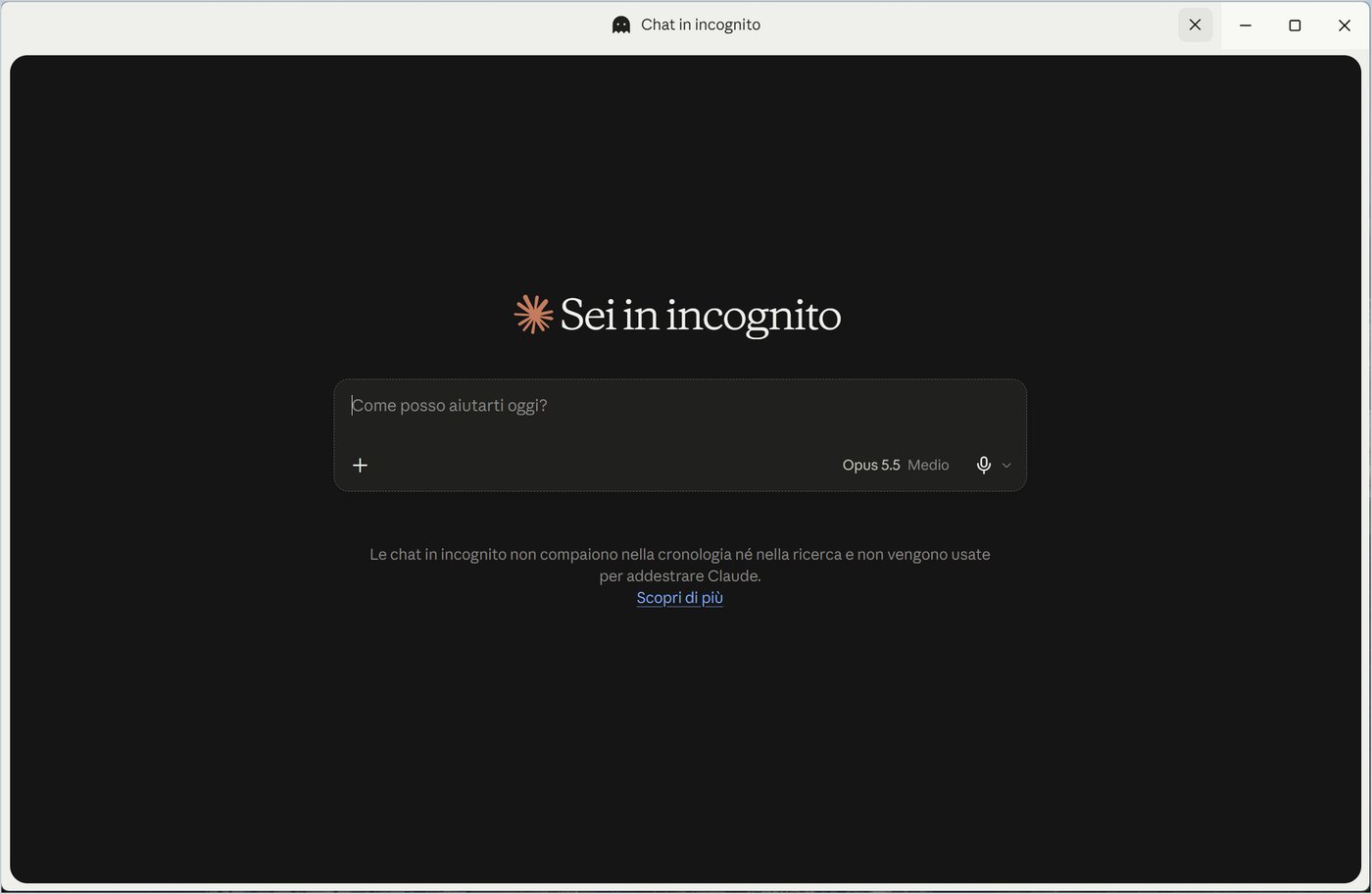
When you close the window the conversation disappears: copy what you need first. Incognito does not change your employer's or school's rules on AI use.
5. Projects, Artifacts and Scheduled tasks
Three sections for work that lasts more than one chat: gather the context, keep what you create, automate what you repeat.
5.1 Projects
A project is a smart folder: instructions, files and chats on one topic, all visible to Claude. You upload the documents once and every new chat already knows them. In the app, the Folder entry can also link a folder on your computer.
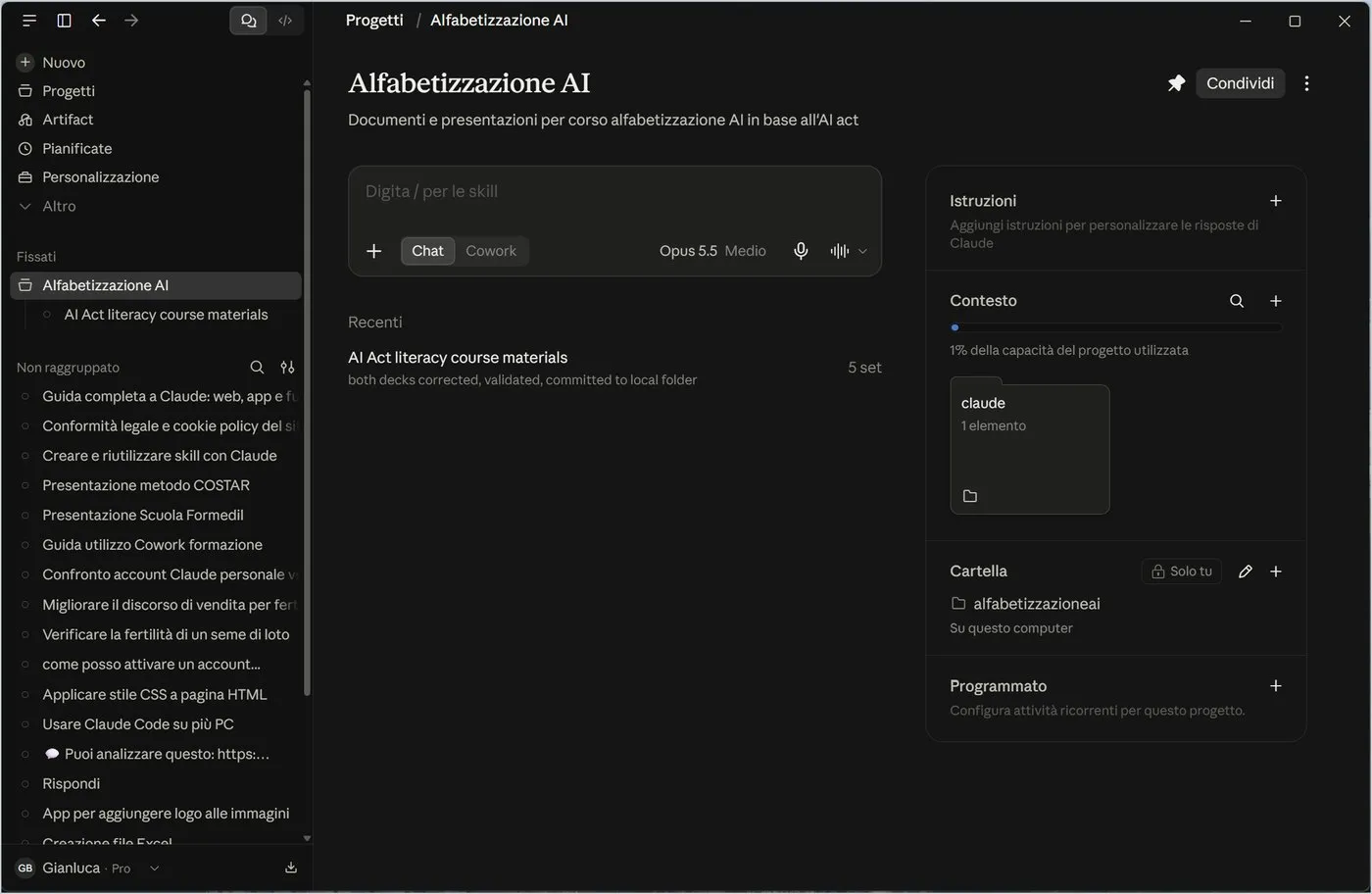
- Instructions: rules for all chats in the project (tone, format, role).
- Context: the uploaded files; a gauge shows how much capacity is used.
- Scheduled: recurring tasks tied to the project.
- Pin and Share: the pin locks it at the top, Share invites other people.
5.2 Artifact
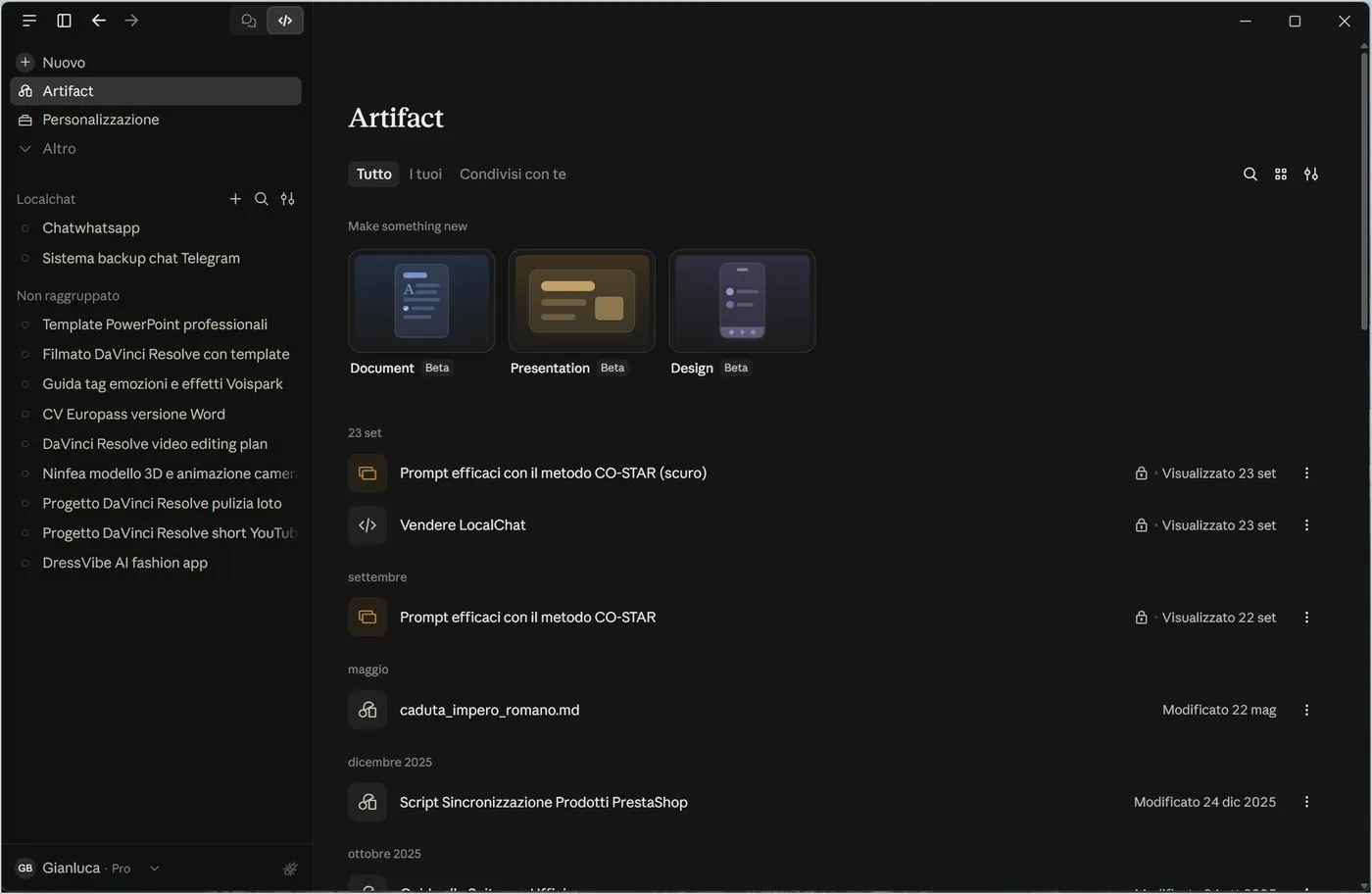
When Claude creates something lasting (a document, a presentation, a site, a small app) it shows it in a separate window: the Artifact. The Artifact page gathers them all, with three starting points (Document, Presentation, Design) and the filters All, Yours, Shared with you. They are turned on in Settings, Features.
5.3 Scheduled tasks
Scheduled tasks run by themselves at the time you choose, even in the cloud: you can create them from your phone, but some need the computer to be on. Four starting templates: daily briefing (weekdays, eight o'clock), inbox triage, meeting prep, weekly recap (Friday, four in the afternoon).
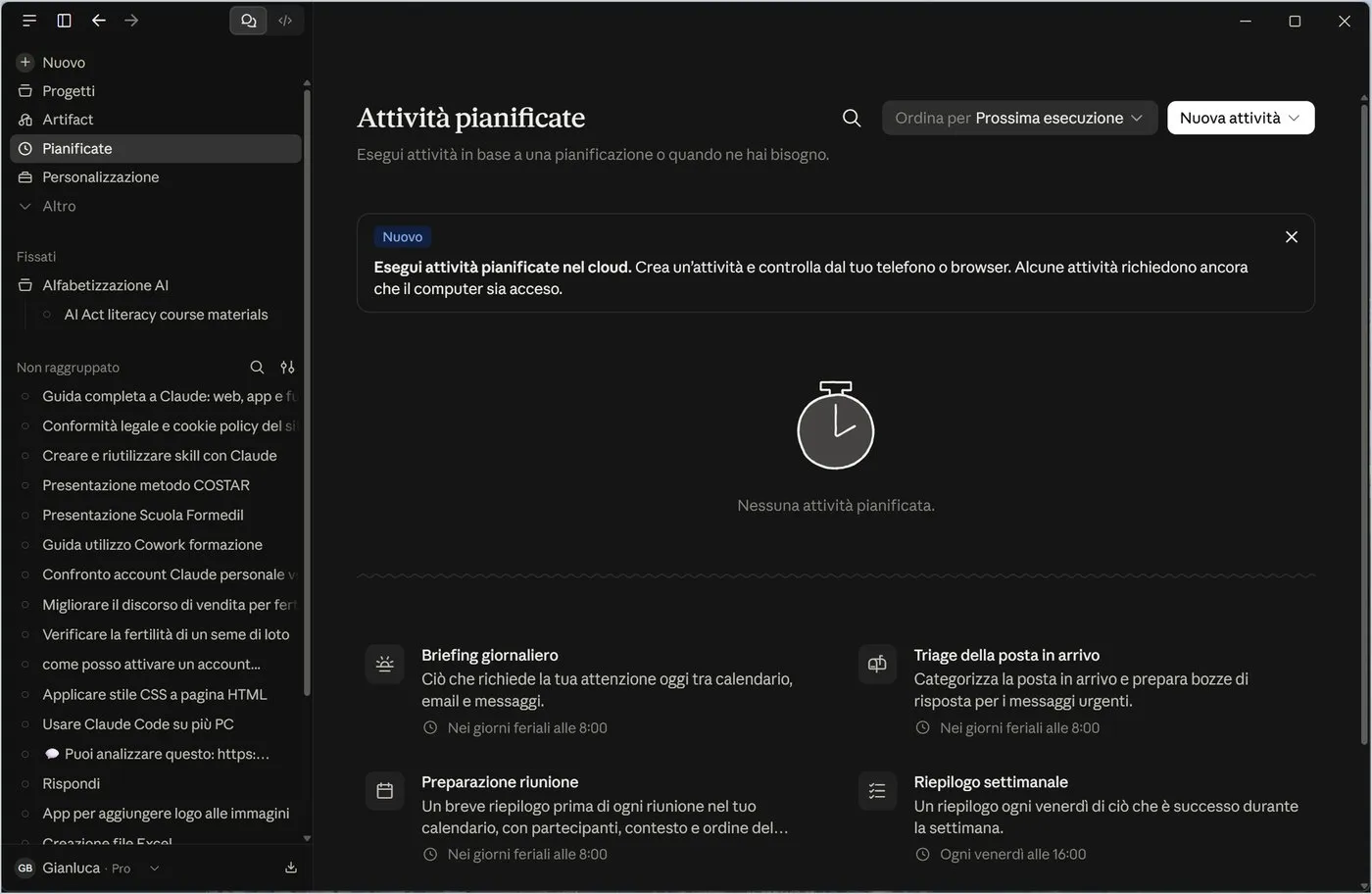
Every run counts as normal usage: few tasks, short and precise instructions. For those on your PC turn on Settings, System, Keep the computer awake.
6. Customize, Cowork and Claude Code
How to teach Claude the way you work, connect it to your apps and have it carry out whole tasks.
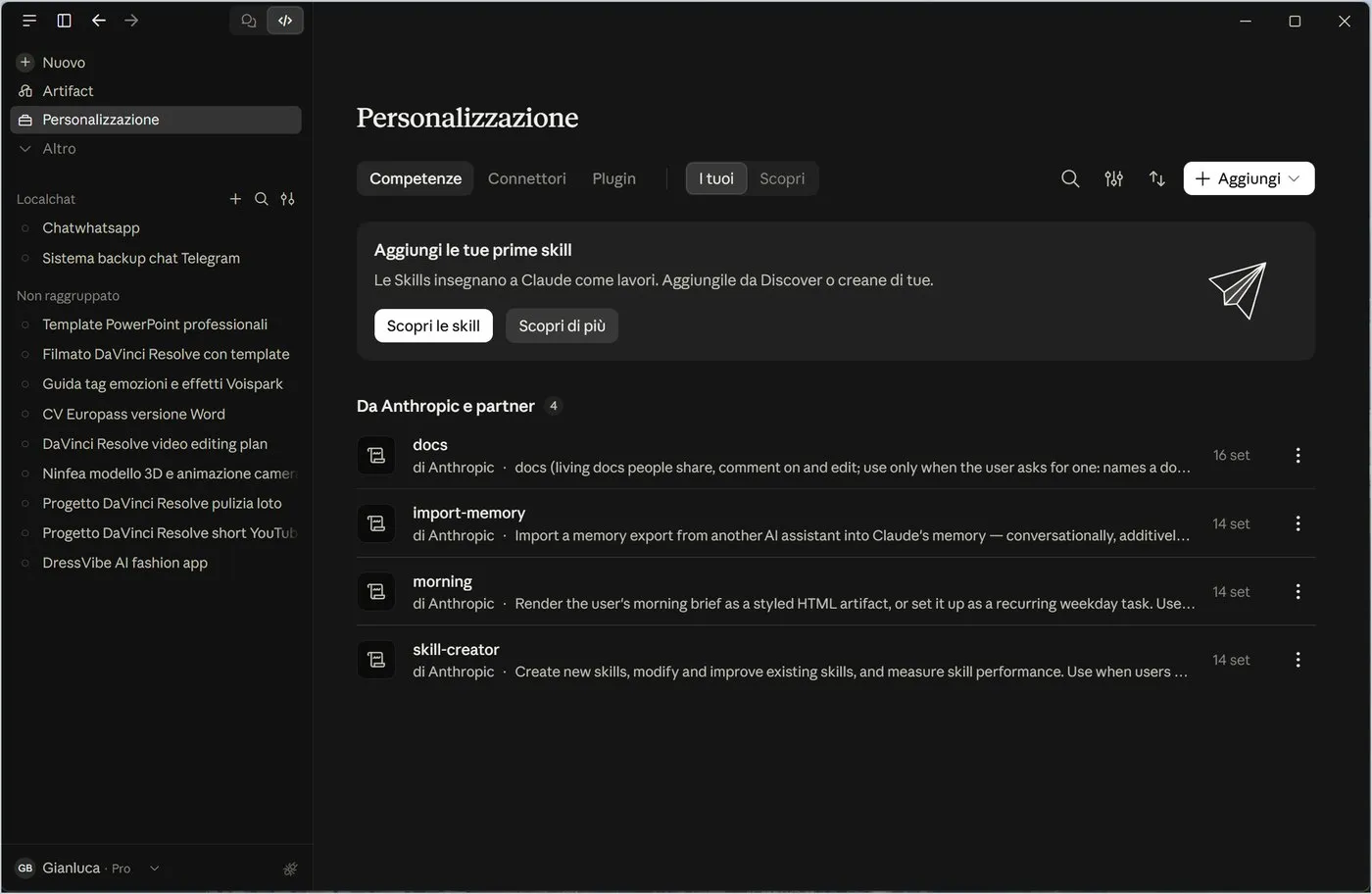
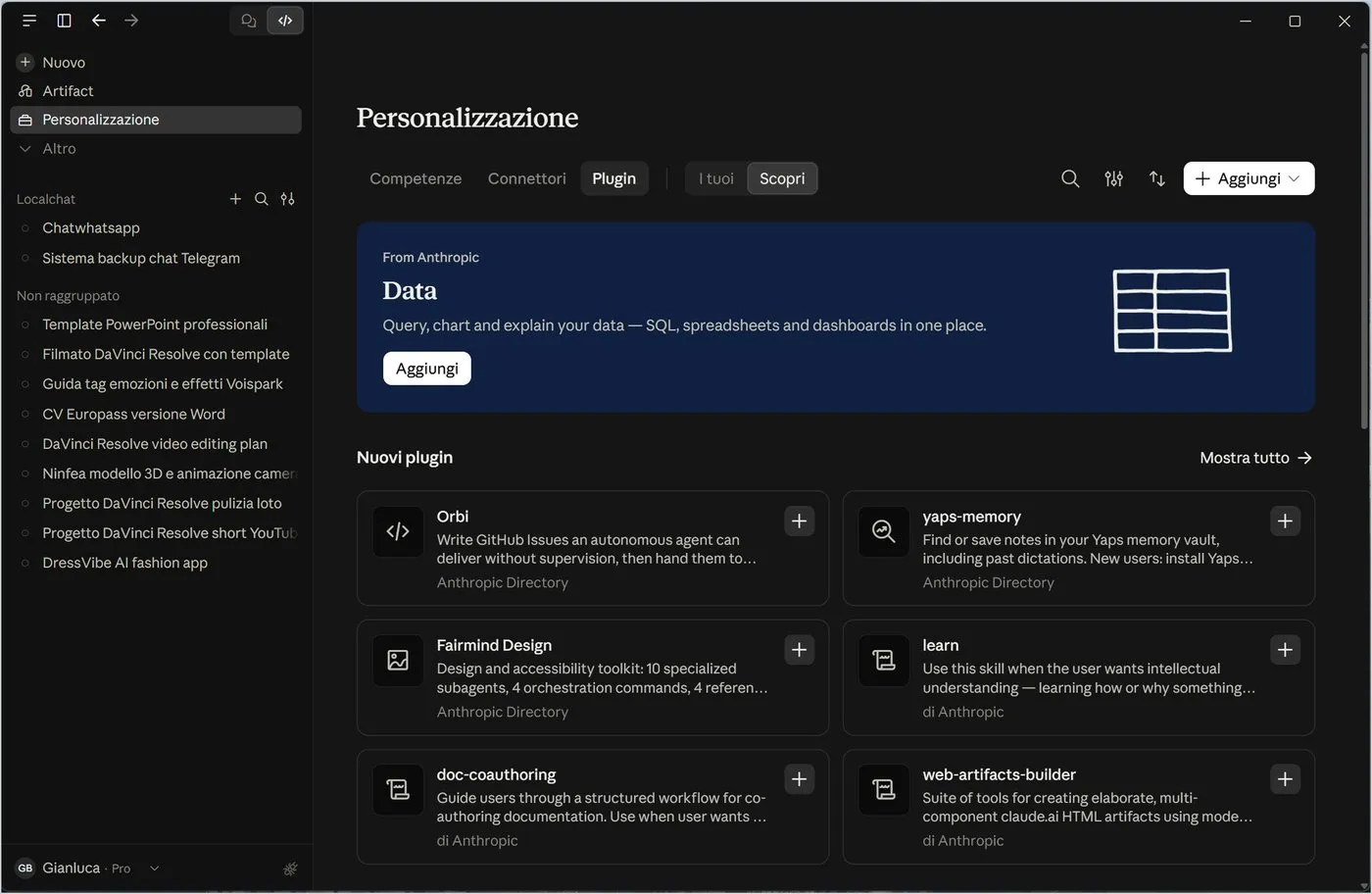
The Customize page has three tabs, Skills, Connectors and Plugins, and two levels: Yours (what you installed) and Discover (the catalogue). At the top right you find search, filters, sorting and Add.
6.1 Skills
A skill is a set of reusable instructions: how to do a certain kind of work. You call it with the / key. With Add you can upload one, write your own, have Claude write it or record your screen while you show the procedure.
6.2 Connectors
Connectors link Claude to outside services: Google Drive, Gmail, Google Calendar, Microsoft 365, Notion, Slack, GitHub and thousands more. A tick means a connected service, the Connect button one still to connect.
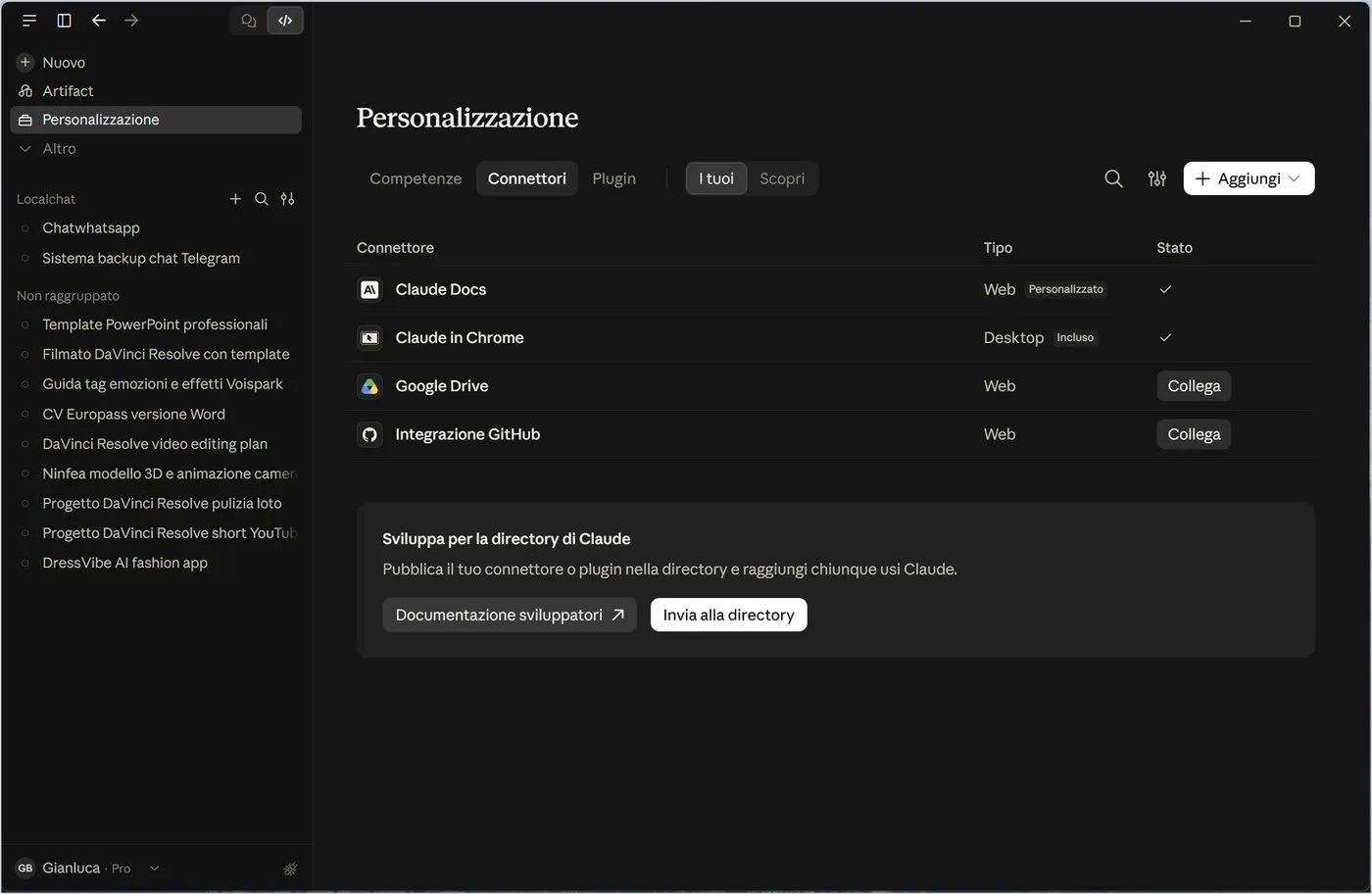
Connecting Gmail or Drive means letting Claude read that data. Connect only what you need and disconnect what you no longer use.
6.3 Plugin
A plugin is a bundle of skills, connectors and commands for a trade: data, engineering, finance, design. Each card has Try (use it right away in a chat) and the + button to install it.
6.4 Cowork
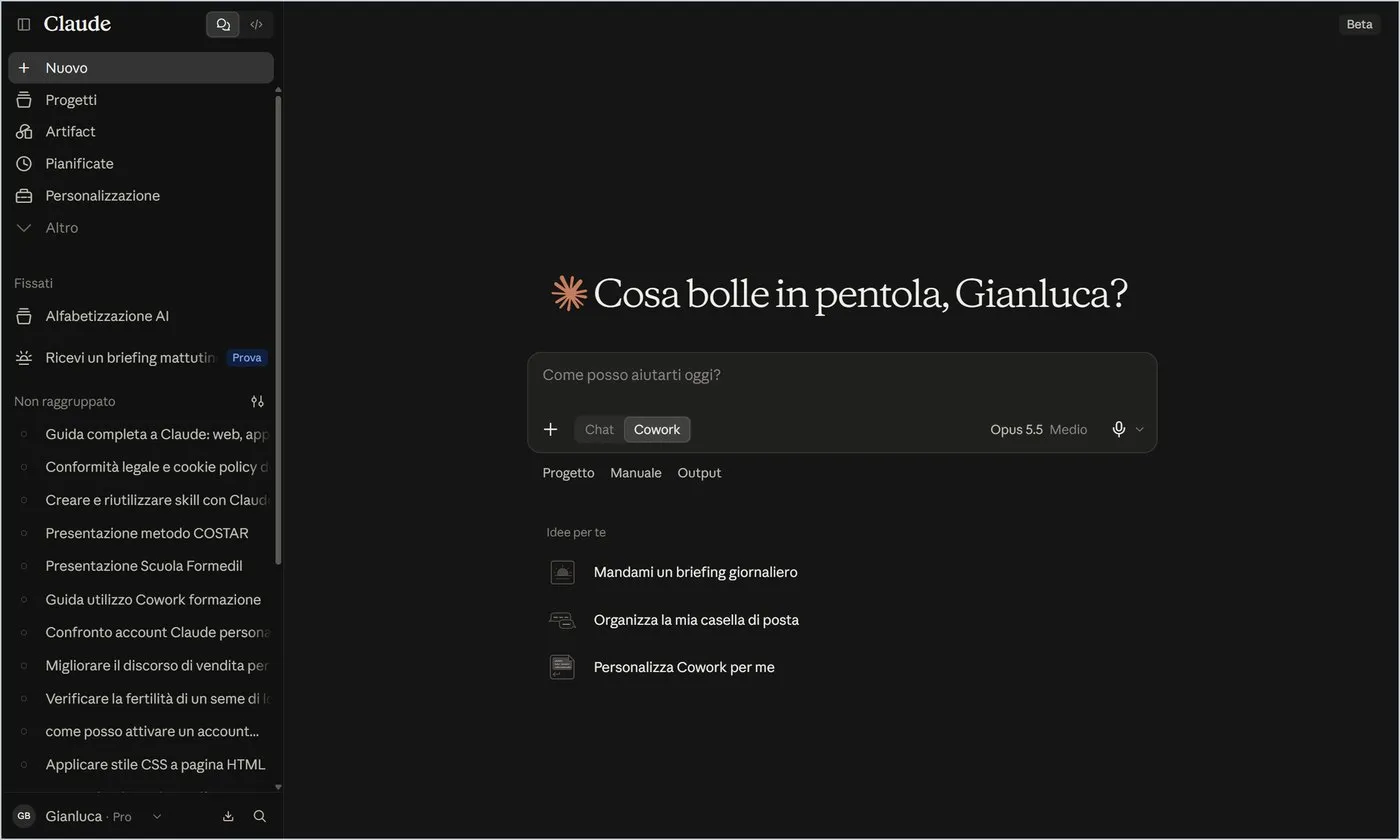
With the Chat, Cowork switch under the box you no longer ask a question: you assign a task, which Claude completes using files, browser and applications. The Project, Manual (asks for confirmation step by step) and Output tabs guide the work. The feature is in Beta.
6.5 Claude Code
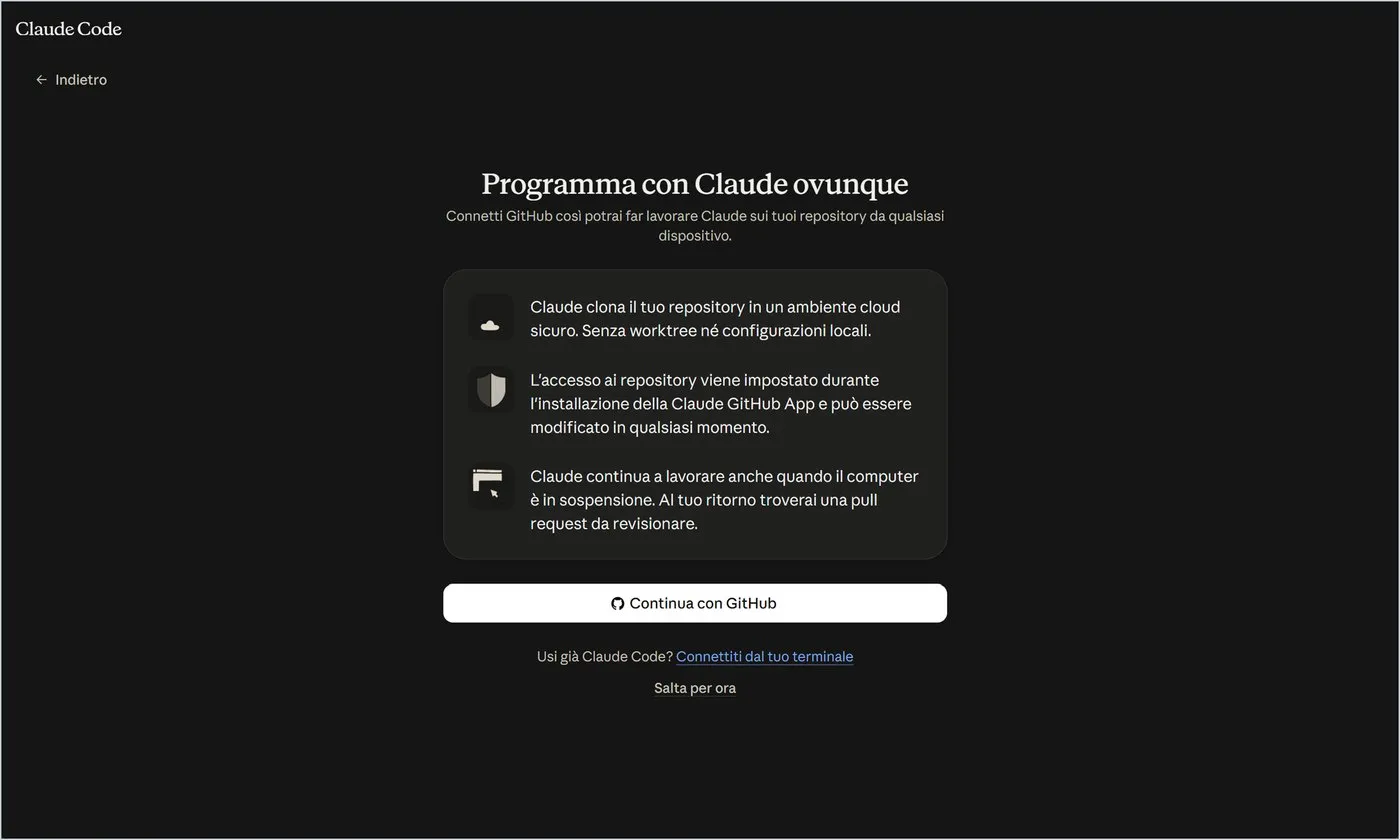
The button with the code symbol, next to the chat switch, opens Claude Code, the programming assistant. On the web it connects to GitHub: Claude works on a copy of the repository in a cloud environment and leaves you a pull request to review. In the app it works on the folders of your PC.
7. Desktop only: menus, shortcuts and windows
The app adds to the website a real program menu, the keyboard and multiple windows.
The three lines at the top left open five menus: File, Edit, View, Go and Help. Hovering over buttons shows their description with the shortcut.
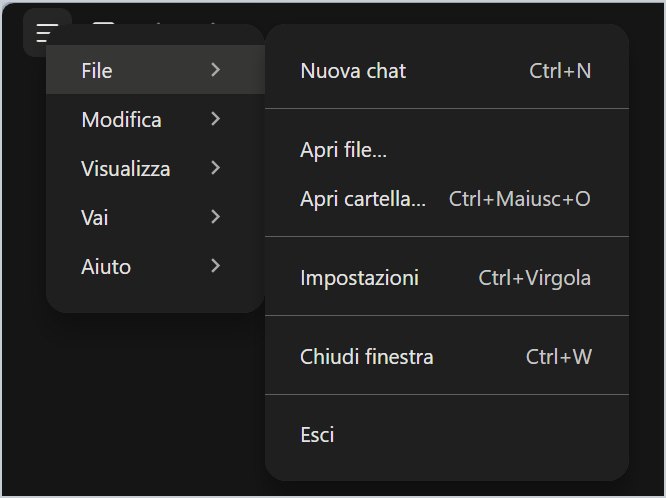
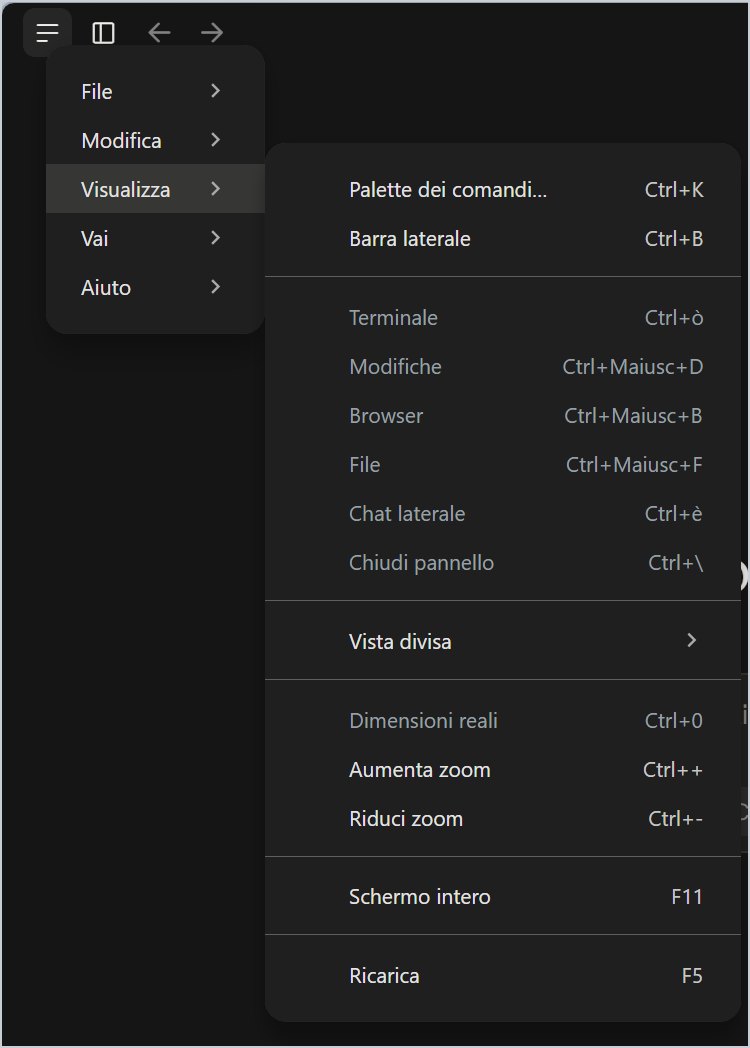
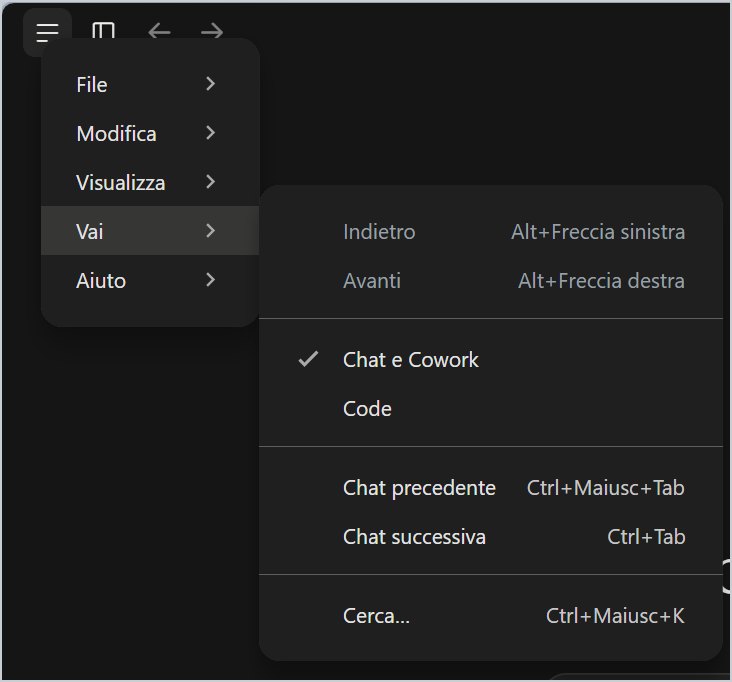
| Action | Shortcut |
|---|---|
| New chat | Ctrl+N |
| Search everything | Ctrl+Maiusc+K |
| Incognito chat | Ctrl+Maiusc+I |
| Show or hide the sidebar | Ctrl+B |
| Add files | Ctrl+U |
| Dictation | Ctrl+D |
| Settings | Ctrl+, |
| Command palette | Ctrl+K |
| Previous and next chat | Ctrl+Maiusc+Tab, Ctrl+Tab |
| Open Claude from any program | Ctrl+Alt+Spazio |
| Zoom | Ctrl++, Ctrl+-, Ctrl+0 |
- Command palette (Ctrl+K): a box to search for and run any command.
- Split view: puts two sessions side by side in the same window.
- Open in a new window: from the chat menu; incognito chats already open separately.
- Help: guide (F1), troubleshooting, support and update check.
8. Privacy: the setting that decides on training
If you work with client data, students or confidential documents, this is the first setting to check.
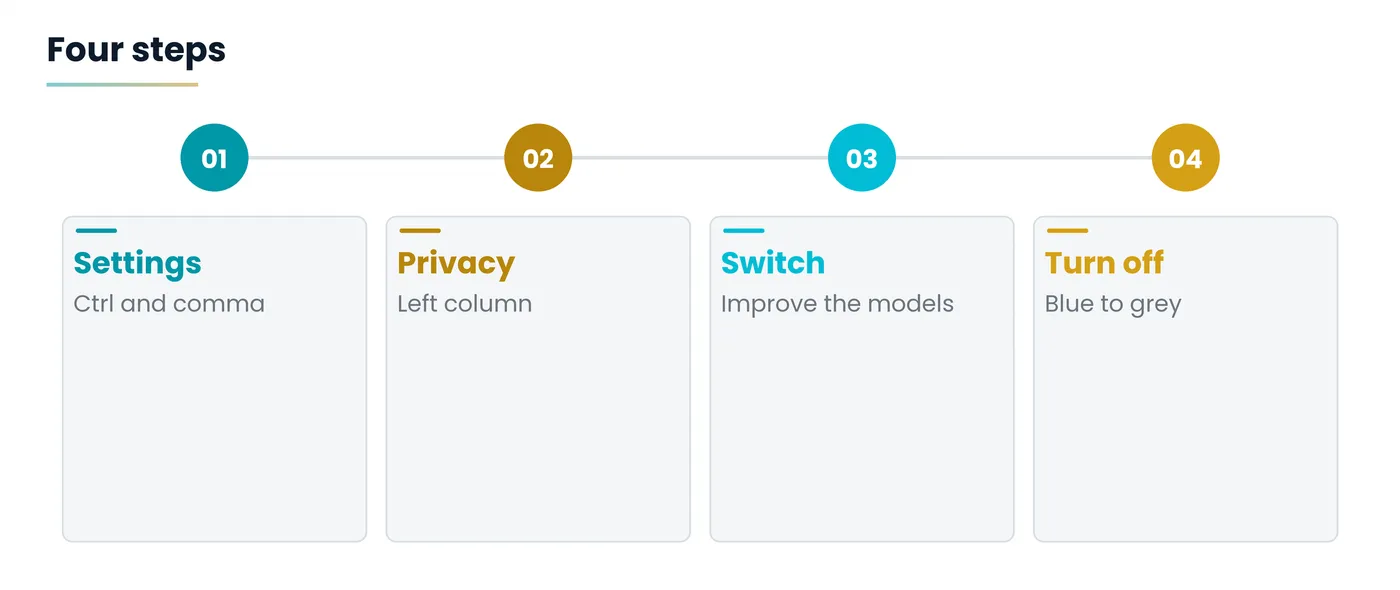
It opens with Ctrl+comma (or from your name menu, Settings) and is under Privacy. In the Preferences part there are two switches, in the Your data part a series of control buttons.
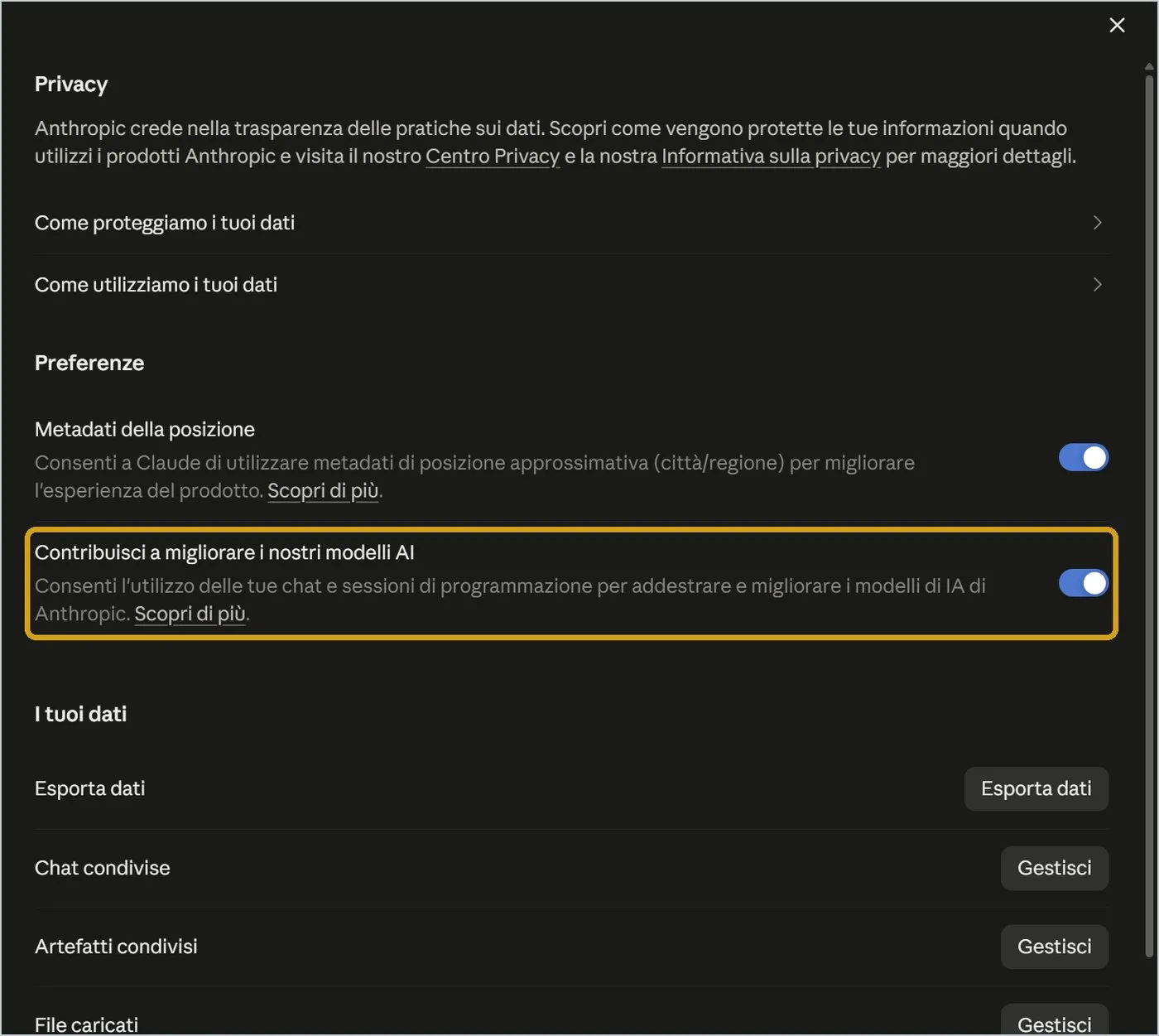
It is the switch that lets Anthropic use your chats and coding sessions to train and improve the models. In the example screen it is on (blue).
If you do not want your content to train the system, turn it off: click until it turns grey, with the knob on the left. It applies to future conversations.
Incognito chats are never used for training anyway.
8.1 The other Privacy entries
- Location metadata: an approximate location (city or region) to improve the experience; turn it off if you do not need it.
- Export data: downloads a copy of all your chats and data.
- Shared chats and Shared artifacts: the public links you created, to be revoked here.
- Uploaded files and Your feedback: you see and manage them here.
- Memory preferences: leads to the Memory options.
Open Settings, Privacy. Look at the training switch. If it is blue and you do not want to contribute, click it. For the most sensitive work use incognito anyway.
9. The other Settings, one by one
The rest of Settings, in the order they appear in the left column.
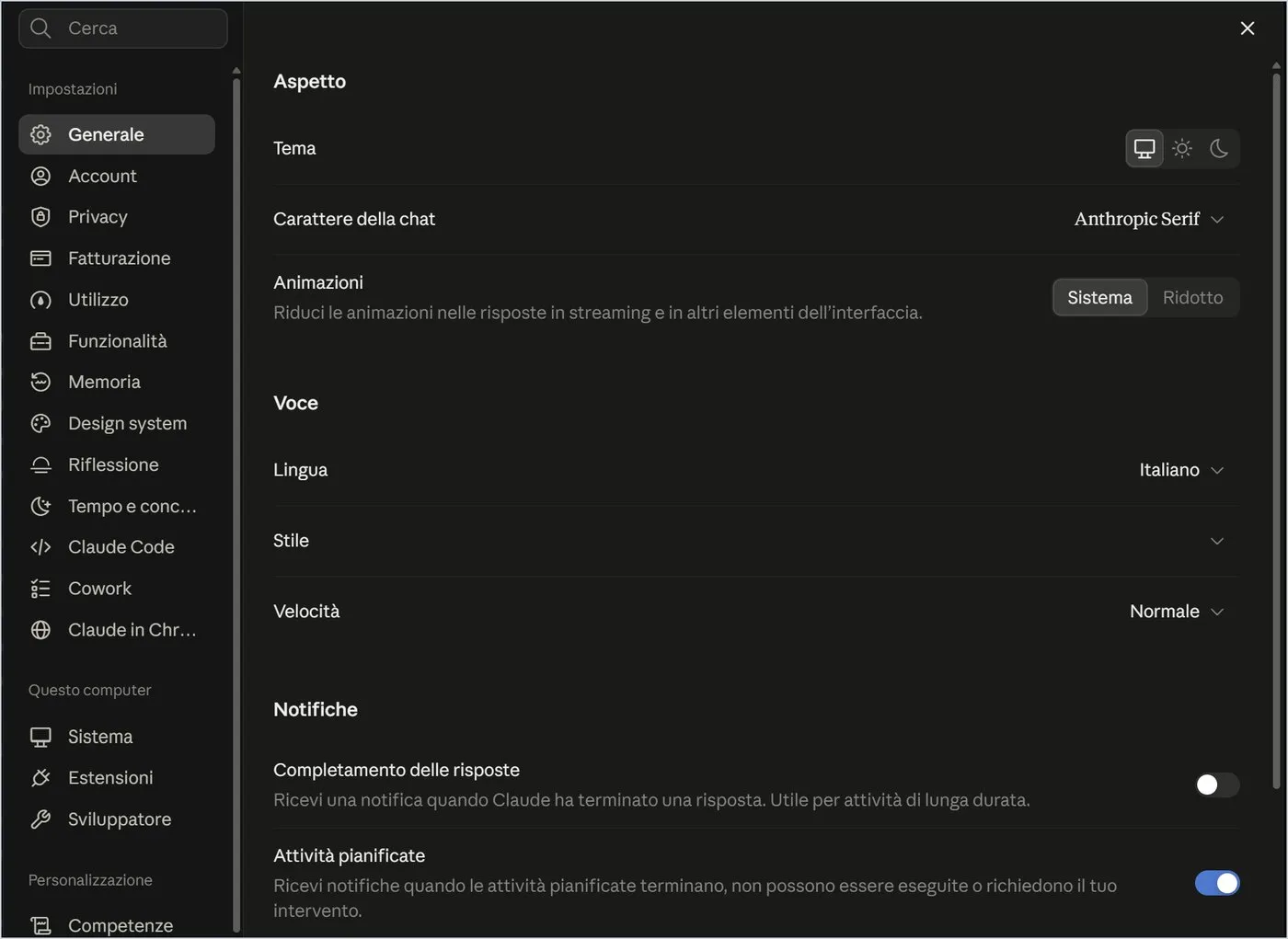
At the top there is a Search box to find an option by name. Sections are in three blocks: Settings (General, Account, Privacy, Billing, Usage, Features, Memory, Design system, Reflection, Time and focus, Claude Code, Cowork, Claude in Chrome), This computer (desktop only: System, Extensions, Developer) and Customize.
| Section | What it controls |
|---|---|
| Generale | Light or dark theme, font, animations, voice language and style, notifications |
| Account | Name, Instructions for Claude valid for all chats, sign out of all devices, account deletion |
| Fatturazione | Plan, payment method, invoices, cancellation |
| Funzionalità | Connector tools, Artifacts, code execution and file creation, outbound network traffic |
| Memoria | Searching past chats; generating memory from them |
| Riflessione, Tempo e concentrazione | A recap based on chats (requires Memory); break reminders and quiet hours |
| Claude in Chrome | Browser extension and site permissions |
9.1 Usage
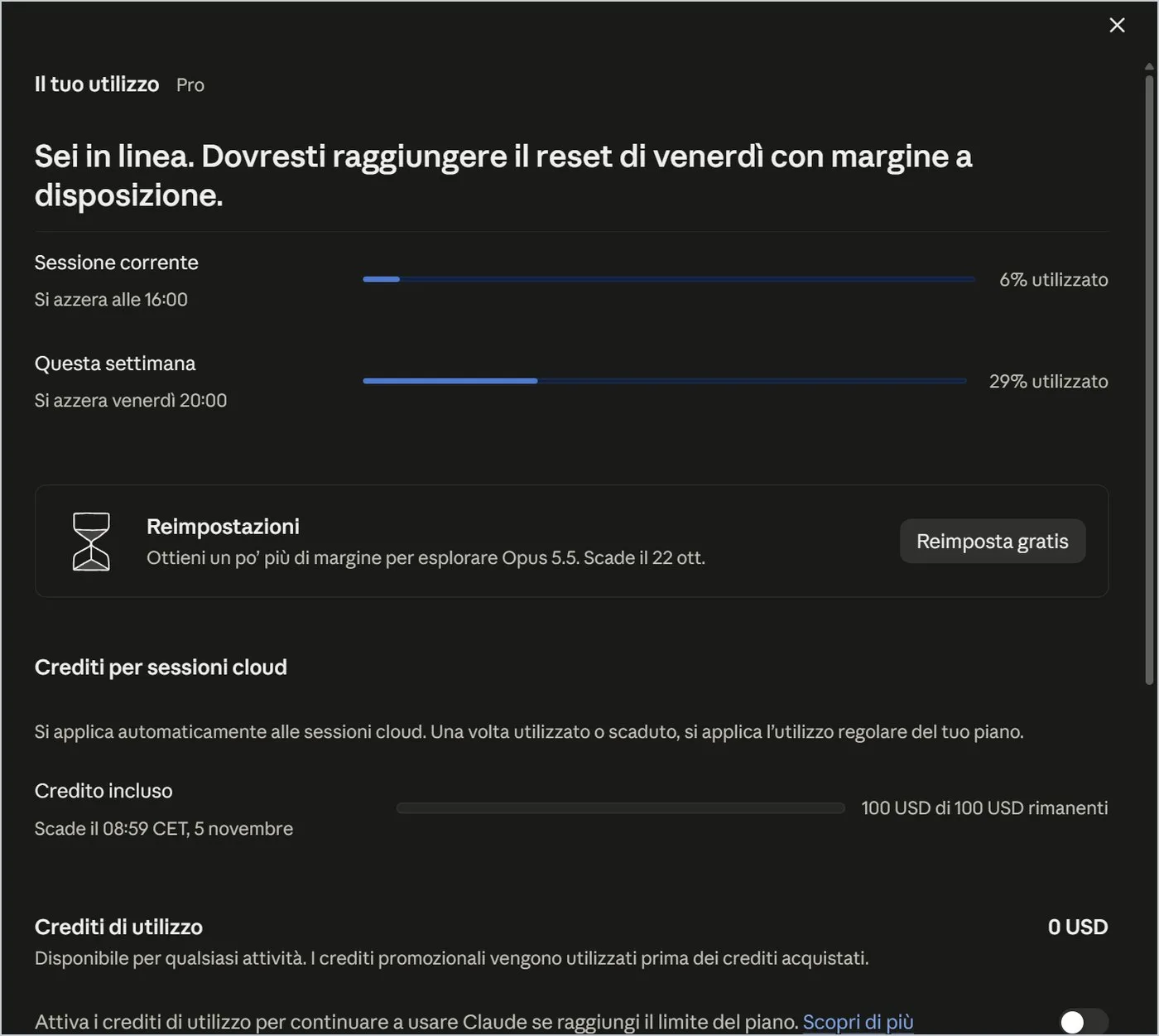
It shows how much of your limit you used: the current session (with the reset time), the weekly limit, credits and usage split between Claude Code, Chat and Cowork. It is the page to check if you run out of messages too early.
9.2 Features and Memory
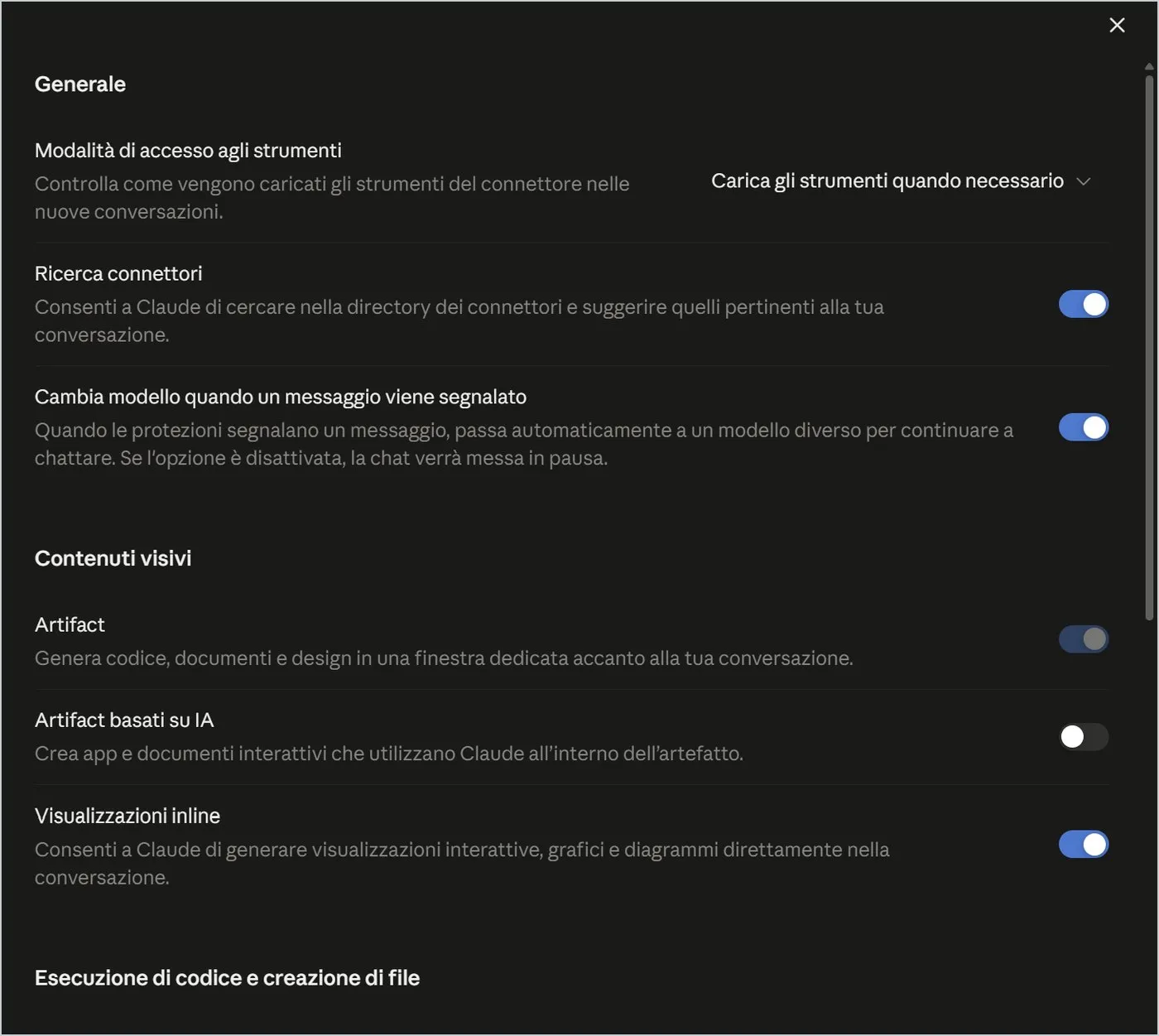
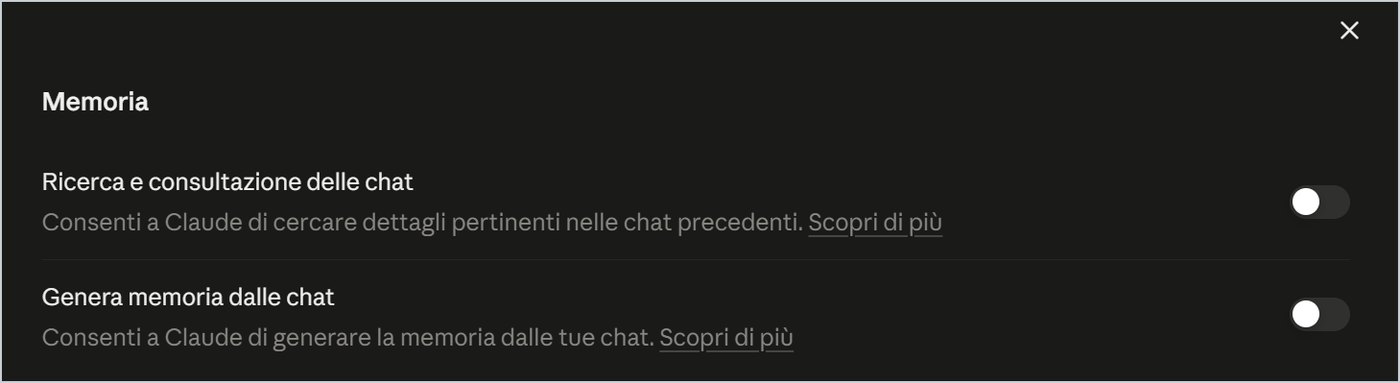
In Features two entries deserve a look: Code execution and file creation (needed for Claude to make Word, Excel and PowerPoint documents) and Allow outbound network traffic, which the page itself flags as a security risk: with confidential documents keep it limited to package managers. In Memory two switches decide whether Claude searches past chats and whether it generates memory from them.
10. Desktop only: Claude Code, Cowork and System
The most «powerful» sections of Settings: here a switch can give Claude more freedom. Read them calmly.
10.1 Claude Code
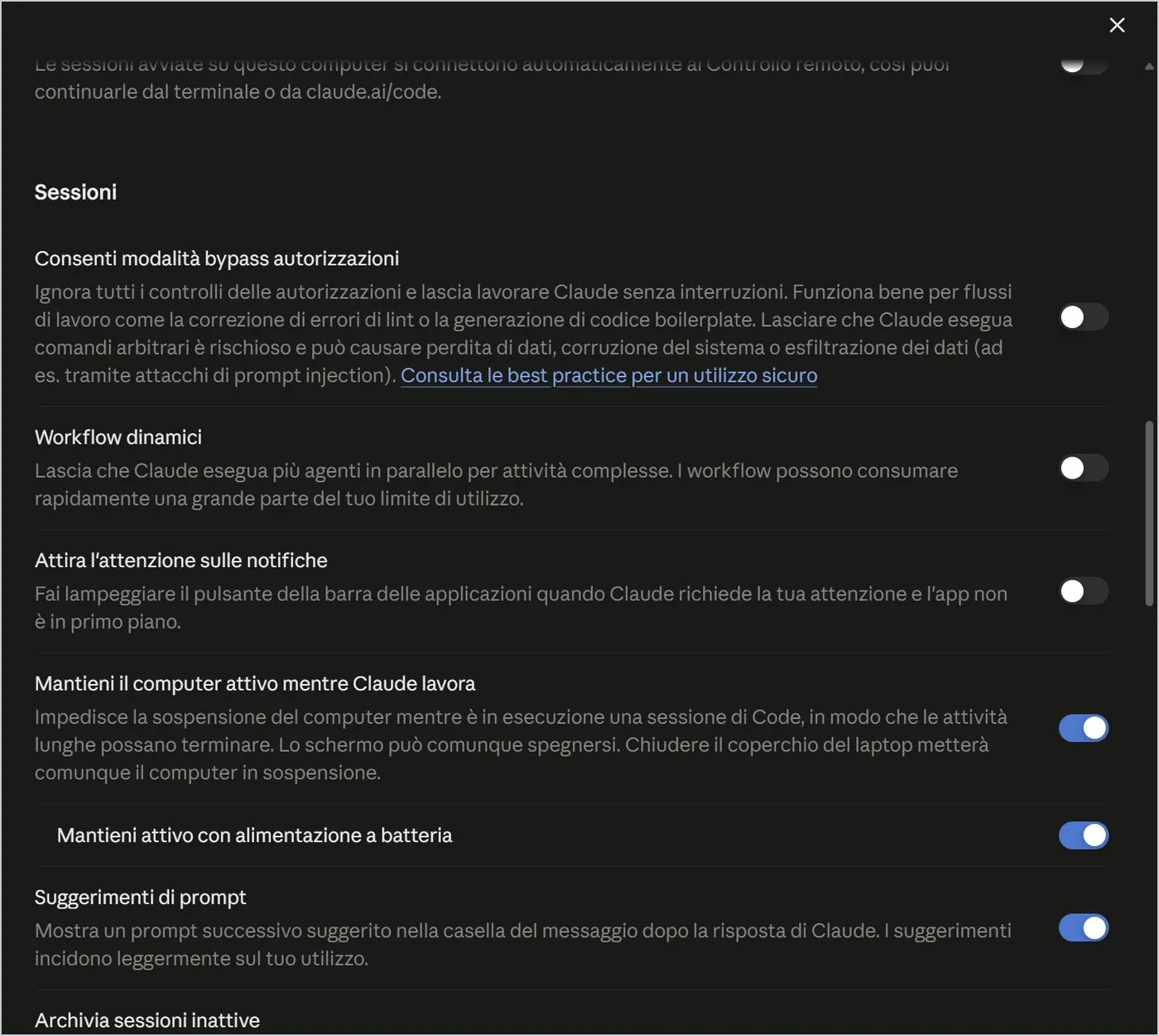
It controls code appearance, fonts and session display, the tokens of connected devices and the GitHub integration. The switch to know is Allow permission bypass mode: it makes Claude work without asking for permission and can cause data loss. Leave it off.
10.2 Cowork
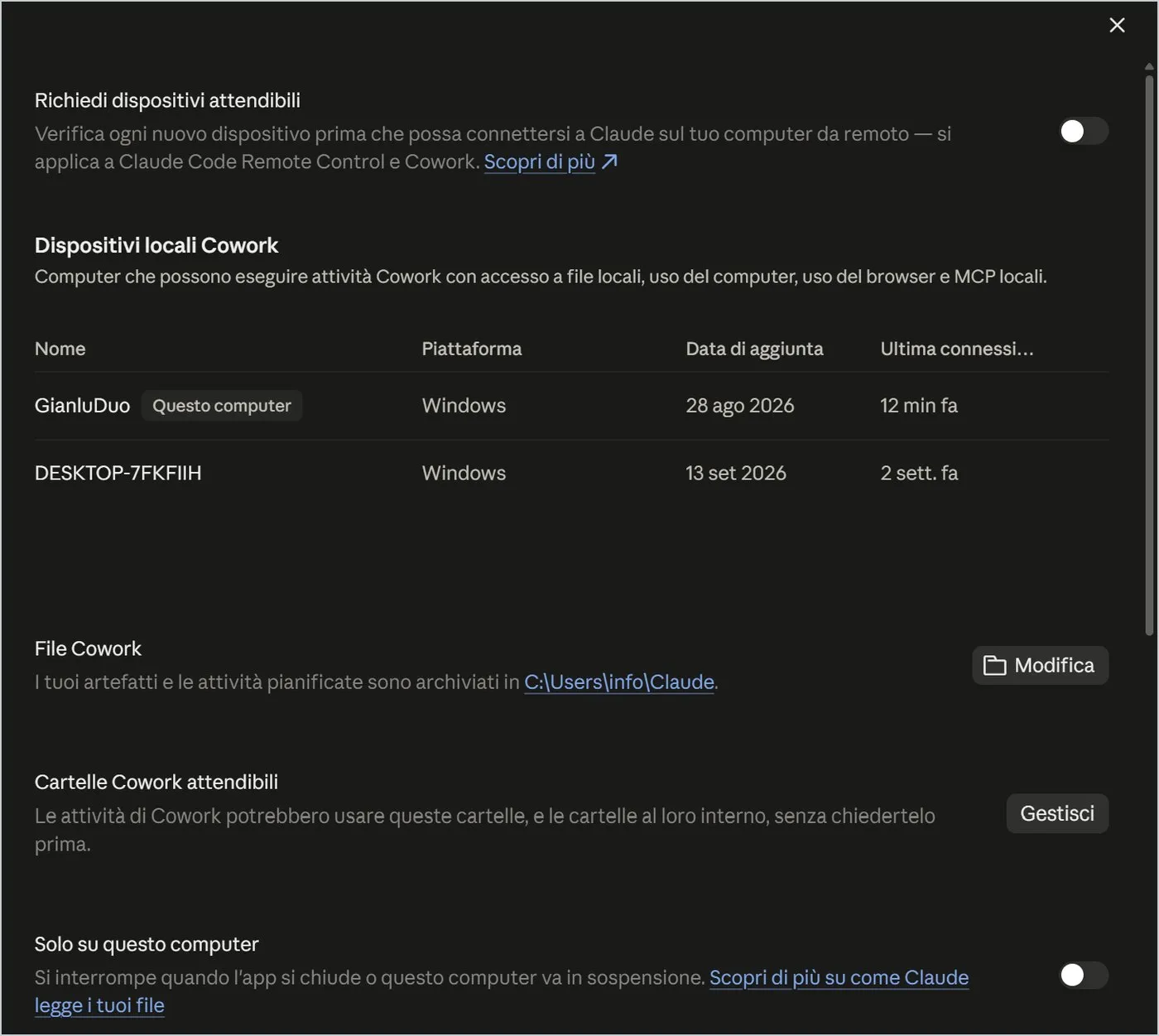
Here you choose the devices that can run Cowork tasks, the folder where artifacts are saved and the trusted folders, where Claude works without asking each time. Only on this computer stops the task when you close the app. Add few folders, and only the ones you really want.
10.3 System
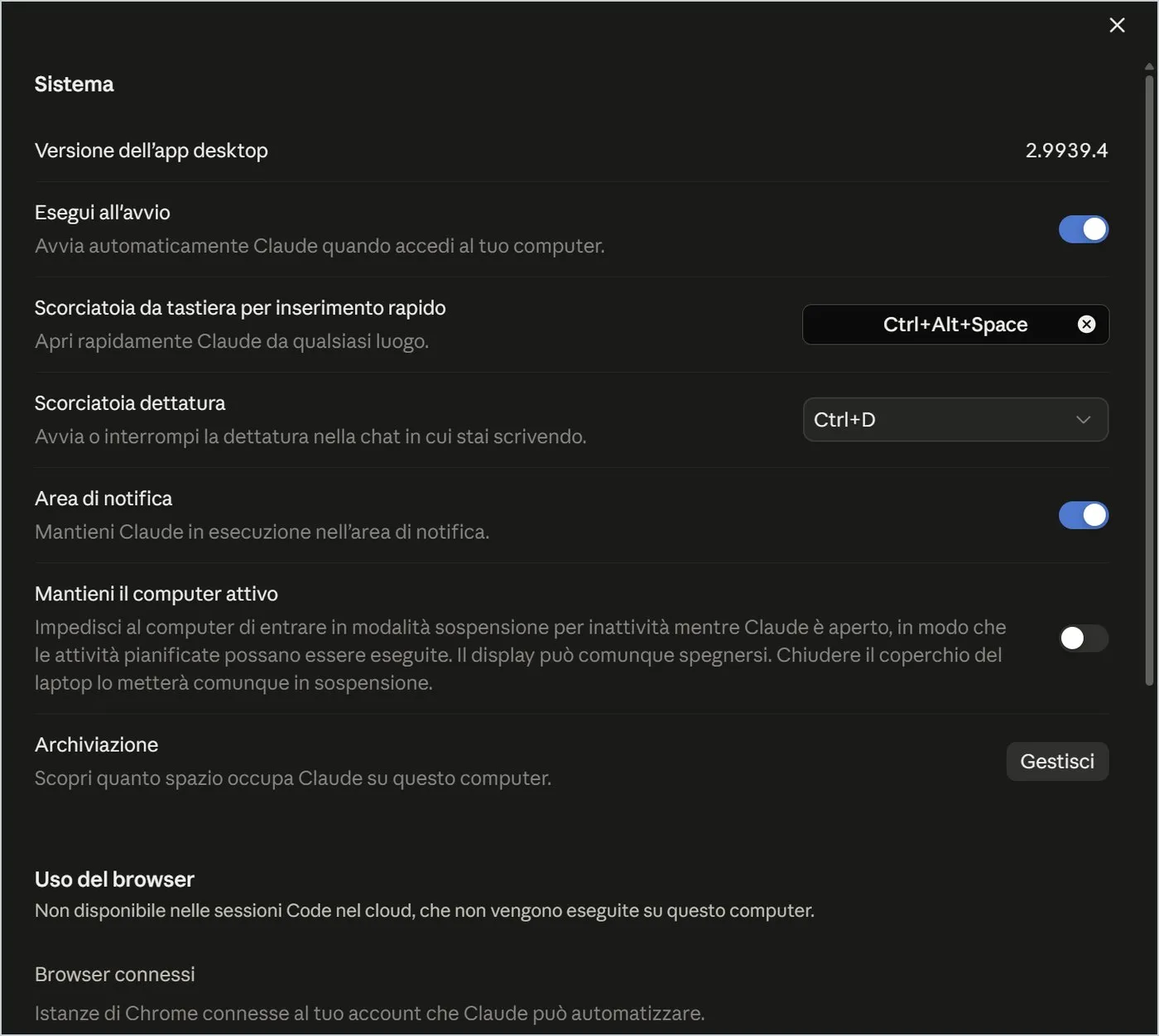
- Run at startup: Claude starts with Windows.
- Quick entry shortcut (Ctrl+Alt+Space) and dictation shortcut (Ctrl+D): both can be changed.
- Notification area: keeps Claude running even with the window closed.
- Keep the computer awake: prevents sleep so scheduled tasks can run.
- Computer use (Beta): gives Claude control of screen, mouse and keyboard in the apps you authorise. Denied apps lists programs it can never access.
It is the most powerful setting: Claude can move the mouse and type for you. Keep it off until you have a precise task and put bank, password manager and mail among the denied apps.
10.4 Extensions and Developer
Extensions lets you install (even by dragging .MCPB or .DXT files) tools that make Claude interact with apps on your computer. Developer manages local MCP servers and points to Claude Platform for API keys, which need another account and are billed separately.
11. The settings to check right away
Eight checks that take less than five minutes.
| Setting | Where | Advice |
|---|---|---|
| Help improve our AI models | Privacy | Turn off if you do not want chats used to train the models |
| Location metadata | Privacy | Turn off if you do not need it |
| Instructions for Claude | Account | Write your preferred language and style once and for all |
| Memory | Memory | Turn on only if you want Claude to know you |
| Outbound network traffic | Features | Limit to package managers with confidential data |
| Permission bypass mode | Claude Code | Leave off |
| Trusted folders | Cowork | Few and specific |
| Computer use | System | Turn on only for precise tasks |
Good use of Claude starts with two minutes in Settings.
— Gianluca Bonomo
A guided tour of the interface
Twenty minutes, with Claude open on the web or in the app: at the end you will move around without hunting for buttons.
- Open Claude and, looking at the numbered figure, find the fifteen elements of the screen.
- Start a chat with the request «Explain in three lines what a PDF file is», then rename it and pin it from the three-dot menu.
- Change model and effort from the button at the bottom right and compare the speed of two answers.
- Attach a file with the + button and ask for a summary in five points.
- Search for the chat you just made with the lens, then open it and reread it.
- Open an incognito chat, type a question, close the window and check that no trace remains.
- Open Settings, Privacy, and check the training switch; decide whether to keep it on.
- Write in Instructions for Claude the language and style you prefer.
You know where a chat menu opens and what it contains.
You saw the difference between a normal and an incognito chat.
You made a conscious decision on the training setting.
You know where to see how much of your limit you used.
Questions that come up in class
Are chats the same on the web and in the app?
Yes. Account, chats, projects and settings are the same: only the container changes. The app adds menus, shortcuts, local files and Claude Code on your computer.
Do I have to install the app to use Claude?
No. The website works in any browser. The app is for working with files on your PC, using shortcuts or opening Claude from any program.
Is an incognito chat really private?
It does not appear in history or search and is not used for training, but it disappears when you close the window: copy what you need first. It does not change your organisation's rules.
If I turn off the training switch, does Claude work worse?
No: it only changes the use of your content to improve future models. It applies to later conversations; for up-to-date details read the Learn more link next to the switch.
Why do I run out of messages so fast?
Usage grows with chat length, attached files and effort. Open a new chat for each topic and keep effort on Medium; the Usage page shows where you stand.
Can I undo deleting a chat?
No: after you confirm it cannot be recovered. If in doubt, rename it or move it to a group, or export your data from Settings, Privacy.
Glossary
| Term | What it means |
|---|---|
| Artifact | Lasting content created by Claude (document, page, app) shown in a separate window. |
| Claude Code | Claude's programming assistant, on the web in the cloud or in the app on your PC folders. |
| Connector | A link from Claude to an outside service, such as Google Drive or Gmail. |
| Cowork | A mode where you assign Claude a task instead of asking a question. |
| Effort | How much Claude thinks before answering: low, medium, high, extra, max. |
| MCP | Model Context Protocol: the standard Claude uses to connect to outside tools and data. |
| Model | The version of Claude's brain in use: bigger means more capable but slower and heavier on your limit. |
| Plugin | A bundle of skills, connectors and commands for a trade. |
| Project | A folder with instructions, files and chats on one topic, visible to Claude in every conversation. |
| Skill | A set of reusable instructions on how to do a kind of work, callable with the slash. |
| Training | Use of content to improve future models: in Privacy you decide whether to allow it. |
Further reading
- Claude interface, web version and desktop app for Windows — observed and captured in September 2026
- Anthropic help and privacy pages — to consult for up-to-date terms on data use
Interface observed and captured in September 2026: model names, menu entries and buttons change often. Screenshots are cropped from the original screens. The screenshots show the Italian interface.
Download the handoutPrintable PDF version of this lesson, with exercise and glossary.
Download the handout as PDF