Published on
You type a formula, press Enter, and instead of the result a strange message with a hash sign appears. Has Excel broken? No: it is simply telling you that there is something it cannot do.
Excel errors are messages to interpret: a column does not have enough room, a division is not possible, a reference does not exist, or a word in the formula is misspelled.
Let's go through the five most common cases with practical examples. Once you understand what the message means, it becomes much easier to find the problem and fix it without redoing the whole sheet.
A note on the screenshots: they come from the Italian version of Excel. So #RIF! is #REF!, #NOME? is #NAME?, #VALORE! is #VALUE!, SOMMA is SUM, MEDIA is AVERAGE, and arguments are separated by a semicolon (English versions of Excel often use a comma).
Contents
- ##### in Excel: when the column is too narrow
- #DIV/0!: you are dividing by zero
- #REF!: the formula has lost a valid reference
- #NAME?: check how you wrote the formula
- #VALUE!: when you calculate with incompatible data
- The right check for each error
##### in Excel: when the column is too narrow
Let's start with the simplest case: a row of hash signs, such as #####, in place of a number or a date.
In the example, the problem is the column width. The data is there, but Excel does not have enough room to show it in full. It can happen with numbers, euro amounts and dates, especially when the format needs more characters.
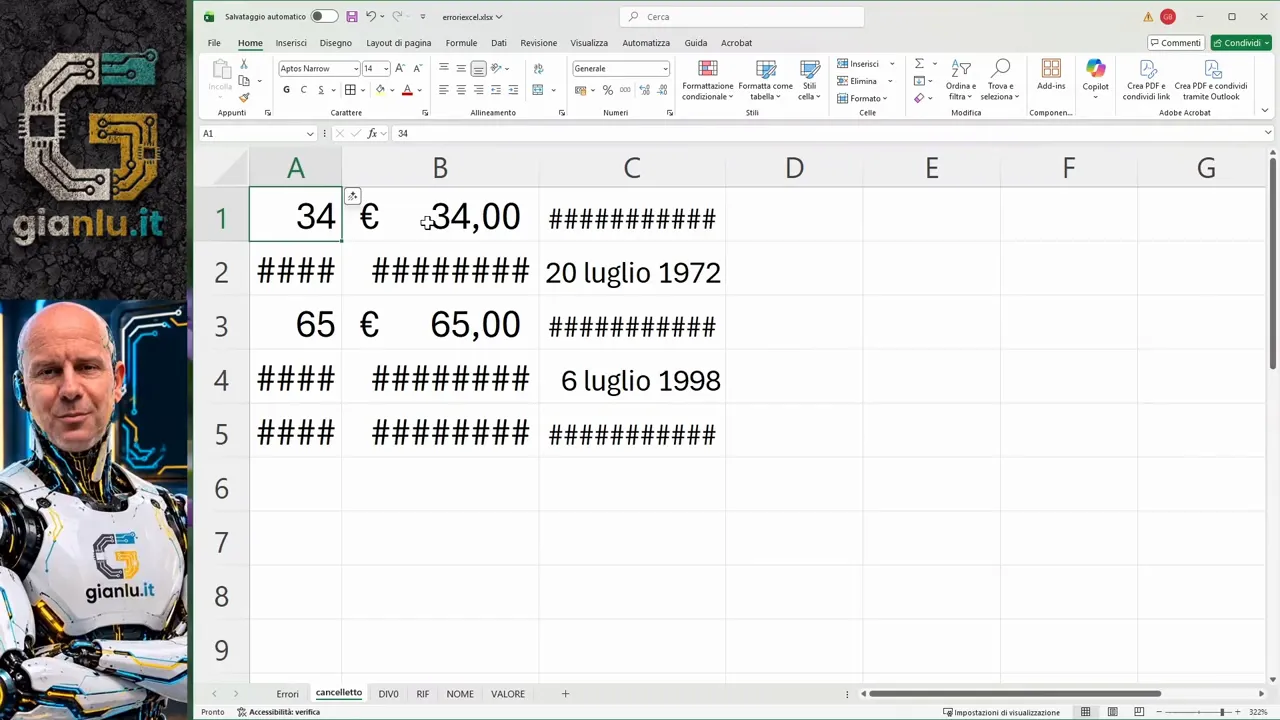
It is as if Excel were saying: I don't fit in here, give me some room.
To fix the display you have two options:
- Manual widening: place the pointer on the border between two column headers, hold down the mouse button and drag to the right.
- Automatic fit: double-click the right edge of the header of the column concerned. Excel adjusts the width to the content.
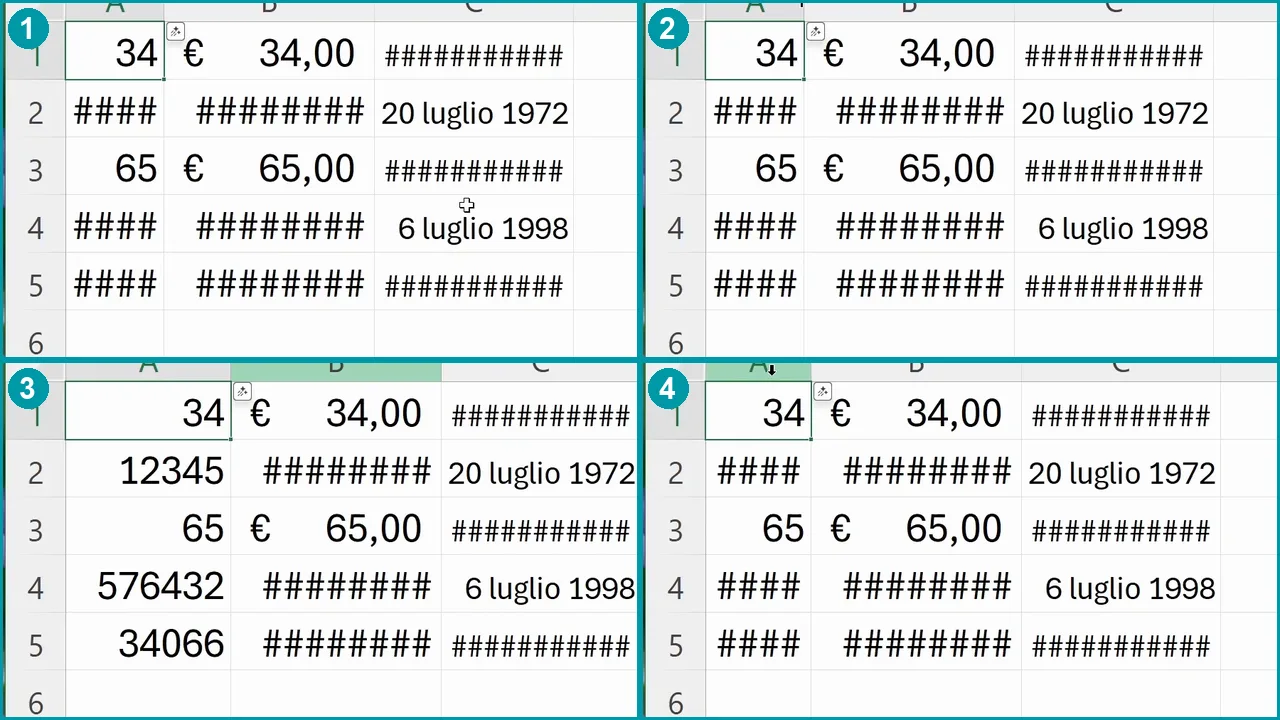
For column A, then, work on the border between A and B. Repeat on the other columns if needed. Here you do not have to correct formulas or re-enter data: you only have to make them visible.
#DIV/0!: you are dividing by zero
The #DIV/0! error appears when a formula tries to divide by zero.
Here is a simple example. In B1 enter 6, in B2 enter 3, and in B3 type =B1/B2. The result is 2. If you change the value in B2 to zero, Excel can no longer complete the calculation.
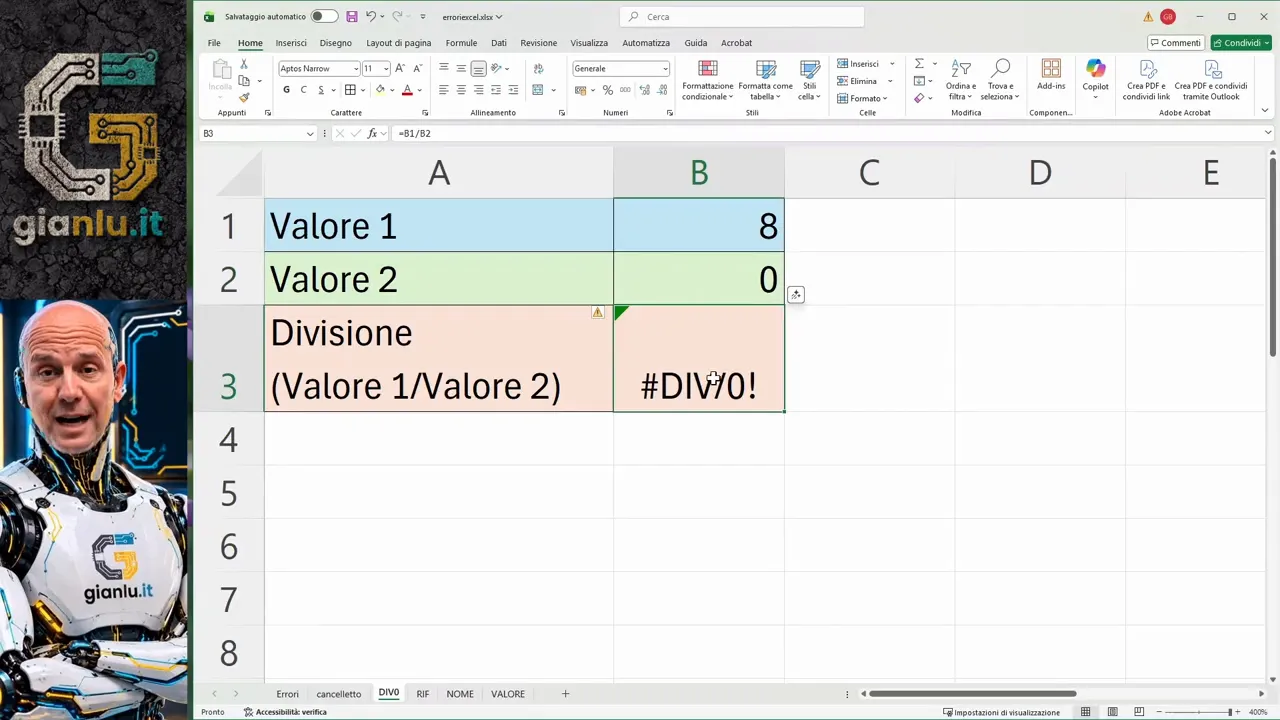
Pay attention to the order of the values, because it makes all the difference:
- 8 divided by 0: gives #DIV/0!.
- 0 divided by 8: returns 0.
- 0 divided by 0: again gives #DIV/0!.
The check to make is therefore on the divisor, that is the value that comes after the division symbol. In the formula =B1/B2, the cell to check is B2.
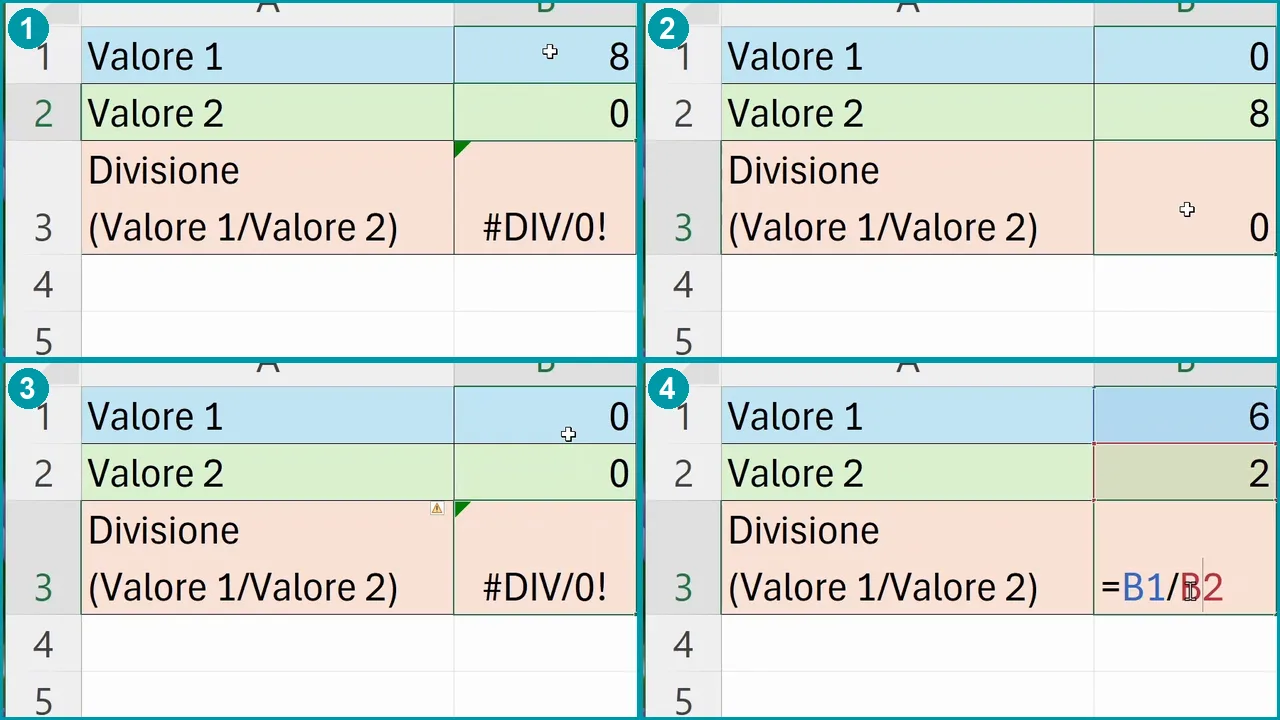
Correct that value with the one your calculation expects. It is not enough to replace the zero with any number to make the error disappear: the result must also make sense.
#REF!: the formula has lost a valid reference
The #REF! error means that Excel cannot use one of the references in the formula. In practice, you are asking it to work with a cell that no longer exists or with an invalid position.
When you copy a formula beyond the limits of the sheet
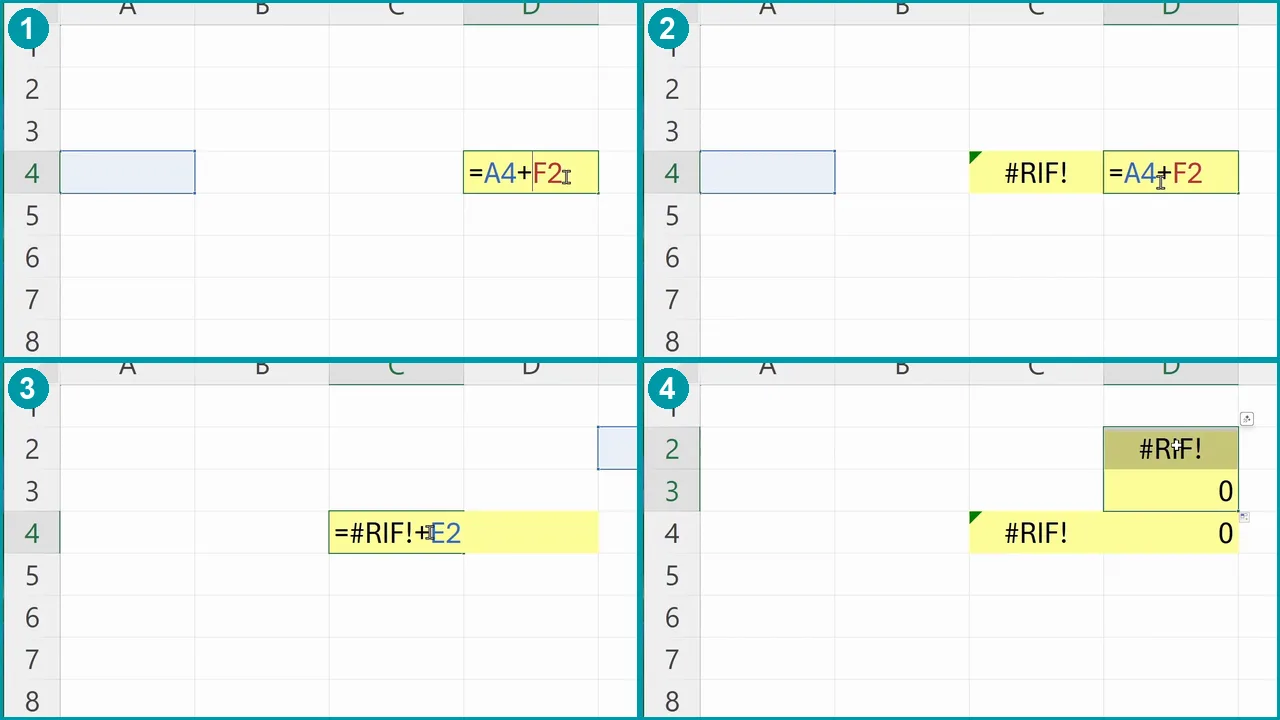
Take the formula =A4+F2. If you copy it one column to the left, the relative references both move back by one column.
F2 becomes E2, and so far so good. But A4 should move to the column before A. That column does not exist: here comes #REF!.
The same can happen upwards. Copying the formula one row up gives =A3+F1. Copying it even higher, the reference F1 should become F0. But in Excel row zero does not exist.
When you delete a row or column that is in use
Another frequent case is deleting a row or a column that the formula refers to.
If the formula uses A4 and you delete the whole of column A, that reference is lost. Deleting row 2 can also break the link to F2. The fact that, after the deletion, a cell called F2 still exists does not mean it is the original reference.
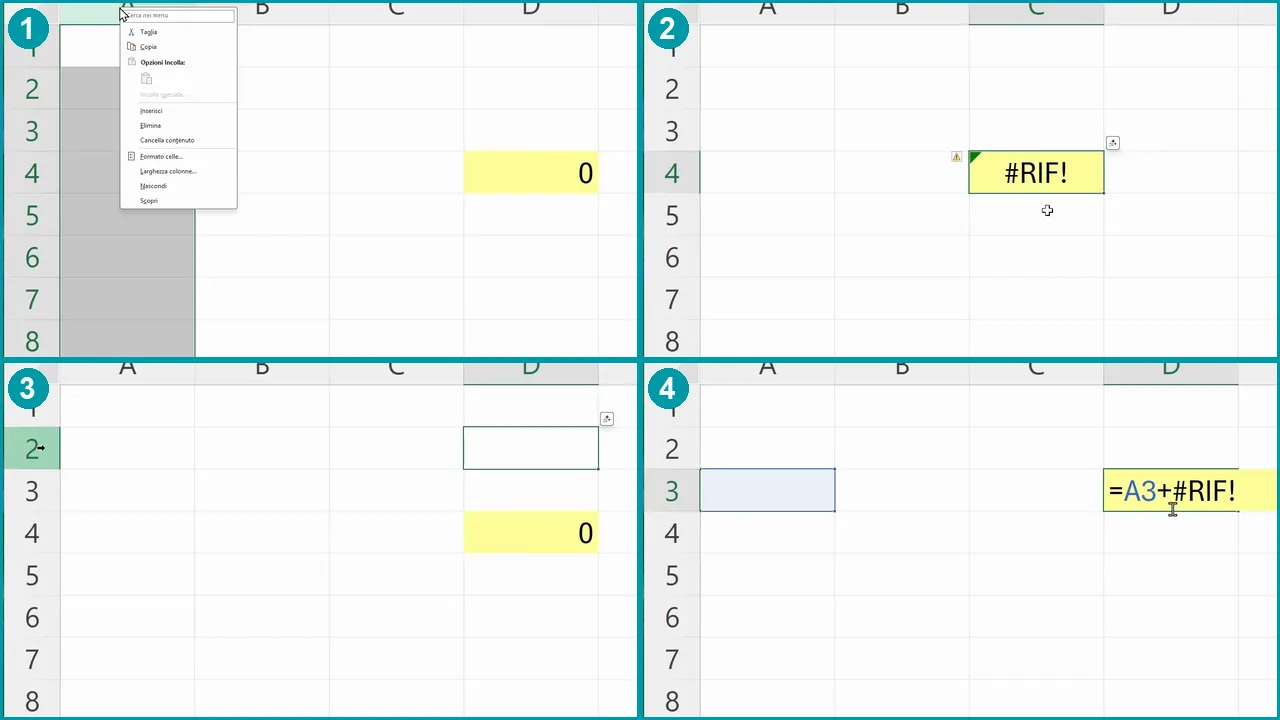
If you have just deleted something by mistake, press Ctrl+Z to undo it. Otherwise, open the formula and check which reference needs correcting. The question to ask yourself is: which cells did I want this calculation to link to?
#NAME?: check how you wrote the formula
The #NAME? error appears when Excel does not recognize a name used in the formula. Often the cause is simply a typing mistake.
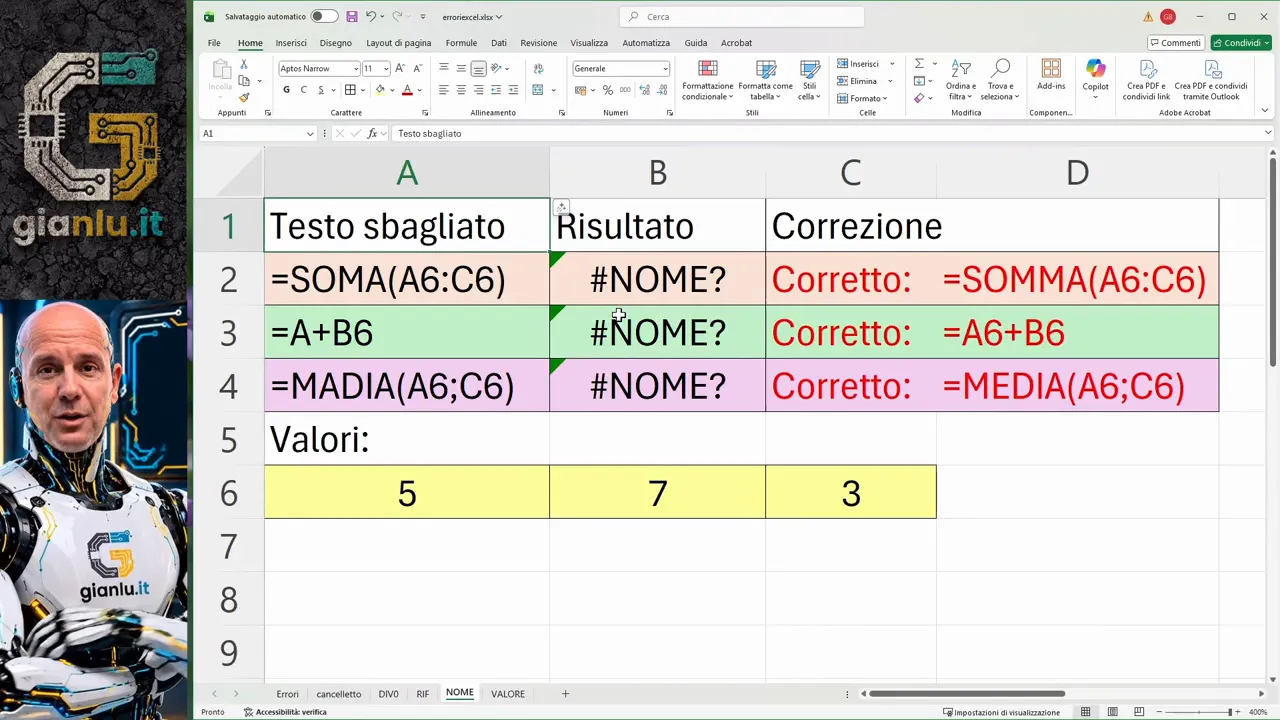
Here are three practical examples (as in the Italian Excel of the screenshot, with the English equivalents):
=SOMA(A6:C6): an M is missing. The correct function is=SOMMA(A6:C6), which in English Excel is=SUM(A6:C6). A typo such as=SUMM(A6:C6)gives the same error.=A+B6: if A is not a defined name, it does not identify a cell. In the example, the intended reference is A6, so the correct formula is=A6+B6.=MADIA(A6;C6): the correct function name is MEDIA, so=MEDIA(A6;C6), which in English Excel is=AVERAGE(A6,C6).
To refer to a single cell in the normal reference system you need the column letter and the row number: A1, A6, B3 and so on.
You don't need to delete everything to correct one letter. You can edit the formula in three ways:
- Double-click the cell that contains the error.
- Select the cell and press F2.
- Select the cell and click in the formula bar at the top.
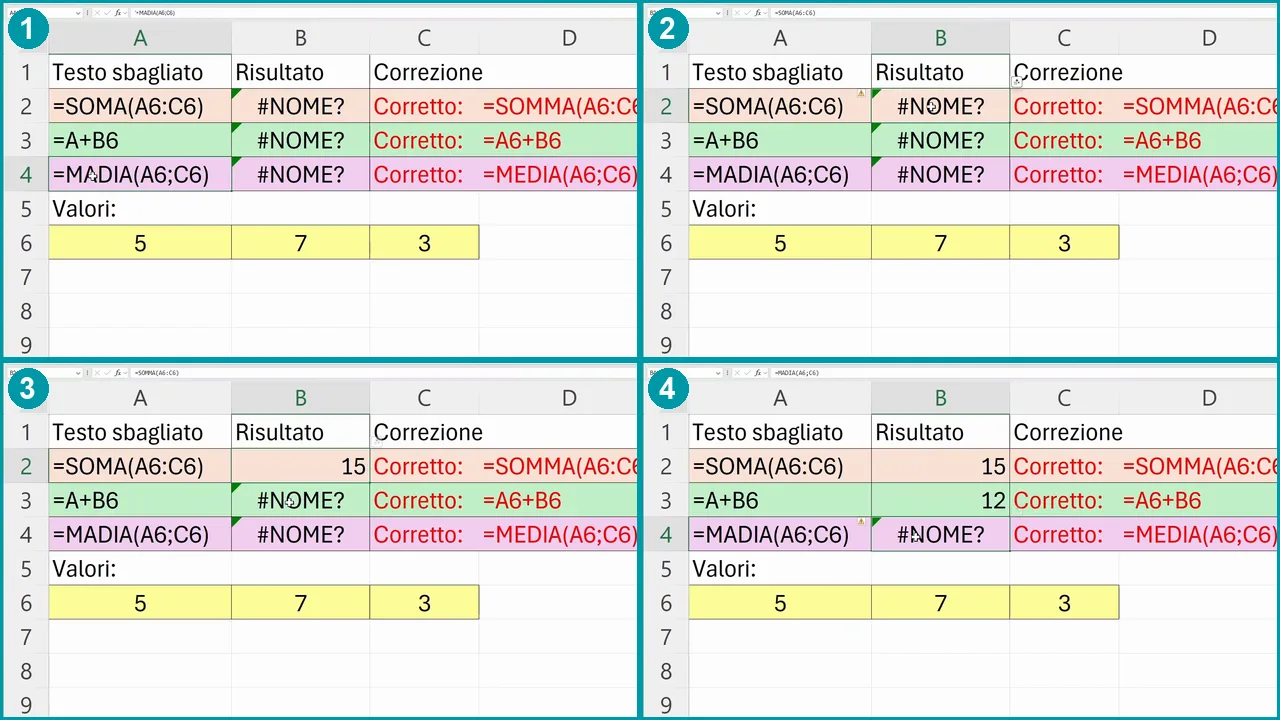
Fix the text and press Enter. If the problem was the wrong name, Excel goes back to calculating the result.
#VALUE!: when you calculate with incompatible data
The #VALUE! error can appear when an operation involves incompatible data. The most immediate case is an addition between numbers and text.
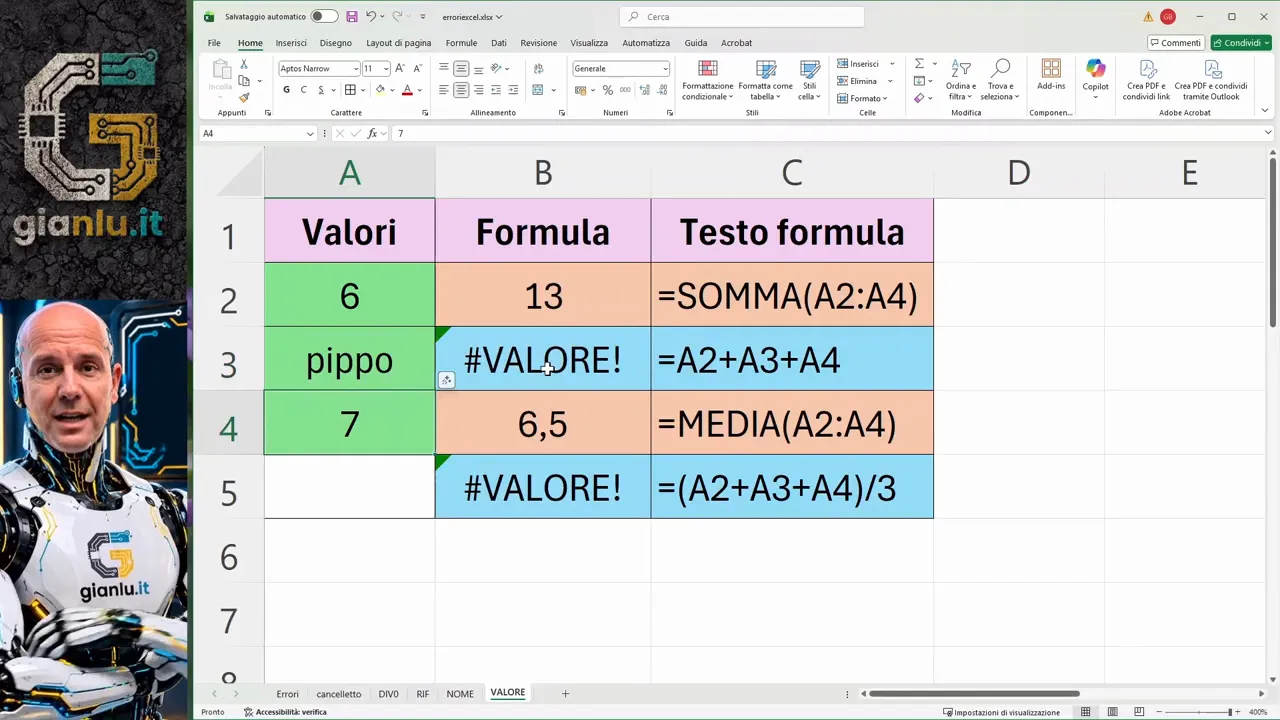
Let's enter 6 in A2, 3 in A3 and 7 in A4. With this data, both =SUM(A2:A4) and =A2+A3+A4 return 16.
They look like two equivalent ways of doing the same job. But what happens if, in A3, instead of 3 we write "pippo" (a made-up word)?
=A2+A3+A4returns #VALUE!, because it tries to add a number, a text and another number directly.=SUM(A2:A4)returns 13, because it ignores the text in the range and adds 6 and 7.
Why SUM and AVERAGE behave differently from direct operations
In the example, SUM and AVERAGE applied to the range consider only the numeric cells. This explains why =AVERAGE(A2:A4) returns 6.5: it adds 6 and 7 and divides by the two numeric values present.
The formula =(A2+A3+A4)/3, on the other hand, gives #VALUE! already during the addition. It never even reaches the division.
This distinction matters: not seeing an error does not necessarily mean you got the result you wanted. If instead of "pippo" there should have been a number, SUM keeps working, but that value is still missing from the total.
If the range contains only text
Now let's replace all three numbers with words. The results change again:
- SUM returns 0, because it finds no numbers to add.
- The direct addition returns #VALUE!, because it tries arithmetic on text.
- AVERAGE returns #DIV/0!, because the number of numeric values to average is zero.
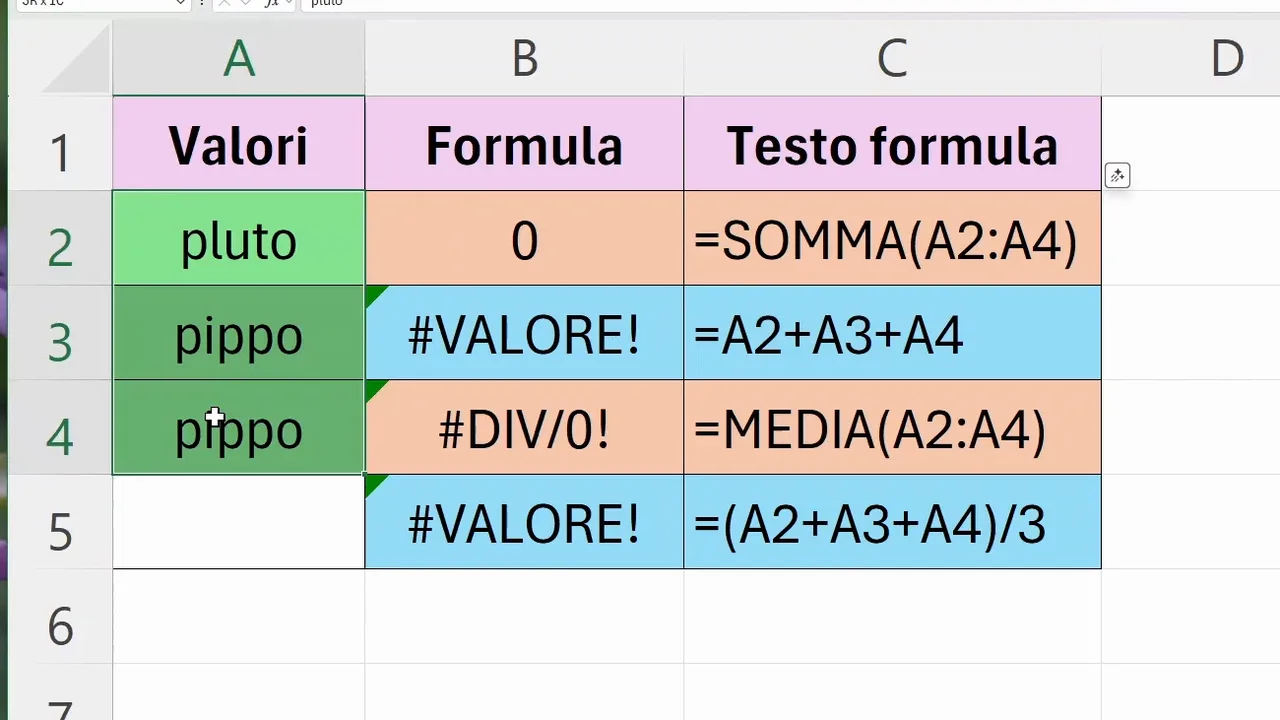
To solve the problem, check the content of the cells you refer to, not just the formula. Once the correct numeric values are back, the calculations work again.
The right check for each error
When a message appears, start from its meaning:
- #####: check the space available in the column.
- #DIV/0!: check the divisor.
- #REF!: look for deleted or invalid references.
- #NAME?: re-read function names and references.
- #VALUE!: check that the data is compatible with the operation.
The point is not to make a message disappear, but to understand why it appeared. With this small change of approach, Excel errors become useful hints for putting the sheet back in order, one check at a time.