Published on
A text in place of a number is enough to send the calculations of an Excel sheet into error. Or an out-of-range value, typed by distraction, can produce a result that looks right but does not follow our rules. How can we avoid these problems before we have to chase them?
Excel's Data Validation lets us decide what to accept in the cells, guide whoever fills in the sheet and create drop-down menus. We can block a wrong entry, just warn about it, or check the data afterwards. Let's see how to set everything up with practical examples.
A note on the screenshots: they come from the Italian version of Excel. The main names are: Convalida dati = Data Validation, Consenti = Allow, Numero intero = Whole number, Messaggio di input = Input Message, Messaggio di errore = Error Alert, Interruzione = Stop, Avviso = Warning, Informazione = Information, Riprova = Retry, Annulla = Cancel, Elenco = List, Origine = Source, Lunghezza testo = Text length, Incolla speciale = Paste Special, Cerchia dati non validi = Circle Invalid Data, Rimuovi tutti i cerchi = Clear Validation Circles. The example words are Italian too (Lato = Side, Perimetro = Perimeter, Area = Area).
Contents
- What data validation is for
- How to allow only whole numbers from 1 to 20
- Input message and error message: two different functions
- Stop, Warning or Information?
- Copying the validation without recreating it every time
- How to create a drop-down menu in Excel
- Checking text length and circling the errors
What data validation is for
Let's start from a sheet about the square: in cell A2 we enter the side, while in A4 and B4 the perimeter and the area are calculated. If we change the side, the results change too.
So far so good. But what if in A2 we type "pippo" (a made-up word) instead of a number? The formulas cannot carry out the calculation and return an error. The problem starts in the input cell, not in the cells that hold the formulas.
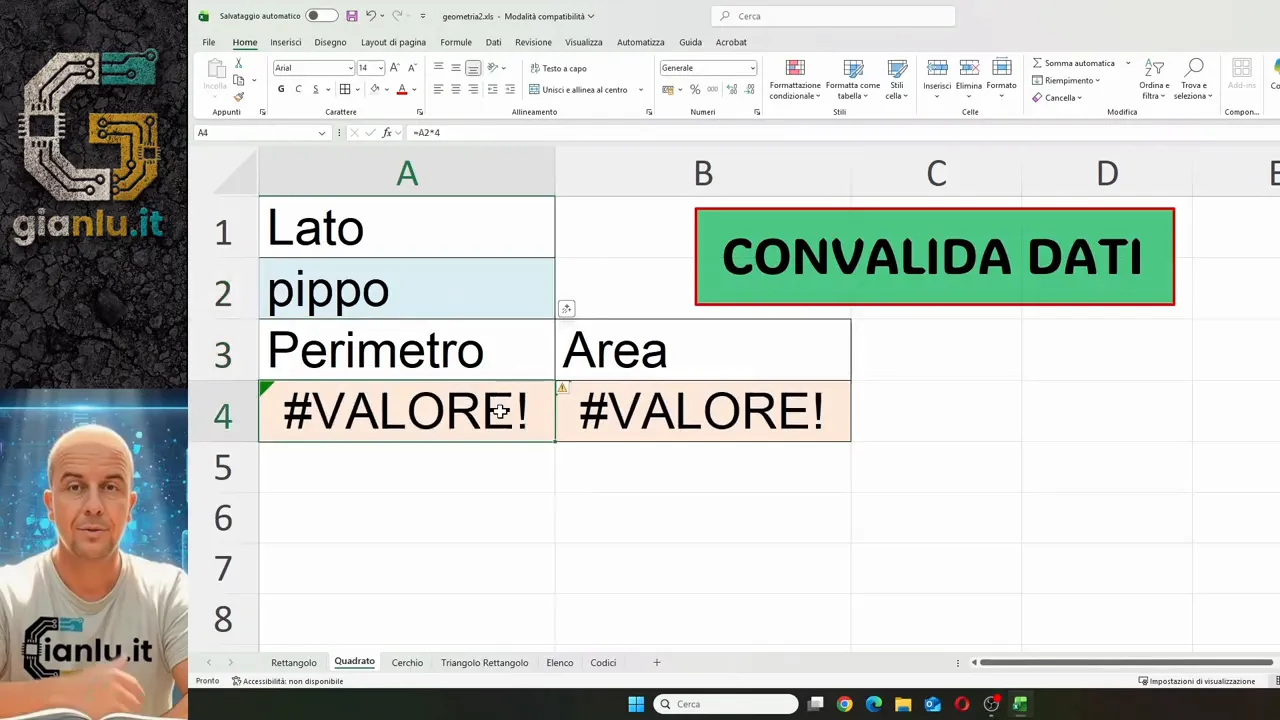
Data validation steps in right here: we define a rule for the value to be entered. It is useful in shared files, forms and registers, but also in sheets that only we use. Distractions, of course, happen to everyone.
How to allow only whole numbers from 1 to 20
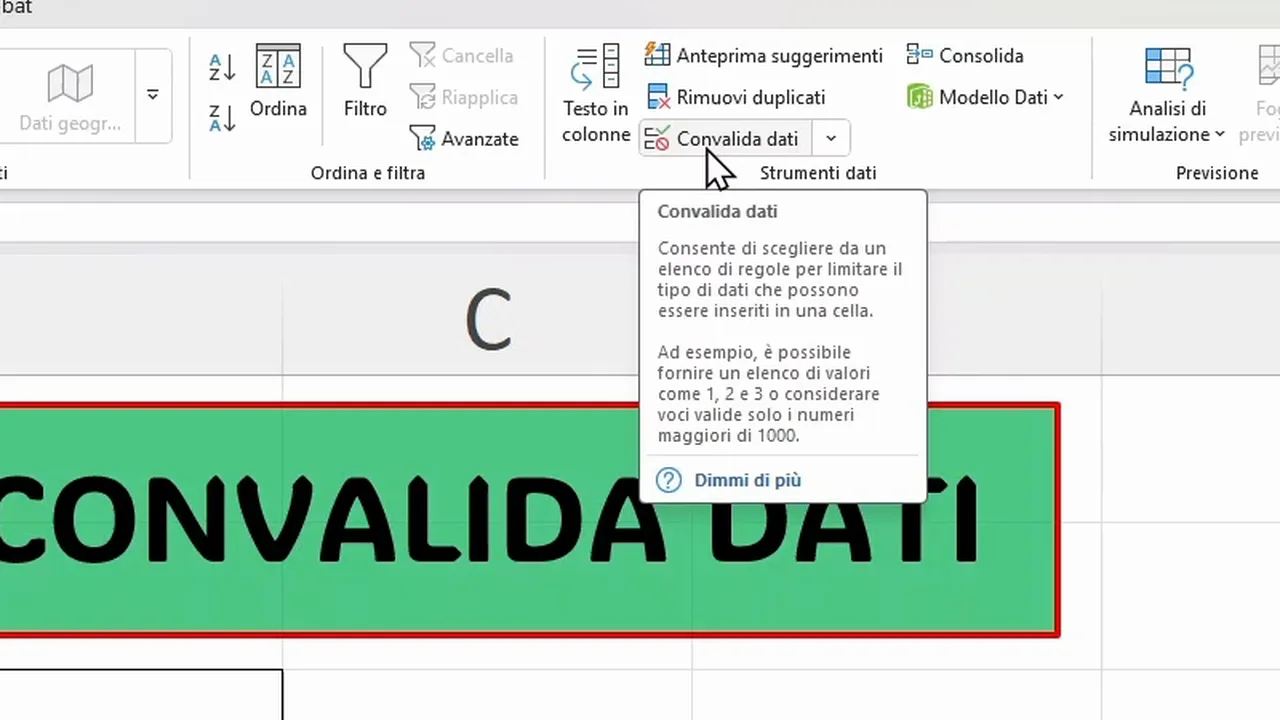
We select A2 and open the Data tab, then choose Data Validation. Depending on the space available in the command bar, we may see the full name or only the icon.
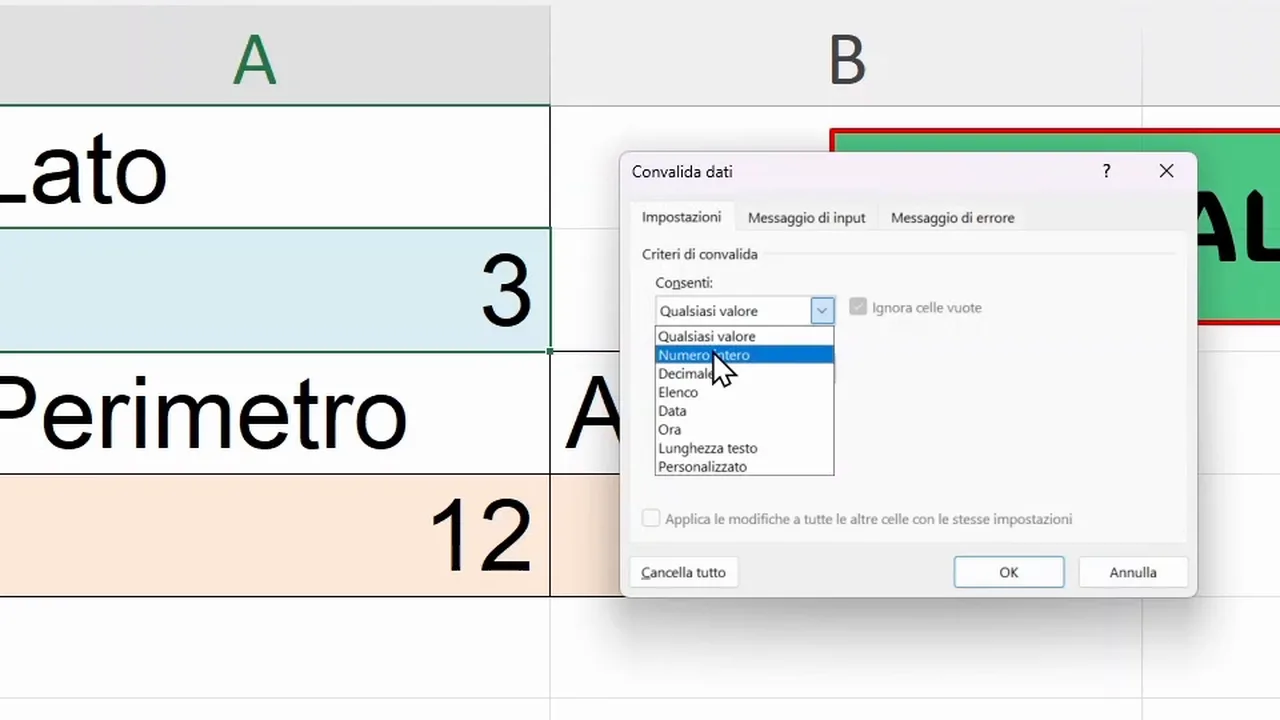
In the window we initially find Allow: Any value. Opening this menu we can choose Whole number, Decimal, List, Date, Time, Text length or Custom.
For our example we set these parameters:
- In Allow, we select Whole number.
- In Data, we choose between.
- As Minimum, we enter 1.
- As Maximum, we enter 20.
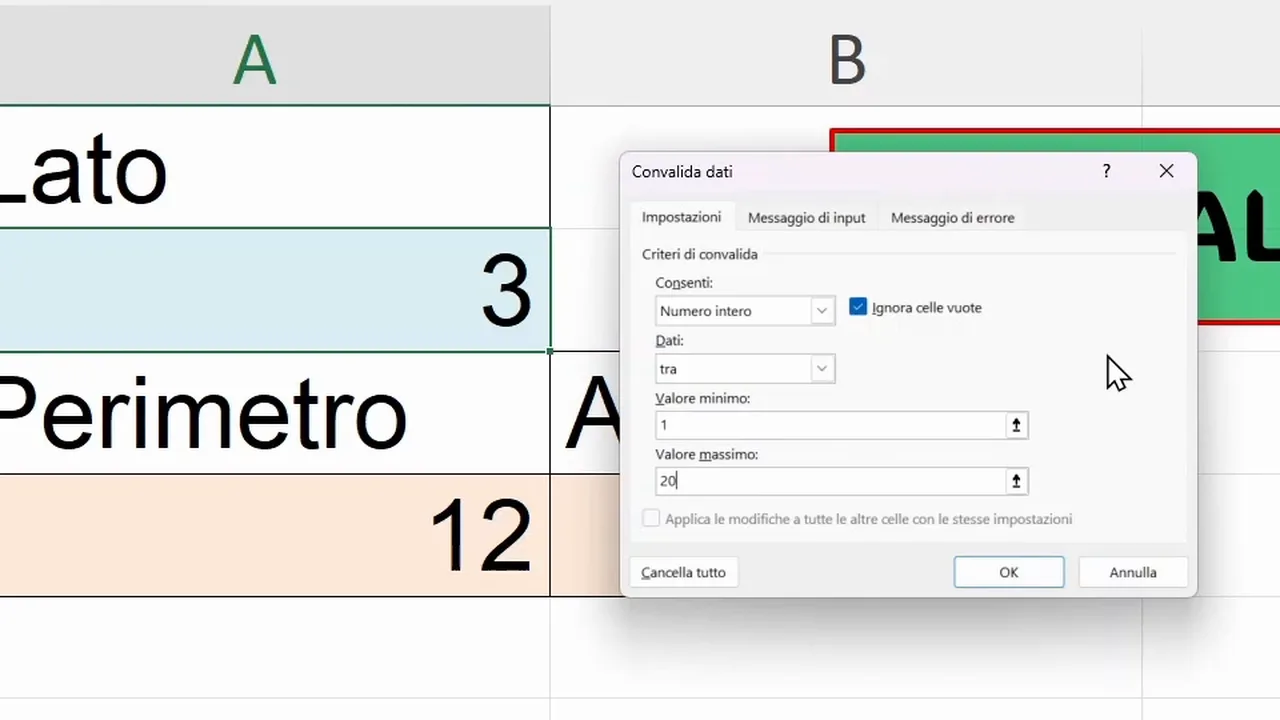
So we have established that the side must be a whole number between 1 and 20, both included. Neither 21 nor a decimal number is accepted, even if it falls within the range.
The Data menu also allows other comparisons: equal to, not equal to, greater than, less than, or not between two values. The rule is chosen according to what the sheet needs.
We also find the Ignore blank option, to be evaluated according to how fields without content are handled. For numbers with decimals, instead, the type to select is Decimal. The Date and Time options let you set checks on the respective time values.
Input message and error message: two different functions
Setting a rule is not enough: whoever fills in the sheet must also know what we are asking. That is why there are two tabs dedicated to messages.
The input message guides before the entry
In the Input Message tab we can write a title and an instruction. For example, we use "Attenzione" (Attention) as the title and say to enter a whole number from 1 to 20.
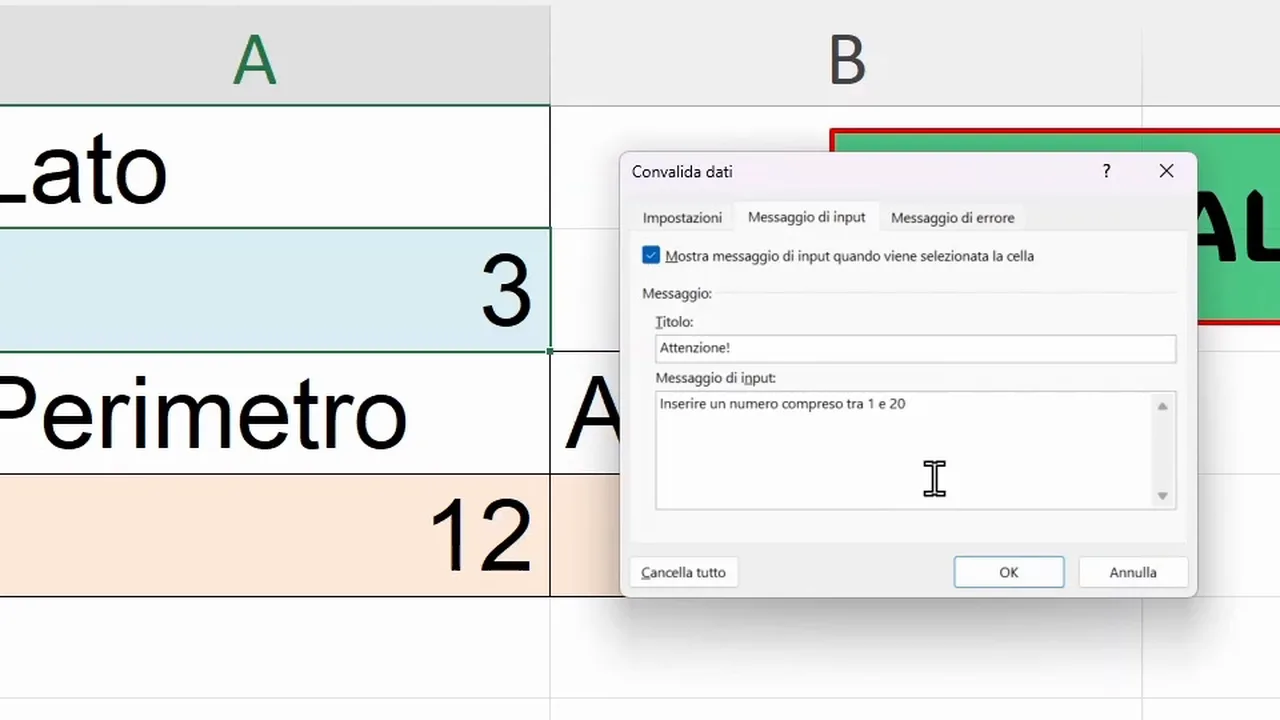
With the message display switched on, the instruction appears when we select A2. Moving to a cell without that validation, the message does not appear. It is a simple aid to make the sheet understandable without having to explain every field out loud.
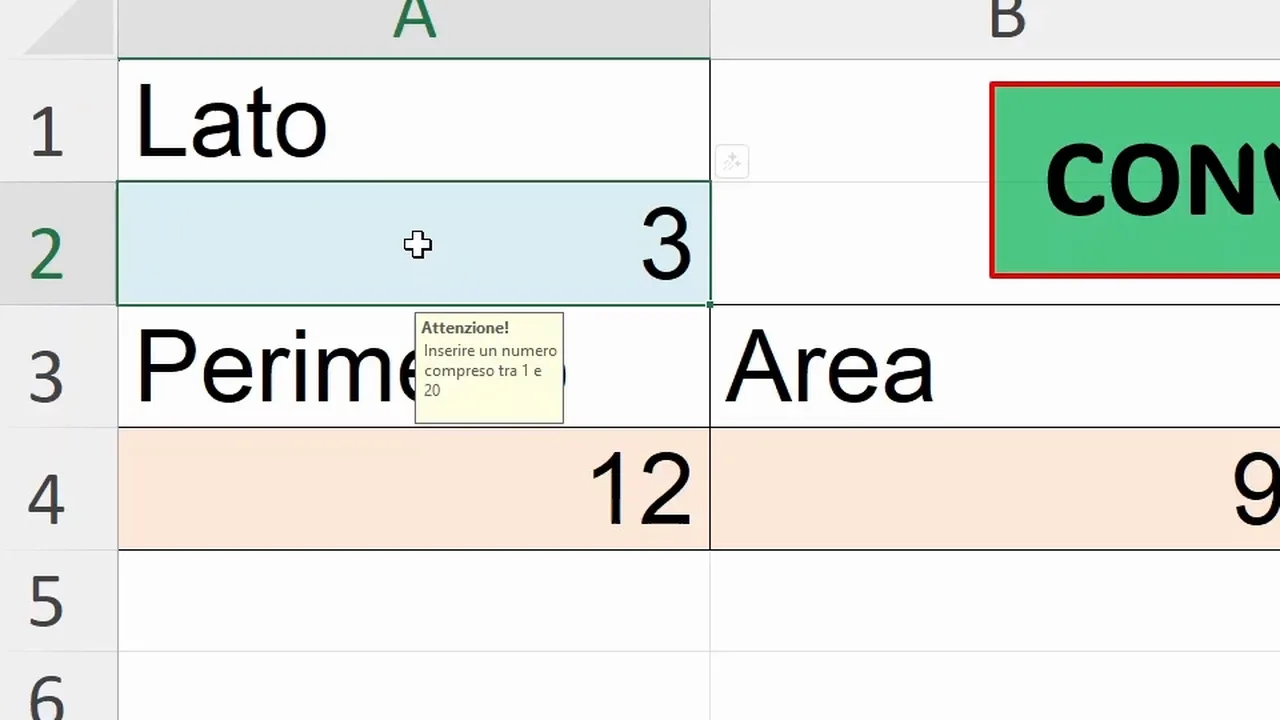
The error message steps in when the data is not right
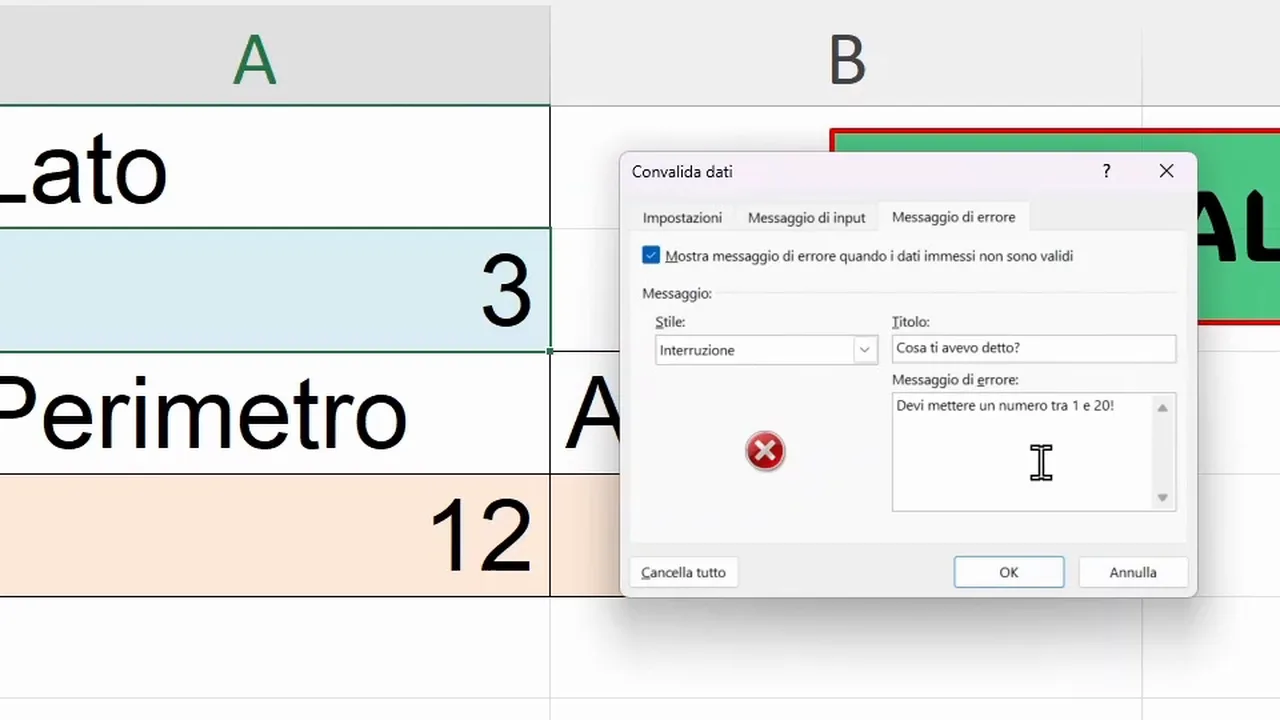
In the Error Alert tab we customize what appears after a non-compliant entry. We can choose a more playful title or a more formal one, but the text must make clear how to correct the problem.
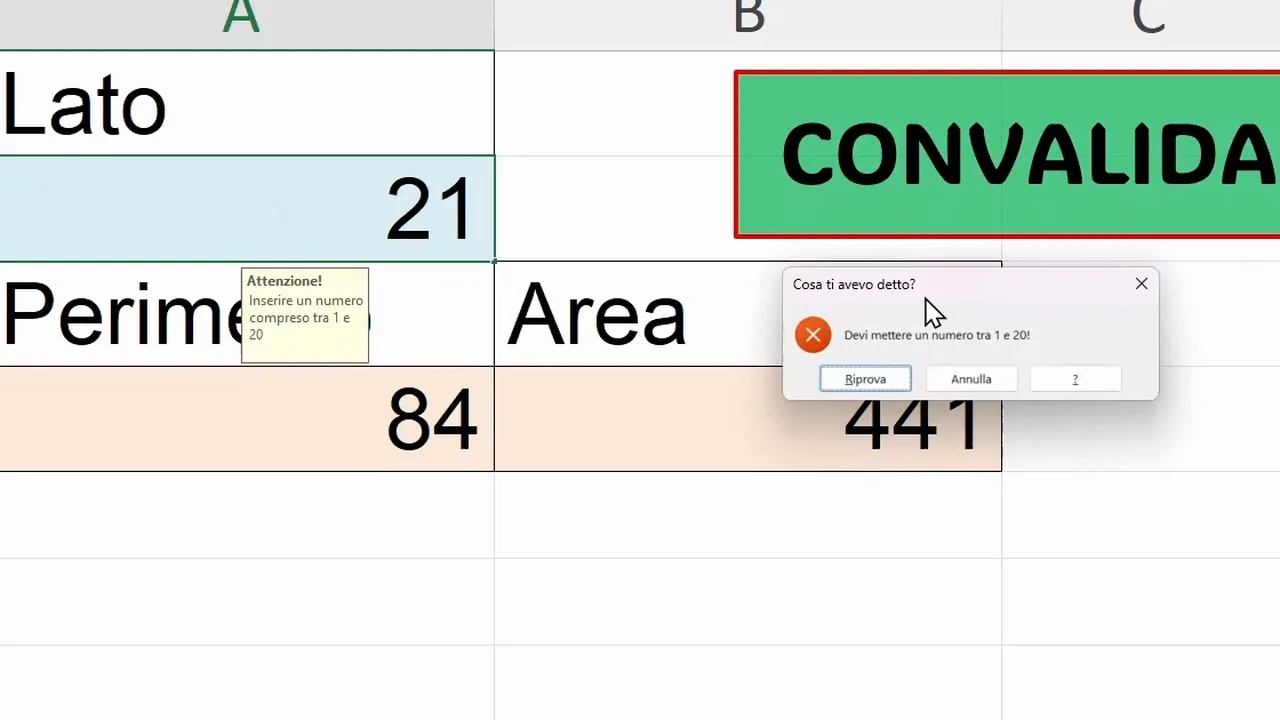
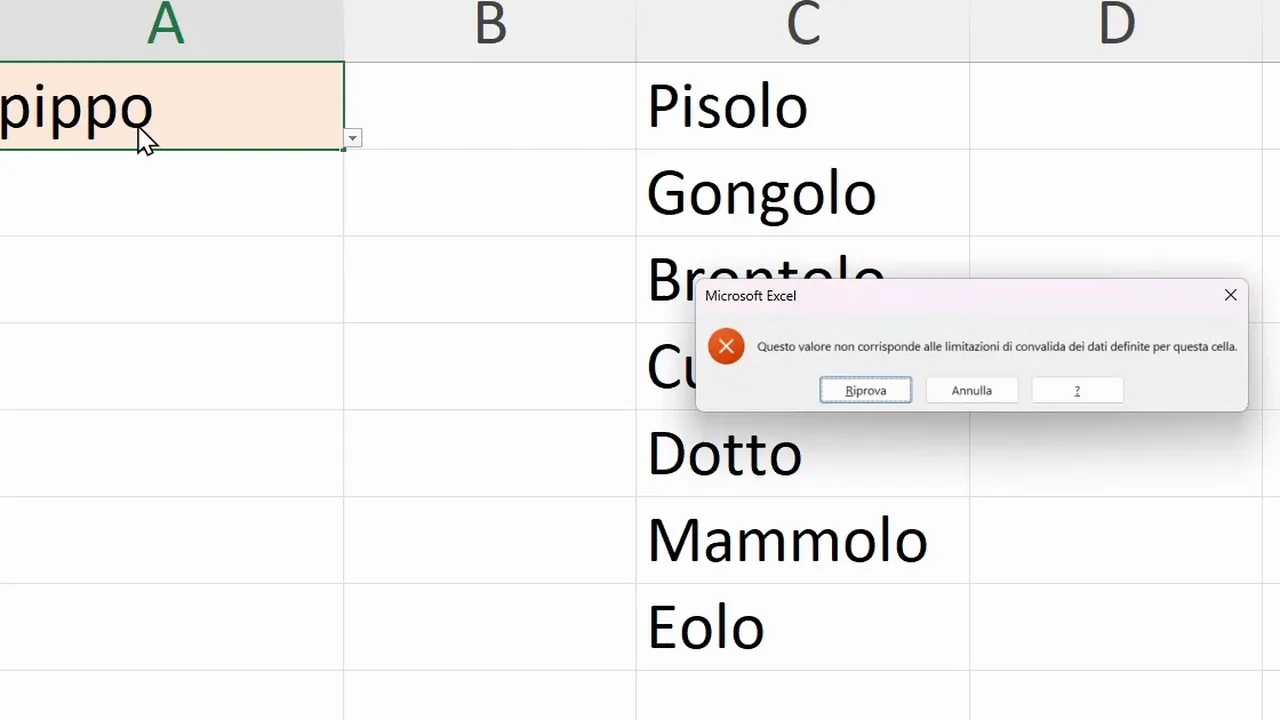
With the Stop style, when we try to type 21 or a text, Excel offers Retry and Cancel. Retry takes us back to editing the cell; Cancel discards the new entry.
Stop, Warning or Information?
Pay attention to this choice, because it changes the behavior of the validation. Not all error messages block the wrong data.
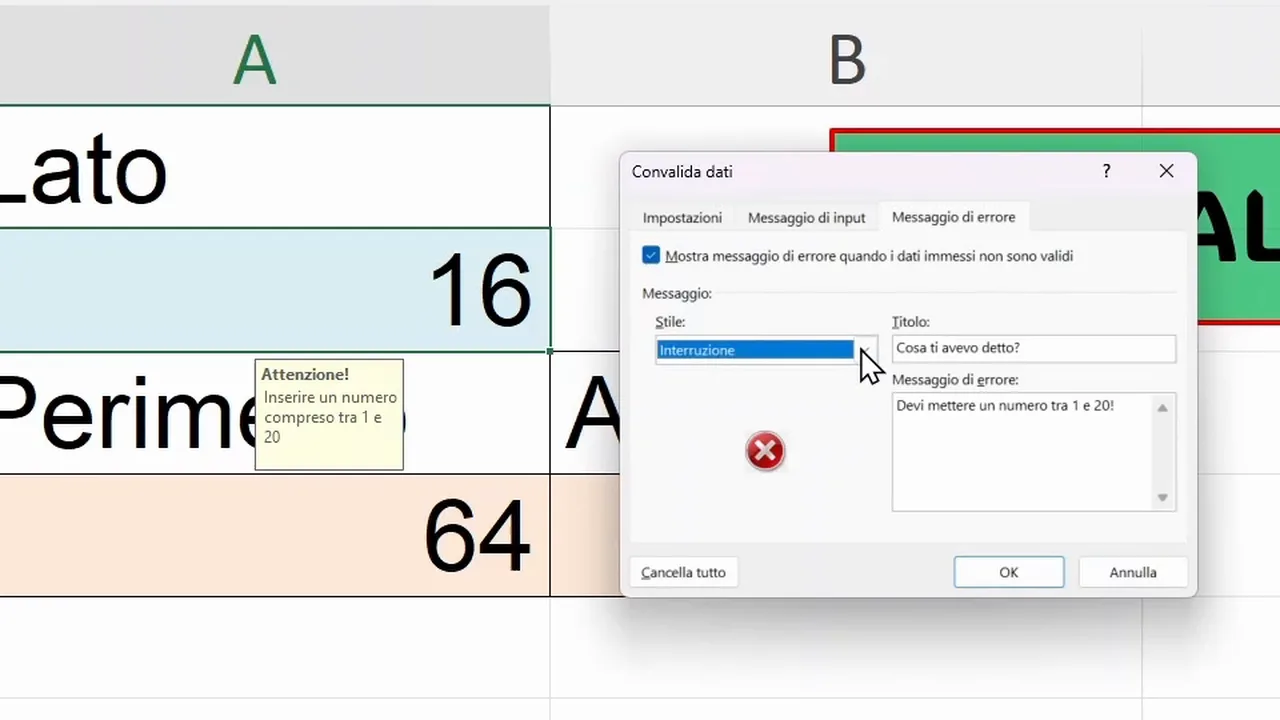
- Stop: prevents confirming the invalid entry. It is the style to choose if we want to enforce the rule while typing.
- Warning: reports the problem and asks whether to continue. By confirming, the value is accepted even if it does not meet the criterion.
- Information: says that the value is not compliant, but still lets you keep it by pressing OK. With Cancel you give up the change.
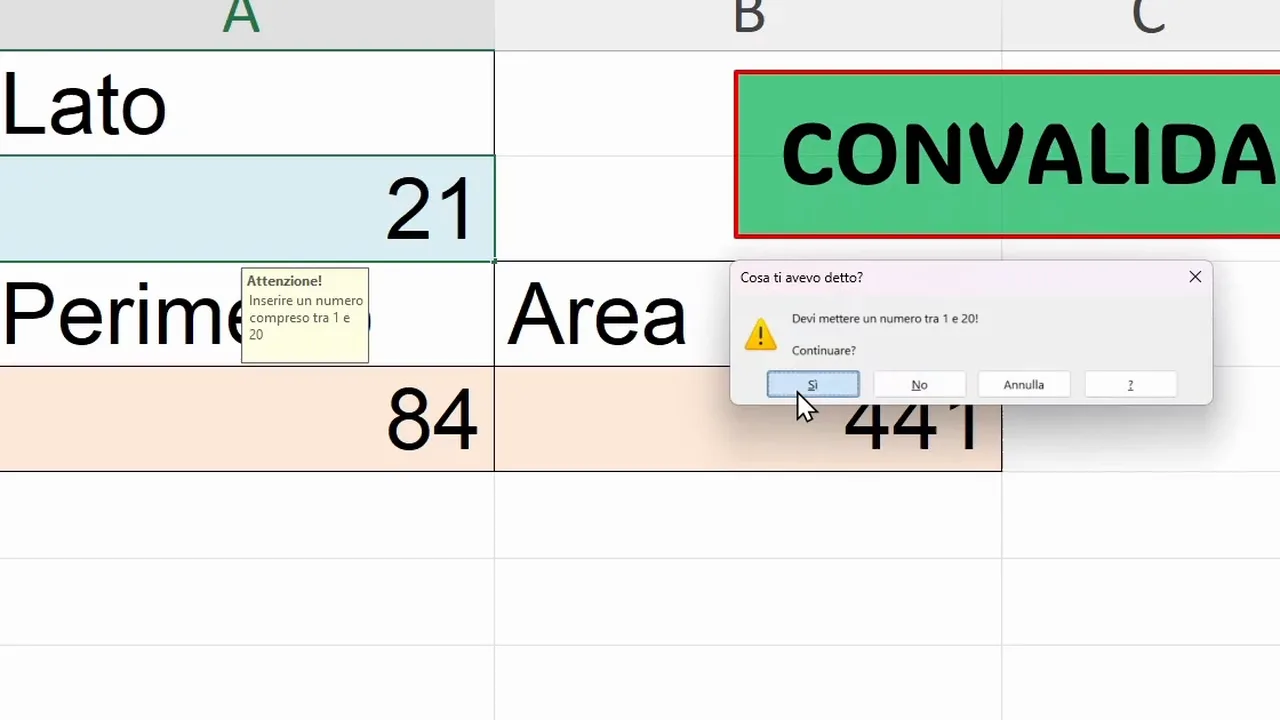
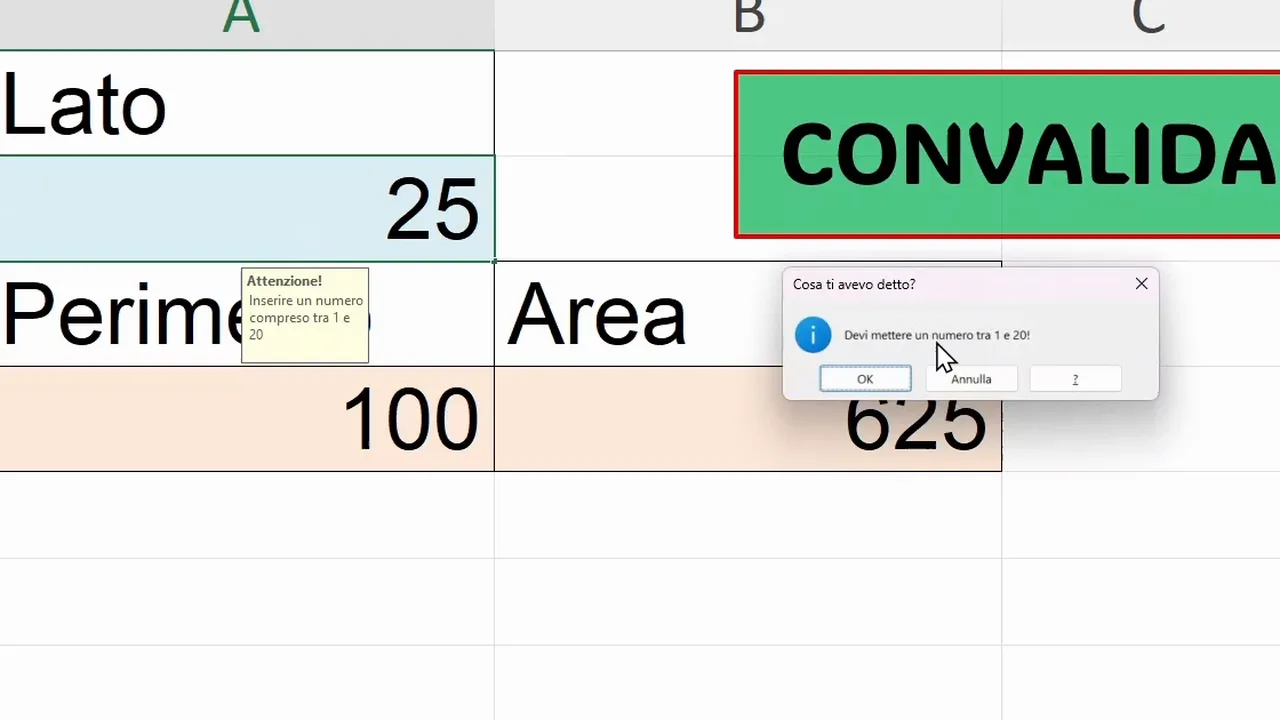
The question to ask is therefore very concrete: do we want to prevent the error or leave the possibility of making an exception? In the square sheet we put Stop back, so the check stays binding.
Copying the validation without recreating it every time
Once A2 is set up, we can apply the same logic to the other input cells. In our file we also need checks for the base and height of the rectangle, the radius of the circle and the legs of the right triangle.
There is no need to repeat the whole setup:
- We select the cell that contains the validation and copy it with Ctrl+C.
- We select the destination cells, for example A2 and B2 of the rectangle.
- We open Home > Paste > Paste Special.
- We choose Validation and confirm.
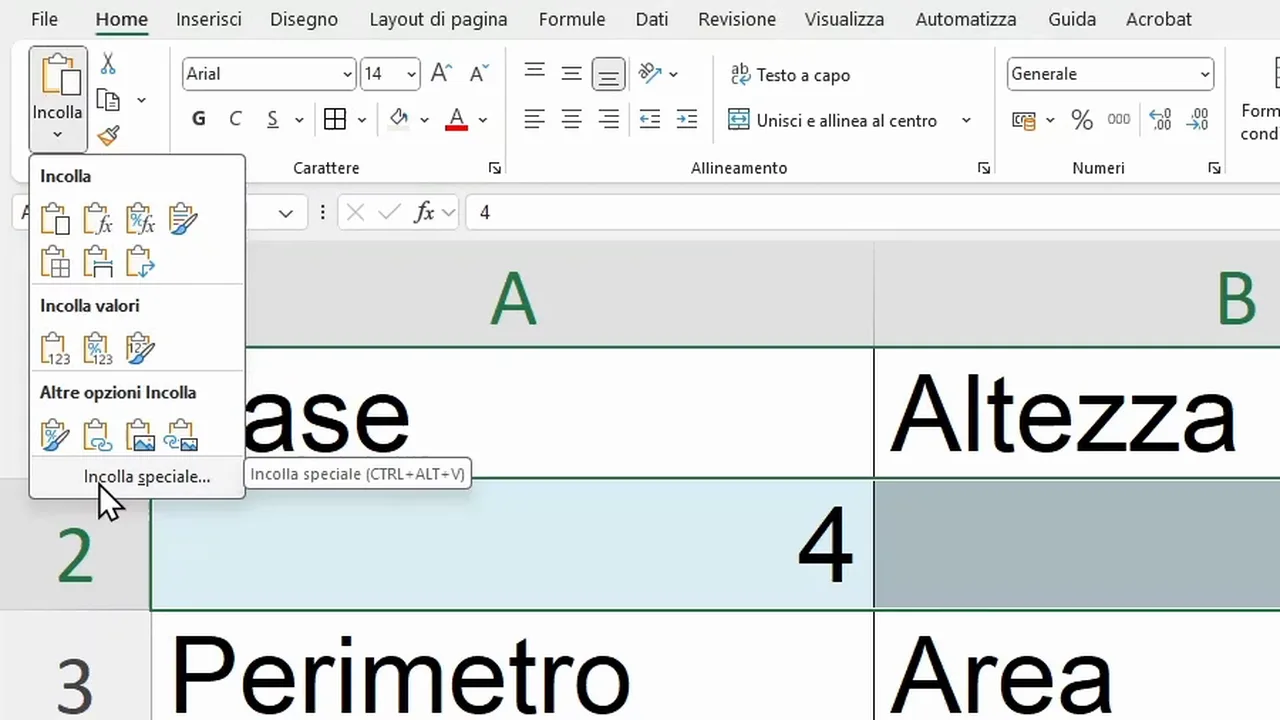
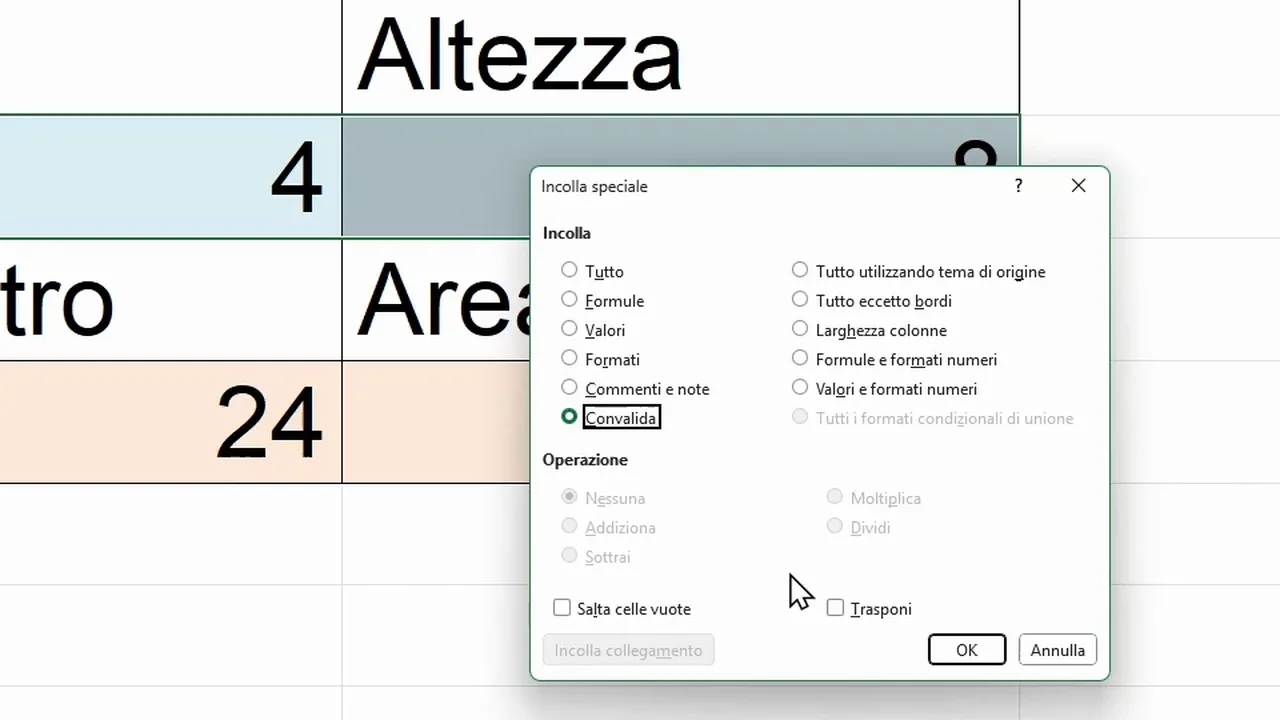
In this way we transfer only the validation rules, without using a normal paste of the whole cell. We can repeat the operation on the radius and on the two legs, keeping the checks consistent across the different sheets.
How to create a drop-down menu in Excel
Let's move on to a choice among preset values. We have seven names in cells C1 to C7 (the Italian names of the seven dwarfs: Pisolo, Gongolo, Brontolo, Cucciolo, Dotto, Mammolo, Eolo, that is Sleepy, Happy, Grumpy, Dopey, Doc, Bashful, Sneezy) and we want to be able to select them in cell A1.
- We select A1 and open Data Validation.
- In Allow we choose List.
- In the Source field, we select the range C1:C7.
- We confirm with OK.
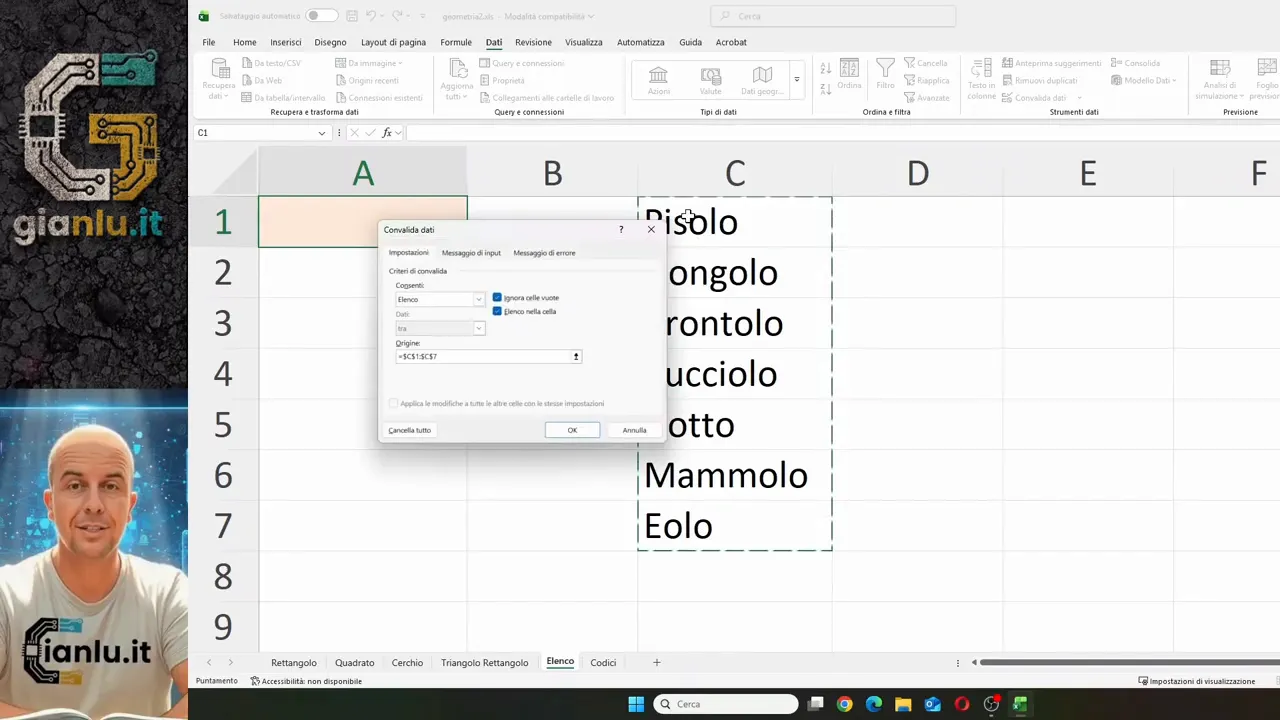
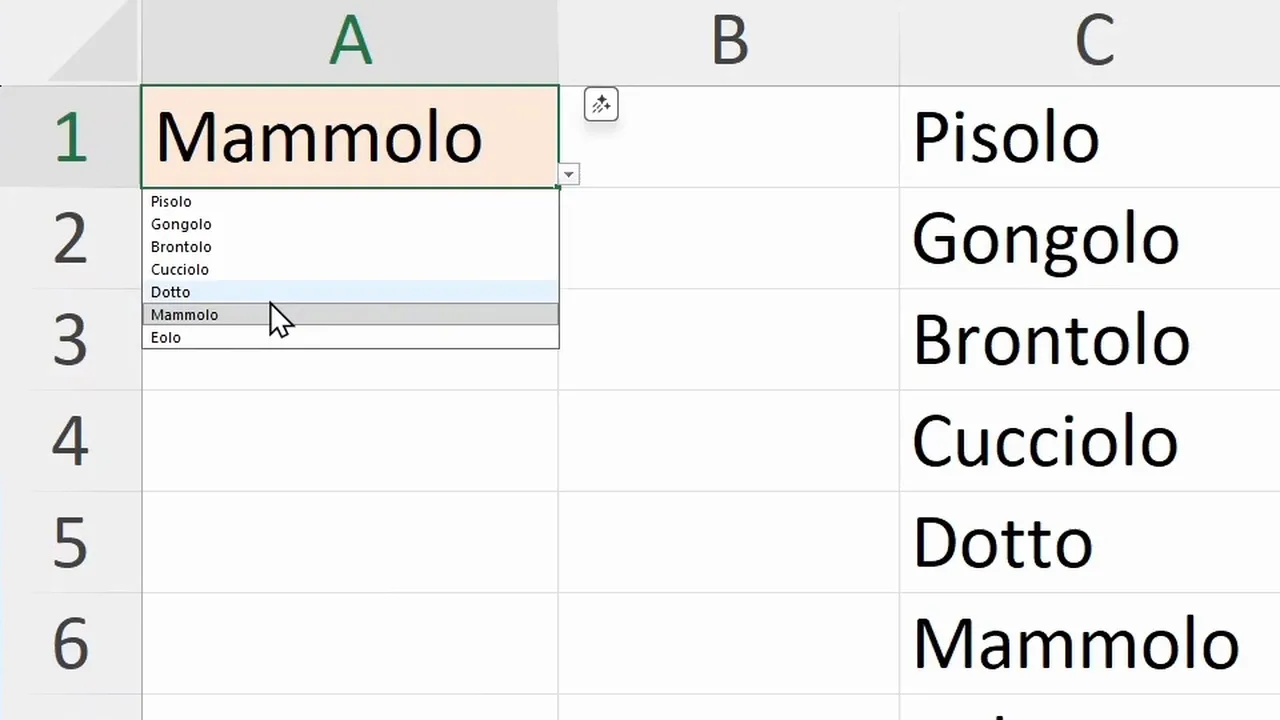
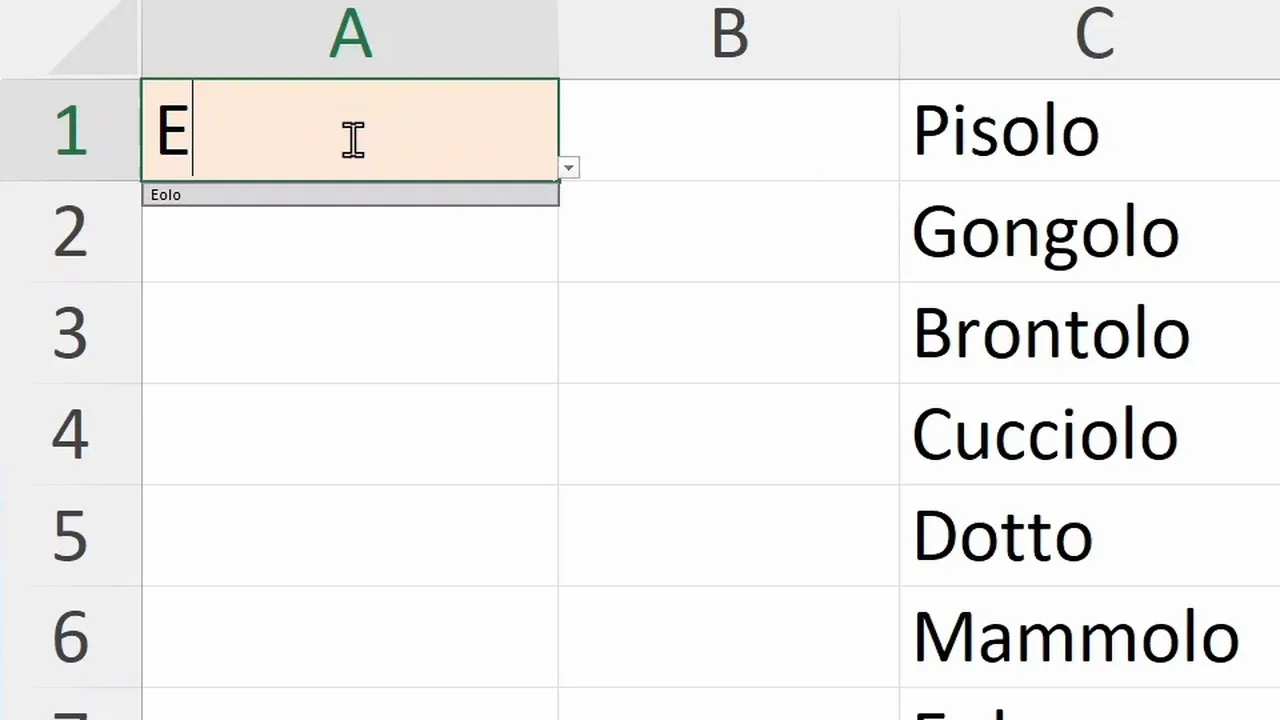
At this point an arrow appears in the cell: we open the menu and choose the name we want. We can also type an allowed entry directly. In the example, as soon as we type a few letters the matching entry is suggested, such as Eolo (Sneezy) or Gongolo (Happy).
With the error message on and the Stop style, a name that is not in the list is rejected.
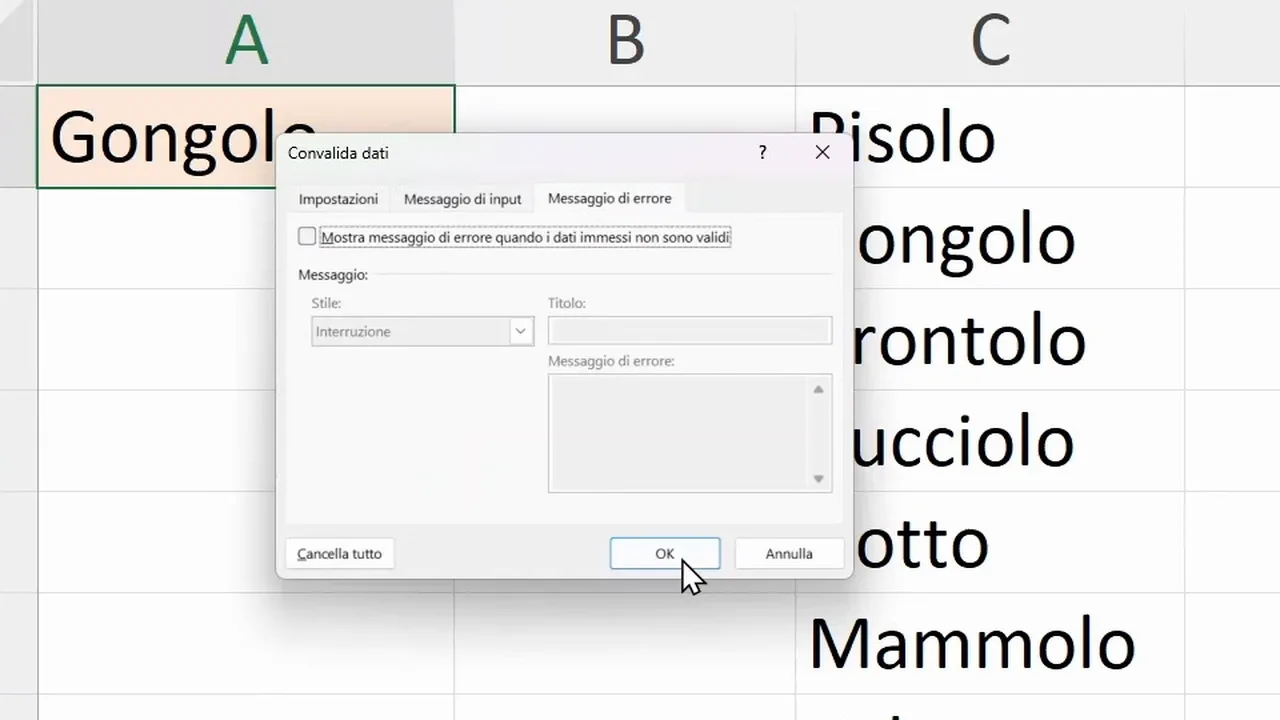
Do we want to keep the menu as a suggestion instead, leaving freedom to type? We can switch off Show error alert. The menu keeps the original seven entries, but the cell also accepts something else. The input message is independent: hiding it removes the instructions, not the check on the entry.
Checking text length and circling the errors
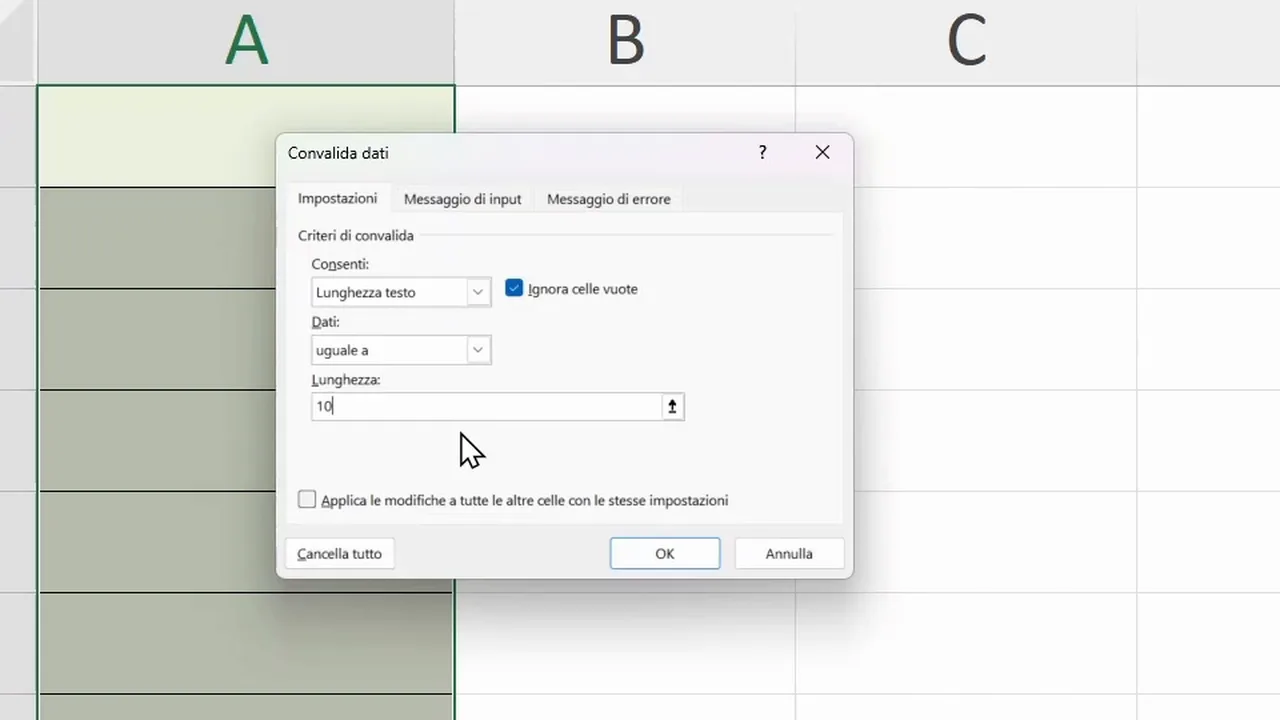
Validation can also be used for a later check. For example, we select A1:A8 and set Text length, criterion equal to and value 10. The rule requires exactly ten characters, no more, no less.
By switching off the error message we can also enter content of a different length without being interrupted. The rule, however, stays available for the check.
We open the arrow next to Data Validation and choose Circle Invalid Data: Excel highlights with red circles the cells that do not meet the criterion.
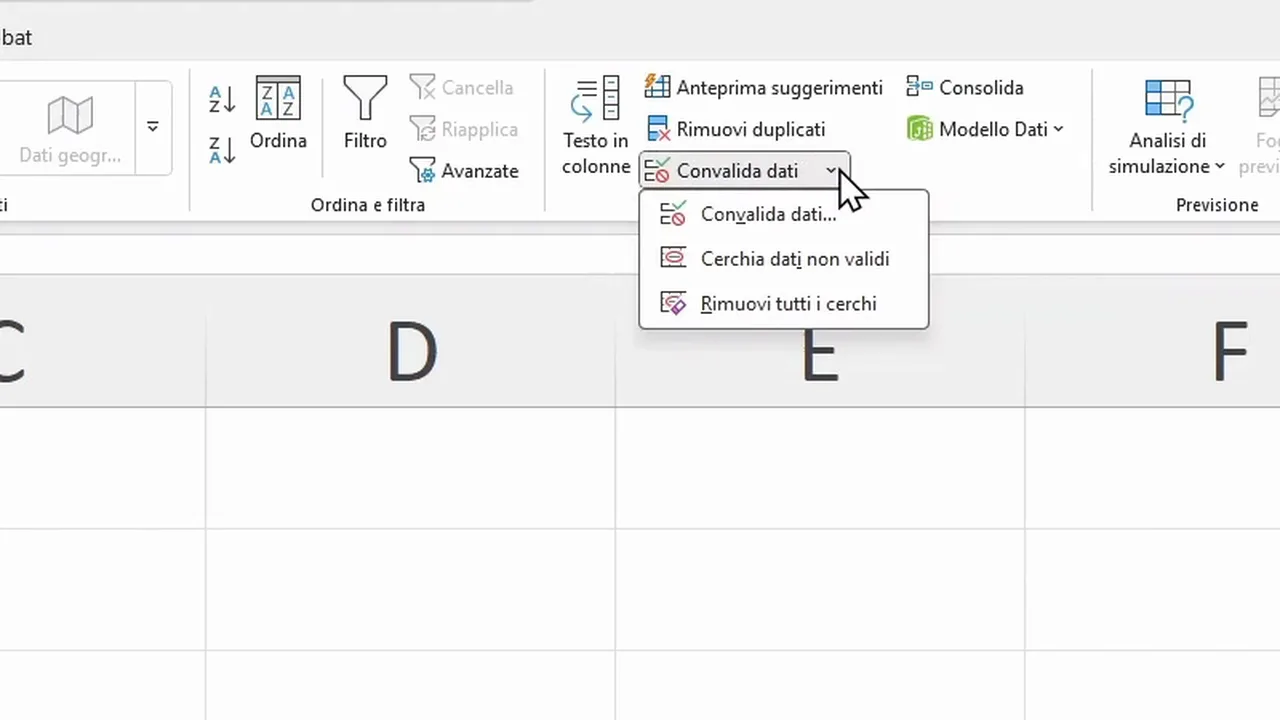
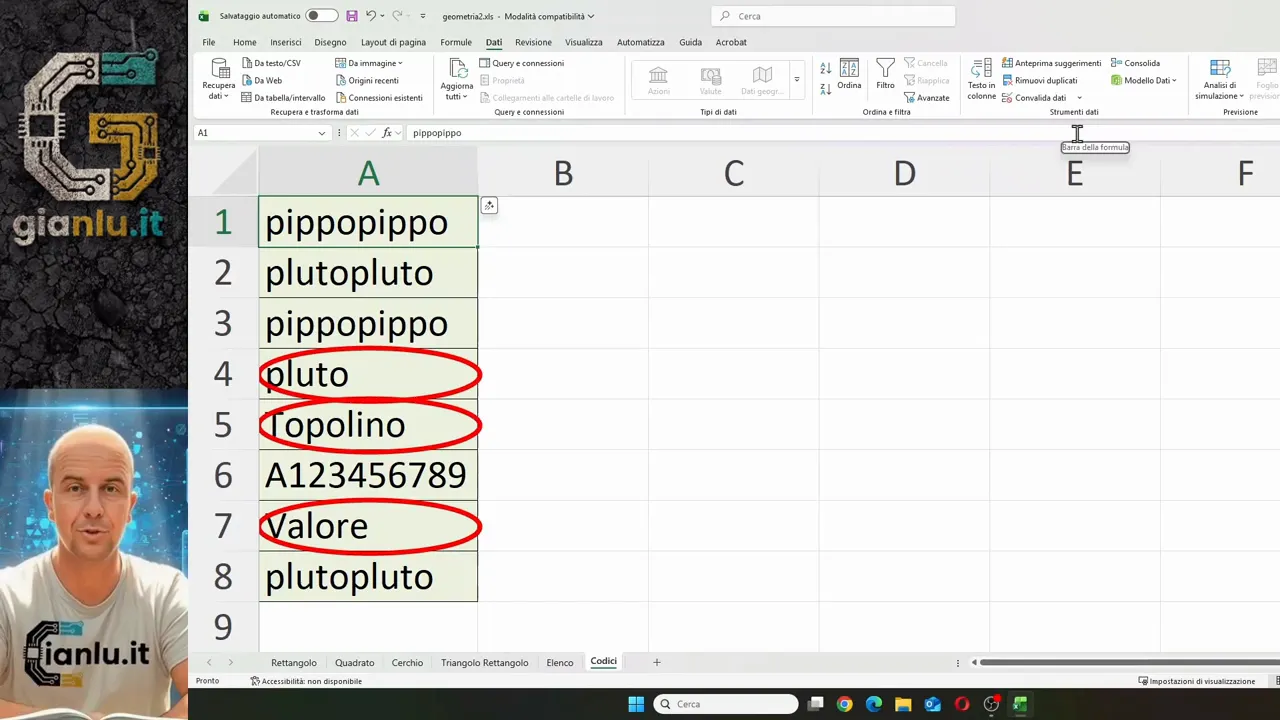
The circles are not a visual check that updates continuously. After changing the contents, we run the command again to see the updated situation. To remove the highlights we use Clear Validation Circles.
This is exactly the point: data validation is not only about saying no. It can explain what to enter, offer an orderly choice or help find what needs correcting. By choosing rules, messages and error style well, we make the sheet easier to fill in and much more controlled.