Published on
Did you delete a column by mistake? Did you change the format of a cell and now you don't like it? Don't panic: before redoing everything by hand, remember that Excel lets you retrace your steps.
The Undo and Redo commands are there for exactly this. With the first you go back through the operations you carried out; with the second you recover the steps you undid. They are two simple but essential tools for working with more peace of mind.
The shortcuts to remember are Ctrl + Z and Ctrl + Y. The important point, though, is not just knowing the keys: you need to understand in what order they act and what happens when, after going back, you start changing the sheet again.
A note on the screenshots: they come from the Italian version of Excel, where Undo is called "Annulla" and Redo is called "Ripristina". The buttons and the shortcuts are the same.
Contents
- Where to find Undo and Redo in Excel
- A practical example: typing and formatting a cell
- Ctrl + Z: going back one step at a time
- Ctrl + Y: recovering what you undid
- Undoing several operations at once with the list
- How to recover a column deleted by mistake
- The key rule: a new change alters the path
- Two shortcuts to turn into a habit
Where to find Undo and Redo in Excel
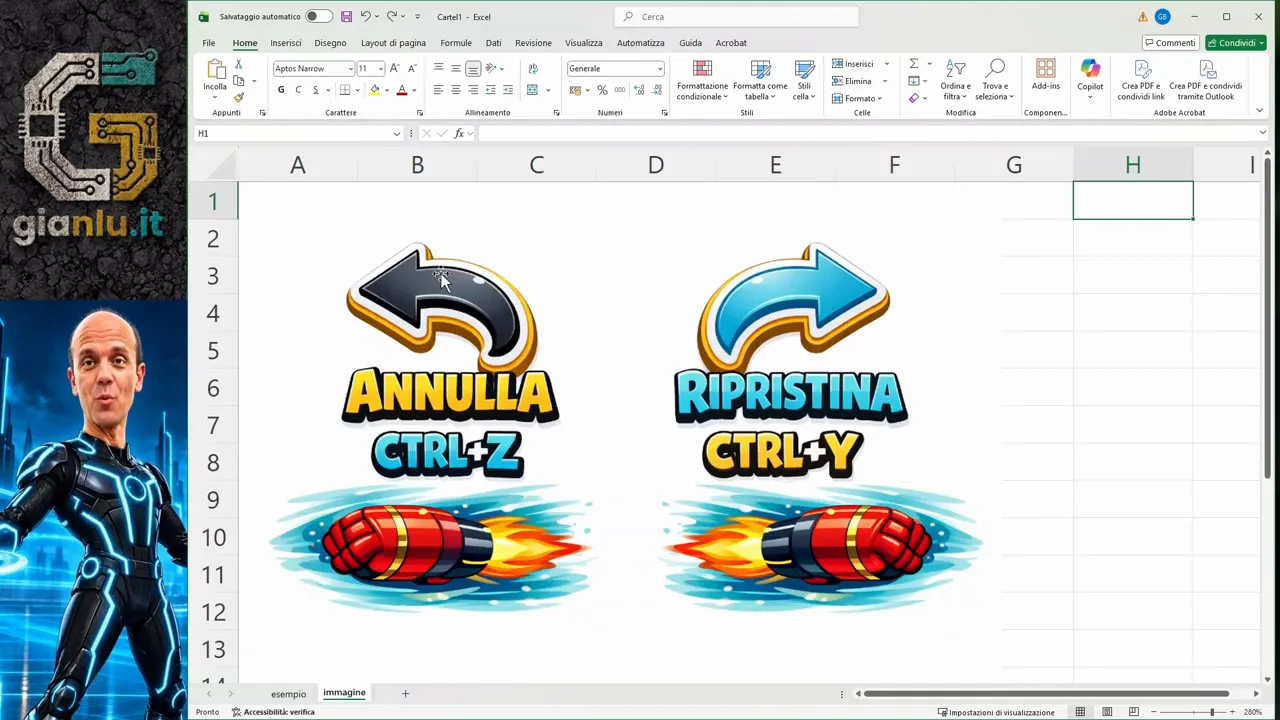
At the top of the Excel window, in the title bar of the interface shown, you find two buttons that you can recognize by the direction of the arrows:
- Undo, with the arrow pointing left, goes back one operation.
- Redo, with the arrow pointing right, recovers an operation you previously undid.
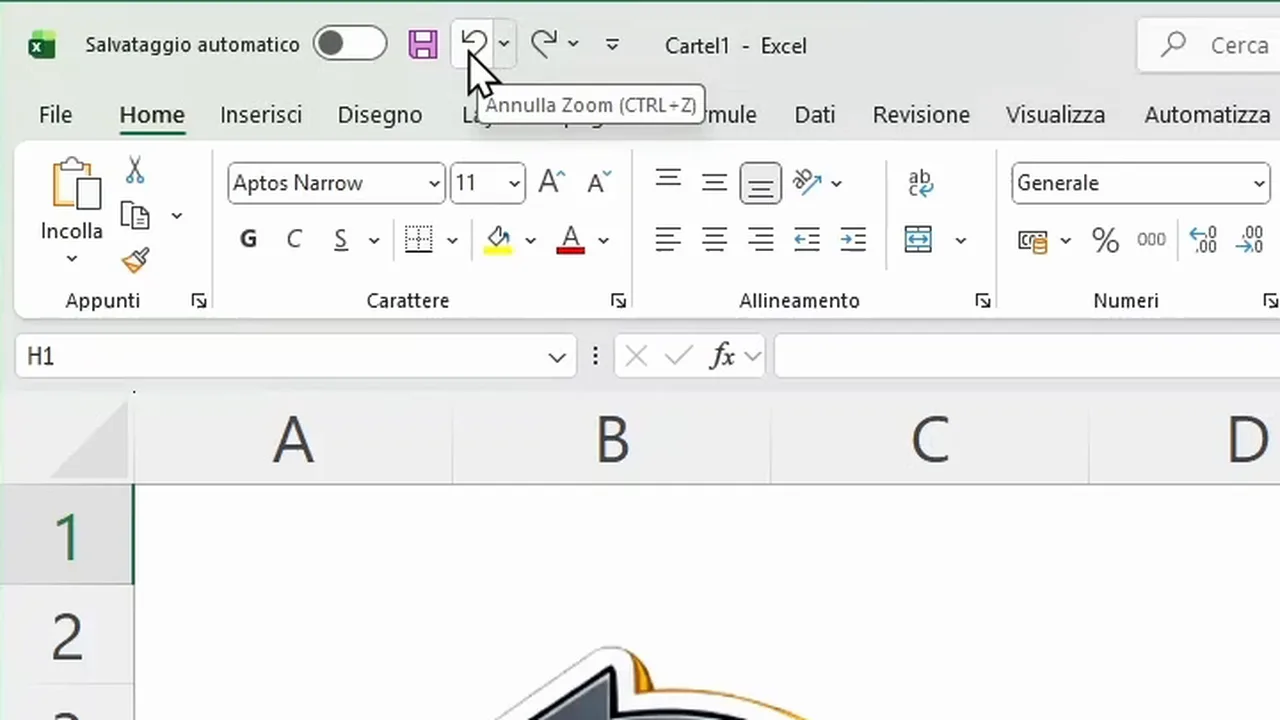
You can use the mouse or the keyboard. For me the keyboard is the most comfortable and fastest way: hold down Ctrl and press Z to undo, or Y to redo.
One click on the arrow or one press of the shortcut acts on one step at a time. So it does not mean deleting all your work at once: you can proceed gradually and stop when the sheet is back to the state you want.

A practical example: typing and formatting a cell
To understand how it works, let's start from an empty cell and type Pippo (Goofy, in English). Then we change its appearance with a series of operations:
- We change the font.
- We increase the text size.
- We widen the column.
- We increase the row height.
- We apply a green background to the cell.
- We color the text red.
- We apply bold.
- We center the text horizontally and vertically.
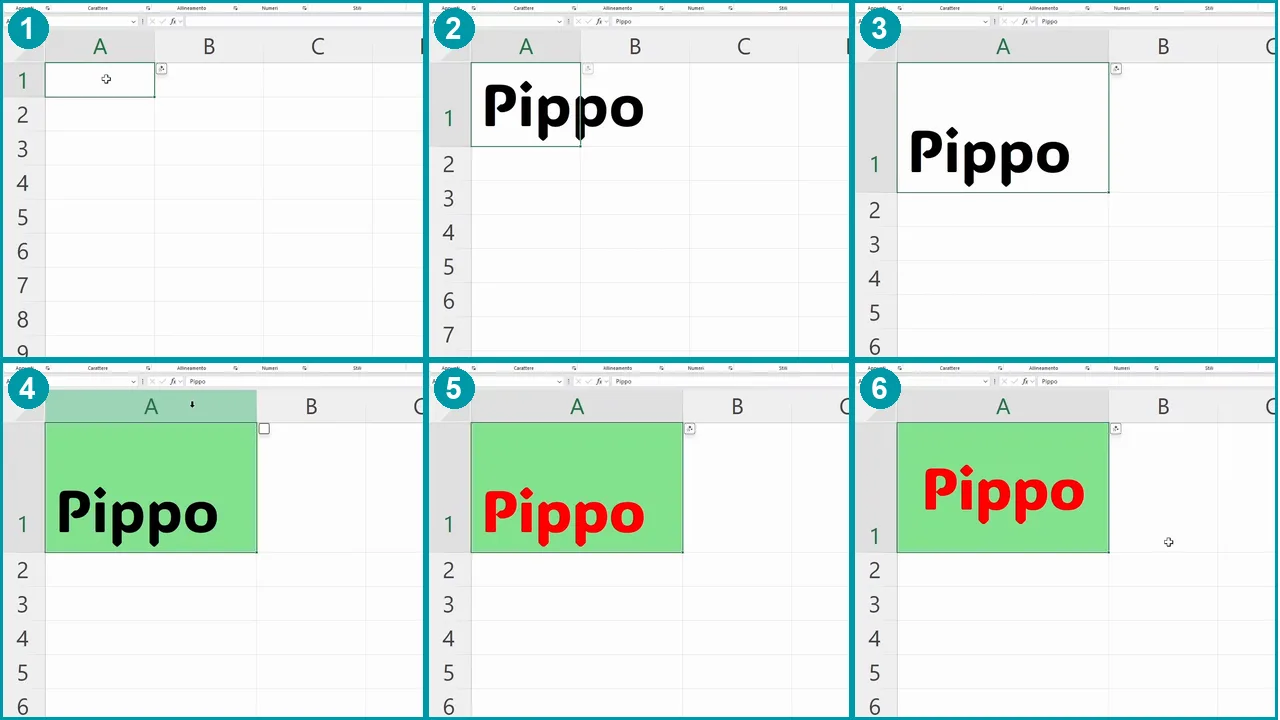
In the end we have a large, colorful label, placed in the middle of a wider cell. It looks like a single result, but to get there we carried out several separate steps.
This is the distinction to keep in mind: Undo acts on the operations performed, not simply on the final look of the cell. So we can remove the changes one after the other, without having to rebuild the previous situation by hand.
Ctrl + Z: going back one step at a time
Now let's press Ctrl + Z. Excel undoes the last operation. Press it again and it will undo the previous one, going backwards in the order in which we worked.
In the example, the alignments and the other formatting changes are undone one by one. The text turns black again, the background is removed, and the size of the row, the column and the font go back to their previous conditions.
Continuing, we find the simple label Pippo again, without all the changes we added. If we press Ctrl + Z once more, we also undo the typing of the text: the cell becomes empty.

So be careful: Ctrl + Z does not undo only mistakes. It undoes operations, including correct ones. That is why it is worth checking the result after each step, especially when you don't remember exactly how many changes you made.
Ctrl + Y: recovering what you undid
If you went back too far, you don't have to start over. As long as the undone steps are still available, you can use Ctrl + Y to redo them.
Taking the example again from the empty cell, the first step recovers the typing of the label. The following presses rebuild the changes to the font, the size, the colors and the alignments.

In practice, Ctrl + Z walks through the sequence backwards and Ctrl + Y walks through it forwards. Again, one step at a time.
Why does the Redo button disappear?
When you have recovered all the undone operations, there are no more steps to redo. In the interface shown, the Redo arrow disappears for exactly this reason.
It is not a problem with the sheet: you have simply reached the last available point. If you undo one or two operations again, Redo becomes available again and lets you recover them.
Undoing several operations at once with the list
The shortcuts are very handy when you need to correct one or a few steps. If you want to go back many operations instead, you can use the list of the actions performed.
Next to the Undo button you find a small drop-down control. Opening it, you can look through the operations and choose how far back to go, without pressing Ctrl + Z many times.
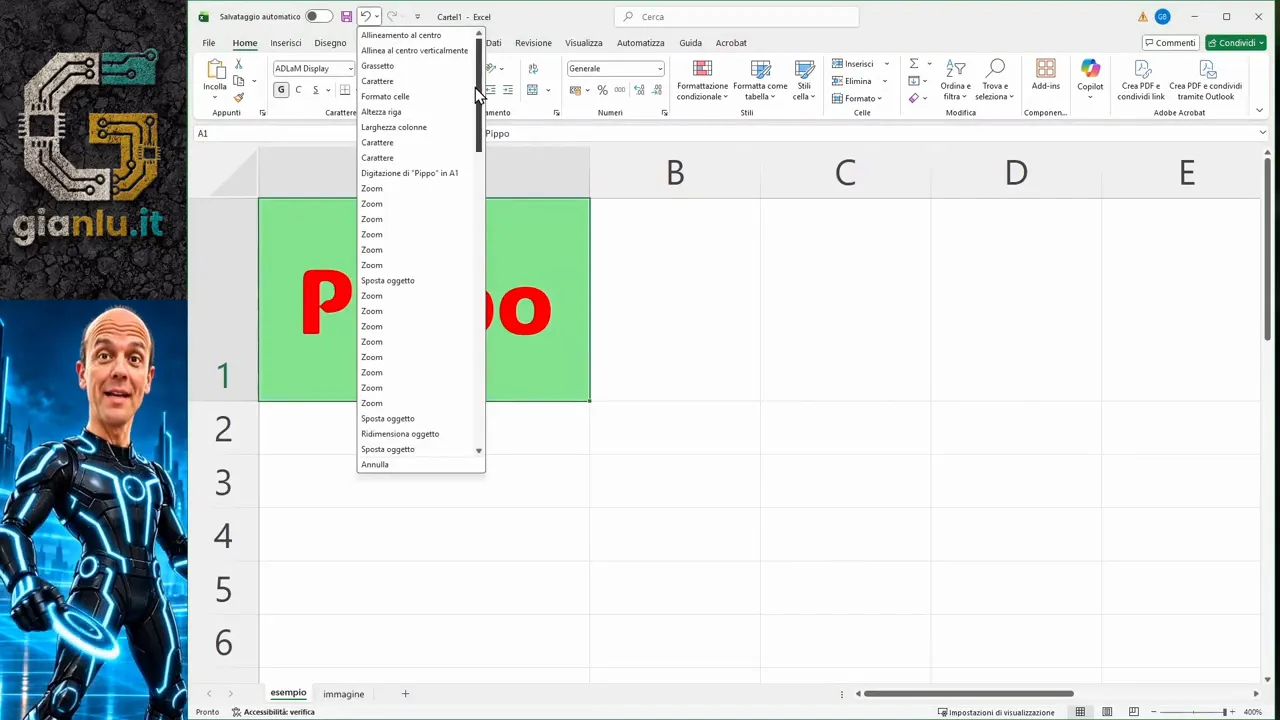
The idea stays the same: you are going back to an earlier moment of your work. You are not picking a single change to remove while leaving all the later ones untouched.
If you started from a new, empty file, by undoing the available steps you can go back to the initial empty situation. If instead you opened a file that was already prepared, the starting point is the state in which you opened it: Undo acts on the changes made from that moment, it does not rebuild the work done before opening.
How to recover a column deleted by mistake
Let's move on to a very concrete case. You select a column, right-click and choose Delete. Right after, you realize it was the wrong one.
You don't need to retype the content. If the deletion is the last operation performed, press Ctrl + Z: Excel undoes that step and the column comes back with everything it contained.
The good habit is to stop as soon as you notice the mistake. If in the meantime you made other changes, to reach the deletion you will first have to undo the later steps.
So go calmly: one press, a check of the sheet, then another press if needed. You stop when you find the correct situation again.
The key rule: a new change alters the path
This is the most important point. If you undo some operations and then make a new change, the old undone steps can no longer be recovered with Redo.
Back to the red, centered Pippo. We use Ctrl + Z a few times, until the text is black again and the last alignments are undone. At this point, instead of redoing, we change the word Pippo into Pluto.
We have created a new work sequence. If we now press Ctrl + Z, we undo the replacement and find Pippo again. If we press Ctrl + Y, we recover Pluto.
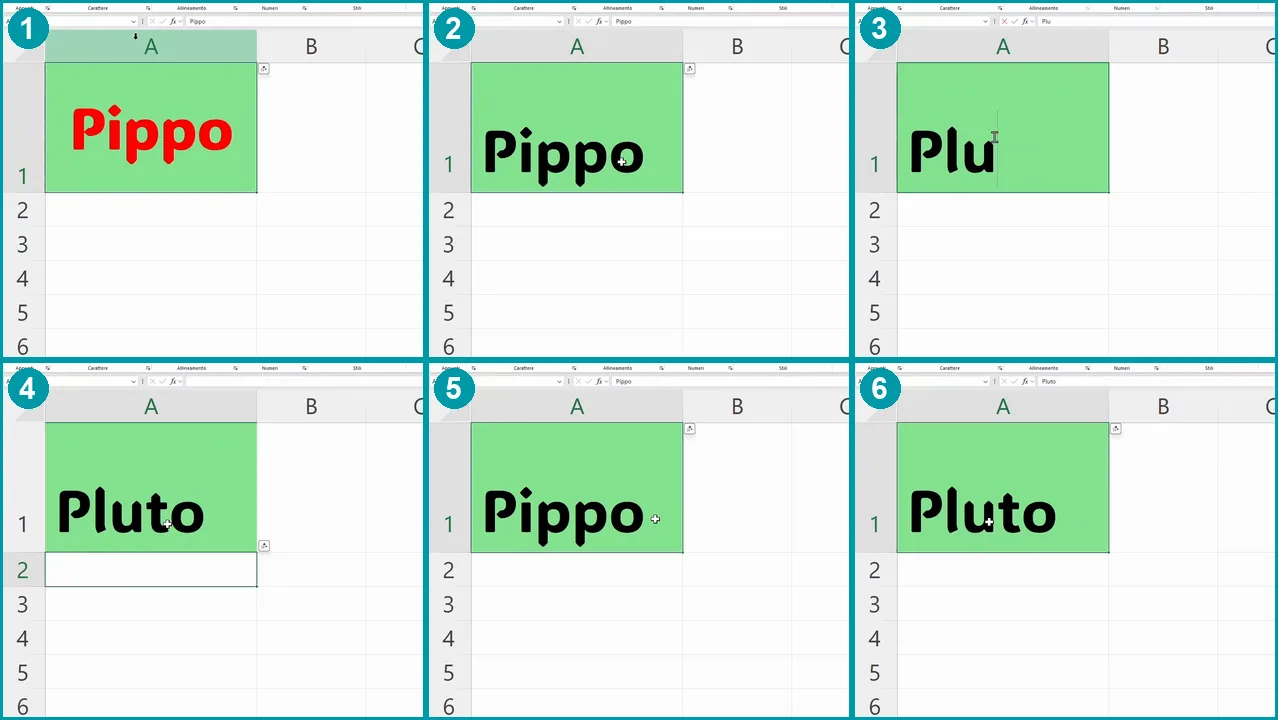
Through Redo we no longer get back to the old sequence with the red, centered text. Those steps had been undone, and the new change ended the possibility of recovering them.
So, before you start typing or formatting again after an undo, ask yourself: do I really want to start again from here, or do I want to recover something? If you want to recover it, use Redo first.
Two shortcuts to turn into a habit
Undo and Redo are essential in Excel, but the principle behind them is found in many other programs as well. Learning to use them well is therefore a useful habit well beyond the spreadsheet.
Remember three things: Ctrl + Z goes back, Ctrl + Y recovers the undone steps, a new change ends the old redo path.
Try it with a simple cell: type a text, change colors and sizes, then go back and forward. A few steps are enough to get comfortable and work with much less fear of the wrong click.