Published on
In the previous article we saw what a second brain is and how it works. Now we get practical: hands on the files, and an artificial intelligence that reads them and answers you.
I'll walk you through it step by step, with three starting points (a folder on your computer, Google Drive, OneDrive) and four paths. For each I tell you plainly what is free and what needs a subscription, so you don't end up halfway with a wall in front of you.
Download the handoutPrintable PDF version of this lesson, with exercise and glossary.
Download the handout as PDFGoal
Build a working second brain, choosing between a local folder, Google Drive and OneDrive, and connect it to an AI knowing in advance which tools are free and which need a subscription.
What you will be able to do
- Create a PARA-style folder structure that works with any tool.
- Choose between a local folder, Google Drive and OneDrive based on privacy and convenience.
- Connect your archive to NotebookLM, Claude, ChatGPT, Gemini or Copilot.
- Know when a paid account is needed and when the free plan is enough.
- Set up a weekly routine and ask your archive effective questions.
Contents
- Before choosing a tool: the structure
- Where to keep it: on your computer or in the cloud
- The AI tools: what is free and what isn't
- Path 1: free, folder on your computer
- Path 2: Google Drive
- Path 3: OneDrive and Microsoft
- Path 4: the most powerful, local folder and agent
- The right questions to ask your archive
- The routine that keeps it alive
- Confidentiality: what not to put in
- Which to choose? The summary
- Practical exercise: your first second brain
- Questions that come up in class
- Glossary
- Further reading
1. Before choosing a tool: the structure
The secret of a second brain isn't the program: it's the folders and the consistency.
Almost everyone gets the order wrong: first they choose the app, then they think about what to put in it. Let's do the opposite. The folder structure is the same for every tool, and you can move it from one place to another like a shoebox.
The folders (PARA method)
Create a main folder called Second Brain and four subfolders inside. The numbers in front keep them in order.
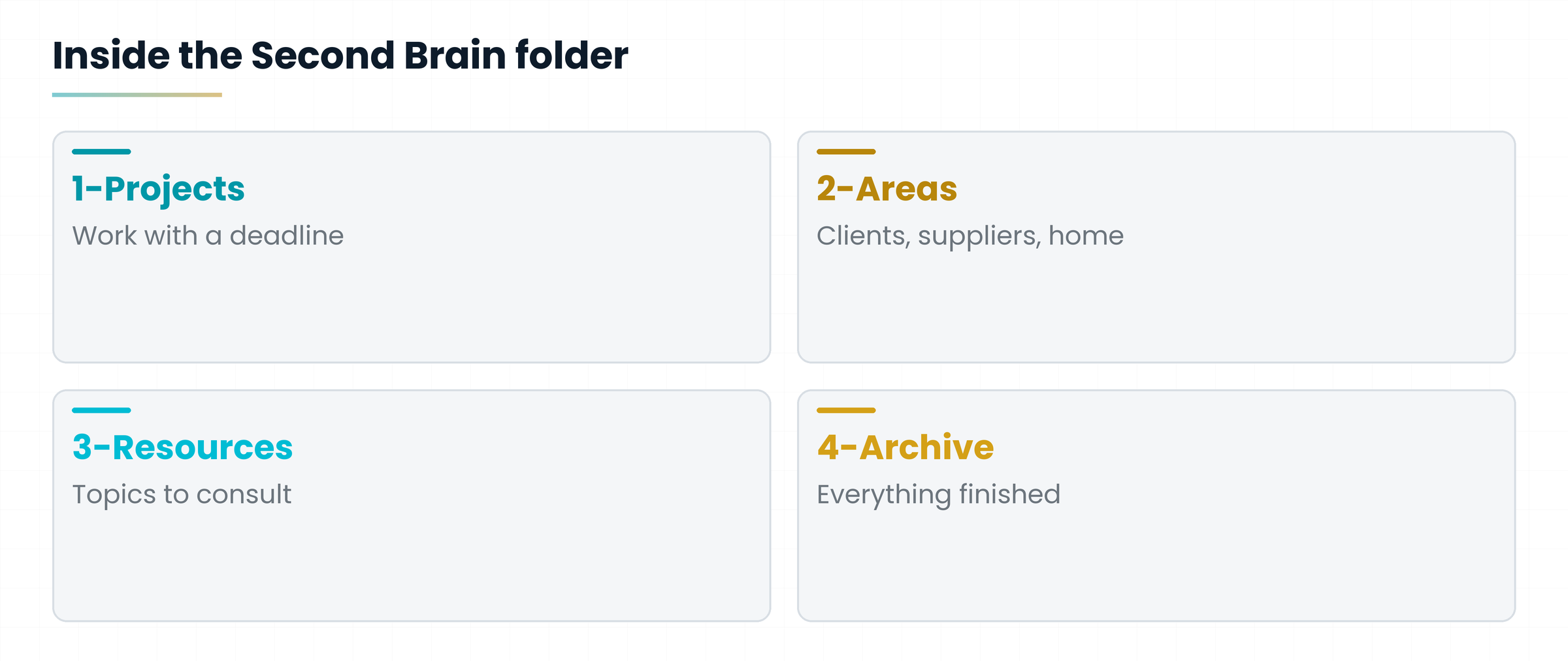
- 1-Projects: one folder per job with a deadline, for example “Spring window display”.
- 2-Areas: folders that last forever: “Clients”, “Suppliers”, “Health”, “Home”.
- 3-Resources: topics to consult, for example “Water lilies”, “Excel”, “Tax”.
- 4-Archive: what is finished. Nothing is thrown away, everything moves here.
The most important file: “About me”
In the main folder create a text file called 00-About-me. Half a page where you write who you are, what you do, what you're working on now, how you like to be answered. The AI will read it first, and it's like introducing yourself to a new colleague: from then on it answers better.
My name is Marta, I run a plant shop in Bergamo with two employees. This spring I'm preparing a new window display and an offer for customers. Write in simple language, with short sentences, and when you don't know something, tell me instead of making it up.
Rules for file names
- A name that says what's inside: Supplier-Rossi-prices-2026.pdf, not “scan12”.
- The date at the start (2026-10-12-meeting-Rossi) keeps files in time order.
- One file, one topic. Ten clear pages beat one huge confusing one.
For the AI, `.txt`, `.md` (Markdown, plain text with a few symbols), Word and PDF with real text all work very well. A photo of a handwritten page isn't always read well: type it up instead.
2. Where to keep it: on your computer or in the cloud
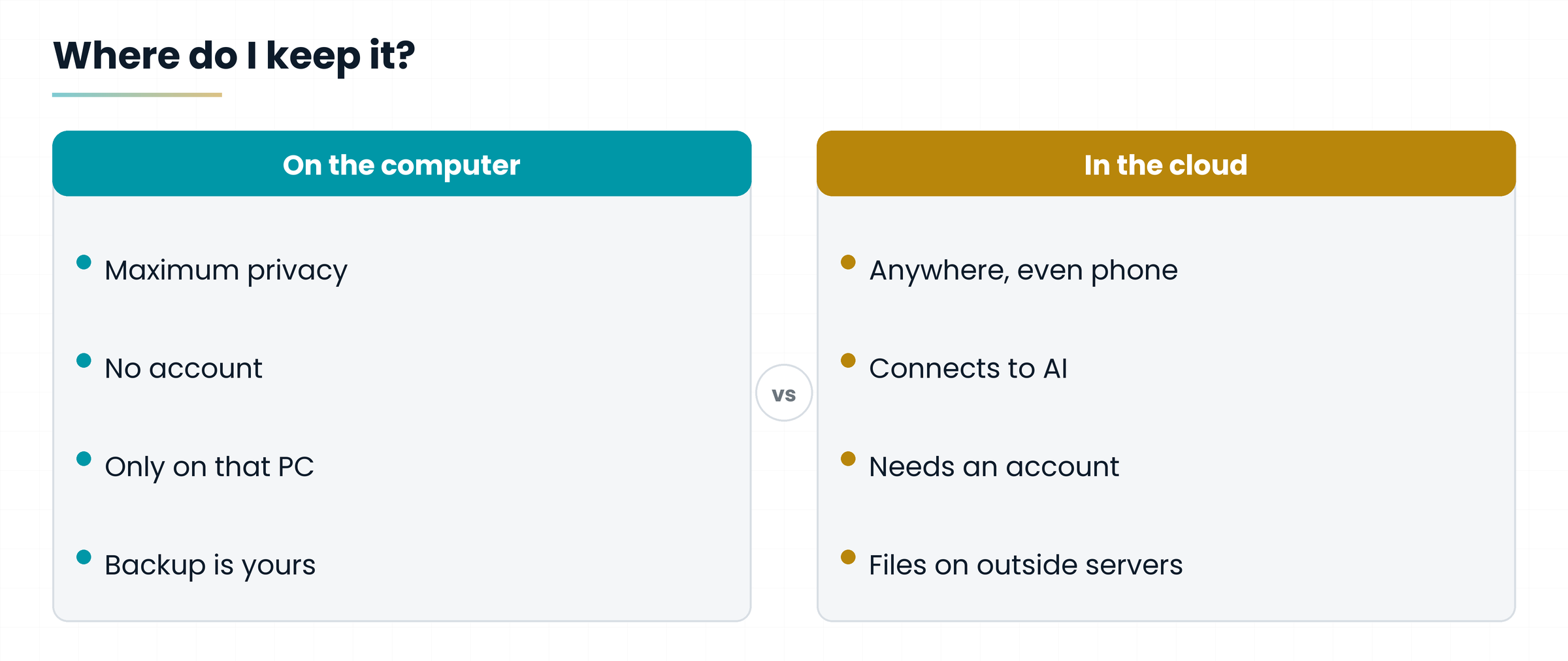
You have three possible places. The cloud is simply someone else's computer, where your files stay available from any device. Each has pros and cons.
| Where | Pros | Cons | Cost |
|---|---|---|---|
| Folder on your computer | Maximum privacy, no account, works offline | Only on that computer; backup is up to you | Free |
| Google Drive | Available everywhere, connects well with Gemini and NotebookLM | Needs a Google account; files sit on Google's servers | 15 GB free; more space is paid |
| OneDrive | Built into Windows and Office, great if you use Word and Excel | Free space is small; Microsoft's AI on your files is paid | Limited free space; more space is paid |
If you keep simple files (text, Word, PDF) you can change your mind at any time: just copy the folder from one place to another. There is no final choice.
3. The AI tools: what is free and what isn't
Here is the map. Prices and limits are those I checked on the official pages in October 2026: they change often, so before paying always take a look at the website.
| Tool | What it does with your files | Free | Paid |
|---|---|---|---|
| NotebookLM (Google) | Reads the sources you give it and answers citing them | Yes. Up to 50 sources per notebook | More sources on paid Google AI plans (100 with Plus, 300 with Pro) |
| Claude (Anthropic) | Projects with reference files; on paid plans also Drive and local folders | Yes, with files uploaded by hand in Projects (up to 5 projects) | Pro: 17 dollars a month billed annually, 20 monthly. Needed for the Google Drive connection, for Cowork and for Claude Code |
| ChatGPT (OpenAI) | Projects with files and instructions | Yes, with few files per project | Plus: about 20 dollars a month, more files and features (check the price in your currency) |
| Gemini (Google) | Gems with files from your computer or from Drive | Yes, with lower limits | Google AI Plus 4.99 euros and AI Pro 21.99 euros a month in Italy; higher limits and Gemini inside Gmail and Drive |
| Copilot (Microsoft) | The free version reads only the files you upload | Yes, but it can't see OneDrive by itself | Microsoft 365 Copilot: about 30 dollars a month per user (business plans). There is also a personal plan, Microsoft 365 Premium: check price and features |
| Obsidian | A note-taking program: it opens your folder, it isn't an AI | Yes, for personal use | Sync (4 dollars a month billed annually) to sync devices; optional commercial licence (50 dollars a year) |
Providers often rename plans (Google has already renamed its subscription several times, Microsoft retired the old Copilot Pro). If the name you read here doesn't match the website, look for the feature, not the name: “connect Google Drive”, “projects with files”, “local folder”.
4. Path 1: free, folder on your computer
It's the simplest and costs nothing. It works with NotebookLM (only needs a free Google account) or with the Projects of Claude and ChatGPT on the free plans. The trade-off: you upload the files by hand.
Step by step with NotebookLM
- Create the Second Brain folder with the four subfolders and the 00-About-me file.
- Put a real project in 1-Projects with three or four files (notes, quote, PDF).
- Open NotebookLM with your Google account and create a new notebook (that's what a container of sources is called).
- Click Add sources and upload the project files, including “About me”.
- Ask the first question: “Summarise the state of this project and tell me what's missing.” Check that it shows which sources the answers come from.
Don't put everything in one notebook. Make one per project or topic: answers stay focused and you don't exceed the source limit of the free plan.
With free Claude or ChatGPT
Create a Project, write in the instructions “Answer using only the project files and tell me which file each piece of information comes from”, and upload the files. On the free plan the number of files and conversations is limited: for a small project it's perfectly fine.
No. This path is free. The limit is convenience: every time you change a file you have to upload it again, and free plans have fewer files and fewer messages per day.
5. Path 2: Google Drive
If you already use Gmail or Google Docs, this is the most natural path: files sit in Google's cloud and Google's tools read them without you uploading them by hand.
Step by step
- On Google Drive create the Second Brain folder and the four subfolders. If you already have a folder on your computer, drag it into Drive.
- For new documents write in Google Docs: NotebookLM and Gemini read them with no conversion.
- Open NotebookLM, create a notebook and under Add sources choose Google Drive: select the project documents.
- Alternatively, open Gemini, create a Gem (a personalised assistant) and add files from Drive: changes to the files are reflected in the Gem.
- Ask: “What did I decide with supplier Rossi?” and check the answer.
NotebookLM and Gems can be used for free, with limits. A paid Google AI plan gives higher limits and Gemini built into Gmail and Drive. For Gemini you also need to turn on “Keep Activity” and connect Google Workspace to the Gemini apps.
Variant with Claude
On paid plans, Claude has a Google Drive connector: you switch it on in settings, grant permission and then, in Projects, choose “Add content > Google Drive”. It is not free: you need the Pro plan (17 dollars a month billed annually or 20 monthly).
Luca, the barista studying to be a sommelier, keeps one Google Doc per lesson. In NotebookLM he has an “Sommelier exam” notebook with all the documents. Every evening he adds the new lesson and gets quizzed. Cost: zero euros.
6. Path 3: OneDrive and Microsoft
If you work with Word and Excel and your folder already sits on OneDrive (Microsoft's cloud), it makes sense to stay there. But I have to be very clear on one point: Microsoft's AI that reads your files by itself is paid.
| What you want | How | Cost |
|---|---|---|
| Have Copilot read your archive inside Word, Excel and OneDrive | Microsoft 365 Copilot | Paid (about 30 dollars a month per user on business plans; check the personal plan) |
| Ask Copilot about single files | Copilot Chat: you upload or drag files into the chat | Free |
| Let another AI read the folder | Download or sync the folder to your computer, then use path 1 or 4 | Depends on the tool you choose |
Step by step (free version)
- Create the Second Brain folder inside OneDrive, with the four subfolders.
- Turn on OneDrive syncing on your computer: the folder shows up in File Explorer like a normal folder.
- Open Copilot Chat with your Microsoft account and drag in the files you need for the question.
- For a bigger archive use path 4, which reads the synced folder directly.
To let Copilot read all of OneDrive, yes, you need a Microsoft 365 Copilot licence. To begin, no: with free Copilot Chat you upload the files yourself, and with the synced folder you can use the other paths.
7. Path 4: the most powerful, local folder and agent
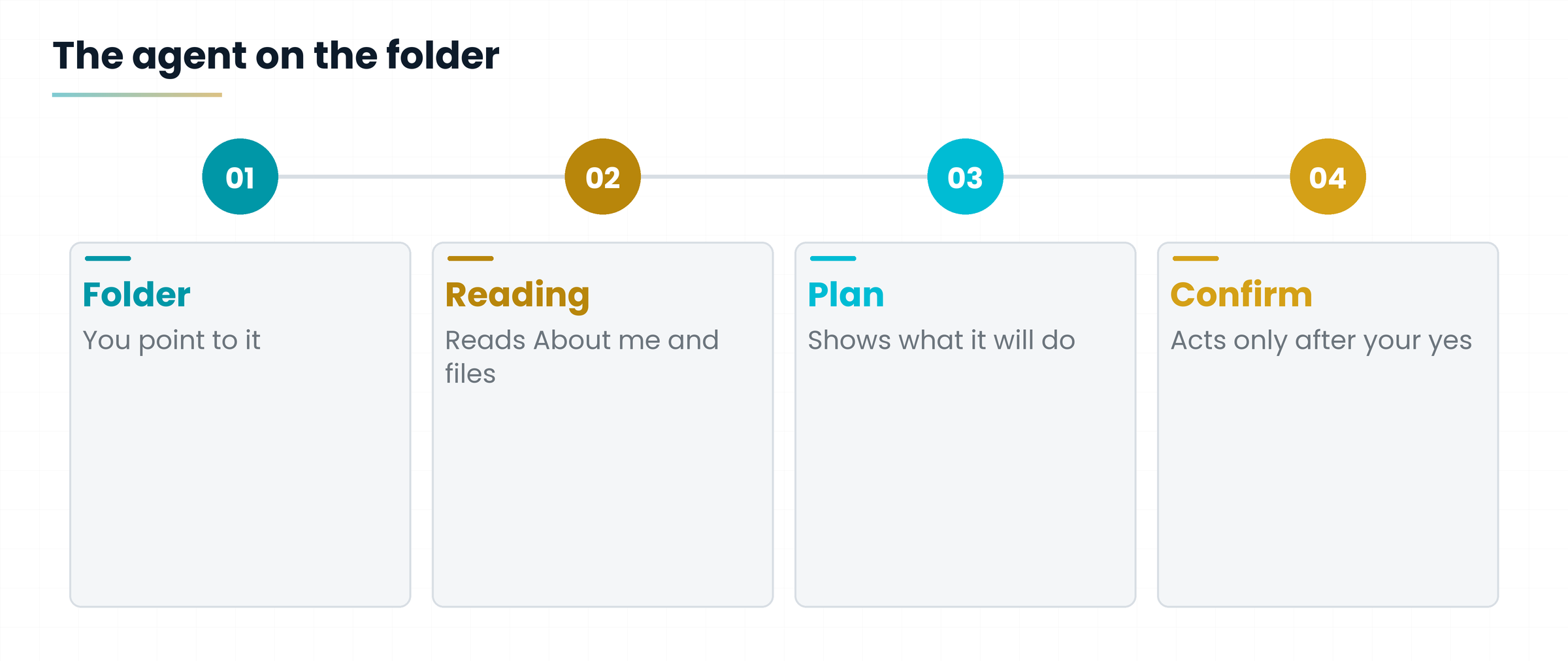
So far the AI has read your files. In this path it can also write them: it sorts new notes into the right folders, updates client profiles, prepares your weekly summary. Tools like Claude Cowork and Claude Code do this, working directly on a folder on your computer.
Step by step
- Keep the Second Brain folder on your computer (even synced with Drive or OneDrive).
- Install the Claude desktop app and sign in with a Pro plan or higher.
- Open Cowork (or Claude Code, if you're comfortable with the terminal) and point it to the Second Brain folder as the working folder.
- Ask: “Read 00-About-me, then tidy the files in the Inbox folder by moving them into Projects, Areas, Resources or Archive. First show me the plan and wait for my confirmation.”
- Check the plan, confirm, and verify the result by opening the folders.
Yes. Cowork and Claude Code are included in Claude's Pro, Max, Team and Enterprise plans (Pro: 17 dollars a month billed annually, 20 monthly). There is also a free way to give Claude access to computer files, through the desktop app's extensions, but it is more limited.
A free companion: Obsidian
Obsidian is a program, free for personal use, that opens your folder of `.md` files and shows them like a linked notebook, with links between notes and a map of relationships. It isn't an AI, but it pairs very well: Obsidian for comfortable reading and writing, AI for sorting and answering. Syncing notes across devices costs 4 dollars a month billed annually (Sync), but you can do it for free using Drive or OneDrive.
An assistant that moves and edits files can make mistakes. The first time, always work on a test copy, back up the folder and always ask it to show the plan before acting.
8. The right questions to ask your archive
A great archive with vague questions gives vague answers. Here are four templates to copy, one per task. Only change the words in square brackets.
| Task | Question template |
|---|---|
| Find | Search my files for everything about [topic]. For each point, list the name of the file you took it from. |
| Summarise | Summarise in ten lines the state of project [name], listing what is decided, what is open and who has to do what. |
| Connect | Are there ideas in my notes on [topic A] and [topic B] that I could put together? Suggest three links. |
| Produce | Using only my files, write a draft of [document] for [person]. Mark with an asterisk whatever you inferred that isn't written down. |
Always ask which file the answer comes from. If the AI can't say, it probably made it up: check again.
9. The routine that keeps it alive
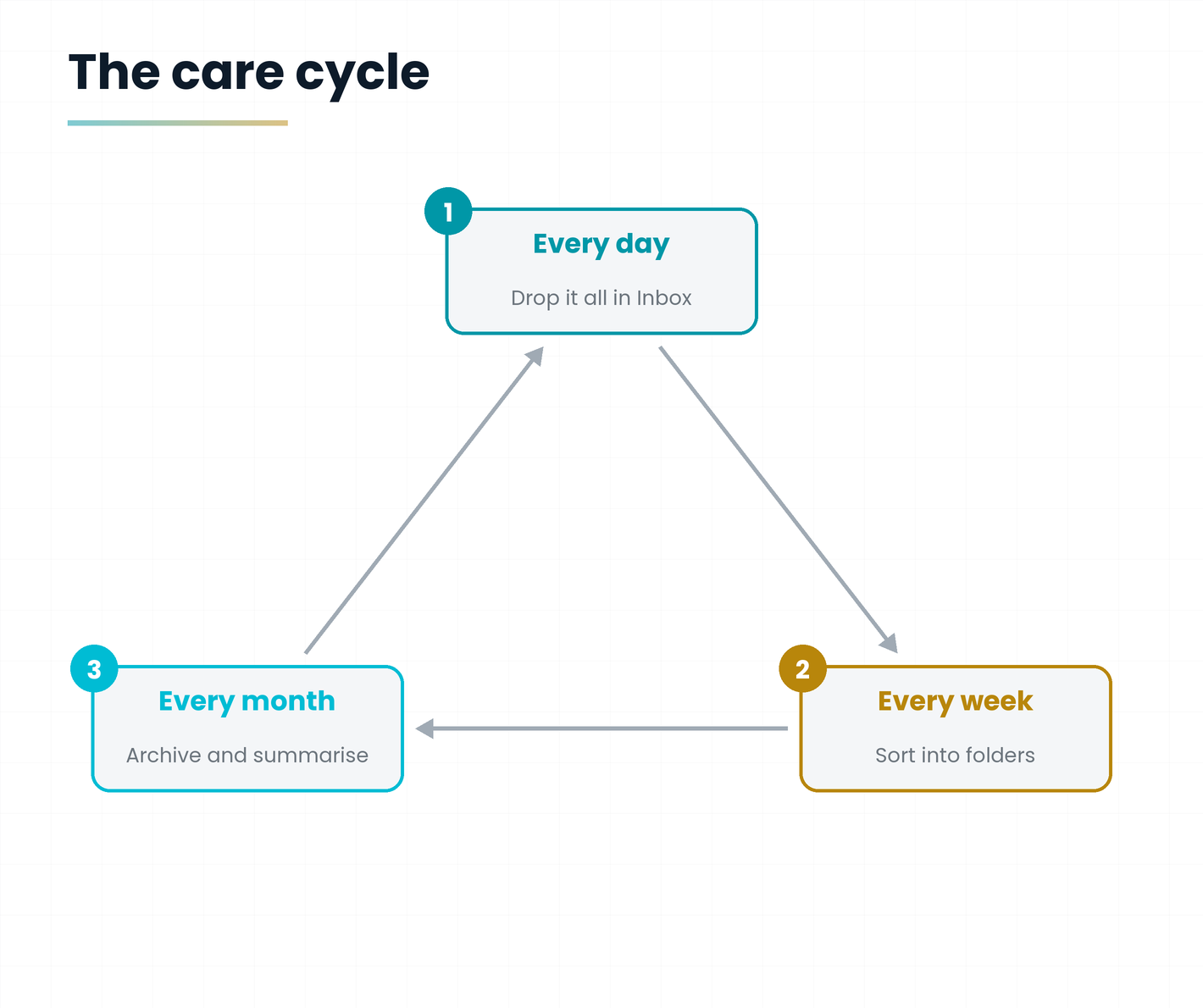
A second brain dies of neglect, not of tool errors. The cure is a tiny routine, like watering plants: little, but regular.
| When | What you do | How long |
|---|---|---|
| Every day | Drop whatever you need into an Inbox folder: photos, notes, PDFs, without sorting them | 5 minutes |
| Once a week | Sort the Inbox into the PARA folders (by yourself or with AI), update “About me” if something changed | 15 minutes |
| Once a month | Move finished projects to Archive and ask the AI for a summary of the month | 20 minutes |
10. Confidentiality: what not to put in
Everything you upload to an online service leaves your computer. It's not a drama, but it must be handled with care.
Never passwords, card or bank account codes, identity documents.
Data of clients, patients, employees: only if you have permission and have checked how the service treats it (in Europe the GDPR, the data protection regulation, applies).
In each service's settings there is usually an item on the use of your data to train models: read it and set the choice you prefer. Business plans often have stricter rules than personal ones.
If a file is sensitive, leave it out of the second brain connected to the AI, in a separate folder that no tool reads.
The most private path is the one only on your computer, with no cloud and no AI connected. But even there you can choose: use the AI only on a folder of non-sensitive material.
11. Which to choose? The summary
If you're in a hurry, here's the compass. Start with the free option: if you find something missing, then move to a paid plan, not before.
| If... | Start with | Need to pay? |
|---|---|---|
| You want to try without spending | Path 1: local folder + NotebookLM | No |
| You already use Gmail and Google Docs | Path 2: Drive + NotebookLM or Gemini | No to start; yes for higher limits |
| You work with Word, Excel and OneDrive | Path 3: OneDrive + Copilot Chat | No to start; yes to let it read all of OneDrive |
| You want AI to tidy and write into your folders | Path 4: Claude Cowork or Code | Yes (Claude Pro or higher) |
| You want a comfortable notebook to browse | Obsidian on your folder | No (Sync only if needed) |
Structure first, tool second. With a tidy folder, an “About me” file and fifteen minutes a week you already have a second brain: AI is just the wand that makes it move.
Practical exercise: your first second brain
One hour, a free Google account and a real project. You spend nothing.
- Create the Second Brain folder with the four numbered subfolders and an Inbox folder.
- Write the half-page 00-About-me file with who you are, what you do and what you're working on now.
- Choose a real project and put three or four files about it in the Projects folder.
- Open NotebookLM, create a notebook for that project and upload the files, including “About me”.
- Ask the four template questions (find, summarise, connect, produce) and note which files the answers come from.
- Put a fixed fifteen-minute weekly appointment in your calendar to sort the Inbox.
Do the answers show which file they come from?
Did you check at least one important fact against the original file?
Did you write in “About me” how you want the answers?
Did you leave out passwords and sensitive data?
Questions that come up in class
Do I absolutely need a subscription?
No. You can start for free with a folder and NotebookLM, or with the Projects of Claude or ChatGPT. A subscription is needed when you want more files, automatic connections to Drive or OneDrive, or an assistant working on the folder on your computer.
Which AI is best for a second brain?
There is no best one overall. NotebookLM is handy for asking questions about sources, Claude and ChatGPT for writing and reasoning, Gemini if you live inside Google, Copilot if you live inside Microsoft. Try two tools on the same project and keep the one that gives you more useful answers.
Can I use several tools together?
Yes, and it's recommended: the folder is one and each tool looks at it its own way. Just don't duplicate files in several places.
What if I change tools or the provider shuts down?
That's why it's best to keep files in simple formats such as text, Word and PDF. You can take the folder anywhere: tools are replaceable.
Can the AI delete or ruin my files?
If you only use it to read and answer, no. If you let it write (path 4), it can make mistakes: always back up and ask it to show the plan before acting.
How much does it all cost if I want the maximum?
It depends on your choices, but a Claude or ChatGPT Pro-level plan costs about twenty dollars a month plus a few euros for extra cloud space. Start free and pay only for what you really use.
Glossary
| Term | What it means |
|---|---|
| Agent | An AI that doesn't just answer but takes actions, like moving and writing files. |
| Cloud | Space on a provider's servers, where files are reachable from any device, like Google Drive or OneDrive. |
| Connector | The authorised link between an AI and an outside service, such as Google Drive. |
| Gem | In Gemini, a personalised assistant with instructions and files. |
| Inbox | The entry folder where you drop everything unsorted; you sort it once a week. |
| Notebook | In NotebookLM, the container where you put the sources for the AI to read. |
| Project | In Claude and ChatGPT, a space with instructions and reference files that the AI uses in every conversation inside that project. |
| Syncing | The mechanism that keeps the folder on your computer and the one in the cloud identical. |
Further reading
- Claude pricing page (claude.com/pricing) and official Projects guide — Free, Pro, Max plans; projects; connectors; consulted in October 2026
- Official Claude desktop app guide — local file access, Cowork, Claude Code; consulted in October 2026
- Gemini Plans page (Italy) and official Gems guide — AI Plus and AI Pro prices; Gems with Drive files; consulted in October 2026
- Official NotebookLM guide — source limits per plan; consulted in October 2026
- Obsidian pricing page (obsidian.md/pricing) — free app, Sync, commercial licence; consulted in October 2026
- Microsoft documentation on Copilot Chat and Microsoft 365 Copilot — consulted through secondary sources: recheck before buying
- ChatGPT pages on Projects and plans — consulted through secondary sources: recheck before buying
- Tiago Forte, Building a Second Brain, 2022 — CODE and PARA methods
Prices and features verified in October 2026 on the official pages where indicated; for ChatGPT and Microsoft Copilot the information comes from secondary sources and must be rechecked. Plans, names and limits change quickly: read the current terms before subscribing. Prices for Gemini are the Italian ones; others are in US dollars as published.
Download the handoutPrintable PDF version of this lesson, with exercise and glossary.
Download the handout as PDF