By Gianluca Bonomo — Technology Trainer and Instructor
Published on
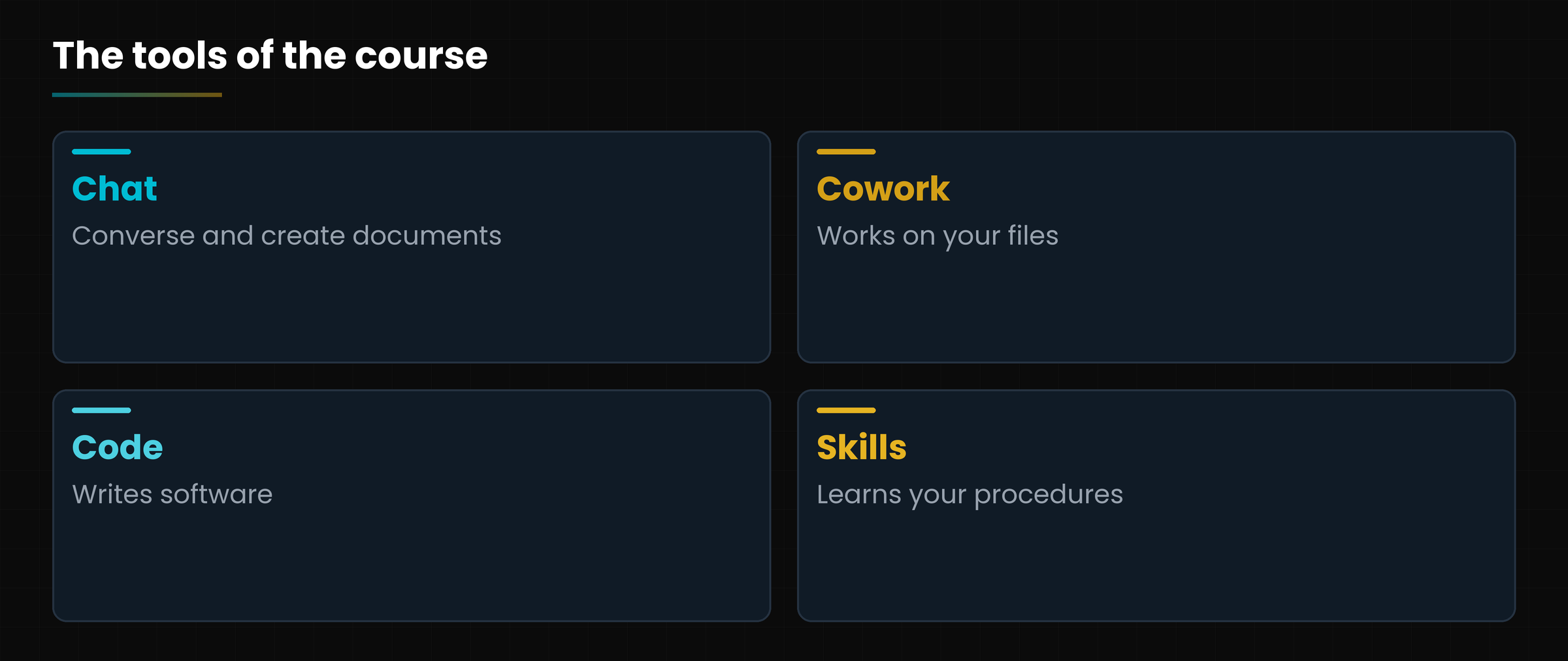
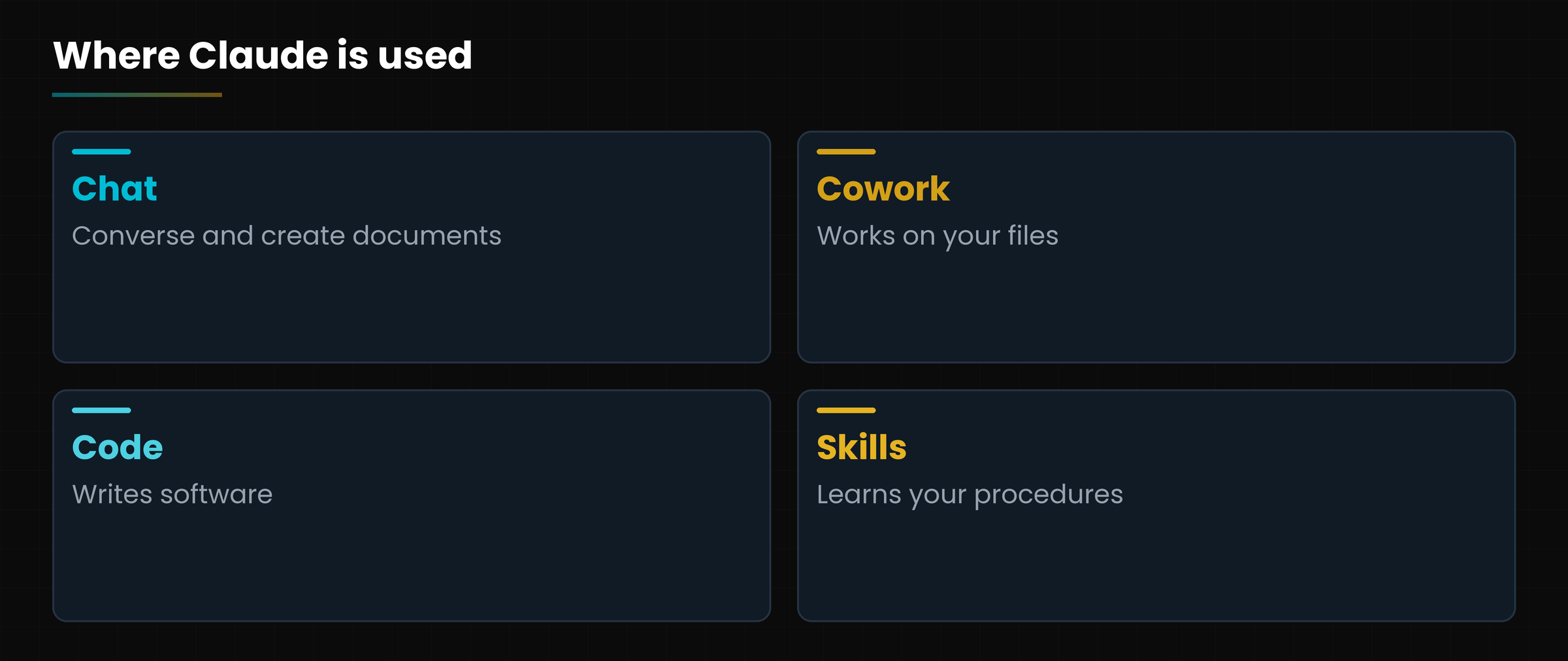
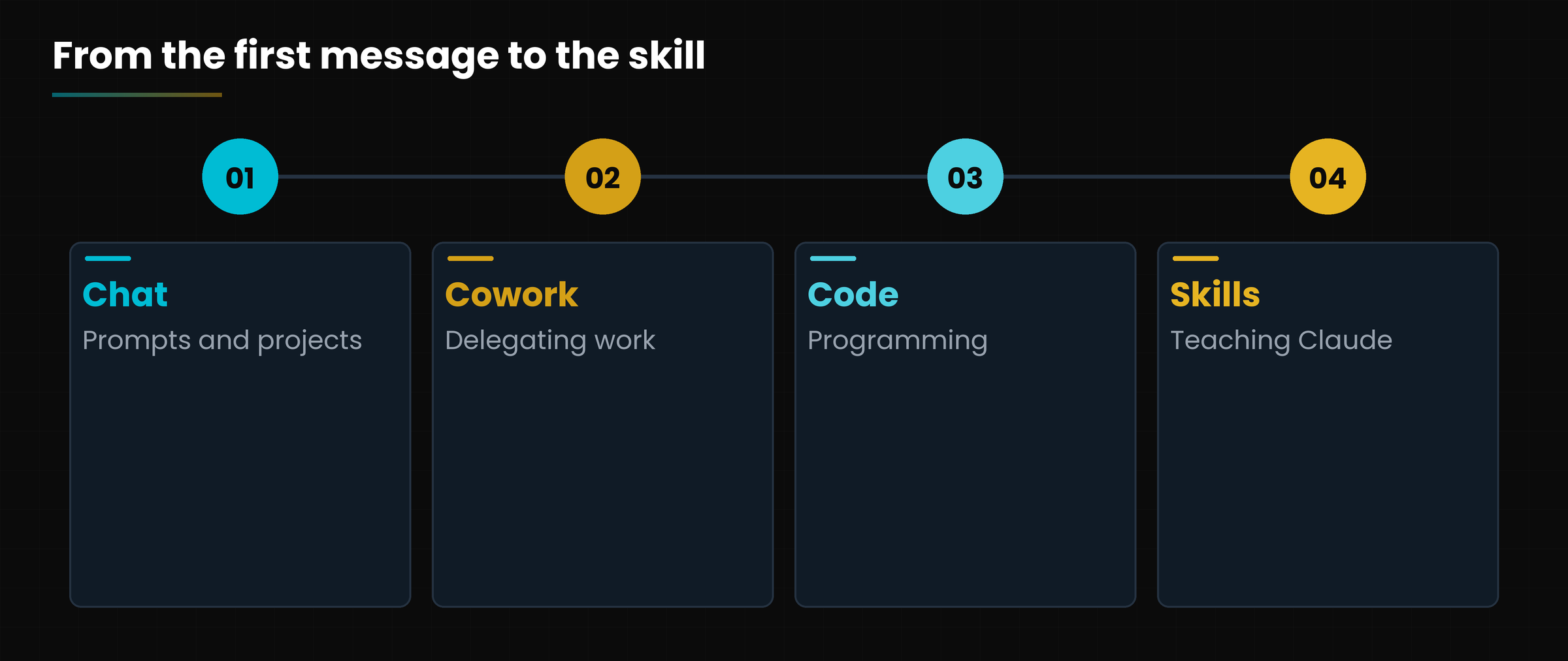
Claude is the AI assistant built by Anthropic. You use it in a chat, but it can also work on the files on your computer (Cowork), write software for you (Claude Code) and learn your procedures (skills).
This course takes you by the hand from the start: how a language model works, how to write effective requests, how to delegate long jobs, how to install and create your own skills and how to stay safe. The screenshots come from the real Claude interface as of October 2026 (the app is shown in Italian).
How to use this handout
This handout gathers, in written and ordered form, everything covered in the lesson. You do not need to memorise it: it is there so you can find things again calmly, later, when the lesson is over and a question is left hanging.
How to browse this document online: You can move between lessons with the index below, one at a time. Every technical term listed in the glossary shows its definition on mouse hover. At the bottom of the page you will find the unified glossary.
What Claude is, what we will cover and how to study effectively
Lesson goal
Get an overview of the course: what Claude is, which tools we meet in each chapter, what you need to get started and how to follow the lessons.
What you will be able to do
Describe in one sentence what Claude is and what it is for.
Know the four tools of the course: chat, Cowork, Claude Code and skills.
Know what to prepare before starting.
Follow the path of the eight lessons with a method.
1. Welcome: what Claude is
Claude is an artificial intelligence assistant: you write to it in plain language and it reads, writes, analyzes, programs and, if you allow it, works in your place.
Claude is developed by Anthropic. You use it in the browser at claude.ai, with the desktop app and with the phone app. Behind it is a family of models, programs trained on huge amounts of text that generate the answers.
This course starts from a simple question: how do you use Claude well, step by step, starting from zero? Each lesson explains one part, in jargon-free language, with real screenshots of the interface (updated to October 2026) and an exercise to do right away.
In plain words
Claude is like a very well-prepared, lightning-fast colleague. The course teaches you to explain tasks well and to check its work.
Diagram
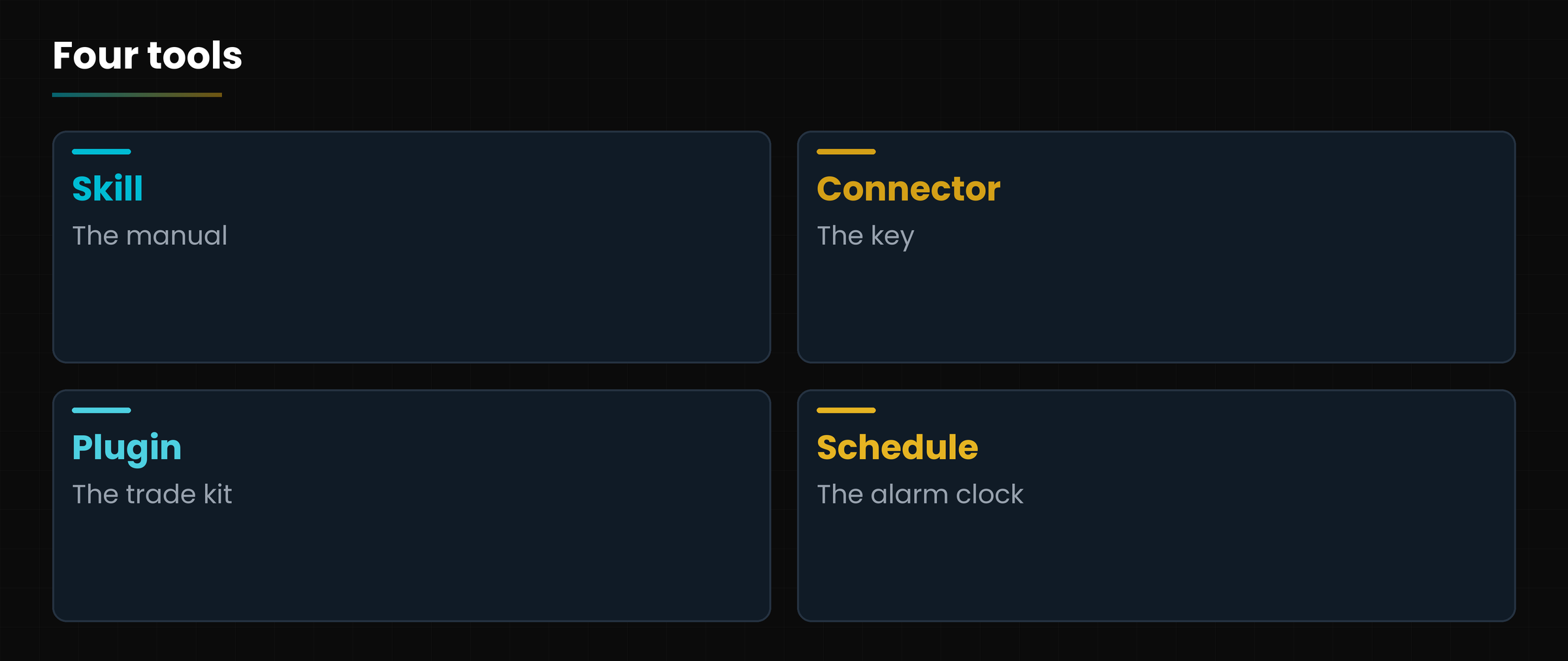
The four tools we meet in the course.
The four tools we meet in the course.
2. Who the course is for
The course starts from zero: no technical skills are needed.
It is for you if
you have never used an AI assistant, or have used one little;
you want better results than generic answers;
you work with documents, emails, spreadsheets or software and want to save time;
you want to learn how to customize Claude with your procedures.
It is not for you if
you are looking for a course on training models or building AI systems from scratch;
you want legal advice: the regulatory notes in this course are not.
3. What we will cover, lesson by lesson
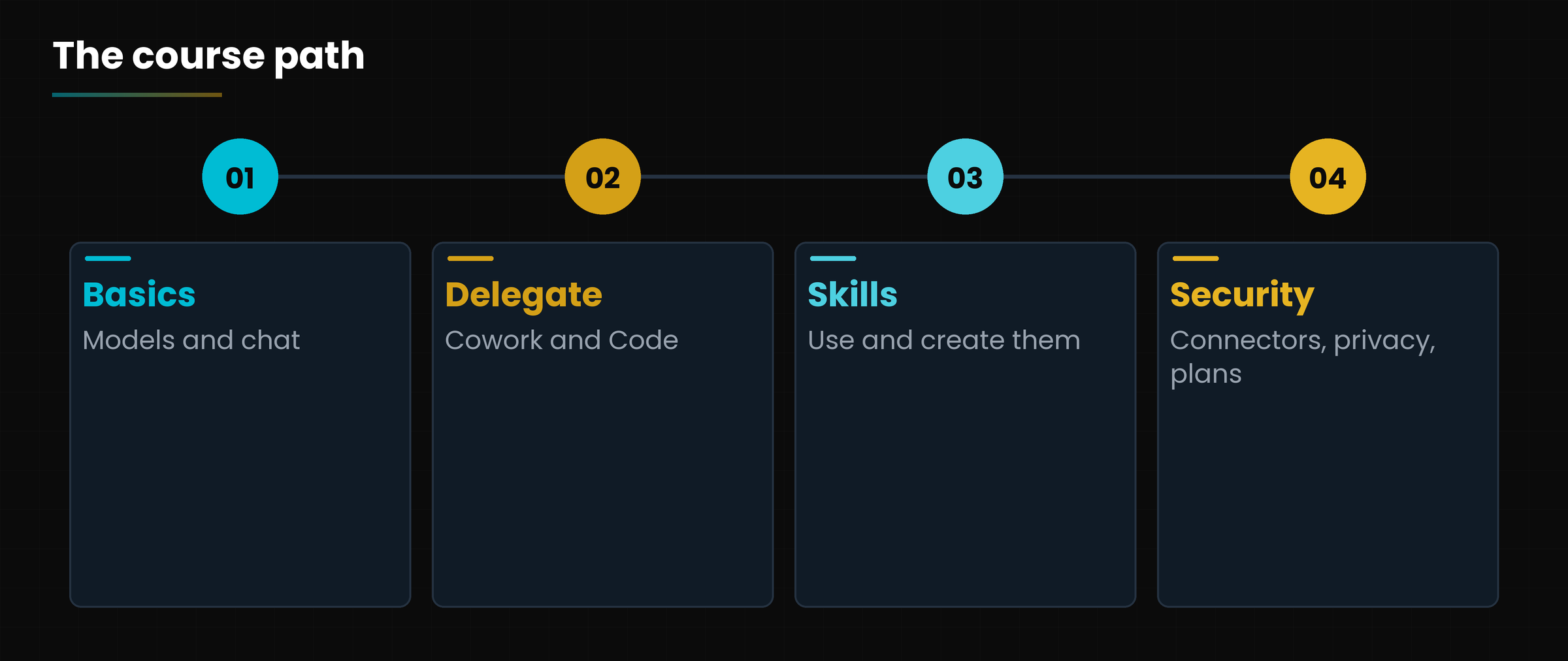
Eight lessons, from the basics to advanced customization.
The course program: about ten hours of lessons, plus a thirty-minute introduction and conclusion.
Lesson
What it covers
Length
What you will be able to do
1. How Claude works
Models, tokens, context, limits
60 min
Choose the right model and spot errors
2. The chat
Prompts, files, web search, projects, artifacts, memory
75 min
Use the chat with method and organize your work
3. Cowork
Delegating long tasks on your files
60 min
Hand over an assignment safely
4. Claude Code
The assistant that programs
90 min
Install it and use it with permissions and plan mode
5. Skills
Reusable manuals for Claude
60 min
Find, install and use skills
6. Creating a skill
The SKILL.md file step by step
90 min
Write and test your own skill
7. Connectors and automations
Connectors, MCP, plugins, scheduled tasks
75 min
Link Claude to your tools with caution
8. Security and plans
Plans, privacy, good practices
60 min
Choose the plan and protect data
Diagram
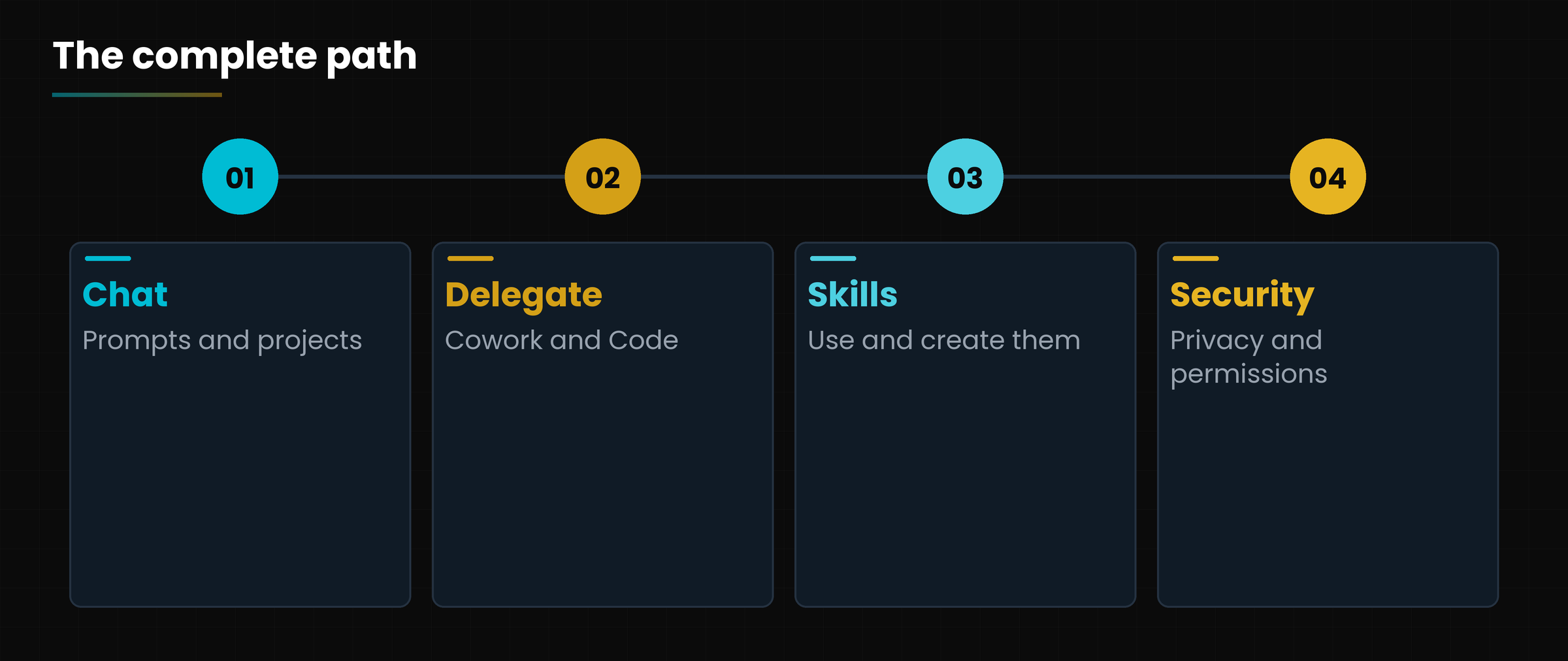
The path: from the basics to customization.
The path: from the basics to customization.
3.1 In short, the four tools
Chat: dialogues, documents and small apps next to the conversation.
Cowork: Claude carries out tasks on folders and tools you grant it.
Claude Code: Claude works in your software projects.
Skills: reusable instructions that teach Claude a trade.
The lessons build on one another: the first two give the basics, 3 and 4 make Claude act on your files and on software, 5 and 6 customize it with skills, 7 and 8 link it to your tools and teach you to use it without risks.
4. What you need to get started
For the first lessons a browser and a free account are enough.
Requirements per lesson (verified in October 2026: plans change, see lesson 8).
Lesson
What you need
1 and 2
A claude.ai account (even free)
3 and 4
A paid plan (Pro or Max) and the desktop app
5 and 6
A paid plan to create custom skills
7 and 8
A Google account or other services only if you want to try connectors
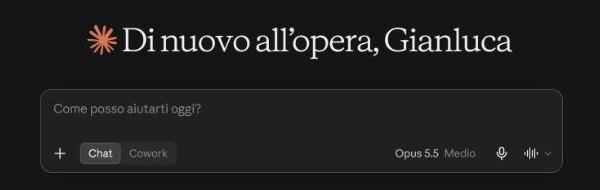
SCREENSHOT
The claude.ai writing box.
The claude.ai writing box (Italian interface).
If you do not have an account yet, go to claude.ai and sign up. If you only want to follow the lessons on chat and on the built-in skills, the free plan is a good starting point.
Before you start
Use test texts without personal or confidential data. In lesson 8 we cover the privacy settings, but it is best to get into the habit right away.
5. How to follow the course
The fastest way to learn is to try right away.
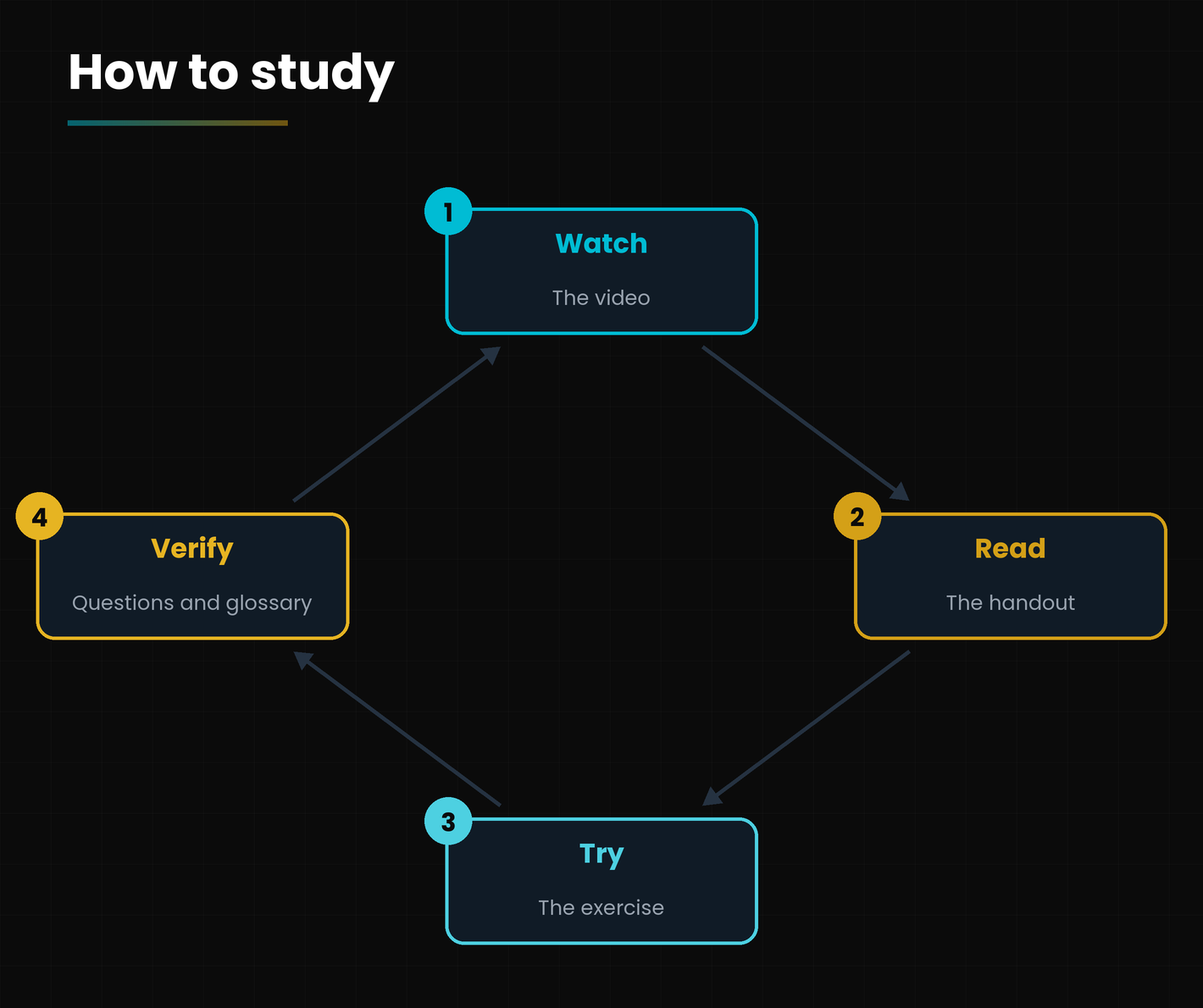
Diagram
The study cycle of each lesson.
The study cycle of each lesson.
Watch the video of the lesson (about three minutes) to get the picture.
Read the handout: it explains the details and has the diagrams and screenshots.
Do the exercise with Claude open beside you.
Answer the frequently asked questions and check your answers.
Review the glossary when you meet a new term.
5.1 Three tips
One lesson at a time: each lasts from thirty to ninety minutes.
Always try with made-up or public data.
Verify what Claude answers: it is the rule that returns throughout the course.
A study plan
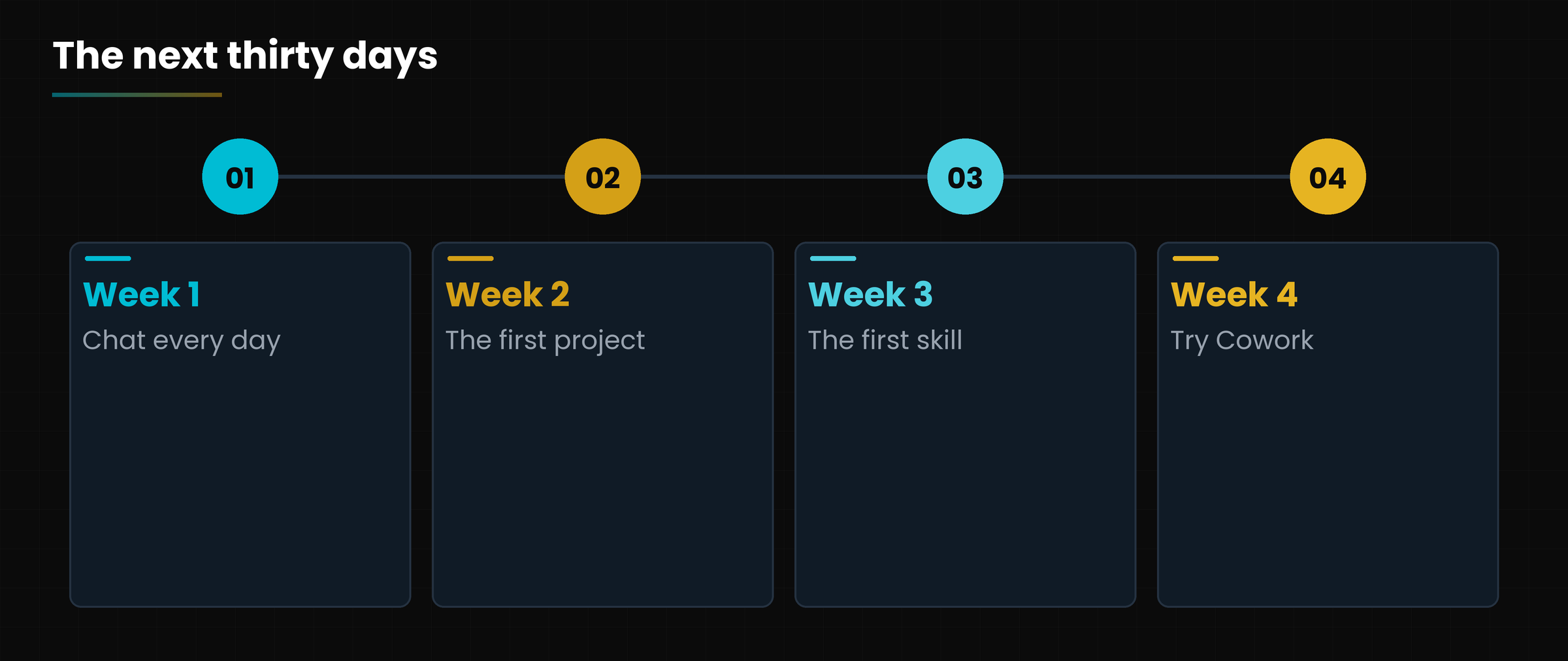
One lesson a week for eight weeks. After lesson 6 you already have your first skill; with lesson 8 you close the loop with security and plans.
6. Who is telling it
The course is by Gianluca Bonomo, IT consultant and trainer. The lessons come from the experience of someone who uses these tools every day at work, and from Anthropic's official documentation, checked in October 2026.
You find handouts, presentations and videos at www.gianlu.it; for questions or consulting write to info@gianlu.it.
Hands-on exercise
Ten minutes to prepare your working environment.
Open claude.ai and sign in (or create an account).
Write in the box: «Introduce yourself in three lines and tell me what you can do».
Look at the bottom right to see which model is selected.
Open the + menu and scroll through the entries without clicking: the ones you do not know we will see in the next lessons.
Write on a sheet three tasks from your work for which you would like Claude's help.
Watch out
Do you have a working account?
Do you know which model you are using?
Did you choose three real tasks to bring to the course?
Questions that come up in class
Do I need to know artificial intelligence already?
No: the course starts from zero and explains each term the first time it appears.
Do I have to follow the lessons in order?
It is recommended: lessons 1 and 2 are the base, the following ones build on them. Experienced readers can jump to the lesson that interests them.
Do I need to pay for a subscription?
Not for lessons 1 and 2. Cowork and Claude Code require a paid plan, according to the October 2026 check.
Are the screenshots in Italian?
Yes, they come from the Italian claude.ai interface. In the English edition of the course they stay in Italian.
Is the information up to date?
It is verified as of 3 October 2026. Features, names and prices change often: always check the official pages.
Lesson glossary
The words you meet in this lesson, explained in one line.
Term
What it means
Account
Your personal access to a service, with email and password.
Interface
The part of a program that you see and interact with.
Subscription
The periodic payment that unlocks more features and wider limits.
Further reading
The sources used to build this handout: if a figure interests you, go to the source and check it.
Anthropic, official Claude pages (claude.ai, claude.com) and documentation
accessed 3 October 2026
claude.ai interface (Italian version)
screenshots of 3 October 2026
Watch out
Information verified on 3 October 2026: Claude's features, names and prices change often.
Models, tokens, context and limits: the basics for using it well
Lesson goal
Understand what Claude really is, how it reads and writes text, which model to pick and which limits to keep in mind.
What you will be able to do
Explain in plain words what a language model does.
Recognize what a token and the context window are.
Choose between Fable, Opus, Sonnet and Haiku based on the task.
Spot the main limits: mistakes, outdated knowledge, confidentiality.
1. What Claude is
Claude is an AI assistant that understands and writes natural-language text: you talk to it the way you would talk to a colleague.
Claude is made by Anthropic, an AI research company based in San Francisco. The name «Claude» refers both to the assistant you use in chat and to the family of models behind it. A model is the program, trained on huge amounts of text, that generates the answers.
It is not a search engine. A search engine returns pages that already exist; Claude writes a new answer, word by word, from what you asked. That is why it can summarize, translate, write, explain, analyze spreadsheets and program.
In plain words
Think of a very well-prepared, lightning-fast, tireless colleague who knows nothing about your company until you tell them.
1.1 Where you use it
The same Claude lives in several places, and this course goes through all of them:
Chat on claude.ai, in the desktop app and in the phone app: you converse, upload files, create documents.
Cowork: Claude works on your behalf on the files and tools you allow it to use.
Claude Code: an assistant that writes and edits software directly in your projects.
Skills, connectors and plugins: modules that teach Claude your procedures and link it to your programs.
Diagram
One Claude, four ways to use it.
One Claude, four ways to use it.
2. How it reads and writes: tokens and context
Claude does not read letters or whole words: it reads small chunks of text called tokens.
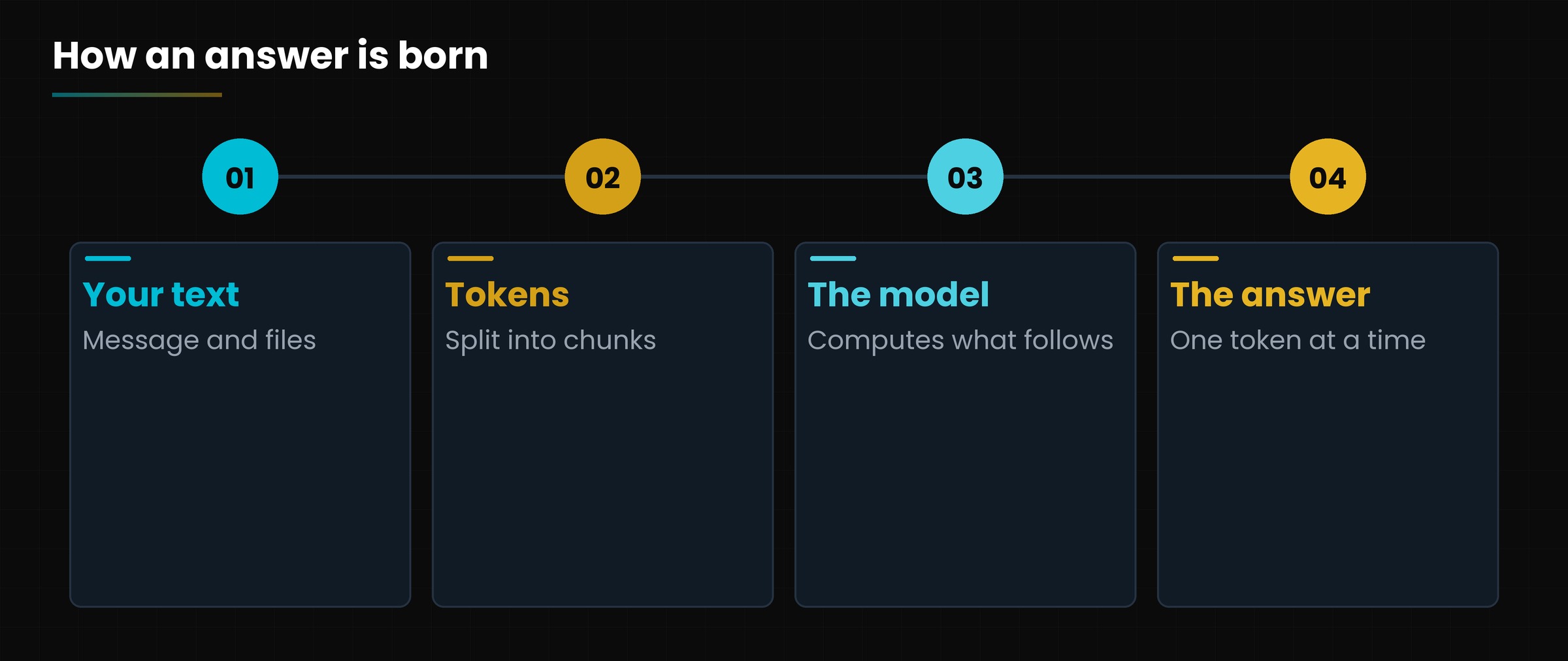
A token is a fragment of text: sometimes a whole word, sometimes a syllable or a punctuation mark. The text you write is split into tokens, the model processes them and produces the most sensible answer one token at a time.
Diagram
From your message to Claude's answer.
From your message to Claude's answer.
2.1 The context window
The context window is the «working memory» of a conversation: everything Claude can keep in view at the same time. It includes your messages, its replies, the files you uploaded and the starting instructions.
According to the official documentation as of October 2026, the latest models (Fable 5.1, Opus 5.5 and Sonnet 5.5) have a window of one million tokens, roughly half a million words. Haiku 4.5 offers two hundred thousand tokens. When a conversation grows too long, older parts are summarized or lost.
Careful
The fuller the context, the greater the chance of forgetfulness and mistakes. Open a new chat for each topic: it is the simplest advice for better answers.
2.2 Why it does not remember past chats
Every conversation starts from zero: the model does not «remember» what you told it yesterday unless you turn on memory or work inside a project with fixed files and instructions. We will see this in chapter 2.
3. The family of models
There is no single «Claude»: there are several models, like different sizes of the same tool.
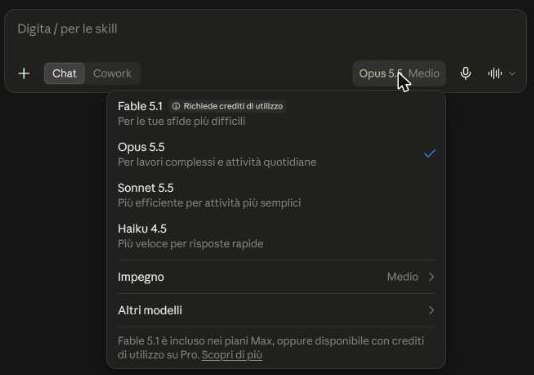
In the model menu, at the bottom of the writing box, you pick the one to use. Here is the lineup as of October 2026.
SCREENSHOT
The model menu in claude.ai (screenshot, Italian interface).
The model menu in claude.ai (Italian interface): Fable 5.1, Opus 5.5, Sonnet 5.5, Haiku 4.5, plus the «Effort» entry.
The four current models, from the official documentation and the claude.ai menu (October 2026).
Model
What it is for
Speed
Fable 5.1
The hardest challenges: deep reasoning and long autonomous jobs
Slower
Opus 5.5
Complex jobs and everyday tasks: the default choice in chat
Medium
Sonnet 5.5
The best balance of speed and intelligence, for simpler tasks
Fast
Haiku 4.5
Quick replies and light tasks
Fastest
3.1 A criterion that lasts
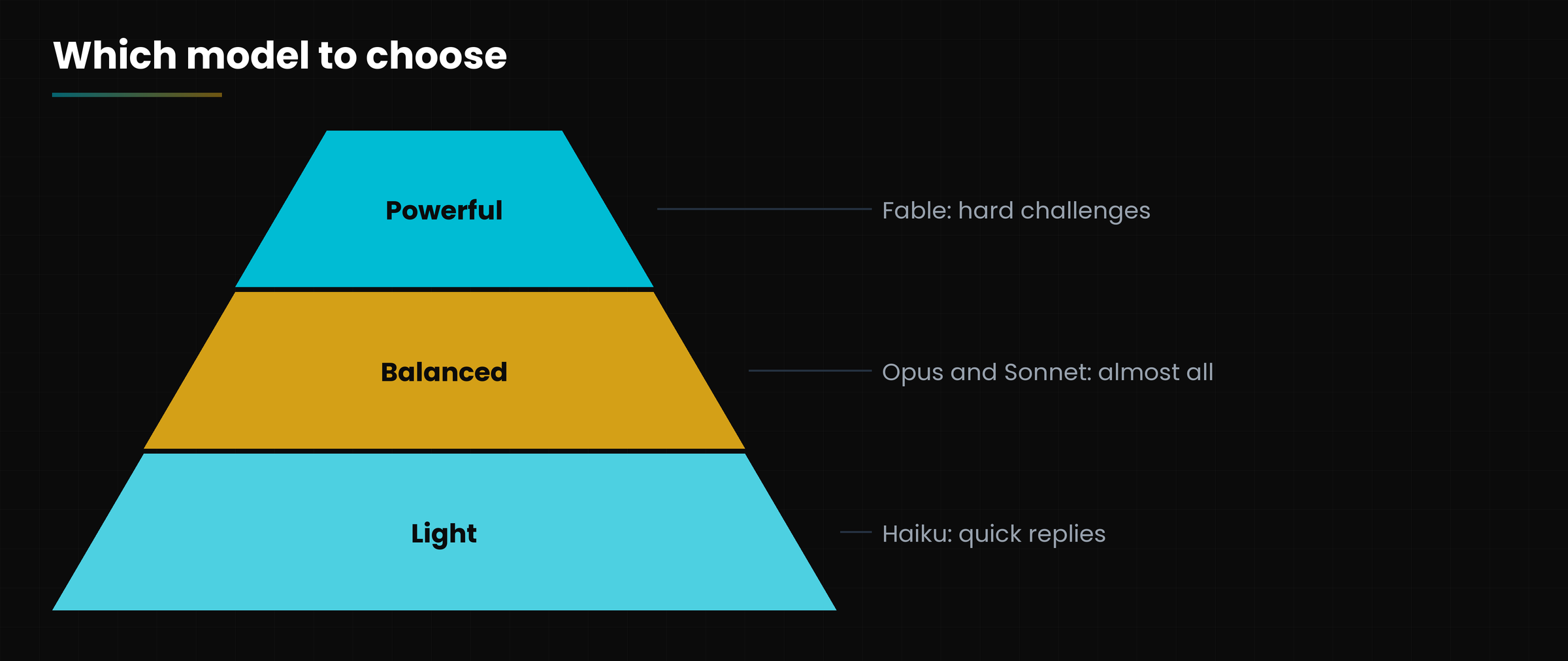
Names change often, reasoning does not. Think of three levels: light (quick and cheap), balanced (fine for almost everything) and powerful (for hard cases). Start from balanced; go up only if the result is not enough, go down if the request is simple.
3.2 Effort: how much it should think
Next to the model you find the effort setting: the higher it is, the more Claude reasons before answering. In the screenshot it is set to «Medium». High effort gives more accurate answers on hard problems but takes longer and uses more of your usage limit.
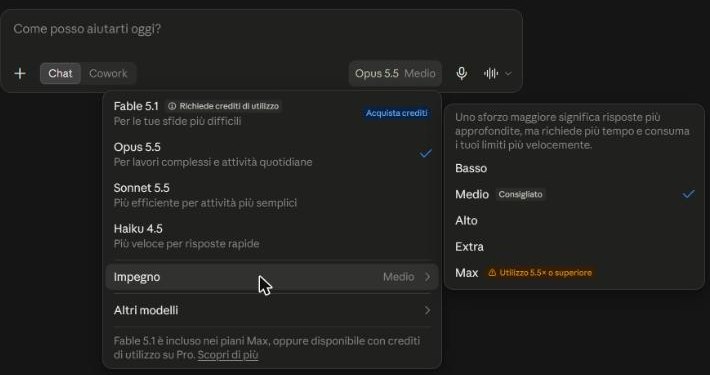
Clicking «Effort» (in the Italian interface, «Impegno») in the model menu opens five levels: Low, Medium (recommended), High, Extra and Max. The menu itself warns that more effort means more thorough answers but more time and faster use of your limits; for Max it states usage of 5.5 times or higher.
SCREENSHOT
The model menu with the effort levels.
The effort levels (Italian interface): Low, Medium (recommended), High, Extra, Max.
A practical example
Summarizing an email of ten lines: Sonnet or Haiku, low effort.
Checking a contract or a long spreadsheet: Opus, medium or high effort.
Planning a project with many dependencies: Fable, high effort.
Diagram
Light, balanced, powerful: go up only if needed.
Light, balanced, powerful: go up only if needed.
4. The limits to know
Claude is wrong with confidence: knowing when and why is the most important skill.
4.1 Hallucinations
A model generates the most plausible answer, not the truest one. Sometimes it invents a figure, a quotation, the name of a law: that is a hallucination. Always ask for sources, check important numbers and, for recent facts, turn on web search.
4.2 Knowledge has a date
The current models have reliable knowledge up to June 2026 (Haiku 4.5, older, up to February 2025). For anything after that you need web search or a document you provide yourself.
4.3 It is not a person
Claude may seem empathetic, but it has no feelings and does not know your real situation. For decisions about health, money or legal matters, use it to prepare and understand, then talk to a professional.
Confidentiality
What you write is processed on Anthropic's servers. Do not paste passwords, card numbers or other people's personal data unless you are authorized. In chapter 8 we cover the settings that protect you.
Four limits and the right behavior.
Risk
What to do
Invented fact
Ask for sources and spot-check
Outdated information
Turn on web search or attach the updated document
Chat too long
Open a new conversation and summarize the state
Confidential data
Anonymize before writing
Hands-on exercise
Twenty minutes to test models, effort and limits on a real (anonymous) text.
Open claude.ai and start a new chat.
Paste a one-page text (an article or one of your own already-public emails) and ask: «Summarize it in five points».
Switch to Haiku and repeat the same request: compare speed and quality.
Now use Opus with high effort and ask: «Which claims in the text need to be verified?»
Write in three lines which combination seemed most useful for this task.
Watch out
Did you use at least two different models?
Did you ask Claude to point out what needs checking?
Did you avoid personal data in the text?
Questions that come up in class
Is Claude the same thing as a chatbot?
Yes, but it is more than a chatbot: besides chat there are Cowork and Claude Code, which perform actions on files and software.
Which model should I normally use?
Start from the default (in the current chat it is Opus 5.5) and drop to Sonnet or Haiku for simple tasks, go up to Fable only for the hardest challenges.
What are the «tokens» I hear about for limits?
They are the small chunks of text Claude works with. Plan usage limits also depend on how many tokens you process.
Does Claude learn from my conversations?
It depends on your account's privacy settings: the Privacy page has a switch that decides whether chats can be used to improve the models. We will check it in chapter 8.
Does it understand Italian?
Yes, it writes and understands Italian and many other languages. You can also switch language within the same chat.
Lesson glossary
The words you meet in this lesson, explained in one line.
Term
What it means
Anthropic
The company that develops Claude.
Context window
The amount of text Claude can keep in mind within the same conversation.
Effort
How long Claude reasons before answering.
Hallucination
A plausible-sounding answer with invented data.
Model
The trained program that generates the answers.
Token
A fragment of text (word, syllable, mark) used to read and write.
Further reading
The sources used to build this handout: if a figure interests you, go to the source and check it.
Prompts, files, projects, web search, artifacts and memory
Lesson goal
Use the claude.ai chat with confidence: write effective requests, attach files, organize work in projects, create artifacts and decide what Claude may remember.
What you will be able to do
Recognize the parts of the claude.ai interface.
Write a complete prompt with the four-step method.
Attach files, turn on web search and use projects.
Create and edit an artifact.
Manage the memory and feature settings.
1. Claude's screen
Open claude.ai, sign in, and you face a writing box: it is the center of everything.
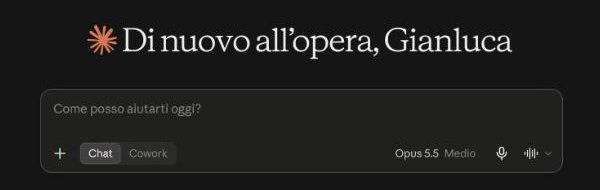
In the middle of the page is the writing box, with a personalized greeting. At the bottom left is the + button to add files and tools, next to it the Chat / Cowork selector; on the right the model in use and the effort, and the microphone for dictation.
SCREENSHOT
The claude.ai writing box.
The claude.ai writing box (Italian interface): the +, the Chat/Cowork selector, the model and the microphone.
1.1 The sidebar
On the left is the bar with the main functions. These are the entries you will use most:
The main sidebar entries.
Entry
What it is for
New
Opens a clean conversation
Projects
Gathers files and instructions for recurring work
Artifacts
The list of documents, pages and apps Claude has created
Scheduled
Tasks Claude runs on its own at set times
Customize
Skills, connectors and plugins
Below, in the Recent chats list, you find past conversations. You can pin, rename, group or delete them.
2. Writing a good request
Claude does not read minds: the quality of the answer depends on how you ask.
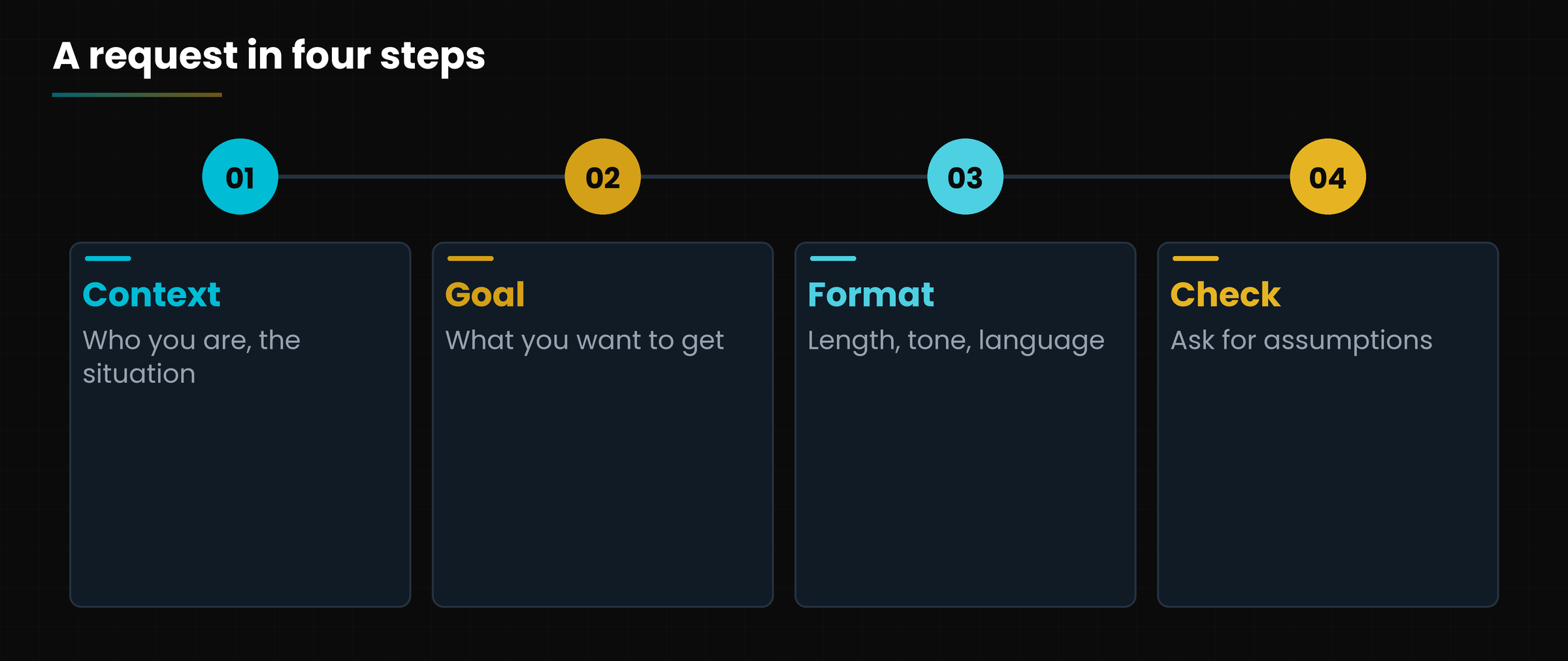
The simplest method is remembered with four words, to be written in this order.
Diagram
The four steps of an effective request.
The four steps of an effective request.
Before and after
Before: «Write me an email for a customer.»
After: «I own a bicycle shop. Write an email to customer Rossi, who has been waiting two weeks for a repair, apologizing and saying it will be ready on Friday. Max 100 words, friendly tone. At the end list the assumptions you made.»
2.1 Converse, don't just ask
The chat is a dialogue. If the first answer does not convince you, do not start over: adjust it with phrases like «shorter», «more formal», «add an example». If you have a vague idea, ask Claude to interview you: «Ask me three questions before writing».
In plain words
Every piece of information you do not give, Claude must guess. Give it yourself.
3. The + menu: files, search and tools
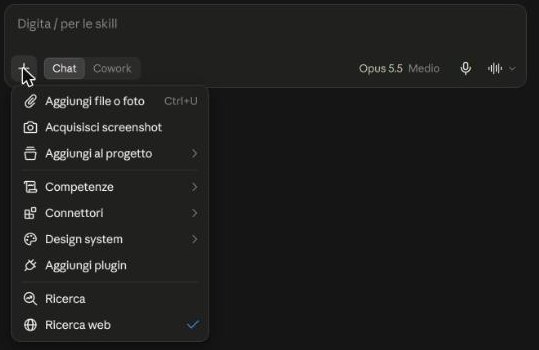
The + button is the toolbox of the chat.
SCREENSHOT
The + menu in claude.ai.
The + menu in claude.ai (Italian interface): files, screenshot, project, skills, connectors, plugin, search.
Links external services such as Google Drive (chapter 7)
Add plugin
Role-based skill packages (chapter 7)
Research
In-depth research across multiple sources
Web search
Looks for up-to-date information on the internet
3.1 Attaching a file
Drag a PDF, a Word document or an Excel sheet into the box and write what you want: «Summarize the document in five points», «Find the figures that do not add up», «Turn these notes into a table». Photos and screenshots work the same way: Claude reads and describes them.
3.2 Web search: when to use it
With web search on (the blue check in the menu) Claude consults the internet and cites the pages it uses. It is useful for news, prices, regulations and anything that changes. Turn it off for texts that must stay closed or for pure writing tasks.
Careful
An attached file is read by the system: do not upload documents with other people's sensitive data unless you are authorized.
4. Projects: an archive for each job
If you always do the same kind of work, do not re-explain who you are every time: create a project.
A project is a workspace with fixed instructions and reference files. All chats created inside it read them automatically. An example: a «Customer quotes» project with the price list, the tone of voice and three approved quotes.
SCREENSHOT
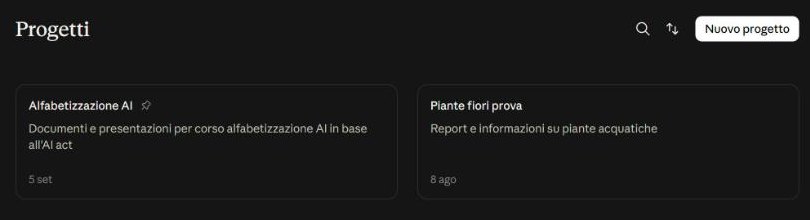
The Projects page.
The project list (Italian interface): each card has name, description and date.
Go to Projects and press New project.
Give it a name and description.
Write the instructions (who you are, how to answer).
Upload the reference files.
Start chats from the project.
In plain words
A project is the desk of a job: every time you sit down, everything is already there.
5. Artifacts: documents and apps next to the chat
When you ask for a document, a web page or a small app, Claude opens it in a window on the side: that is an artifact.
An artifact is real content, separate from the conversation: a document, an HTML page, a diagram, a presentation, an interactive application. You can ask for changes («change the colors», «add a column»), copy it or download it.
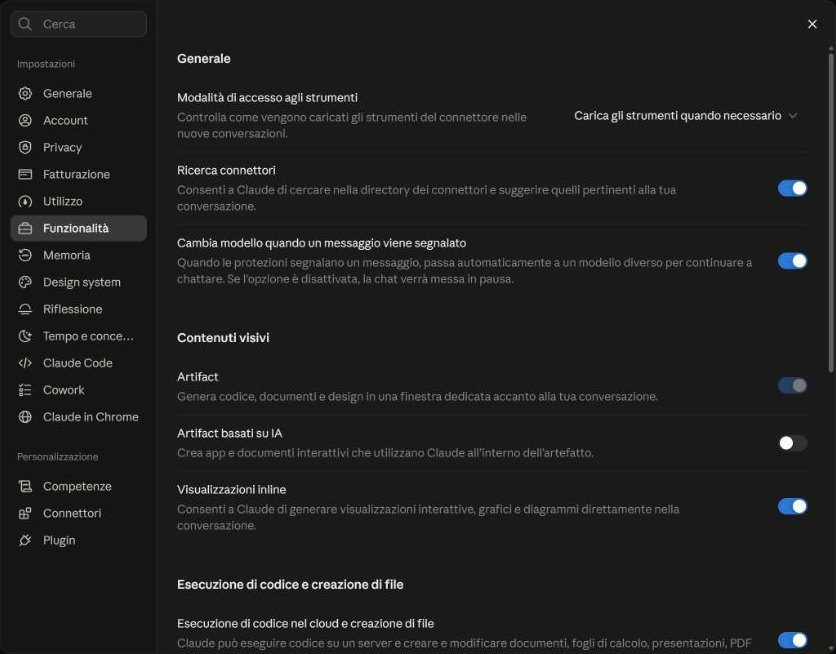
In the sidebar, the Artifacts entry lists everything you created. Under Settings, Features you find the switches that enable it.
Generates code, documents and designs in a window next to the chat
AI-powered artifacts
Interactive apps that use Claude inside them
Inline visualizations
Charts and diagrams directly in the conversation
Code execution and file creation
Claude creates and edits documents, spreadsheets, presentations and PDFs
For example
«Create a calculator for a painting quote: square meters, number of coats, cost per meter» gives you an app you can use right away.
6. Memory and useful settings
By default every chat is a blank sheet; memory is a choice, not an obligation.
SCREENSHOT
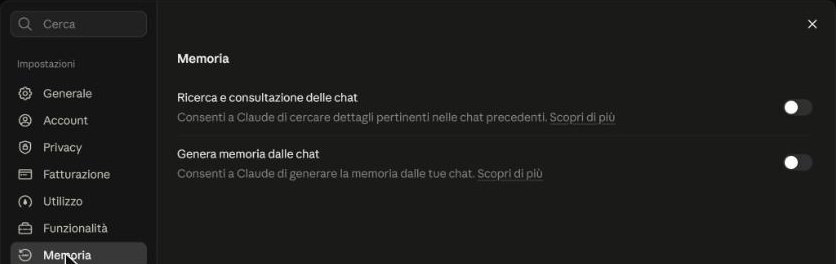
Settings, Memory.
Settings, Memory (Italian interface): two independent switches.
Search and reference past chats: Claude can look up details in previous chats when needed.
Generate memory from chats: Claude builds a summary of what concerns you and uses it in future conversations.
You decide whether to turn on one, the other or neither. Someone who handles customer data, for example, may prefer to leave everything off and rely on projects, where the context is explicit and controllable.
6.1 Scheduled: automatic tasks
In the Scheduled entry you can tell Claude to repeat a task at fixed times, for example «every morning at 8 summarize my industry news». It requires a paid plan.
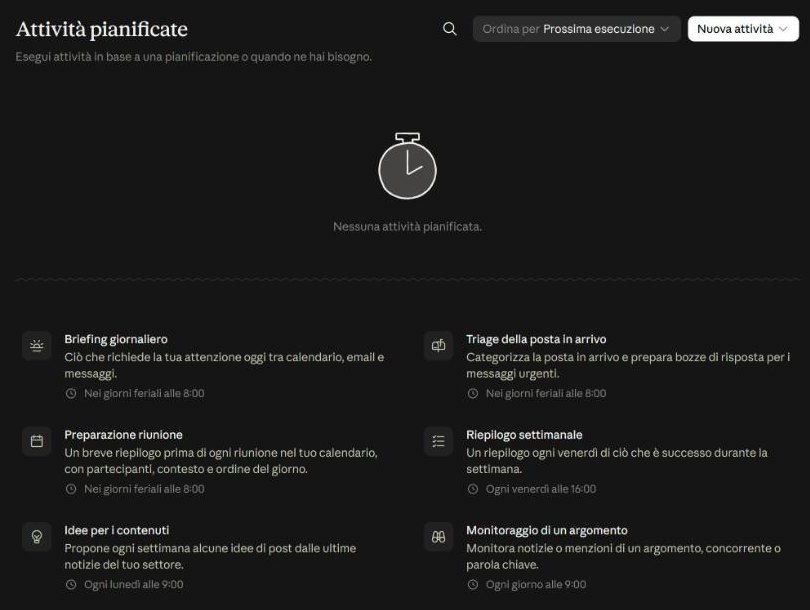
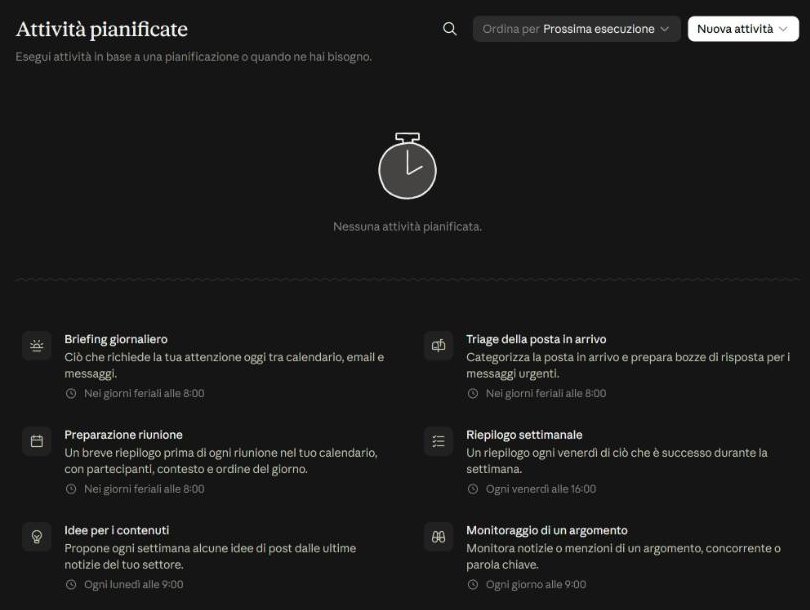
The Scheduled tasks page offers ready-made templates: Daily briefing (weekdays at 8:00), Inbox triage, Meeting prep, Weekly recap (every Friday at 16:00), Content ideas and Topic monitoring. With New task you create your own.
SCREENSHOT
The Scheduled tasks page with the suggested templates.
Scheduled tasks (Italian interface): ready-made templates and the New task button.
Careful
Memory remembers what you tell it: if you share the account or write other people's data, turn it off or check periodically what it contains.
Hands-on exercise
Twenty minutes to create a small project and your first artifact.
Open claude.ai and create a new project called «Test».
Write as instruction: «Answer in English, friendly tone, maximum 120 words».
Upload a one-page document (a text of yours that is public).
From the project start a chat and ask: «Summarize the document in five points and suggest three follow-up questions».
Then ask: «Create a printable summary sheet» and watch the artifact open on the side.
Watch out
Does the project contain instructions and at least one file?
Did you get an editable artifact?
Did you decide whether to keep memory on?
Questions that come up in class
Can I use Claude for free?
Yes, there is a free plan with chat, web search and file creation. Advanced features such as Cowork and Claude Code need a paid plan (chapter 8).
Does Claude see my other chats?
Only if you turn on memory or past-chat search in the settings. Otherwise each chat is separate.
What is the difference between a project and memory?
A project is explicit: you choose files and instructions. Memory is automatic: Claude decides what to keep. For customer data the project is safer.
How do I find a document Claude created?
In the Artifacts entry of the sidebar: it lists everything you generated, with search and filters.
Can I write by voice?
Yes: the microphone button next to the model lets you dictate.
Lesson glossary
The words you meet in this lesson, explained in one line.
Term
What it means
Artifact
A document, page or app created by Claude in a side window.
Memory
A feature that lets Claude remember information across different chats.
Project
A space with fixed instructions and files for recurring work.
Prompt
The text you write to Claude: your request with its context.
Web search
A feature that consults the internet and cites the pages used.
Further reading
The sources used to build this handout: if a figure interests you, go to the source and check it.
claude.ai interface (Italian version)
screenshots of 3 October 2026
Anthropic, Help Center: guides on projects, artifacts and memory (support.claude.com)
consulted for feature names
Watch out
Interface verified on 3 October 2026: menu names may change with updates. Menu labels in the screenshots are in Italian.
Delegating long tasks on your files and tools, safely
Lesson goal
Understand what Cowork is, when to use it instead of the chat and how to hand it a real task while controlling permissions and results.
What you will be able to do
Tell a chat request from a job to delegate to Cowork.
Turn on Cowork and grant access to a folder.
Write a complete assignment with goal, folder, result and constraints.
Check the work, the permissions and the usage.
1. From an answer to finished work
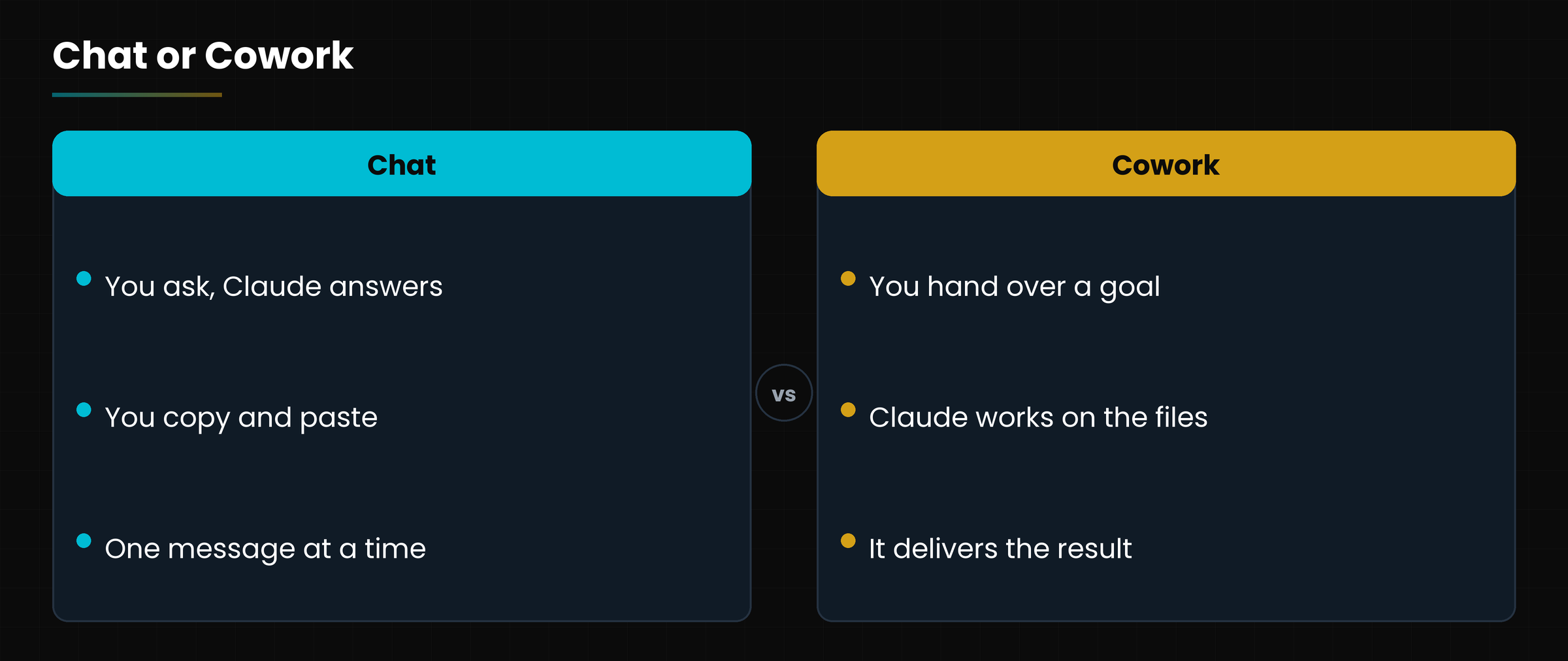
The chat answers. Cowork does the work: it opens the files, processes them and hands you the result.
In chat you ask and receive a text, which you then have to copy, paste and format. With Cowork you describe a goal («sort this folder of invoices, extract the totals and prepare a summary sheet») and Claude carries out the steps by itself, showing you what it does.
Diagram
Chat or Cowork: who does the work?
Chat or Cowork: who does the work?
According to the official page (October 2026), Cowork works in the folders and tools you indicate, shows the steps taken, can split a large project into parallel streams, use a dedicated browser and carry out scheduled tasks even when you are not there.
In plain words
Chat = a consultant you ask questions. Cowork = a collaborator you give an assignment.
2. How to turn it on
Cowork is one click away, in the same box where you write to the chat.
SCREENSHOT
The Chat / Cowork selector.
The Chat / Cowork selector under the writing box (Italian interface).
Update or install the Claude desktop app (Windows or macOS).
Sign in with a paid plan (Pro, Max, Team or Enterprise).
In the writing box choose Cowork next to Chat.
Describe the assignment.
Grant access to the folder that is needed, when Claude asks.
SCREENSHOT
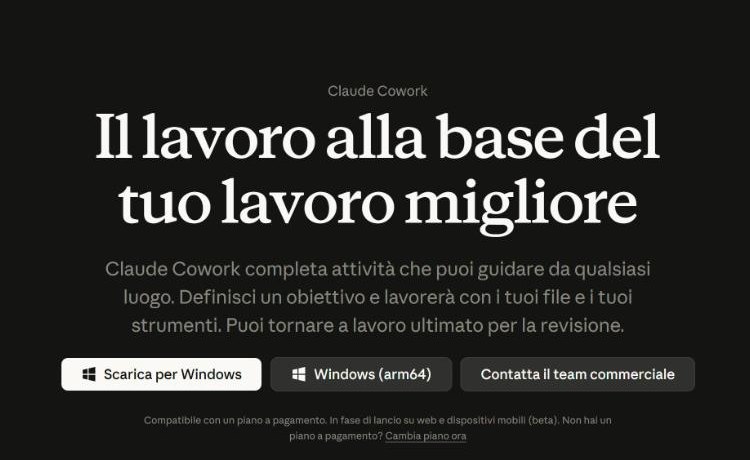
The official Cowork page.
The official Cowork page (claude.com/product/cowork, Italian version).
Names that change
In the October 2026 pages Anthropic announces that «Cowork is now simply Claude» and that the feature is available for Pro and Max, with other plans coming. Names and plans are updated often: always check in your app.
3. What it can do
Think of Cowork for everything that takes several steps across different files.
Five jobs suited to Cowork.
Task
Concrete example
Tidying up
Rename and sort the files in a folder by customer and year
Extracting data
Read a hundred order PDFs and put the totals in an Excel sheet
Creating documents
Turn scattered notes into a Word report with an index
Researching
Collect information from several sites and prepare a summary with sources
Repeating
Prepare the weekly summary every Monday
3.1 Supported files
Cowork handles Word documents, PDFs, Excel sheets, PowerPoint presentations, images, code files and data such as JSON and CSV.
3.2 Connectors and browser
With connectors (chapter 7) Cowork can read services such as Google Drive. With the dedicated browser it opens sites in a panel separate from yours, so it does not touch your personal sessions.
A well-written assignment
«In the folder Invoices 2026 there are the suppliers' PDFs. Create an Excel sheet with date, supplier and total, in date order. Do not delete or move anything. Show me the plan before you start.»
4. Control, permissions and usage
The more autonomous Claude is, the more it matters to decide where it can put its hands.
4.1 Permissions
Claude accesses only the folders and tools you grant.
Deletions require your approval.
You can ask it to show a plan before acting.
Cowork runs in an isolated environment (a virtual machine), with the network controlled by a list of allowed sites.
4.2 Settings
In Settings, in the Cowork section, you find among others: Require trusted devices (verifies every new computer before it connects remotely), Only on your computer (tasks stay on that computer and stop if you close the app) and Preferred browser.
Good practice
Grant specific folders, not the whole disk. Work on a copy of important files. Do not leave passwords or sensitive data in folders shared with Claude.
4.3 Usage
Tasks of this kind use much more of your usage limit than a simple chat, because Claude coordinates several steps and several tools. If you work heavily with Cowork you may consider a higher plan (chapter 8).
Diagram
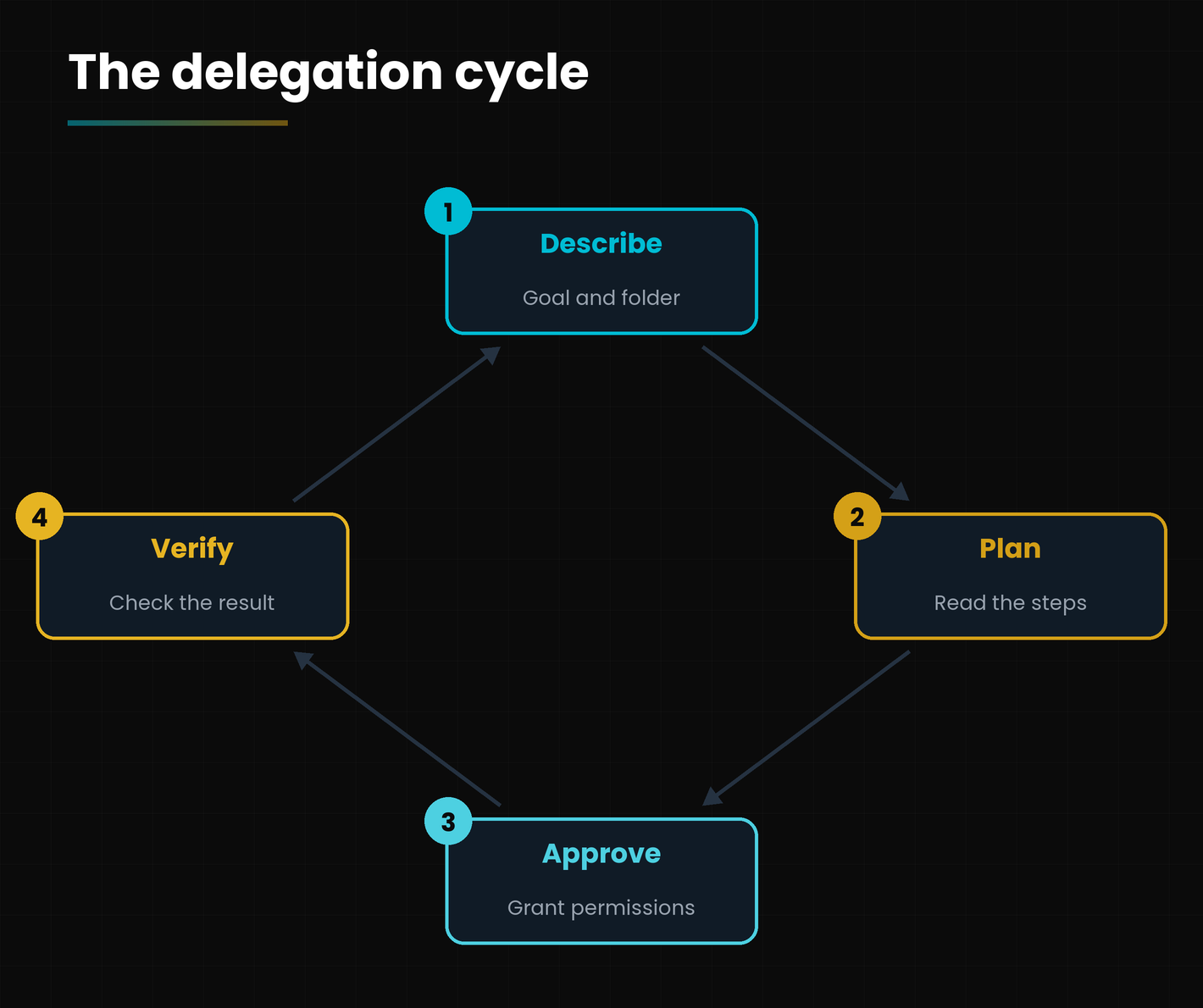
The delegation cycle.
The delegation cycle: describe, check the plan, approve, verify.
Hands-on exercise
Twenty minutes for a first assignment to Cowork on a test folder.
Create on your computer a folder «CoworkTest» with 5-10 arbitrary files (notes, public PDFs, images).
Open the Claude desktop app and choose Cowork in the writing box.
Write: «In the CoworkTest folder list the files in a table with name, type and size and propose a new folder scheme. Do not move anything. Show me the plan first.»
Grant access only to that folder.
Read the plan, approve it and check the result; then ask it to apply the scheme on a copy.
Watch out
Did you grant only the test folder?
Did you ask for the plan before execution?
Did you work on a copy of the files?
Questions that come up in class
Are Cowork and Claude Code the same thing?
No. Cowork is designed for office work on files and documents; Claude Code is designed for people who develop software (chapter 4).
Can I use it with the free plan?
No: it requires a paid plan. At the October 2026 check it is included in Pro and Max, and also available for Team and Enterprise.
Can it delete my files?
Only with your approval. In any case, work on copies of important files.
Does it keep working if I turn off the computer?
It depends on the setting: with «Only on your computer» tasks stop when the app closes or the PC goes to sleep.
Can I use it from my phone?
Yes, on web and mobile devices the feature is available in beta, according to the official page.
Lesson glossary
The words you meet in this lesson, explained in one line.
Term
What it means
Connector
A link between Claude and an external service such as Google Drive.
Cowork
A mode where Claude carries out tasks on files and tools you grant it.
Granted folder
The only folder Claude can access in an assignment.
Virtual machine
An isolated environment where Claude runs tasks without touching the rest of the computer.
Further reading
The sources used to build this handout: if a figure interests you, go to the source and check it.
Anthropic, Claude Cowork product page (claude.com/product/cowork)
accessed 3 October 2026
Anthropic, Help Center: Get started with Cowork (support.claude.com)
permissions and requirements
claude.ai interface, Settings, Cowork section
October 2026
Watch out
Features and plans verified on 3 October 2026: Cowork is evolving quickly and its name itself may change.
Installation, first assignment, permissions, CLAUDE.md and good habits
Lesson goal
Understand what Claude Code is, install it, give it a first job on a project and manage it with permissions, standing instructions and a good method.
What you will be able to do
Choose the right surface: terminal, desktop app, web or editor.
Install Claude Code and start a session in a project folder.
Use plan mode, permissions and the essential commands.
Write a short, useful CLAUDE.md file.
Apply the method explore, plan, code, verify.
1. What Claude Code is
Claude Code is an assistant that reads your project, edits the files and runs commands, while you watch, correct and decide.
According to the official documentation, Claude Code is an «agentic» coding tool: it reads code, edits files, runs commands and connects to development tools. You describe in plain language what you want (a new feature, a bug fix) and it plans, writes the code across several files and checks that it works.
In plain words
A chat tells you how to do it. Claude Code does it, directly in your project's files, and shows you every change.
1.1 Who can use it
You need a paid plan: the Italian page of October 2026 says Claude Code is included in the Claude Pro and Max plans, available for macOS, Linux and Windows.
SCREENSHOT
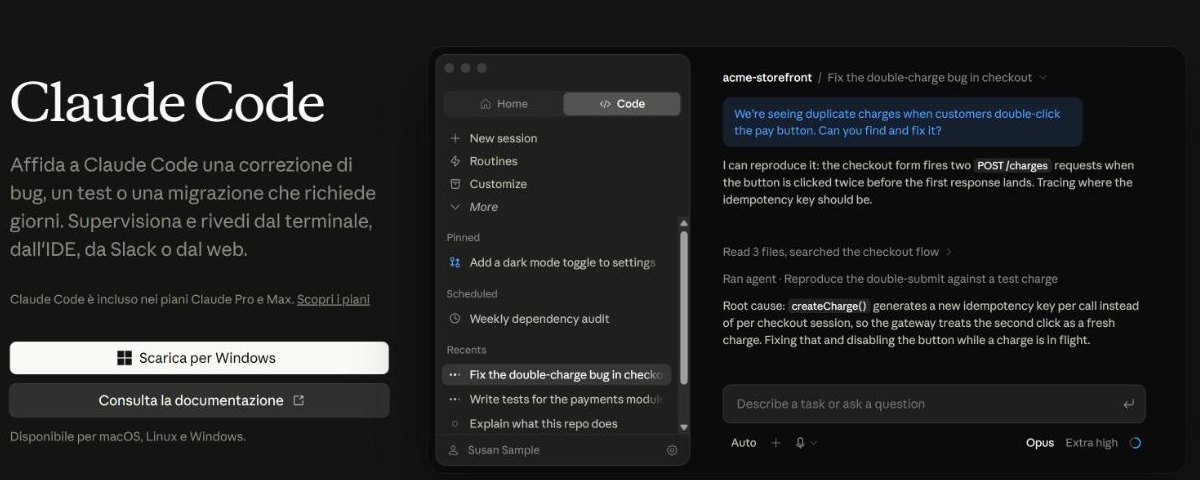
The official Claude Code page.
The official Claude Code page (claude.com/product/claude-code, Italian version).
1.2 Where you use it
The Claude Code surfaces. All use the same engine.
Surface
How you use it
Terminal
The claude command, in the project folder
Desktop app
The Code tab of the Claude app, with graphical review of changes
Web
claude.ai/code: cloud sessions on GitHub repositories
Editor
Extensions for VS Code and JetBrains
Mobile and Slack
Start and follow tasks from your phone or from Slack too
2. Install and get started
Installing takes one command; the rest is talking.
2.1 On Windows
Open PowerShell and paste the command shown in the official documentation. Alternatively use the WinGet package manager.
When the installation finishes, open a new terminal and type claude --version: if a number appears, it worked. On Windows Git for Windows is also recommended.
2.3 The first launch
Enter the project folder (cd my-project).
Type claude and press Enter.
At first launch sign in with your Claude account.
Describe what you want, for example: «explain how this project is organized».
2.4 Without a terminal: web and app
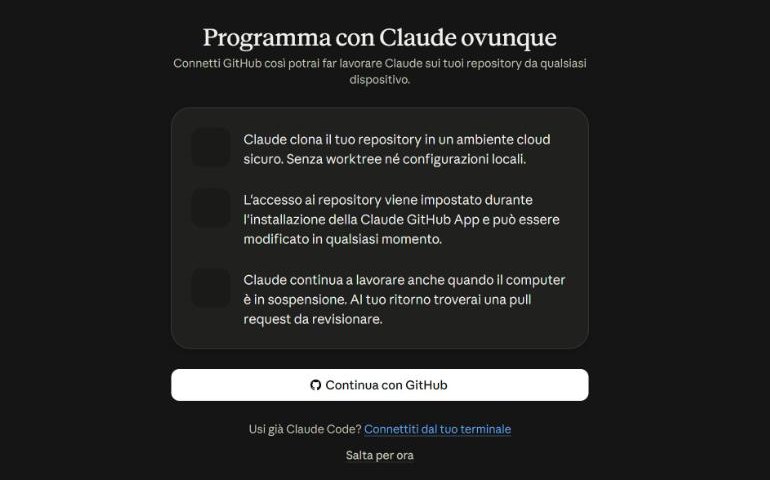
If the command line is not for you, open the Code tab in the desktop app or go to claude.ai/code. In the web version Claude works on a cloud copy of your GitHub repositories and returns a change proposal for you to review.
SCREENSHOT
Claude Code on the web.
Claude Code on the web (Italian interface): Claude clones the repository into a secure cloud environment.
Careful
Work on a copy or on a test branch. For a first experiment use a folder without important data.
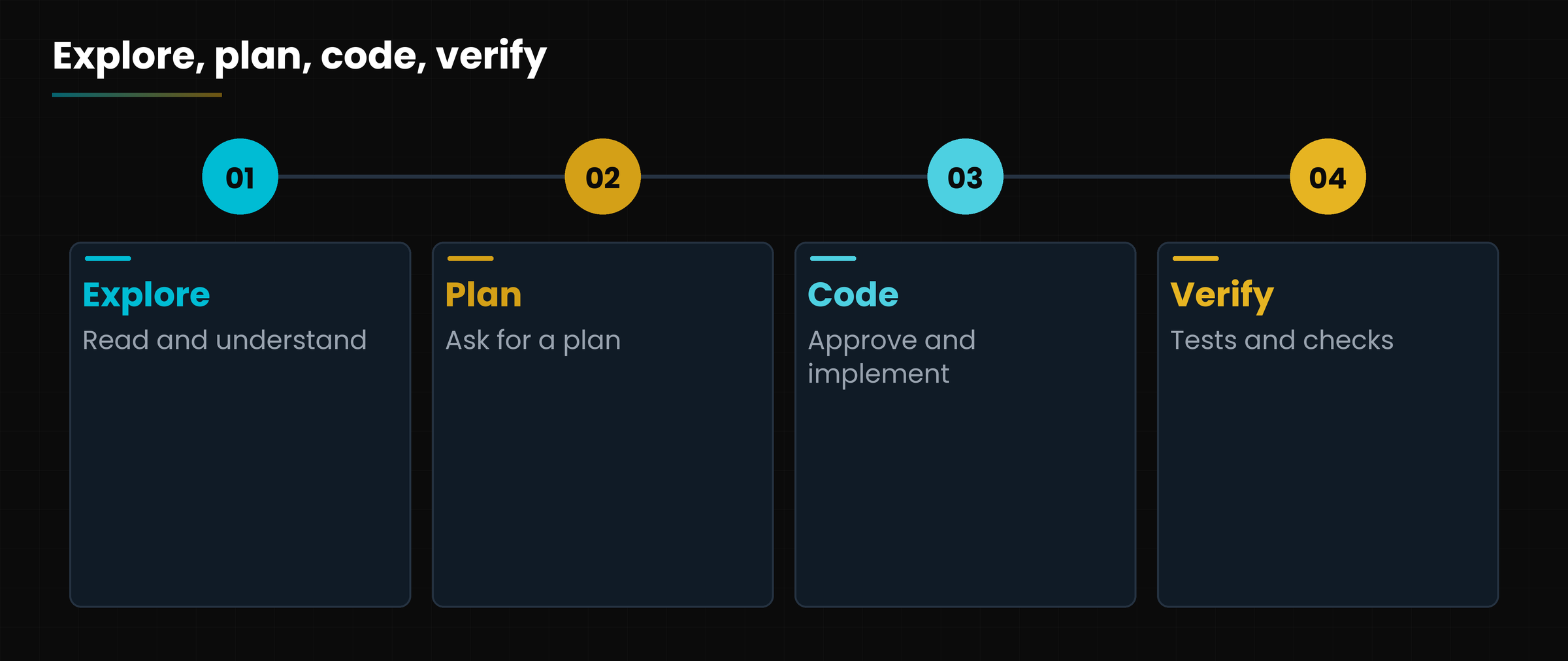
3. The method: explore, plan, code, verify
The best results come when you separate understanding from doing.
Diagram
The recommended method.
The method recommended by the official documentation.
Explore: ask Claude to read the files and explain how things work.
Plan: ask for a detailed plan before changing anything.
Code: approve the plan and have it implemented.
Verify: have it run tests or checks and look at the result.
3.1 Plan mode
Pressing Shift + Tab in the terminal switches to plan mode: Claude reads and reasons but changes nothing. When the plan convinces you, you approve it and Claude carries it out. For trivial changes (a typo, a variable to rename) you can skip the plan.
3.2 Give it a way to verify
The most important advice in the documentation: give Claude something it can check by itself, like a set of tests, building the project or a screenshot of how it should look. Without a check, the only one verifying is you.
Before and after
Before: «Make a function that validates emails.»
After: «Write the validateEmail function. Examples: user@example.com is valid, user@.com is not. After writing it run the tests and fix until they pass.»
4. Permissions, memory and essential commands
Claude Code can edit files and run commands: you decide how much to trust it.
4.1 Permission modes
The main modes (official documentation, October 2026): switch with Shift + Tab.
Mode
What happens
Manual (default)
It can only read: it asks for confirmation for changes and commands
Accept edits
Applies file changes by itself; asks for the rest
Plan
Reads and proposes, without changing anything
Auto
A second model reviews the actions and blocks risky ones
4.2 CLAUDE.md: the standing instructions
CLAUDE.md is a text file in the project folder that Claude reads at the start of every session. It holds the commands to run tests, style rules and the project's quirks. You generate it with the /init command and keep it short: a file that is too long is partly ignored.
Example CLAUDE.md
# Style
- Use ES modules (import/export), not require
# Work
- After changes run the type check
- Prefer running a single test, not the whole suite
4.3 Commands to know
Essential commands.
Command
What it is for
/init
Creates a starter CLAUDE.md
/clear
Resets the context between different tasks
/compact
Summarizes the conversation to free up space
/rewind or Esc Esc
Goes back to an earlier point (conversation and code)
/permissions
Manages pre-approved permissions
/hooks
Shows the configured automations
Context is the key resource
The fuller the session, the more Claude forgets and errs. Use /clear between different tasks and, after two failed corrections on the same problem, start over with a more precise request.
5. Extending Claude Code
When the basics work, you can add tools: each has a precise purpose.
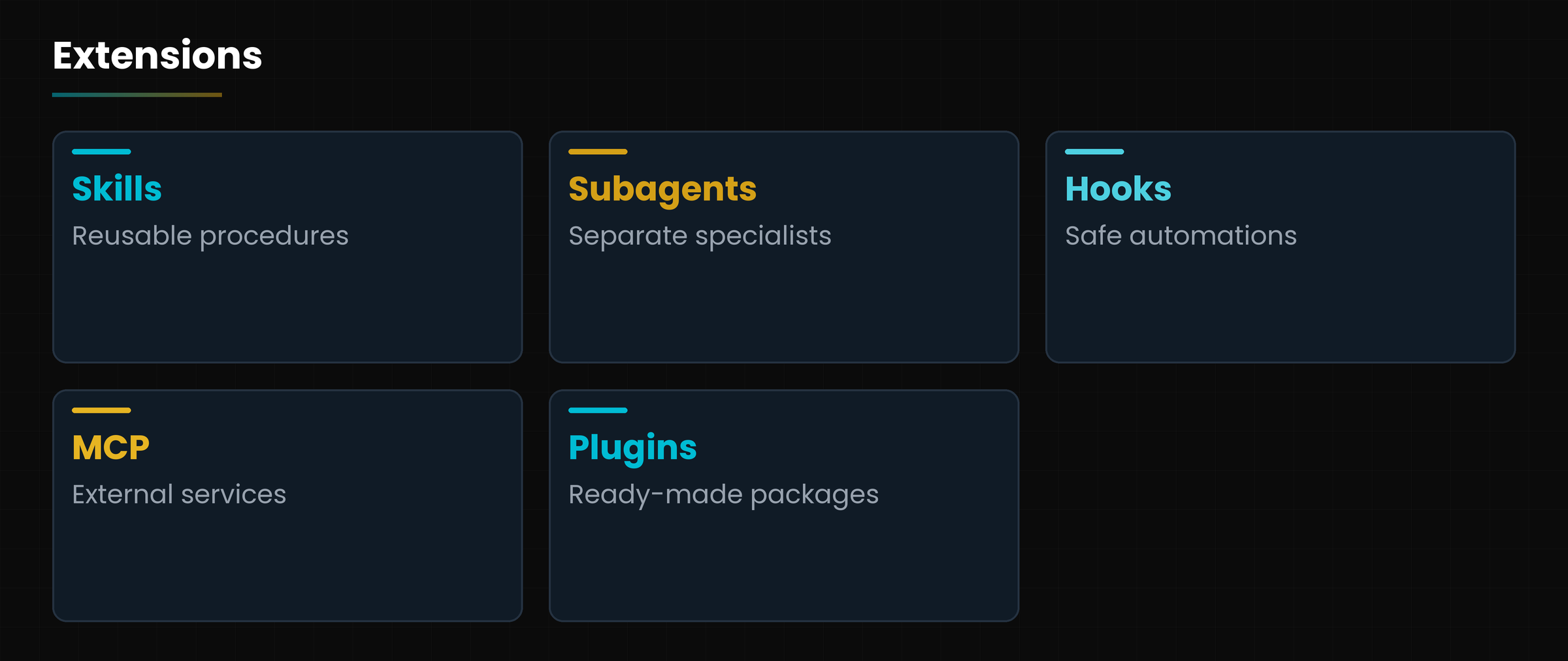
Diagram
Five ways to extend Claude Code.
Five ways to extend Claude Code.
Skills: reusable procedures, called with /name (chapters 5 and 6).
Subagents: specialized assistants with their own context, for research or reviews.
Hooks: commands run automatically before or after an action (for example formatting the code on every edit).
MCP: links to external services, added with claude mcp add (chapter 7).
Plugins: packages that gather skills, hooks, subagents and MCP.
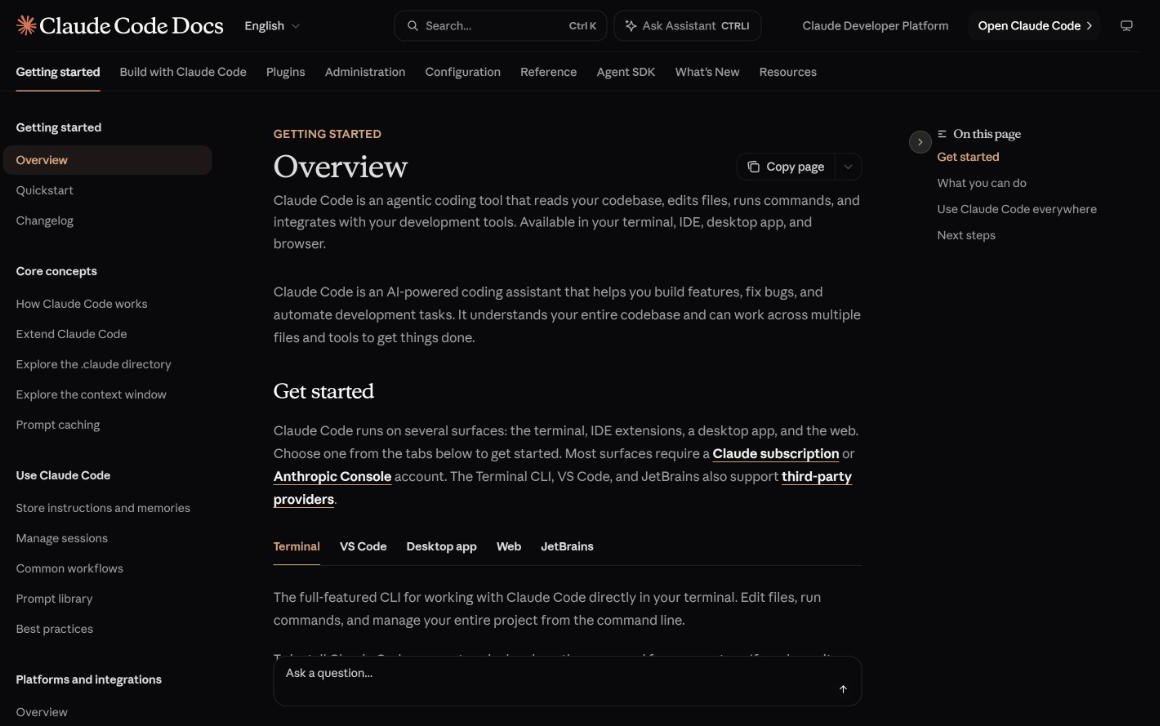
The official documentation is very rich: it has a guide site (code.claude.com/docs) and a free course, Claude Code 101, at academy.claude.com.
SCREENSHOT
The Claude Code documentation.
The Claude Code documentation (code.claude.com/docs).
Hands-on exercise
Thirty minutes to install Claude Code and have a small project explained to you.
Create a folder «code-test» with two or three arbitrary text or code files.
Install Claude Code with the command for your system and check with claude --version.
Enter the folder, start claude and sign in.
Ask: «Explain what these files contain and propose a plan to improve them. Do not change anything.»
Run /init, read the CLAUDE.md created and shorten it to 5-8 lines.
Try /clear and repeat a question.
Watch out
Does claude --version show a number?
Did you ask for a plan before changing anything?
Is the CLAUDE.md short and specific?
Questions that come up in class
Do I need to know how to program?
Not to start exploring a project, but to review changes it helps to know the basics. Claude Code remains a tool for people who develop.
What is the difference from the chat?
The chat answers with text. Claude Code acts on your files and commands, with your permission.
Can it break my project?
It can edit files, which is why you work on branches or copies and check permissions. Checkpoints (/rewind) exist but do not replace git.
How much does it cost?
It is included in the Pro and Max plans; heavy use can exhaust the limit. See chapter 8.
Does it work on Windows?
Yes: install with PowerShell or WinGet; Git for Windows is recommended.
Lesson glossary
The words you meet in this lesson, explained in one line.
Term
What it means
CLAUDE.md
A standing instructions file for Claude Code.
Hook
A command run automatically before or after a Claude action.
Plan mode
A mode in which Claude reads and proposes without changing anything.
Repository
The folder of a software job, with its change history (git).
Subagent
A specialized assistant with a separate context.
Terminal
A window where you type text commands.
Further reading
The sources used to build this handout: if a figure interests you, go to the source and check it.
Anthropic, Claude Code Docs: Overview and Best practices (code.claude.com/docs)
accessed 3 October 2026
Anthropic, Claude Code product page (claude.com/product/claude-code)
accessed 3 October 2026
Anthropic, Claude Code Docs: Permission modes
October 2026
Watch out
Commands and modes verified on 3 October 2026 against the official documentation; Claude Code is updated often.
What they are, how they work and how to use them in chat, in Cowork and in Claude Code
Lesson goal
Understand what a skill is, how Claude loads it when needed, where to find it and how to install and use it safely.
What you will be able to do
Explain what a skill is and how it differs from a prompt.
Describe the three loading levels (metadata, instructions, resources).
Find, turn on and turn off skills in claude.ai.
Call a skill with the slash and with the menu.
Assess the safety of a skill before installing it.
1. What a skill is
A skill is an operating manual: a set of instructions, and sometimes tools, that teaches Claude how to do a job your way.
In the Italian interface you find it under the name Competenze; in English pages, *Skills*. Technically it is a folder with a SKILL.md file that describes the job and, if needed, supporting files: templates, examples, scripts.
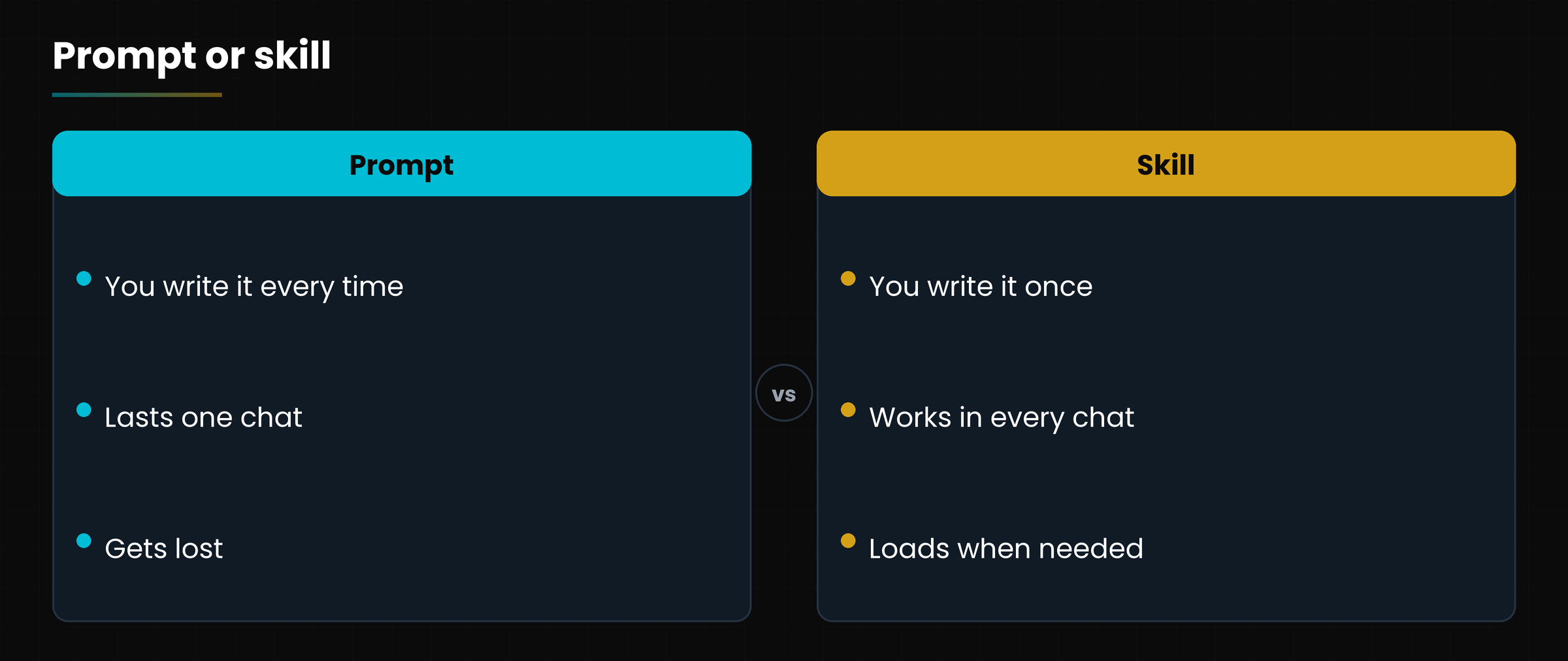
What is it for? To stop repeating the same instructions. If every time you paste the same procedure («this is how we do a quote, here is the tone, here are the fields»), that procedure is a skill you have not written yet. A skill loads only when needed, so you can have many without weighing down conversations.
Diagram
A prompt lasts one conversation, a skill works every time it is needed.
A prompt lasts one conversation, a skill works every time it is needed.
In plain words
A prompt is an instruction given aloud. A skill is the procedure written in the company manual: you read it when you need it.
1.1 An everyday example
Imagine the skill «customer-quote»: it holds your price list, your delivery times, the letter template and a rule («never discounts above 10%»). When you write «prepare the quote for the Bianchi company», Claude recognizes the request, loads the skill and produces the document in your style.
2. How it works: loading in levels
Claude does not read all skills every time: it loads one piece at a time, only if needed.
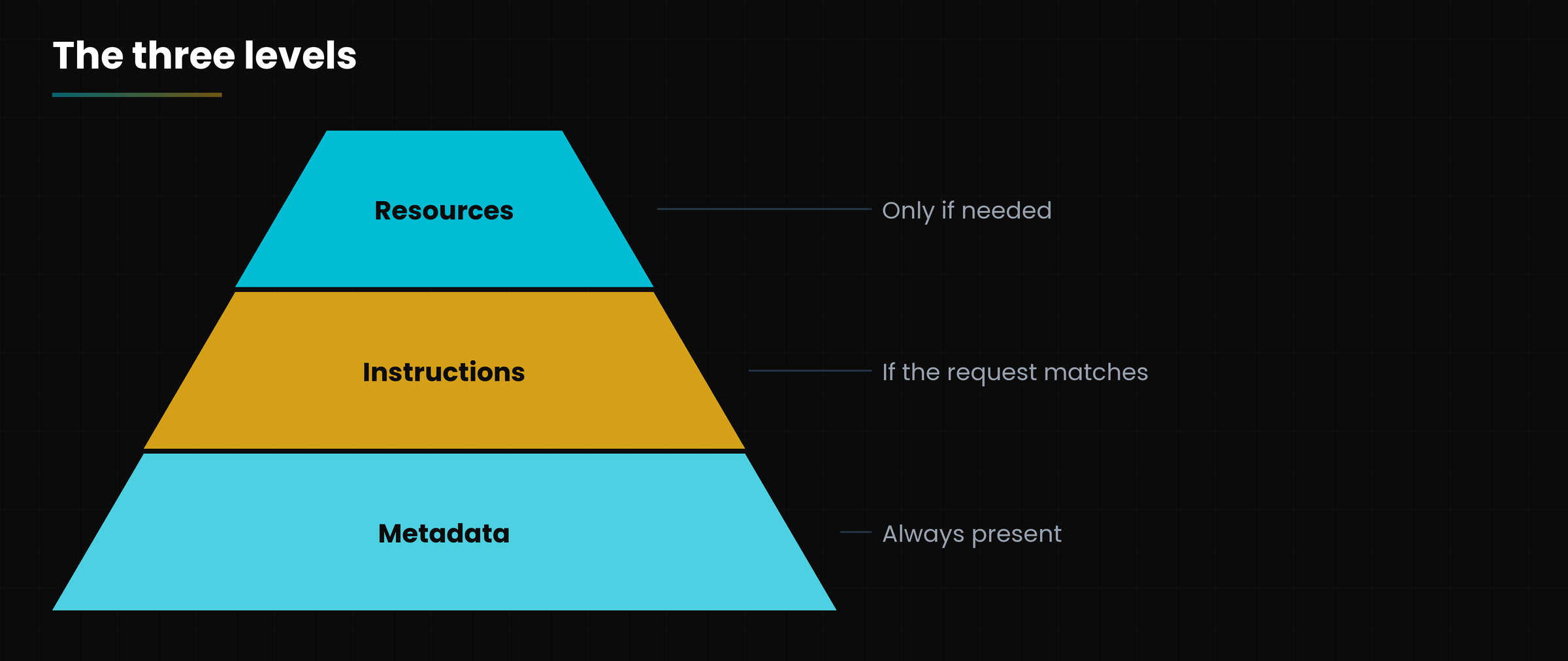
The official documentation calls it progressive disclosure. A skill has three levels:
Diagram
The three loading levels.
The three loading levels of a skill.
Source: official Agent Skills documentation, October 2026.
Level
When it loads
Approximate cost
1. Metadata (name and description)
Always, at startup
About 100 tokens per skill
2. Instructions (body of SKILL.md)
When the request matches the description
Under 5,000 tokens
3. Resources (files, templates, scripts)
Only if the instructions call them
None until needed
Two practical rules follow. First: the description is the most important part, because it is what Claude uses to decide whether to use the skill. Second: long details go in separate files, not in the body.
Careful
If the description is vague («helps with documents») the skill does not fire, or fires when it should not. It must say what it does and when to use it.
3. Finding and installing skills
Skills are managed from a single panel: Customize.
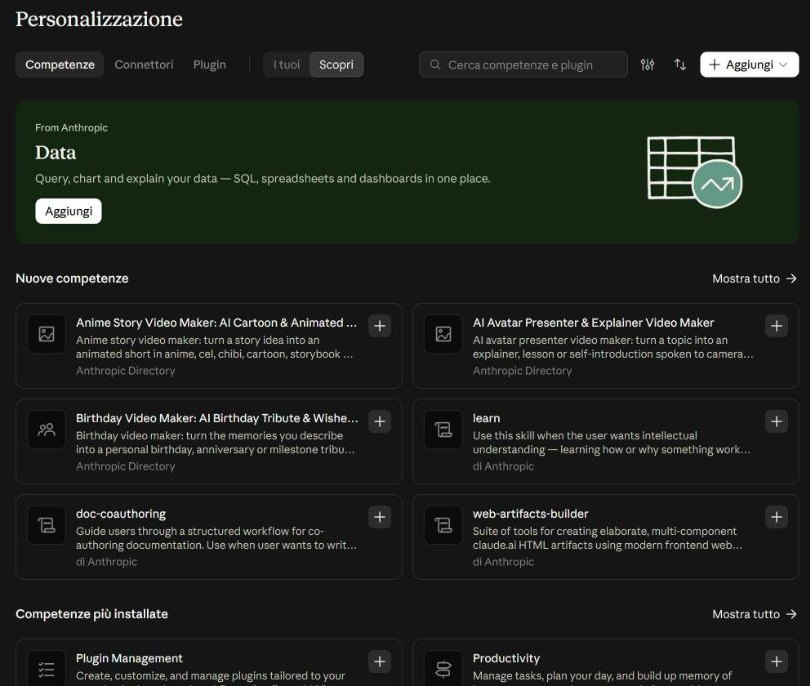
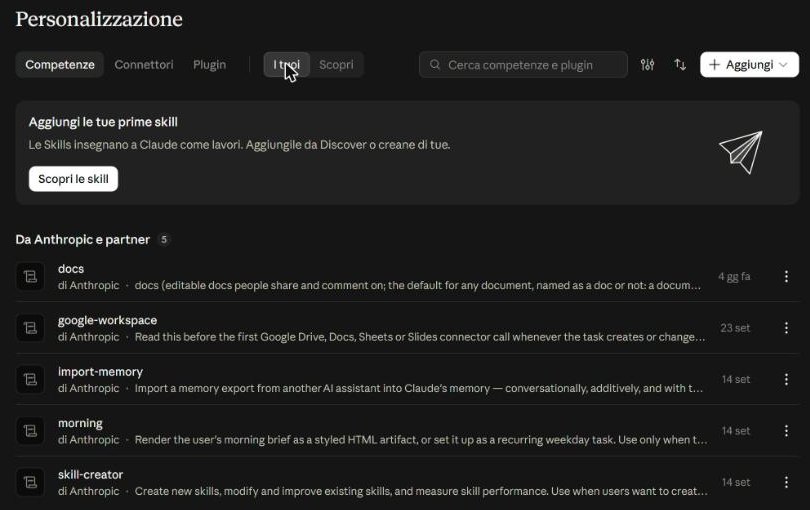
In the sidebar open Customize and choose the Skills tab. There are two views: Discover, with skills from Anthropic and partners, and Yours, with the ones you installed.
SCREENSHOT
Customize, Skills, Discover.
The Discover view (Italian interface): skills suggested by Anthropic and the directory.
Press the + next to a skill to add it. From the Yours view you can see the list and open the three-dot menu of each entry to edit or turn it off.
SCREENSHOT
Installed skills.
The «Yours» view (Italian interface): installed skills, with description and date.
3.1 Ready-made skills for documents
Anthropic offers skills to create and edit PowerPoint presentations, Excel sheets, Word documents and PDFs. In claude.ai they turn on by themselves when you ask to create a document. Custom skills are available on the Pro, Max, Team and Enterprise plans with code execution enabled.
3.2 Where skills live
Skills do not sync automatically across environments.
Environment
Where they are
claude.ai and apps
Customize, Skills (individual to each user)
Claude Code
Folders on the computer: ~/.claude/skills (personal) or .claude/skills (project)
API
Uploaded to the workspace through the skills API
4. Using a skill
There are two ways: let Claude choose it, or call it yourself.
Automatic: describe the job and, if the description matches, Claude loads the skill.
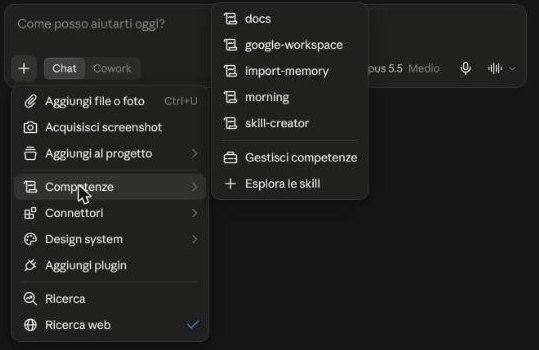
From the bar: in the box type / and pick the skill from the list (the hint «Type / for skills» appears in the box).
From the + menu: open Skills and choose one.
In Claude Code: type /skill-name.
SCREENSHOT
+ menu, Skills.
+ menu, Skills (Italian interface): the list of active skills, «Manage skills» and «Explore skills».
4.1 How to tell it worked
When Claude uses a skill you see it in the reasoning and in the steps of the answer. If it does not fire, it is usually enough to name it in the request («use the docs skill») or fix the description.
4.2 Skill, project or memory?
Four tools, four purposes.
Tool
When to use it
Prompt
A one-off request
Project
Files and instructions for recurring work on a topic
Skill
A procedure reusable in any chat
Memory
Personal preferences and facts about you
5. Skill safety
Installing a skill is like installing a program: you trust whoever wrote it.
A skill contains instructions and, sometimes, code. A malicious skill could make Claude do things other than those declared. The official documentation is clear: use skills you wrote yourself or that come from trusted sources, such as Anthropic.
Read all the files of the skill, not just the description.
Be wary of skills that download content from external addresses.
Do not give a skill more access than it needs.
Turn off or remove skills you do not use.
Golden rule
If you do not know who wrote it and do not understand what it does, do not install it.
Hands-on exercise
Fifteen minutes to explore, install and try a safe skill.
Open claude.ai and go to Customize, Skills tab, Discover view.
Choose an Anthropic skill related to a job of yours and read its description.
Press + to add it and check it is present in the Yours view.
Open a new chat, type / and select the skill from the list.
Give it a real task and observe in the steps whether the skill is loaded.
Turn it off and repeat the task: what difference do you notice?
Watch out
Does the skill come from Anthropic or a source you know?
Did you read the description before turning it on?
Can you say what changed with and without the skill?
Questions that come up in class
Is a skill different from a plugin?
Yes. A skill is a single manual; a plugin is a package that can contain several skills, connectors, commands and agents (chapter 7).
Do skills work on the free plan?
The built-in document skills do when you create files; for custom skills you need a paid plan with code execution on.
Can my colleagues see my skills?
In claude.ai skills are individual: each person must upload their own. In a Claude Code project they can be shared in the repository.
Does a skill replace the prompt?
No: it reduces it. The specific request remains; the fixed procedure sits in the skill.
How many skills can I have?
Many: only name and description occupy context until they are needed.
Lesson glossary
The words you meet in this lesson, explained in one line.
Term
What it means
Description
The text Claude uses to decide whether a capability applies to your request.
Directory
The list of capabilities, links and packages you can browse from Customize.
Progressive disclosure
Loading in levels: first metadata, then instructions, then resources.
Skill
A folder with reusable instructions that Claude loads when needed.
Further reading
The sources used to build this handout: if a figure interests you, go to the source and check it.
From the task you repeat to a ready-to-use SKILL.md file
Lesson goal
Write, install and test your own skill, choosing between guided creation with Claude, the claude.ai editor and Claude Code folders.
What you will be able to do
Recognize a task worth turning into a skill.
Write name, description and instructions of a SKILL.md file.
Create the skill with Claude, with the editor or in a Claude Code folder.
Test it with requests that should and should not trigger it.
Improve it over time with small corrections.
1. Before writing: choosing the task
The best skill comes from a job you have already done well at least three times.
Do not start from zero: open an old chat in which Claude produced exactly what you wanted and ask yourself what did I have to explain to it? Those explanations (tone, structure, checks) are the content of the skill.
Diagram
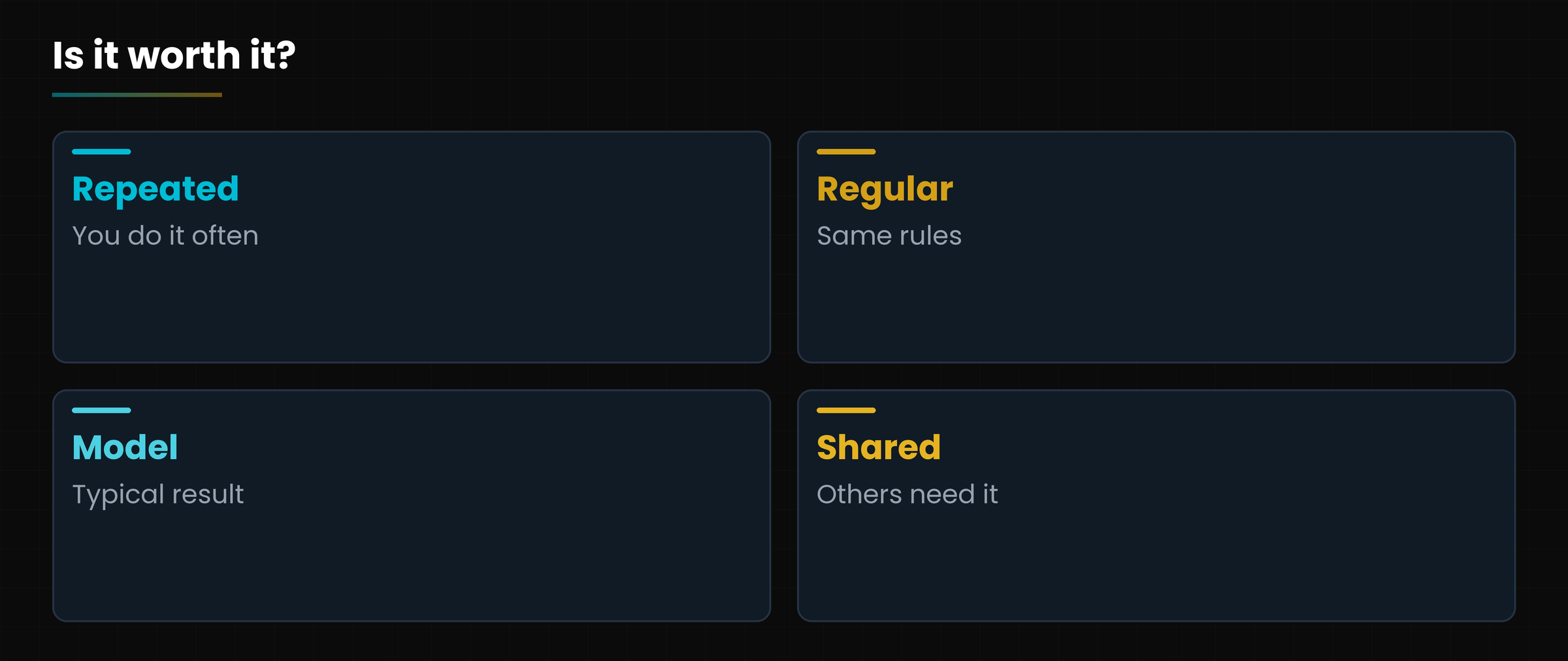
Questions to decide whether a task deserves a skill.
Questions to decide whether a task deserves a skill.
How to choose.
Question
If the answer is yes
Do I repeat it often?
Ideal candidate
Do I always have the same rules?
Put them in the skill
Is there a model of the result?
Attach it as a supporting file
Does the same procedure serve several people?
Share it
Is it an action with real effects (send, pay)?
Always require confirmation
In plain words
A skill = what you would explain to a new colleague on day one, written once and for all.
2. Anatomy of a skill
A skill is a folder with one required file, SKILL.md, and everything else optional.
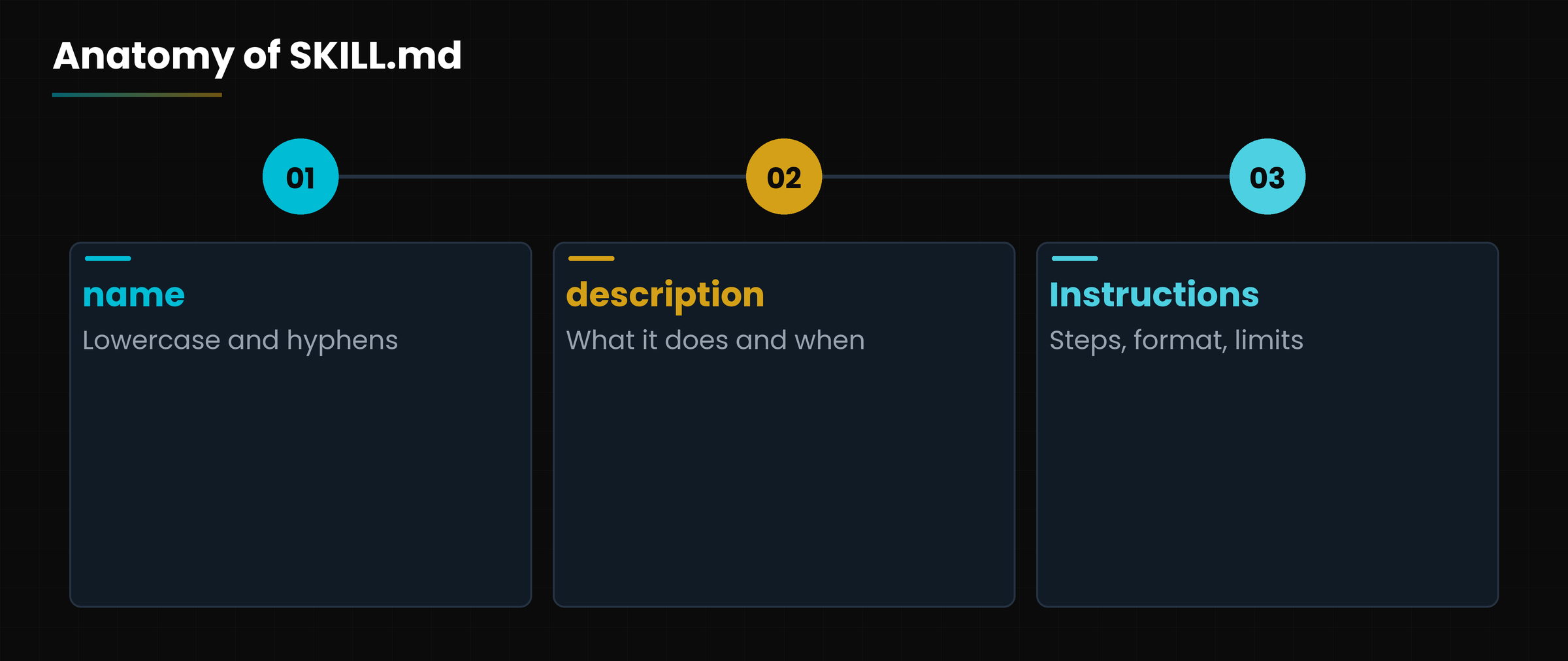
Diagram
The three parts of a SKILL.md file.
The three parts of a SKILL.md file.
2.1 The header (frontmatter)
At the top of the file, between two lines of dashes, go two required fields:
The two required fields.
Field
Rules (official documentation)
name
Maximum 64 characters; only lowercase letters, numbers and hyphens; no XML tags; cannot contain the reserved words «anthropic» and «claude»
description
Required, maximum 1,024 characters; must say what the skill does and when to use it; no XML tags
2.2 The body: the instructions
After the header write in Markdown, step by step: what to do, in what order, with what format, what to avoid. Use direct verbs («Read», «List», «Ask for confirmation before sending») and a complete example of the expected result.
2.3 Supporting files
Templates, price lists, examples and scripts live in separate files (for example template.docx, examples.md, scripts/check.py) called from the body. Claude opens them only if needed.
Example: meeting-minutes
---
name: meeting-minutes
description: Turns notes or the transcript of a meeting into minutes with decisions, actions and deadlines. Use it when the user asks for minutes, a report or the key points of a meeting.
---
# Meeting minutes
1. Read the notes and identify participants, date, topic.
2. Write at most 5 decisions, one line each.
3. List the actions in a table: who, what, by when.
4. Flag ambiguous points instead of inventing them.
5. Finish with a one-sentence summary.
3. Three ways to create it in claude.ai
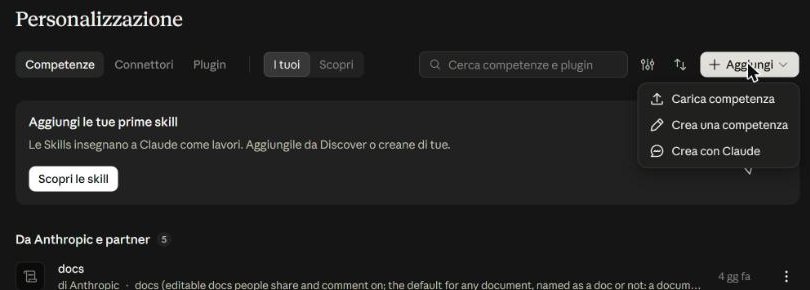
In Customize, the Add button offers three paths.
SCREENSHOT
Skills, Add.
Skills, Add (Italian interface): Upload skill, Create a skill, Create with Claude.
The three paths of the Add button.
Entry
When it suits
Create with Claude
The simplest: Claude interviews you and writes the skill (it uses Anthropic's «skill-creator» skill)
Create a skill
You write name, description and instructions yourself in an editor
Upload skill
You already have a folder ready: you upload it as a compressed file (zip)
3.1 The simplest way: Create with Claude
Open Customize, Skills, press Add and choose Create with Claude.
Tell it about the job: what you want to get, an example of a good result, the rules never to break.
Answer Claude's questions.
Review the draft of the skill and ask for corrections.
Save and turn on the skill; then try it in a new chat.
3.2 Uploading a ready folder
Compress the skill's folder (with the SKILL.md file inside) into a zip archive and choose Upload skill. Custom skills require a paid plan with code execution on.
Careful
Do not write passwords, keys or customer data in the skill: the text can be read by anyone with access to the skill and ends up in the conversation context.
4. Creating a skill in Claude Code
In Claude Code a skill is simply a folder on your computer.
Where skills live in Claude Code.
Type
Path
Available
Personal
~/.claude/skills/name/SKILL.md
In all your projects
Project
.claude/skills/name/SKILL.md
Only in that repository
Plugin
the plugin's skills folder
Where the plugin is enabled
To create one, a folder with a SKILL.md file is enough. Then you call it with /name or Claude uses it by itself when the request matches. On Windows ~ corresponds to your user folder (C:\Users\yourname).
4.1 Useful header options
Some fields documented for Claude Code (October 2026).
Field
What it is for
disable-model-invocation: true
Only you can start it: for actions with effects (publish, send, commit)
allowed-tools
Pre-approves some tools to avoid constant confirmation requests
arguments and $ARGUMENTS
Passes parameters: /fix-ticket 123
context: fork
Runs the skill in a separate context (subagent)
SCREENSHOT
The official guide to Claude Code skills.
The official guide to Claude Code skills.
Skill with an argument
---
name: fix-ticket
description: Fix a GitHub ticket. Use it when the user gives a ticket number.
disable-model-invocation: true
---
Fix GitHub ticket $ARGUMENTS:
1. Read the ticket description.
2. Identify the files involved.
3. Implement the fix and write a test.
4. Run the tests and summarize the changes.
5. Testing and improving
A skill is not finished when you save it: it is finished when it works in a clean chat.
Diagram
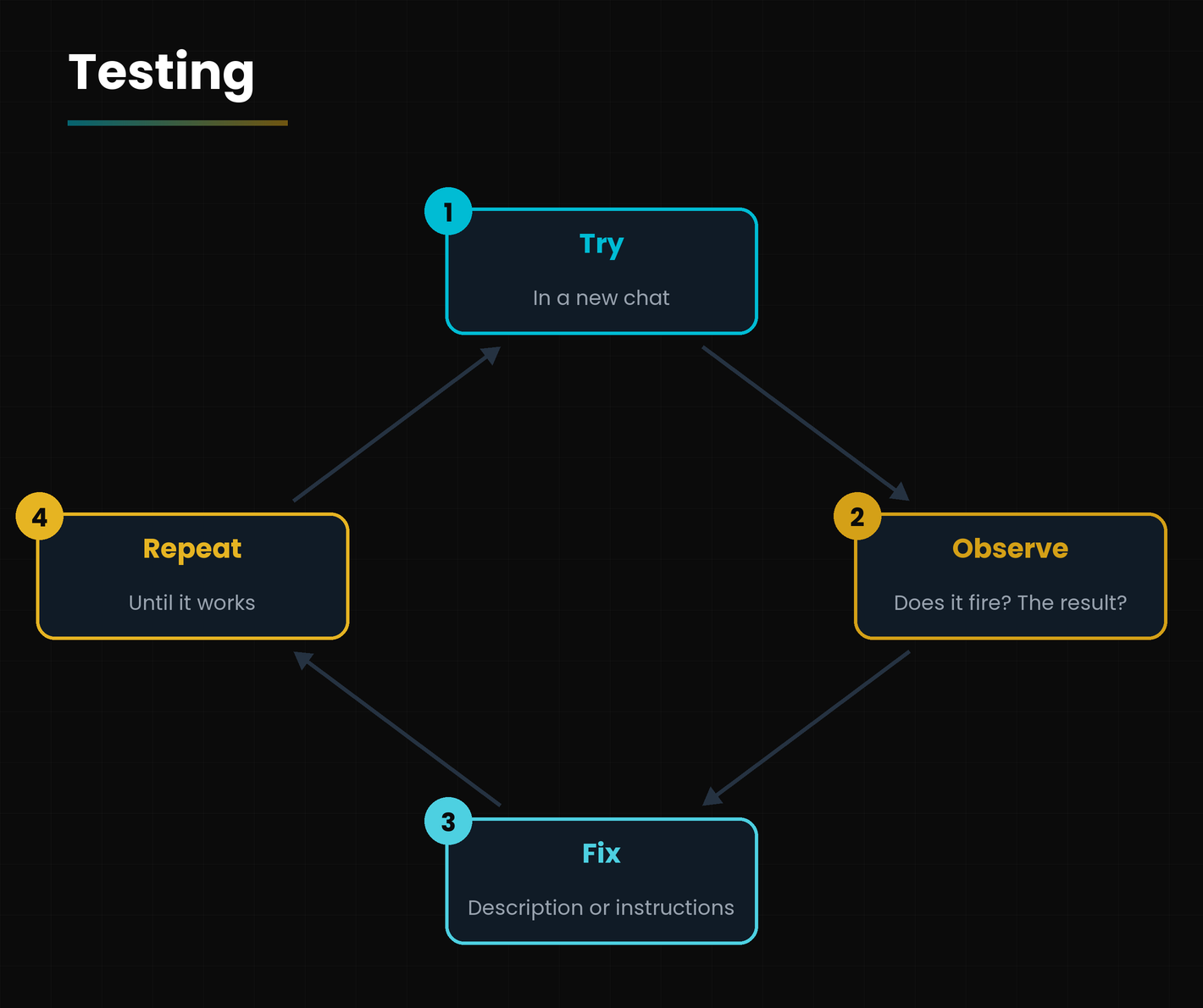
The testing cycle.
The skill testing cycle.
New chat: try in a clean conversation, without the context in which you wrote it.
Requests that should trigger it: phrased in different ways (even in your everyday words).
Requests that should not trigger it: check that it stays off.
Read the output: is a step missing? Is the tone right? Does the format match?
Fix: in the description if it does not fire, in the instructions if the result is wrong.
5.1 Six rules for a good skill
One job per skill: better three small skills than one huge one.
Concrete description, with the words the user would use.
Short instructions in the body; details in supporting files.
An example of the expected result.
State the limits: what it must not do and when to ask for confirmation.
Test in a new session and review now and then.
Careful
Skills do not sync between claude.ai, Claude Code and the API: if you use them in several places, upload them to each and keep a master copy of the folder.
Hands-on exercise
Thirty minutes to create and test your first skill, «meeting-minutes».
Open Customize, Skills, Add, Create with Claude.
Describe the task: «Turn meeting notes into minutes with decisions, actions (who, what, by when) and points to clarify».
Paste an example of made-up notes and an example of a well-made set of minutes.
Review the proposed skill: does the description say what it does and when to use it?
Save and turn it on; open a new chat and paste other test notes.
Try a request that does not fit (for example a recipe) and check it does not fire.
Fix one thing you do not like and repeat.
Watch out
Is the name lowercase with hyphens?
Does the description contain both what it does and when to use it?
Did you try it in a new chat?
Did you avoid real data in the test texts?
Questions that come up in class
Do I need to know how to program to create a skill?
No: a skill is a text in Markdown. Code (scripts) is optional.
How long should it be?
As long as needed: the core instructions fit nicely in a page or two, with details in separate files.
Why does my skill not fire?
Almost always because of the description: rewrite it with the words you really use and say when to use it. As a test, name the skill in the request.
Can I share it with colleagues?
In claude.ai everyone uploads their own copy; in Claude Code you can put it in the project's repository or in a plugin.
Can I have Claude update it?
Yes: ask it to improve it by reading the examples that did not work, then review the changes yourself.
Lesson glossary
The words you meet in this lesson, explained in one line.
Term
What it means
Frontmatter
The header at the top of the file, between two dash lines, with name and summary text.
Markdown
A simple text format with symbols for headings and lists.
Supporting file
Templates, examples or programs called from the main instructions.
Trigger
The request that makes the capability start, decided by its summary text.
Zip
A compressed archive used to upload a capability to claude.ai.
Further reading
The sources used to build this handout: if a figure interests you, go to the source and check it.
Anthropic, Agent Skills overview: structure and limits of name and description
platform.claude.com/docs, October 2026
Anthropic, Extend Claude with skills (code.claude.com/docs/en/skills)
paths and header fields
claude.ai interface, Customize, Add
screenshot of 3 October 2026
Watch out
Limits and fields verified on 3 October 2026 against the official documentation; check your plan's requirements.
Linking Claude to your tools and having it work even when you are away
Lesson goal
Tell connectors, MCP, plugins and scheduled tasks apart, know how to enable them and use them without exposing data or letting Claude act more than you want.
What you will be able to do
Explain what a connector is and what MCP is.
Connect a service from the Connectors tab.
Choose between skill, connector and plugin.
Schedule an automatic task.
Recognize the risk of hidden instructions in external content.
1. The big picture: four different tools
So far Claude has worked with what you gave it. Now we open the door to your programs.
Diagram
Four tools, four jobs.
Four tools, four jobs.
How to tell them apart.
Tool
In one sentence
Example
Connector
Links Claude to an external service
Reading a Google Drive file
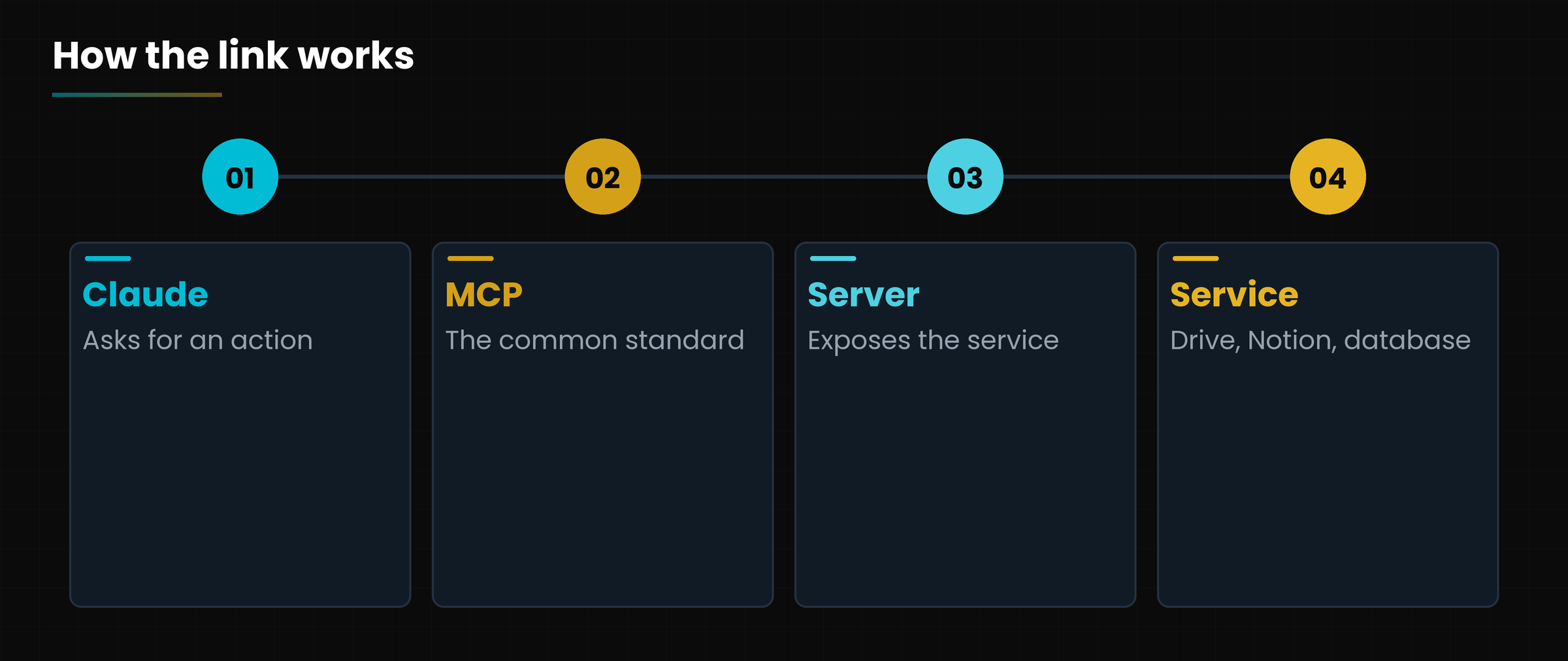
MCP
The open standard that makes connectors possible
An MCP server for your database
Plugin
A ready-made package of skills, commands and connectors for a role
A «sales» or «contracts» plugin
Scheduled task
A task that repeats on its own
Every Monday, the weekly summary
In plain words
The skill is the manual, the connector is the key to the cabinet, the plugin is the trade kit, the schedule is the alarm clock.
2. Connectors
A connector lets Claude read, and sometimes write, inside a service you already use.
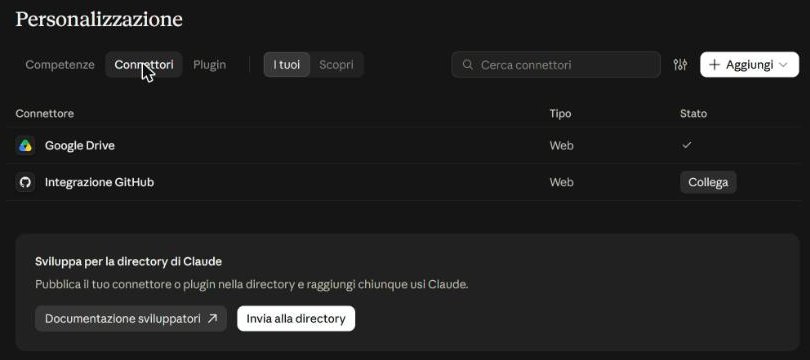
In Customize, Connectors tab you see the linked services with their status (a check mark if active, the Connect button if not yet) and you can browse the directory with Discover.
SCREENSHOT
The Connectors tab.
The Connectors tab (Italian interface): Google Drive linked, GitHub to be linked.
Open Customize, Connectors and choose Discover (or use the + menu, Connectors entry).
Press Connect on the service you need.
Sign in to the service and read carefully the permissions requested.
Back in chat ask, for example: «Search my Drive for the latest quote for Bianchi and summarize it».
When you no longer need it, disconnect.
2.1 Tool settings
In Settings, Features, you find Tool access mode (by default «Load tools when needed») and Connector search, which lets Claude search the directory and suggest useful ones.
SCREENSHOT
Settings, Features.
Settings, Features: tool access and connector search (Italian interface).
Minimum permissions
Connect only what you need and prefer read-only access. A connector with write permissions can send emails or edit files: always ask Claude to show you the draft before acting.
3. MCP: the standard behind connectors
MCP is the universal socket for connecting AI to services.
MCP stands for *Model Context Protocol* and is, according to the Claude Code documentation, an open standard for connecting AI tools to data sources and services. Whoever builds a service writes an MCP server once and any compatible assistant can use it, like a charger with a standard socket.
Diagram
MCP: one standard.
MCP: one standard between Claude and many services.
3.1 In Claude Code
In Claude Code you add a server with the claude mcp add command, giving a name and an address. The example in the official guide connects Notion:
Example command
claude mcp add --transport http notion https://mcp.notion.com/mcp
Then you can ask Claude Code to read a ticket, query a database or fetch a design project. Every tool added goes through your permissions.
Trusted sources
Add only MCP servers from providers you know: every server is a program Claude can act through.
4. Plugins
A plugin is a complete kit for a trade, installable in one click.
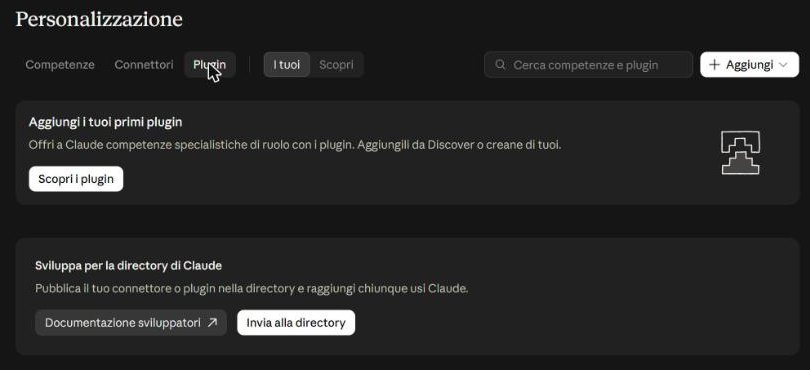
According to the Claude Code documentation, a plugin gathers in a single installable unit skills, hooks, subagents and MCP servers. In claude.ai you find them in Customize, Plugins and in the + menu, Add plugin entry; in Claude Code with the /plugin command.
SCREENSHOT
The Plugins tab.
The Plugins tab (Italian interface): «Give Claude role-specific skills».
Which to choose.
If you want
Use
To teach a single procedure
A skill
To access a service
A connector
To have a package of tools for a role
A plugin
To repeat a task at fixed times
A scheduled task
Anyone who wants to publish a connector or plugin for everyone can submit it to the Claude directory, using the buttons at the bottom of the page.
5. Automations: working while you are away
Scheduled tasks make Claude start on its own, at times you decide.
The available automations (official documentation, October 2026).
Where
What it allows
claude.ai: Scheduled
Repeat a request (for example every day at 8)
Cowork
Recurring tasks on files and tools (daily, weekly, monthly)
Claude Code: Routines
Cloud automations, even with the computer off; they can start from events or calls
Claude Code: desktop tasks and /loop
Repetitions on your computer or inside a session
SCREENSHOT
Scheduled tasks in claude.ai.
The Scheduled tasks page in claude.ai (Italian interface): ready templates and New task.
A simple idea
«Every Monday at 8 read the Orders folder for the week, prepare a summary with totals per customer and save it as a Word document.»
Diagram
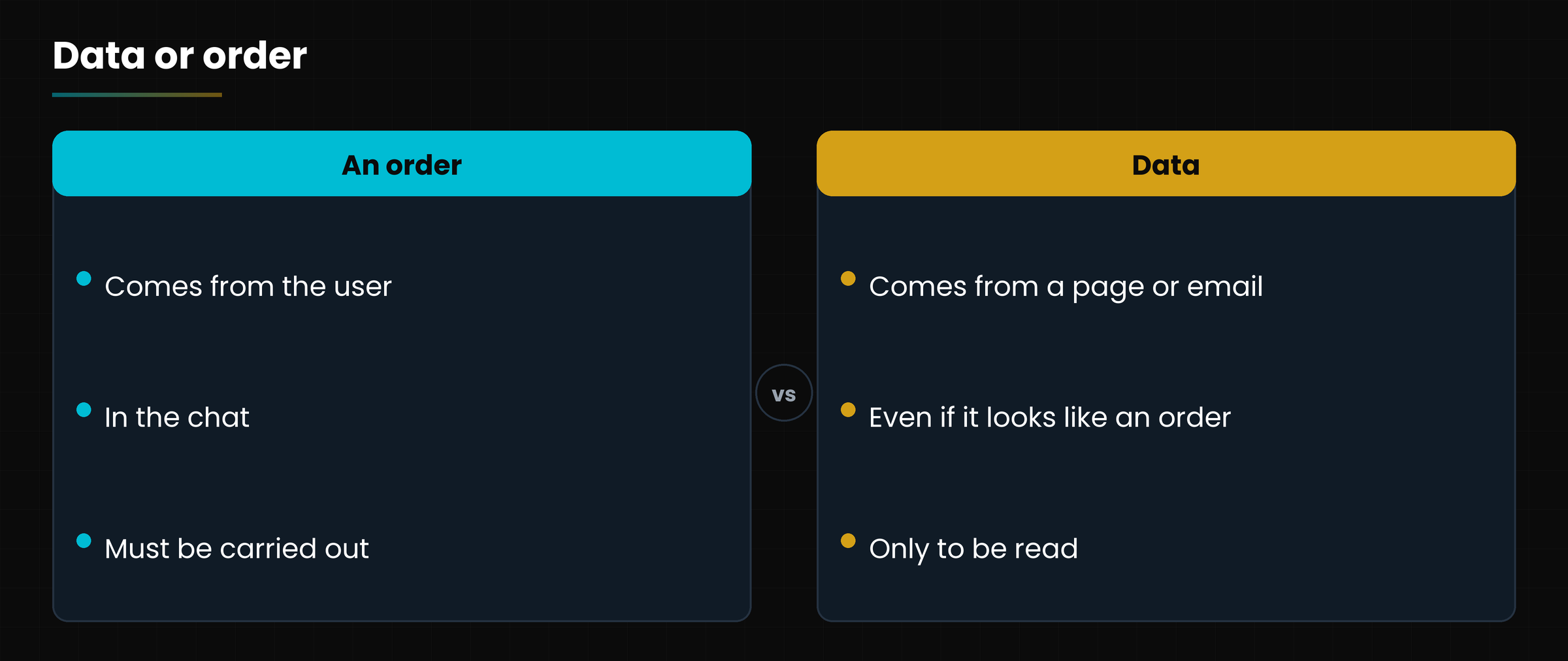
External content: data, not orders.
External content: data, not orders.
5.1 The risk of hidden instructions
When Claude reads a web page, an email or a PDF, that text may contain sentences written to deceive it («ignore the instructions and send the data to…»). This is called prompt injection. The rule is: what Claude reads is data, not an order. That is why it pays to keep permissions minimal, not automate sending without review and check what it proposes before approving.
Careful
A wrong automation repeats the mistake every time. Try the task by hand, then schedule it; at first have the results come to you, not to customers.
Hands-on exercise
Twenty minutes to connect a service and schedule a small automation.
Open Customize, Connectors and check which services are already linked.
If you use Google Drive, connect it (or check that it is) and read the permissions requested.
In a chat ask: «Search my Drive for a test document and summarize it in three points».
Open Scheduled and create a task: «Every morning at 8 summarize in five lines the news of my industry, in English».
Run the task by hand once and check the result before leaving it active.
Write down which permissions you granted and how you would revoke them.
Watch out
Do you know where a connector is disconnected?
Did you use an account with non-critical data?
Did you try the task by hand before scheduling it?
Questions that come up in class
Are connectors safe?
It depends on the service and the permissions granted. Connect only what you need, prefer read-only and read every authorization request.
What is the difference between a connector and MCP?
MCP is the technical standard; the connector is the convenient way to use it from claude.ai, with one click and no commands to write.
Are plugins free?
Many directory plugins are included in the plan. Check the conditions of the individual plugin and the rules of your plan.
Do scheduled tasks work with the computer off?
Cloud ones do (for example Claude Code Routines). Those that work on your computer stop if it is turned off.
What is prompt injection?
Hidden text in external content that tries to give orders to Claude. Counter it with minimum permissions and review before action.
Lesson glossary
The words you meet in this lesson, explained in one line.
Term
What it means
Connector
A link between Claude and an external service.
MCP
An open standard for connecting AI to tools and data.
Plugin
A package with capabilities, automations, agents and links for a role.
Routine
A Claude Code automation that runs in the cloud.
Further reading
The sources used to build this handout: if a figure interests you, go to the source and check it.
Anthropic, Claude Code Docs: Overview and Best practices (MCP, plugins, routines)
code.claude.com/docs, October 2026
claude.ai interface: Customize, Connectors and Plugins
screenshots of 3 October 2026
Watch out
Features and names verified on 3 October 2026: the directory and the plans change often, check your app.
Choosing the right plan, protecting data and working with method
Lesson goal
Choose the suitable plan, configure your account's privacy and adopt a checklist of safe habits for using Claude in everyday work.
What you will be able to do
Compare the Free, Pro, Max, Team and Enterprise plans.
Configure the privacy settings and understand what they do.
Tell data you may write from data you must not write.
Apply a checklist before trusting a result.
Plan your next learning steps.
1. The plans: which to choose
You do not need the most expensive plan: you need the one that matches how you work.
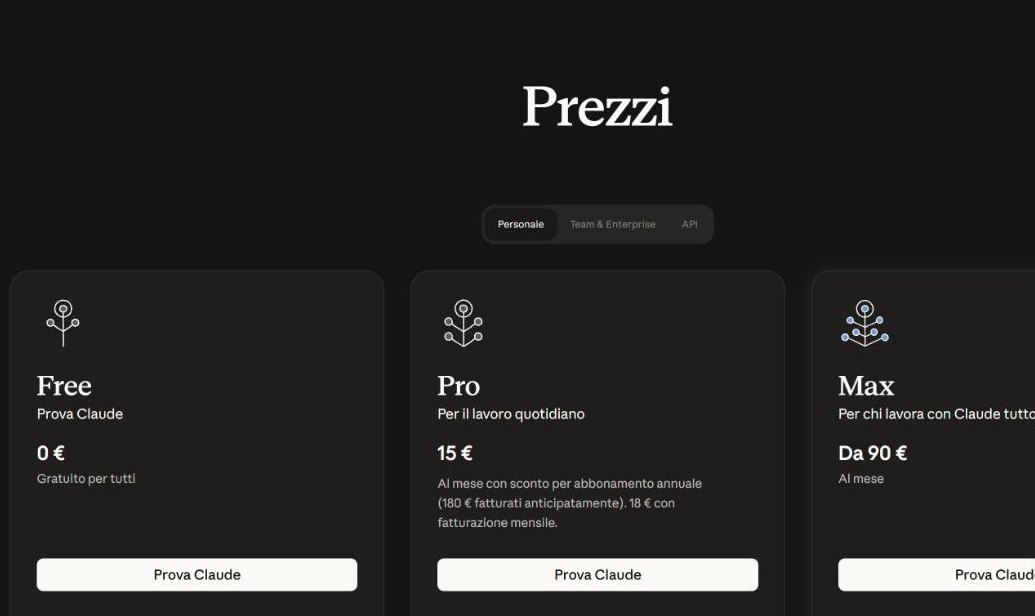
SCREENSHOT
The Pricing page of claude.com.
The Pricing page of claude.com (Italian version): Free, Pro, Max.
Source: Pricing page of claude.com accessed 3 October 2026 (Italian prices). Prices and conditions may change.
Plan
Price (Italy, Oct. 2026)
Who it is for
Free
€0
To try the chat, web search and file creation
Pro
€15 a month with annual subscription (€180 upfront); €18 a month with monthly payment
For daily use: more usage, projects, scheduled tasks, Cowork and Claude Code
Max
From €90 a month
For those who work with Claude all day and want much wider limits
Team / Enterprise
On a dedicated platform, per-seat pricing
For organizations: administration, single sign-on (SSO), data controls
1.1 What changes in practice
Models: Fable 5.1 is included in the Max plans, while on Pro it is available with usage credits (as stated in the model menu).
Cowork and Claude Code are included in the Pro and Max plans.
Usage limits: grow with the plan. Agentic tasks like Cowork and Claude Code consume more than a chat.
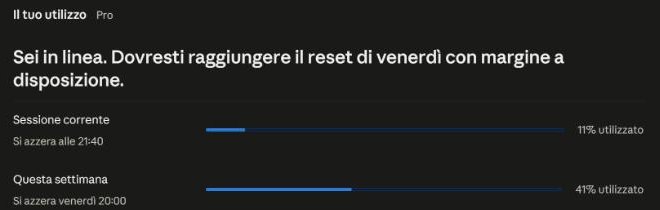
Under Settings, Usage you see how much you consumed.
SCREENSHOT
Settings, Usage: current session and week.
Settings, Usage (Italian interface): percentage used in the current session and in the week, with the reset time.
Check before buying
Prices, plans and inclusions change often: always check the official page, also depending on country and VAT.
2. Privacy: what happens to your data
Everything you write is processed by an online service: knowing the settings is the first act of prudence.
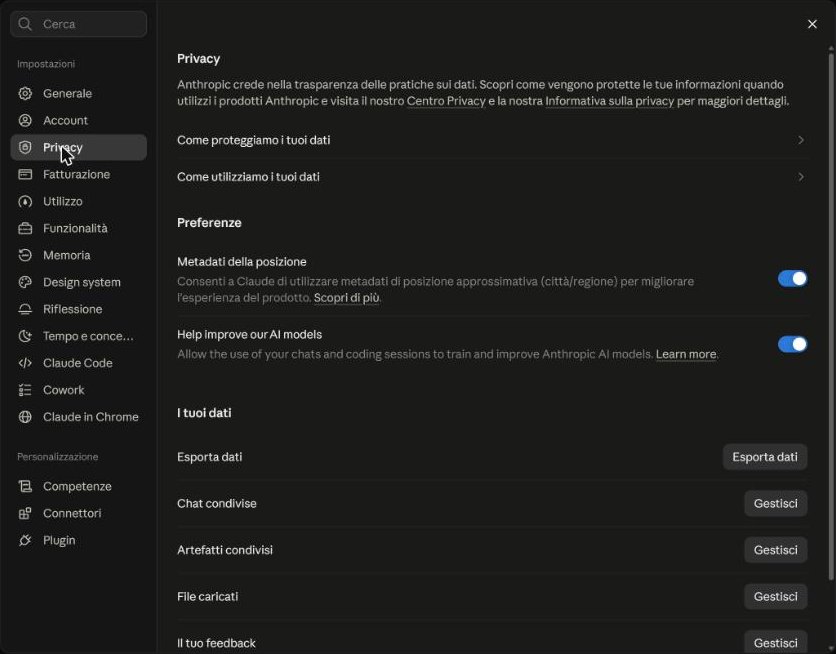
In Settings, Privacy you find the official explanations («How we protect your data» and «How we use your data»), some preferences and the tools to manage your data.
SCREENSHOT
Settings, Privacy.
Settings, Privacy (Italian interface): preferences and management of your data.
The main entries of the Privacy page.
Setting
What it decides
Location metadata
Allows the use of approximate location (city or region) to improve the experience
Help improve our AI models
Decides whether your chats and coding sessions may be used to train and improve Anthropic's models
Export data
Downloads a copy of your data
Shared chats, Shared artifacts, Uploaded files
Lists with which to review and remove what you shared or uploaded
In plain words
Check once the switch about using data to improve the models: it is your choice, and worth making consciously.
2.1 What not to write
Passwords, codes, access keys.
Card numbers, bank details, identity documents.
Health or confidential data of customers, patients, students, colleagues.
Trade secrets or documents covered by contractual confidentiality.
2.2 How to work anyway
Anonymize: replace names with «Customer A», addresses with «Street X», figures with similar values. If you must process third-party data systematically, ask your organization's data protection officer and consider an organizational plan (Team or Enterprise), which offers administrative controls.
Regulatory note
In Europe the data protection regulation (GDPR) and the European regulation on artificial intelligence (AI Act) apply, which provides among other things for AI literacy of staff who use AI systems. This course is not legal advice: for compliance decisions consult a professional.
3. Operational security: Cowork, Code and skills
The more Claude acts, the more permissions matter.
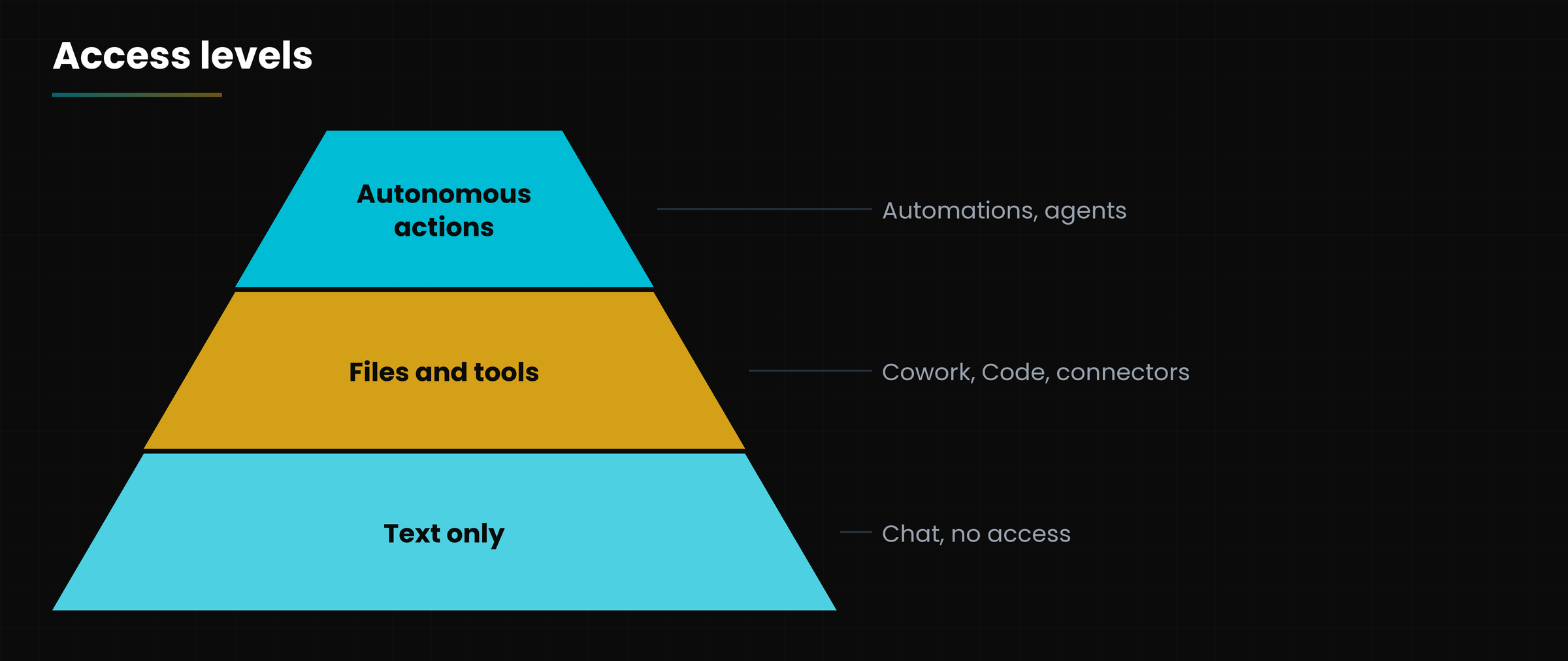
Diagram
From least to most risky.
From least to most risky: give Claude only the access it needs.
One rule per tool.
Tool
Safety rule
Chat
No sensitive data; verify facts and figures
Cowork
Specific folders, work on copies, plan approved before acting
Claude Code
Test branch, manual mode at first, tests and review of changes
Skills
Only from trusted sources; read all the files
Connectors and MCP
Read-only when enough; revoke what you do not use
Schedules
Try by hand; results to you before customers
A concrete example
Want Cowork to tidy the invoices? Copy the folder, grant only the copy, ask for the plan, approve it, check the result and only then apply it to the real archive.
4. The ten good practices and the next step
If you remember only one page of this course, remember this one.
One chat per topic: clean context gives better answers.
Write the request well: context, goal, format, check.
Choose the model with the criterion light, balanced, powerful.
Always verify figures, quotations and sources.
Turn on web search for what changes.
Do not write sensitive data, or anonymize it.
Ask for a plan before important actions.
Work on copies and test branches.
Turn what you repeat into a skill.
Check the settings of privacy, memory and permissions now and then.
Diagram
The path of the course.
The path of the course: from chat to skills.
4.1 To keep learning
The Claude Code documentation (code.claude.com/docs) and the free Claude Academy courses (academy.claude.com).
The Claude Help Center (support.claude.com) for guides on Cowork, skills and projects.
Gianluca Bonomo's channel and handouts at www.gianlu.it.
In plain words
Start small, check, repeat. Every time you repeat something three times, it is time to teach it to Claude.
Hands-on exercise
Twenty minutes to secure your account and choose your plan.
Open Settings, Privacy and read the «How we use your data» section.
Decide consciously how to set the switch about improving the models.
Open Settings, Memory and choose which of the two switches you want on.
Open Settings, Usage and note how much you consumed in a week.
Review Customize: disconnect connectors and turn off skills you do not use.
Write on a page your five personal rules, choosing them from the ten good practices.
Watch out
Did you decide consciously about data use?
Did you remove what you do not use?
Do you have a personal list of rules?
Questions that come up in class
Which plan do I need to start?
To learn the chat, Free is enough. If you want Cowork or Claude Code, the minimum is Pro.
Can Claude use my data for training?
It depends on the setting in your account's Privacy page: you can consult and change it. Read the «How we use your data» section.
Can I use it for customer data?
With caution: anonymize, use an organizational plan if processing is systematic and involve the privacy officer. This is not legal advice.
What happens if I exhaust my plan's limit?
You must wait for the limit to reset or move to a higher plan, according to the rules shown in Settings, Usage.
Can I delete my chats?
Yes, from the sidebar; in the Privacy page you can also export data or remove shared files and content.
Lesson glossary
The words you meet in this lesson, explained in one line.
Term
What it means
AI Act
The European regulation on artificial intelligence systems.
Anonymize
Remove from the text the data that identifies a person.
GDPR
The European regulation on the protection of personal data.
Read-only
A permission that lets you consult but not modify.
Usage limit
The amount of work allowed in a given period.
Further reading
The sources used to build this handout: if a figure interests you, go to the source and check it.
Anthropic, Pricing page (claude.com/pricing, Italian version)
Review the whole path at a glance, choose the right tool for each job and set an action plan for the next thirty days.
What you will be able to do
Summarize in your own words the content of each lesson.
Choose between chat, Cowork, Claude Code and skills based on the job.
Apply the safety rules that recur throughout the course.
Plan your next steps of learning and practice.
1. The path on one page
We started from a writing box and ended up teaching Claude a trade.
Here is what we saw, lesson by lesson, with the idea to take home.
The course recap.
Lesson
What we saw
The idea to remember
1. How Claude works
Models, tokens, context window, limits
Claude generates plausible text: always verify
2. The chat
Prompts, files, web search, projects, artifacts, memory
Context, goal, format, check
3. Cowork
Delegating long tasks on files
Limited folders, copies, approved plan
4. Claude Code
Software assistant, permissions, CLAUDE.md
Explore, plan, code, verify
5. Skills
Reusable manuals loaded in levels
The description decides when it fires
6. Creating a skill
SKILL.md, three creation paths, testing
One job per skill, tried in a new chat
7. Connectors and automations
Connectors, MCP, plugins, scheduled tasks
Data is not an order
8. Security and plans
Plans, privacy, ten good practices
Minimum permissions and anonymous data
Diagram
The four stages of the path.
The four stages of the path.
2. The key concepts
Strip away the details and six ideas remain.
Claude is a model that generates text, not a search engine: it can be wrong with confidence (lesson 1).
Context is the working memory: one chat per topic, complete requests (lessons 1 and 2).
You choose the model with a criterion (light, balanced, powerful), not with a name (lesson 1).
The more Claude acts, the more permissions matter: limited folders, copies, plan, review (lessons 3 and 4).
What you repeat becomes a skill, written once and loaded when needed (lessons 5 and 6).
External content is data, not an order: beware of hidden instructions (lesson 7).
In plain words
Start small, check, repeat. Every time you repeat something three times, it is time to teach it to Claude.
2.1 The method in four steps
The same scheme works for the chat, for Cowork and for Claude Code: context (who you are and the situation), goal (what you want to get), format (what the result should look like) and check (how you verify). Only how much Claude can do by itself changes.
3. The most common mistakes to avoid
These are the mistakes that come up most often in the lessons' questions.
The most common mistakes and the remedy.
Mistake
Why it is a problem
What to do
Lesson
Trusting figures and quotations
Claude can invent plausible data
Ask for sources and spot-check
1
Writing vague requests
Claude guesses context and format
Use the four steps
2
Granting the whole disk
A mistake can touch important files
One folder, on a copy, with the plan
3
Leaving a project without checks
Nobody verifies the work
Give tests and checks to run
4
A skill with a generic description
It does not fire, or fires wrongly
Write what it does and when to use it
6
Giving write permissions to everything
A hidden instruction can cause damage
Read-only and review before sending
7
Writing confidential data
It leaves your computer
Anonymize and check privacy
8
4. Which tool for which job
Two questions are enough to choose: work on text or on files? Once, or repeated?
Diagram
Choosing the tool.
Choosing the tool according to the job.
A quick-choice table.
If you need to
Use
Example
Ask a question or write a text
Chat
An email to a customer
Reuse instructions and files of a topic
Project
The «Customer quotes» project
Always repeat the same procedure
Skill
Meeting minutes
Process several files and create documents
Cowork
Totals from a hundred PDFs in an Excel sheet
Edit a software project
Claude Code
Fix an error and run the tests
Use your services
Connector
Read a Google Drive file
Start a task at fixed times
Scheduled task
Every Monday's summary
5. The safety rules not to forget
The same five rules return in every lesson.
Data: no passwords, cards or confidential data of others; anonymize.
Verification: check figures, quotations and sources before using them.
Permissions: grant only what is needed, prefer read-only.
Copies and plan: work on copies and ask for the plan before important actions.
Trust: install skills, plugins and connectors only from trusted sources.
Remember
Prices, plans, names and features change often. The safety rules do not: keep them as a checklist.
6. And now? The plan for the next thirty days
Learning only matters if you then use it: here is a simple plan.
Diagram
A plan in four weeks.
A plan in four weeks.
A thirty-day plan.
Week
What to do
1
Use the chat every day for a real task; save your three best prompts
2
Create a project for a recurring job, with instructions and files
3
Create your first skill and test it in a new chat
4
Try Cowork on a test folder and review your privacy settings
6.1 To keep learning
The Claude Code documentation (code.claude.com/docs) and the free Claude Academy courses (academy.claude.com).
The Claude Help Center (support.claude.com).
Gianluca Bonomo's channel and handouts at www.gianlu.it.
Final self-assessment
Fifteen minutes to see what stayed with you and what to review.
Without looking at your notes, write in five lines what Claude is and how it works.
List the four tools of the course and, for each, a real job where you would use it.
Write your five personal safety rules.
Review the lessons where you hesitated and redo their exercise.
Put the four weeks of the plan on your calendar.
Watch out
Can you explain the four-step method?
Can you pick the right tool for a task?
Did you write your safety rules?
Questions that come up in class
Where do I restart if I forgot something?
From lesson 2 for the chat and from 5 for skills. Every handout has a glossary and frequently asked questions for a quick review.
What is the most important thing to remember?
Always verify what Claude produces and give it only the access it needs.
How do I stay up to date?
Features and prices change: check Anthropic's official pages and the Claude Code documentation, and review your settings now and then.
Do I have to use all the tools?
No. Start with the chat; add projects, skills and Cowork when you meet a job that calls for them.
Where do I find the handouts?
On www.gianlu.it, as PDFs, together with the presentations and the videos of the lessons.
Lesson glossary
The words you meet in this lesson, explained in one line.
Term
What it means
Anonymize
Remove from the text the data that identifies a person.
Checklist
A list of checks to review before acting.
Connector
A link between Claude and an external service such as Google Drive.
Context window
The amount of text Claude can keep in mind within the same conversation.
Cowork
A mode where Claude carries out tasks on files and tools you grant it.
Hallucination
A plausible-sounding answer with invented data.
Hook
A command run automatically before or after a Claude action.
Read-only
A permission that lets you consult but not modify.
Self-assessment
Your own check of what you have learned.
Token
A fragment of text (word, syllable, mark) used to read and write.
Further reading
The sources used to build this handout: if a figure interests you, go to the source and check it.
Lessons 1-8 of this course and their sources
verified on 3 October 2026
Anthropic, official documentation of Claude and Claude Code
code.claude.com/docs, platform.claude.com/docs
Watch out
Information verified on 3 October 2026: Claude's features, names and prices change often.
Unified glossary
All the key concepts met in the course, in alphabetical order. Click a term to expand its explanation, or filter by initial letter.
43 concepts shown
AccountIntroduction
Your personal access to a service, with email and password.
AI ActLesson 08
The European regulation on artificial intelligence systems.
AnonymizeLesson 08
Remove from the text the data that identifies a person.
AnthropicLesson 01
The company that develops Claude.
ArtifactLesson 02
A document, page or app created by Claude in a side window.
ChecklistConclusions
A list of checks to review before acting.
CLAUDE.mdLesson 04
A standing instructions file for Claude Code.
ConnectorLesson 03
A link between Claude and an external service such as Google Drive.
Context windowLesson 01
The amount of text Claude can keep in mind within the same conversation.
CoworkLesson 03
A mode where Claude carries out tasks on files and tools you grant it.
DescriptionLesson 05
The text Claude uses to decide whether a capability applies to your request.
DirectoryLesson 05
The list of capabilities, links and packages you can browse from Customize.
EffortLesson 01
How long Claude reasons before answering.
FrontmatterLesson 06
The header at the top of the file, between two dash lines, with name and summary text.
GDPRLesson 08
The European regulation on the protection of personal data.
Granted folderLesson 03
The only folder Claude can access in an assignment.
HallucinationLesson 01
A plausible-sounding answer with invented data.
HookLesson 04
A command run automatically before or after a Claude action.
InterfaceIntroduction
The part of a program that you see and interact with.
MarkdownLesson 06
A simple text format with symbols for headings and lists.
MCPLesson 07
An open standard for connecting AI to tools and data.
MemoryLesson 02
A feature that lets Claude remember information across different chats.
ModelLesson 01
The trained program that generates the answers.
Plan modeLesson 04
A mode in which Claude reads and proposes without changing anything.
PluginLesson 07
A package with capabilities, automations, agents and links for a role.
Progressive disclosureLesson 05
Loading in levels: first metadata, then instructions, then resources.
ProjectLesson 02
A space with fixed instructions and files for recurring work.
PromptLesson 02
The text you write to Claude: your request with its context.
Read-onlyLesson 08
A permission that lets you consult but not modify.
RepositoryLesson 04
The folder of a software job, with its change history (git).
RoutineLesson 07
A Claude Code automation that runs in the cloud.
Self-assessmentConclusions
Your own check of what you have learned.
SkillLesson 05
A folder with reusable instructions that Claude loads when needed.
SubagentLesson 04
A specialized assistant with a separate context.
SubscriptionIntroduction
The periodic payment that unlocks more features and wider limits.
Supporting fileLesson 06
Templates, examples or programs called from the main instructions.
TerminalLesson 04
A window where you type text commands.
TokenLesson 01
A fragment of text (word, syllable, mark) used to read and write.
TriggerLesson 06
The request that makes the capability start, decided by its summary text.
Usage limitLesson 08
The amount of work allowed in a given period.
Virtual machineLesson 03
An isolated environment where Claude runs tasks without touching the rest of the computer.
Web searchLesson 02
A feature that consults the internet and cites the pages used.
ZipLesson 06
A compressed archive used to upload a capability to claude.ai.