After a few months of Claude your chats number in the hundreds and your prompts are always the same. With a few gestures you can work much better.
In this guide you go from theory to practice: you search, organise, write requests that work and decide your privacy settings.
Download the handoutPrintable PDF version of this lesson, with exercise and glossary.
Download the handout as PDFGoal
Use Claude every day with method: find and organise chats, write effective prompts, work with files and projects and decide on privacy.
What you will be able to do
- Create, search, rename and delete chats.
- Write a prompt with the CO-STAR method and improve it without starting over.
- Attach files, use web search and dictation.
- Set up projects, instructions, skills and connectors.
- Decide privacy, memory and use of your limit.
Contents
- Creating a new chat and resuming old ones
- Searching, organising and deleting chats
- Writing good prompts
- Files, photos, screenshots, web search and voice
- Projects, documents, skills and connectors
- Scheduled tasks and Cowork
- Privacy, memory and usage limit
- Do not run out of your usage limit
- Five scenarios and a prompt cookbook
- An afternoon as an expert user
- Questions that come up in class
- Glossary
- Further reading
1. Creating a new chat and resuming old ones
Every topic deserves its own chat: it is the gesture you will use most.
1.1 How to do it
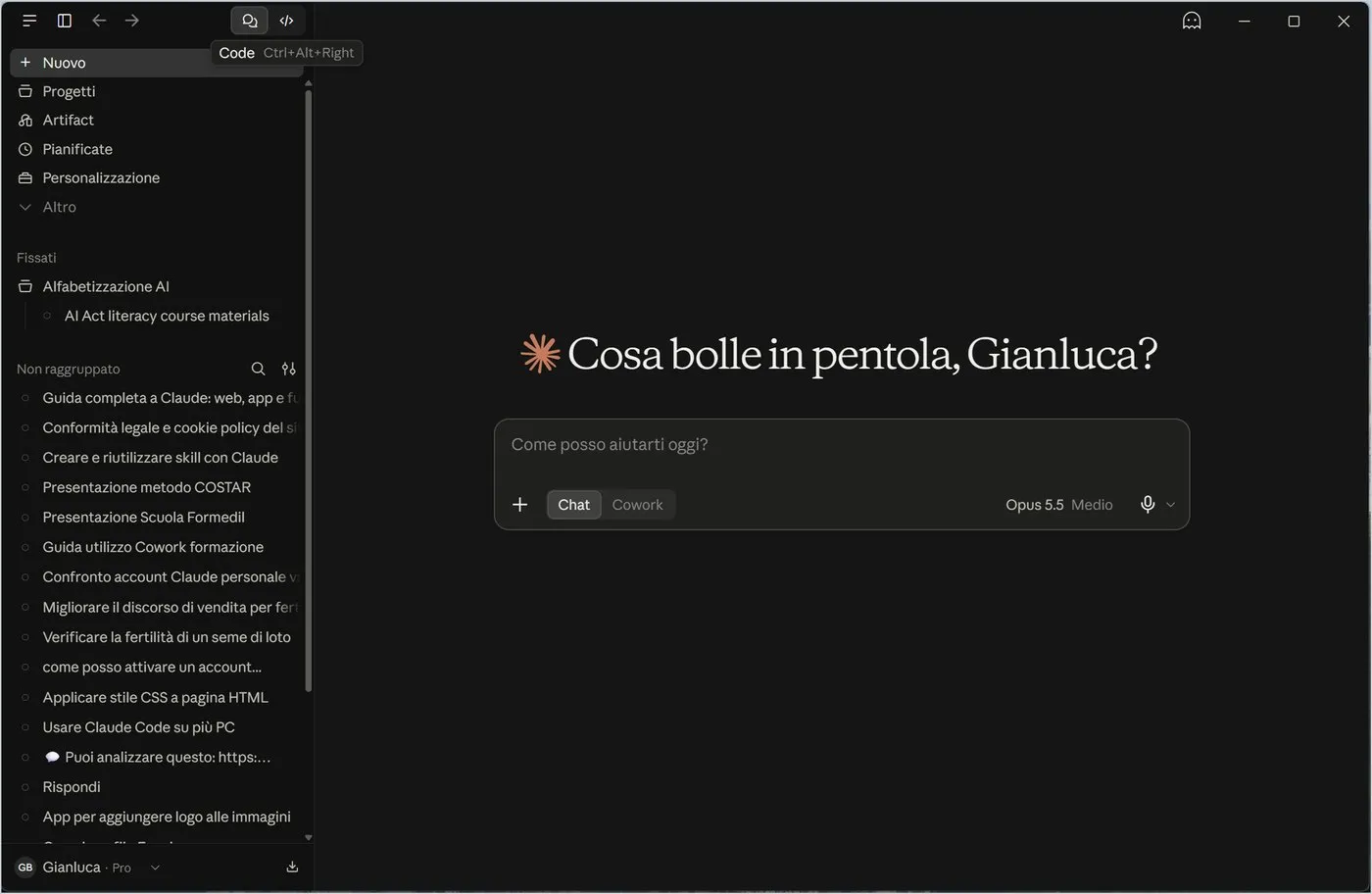
- Click New at the top of the sidebar (in the app also Ctrl+N, or File, New chat).
- The «How can I help you today?» box appears: check model and effort at the bottom right («Opus 5.5, Medium» is fine to start).
- Write the request and press Enter. To start a new line without sending use Shift+Enter.
«Explain in three lines, like to a beginner, what a PDF file is and when to use it instead of Word.»
1.2 New chat or continue?
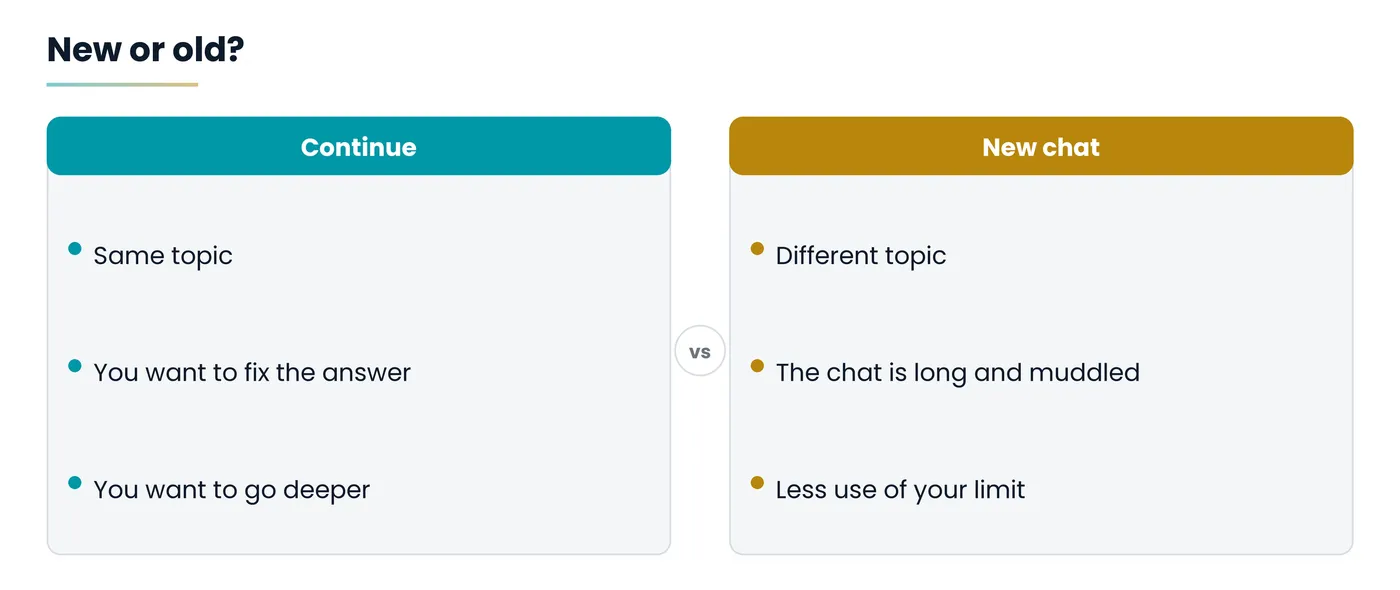
Claude remembers everything said inside that chat, but not in the others. If the topic is the same, continue where you are: you can correct, go deeper, ask for a different version. If the topic changes, open a new chat: answers are more precise and you use less of your limit.
1.3 Reopening an old chat
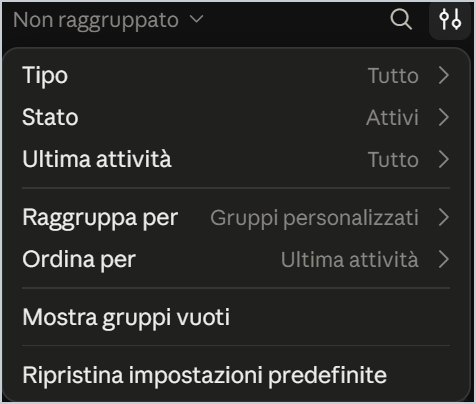
- In the sidebar scroll the list under Ungrouped, from newest to oldest.
- Click the title: the conversation opens with the whole exchange.
- Type in the box at the bottom to pick up where you left off.
In the desktop app you can also move with the keyboard: Ctrl+Tab goes to the next chat, Ctrl+Shift+Tab to the previous one, Alt+left arrow goes back, Ctrl+B hides the sidebar.
2. Searching, organising and deleting chats
When conversations number in the hundreds, you need three skills: search, order, clean up.
2.1 Searching
- Click the lens near the list (on the web at the bottom left); in the app press Ctrl+Shift+K.
- Type one or two distinctive words: a name, a topic, a phrase.
- Narrow down with the filters: All, Artifacts, Chats, Projects, Sessions, Tasks, Scheduled.
- Look at the snippet under each title: it shows the word found and when; then press Enter to open.
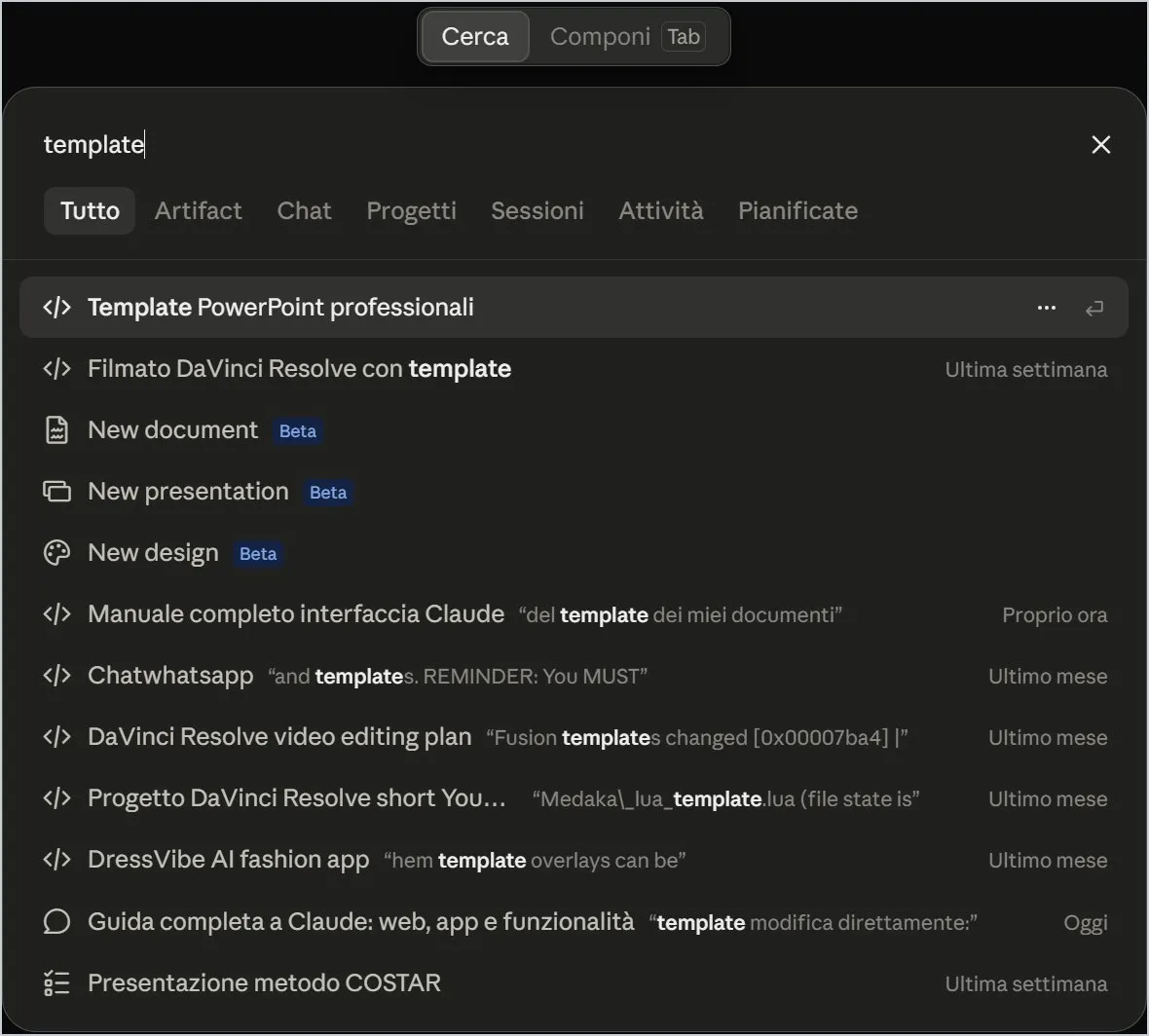
Search for a rare word (a client's name) rather than a common one («document»). For a file made with Claude use the Artifacts filter; if you find nothing, try a synonym.
2.2 Renaming, pinning, moving
Hover over the title and click the three dots. A good title contains a word you will remember (the client's, course's or project's name): then search finds it at once.
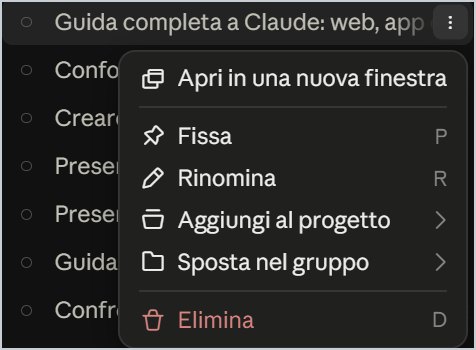
- Rename (R): changes the title Claude gave.
- Pin (P): puts it on top, under Pinned.
- Add to project: the chat will see the project's files and instructions.
- Move to group: assigns it to a group you create with Group by.
- Open in a new window: desktop only, to compare two chats.
2.3 Deleting a chat
- Open the three-dot menu and choose Delete (key D with the menu open), in red at the bottom.
- A message appears: delete the chat, do you really want to delete this chat?
- Click Cancel if in doubt, Delete to confirm.
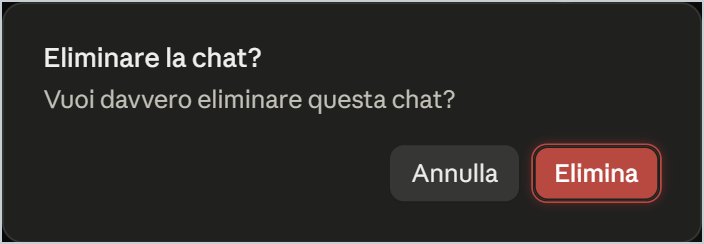
After you confirm, the chat cannot be recovered. Copy the important texts first, or export everything from Settings, Privacy, Export data.
| What | Where to delete |
|---|---|
| Link of a shared chat | Settings, Privacy, Shared chats, Manage |
| Files you attached | Settings, Privacy, Uploaded files, Manage |
| Archived Claude Code sessions | Settings, Claude Code, Delete archived sessions |
| Your account | Settings, Account, after cancelling the subscription |
3. Writing good prompts
A prompt is the request you write to Claude. The clearer it is, the less time you lose fixing the answer.
3.1 The four rules
- Say what you want to get: not «tell me about email» but «write a payment reminder email».
- Give the context: who you are, who you write to, what has already happened.
- State form and length: list or text, how many lines, what tone, what language.
- Attach the material: if Claude has to work on a document, attach it instead of summarising it.
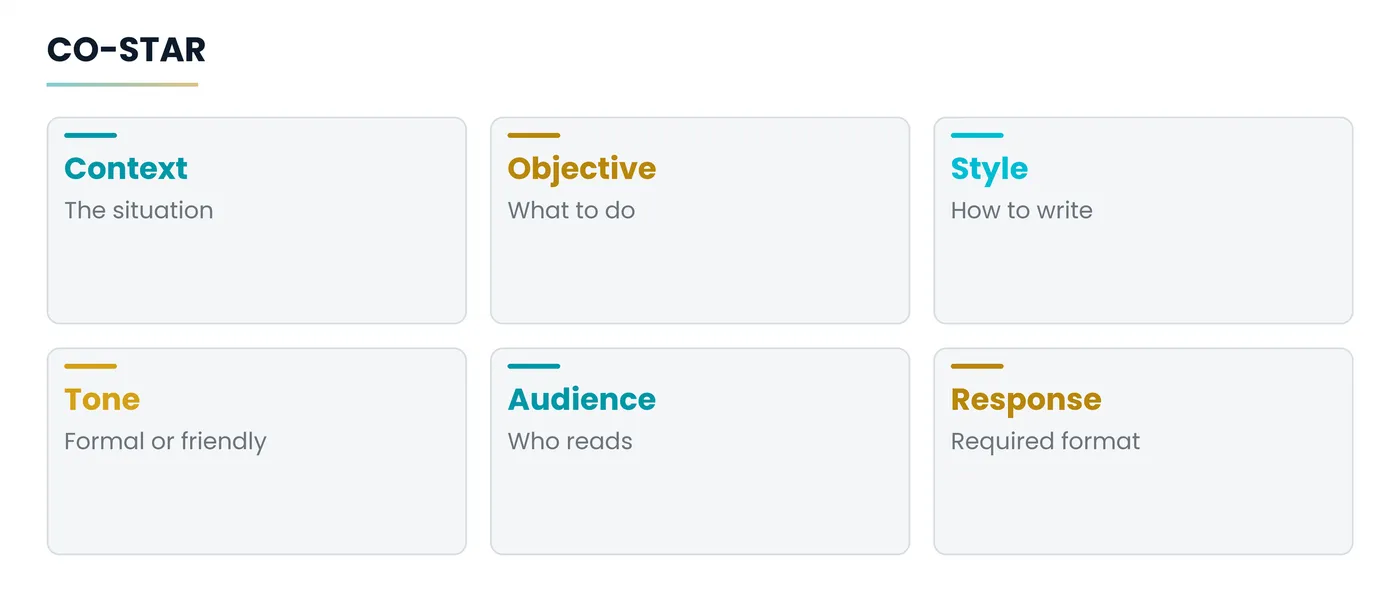
3.2 The CO-STAR method
An easy outline to remember for important requests: each letter is one line of the prompt.
Weak: «Write me an email for a client.»
With CO-STAR: Context: I run a consulting firm and the client paid the invoice fourteen days late. Objective: write a message asking them to respect the terms without damaging the relationship. Style: concise. Tone: friendly but firm. Audience: a business owner who dislikes bureaucracy. Response: subject and body, at most one hundred and twenty words.
3.3 Improving without starting over
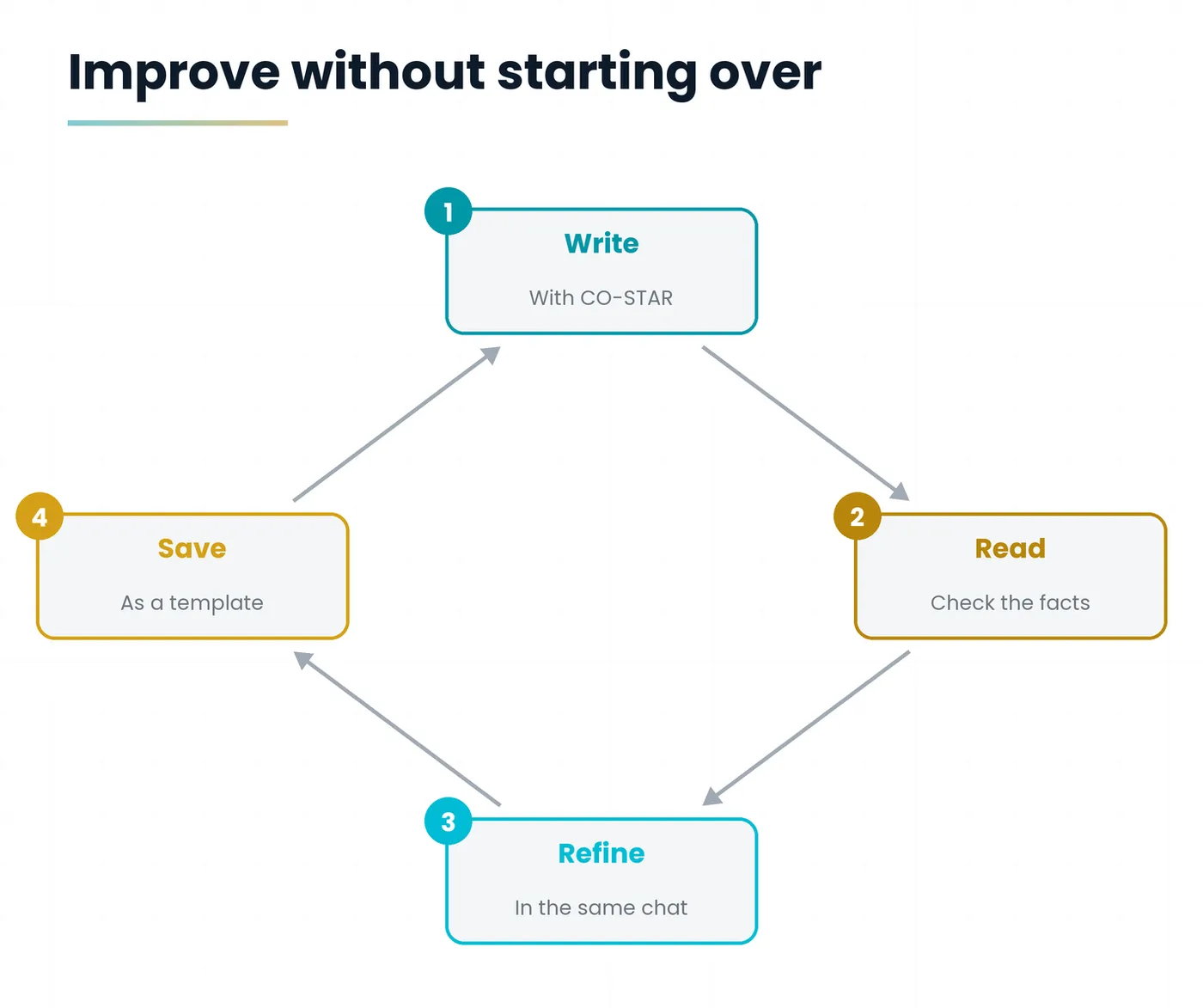
| If the answer is... | Write |
|---|---|
| too long | «Cut it in half, keep only the essential points.» |
| too generic | «Add two concrete examples from the [sector name] sector.» |
| in the wrong tone | «Rewrite it in a more formal (or direct, or warm) tone.» |
| unclear | «Explain it as if you were talking to a fourteen-year-old.» |
| unreliable | «State the source for each fact and flag what you are unsure about.» |
«I need to prepare [a presentation for the class council]. Before writing, ask me the questions you need, one at a time, then propose an outline.»
3.4 Saving the prompts that work
- Instructions for Claude (Settings, Account): rules that always apply, such as language, tone and format.
- Project instructions: rules that apply only in that project's chats.
- Skills: complete procedures to call with the / key.
«Always answer in English. Be concise. If you are unsure of a fact, say so instead of inventing it. Before a long task, ask me a clarifying question if needed.»
4. Files, photos, screenshots, web search and voice
Claude reads PDF, Word, Excel, text and images: you show it, you do not describe it.
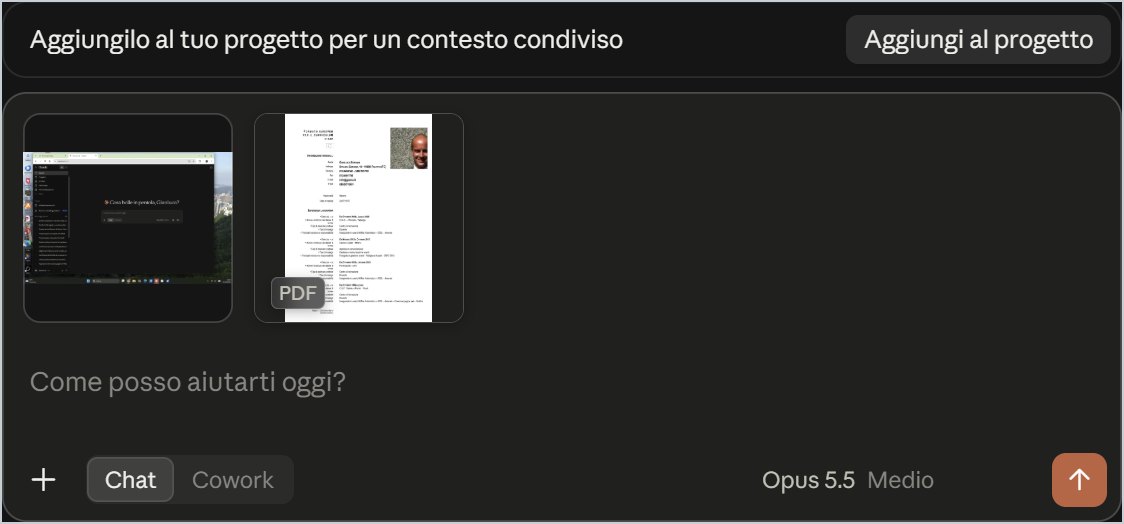
4.1 Attaching a file
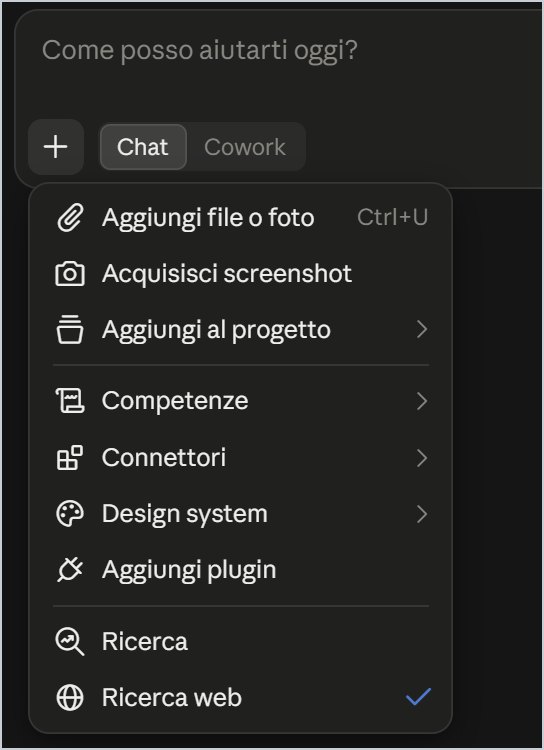
- Click the + to the left of the box and choose Add files or photos (Ctrl+U), or drag the file into the window.
- The file appears as a thumbnail above the text; you can attach more than one.
- Write what you want: «Summarise in ten points», «Compare these two contracts».
- Press Enter. To remove an attachment before sending use the small x on the thumbnail.
4.2 Capturing the screen
From the + menu choose Take a screenshot: you select part of the screen and Claude receives it as an image. It is the quickest way to ask for help on an error, a form or a chart.
| With this material | Try asking |
|---|---|
| Contract PDF | «List deadlines, penalties and withdrawal clauses. Mark with an exclamation point what I should have a lawyer check.» |
| Photo of a document | «Transcribe the text and fix the reading errors.» |
| Screenshot of an error | «What does it mean and how do I fix it, step by step?» |
| Excel sheet | «Find the odd rows and suggest a chart of sales by month.» |
Do not attach documents with third parties' personal data, health data or trade secrets without checking Settings, Privacy. For a test use an incognito chat.
4.3 Up-to-date information: web search
In the + menu check that Web search has the tick, then ask a question that needs recent data and ask for sources. Claude searches the web and reports them: always open the links to verify. The Research entry, above it, turns on the deeper mode across many sources.
4.4 Dictating instead of typing
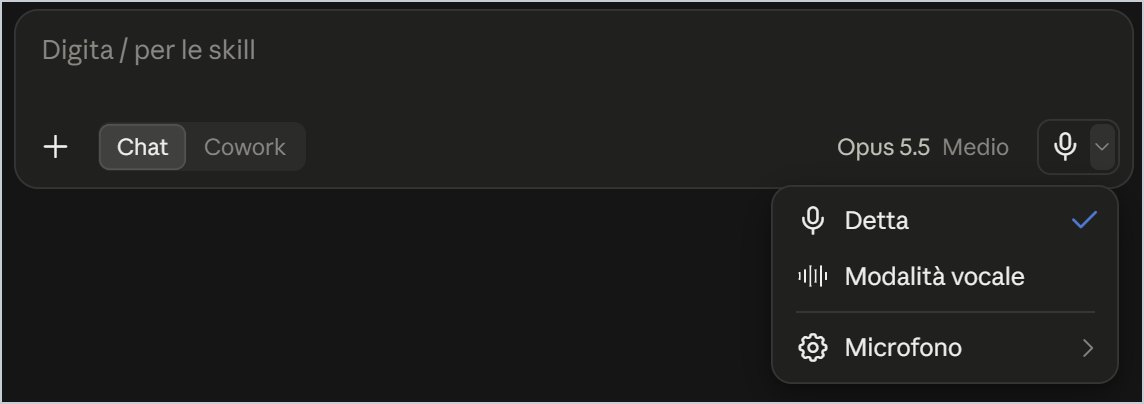
Press the microphone (or Ctrl+D in the app), speak normally, press again to stop, reread and send. For notes right after a meeting: dictate in a jumble and then write «Put these notes in order as a list of decisions and to-dos». Voice mode allows a real spoken conversation.
5. Projects, documents, skills and connectors
Four tools to stop re-explaining everything every time.
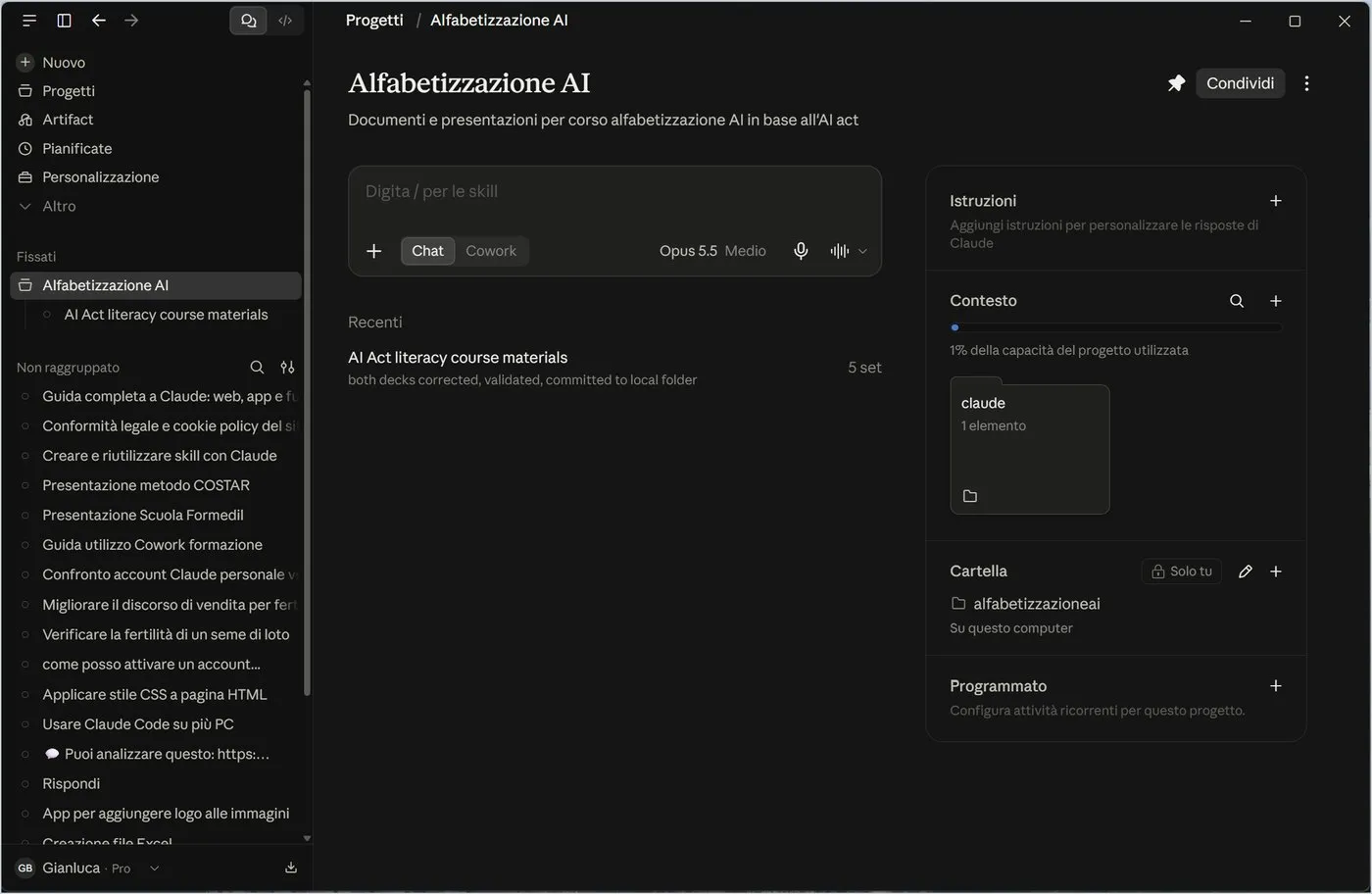
5.1 Creating a project
- In the sidebar click Projects, then New project.
- Give a short name and description.
- With the + next to Instructions write how Claude should behave in this project.
- With the + next to Context upload the reference files.
- Write the first request in the project box: the chat is born with all the context.
«You are my assistant for an artificial intelligence course for adult workers. Use simple language, examples from office work and do not exceed three pages. If I ask for a presentation, propose the outline first.»
Already started a chat outside the project? From the three-dot menu choose Add to project. In the app, the Folder entry can also link a folder on your PC.
5.2 Creating documents, presentations and pages
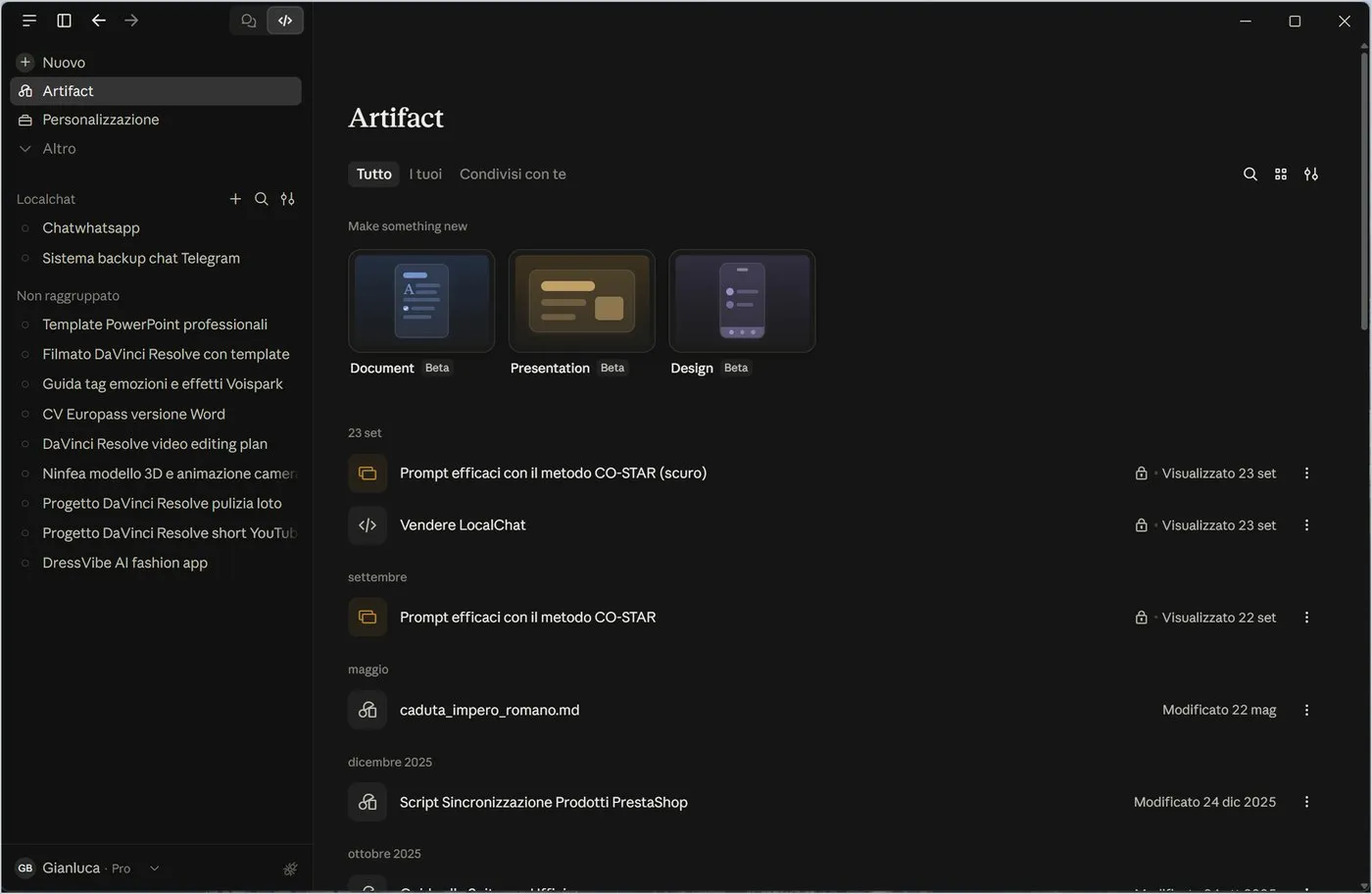
Describe what you need: «Create a flyer for an evening computer course, A4 format, blue and orange colours». Claude prepares the content in a window on the right (the Artifact) and you can ask for changes in the chat. For a Word, Excel, PowerPoint or PDF file ask for the format: the Code execution and file creation option in Settings, Features is needed. Everything is found again on the Artifact page.
5.3 Skills and connectors
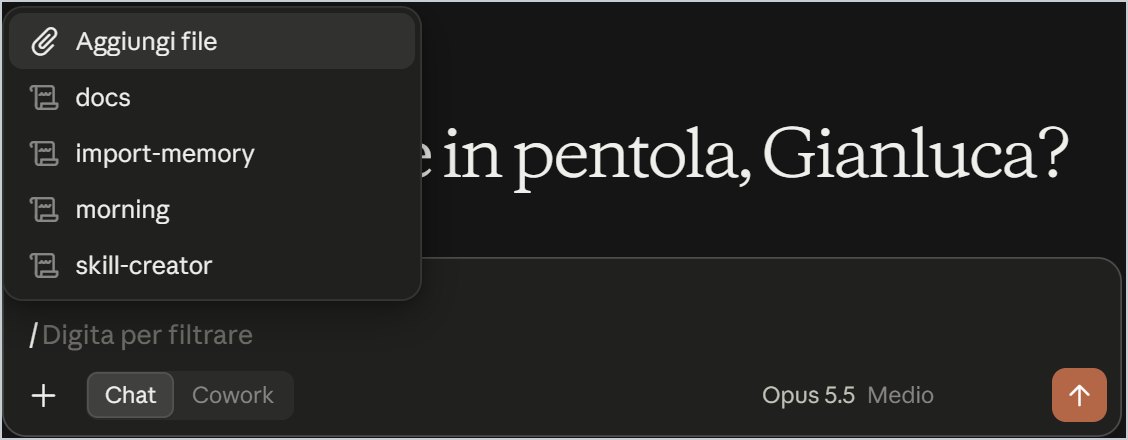
Type / in the box: the list of skills opens. If you often repeat the same task, turn it into a skill from Customize, Skills, Add, Create with Claude: «When I give you minutes, return decisions, owners and deadlines in a table».
To connect Google Drive, Gmail or Calendar go to Customize, Connectors, find the service under Discover and click +, or Connect under Yours. Then ask: «Search my mail for August invoices and summarise them in a table».
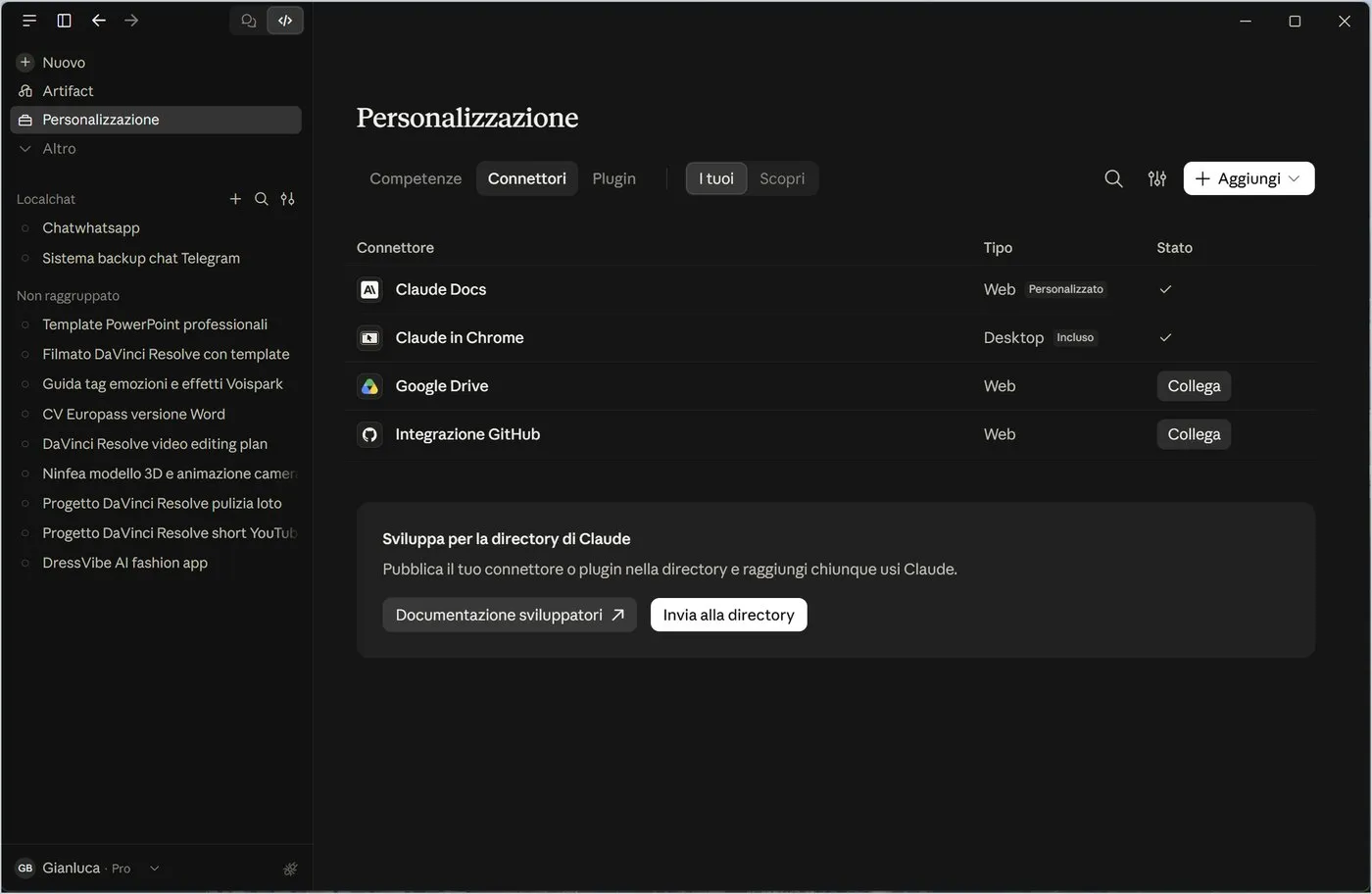
Every connector gives Claude access to real data. If you no longer need it, disconnect it; before connecting work mail check your organisation's rules.
6. Scheduled tasks and Cowork
Have Claude do the same job every day, or hand it a whole task.
6.1 Creating a scheduled task
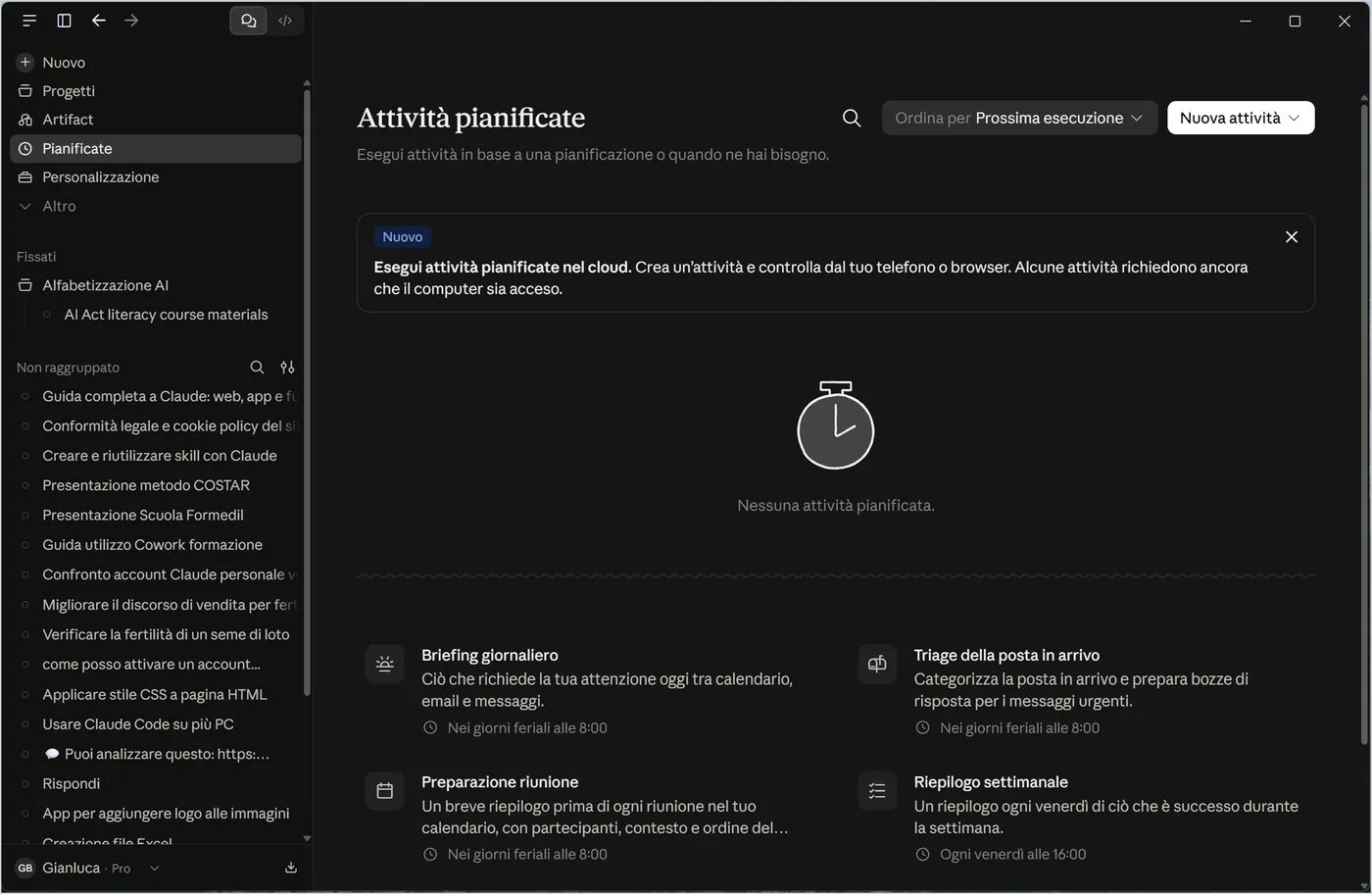
- Click Scheduled in the sidebar.
- Choose one of the templates at the bottom (for example Daily briefing) or New task.
- Describe what it must do and when: days and time.
- Save: the task appears in the list with the date of the next run.
| Task | When | What it produces |
|---|---|---|
| Daily briefing | weekdays, eight o'clock | what needs attention across calendar, email and messages |
| Inbox triage | every morning | sorted mail and draft replies for urgent ones |
| Meeting prep | before each meeting | summary with attendees, context and agenda |
| Weekly recap | Friday, four in the afternoon | what happened during the week |
Some tasks need the computer on. In the app turn on Settings, System, Keep the computer awake and leave Claude in the notification area. Each run uses your limit: few tasks, well written.
6.2 Cowork
- Under the box move the switch from Chat to Cowork.
- Choose the Project and, if you like, Manual mode (Claude asks for confirmation step by step).
- Describe the task: «Read the PDFs in the Invoices folder, extract date and amount and prepare a summary Excel sheet».
- Check the results in the Output tab or in the folder you indicated.
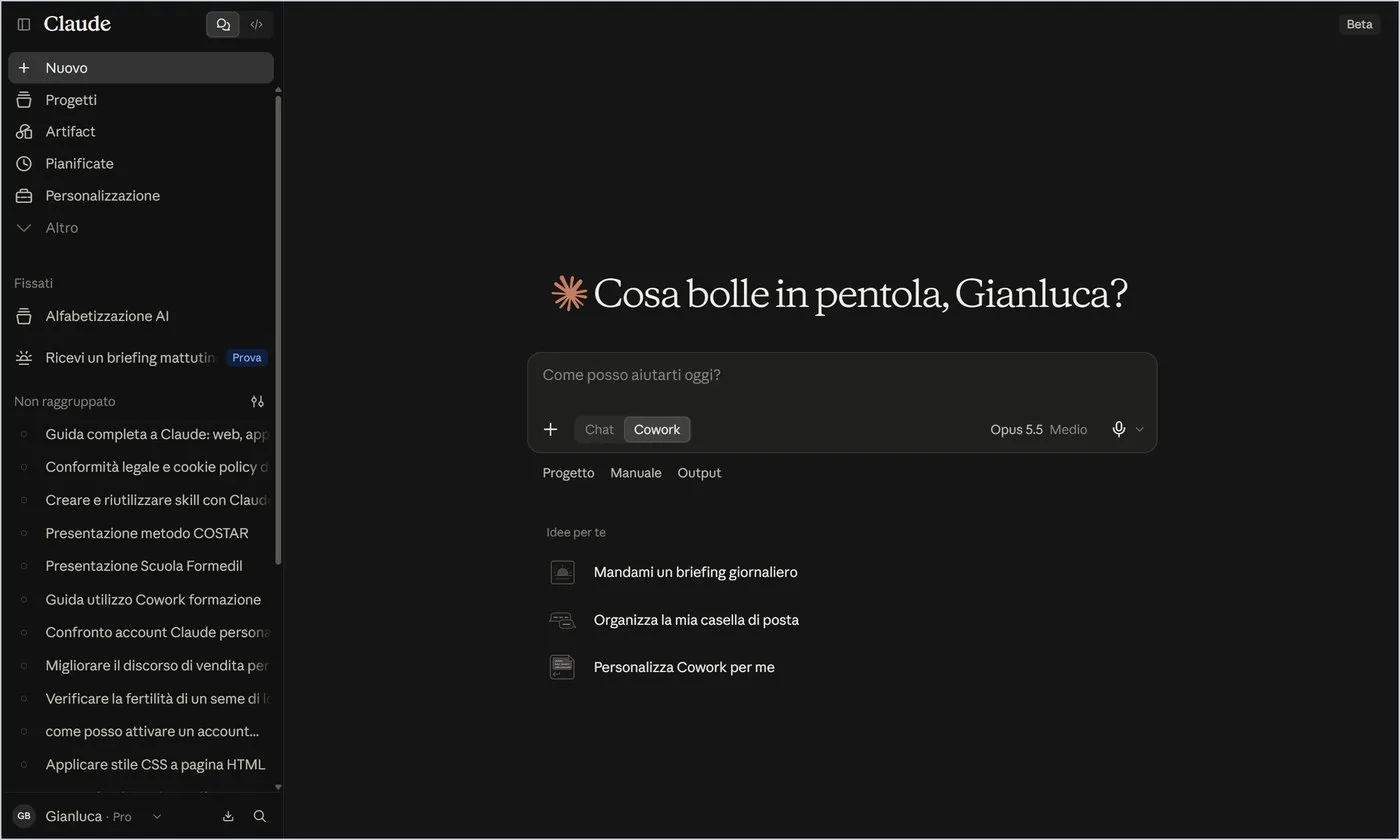
To work on your computer's files, in Settings, Cowork name the trusted folders. Start with a single test folder: the more permissions you give, the more care is needed.
7. Privacy, memory and usage limit
Five actions to use Claude with peace of mind, in order of importance.
7.1 Decide whether your data trains Claude
- Open Settings (Ctrl+comma, or your name menu, Settings).
- Go to Privacy and find the Help improve our AI models switch.
- If it is blue (on) and you do not want your chats and coding sessions to train the models, click it to turn it off.
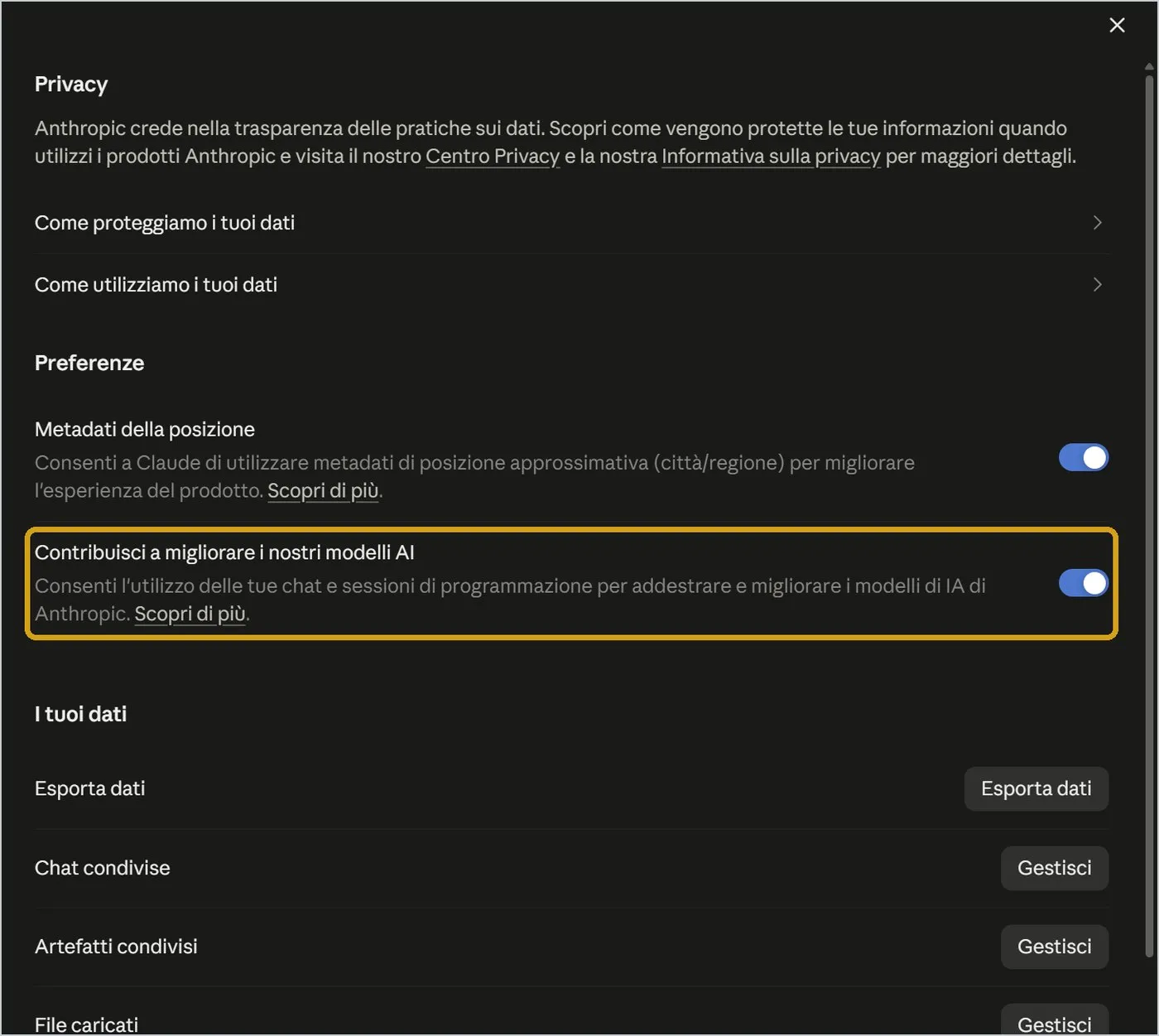
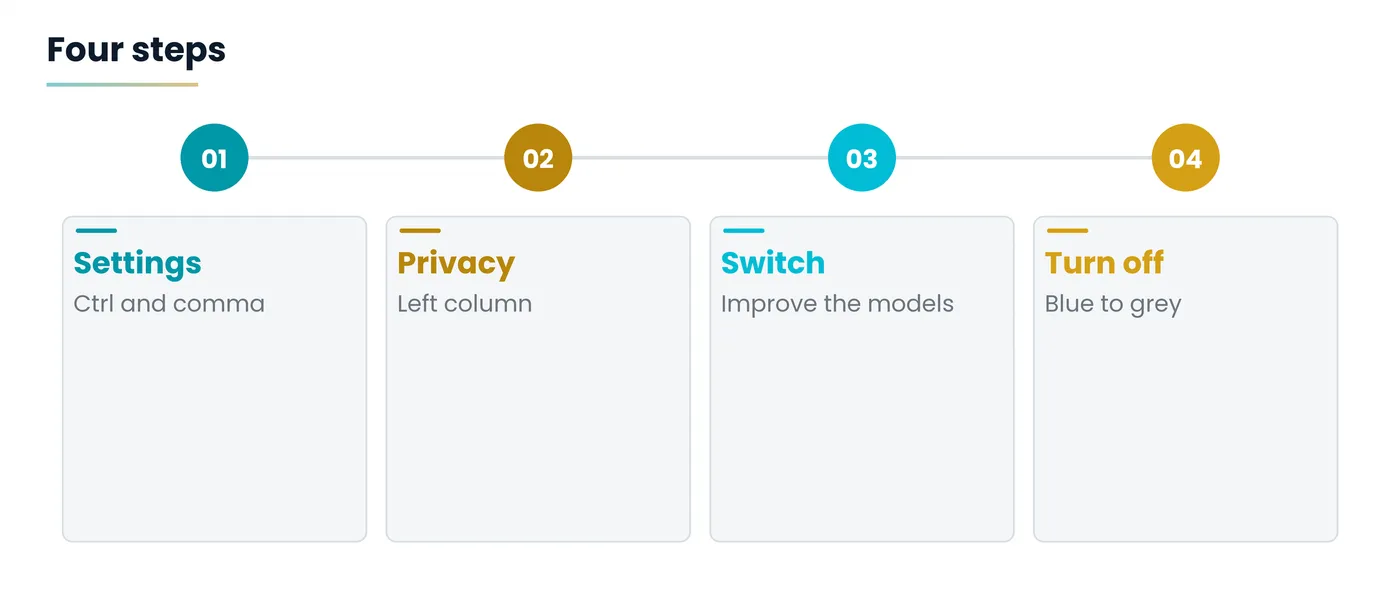
If you work with data from clients, students, patients or confidential documents, turn it off before you start. It applies to future conversations; incognito chats are never used for training anyway.
7.2 Use incognito for sensitive things
Click the ghost icon at the top right (Ctrl+Shift+I in the app): the chat does not appear in history or search. If you need the text, copy it before closing.
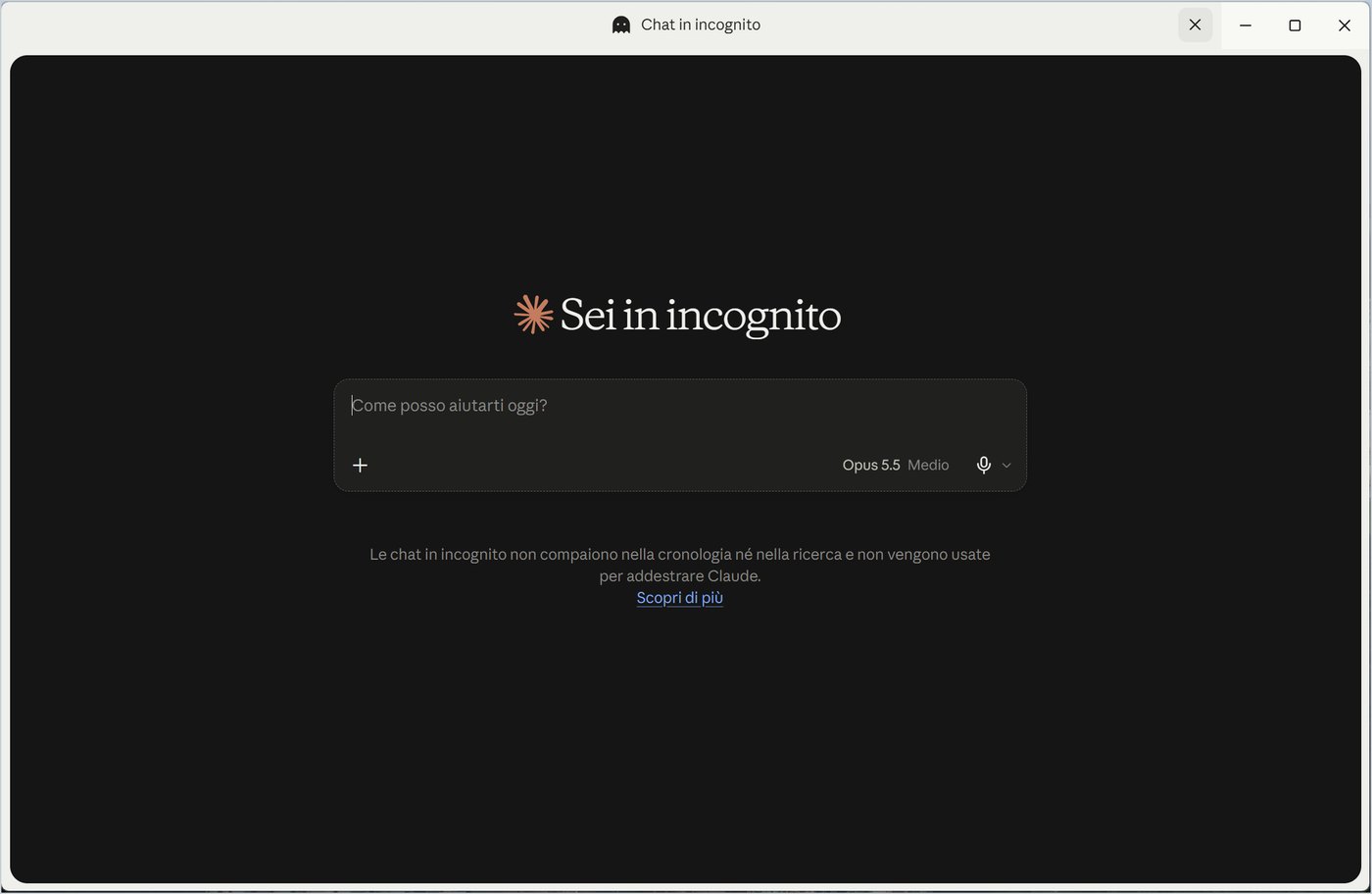
7.3 Download a copy and check what you shared
In Privacy, Your data: Export data prepares an archive of what Claude keeps about you; Shared chats, Shared artifacts and Uploaded files let you see and revoke public links and delete attached files.
7.4 Decide how much Claude should remember
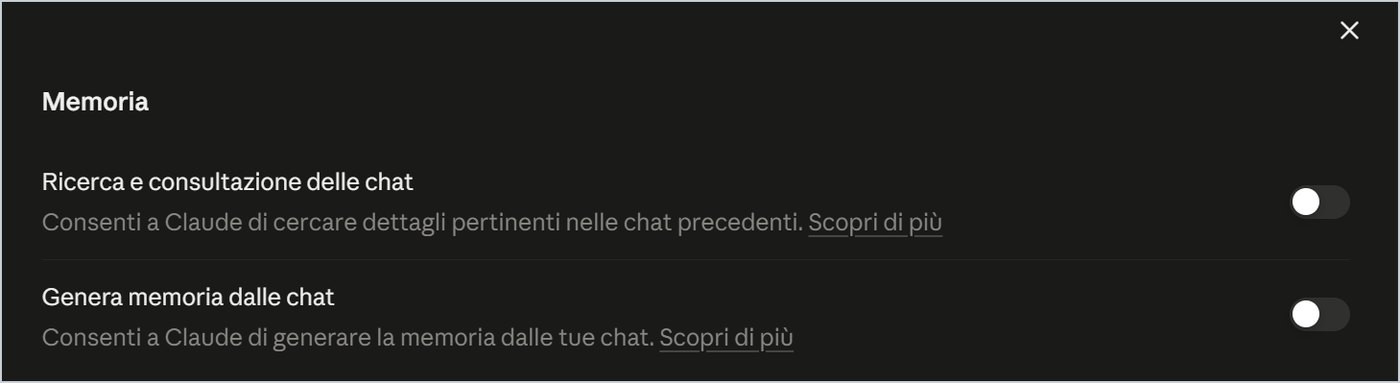
In Settings, Memory two switches decide whether Claude searches past chats and whether it generates memory from them. Turn them on only if you want an assistant that knows you over time; otherwise leave them off.
8. Do not run out of your usage limit
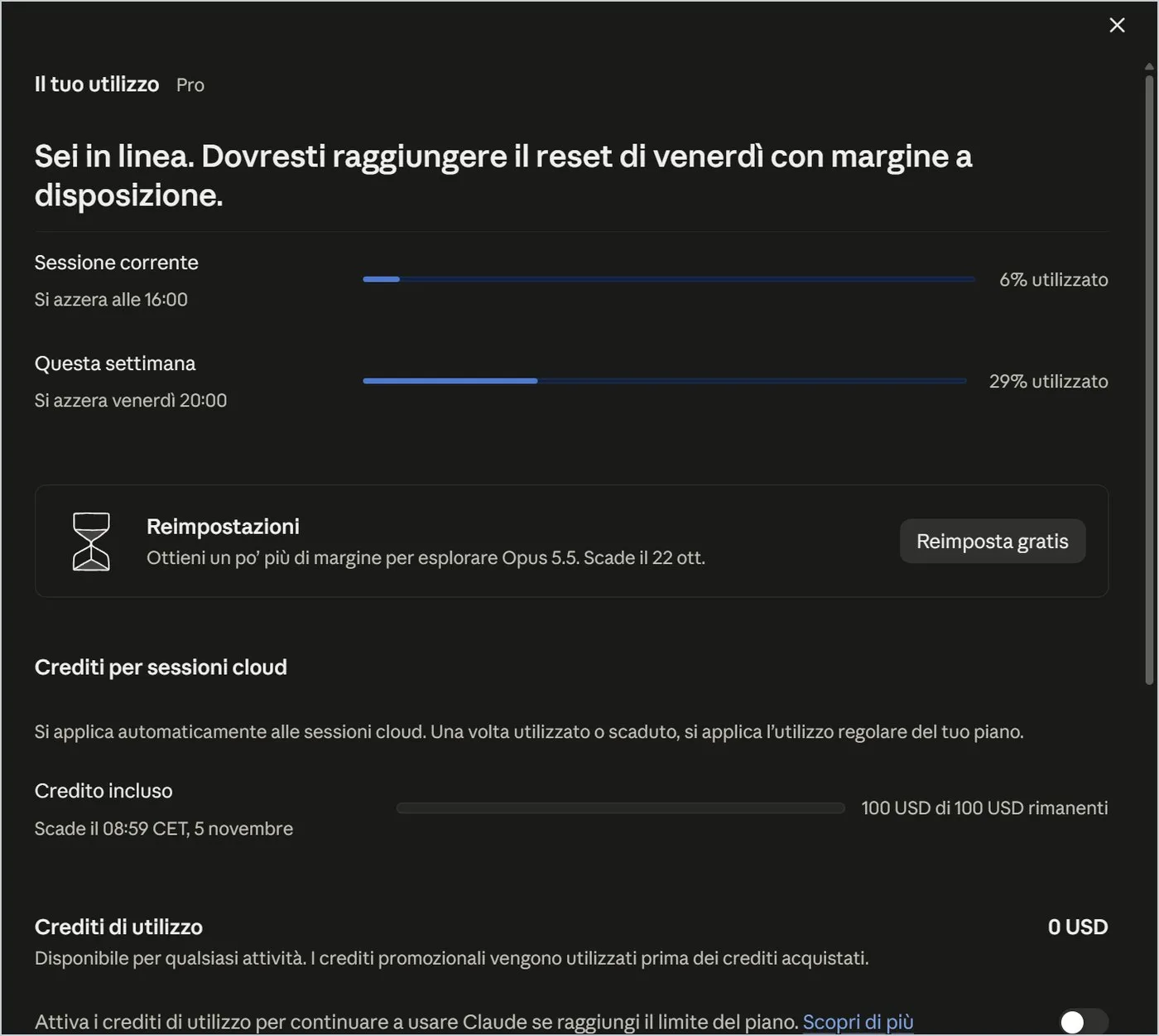
Claude has a usage limit with periodic resets: here is how to watch it and make it last.
Settings, Usage shows the current session, weekly use and the split between Chat, Cowork and Claude Code.
| Habit | Why it helps |
|---|---|
| A new chat for each topic | long chats weigh more with every message |
| Medium effort, high only if needed | Max uses five and a half times or more |
| Haiku or Sonnet for simple work | lighter and faster models |
| Only the attachments needed | every attachment counts |
| Few scheduled tasks | each run counts as a use |
9. Five scenarios and a prompt cookbook
From start to finish: how the functions seen so far combine.
9.1 Scenario 1: answering a difficult email
- New, empty chat, Opus 5.5, Medium effort.
- Paste the message you received and write: «I am [role]. The sender is angry because [reason]. Write a friendly but firm reply, at most one hundred and twenty words.»
- Refine: «Less formal» or «Add that we can call him back tomorrow».
- Copy the text with the copy icon and paste it into your mail program.
9.2 Scenario 2: understanding a long document
- New, then +, Add files or photos and choose the PDF.
- Write: «Summarise in ten points, then list deadlines and obligations for me. Flag what is ambiguous.»
- Dig deeper with questions: «What does point four mean? Give me an example.»
- Rename the chat with the contract's name and pin it if you will need it again.
9.3 Scenario 3: preparing a course
- Projects, New project: «Basic Excel course».
- In Instructions write audience, level and tone; in Context upload the syllabus.
- Ask: «Propose an outline of six two-hour lessons», then «Write lesson one with exercises».
- Ask for the material in Word or PowerPoint: you find it in Artifacts.
9.4 Scenario 4: resuming work from two months ago
- Press Ctrl+Shift+K (or the lens) and type the client's name.
- Filter by Chats or Artifacts and look at the dates.
- Open the chat and write: «Let us pick up here: update the document with September's data.»
9.5 Scenario 5: tidying up
- Open the list sliders and use Last activity to see old chats.
- For each: Pin or Add to project if needed, Delete if no longer needed.
- Before bulk deleting run Privacy, Export data.
- Revoke useless links from Privacy, Shared chats, Manage.
9.6 The cookbook
| For... | Prompt |
|---|---|
| Summarising | «Summarise the following text in [five] points and a closing sentence. Do not add information that is not there.» |
| Rewriting | «Rewrite this text in a more [simple, formal, concise] way, keeping all the data.» |
| Translating | «Translate into [Italian] in a professional tone. Flag ambiguous terms and suggest alternatives.» |
| Proofreading | «Correct spelling and grammar. Show me the changes in a separate list.» |
| Explaining | «Explain [topic] to me like to a beginner, with a practical example and an analogy.» |
| Preparing a meeting | «I am about to meet [person] about [topic]. Prepare five questions to ask and three likely objections.» |
| Deciding | «Compare [option A] and [option B] in a table: costs, risks, timing. Then advise me, with reasons.» |
| Minutes | «From these notes derive decisions, owners, deadlines and open points, in a table.» |
| Learning | «Give me a ten-question quiz on [topic], one at a time, and correct me after each answer.» |
| Checking | «Reread your answer: list what you are unsure about and how I can verify it.» |
When a request works, save it: as a fixed instruction, inside a project or as a skill. One good prompt reused is worth a hundred written in a hurry.
An afternoon as an expert user
Twenty minutes with a real case from your work: at the end you will have a tidy chat, a saved prompt and your privacy settings decided.
- Choose a task you do often, for example answering an email or summarising a document.
- Open a new chat and write the request the way you would today; save the answer.
- Rewrite it with the CO-STAR method and compare the two answers.
- Rename the chat with a word you will remember and pin it.
- Search for it with Ctrl+Shift+K to check you can find it again.
- Save the better prompt in Instructions for Claude or in a project, with the variable parts in square brackets.
- Open Settings, Privacy, and decide the training switch.
- Look at Usage to see how much of your limit you used.
The prompt contains context, objective, tone, audience and format.
The chat has a title that search can find.
You made a conscious decision on the training setting.
You saved a reusable template.
Questions that come up in class
Does a longer prompt work better?
No: precision matters, not length. Five lines with the right information beat a page of padding.
Does Claude remember what I said in another chat?
Not on its own: it remembers everything inside the open chat. To carry context elsewhere use a project or turn on Memory in Settings.
How do I find a chat from months ago?
With the lens or Ctrl+Shift+K, searching a rare word such as a client's name. You can filter by Chats, Artifacts, Projects.
I deleted a chat by mistake: can I get it back?
No. In future export your data from Privacy, and pin or move important chats into a project instead of deleting them.
Can I attach documents with my clients' data?
First decide the training setting in Privacy and check your organisation's rules. For tests use incognito.
I ran out of my limit: what do I do?
Look at Usage for the reset time; open new chats, pick a lighter model and keep effort on Medium.
Glossary
| Term | What it means |
|---|---|
| Artifact | A document, page or small app created by Claude and shown in a separate window. |
| Chat | A conversation with Claude; it remembers everything said within it. |
| CO-STAR | A six-line outline for a prompt: context, objective, style, tone, audience, response. |
| Connector | A link from Claude to a service such as Google Drive or Gmail. |
| Cowork | A mode where you assign Claude a task instead of asking a question. |
| Effort | How much Claude thinks before answering; higher means more usage. |
| Incognito | A chat that does not appear in history and is not used for training. |
| Project | A folder with instructions, files and chats on one topic, visible to Claude in every conversation. |
| Prompt | The text you write to Claude: the request with its context. |
| Skill | A reusable procedure callable with the slash. |
| Training | Use of content to improve future models: decided in Privacy. |
Further reading
- Claude interface, web version and desktop app for Windows — observed and captured in September 2026
- The CO-STAR method for writing prompts — reference framework used in gianlu.it courses
- Anthropic help and privacy pages — to consult for up-to-date terms
Interface observed and captured in September 2026: model names and menu entries change often. Screenshots are cropped from the original screens. The screenshots show the Italian interface.
Download the handoutPrintable PDF version of this lesson, with exercise and glossary.
Download the handout as PDF