Published on
«Google is frozen.» «I deleted Chrome, now the Internet is gone.» You hear these sentences every day, at home and at the office, and they mix up three different things: the program you use to browse, the service you use to search, and the connection that brings it all into your house.
In this lesson we put things in order once and for all, with a picture you will not forget: the car and the GPS. By the end you will be able to say what a browser is, what a search engine is, how they work together, and why Chrome and Google are not the same thing.
Download the handoutPrintable PDF version of this lesson, with exercise and glossary.
Download the handout as PDFGoal
Understand that the browser is the program you use to navigate and the search engine is the website you use to search, recognise both, use them together and change the default one.
What you will be able to do
- Tell a browser from a search engine, with the most common names.
- Explain in plain words what a browser does and how a search engine knows about pages.
- Search for information in four steps, choosing good keywords.
- Change the default search engine of your browser.
- Spot the most common mistakes and the signs of an unreliable result.
Contents
- The problem: «I opened Google»
- The browser: your car for the web
- The search engine: the GPS of the Internet
- How they work together: four steps
- Chrome is not Google
- A little history in six dates
- Common mistakes and tips for searching well
- In short
- Hands-on exercise
- Questions that come up in class
- Glossary
- Further reading
1. The problem: «I opened Google»
How many times have you heard «Google isn't working» when, in fact, something else wasn't working?
Imagine Mrs Rosa phoning her grandson: «Google is stuck, come over right now!». He arrives and finds three things. Rosa opened Edge, typed «google» in the bar at the top, and the page is frozen because the Wi-Fi dropped. A program, a service and a connection: three different things, called by a single word.
It is not Rosa's fault. Nobody ever explained the difference, for a precise reason: when you use them together, they look like one thing. Yet knowing who does what saves you from plenty of trouble, from «I lost the Internet» to «someone changed my home page».
1.1 The car and the GPS
The simplest picture is this. The browser is the car: it lets you travel the roads of the Internet. The search engine is the GPS: it tells you where to find what you are looking for.
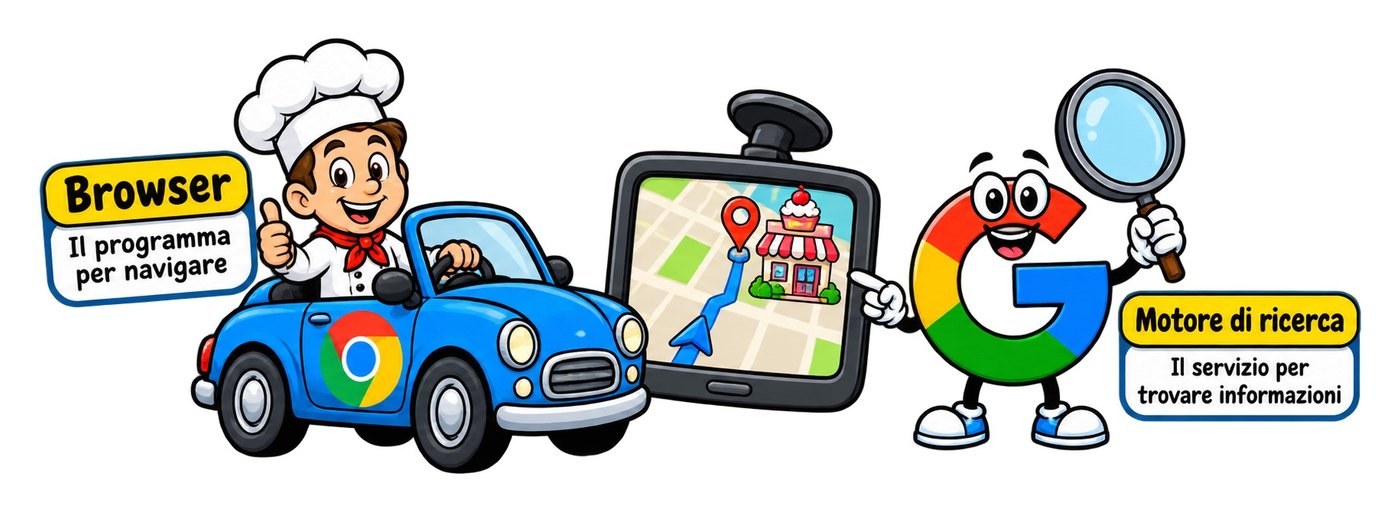
A chef wants to buy a cake from a pastry shop he does not know. The car alone does not know where to go. The GPS alone does not move an inch. You need both, and the GPS sits inside the car: just as a search engine is a website you open inside the browser.
The browser is the program you navigate with; the search engine is the service you search with.
| Browser | Search engine | |
|---|---|---|
| What it is | A program installed on your device | A website you open with the browser |
| What it is for | Opening and showing web pages | Finding the right pages among billions |
| In the picture | The car | The GPS |
| Examples | Chrome, Edge, Firefox, Safari | Google, Bing, DuckDuckGo |
| Without the other | It works, but you need to know the addresses | It cannot even be opened |
2. The browser: your car for the web
The browser is the program that opens Internet pages and shows them on your screen.
The word comes from the verb to browse, to leaf through or look around. You find it on your computer, phone and tablet: it is the icon you tap when you want to «go on the Internet».
2.1 What it really does, in one second
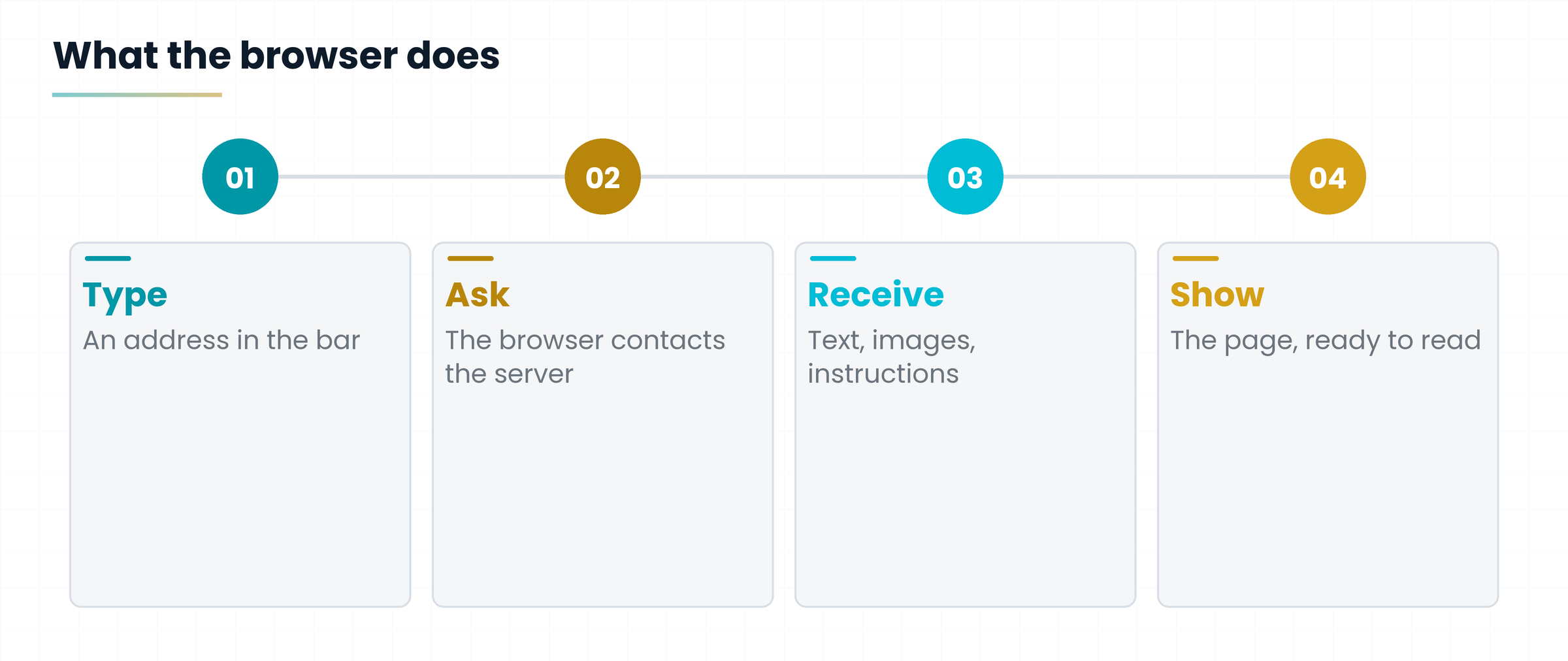
When you type an address, the browser sends a request to the computer that holds that site (it is called a server, because it «serves» pages to whoever asks). The server answers with text, images and instructions. The browser puts them in order and shows you the finished page.
It is a bit like a restaurant: you order, the kitchen prepares the ingredients, and the waiter brings you the finished dish. The browser is the waiter and the one who plates the food.
2.2 What you find inside a browser
- The address bar, at the top, where you type where you want to go (and also what you want to search for, as we will see);
- Tabs, to keep several pages open at once, like bookmarks between the pages of a notebook;
- Favourites (or bookmarks), to find the sites you use often in one click;
- The history, the list of pages you visited, handy when you need «that recipe from yesterday»;
- Saved passwords, convenient but to be protected with a master password or the device lock;
- Extensions, small add-on programs, such as an ad blocker or a translator;
- Updates, which fix security flaws: an old browser is a door with a broken lock.
2.3 The most common browsers
There are many, but the difference between one and another is usually small, like two car brands in the same class. There are only a few things to know.
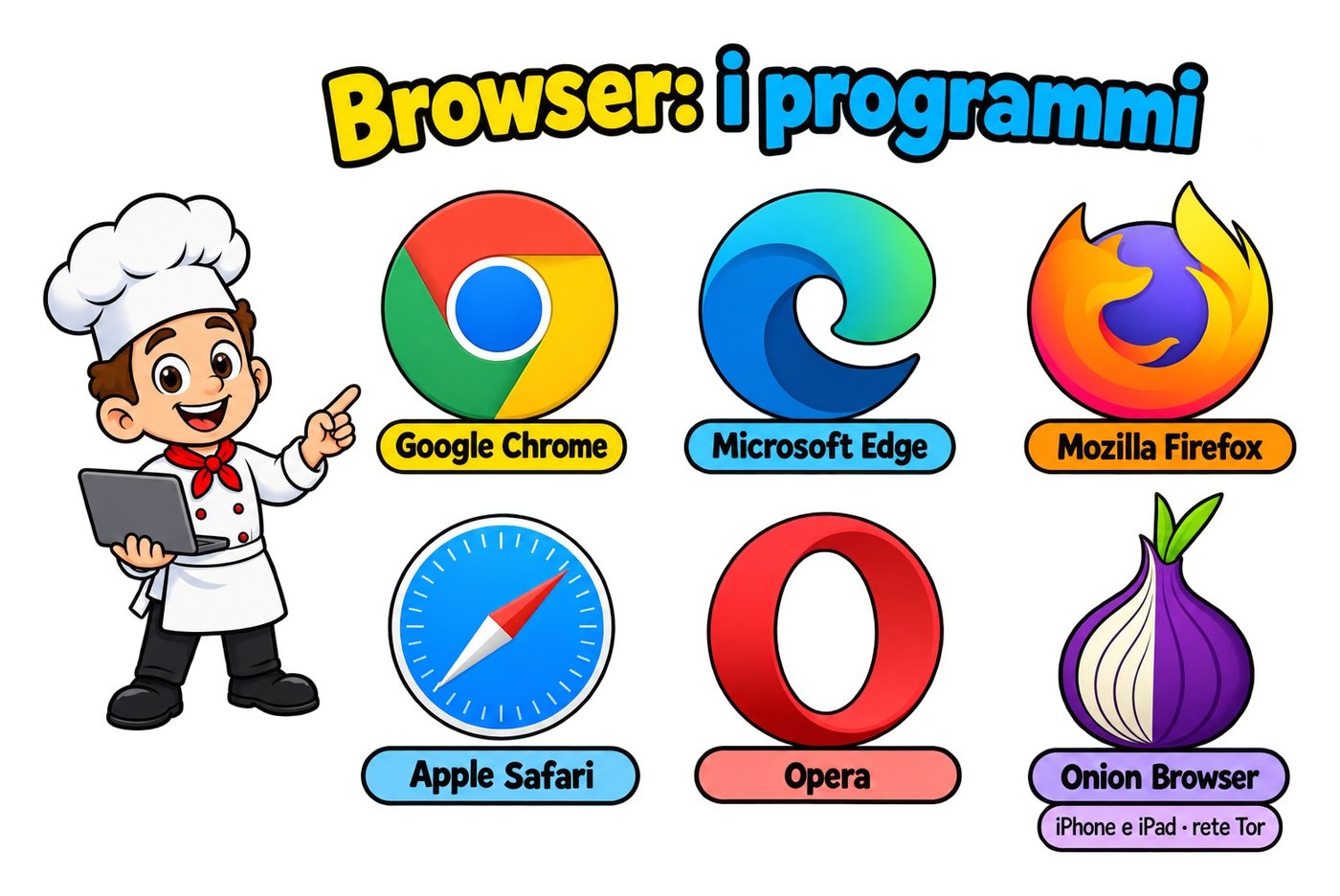
| Browser | Made by | Worth remembering |
|---|---|---|
| Google Chrome | The program is called Chrome; Google is the company (and the search engine). | |
| Microsoft Edge | Microsoft | Already installed on Windows; it replaced the old Internet Explorer. |
| Mozilla Firefox | Mozilla | It is open source: its code is public, anyone can read it. |
| Apple Safari | Apple | The one preinstalled on iPhone, iPad and Mac. |
| Opera | Opera | Another popular alternative, with a few extra features built in. |
| Onion Browser | A project for the Tor network | For iPhone and iPad: it gives access to the Tor network, where the so-called dark web lives. |
The Tor network (from The Onion Router, because the connection passes through several layers) hides who you are by bouncing your request across computers run by volunteers. It helps journalists, activists and people living where the Internet is censored.
But it also hosts illegal sites, and its pages do not appear in ordinary search engines. Going there out of curiosity, without knowing what you are doing, is like walking into a dark alley at midnight «just to see what is there». If you do not need it, you do not need it.
3. The search engine: the GPS of the Internet
The Internet has billions of pages and no librarian. The search engine plays the librarian.
A search engine is a website where you type a few keywords (the most important words of what you are looking for) and get a list of pages about that topic. To open it you need a browser. It does not work the other way round: a browser works without a search engine, if you know the address.
3.1 How does it know everything?
Picture a huge library where every night an army of helpers walks the shelves, reads every new book and writes a card for the catalogue. When you reach the desk, the librarian does not run off to read all the books: she checks the catalogue, which is already prepared. That is why the answer comes in a fraction of a second.
Search engines do exactly that, in four moves that repeat all the time.
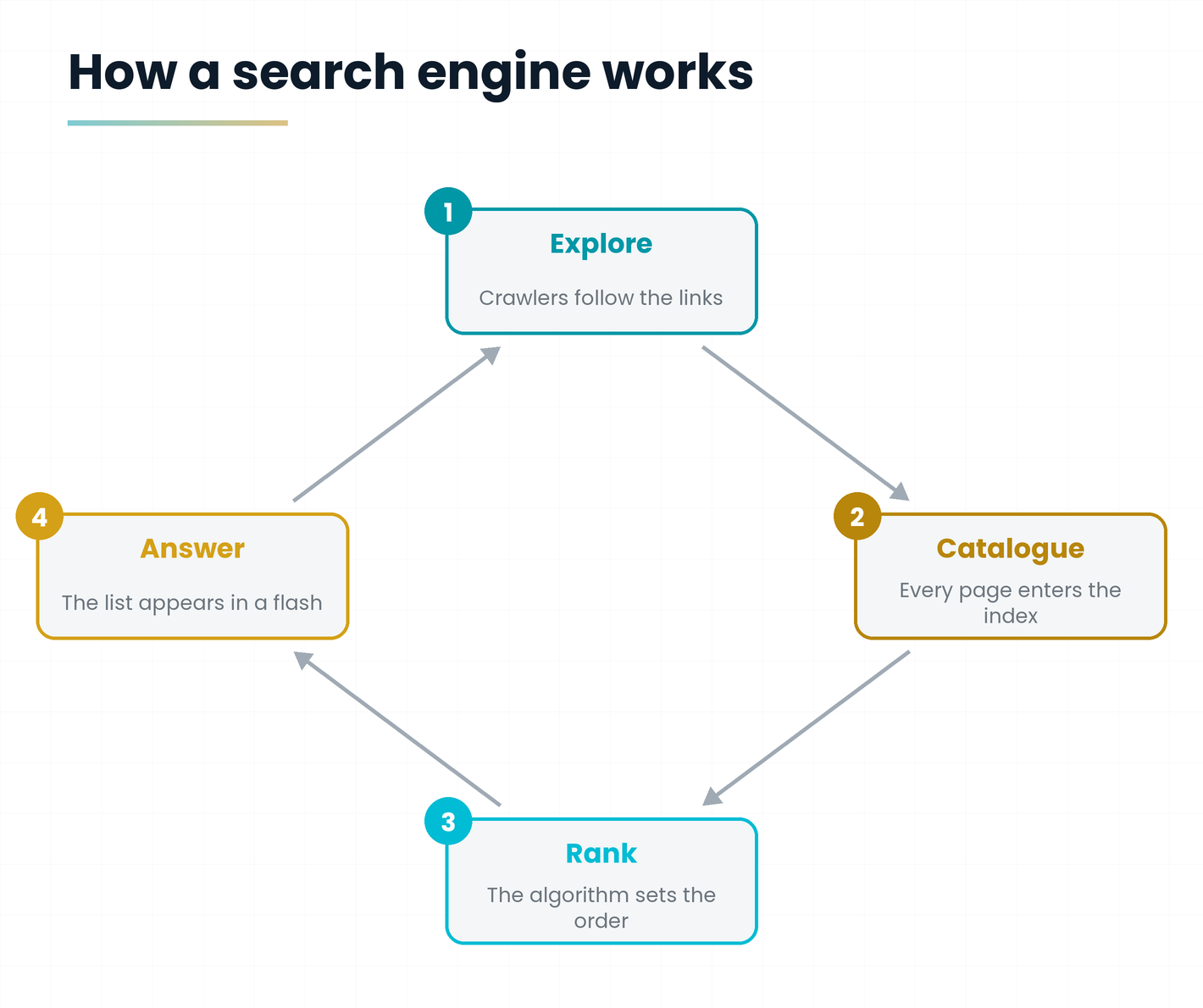
- Explore. Programs called crawlers (also known as spiders) jump from link to link and discover new pages.
- Catalogue. For each page they note what it is about and put it in the index, the catalogue.
- Rank. When you search, a set of rules (the algorithm) decides which pages go first, based on how useful and trustworthy they seem for your question.
- Answer. It shows you the list, with a title, an address and a short summary of every page.
When you search, you are not questioning the Internet live: you are consulting a catalogue the engine has already prepared.
3.2 The best-known search engines
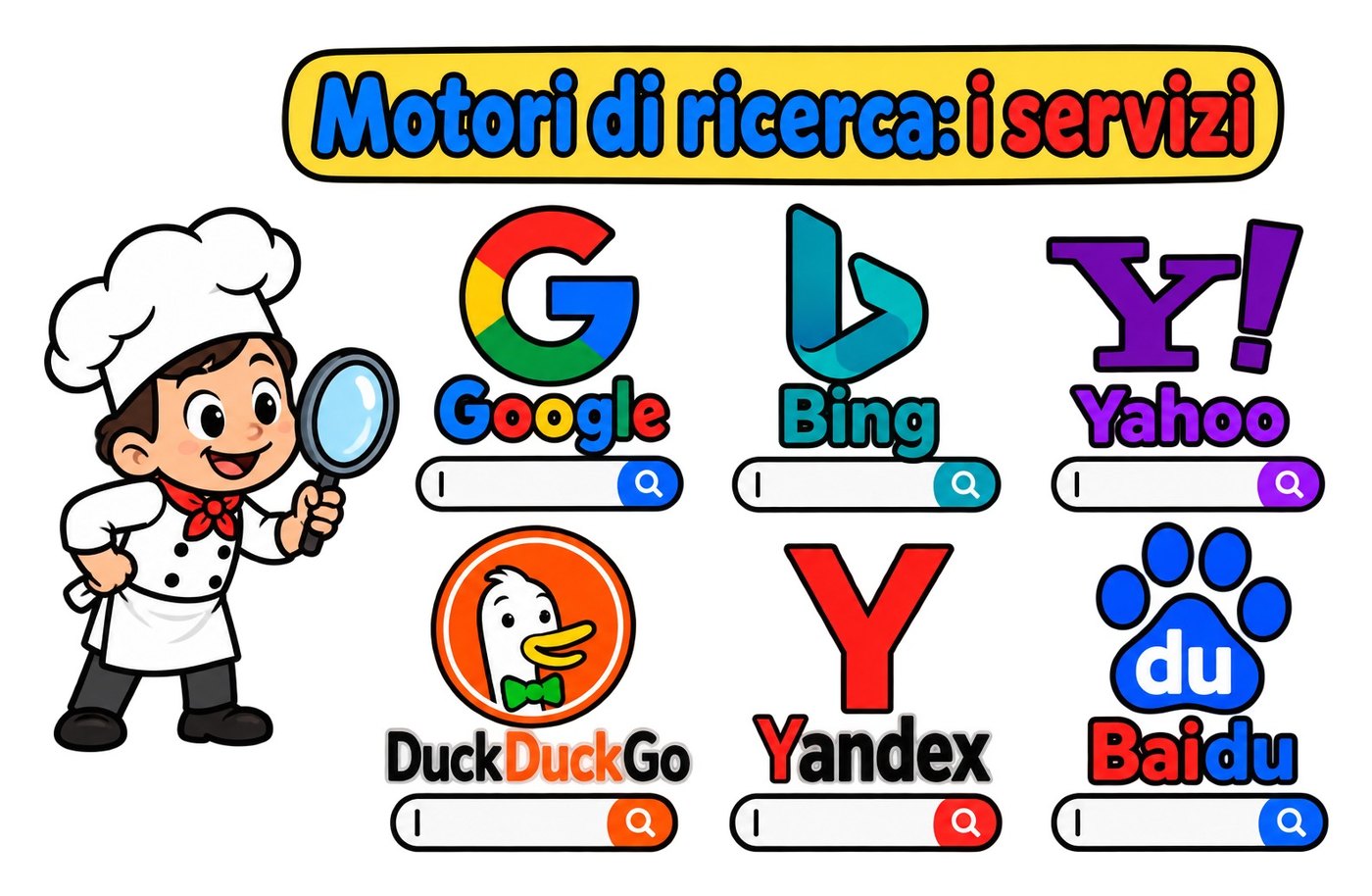
| Search engine | What sets it apart |
|---|---|
| The most famous, with a very simple page: a bar and little else. | |
| Bing | Microsoft's search engine, which is also a news and articles portal. |
| Yahoo | A historic name: search engine and web portal. |
| DuckDuckGo | Born with privacy at the centre: it states that it does not track the people who use it. |
| Yandex | The search engine of Russian origin. |
| Baidu | The main Chinese search engine: in China many Western services are blocked. |
At the top of the list, almost all search engines show ads: sites that paid to appear there. They are usually marked with the word «Sponsored» (or «Ad»). They are not necessarily wrong, but they are not the «best»: they are the best paid. If you are looking for your bank's site, check that the address really is your bank's.
3.3 And what about AI chatbots?
Today many search engines and browsers also offer answers written by artificial intelligence. Handy, but remember: a chatbot is not a browser and it is not a catalogue of pages either. It composes a text that sounds right, and sometimes gets it wrong. If it matters, open the source and check.
4. How they work together: four steps
Looking up a recipe, a timetable or a shop always follows the same pattern, even if you do it without thinking.
Let us try it with a tasty example: you want to bake a chocolate cake and you have no recipe.
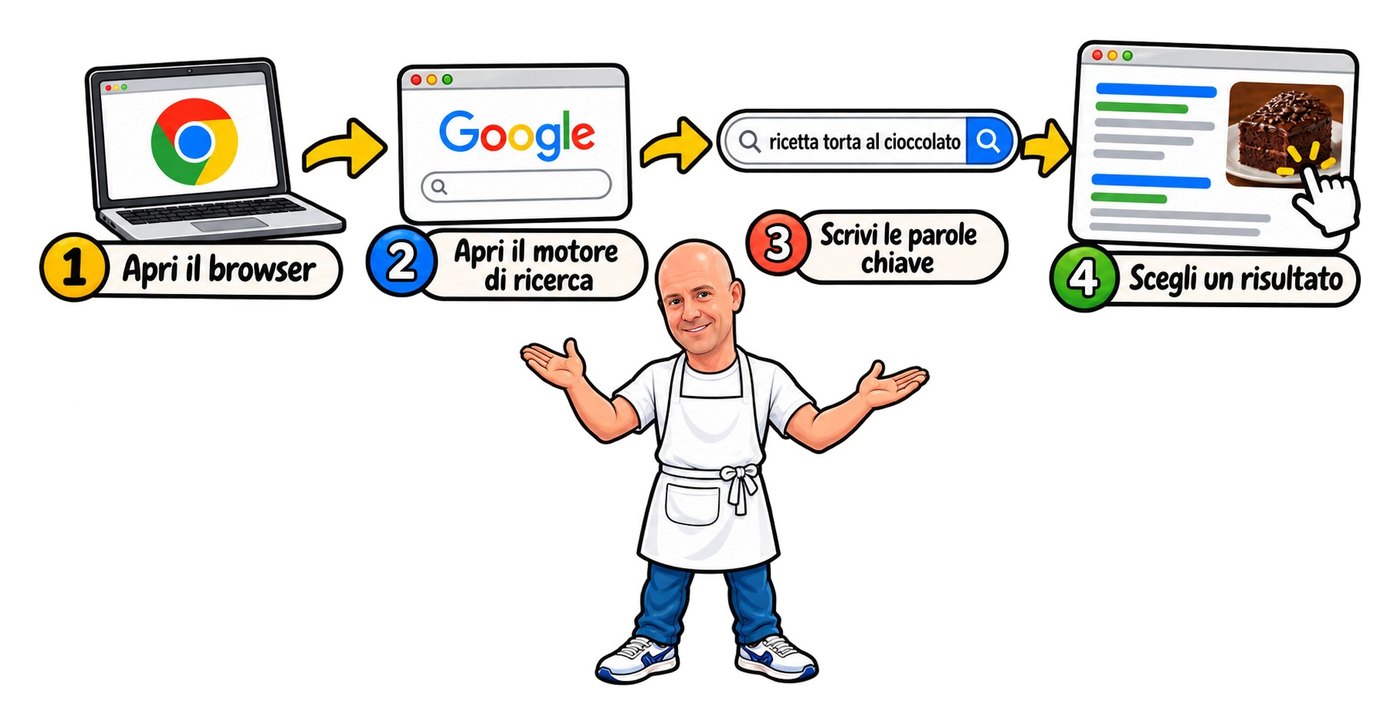
- Open the browser. Tap the icon of Chrome, Edge, Safari or whatever you use.
- Open the search engine. Type its address (for example google dot com) or use the bar that is already there.
- Type the keywords. Here: «chocolate cake recipe».
- Choose a result. Read the titles, look at the address, and tap the one that convinces you.
4.1 The single-bar trick
Today's browsers have one bar at the top, and it does two jobs. If you type an address, it takes you straight to the site. If you type words, it sends them to the search engine you set as default. That is why many people do not notice that there are two steps.
| What you type in the bar | What happens |
|---|---|
| www.gianlu.it | The browser goes straight to the site, without passing through the search engine. |
| chocolate cake recipe | The browser sends the words to the default engine and shows the results. |
| gianlu | One word, no dot: usually a search starts. |
4.2 Choosing good keywords
Search engines now understand full sentences too, but the right words make the search more precise. Think about what the site you want would write: not «how do I make myself a nice dessert», but «chocolate cake recipe».
- Few words, the important ones. Three or four are enough.
- Quotation marks keep a phrase together: «original sacher cake» looks for exactly that sequence.
- The minus sign excludes a word: «cake recipe -cream» removes the results with cream.
- A site name limits the search to that site: «cake recipe site:bbcgoodfood.com». It works on Google and many other engines.
The pastry chef: «sponge cake oven temperature».
The plumber: «kitchen mixer tap washer».
The student: «Romeo and Juliet act two summary».
The lorry driver: «motorway rest area near Birmingham».
In every case: a few important words, no long sentences.
5. Chrome is not Google
The reason the confusion is so widespread is called Google: it makes a browser and a search engine.
Chrome is the browser, the car. Google is the search engine, the GPS. They come from the same maker, so they are designed to work well together, but they are two separate things: you can use Chrome with a search engine other than Google, and you can use Google with a browser other than Chrome.
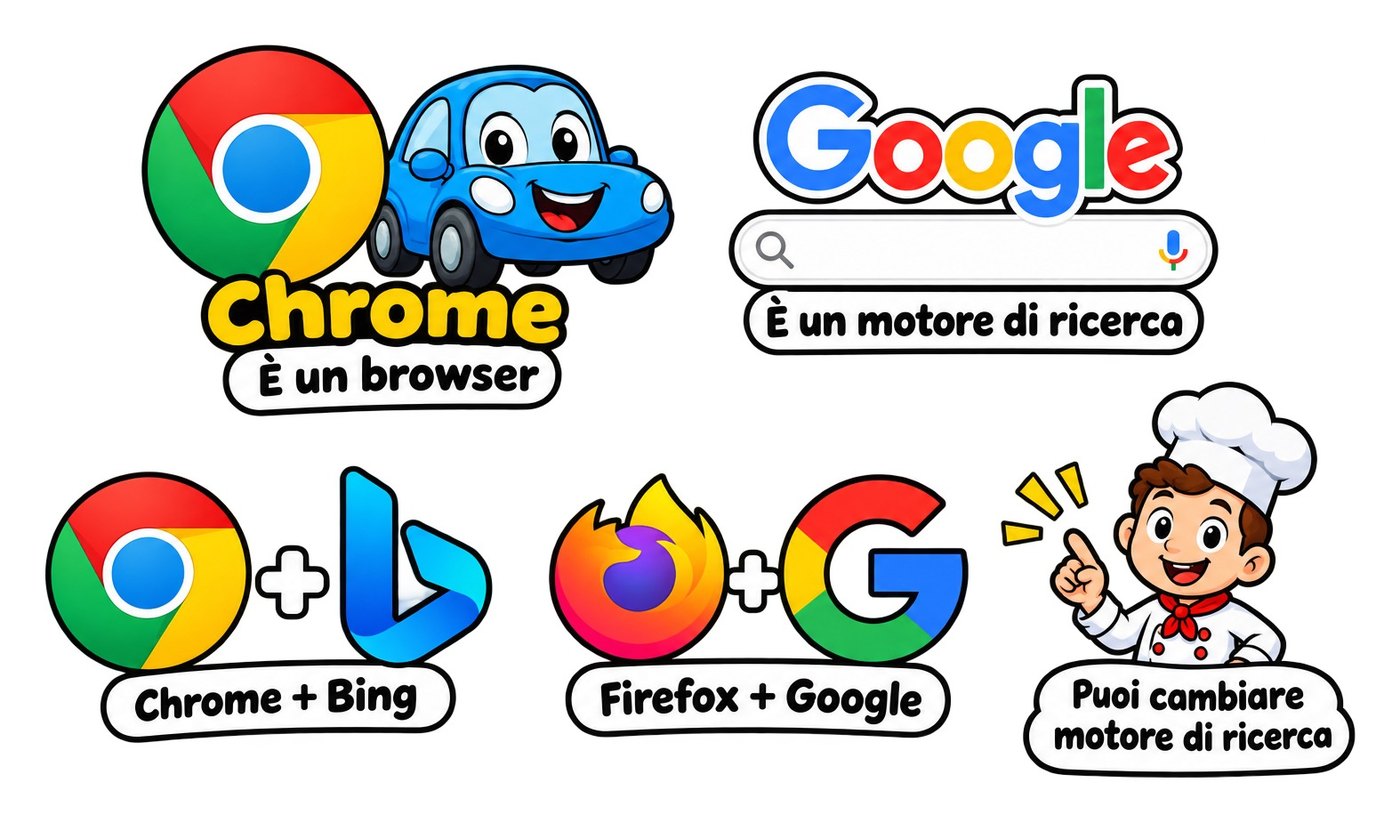
The same goes for the others: Edge is Microsoft's browser and Bing is its search engine, but you can use Edge with Google and Firefox with Bing. It is like the car and the GPS: you can fit a different one.
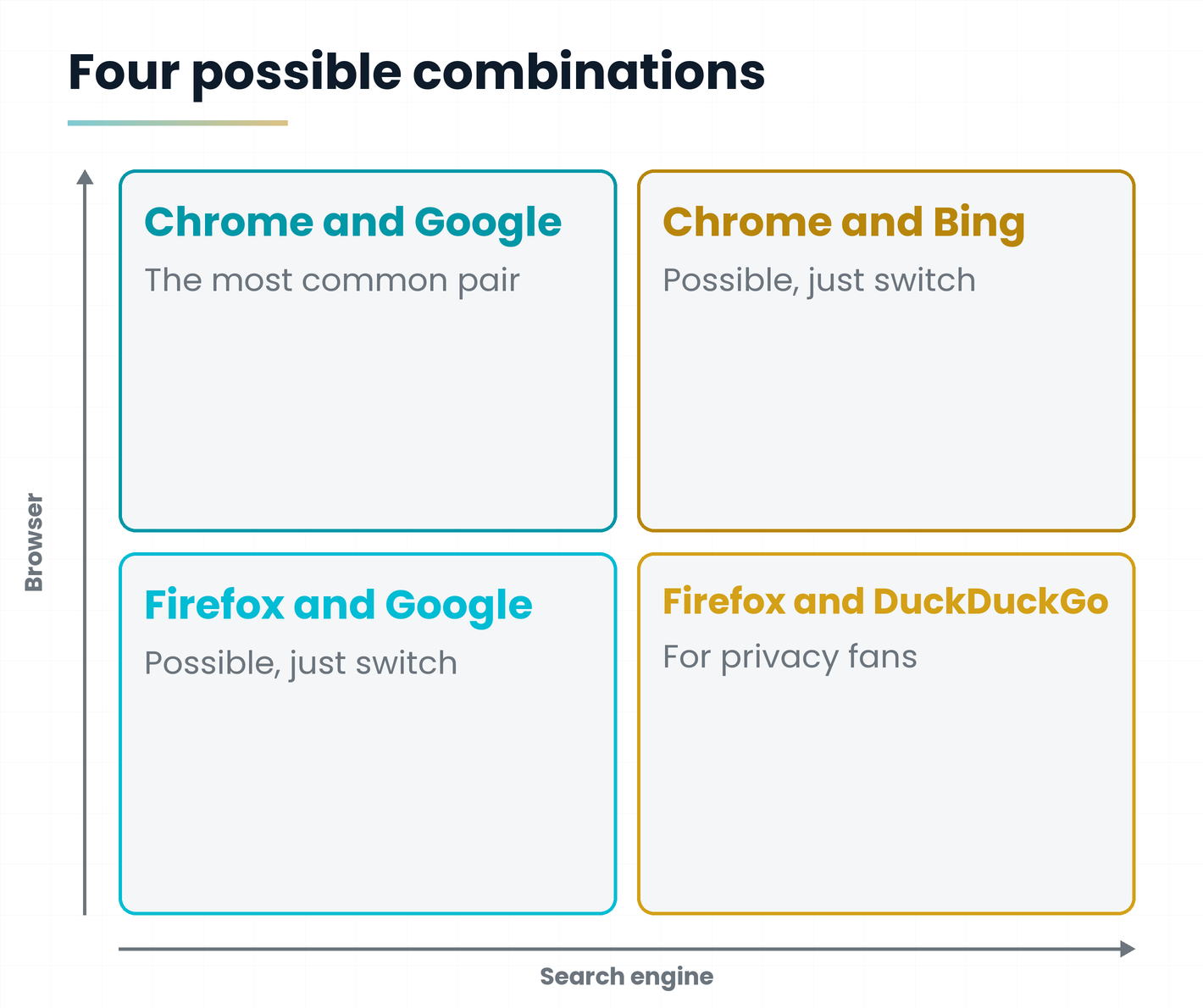
5.1 How to change the search engine
Every browser has a default engine, the one it uses if you do not tell it otherwise. Changing it is easy and deletes nothing.
- Open the browser Settings (usually from the three-dot menu or the gear icon).
- Look for Search engine (if you cannot see it, type «search» in the settings search box).
- Pick the one you prefer from the list, for example DuckDuckGo or Bing.
- Try it right away: type a few words in the bar at the top and see who answers.
Menu names change a little from one browser to another and from one version to another, but the path is always the same: settings, search engine, choice.
If one day your home page or search engine is different and you have not touched anything, some program installed in a hurry (often bundled with a free program) has probably changed it. Check the settings, put back the engine you want, and uninstall extensions you do not recognise.
6. A little history in six dates
Knowing where they come from helps you remember who is who. Here are the most useful milestones, in order.
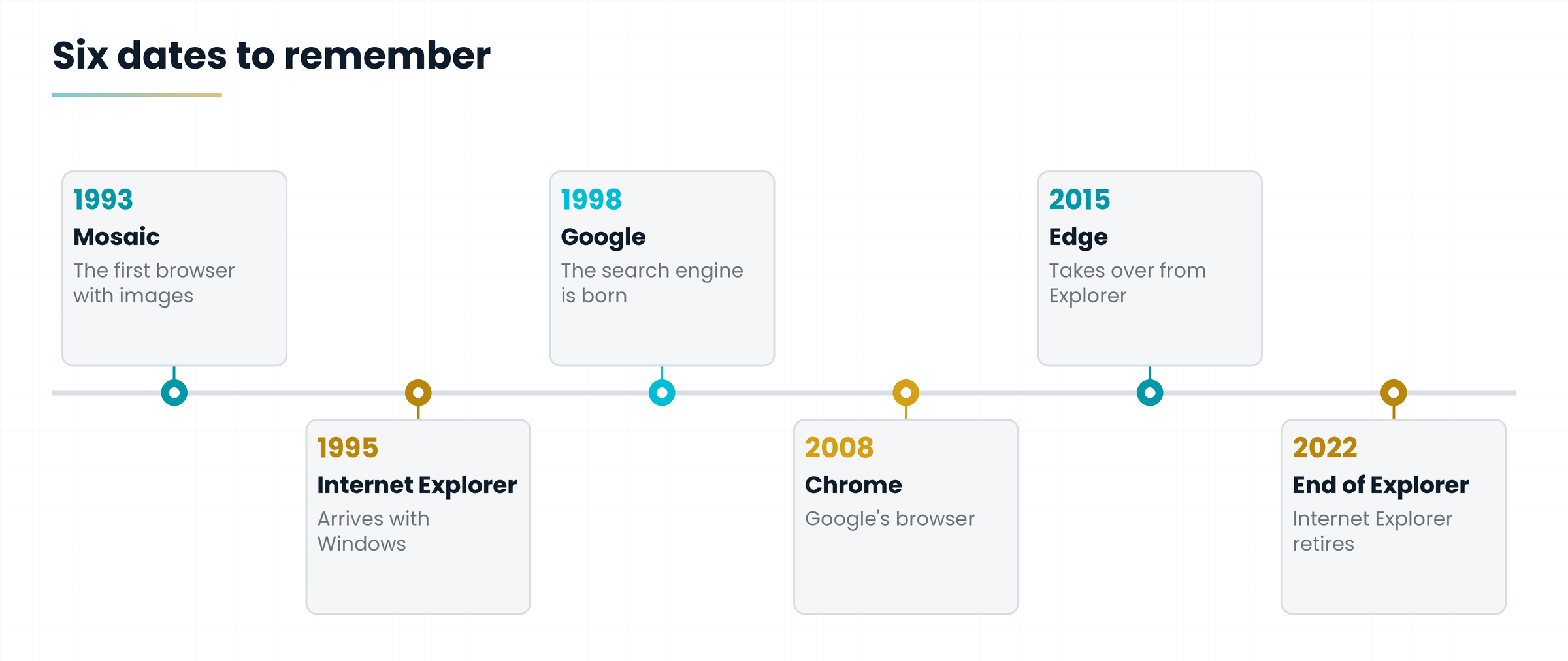
Notice one thing: browsers came before modern search engines. At first people navigated by following links and lists of sites; only when pages became too many did a catalogue become necessary.
7. Common mistakes and tips for searching well
It is always the same five mistakes, and a few habits avoid them.
- Typing an address into Google's search, or the other way round. «Facebook» in the bar works, but you pass through the search engine every time. If you know the address, type it in full.
- Saying «the Internet is down» when only the browser is broken (or vice versa). Try opening another program that uses the network: if it works, the problem is in the browser, not the connection.
- Deleting the browser hoping to fix a search engine problem. They are two things: they are changed separately.
- Clicking the first result without looking at the address. It might be an ad, or a site imitating the real one.
- Thinking private browsing makes you invisible. The browser does not save your history on your device, but the site you visit, your provider and whoever runs the office network can still see.
7.1 Three checks before you trust
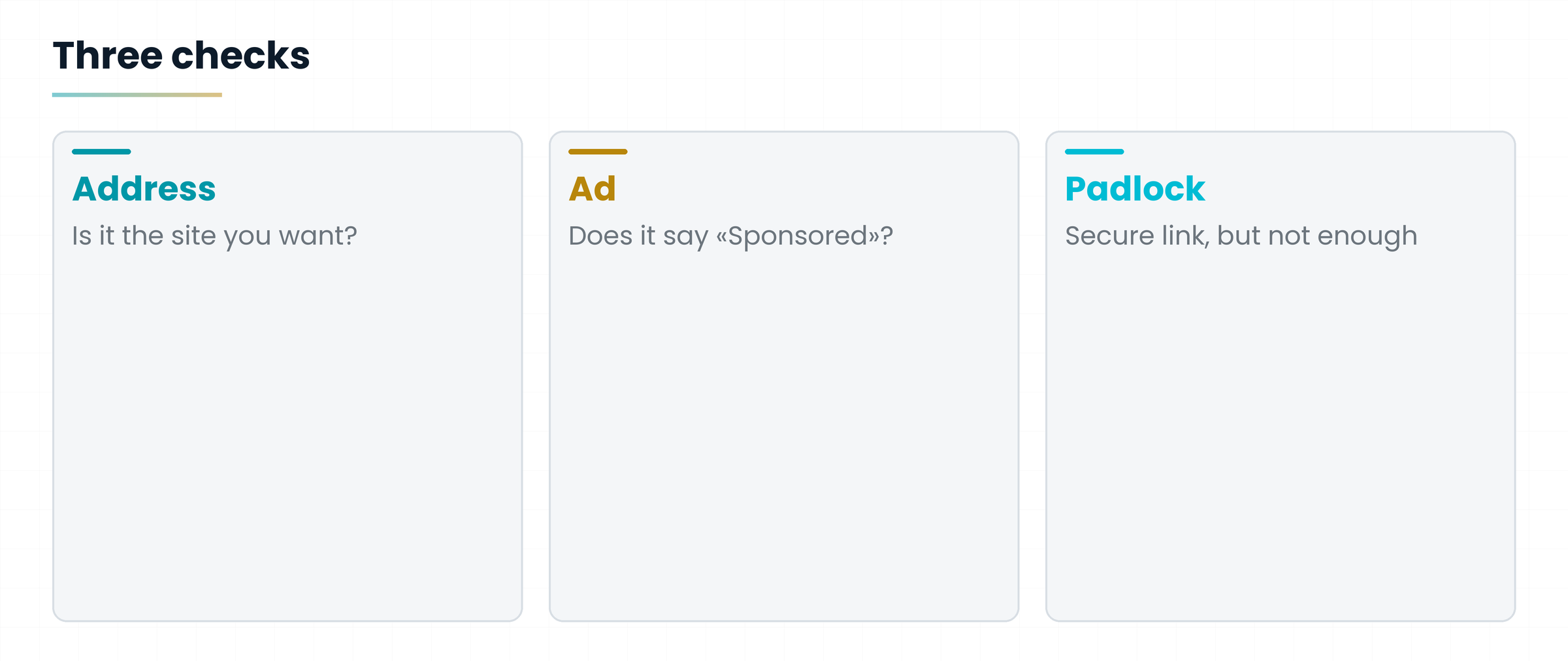
The padlock next to the address means the connection is encrypted, so nobody can read the data while it travels. It does not mean the site is honest: even a fraudulent site can have the padlock. That is why the address must be read carefully.
Before: Mr Frank searches «online banking», clicks the first result and types his credentials into a page identical to his bank's, but with a different address.
After: Frank types his bank's address directly, or uses the bookmark he saved the first time. One move, no risk.
8. In short
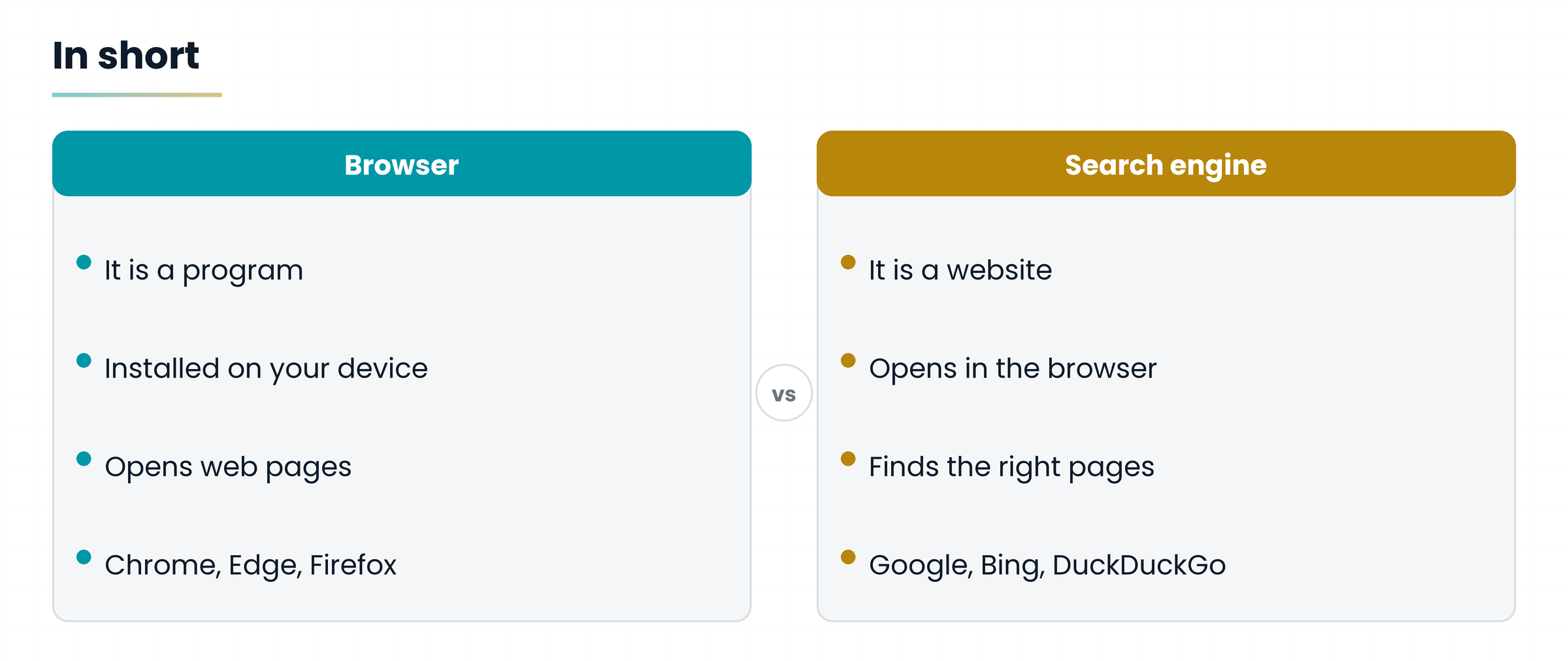
- The browser is the program: the car. Chrome, Edge, Firefox, Safari, Opera.
- The search engine is the website: the GPS. Google, Bing, Yahoo, DuckDuckGo, Yandex, Baidu.
- You use them together: open the browser, open the engine, type the keywords, choose a result.
- Chrome is a browser, Google is a search engine: you can change one without the other.
- Always check the address before clicking, and remember that the first results can be ads.
Hands-on exercise
Fifteen minutes, your computer or phone, no extra material.
- Open the browser you usually use and write down its name on a sheet of paper (you find it in the icon or under «About» in the settings).
- In the bar at the top type «chocolate cake recipe» and press Enter. See which search engine answered you.
- Open the settings, change the default engine (for example from Google to DuckDuckGo) and repeat the same search. How many results are the same? How many different?
- Try the search with quotation marks: «original sacher cake». Does anything change?
- Find the sponsored results in the list and note how they differ from the others.
- Put back the search engine you prefer.
Can you say whether Edge is a browser or a search engine?
Can you say what changes if you use Chrome with Bing?
Can you recognise an ad at the top of the results?
Questions that come up in class
Are Chrome and Google the same thing?
No. Chrome is a browser, a program. Google is a search engine, a website. The same company makes both, but they are independent: you can use Chrome with another search engine and Google with another browser.
Can I use more than one browser on the same computer?
Yes, and it is handy: one for work, one for private things, or a spare one if the first misbehaves. Each has its own bookmarks, history and saved passwords.
Is a search engine free? How does it make money?
It is free for users. Search engines earn mostly from advertising: that is why ads appear at the top of the results. Some, like DuckDuckGo, state that they do not collect personal data to profile you.
If I delete my history, does everything disappear?
The list of pages on your device disappears. The site you visited, your provider and the company running the office network keep their own records.
I changed browser and my bookmarks are gone: are they lost?
Usually not. Almost all browsers can import bookmarks and passwords from the old one, or sync them with an account. Look for «Import» in the settings.
Does an AI chatbot replace the search engine?
For some questions it is handy, but it works differently: it composes an answer, does not show you a list of pages, and can be wrong. For important things always check the source.
Glossary
| Term | What it means |
|---|---|
| Algorithm | The set of rules that decides in what order to show the results. |
| Browser | The program that opens web pages and shows them on screen. |
| Crawler | A search engine program that explores pages by following links. |
| Dark web | The part of the Internet reachable only with special programs such as Tor, not indexed by ordinary search engines. |
| Default engine | The search engine the browser uses if you do not choose another. |
| Index | The catalogue of pages the search engine has already visited. |
| Keyword | One of the most important words of what you are looking for. |
| Open source | A program whose code is public and open to anyone. |
| Search engine | A website where you type keywords and get a list of pages about that topic. |
| Server | The computer that holds a website and sends it to whoever asks. |
| Tor | A network that hides the identity of whoever browses by routing requests through several computers. |
Further reading
- Lessons and notes by Gianluca Bonomo on the topic — the car and GPS analogy
- Official help pages of Chrome, Edge, Firefox and Safari — sections on changing the search engine
- Google Search Central documentation — how search works: crawling, indexing and ranking
- Gianluca Bonomo, Niente paura, è solo IA — the reference book (in Italian)
Text written in October 2026 from lesson notes. Product names, historical dates and menu items change over time: before publishing, re-check the historical milestones and the path in each browser's settings. Examples are adapted for an English-speaking reader; illustrations still carry Italian text until English versions are generated.
Download the handoutPrintable PDF version of this lesson, with exercise and glossary.
Download the handout as PDF