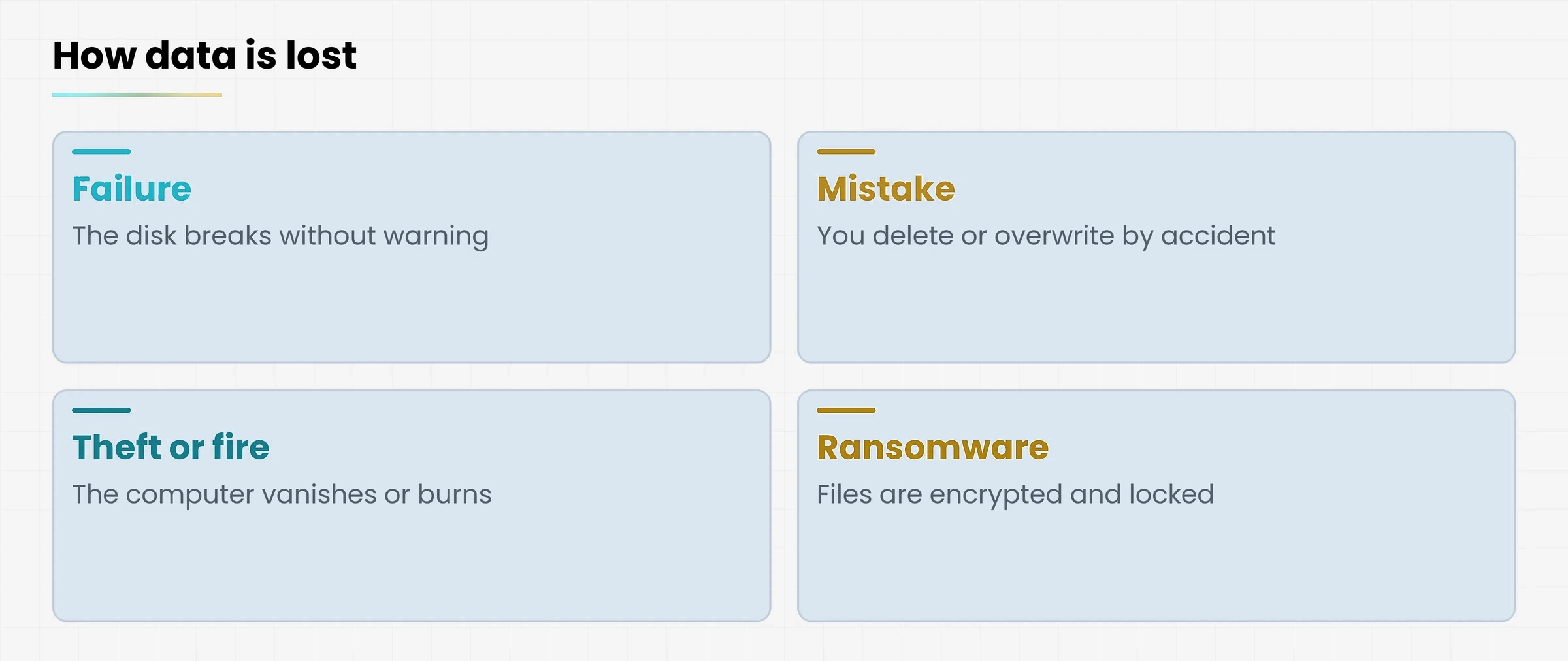
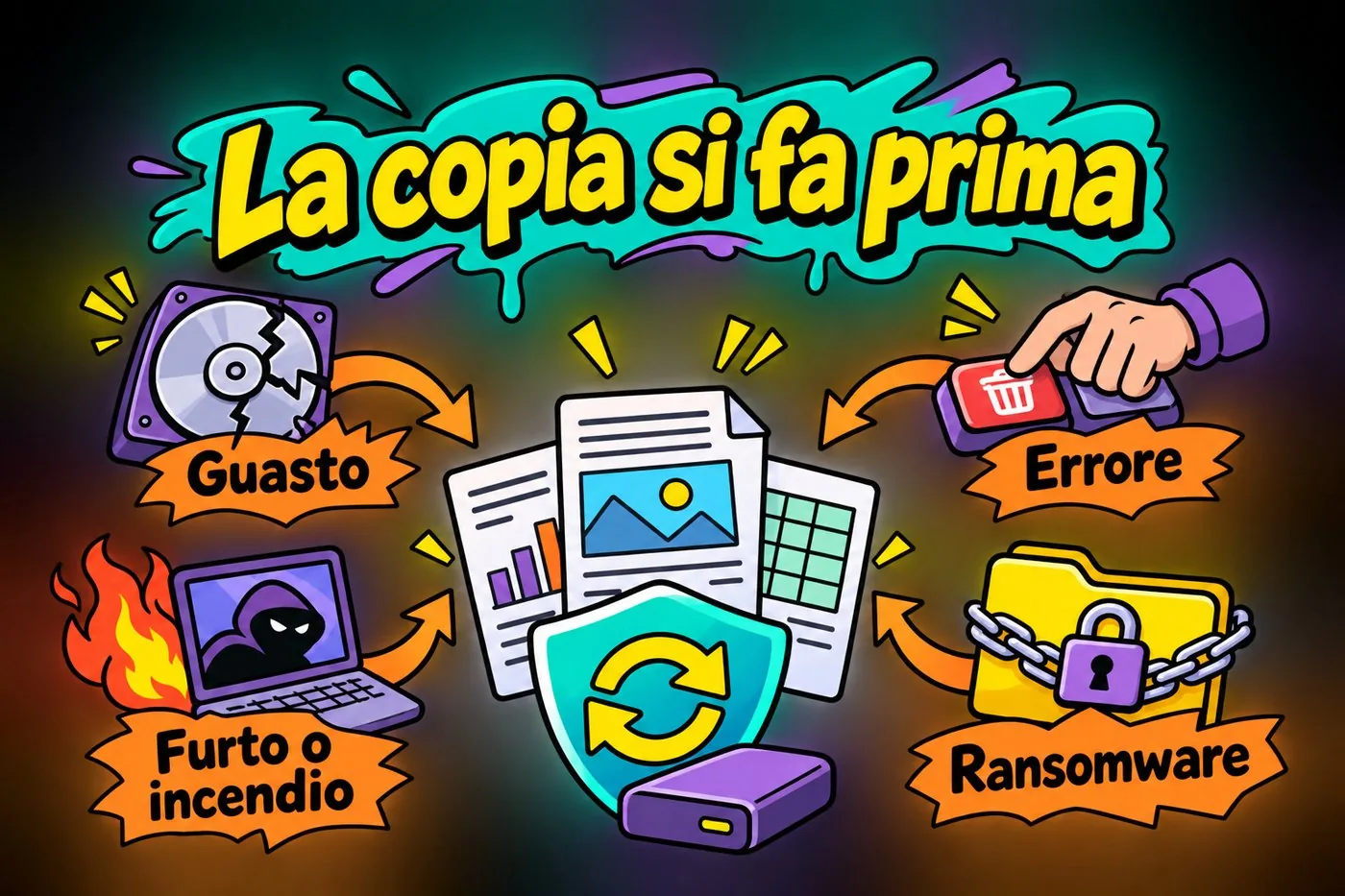
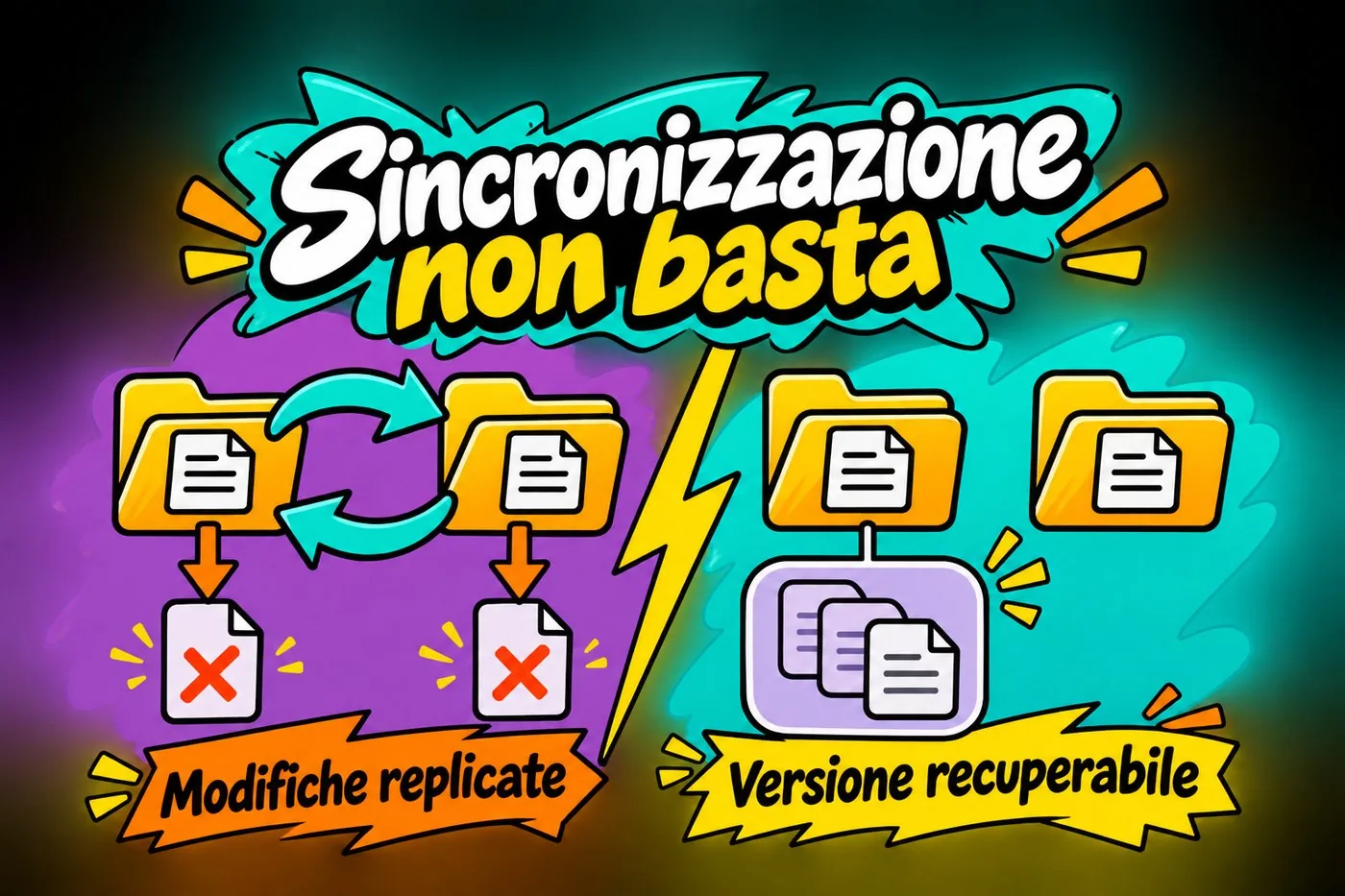
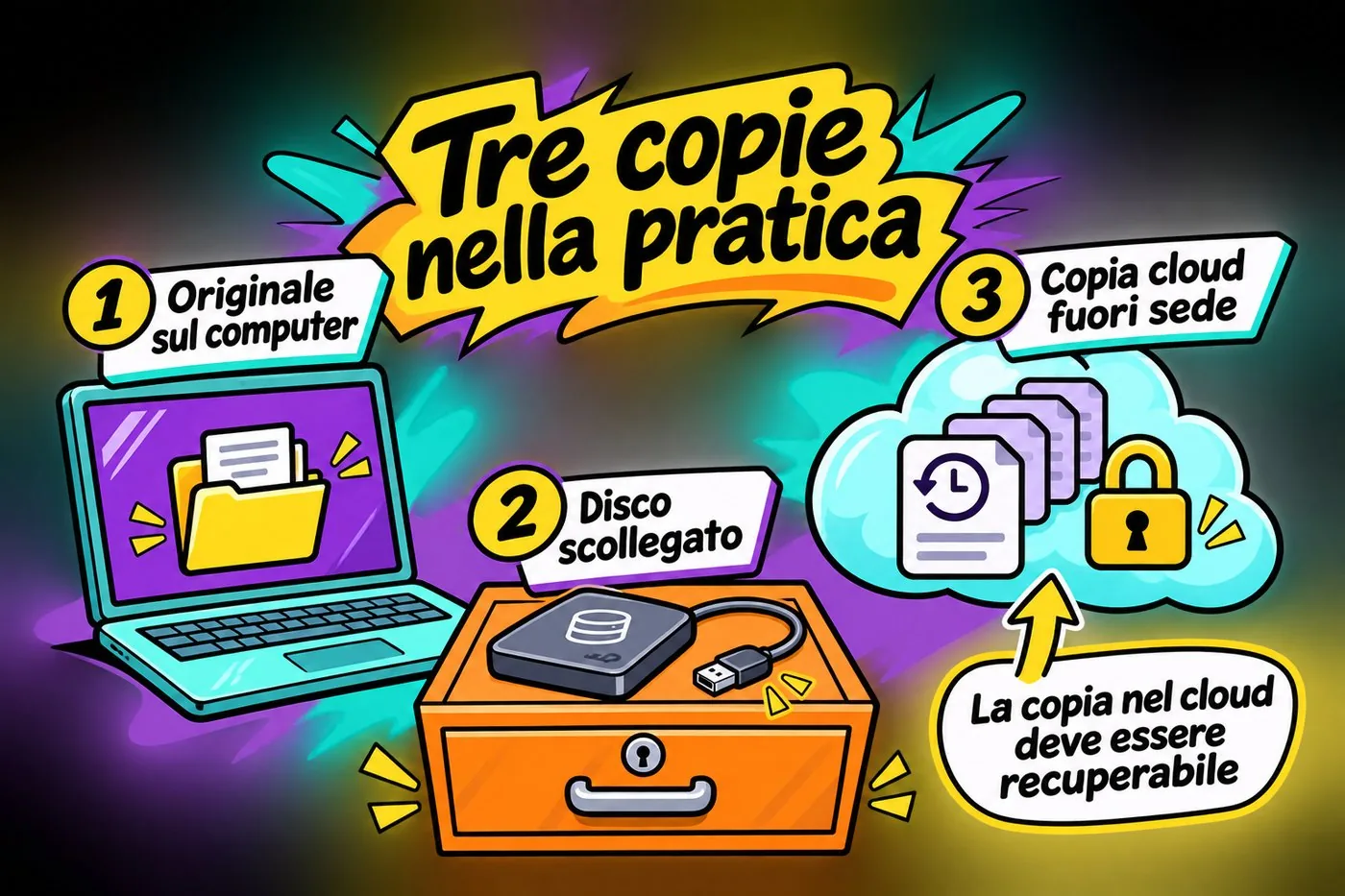
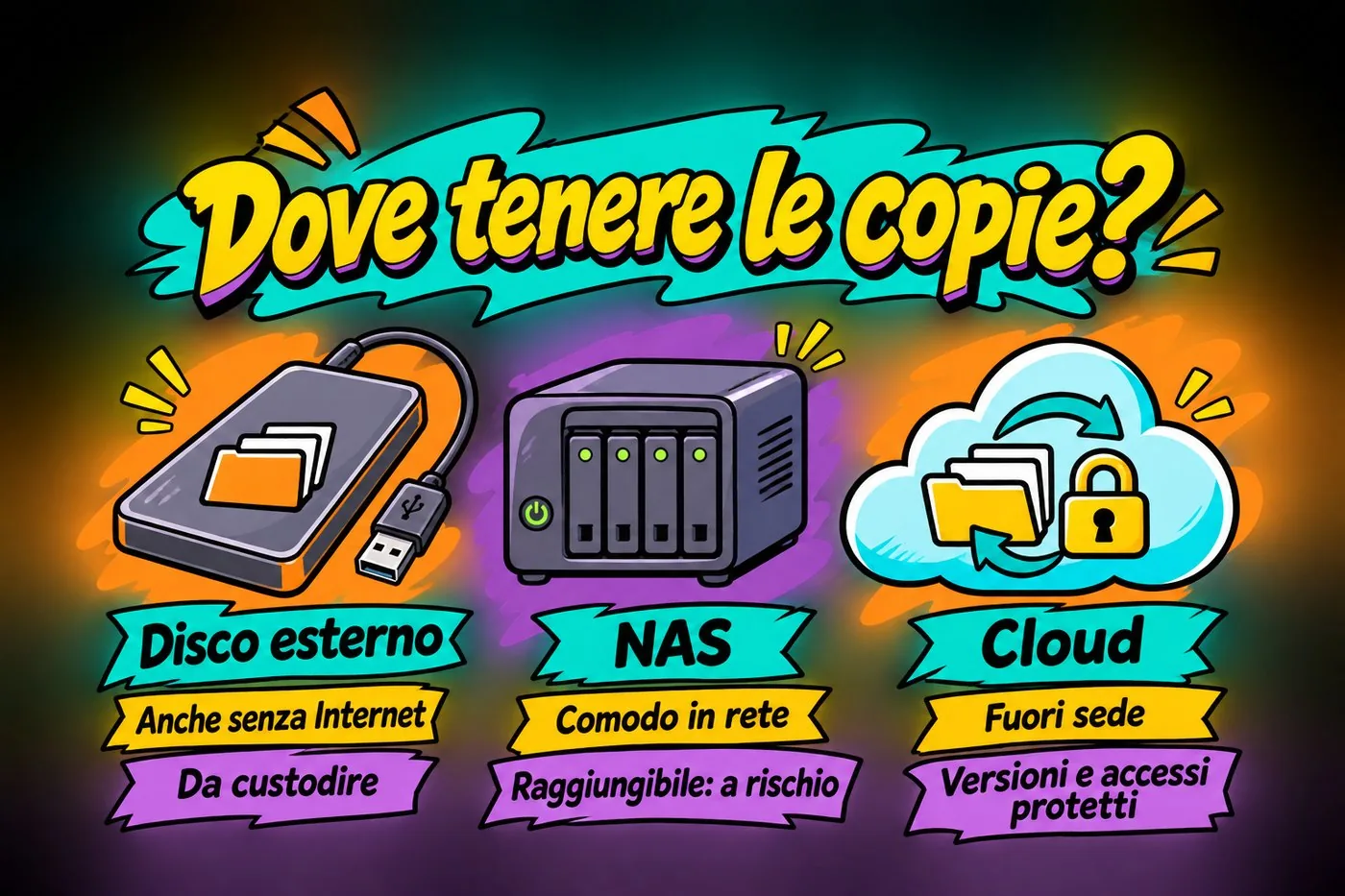
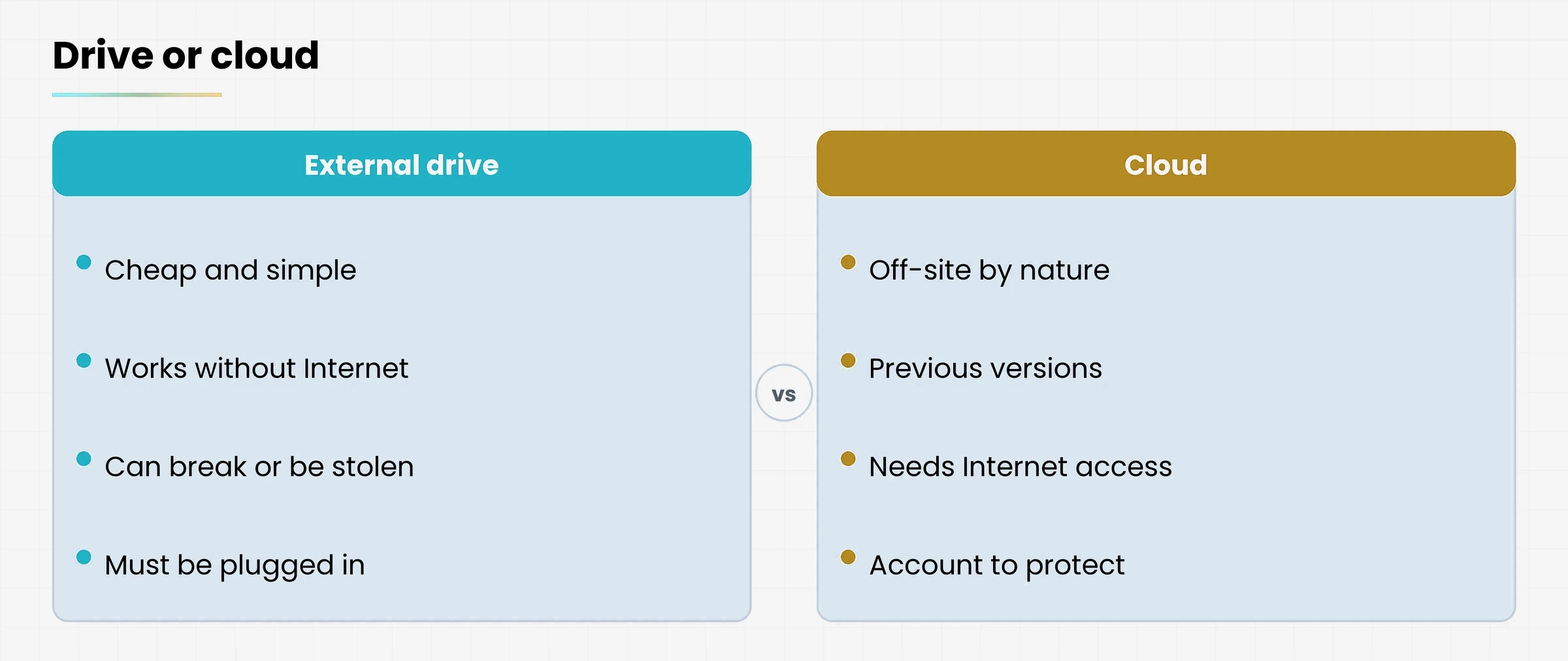
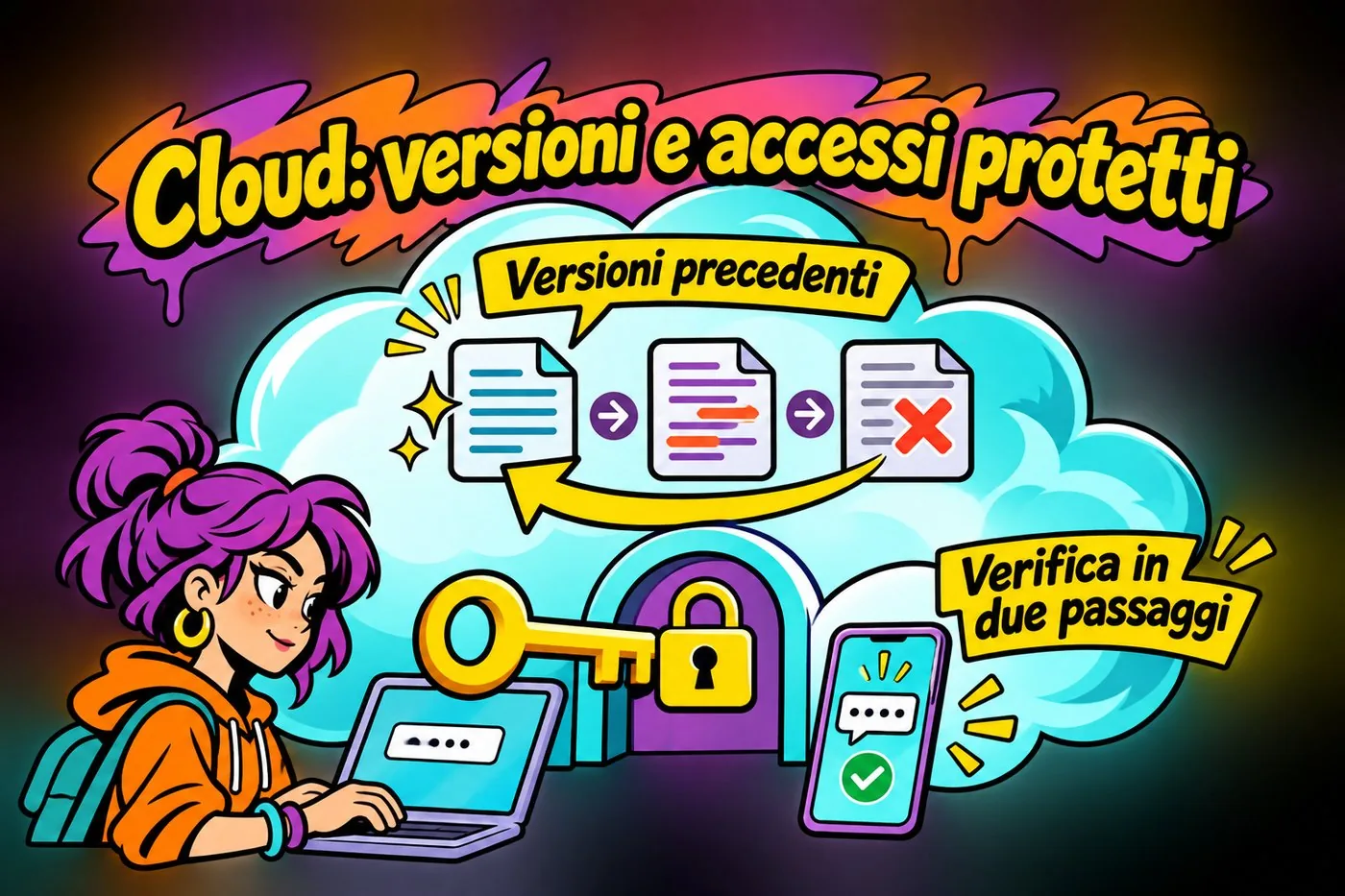
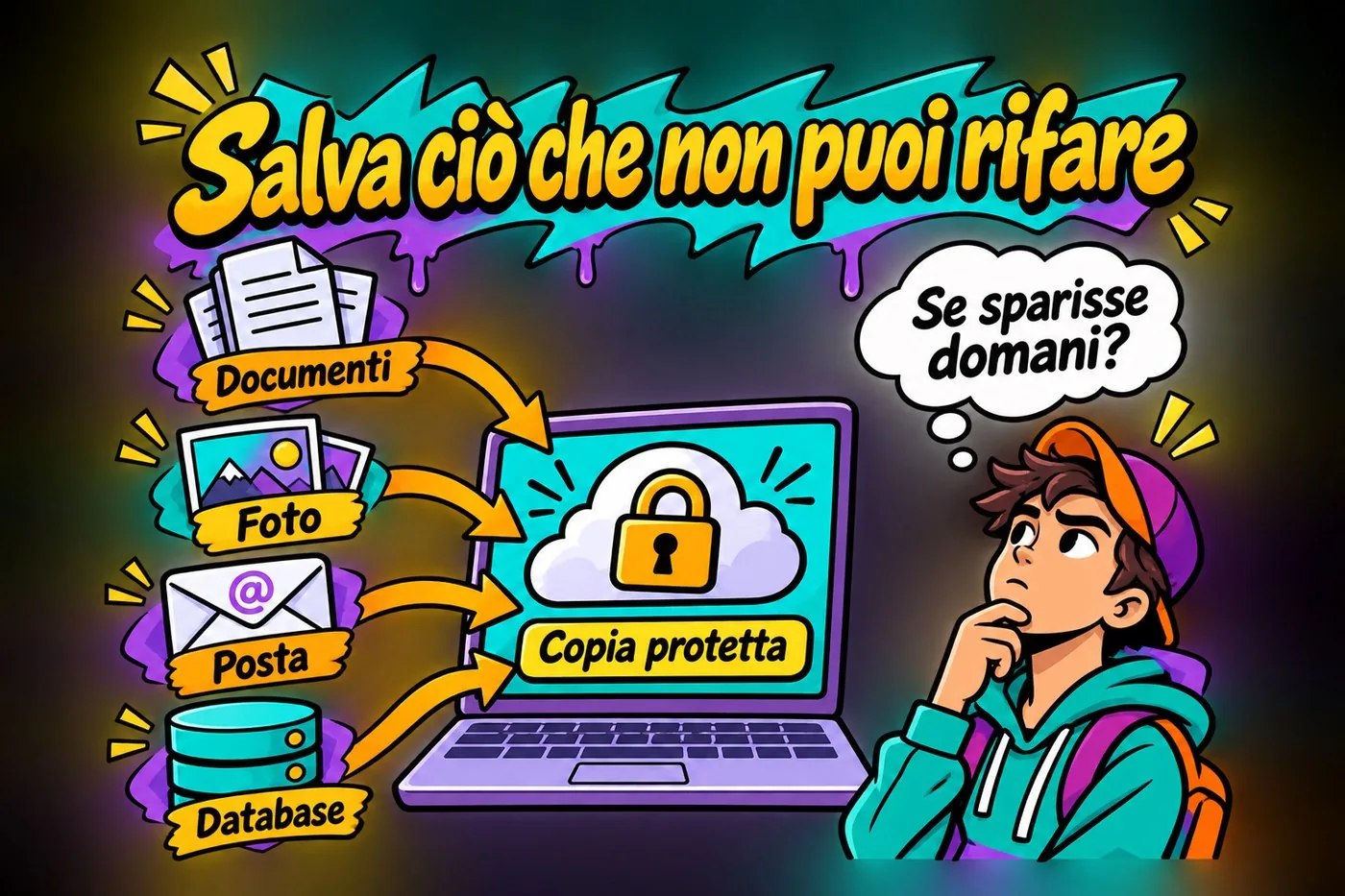
By Gianluca Bonomo — Technology Trainer and Instructor
Published on
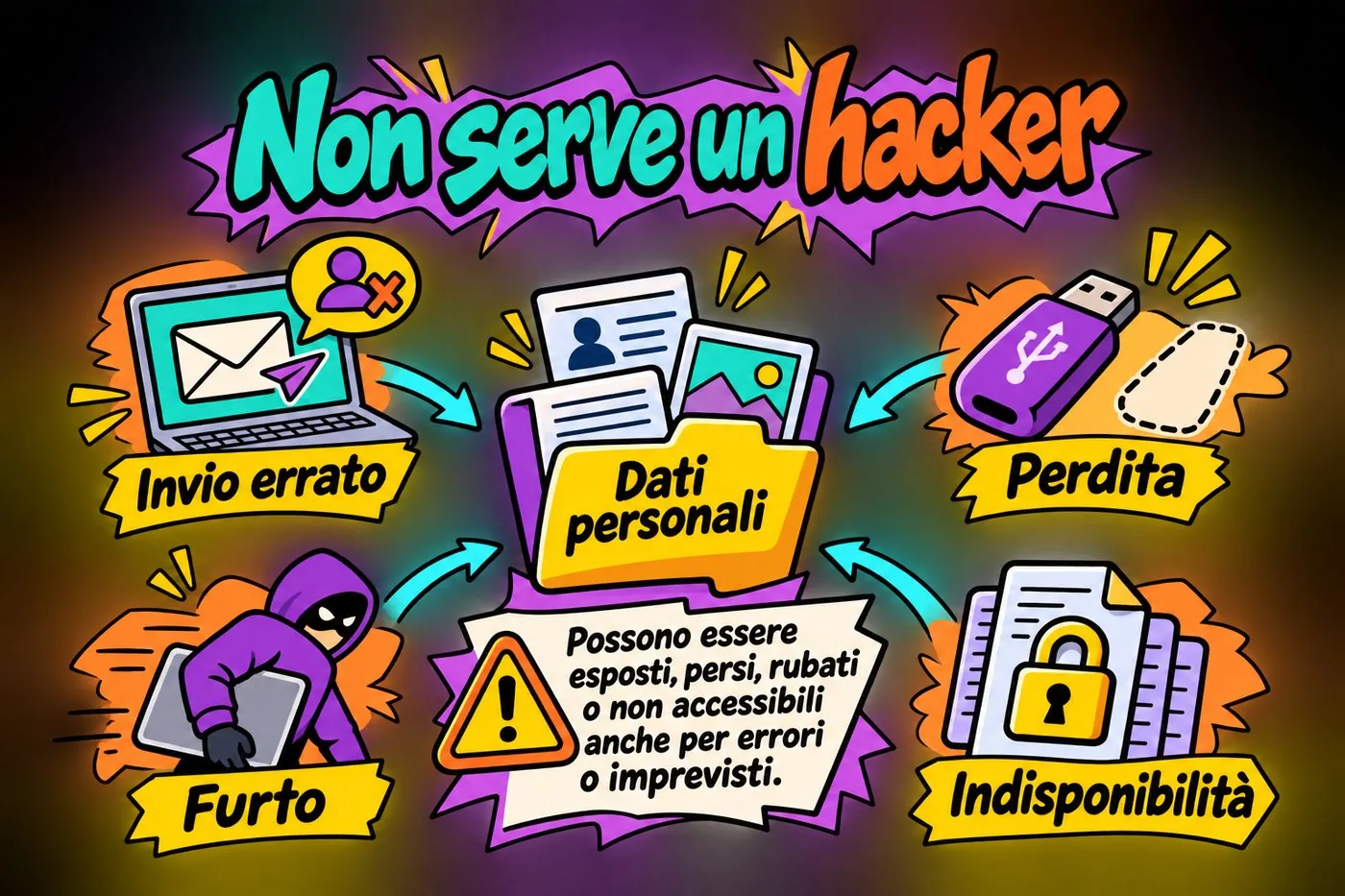
An office computer holds the data of many people: names, addresses, tax codes, sometimes medical or financial documents. Protecting them is a legal duty, but first of all it is a matter of trust.
In this course you will learn what you need to defend yourself from and how to do it, without jargon and with real examples: every lesson comes with its own handout, slides and video.
How to use this handout
This handout gathers, in written and ordered form, everything covered in the lesson. You do not need to memorise it: it is there so you can find things again calmly, later, when the lesson is over and a question is left hanging.
How to browse this document online: You can move between lessons with the index below, one at a time. Every technical term listed in the glossary shows its definition on mouse hover. At the bottom of the page you will find the unified glossary.
Who it is for, what you will learn and how to follow it
Lesson goal
Understand whether the course is right for you, know what each lesson contains and in which order to follow them, and get your tools ready to start.
What you will be able to do
Know who the course is for and what you need to follow it.
Know the programme, lesson by lesson.
Choose a way of studying that suits you.
Prepare your working folder and the tools for the exercises.
1. Why this course
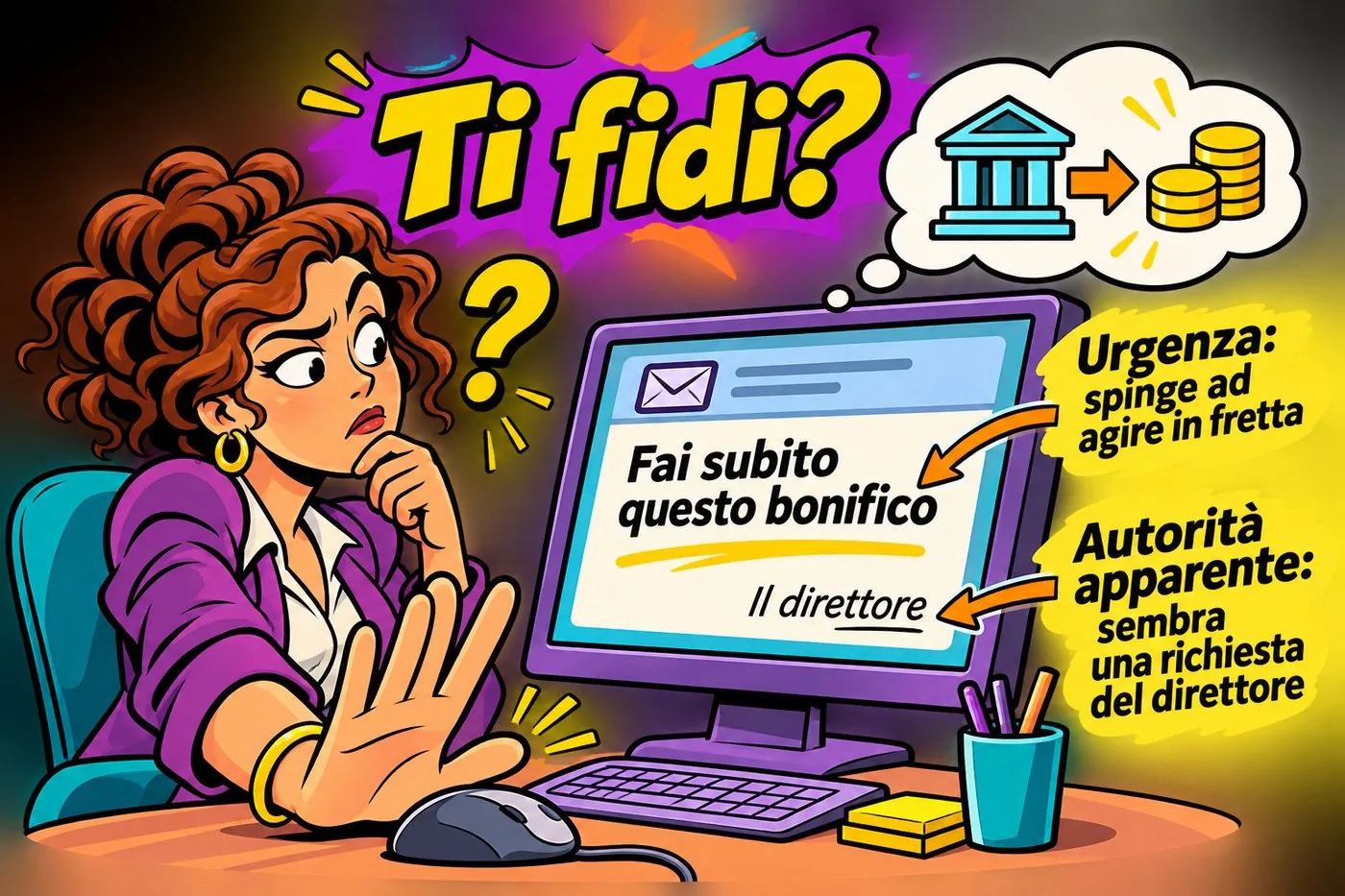
Monday morning, at the office, an e-mail arrives from the director: «Make this transfer right now, I'll explain later». What do you do?
It is a situation that really happens, and it is a scam with a name: phishing" data-def="Targeted phishing: the message is made to measure for one specific person, using information about them.">spear phishing. Whoever recognises it in time avoids the damage. Whoever does not, pays, sometimes with money, sometimes with other people's data.
THE URGENT MAIL
A doubtful secretary in front of an urgent e-mail signed by the director asking for a bank transfer
An urgent request deserves a second look.
An office computer holds names, addresses, tax codes, sometimes medical or financial documents of many people. Protecting them is a legal duty, but first of all it is a matter of trust: whoever handed you their data expects you to treat it with care.
The idea in one line
Almost all incidents come from human error: that is why the best defence is you, and it can be learned.
2. Who it is for and what you need
The course starts from zero. You need no technical skills: curiosity and the habit of using a computer, e-mail and a phone are enough. It is designed for people working in an office, a small firm, a school, a small shop, but it works at home too.
Who the course is for.
It is for you if
It may not be for you if
You use a computer, e-mail and phone every day for work
You are already a security technician looking for details of an attack
You handle data of customers, members, colleagues
You want a course on defending a large company network
You want to understand what to do, without jargon
You never use digital tools
2.1 What you need
a computer with Windows 11 (the examples use it);
an e-mail account and a phone;
a folder on your computer to save your notes;
pen and paper for the exercises.
Warning
In the exercises always use invented data or your own. Never use real data of customers, colleagues or members to practise.
3. What you will learn
By the end of the course you will be able to do these things, and they are not theory: you will use them the very next day.
Recognisemalware, ransomware, phishing and trap sites before falling for them;
Choose solid passwords and turn on password, to log in to a service.">two-step verification;
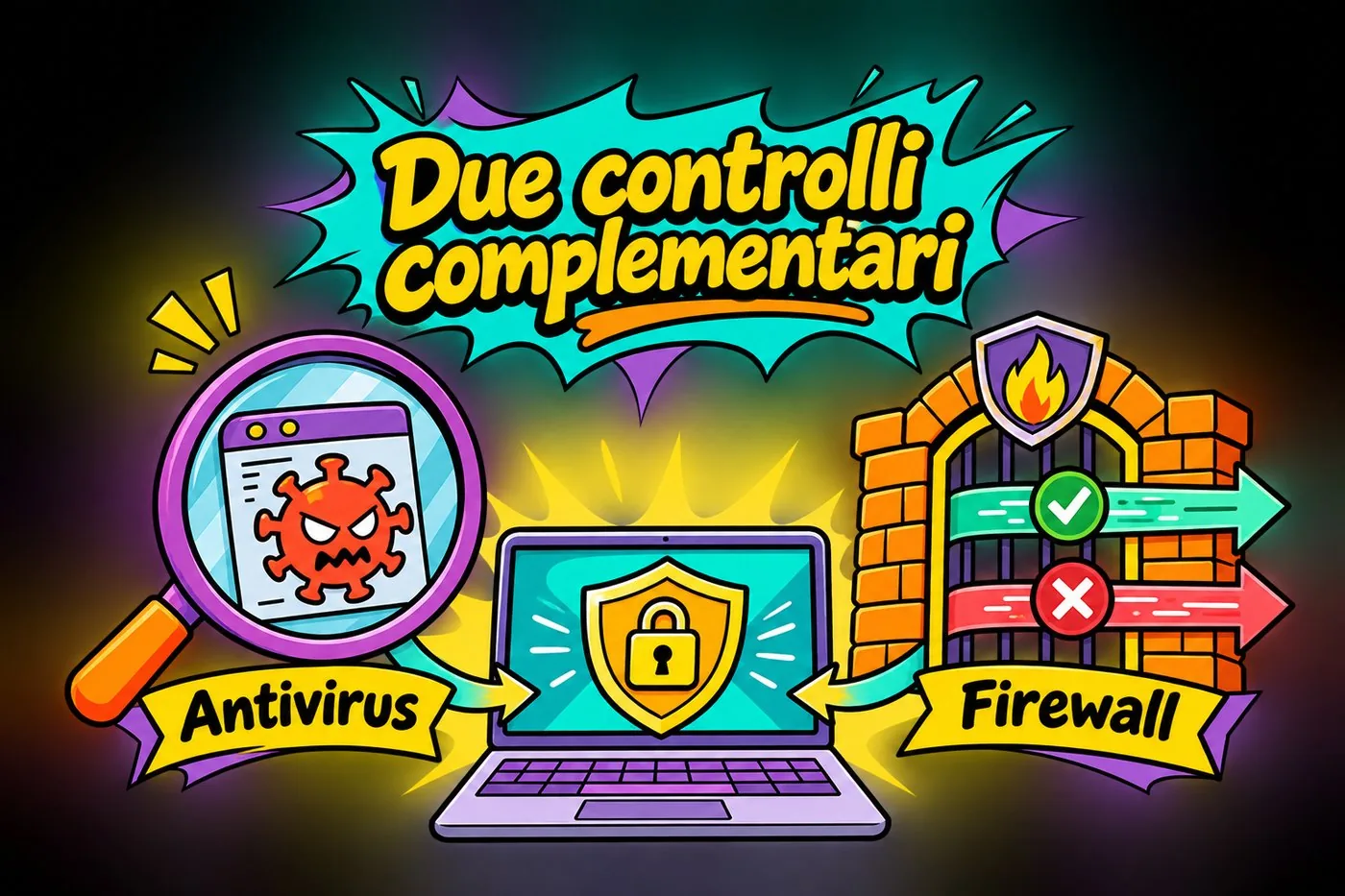
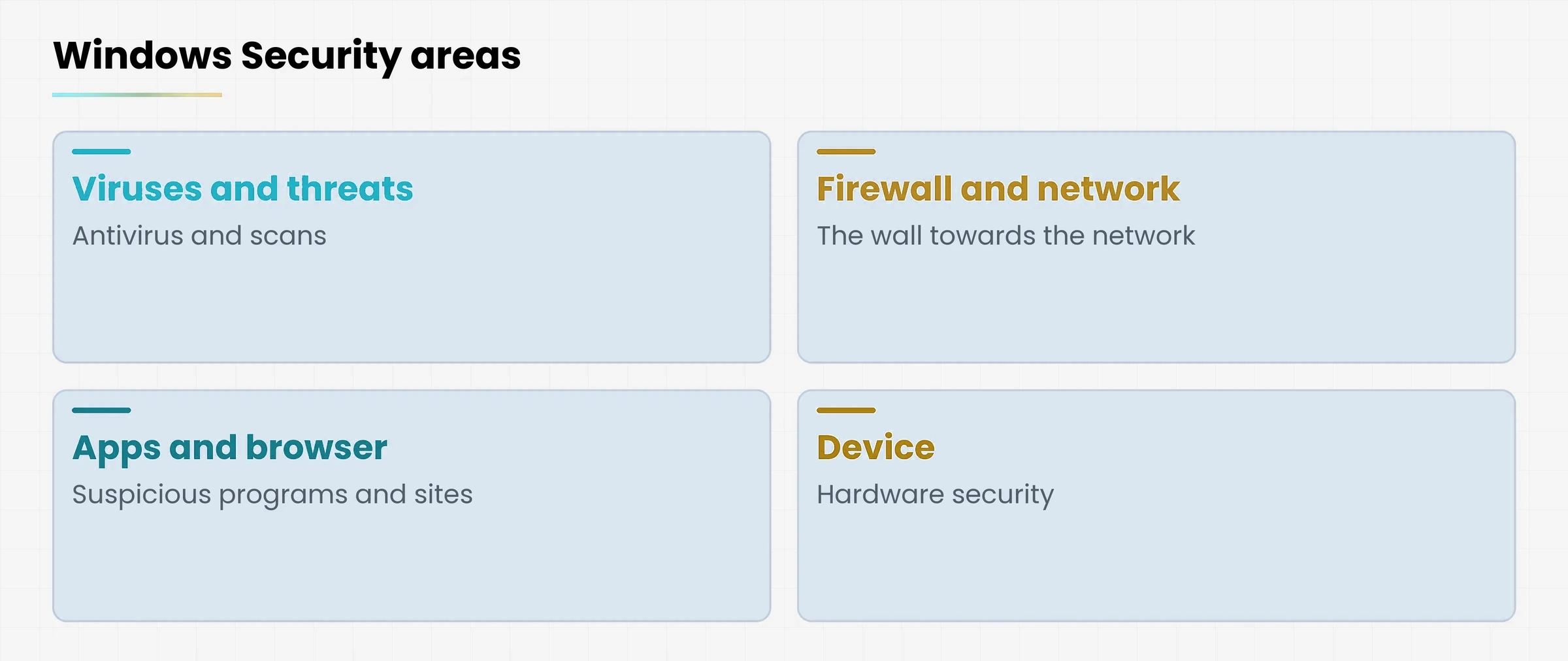
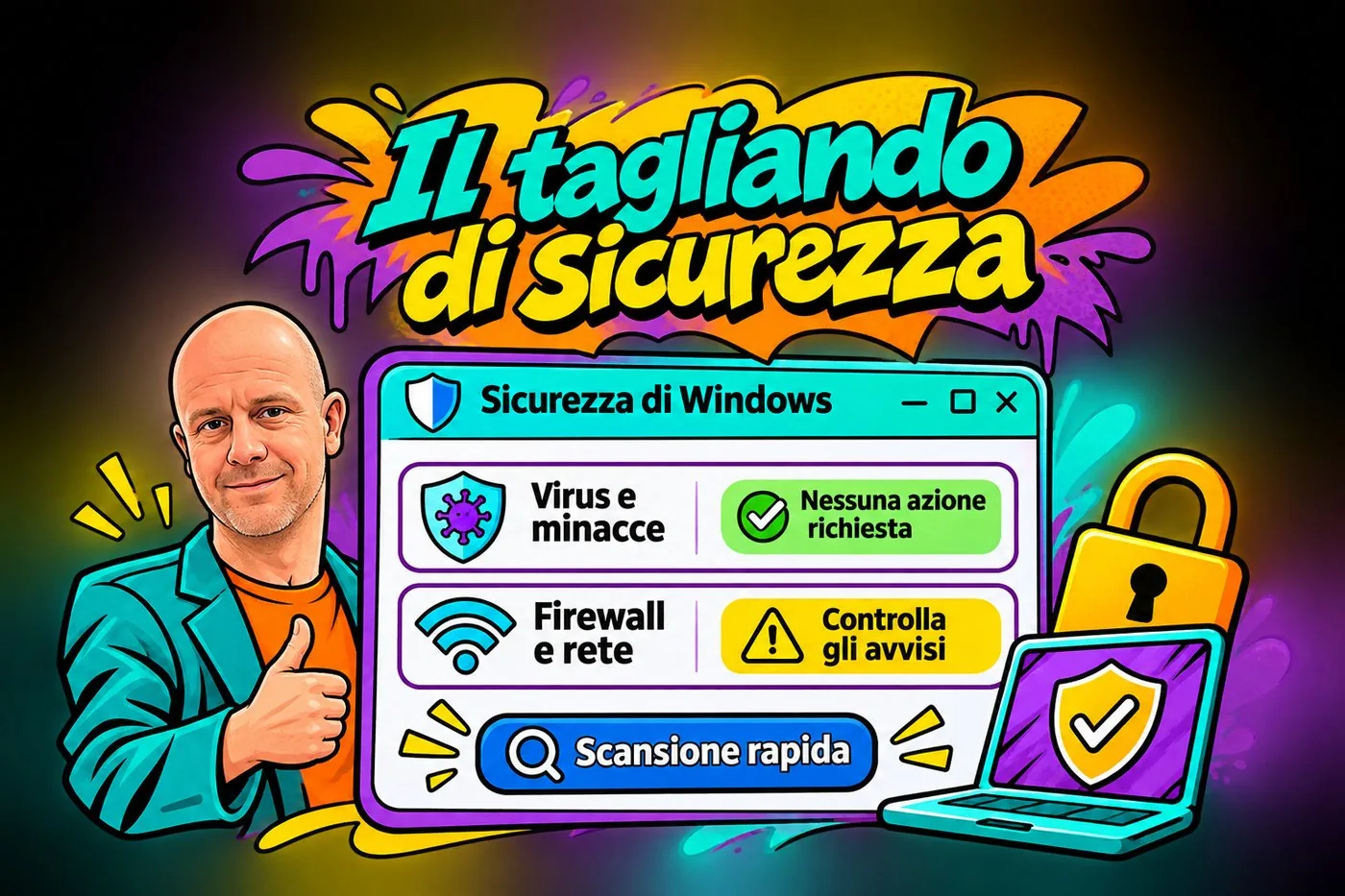
Protect your computer with updates, antivirus, firewall and other checks, based on Microsoft Defender.">Windows Security, screen lock and encryption;
Organise backups that really work, with the 3-2-1 rule;
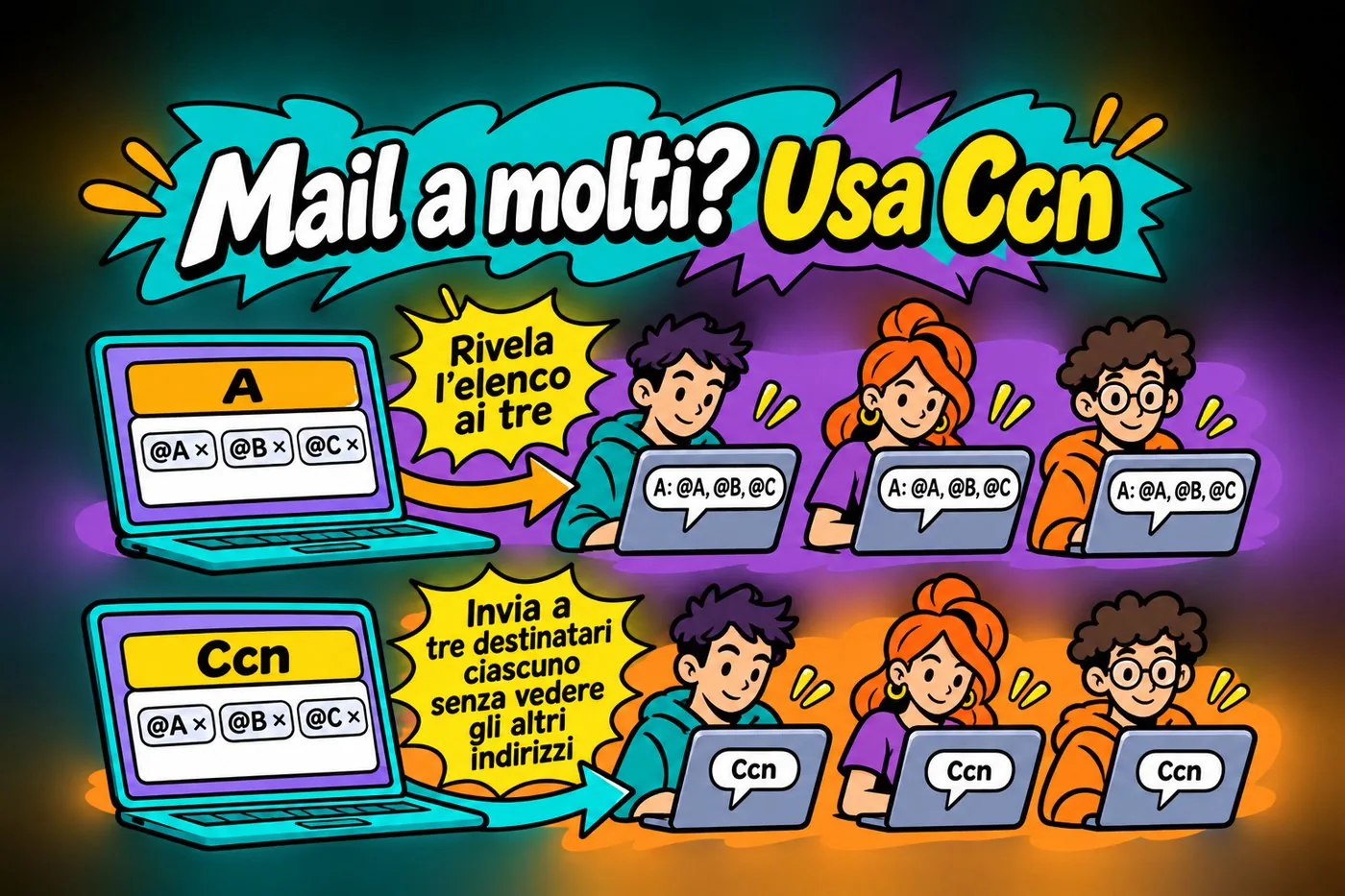
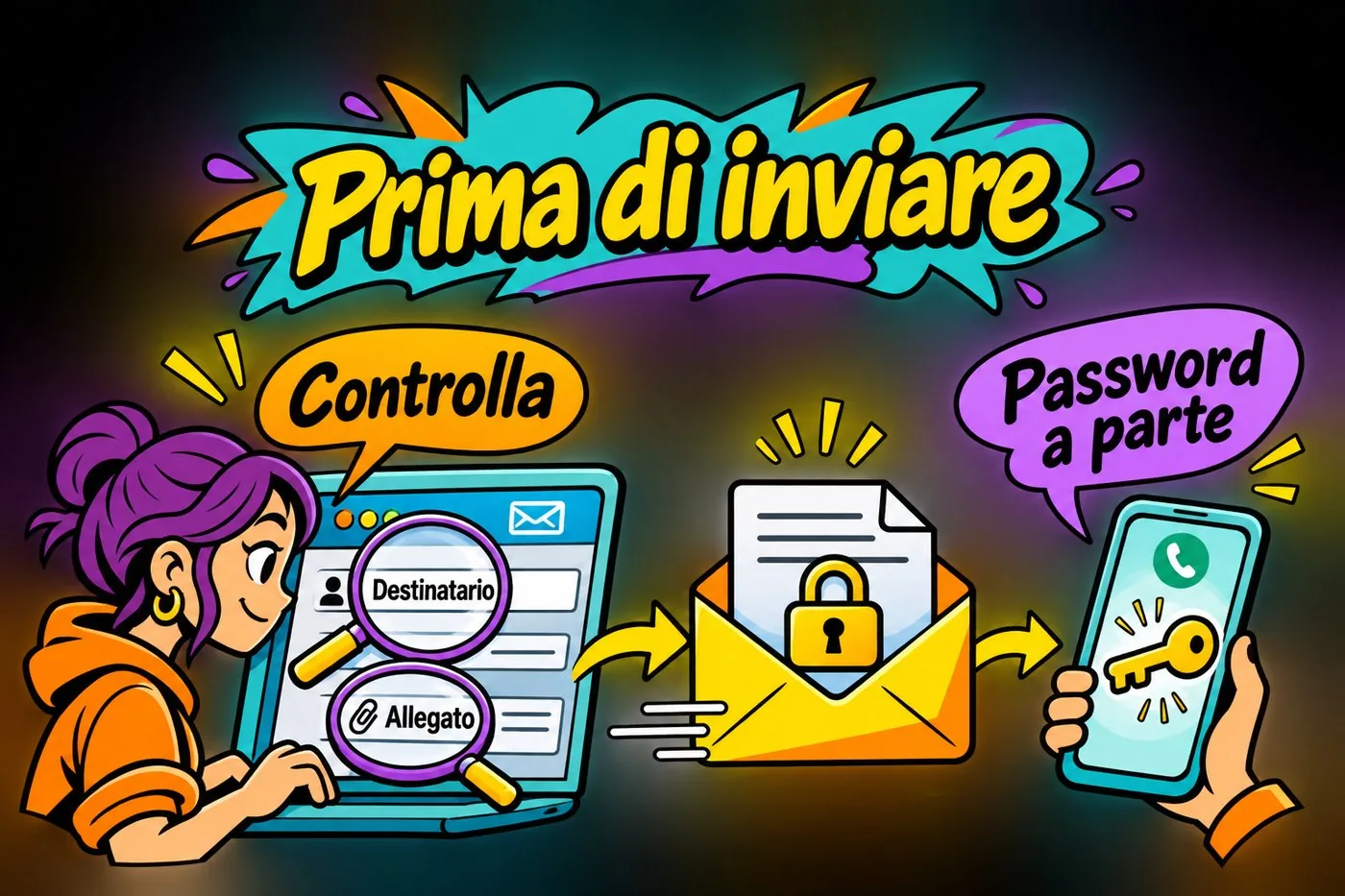
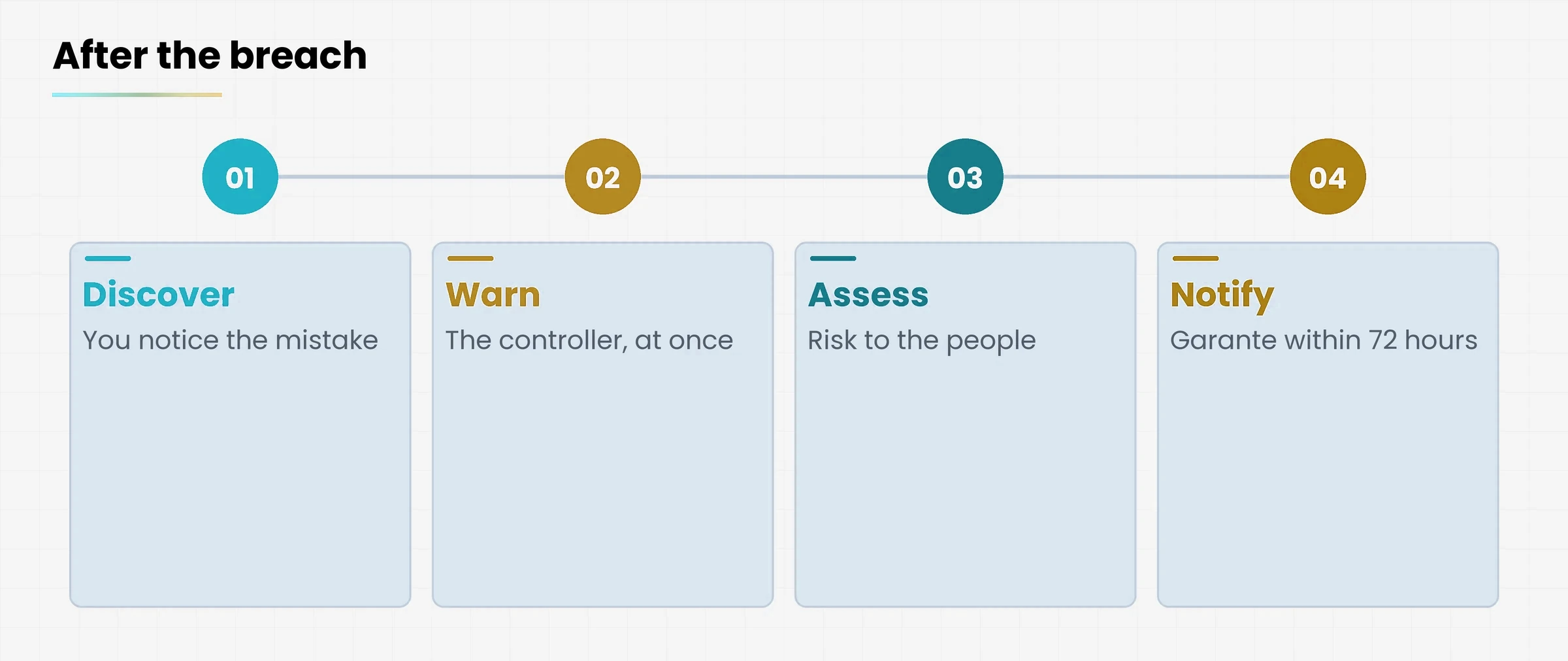
Handlepersonal data as the law requires, from blind copy to reporting a breach;
React in the right way when something happens.
4. The programme, lesson by lesson
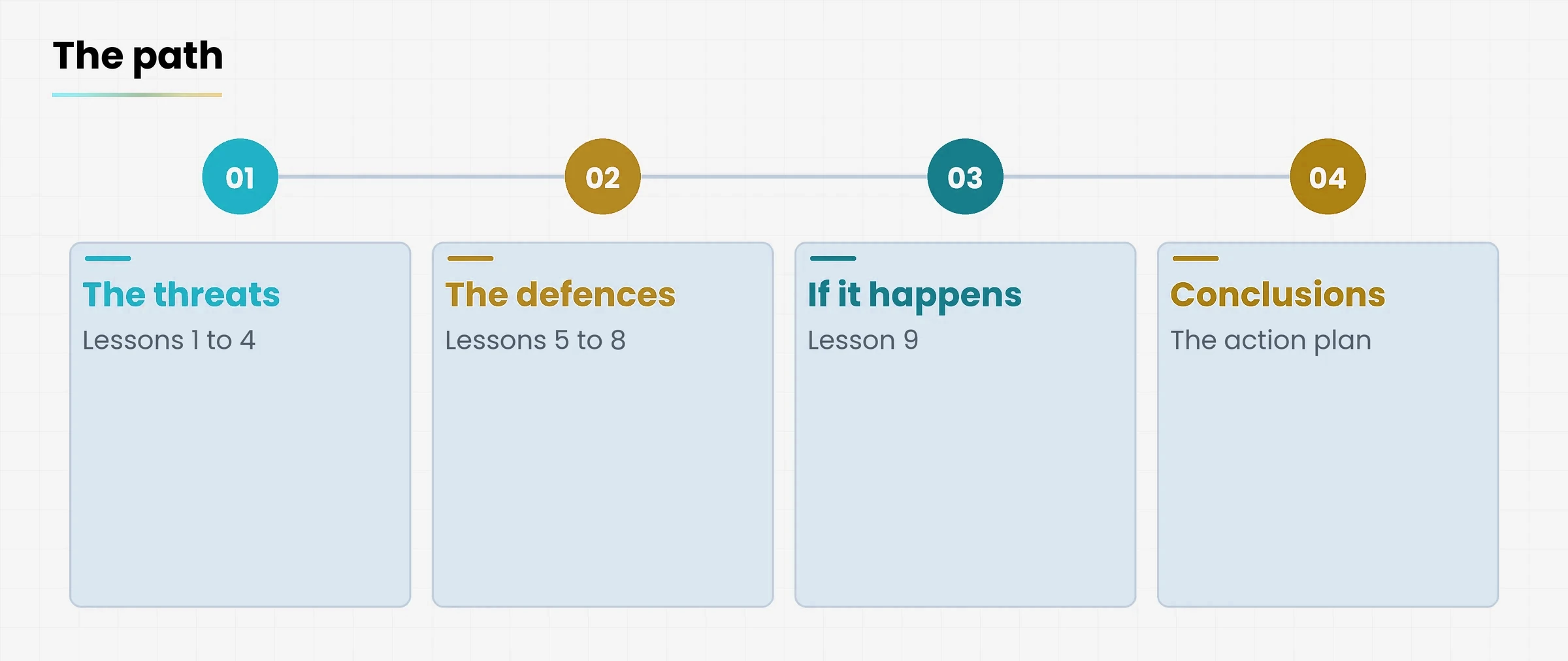
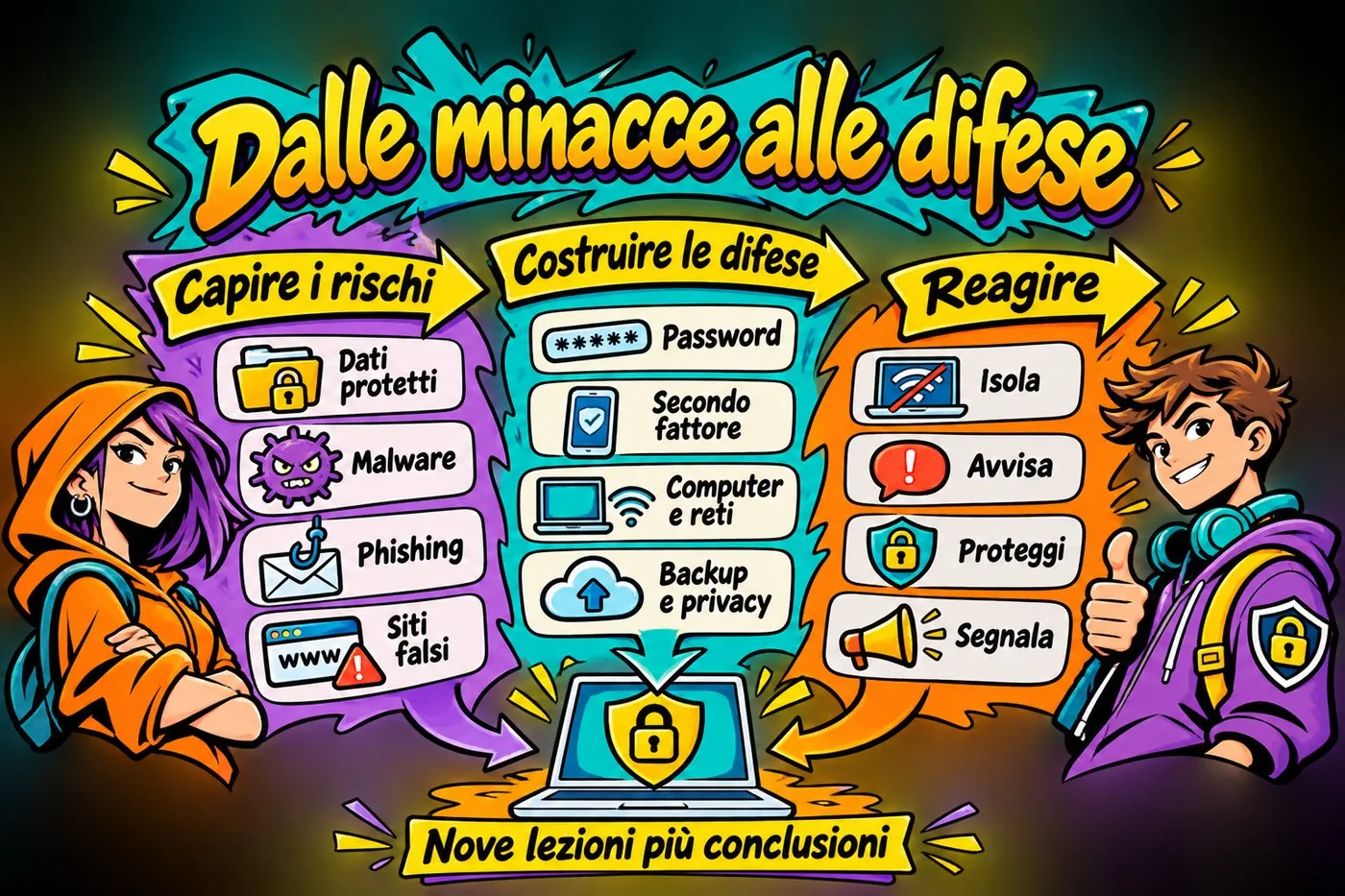
There are nine lessons and they should be followed in order. The first four explain what we defend ourselves from, the next four how we defend ourselves, the last one what to do when the defences are not enough.
The course programme.
Lesson
Title
What you will be able to do afterwards
1
What is cybersecurity
Explain what is being protected and why human error is the main risk
2
Malware and ransomware
Recognise the types of harmful software and know why you do not pay the ransom
3
Phishing and its variants
Unmask scam e-mails, SMS, phone calls and QR codes
4
Fake sites and social engineering
Check a web address and recognise social engineering
5
Passwords and password, to log in to a service.">two-step verification
Create solid passwords and turn on the second check
6
Protecting devices and networks
Secure your computer, USB sticks and Wi-Fi
7
Backup and the 3-2-1 rule
Organise backups and test the restore
8
Privacy and data protection
Apply good practice on personal data and handle a breach
9
What to do when it happens
Follow the right steps after an incident
4.1 The threats, in brief
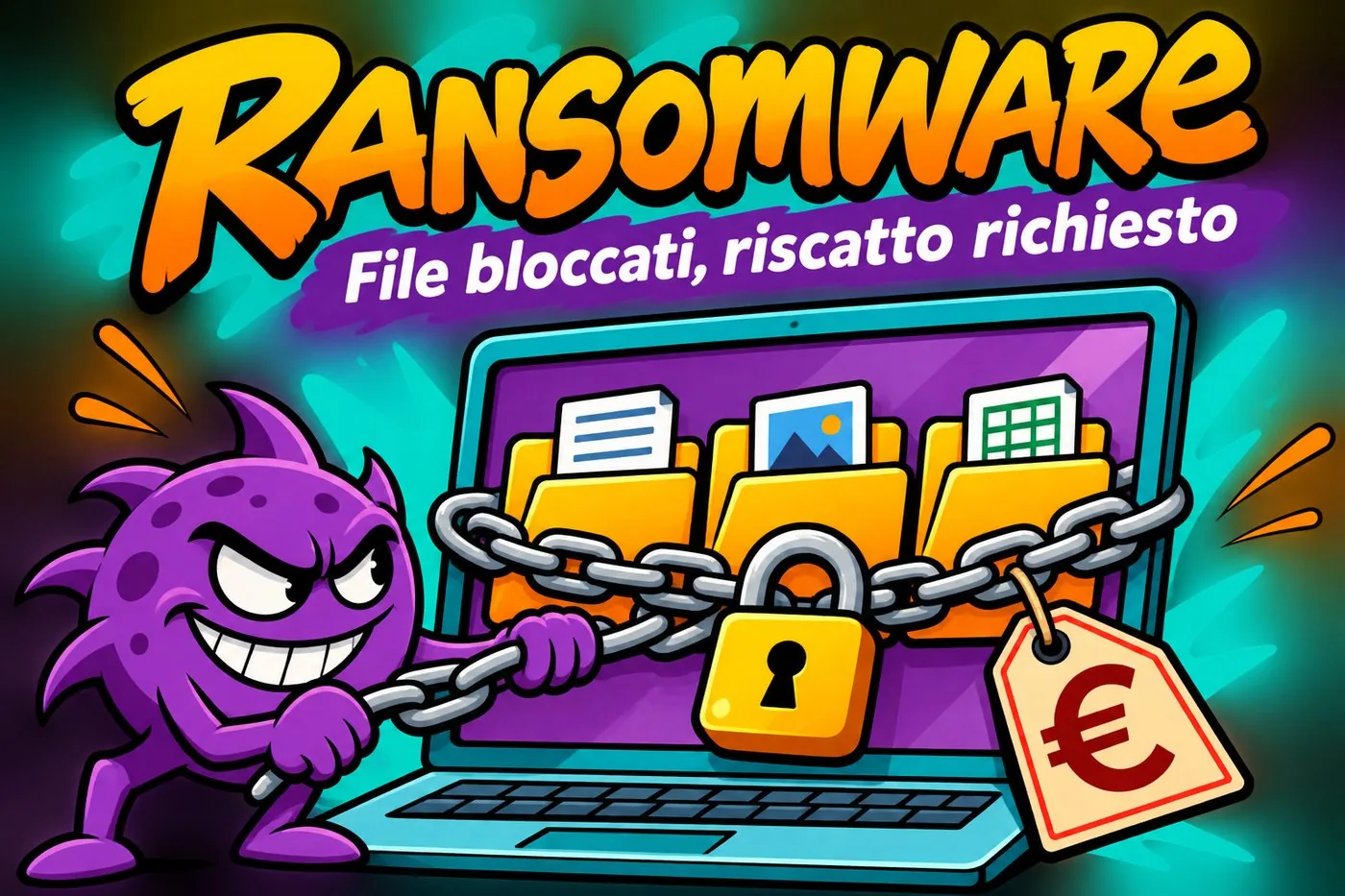
The first four lessons teach you to recognise the enemy. We start with harmful software: ransomware locks your files and demands a ransom to give them back.
RANSOMWARE
A purple piece of malware pulls a padlocked chain around three folders of files, with a ransom tag
Ransomware locks your files and demands a ransom.
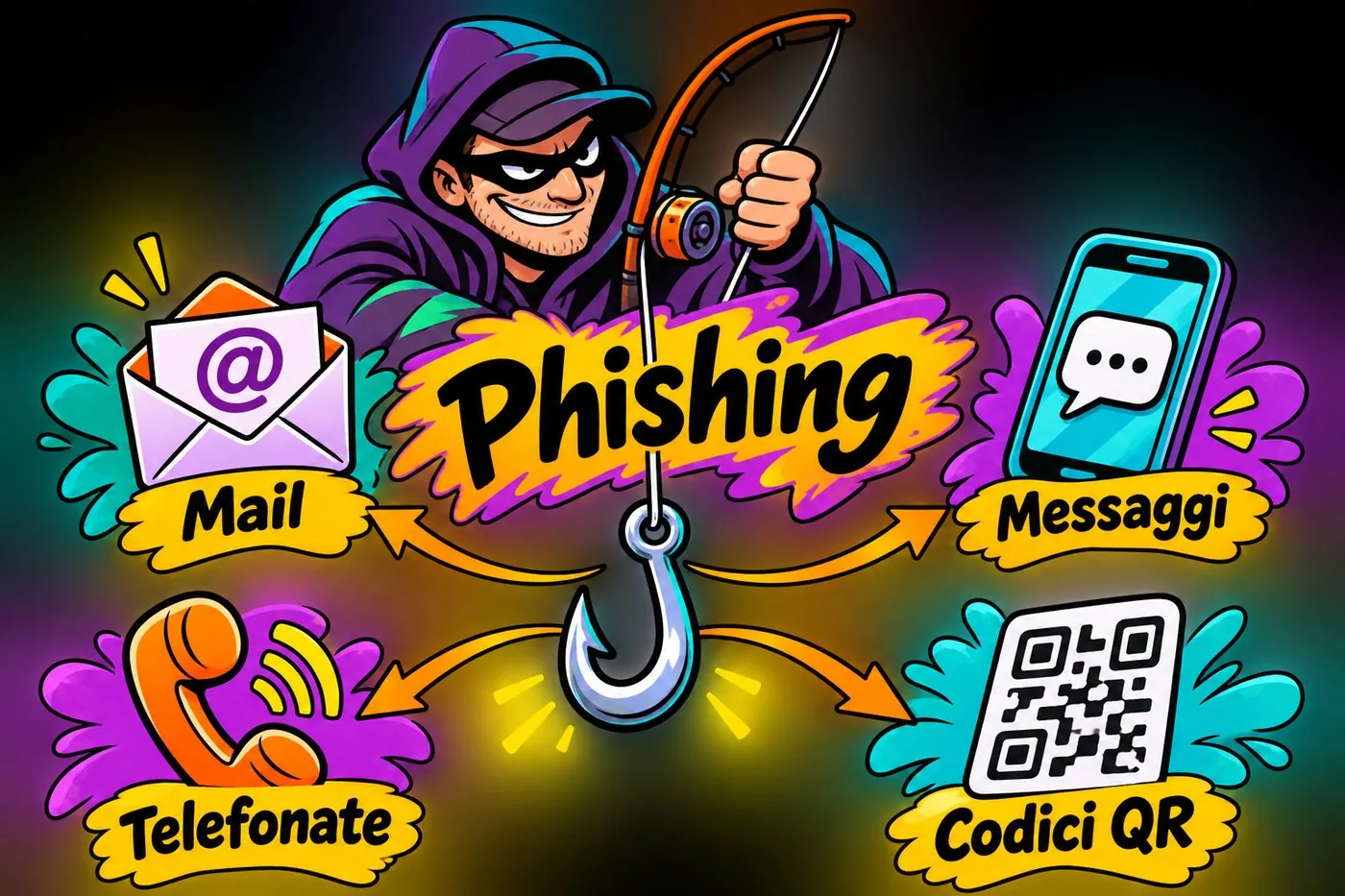
Then come the scams that reach you from outside: phishing does not travel only by e-mail, but also by messages, phone calls and QR codes.
PHISHING
A scammer with a fishing rod and four baits: e-mail, messages, phone calls and QR codes
Phishing can arrive through different channels.
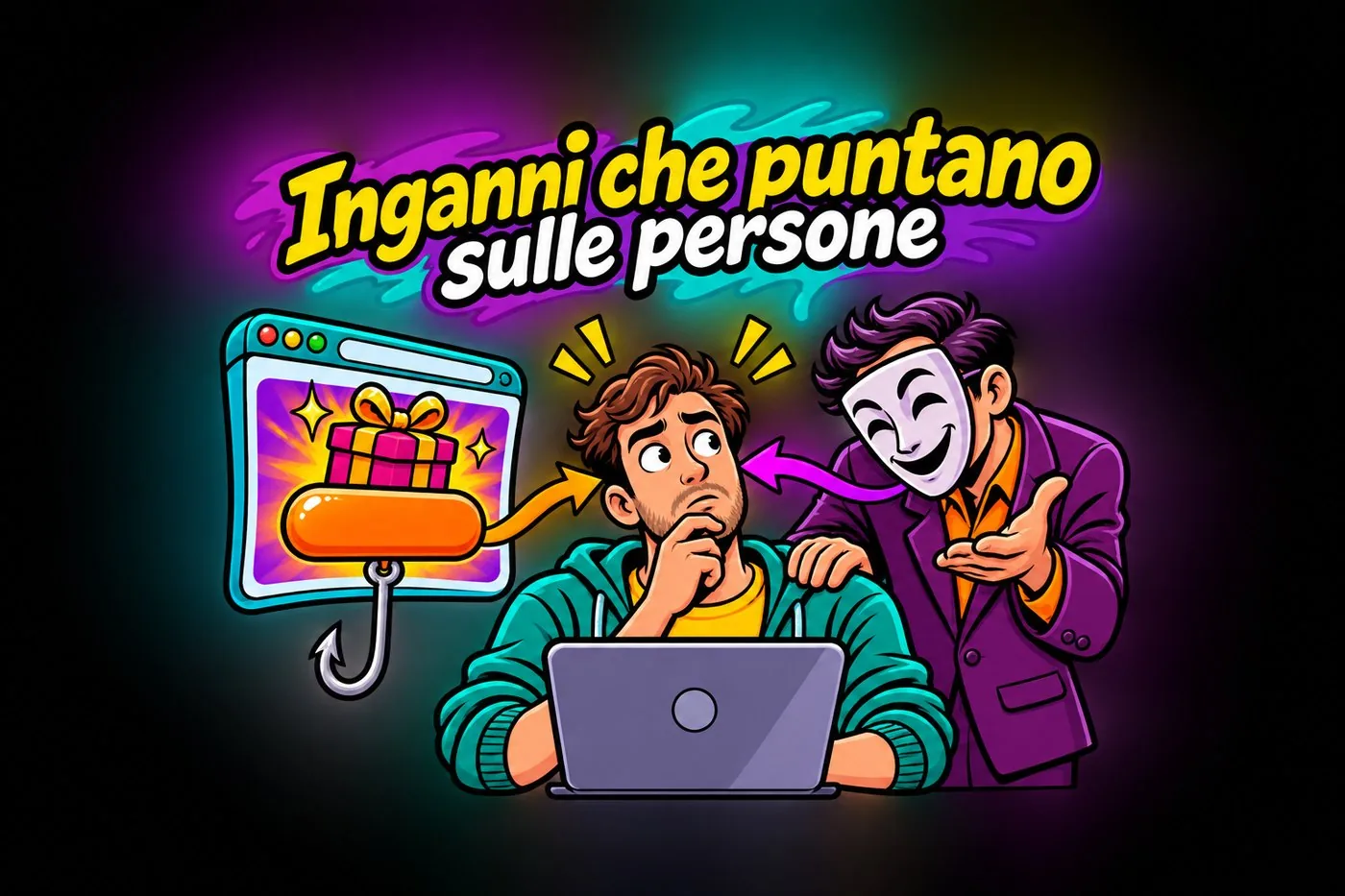
Finally trap sites and social engineering, the scams that aim at people rather than at machines.
SCAMS
A bait website with a gift and a hook, and a masked scammer persuading a hesitant person
Scams play on people, not on machines.
4.2 The defences, in brief
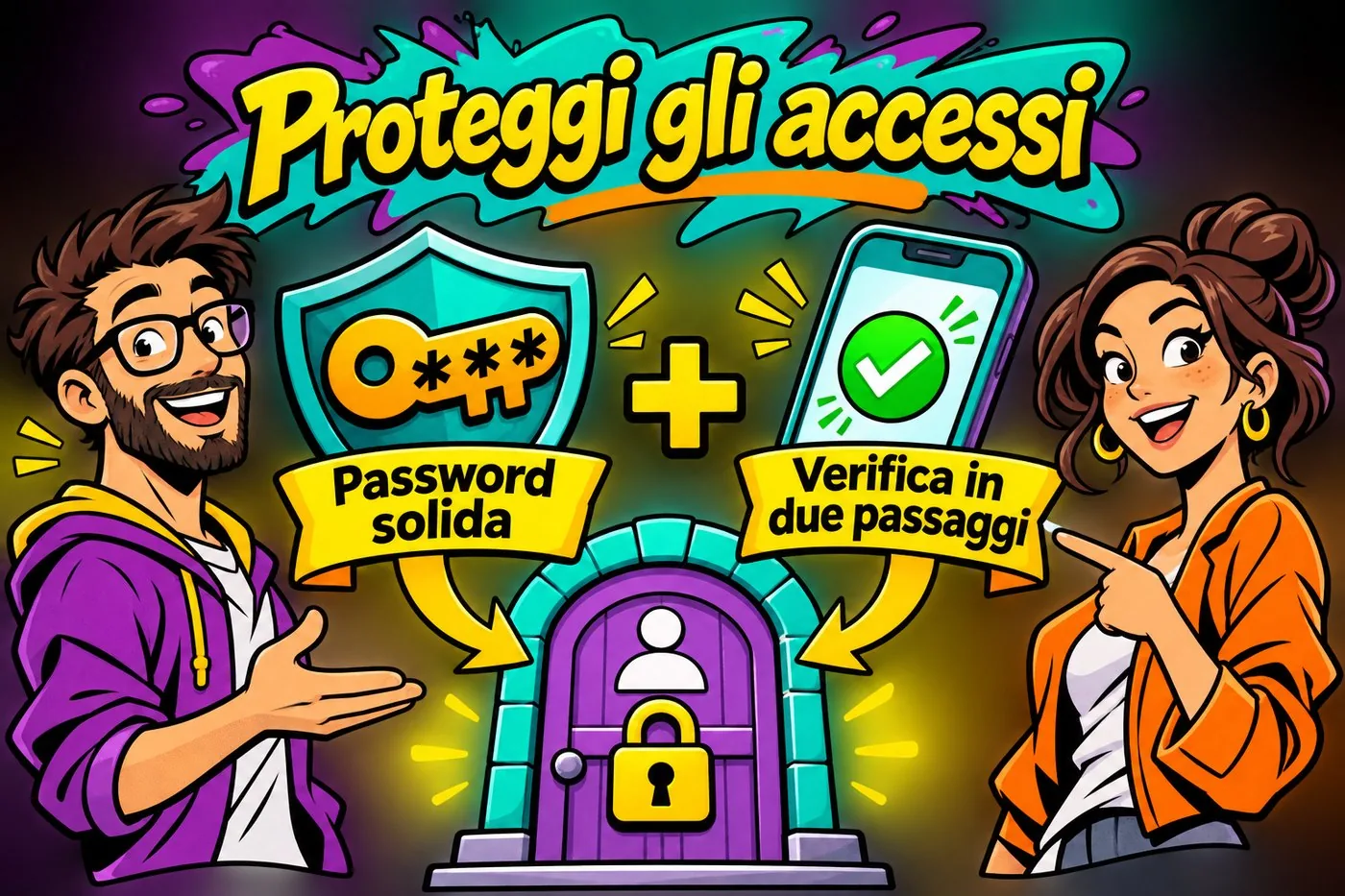
The next four lessons teach you how to defend yourself. For your accounts you need two complementary defences: solid passwords and two-step verification.
ACCOUNTS
A solid password and two-step verification together protect the door of an account
Protect your accounts with solid passwords and two-step verification.
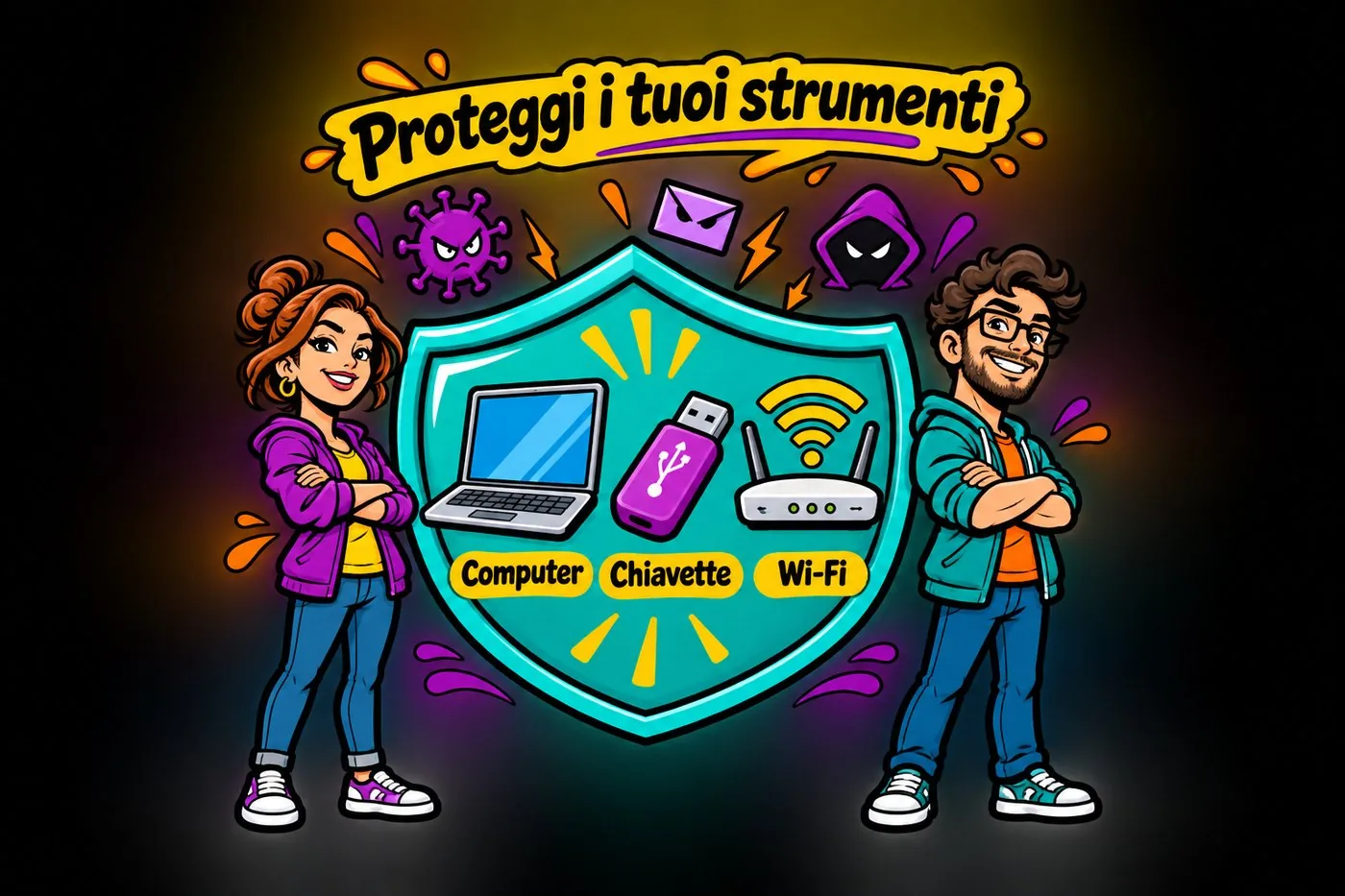
Then come the everyday tools: the computer, USB sticks and Wi-Fi are protected with a few clear rules.
YOUR TOOLS
A shield protects a laptop, USB sticks and a Wi-Fi router from outside threats
Security also covers the tools you use every day.
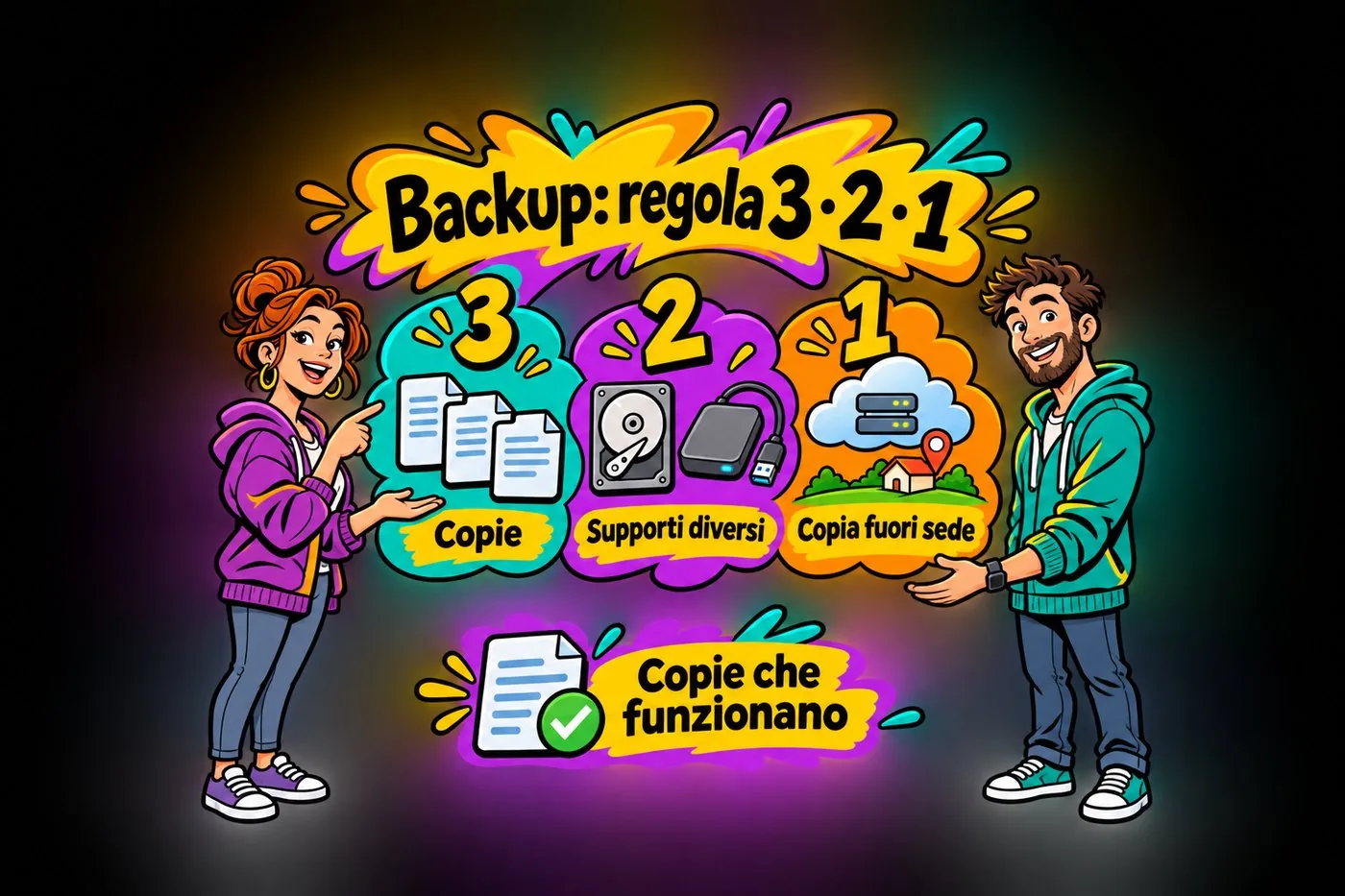
Backups follow the 3-2-1 rule, so that you always have copies that work when you need them.
BACKUP 3-2-1
The 3-2-1 rule: three copies, two different media, one off-site copy, and copies that work
The 3-2-1 rule: different copies, available when you need them.
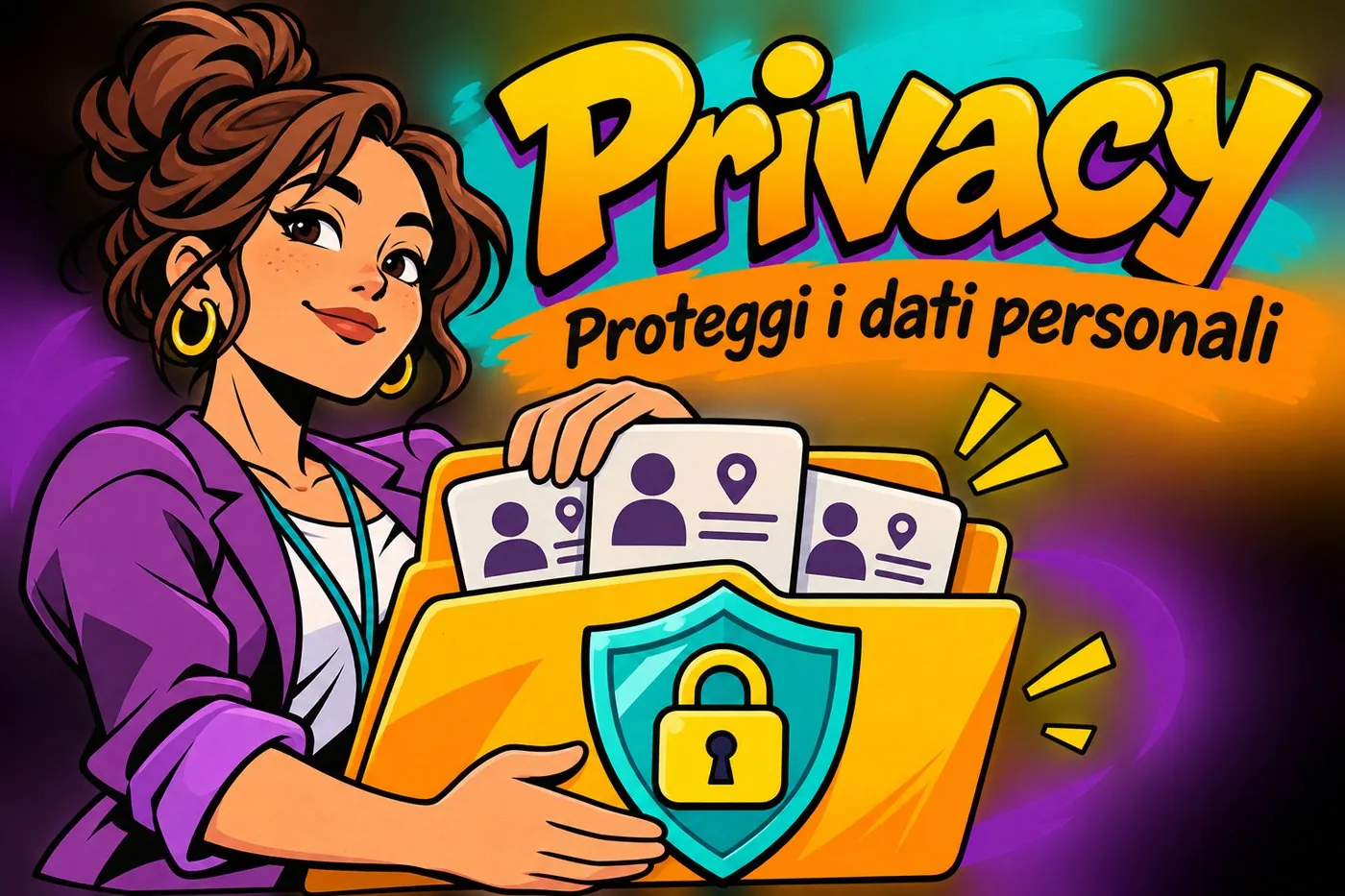
Finally privacy: other people's personal data must be handled with care, as the law requires.
PRIVACY
A worker keeps personal data cards in a folder protected by a shield and padlock
Handle personal data with care.
4.3 If it happens
The last lesson is the most practical: what to do if it happens, even when the defences are not enough.
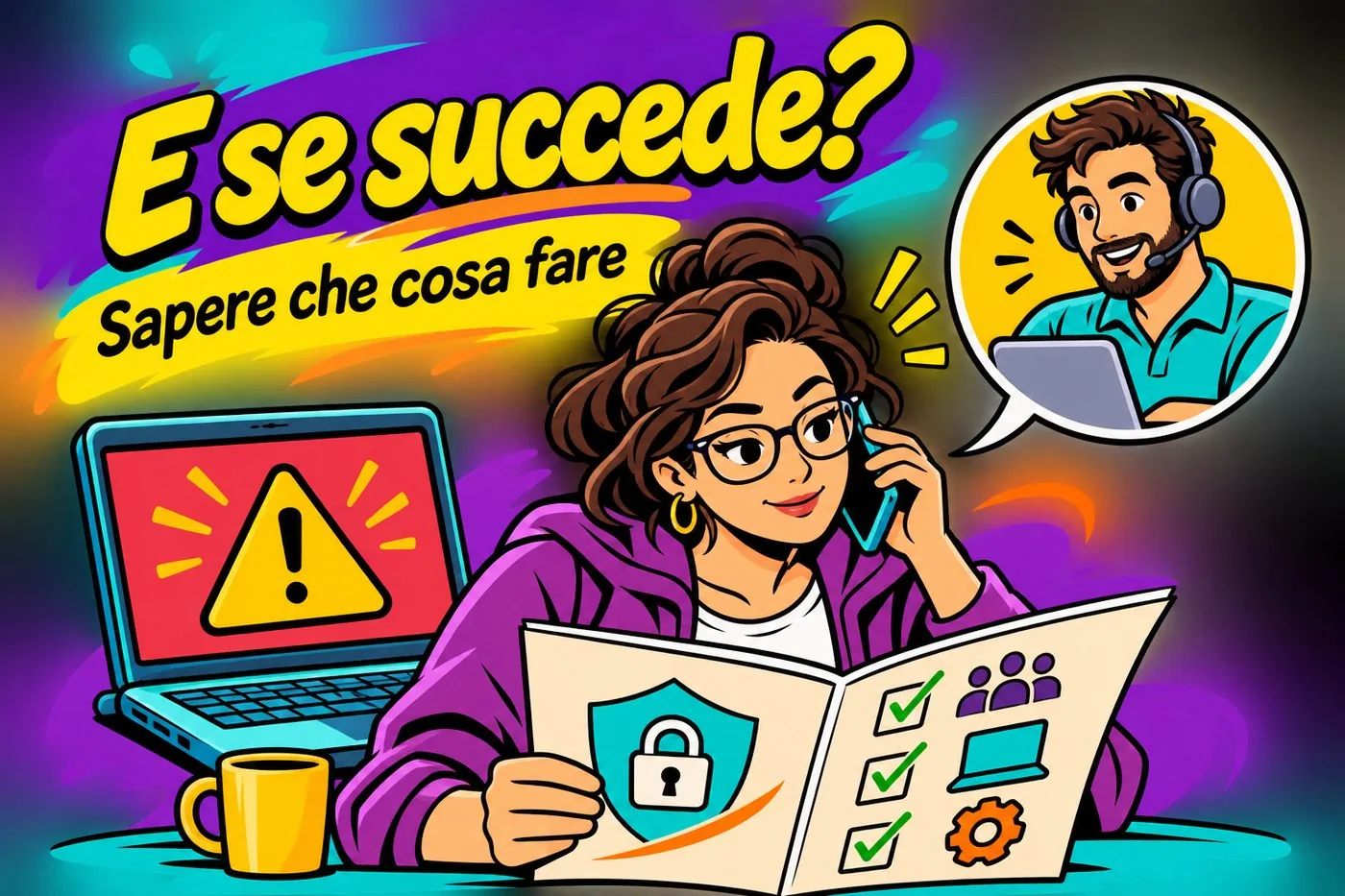
WHAT IF IT HAPPENS?
A person calmly reads an emergency plan and phones for support, beside a computer showing a warning
Being prepared helps you know what to do.
Here is the whole course path at a glance.
Diagram
Three phases of the course
The course path: what we defend ourselves from, how, and what to do when it happens
5. How to follow the course
Every lesson comes with four materials that say the same things in different ways: choose the one that suits you best.
The handout (PDF): to read calmly and to keep;
The slides: to review or to explain to others;
The video: to grasp the main points quickly;
The exercise: the most important part, to do with what you already have.
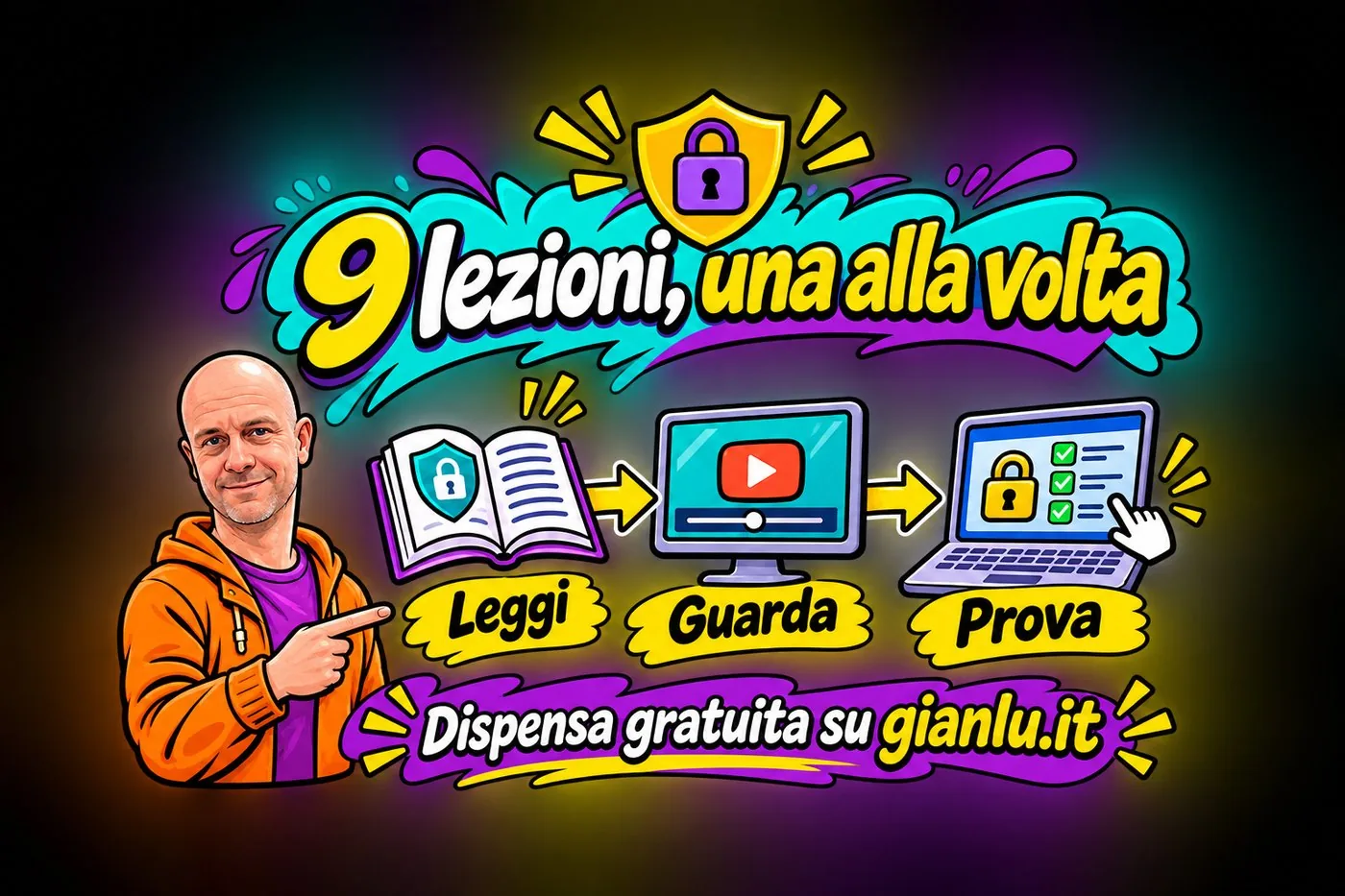
The advice is simple: read the handout, watch the video, then do the exercise. One lesson at a time, without rushing. If a week later you remember the method but not the details, that is perfectly fine: the details are in the handout.
THE PATH
The course path: read the handout, watch the video, try on the computer; Gianluca points the way
Nine lessons, one at a time: read, watch and try.
When you feel you have understood the method, download the free handout on gianlu.it and move on to the next lesson.
A rhythm that works
One lesson at a time, with a pause between them to try things on your own computer. Whoever puts lesson 5 (passwords) into practice the same day remembers it for years.
6. Who is telling you all this
I am Gianluca Bonomo, an IT consultant and trainer. For years I have been explaining digital matters to non-technical people, in simple words and with examples from everyday work. You will find more courses and articles at www.gianlu.it; for questions or suggestions write to info@gianlu.it.
Getting ready
Before you start, get what you need ready.
Create a folder on your computer called «Security course» and inside it one folder per lesson.
Open a text file and write one sentence: «I want to protect...». Complete it with the data or service that matters most to you.
Check that you have an up-to-date Windows 11 and a phone to receive codes.
Download the handout of lesson 1.
Watch out
Do you have one folder per lesson?
Do you know what you want to protect first?
Questions that come up in class
Do I need to be a computer expert?
No. The course starts from zero and explains every technical term the first time it appears.
Can I skip some lessons?
Better not: each lesson builds on the previous ones. If you already know a topic, read the handout and go straight to the exercise.
Does it work if I use a Mac or a phone?
The concepts do, because phishing, passwords and backups are the same everywhere. The menu paths and practical examples are those of Windows 11.
Do I have to pay for anything or install programs?
No: the course uses what you already have, in particular malware).">antivirus, firewall and other checks, based on Microsoft Defender.">Windows Security. Where something else would be needed, I tell you in the lesson.
Lesson glossary
The words you meet in this lesson, explained in one line.
Term
What it means
Backup
A safety copy of the data, to use in case of loss or fault.
Malware
Harmful software created to damage a computer or steal data.
Personal data
Any information relating to an identified or identifiable person.
Phishing
A deception to make you click a link, open an attachment or give confidential data.
Two-step verification
A second check, besides the password, to log in to a service.
Further reading
The sources used to build this handout: if a figure interests you, go to the source and check it.
Gianluca Bonomo, www.gianlu.it
course materials
Watch out
Examples, names and domains in the course are invented. The practical examples refer to Windows 11.
What we protect, what we protect it from, and why you are the first link in the chain
Lesson goal
Understand what cybersecurity really means: the three properties of information to protect, technical and human threats, the weight of human error, and what is at stake when you work with other people's data.
What you will be able to do
Explain confidentiality, integrity and availability in your own words, with one example each.
Tell a technical threat from a human one.
Recognise the work situations where a small mistake can become an incident.
Identify which personal data of other people passes through your computer every day.
Explain why training is the most effective defence.
1. A Monday morning with no files
Picture switching on your computer on Monday morning and finding that the list of enrolled students will not open.
In the office of a small music school, Marta (a made-up name) opens the enrolment folder. The files are there, but they have a strange extension and no program can read them. On the desktop there is a message she has never seen before.
At the same moment, in another office, a colleague notices that the amount on an invoice has changed. Nobody knows who edited it. In a third office, an email with the list of parents has gone by mistake to an outside address.
Three different episodes, one theme: cybersecurity. It is the set of rules, habits and tools that protect information and the computers that hold it. It is not a subject for technicians only: it concerns anyone who uses a computer at work.
1.1 What is at stake in an office
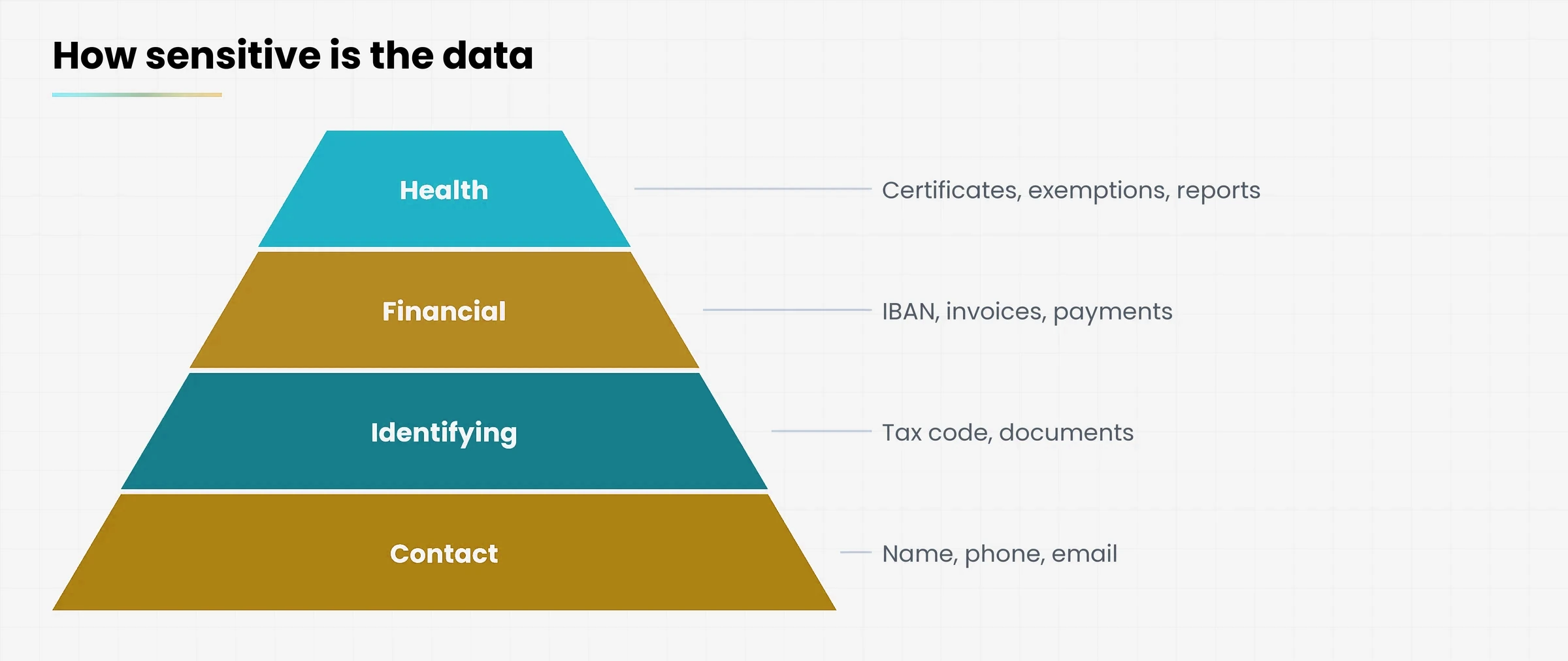
An office computer holds data about people: names, addresses, phone numbers, tax codes (the code that identifies every Italian citizen for tax purposes, the codice fiscale), sometimes health or financial documents. It is information that someone has entrusted to you.
Diagram
Pyramid with four levels of data sensitivity: contact, identifying, financial, health
People's data in an office, from the most common to the most sensitive
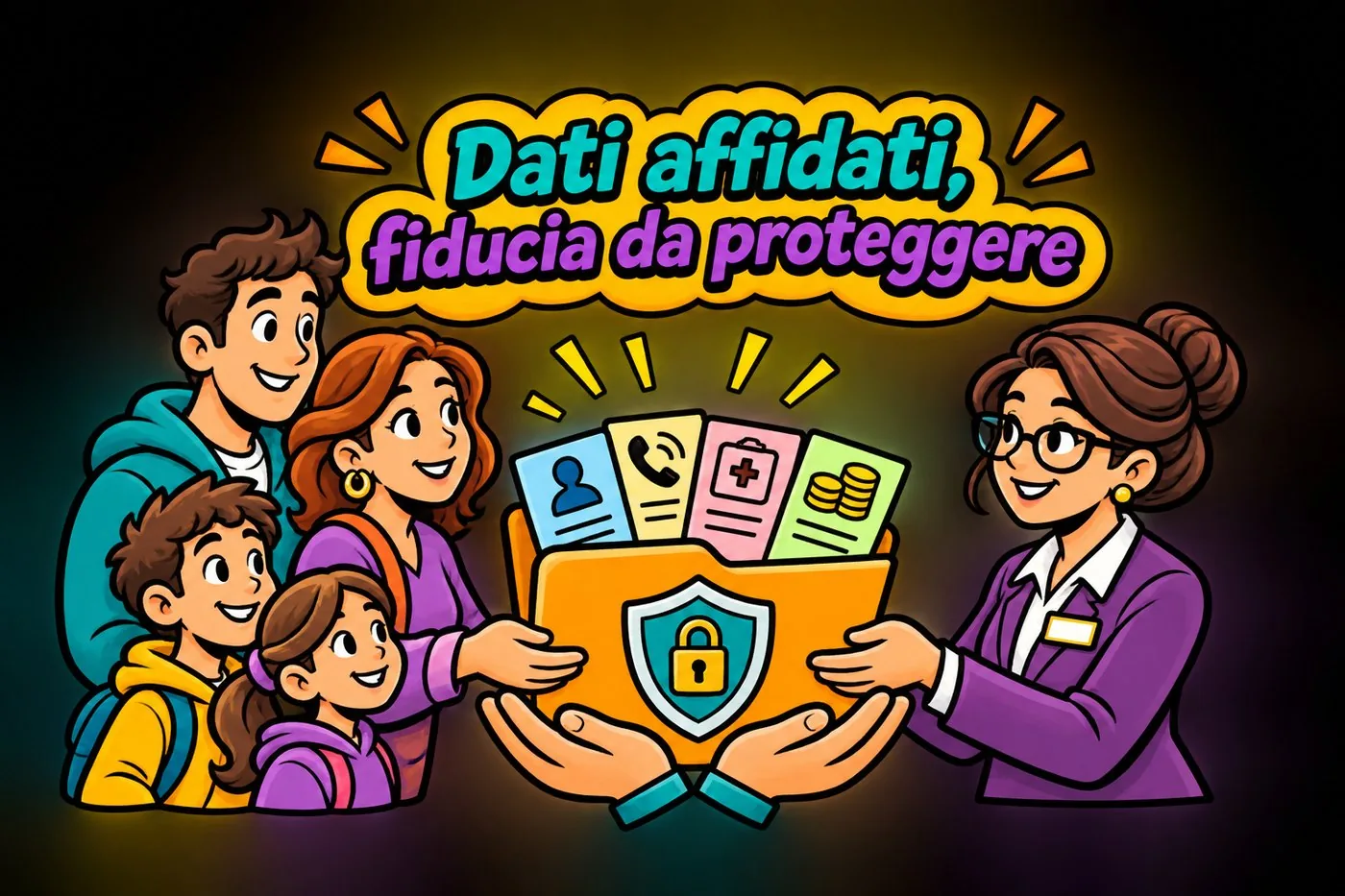
Protecting it is a legal duty, but first of all it is a matter of trust. A family enrolling a child at school, a client leaving documents with a small firm, a patient booking a visit: they all expect that data to stay safe.
DATA AND TRUST
A family hands a folder to a school secretary; inside, anonymous cards for a person, contact details, a health document and a financial document, protected by a shield.
Protecting data means safeguarding people's trust.
The idea in one line
Cybersecurity means making sure the right information is available to the right people, and only to them, with no hidden changes.
2. The three properties to protect
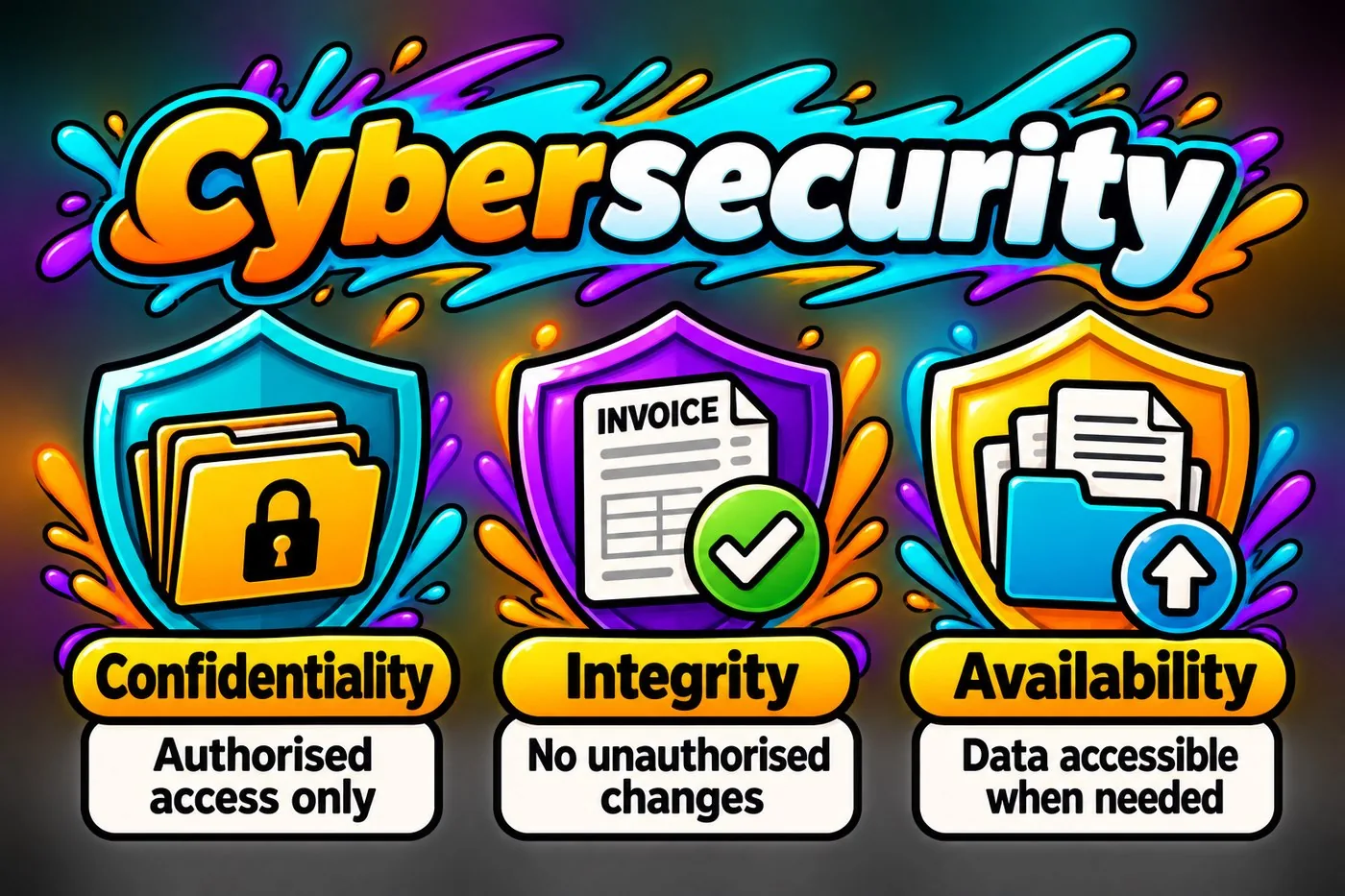
Experts say that cybersecurity protects three things, called the three properties of information. The names sound technical, but the ideas are ones you already know.
The three properties of information, with an everyday example for each.
Property
It means
Example in an office
Confidentiality
Only those who have the right can see the data.
The list of enrolled students does not reach a stranger.
Integrity
Data is not altered without authorisation.
Nobody quietly changes the amount on an invoice.
Availability
Data is accessible when it is needed.
On Monday morning the files are still there, even after a breakdown.
CYBERSECURITY
Cybersecurity
Cybersecurity
2.1 Confidentiality: who can see
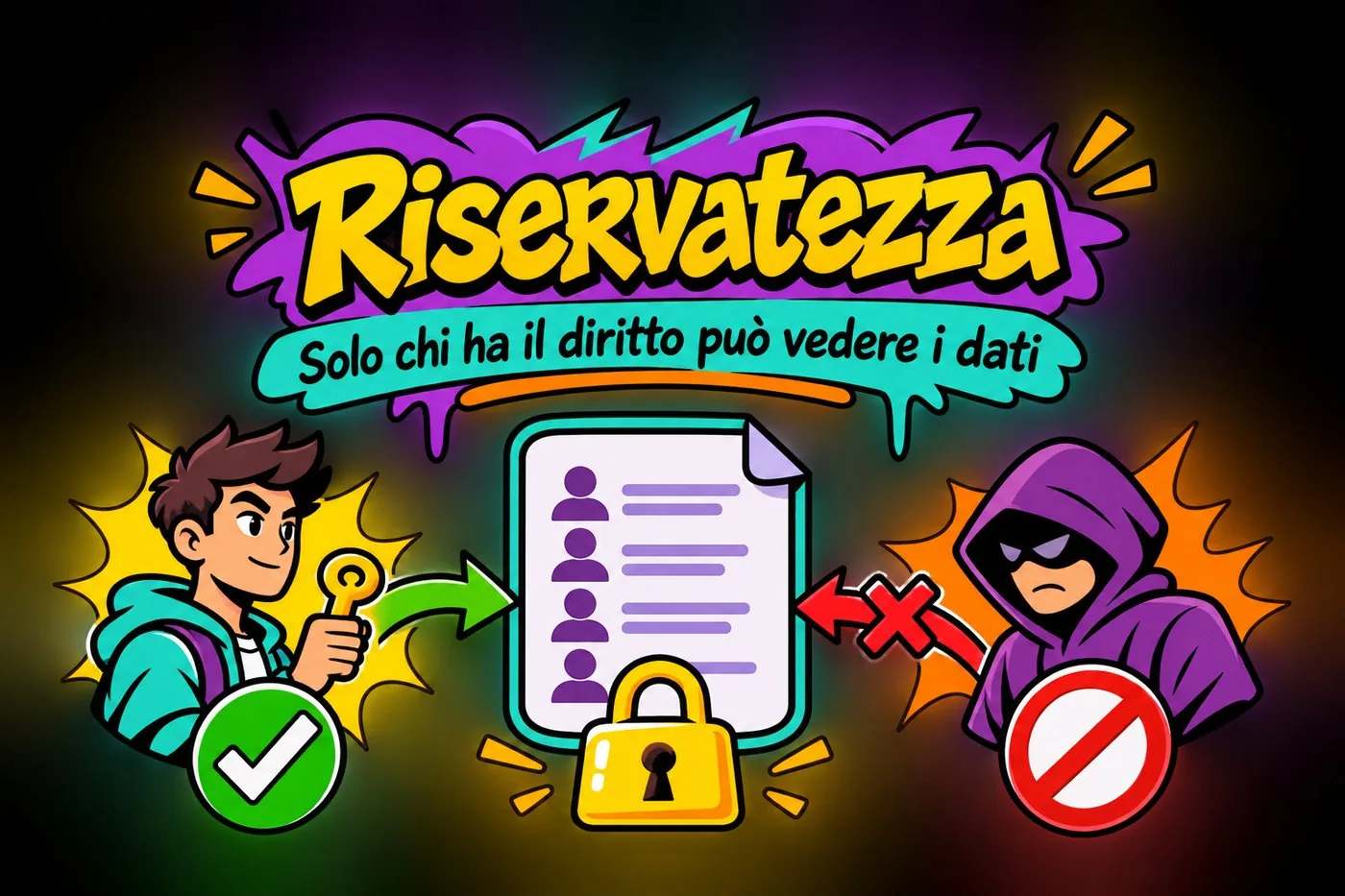
This is the most intuitive property. A student's record should be readable by the person who handles it, not by the visitor waiting in the corridor who can see the screen.
Confidentiality is lost in many ways: an email sent to the wrong person, a sheet forgotten on the printer, a password lent to a colleague because «he is trustworthy anyway».
CONFIDENTIALITY
A list of enrolled students closed by a padlock: the person with the key gets in, the stranger is stopped by a prohibition sign.
Confidentiality: data is visible only to authorised people.
2.2 Integrity: what has been changed
A piece of data can stay confidential and still become unreliable if someone changes it. Think of an IBAN (the code that identifies a bank account) altered in a payment request: the invoice looks the same, but the money goes elsewhere.
Changes are not always malicious. A file overwritten by distraction, or a program that crashes while saving, can leave wrong data that nobody notices right away.
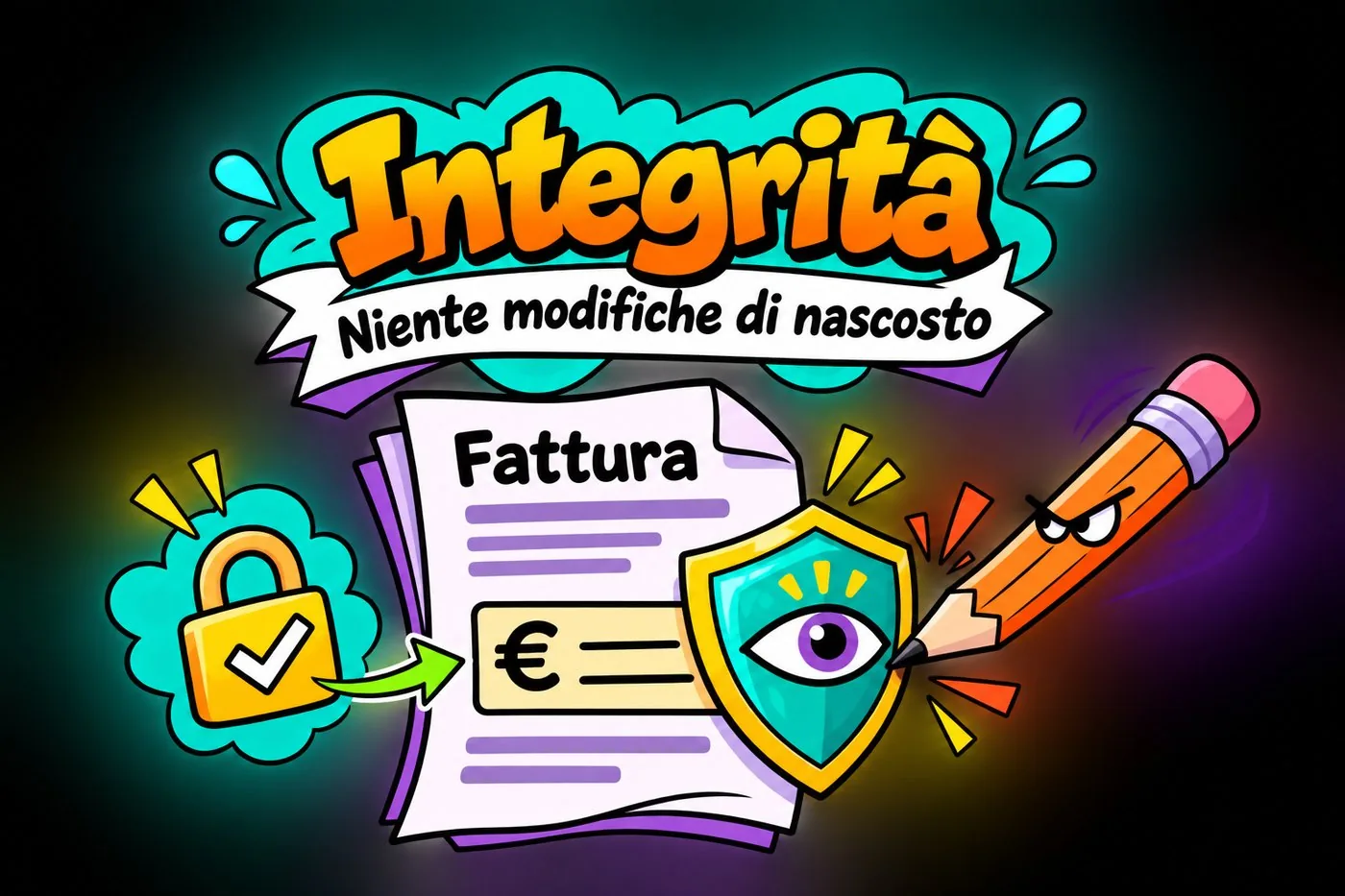
INTEGRITY
An original invoice with its amount field: a sneaky pencil tries to alter it but is stopped by a shield with a checking eye.
Integrity: protecting data from hidden changes.
2.3 Availability: there when you need it
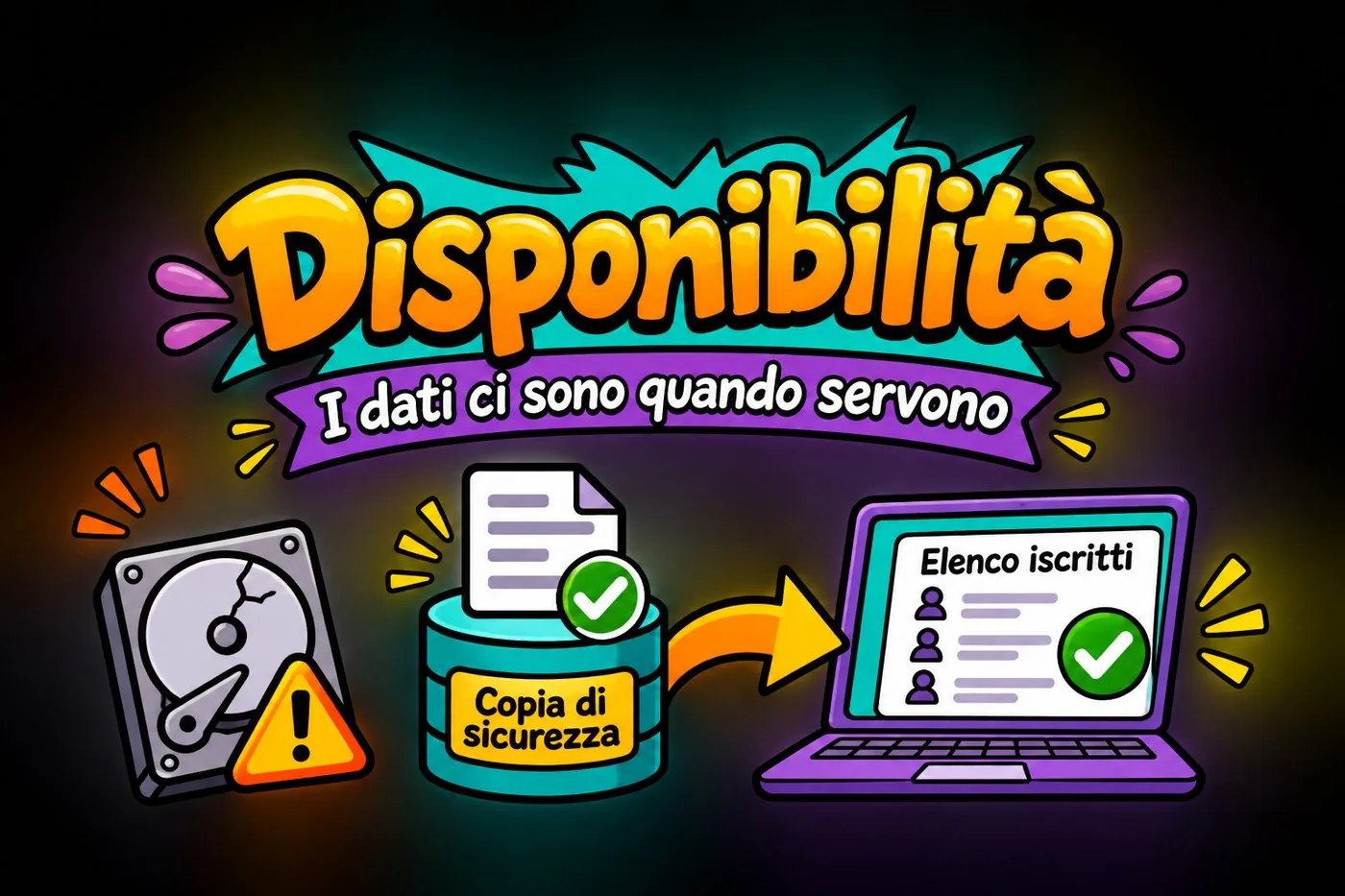
Data can be perfectly confidential and correct, yet useless if you cannot open it. A failed disk, a virus that encrypts your documents, an account locked on the day of a deadline: all of these are losses of availability.
This is the property defended by safety copies (backups), which we cover in a dedicated lesson.
AVAILABILITY
A failed disk, a backup copy and a restore arrow towards a computer that opens the enrolment list correctly.
Availability: getting your data back when you need it.
One case, three properties
A made-up accounting firm, «Studio Esempio», keeps the payslips of a client's employees.
Confidentiality: only two people in the firm can open them. Integrity: nobody can change an amount without leaving a trace. Availability: on payment day the files must open, even if the computer broke the evening before.
3. What we defend against: technical and human threats
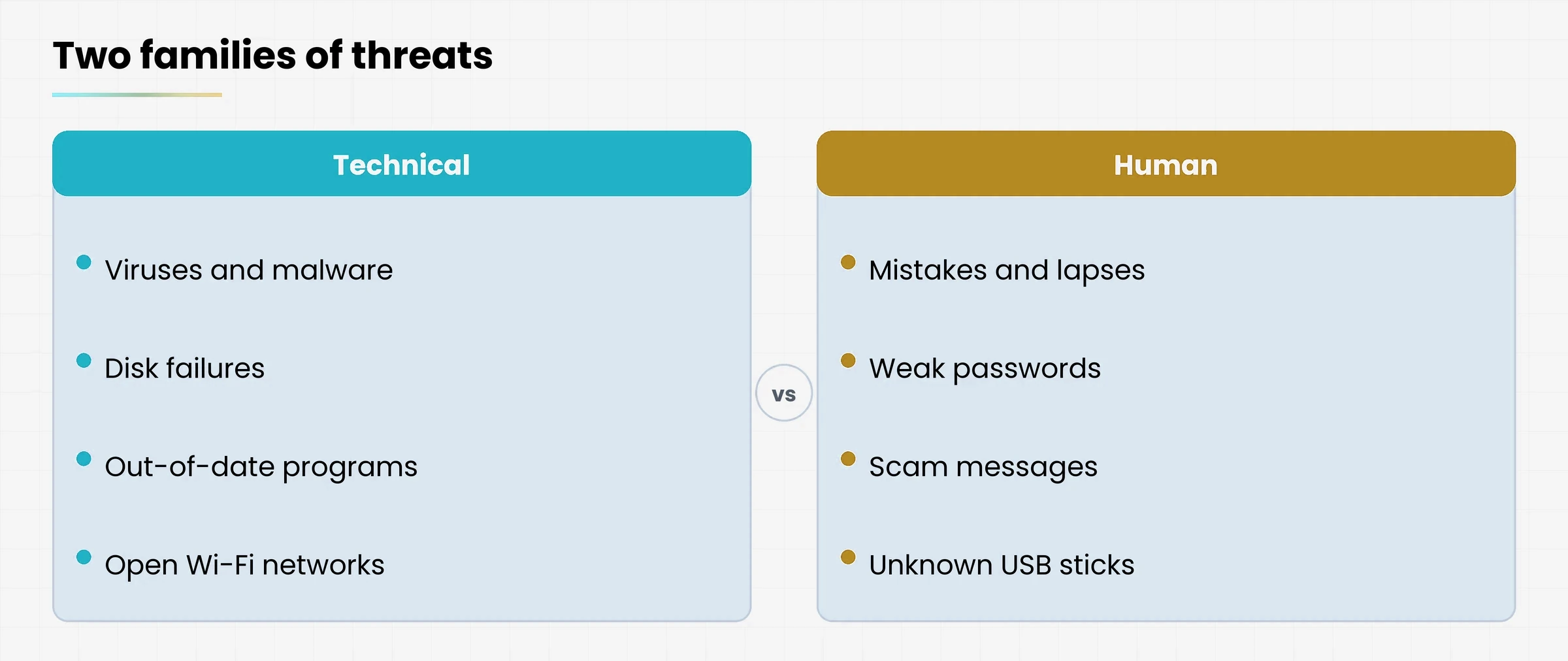
Threats are anything that can make you lose one of the three properties. We split them into two big families, and it helps to keep them apart because they are fought in different ways.
Diagram
Comparison between technical and human threats
Two families of threats, two ways of defending
3.1 Technical threats
These come from machines and software. A virus, meaning a harmful program, is the best-known example. But there are also a disk failure, an out-of-date program with a known flaw, and an unprotected public Wi-Fi network.
Against these threats you need tools: updates, malware).">antivirus, backups. We will go through them one by one in the next lessons.
3.2 Human threats
These pass through people: a mistake, a distraction, or a deception. A fraudster does not need to break into the computer if he can convince you to open the door yourself.
the mistake: an email sent to the wrong recipient, a file deleted by distraction;
the lapse: a computer left on and unlocked, a password written on a sticky note;
the deception: a message pretending to come from the bank, the courier or the director;
the carelessness: a USB stick found in the car park and plugged in «just to see what is on it».
3.3 Often the two families meet
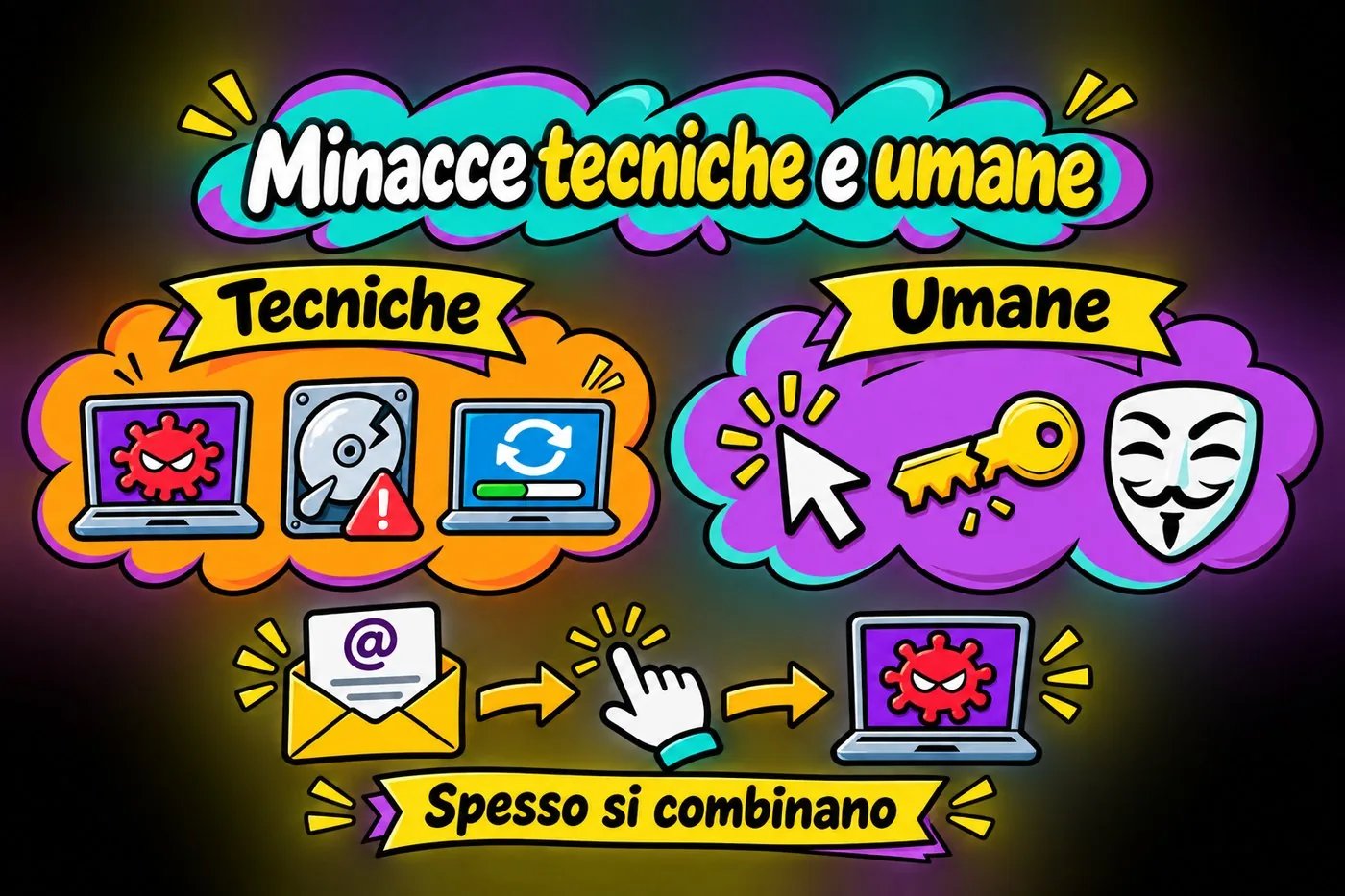
A successful attack usually combines both. The fraudster uses a human trick (a convincing email) to launch a technical threat (a harmful program). That is why a good antivirus is not enough: you also need to know what not to click.
TECHNICAL AND HUMAN THREATS
Two groups of icons, technical (malware, failed disk, software to update) and human (careless click, weak password, deception), and below an example: convincing email, click, harmful program.
Technical and human threats often meet.
Warning
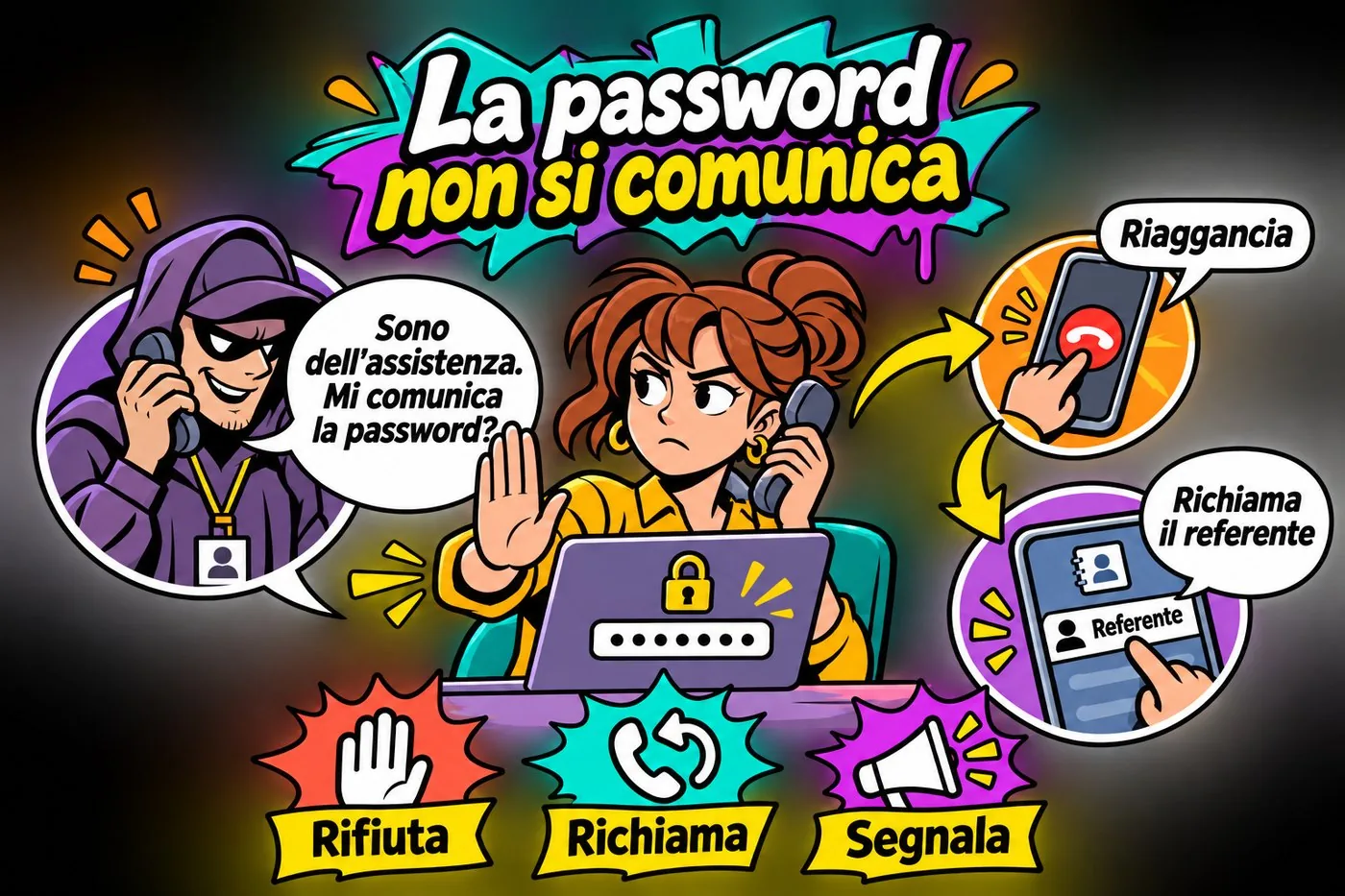
No technical tool stops a person who willingly hands over their password to a stranger who claims to be technical support.
4. Human error: where incidents really start
In real life, most incidents start with human error.
A wrong click, a weak password, a lost USB stick. It is not a fault to pin on anyone: it is the normal result of working in a hurry, among a thousand other things, with email arriving in waves.
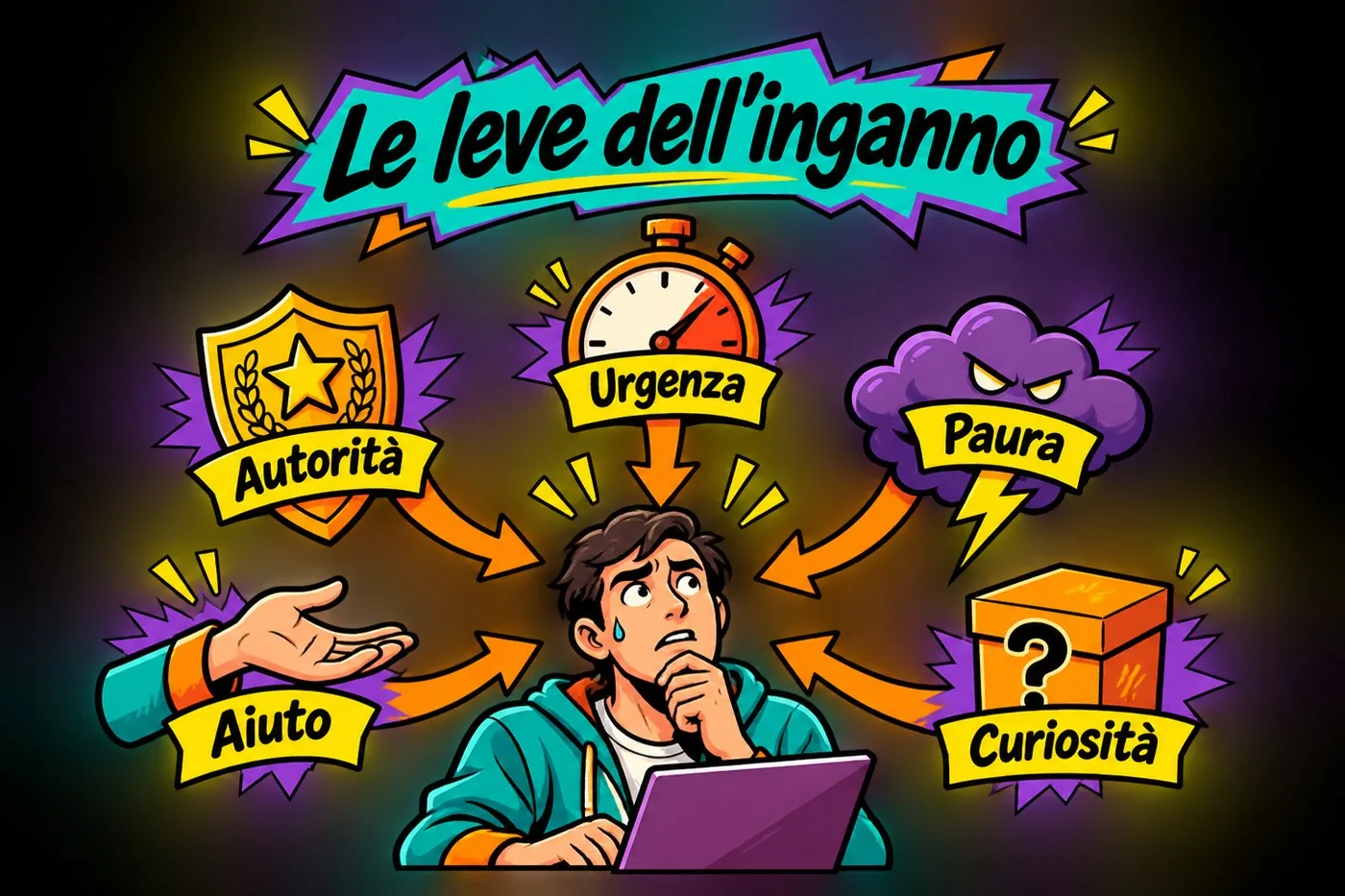
Attackers know this well. That is why scam messages are written to create urgency, fear or curiosity: these are the emotions that make us click before we think.
4.1 First case: the «director's» email
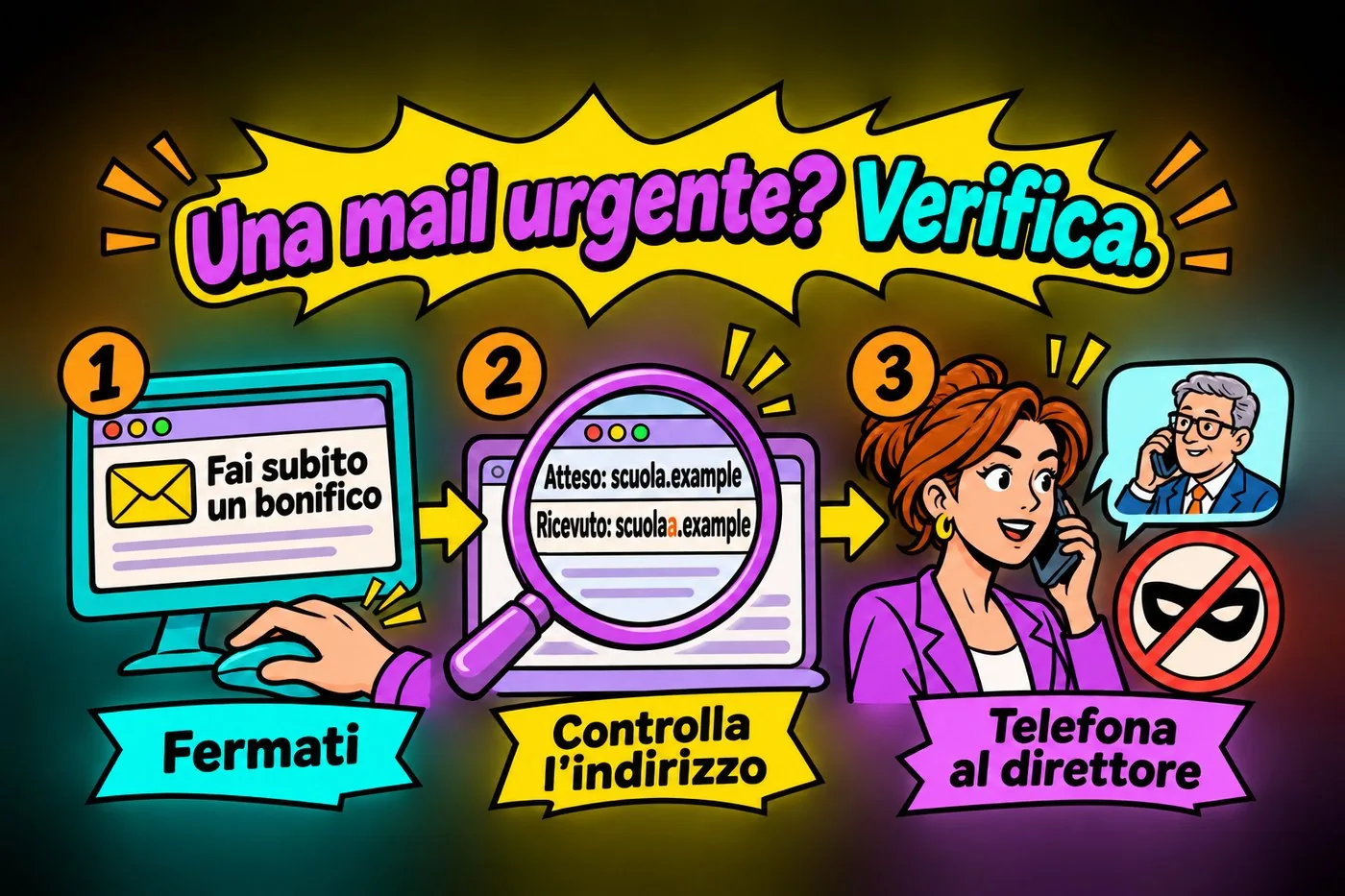
Giulia (a made-up name) works in the office of a small organisation. On a Thursday afternoon she receives a message that looks like it comes from the director: «I am in a meeting and cannot call. Make a bank transfer to this supplier right away, I will explain later.» The name is right, the tone is the usual one.
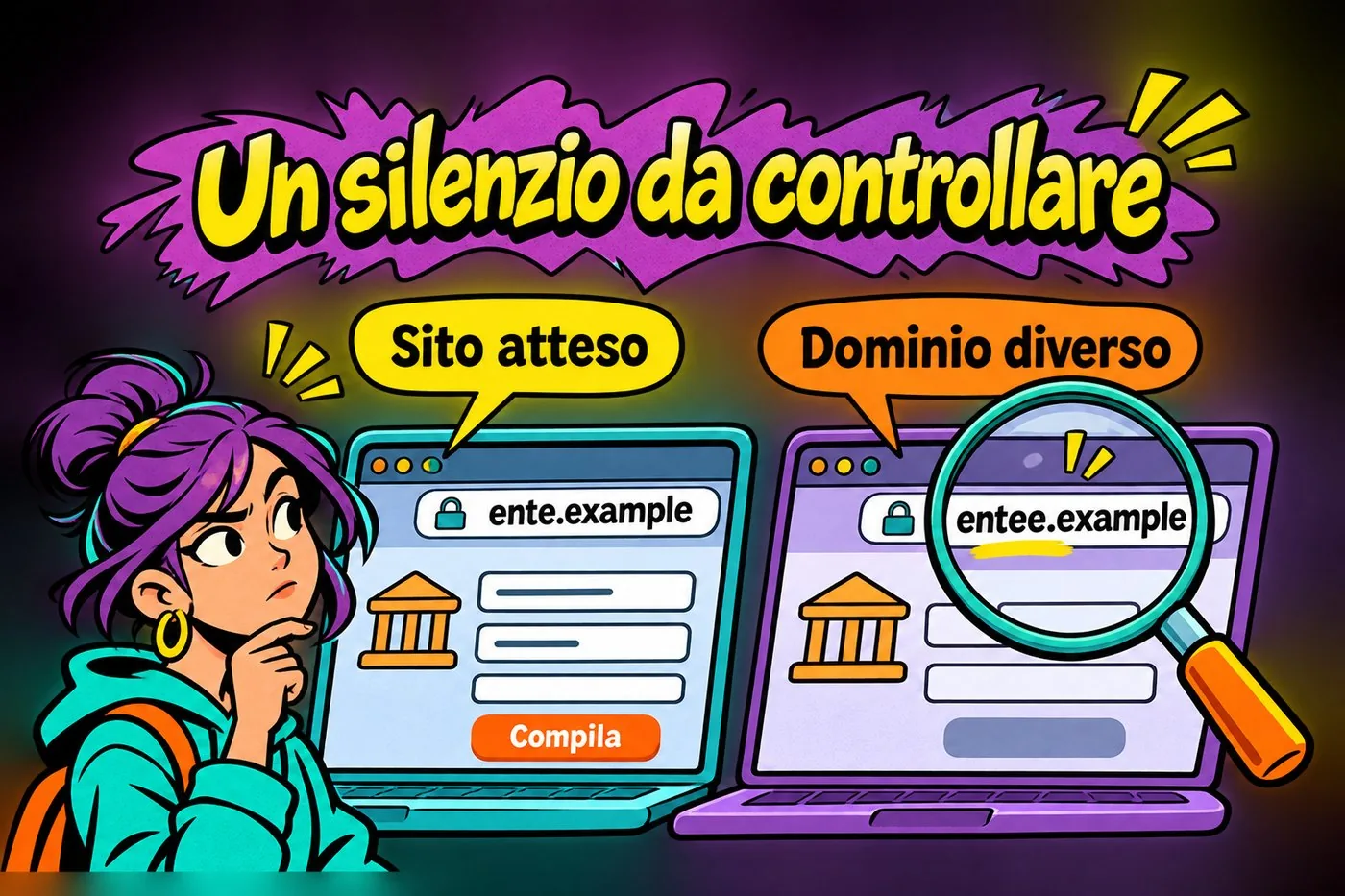
If Giulia goes ahead, the money is gone. If she stops and reads the sender's address, she notices that the domain (the part of the address after the @ sign) is slightly different from the organisation's. If she phones the director on the number she already knows, she discovers the deception in a few seconds.
URGENT EMAIL? CHECK.
Three numbered steps: stop in front of the email asking for a transfer, check the sender's address with a magnifying glass, phone the director and uncover the deception.
An urgent request for money deserves a check.
4.2 Second case: the supplier's USB stick
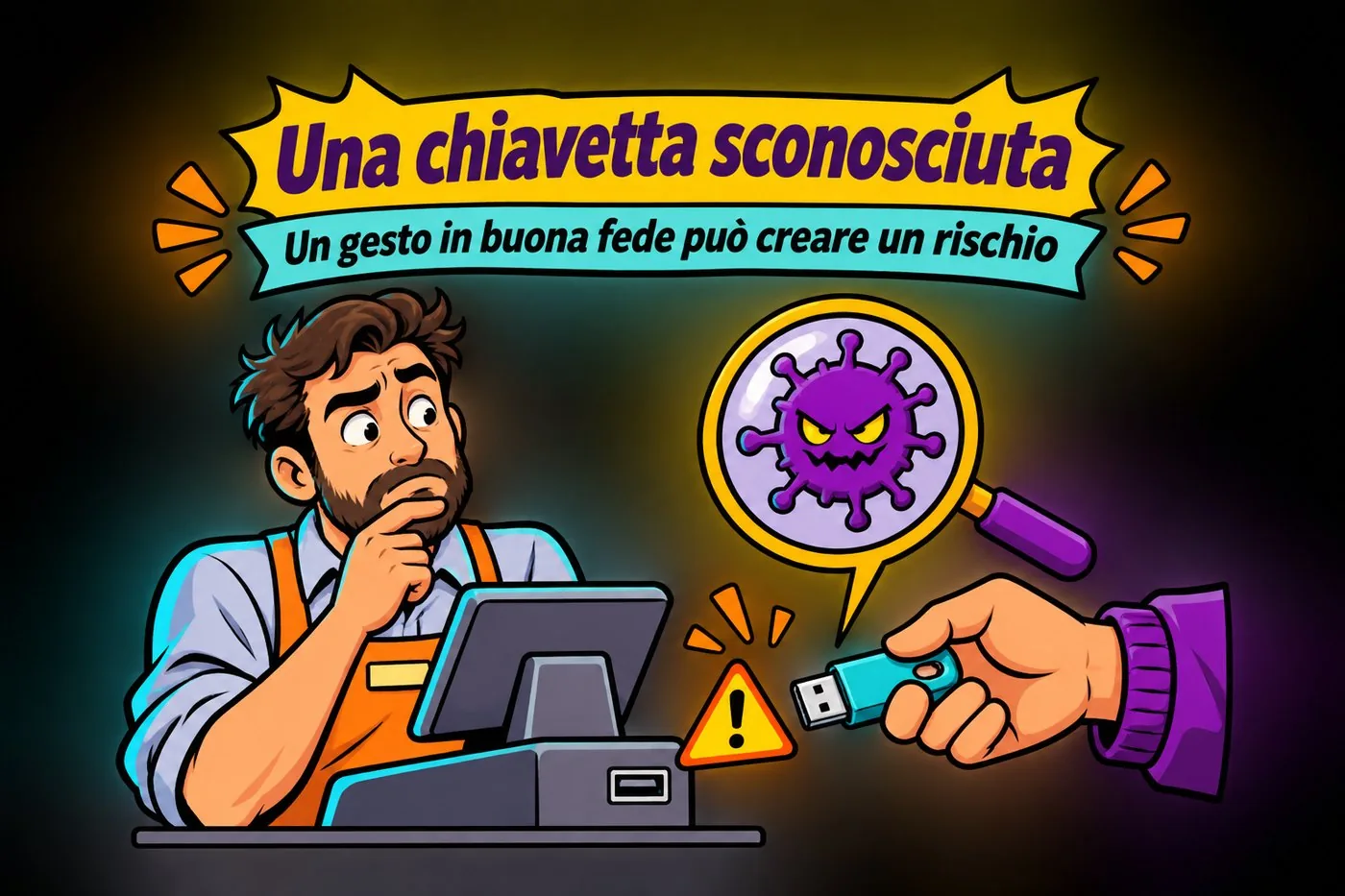
In a made-up shop, a sales rep leaves a USB stick with «the updated price list». The shop assistant plugs it into the till computer to print it. If the stick contains a harmful program, it is now on the computer that handles the takings and the customers' data.
UNKNOWN USB STICK
A shop assistant at the till hesitates over a USB stick offered by an outside hand; above it a magnifying glass shows a symbolic malware and a warning triangle.
Even a well-meant gesture can introduce a risk.
The gesture was in good faith. But good faith is not enough: you need a simple rule that everyone knows, for example nothing is plugged into a work computer unless the IT contact has checked it.
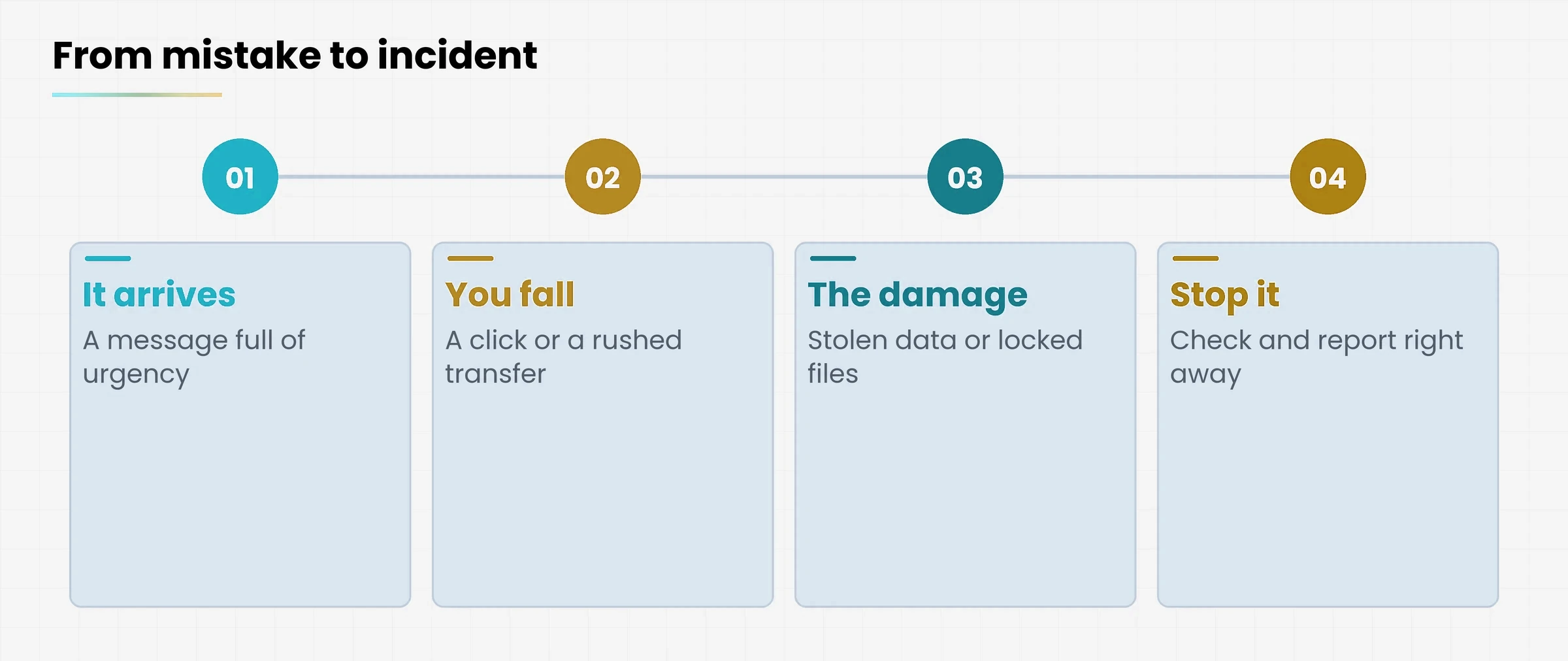
Diagram
Four steps from scam email to incident
How a small mistake becomes an incident, and where it can be stopped
4.3 Why we make mistakes, and how to get out of it
The most common causes of error and the countermeasure that works.
What makes us slip
What helps
Hurry and deadlines
A moment of pause before clicking or making a payment.
Habit («I have always done it this way»)
Written rules that are simple and the same for everyone.
Trust in the sender's name
Check the address and, if in doubt, call back on a known number.
Embarrassment at asking
An environment where you can say «I am not sure, can you check with me?».
The idea in one line
A mistake does not become a serious incident if you report it right away. Silence, on the other hand, makes it worse.
5. Why training is the most effective defence
If most incidents pass through people, the most effective defence passes through people too. A good malware).">antivirus protects you from what it already knows. An attentive person protects you even from what no program has yet seen.
That does not mean tools are useless. It means they work together: tools stop the bulk, people stop the rest.
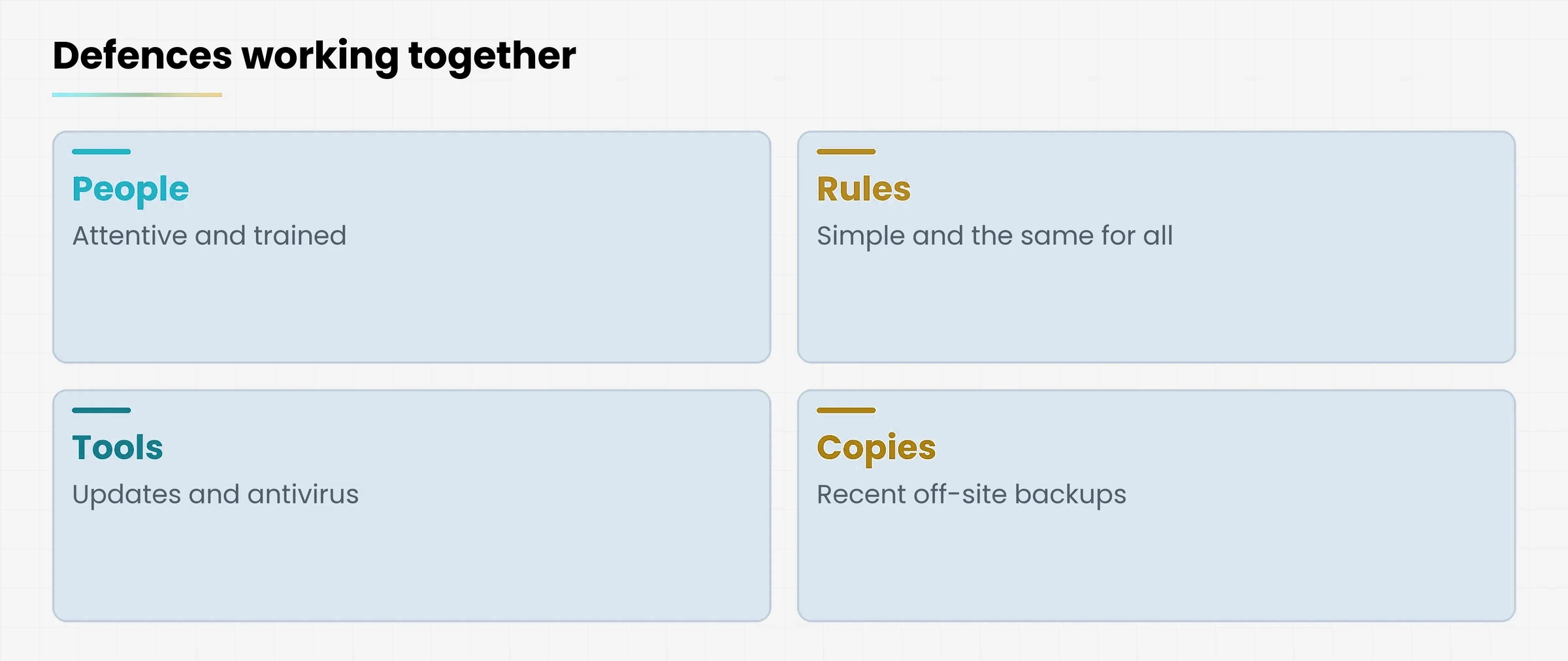
Diagram
Four cards: people, rules, tools, safety copies
Defences work together: none is enough alone
5.1 What being trained means
knowing what is at risk and why other people's data must be handled with care;
recognising the signs of a deception before clicking;
knowing a few simple rules and applying them always, even when in a hurry;
knowing who to tell if something goes wrong, and doing it right away.
5.2 What we will cover in the course
This lesson is the map. In the next ones we will look at malware and ransomware, phishing and its variants, fake sites and social engineering, passwords and password, to log in to a service.">two-step verification, protecting devices and networks, backup, privacy, and what to do when it happens.
Each lesson starts from a real problem and ends with a short exercise you can do with what you already have on your computer.
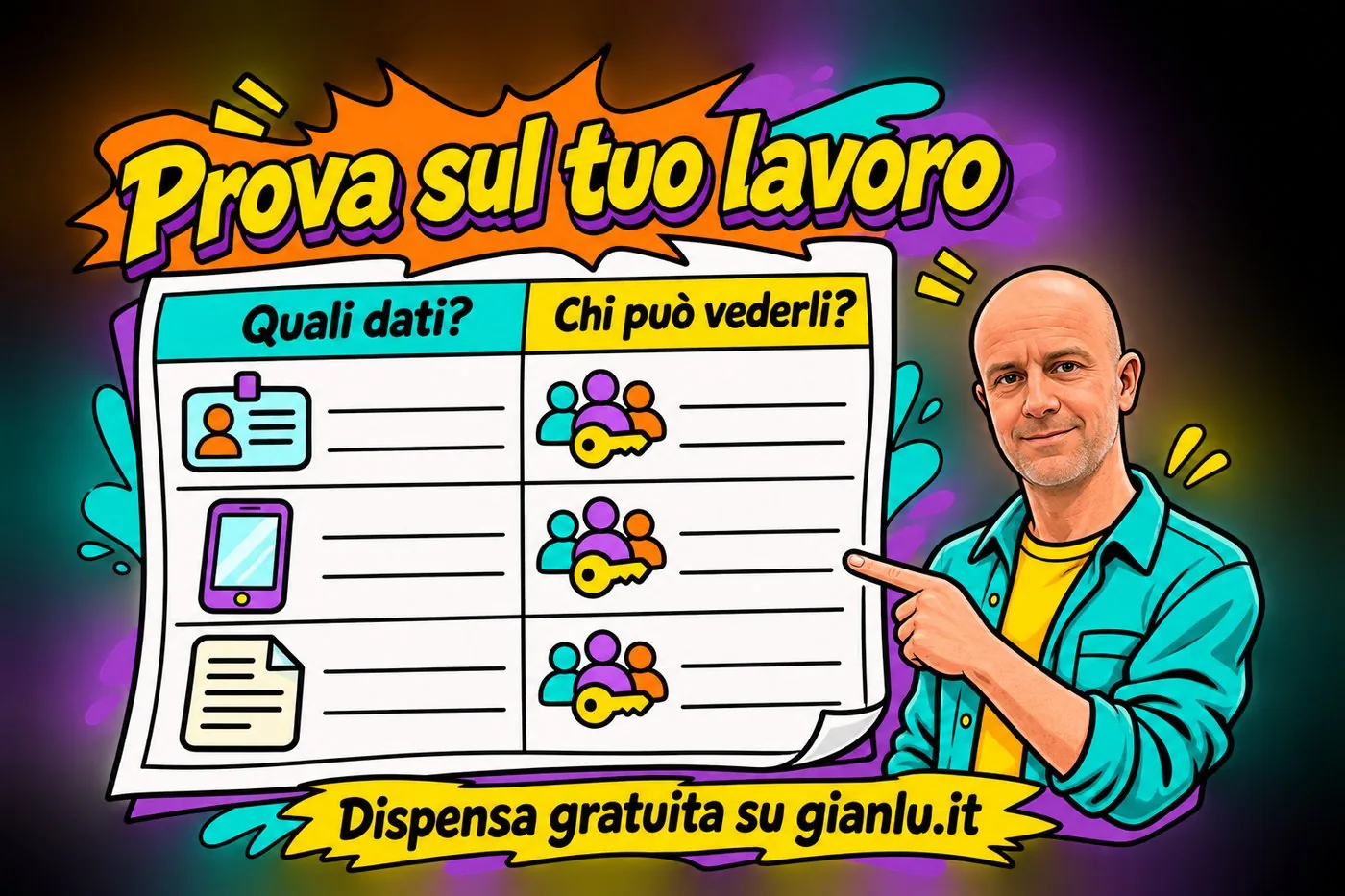
TRY IT ON YOUR WORK
An exercise sheet with two columns, Which data? and Who can see it?, to be filled in; on the right the presenter points at the sheet.
Which personal data passes through your work? Who should be able to see it?
5.3 What a well-protected day looks like
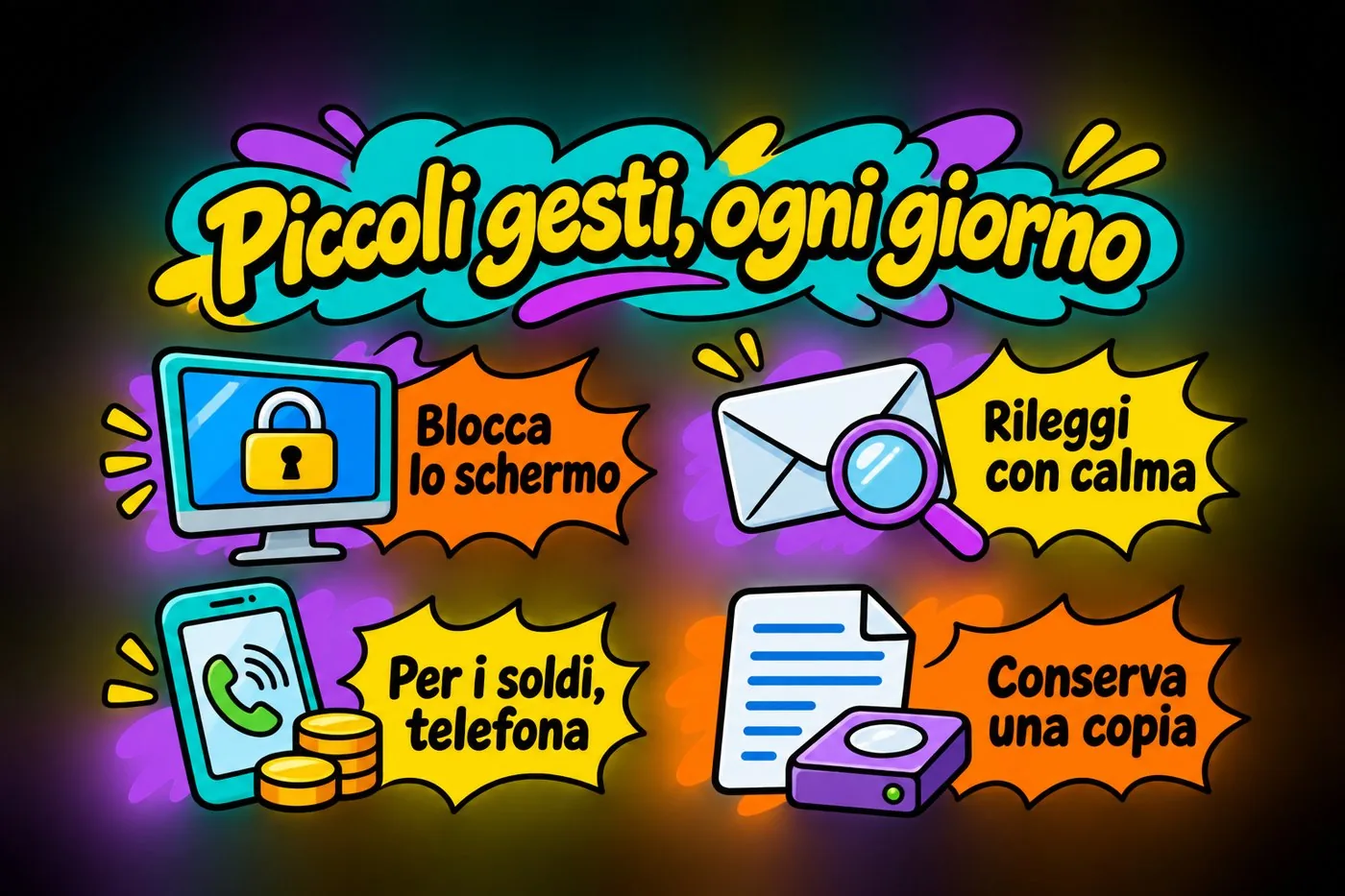
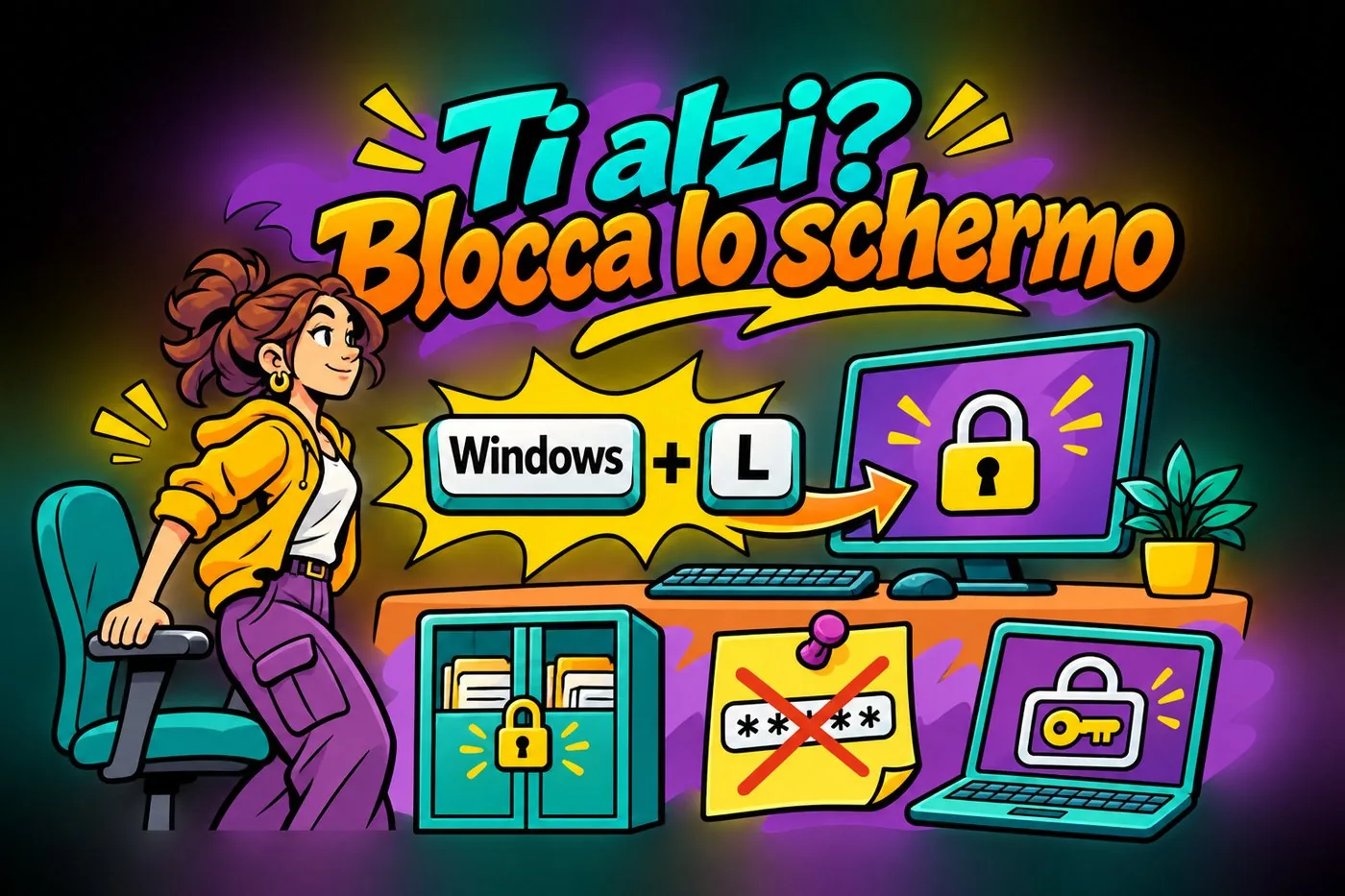
It is not a heroic day: it is an ordinary day with a few extra gestures. You switch on the computer and unlock it with your password, which nobody else knows. When you leave your desk, you lock the screen. An email that puts you under pressure gets a calm second read and, if it involves money, you phone whoever is supposed to have written it.
At the end of the day, your important documents are also in a safe copy. None of these gestures needs technical skill. They need a habit, and habits can be built: that is exactly what we will do, lesson after lesson.
SMALL GESTURES
Four actions with icons: lock the screen, reread calmly, phone for money matters, keep a copy.
Lock, reread, verify and keep a copy: small everyday gestures.
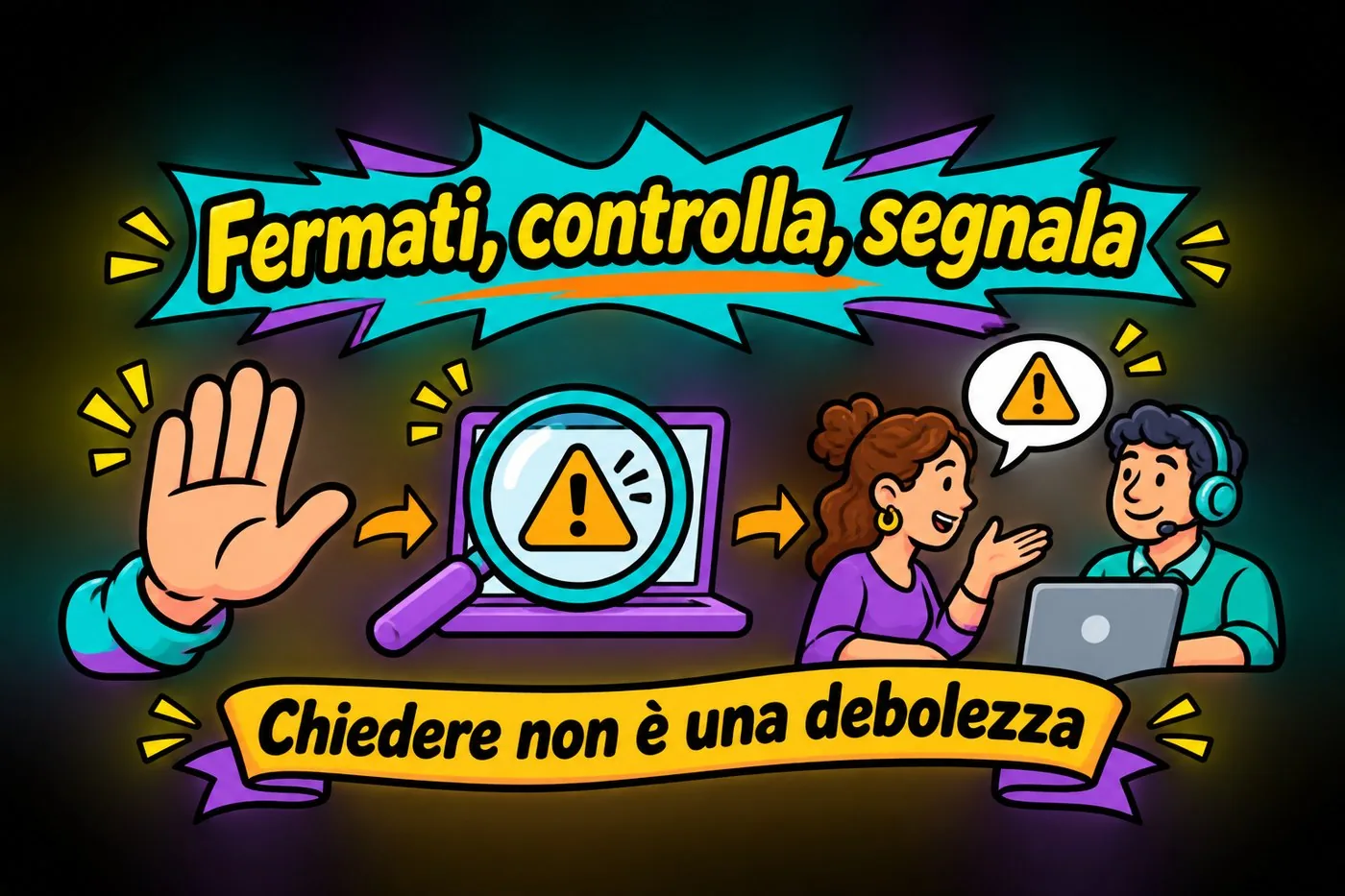
There is also an effect you notice over time: people who work where these habits are shared feel less alone in front of a doubt. They know who to ask and they know that asking is not a weakness.
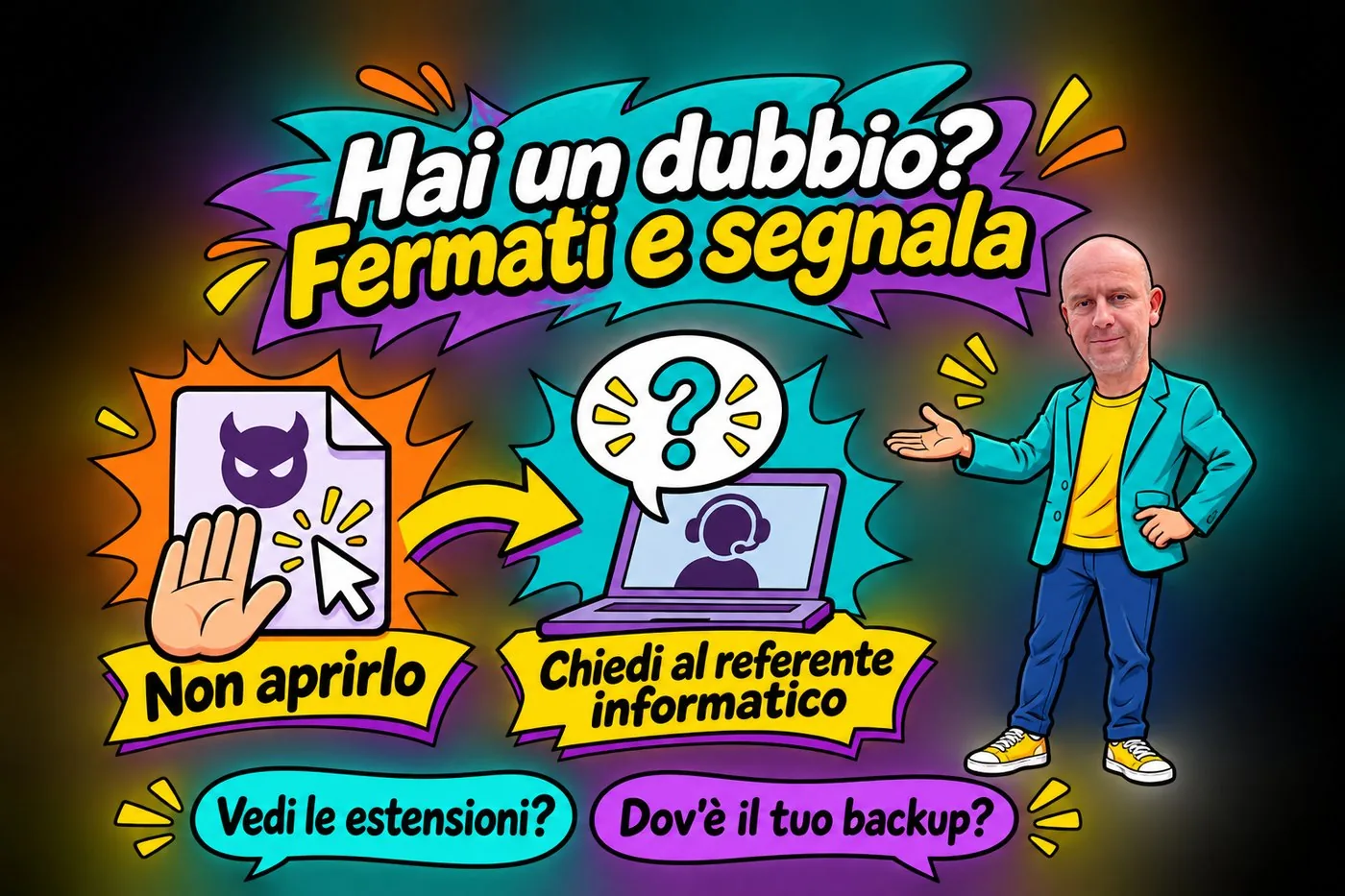
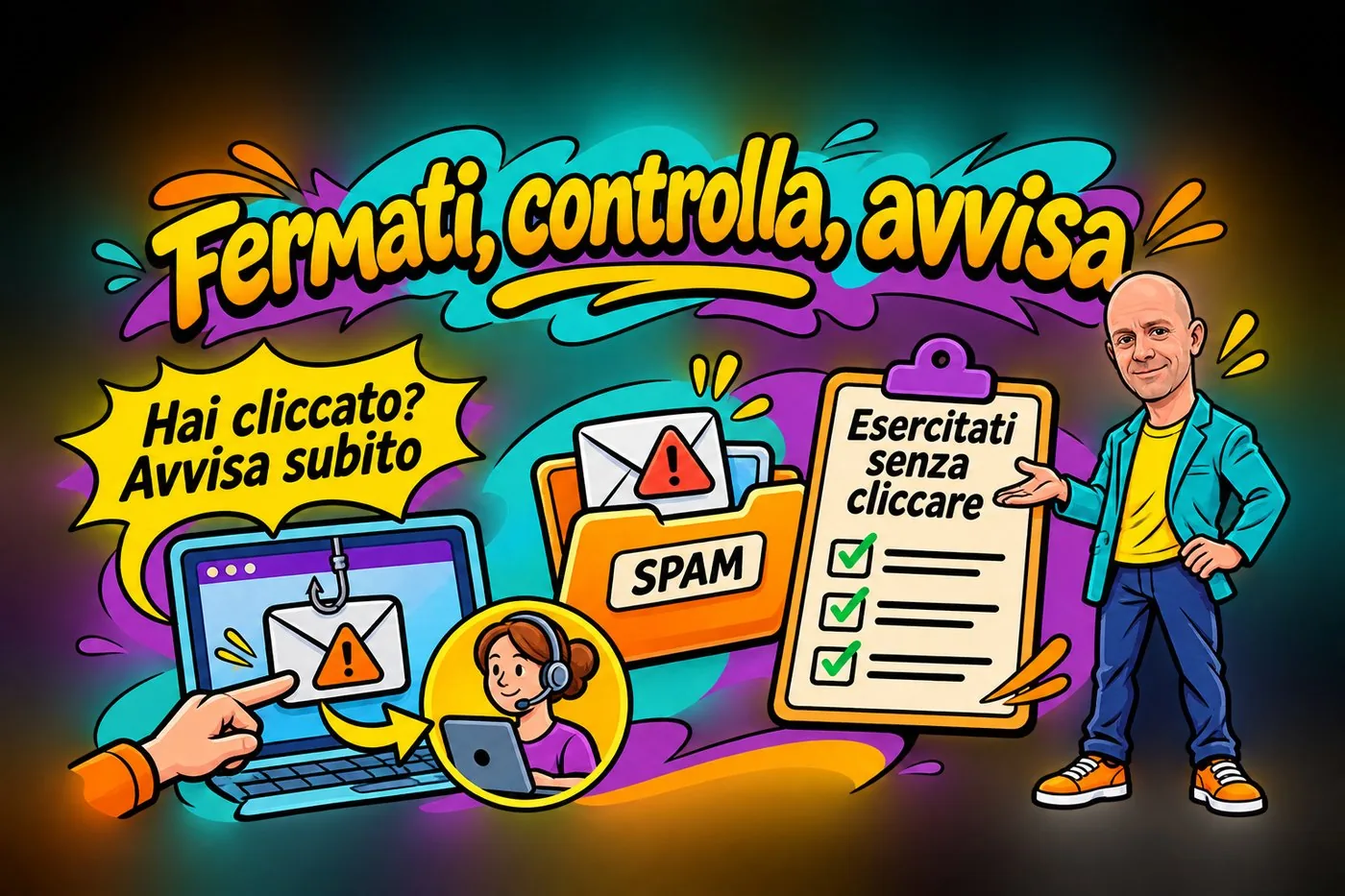
STOP, CHECK, REPORT
Three items in sequence: a hand inviting you to stop, a magnifying glass on a warning, a person reporting the problem to a support colleague.
Stop, check, report. Asking for help is part of security.
5.4 An honest limit
No defence gives absolute security. The goal is not never to make a mistake, but to greatly reduce the chances of error and limit the damage when one happens. An office that has recent backups and people used to reporting problems is already far safer than one that trusts luck.
Warning
The rules in this course are common-sense basics. If you work for an organisation or a company, also follow its internal procedures and the guidance of your IT contact: they come first.
Exercise: the map of your data
A short exercise with pen and paper and the computer you normally use. Nothing to install.
List which personal data of other people passes through your work in a normal week: names, addresses, phone numbers, tax codes, documents, photos.
For each type of data, write where it lives: on the computer, in a shared folder, in an email, on paper, on a USB stick.
For three of them answer these questions: who should be able to see it (confidentiality)? What would happen if someone changed it (integrity)? What would happen if on Monday morning it were no longer available (availability)?
Find one habit of yours or of your colleagues that puts one of the three properties at risk, for example a shared password or a sheet left in view.
Write the first small rule you would adopt to fix it.
Check your result
Did you find at least five types of data and where they are kept?
Did you answer all three questions for each piece of data you analysed?
Is the rule you wrote simple enough to apply even on busy days?
Questions that come up in class
I am just an office assistant: why would anyone attack me?
Because most of the time they are not after you in particular. They send the same message to a huge number of people and see who falls for it. Besides, an office computer is attractive precisely because it holds personal data and has access to email, payments and archives.
Is a good antivirus enough to be safe?
No. Antivirus is an important part, but it does not stop a fraudster who convinces you to hand over a password or make a bank transfer. You need tools, rules and attentive people together.
If I made a mistake and clicked, will I get a telling-off?
It depends on the organisation, but the right message is this: reporting right away is far better than staying silent. A wrong click reported immediately can often be fixed; the same click hidden can become serious damage.
What is the difference between cybersecurity and privacy?
Cybersecurity protects information and systems from loss, alteration and unauthorised access. Privacy concerns people's right to have their personal data used properly. They overlap: without security there is no privacy. We devote a separate lesson to privacy.
Does anything change when working from home or from a smartphone?
The principles are the same. The places change: a home or café Wi-Fi network, a phone that gets lost. That is why personal devices used for work need the same care, and you should always ask your organisation what its rules are.
Lesson glossary
The words you meet in this lesson, explained in one line.
Term
What it means
Availability
The property whereby data is accessible when it is needed.
Backup
A safety copy of data, kept so that it can be restored if the originals are lost.
Confidentiality
The property whereby only those entitled to it can see the data.
Cybersecurity
The set of rules, habits and tools that protect information and the devices that hold it.
Domain
The name of a website or email address, for example ente-esempio.it.
Integrity
The property whereby data is not altered without authorisation.
Malware
From «malicious software»: a program created to damage a computer or steal data.
Personal data
Any information relating to an identified or identifiable person: name, address, email, tax code, photo.
Threat
Any event, technical or human, that can cause a loss of confidentiality, integrity or availability.
Further reading
The sources used to build this handout: if a figure interests you, go to the source and check it.
Regulation (EU) 2016/679 (GDPR)
official text on EUR-Lex
Agenzia per la cybersicurezza nazionale (ACN), Italy's National Cybersecurity Agency
information material for citizens and businesses, acn.gov.it
Garante per la protezione dei dati personali, the Italian Data Protection Authority
guides on data security, garanteprivacy.it
Watch out
Information up to date as of October 2026. Names of people, firms and domains in the examples are made up. Italian bodies are explained in brackets: the Garante is Italy's data protection authority. The general rules in this course do not replace your organisation's own procedures.
Harmful programs, the blackmail of encrypted files, and why the real defence is a safety copy
Lesson goal
Recognise the main families of malware, understand how ransomware works and why paying the ransom is not worth it, and know how a harmful program gets in so you can avoid the most common traps.
What you will be able to do
Explain what malware is and tell apart viruses, worms, trojans, spyware and keyloggers.
Describe how ransomware acts and what the affected user sees.
Explain why paying the ransom is not a solution.
Recognise a fake file with a double extension and an unknown storage device.
Name backup as the main defence and link it to the dedicated lesson.
1. What malware is
The computer is slow, windows you have never seen pop up, and a program you did not install starts by itself.
When this happens, many people think the computer is just old. Sometimes it is. Other times there is malware on it.
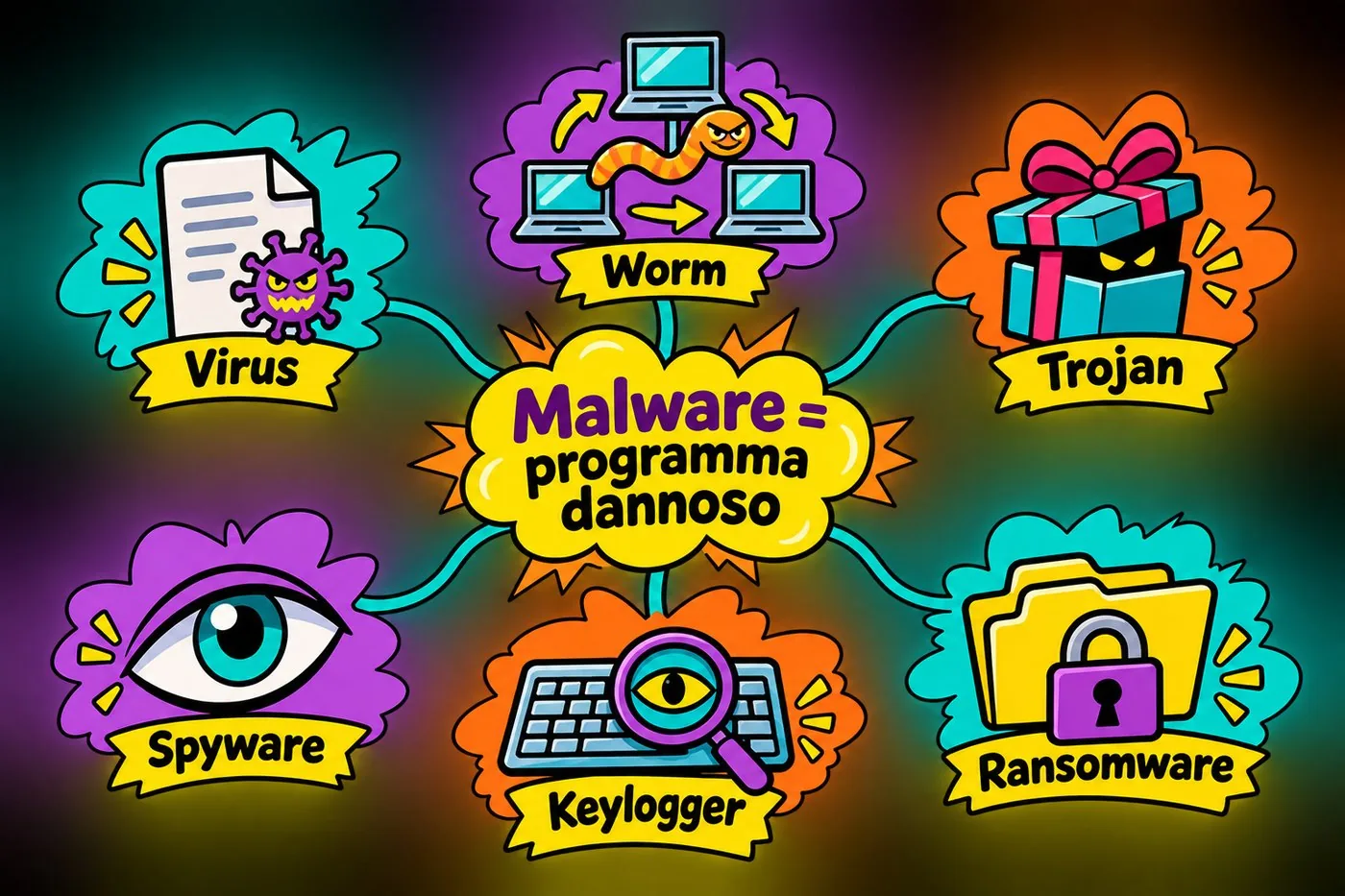
Malware comes from malicious software. It is the generic name for all programs created to damage a computer, steal data, spy on its user or take control of it. It is not a fault of the computer: it is a program, written on purpose, that someone has got onto your device.
Malware does not have a single face. It splits into families, which differ in how they spread and in what they do once inside. Knowing the families helps you understand which signs to look for and which habits to fix.
MALWARE = HARMFUL PROGRAM
Malware is the general name for harmful programs
Malware is the general name for harmful programs
The main families of malware.
Type
What it does
Virus
Attaches itself to a program or file and spreads when that file is opened.
Worm
Copies itself across the network, with no need for anyone to open anything.
Trojan (Trojan horse)
Pretends to be a useful program (a «crack», a free converter) but opens the door to an intruder.
Spyware and keylogger
Spy on what you do and record the keys you press to steal passwords and card numbers.
Ransomware (cryptolocker)
Encrypts your files and demands a ransom to give them back.
The idea in one line
Malware is the name of the container. Viruses, trojans and ransomware are the contents: the method and the goal change, the problem does not.
2. Viruses, worms, trojans, spyware and keyloggers
Let us look at the families one by one, with an everyday case. The names are a little odd, but each one tells you well what the program does.
2.1 The virus: it needs you to open it
Like a biological virus, a computer virus needs a host. It hides inside a program or document and activates when you open it. If you then forward that file to a colleague, the virus travels with it.
2.2 The worm: it travels alone
A worm copies itself from one computer to another across the network, without anyone clicking. In an office where computers are connected, one unprotected machine can infect the others. That is why updating programs is so important, a topic of the lesson on devices.
2.3 The trojan: the gift that hides the danger
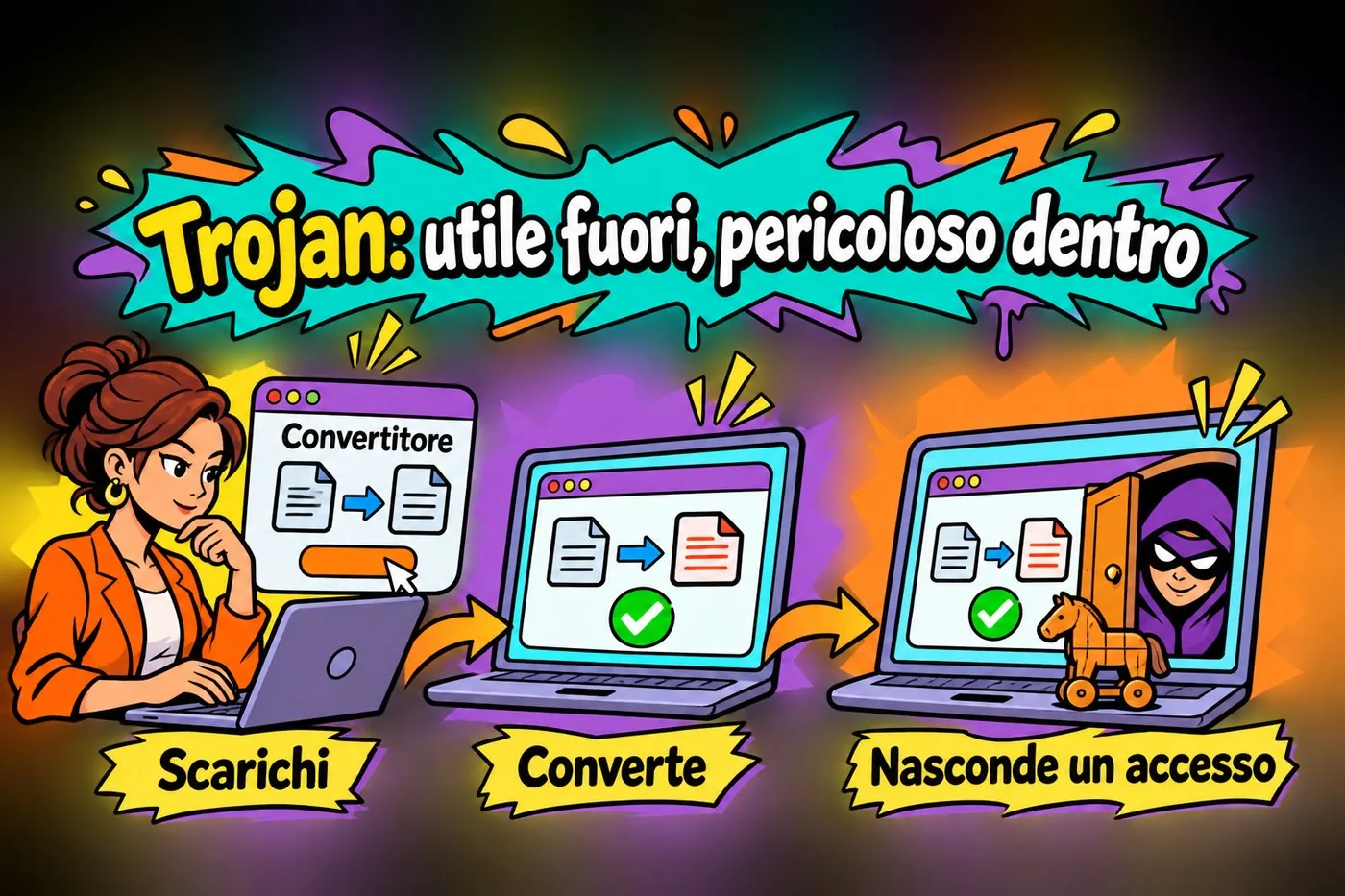
The name comes from the Trojan horse. The program presents itself as something useful and free: a converter from one format to another, a paid program «unlocked» (a so-called crack), a fake update. You install it yourself, willingly, and meanwhile you open the door to whoever made it.
TROJAN: USEFUL OUTSIDE, DANGEROUS INSIDE
A program can work and still hide an unwanted way in
A program can work and still hide an unwanted way in
The free converter
Anna (a made-up name), who works in the office of a dance school, needs to turn a form into another format. She searches for «free converter» and downloads the first program she finds on an unknown site.
The program really does convert the file. But in secret it also installs a second program that lets a stranger into the computer. Anna does not notice for weeks.
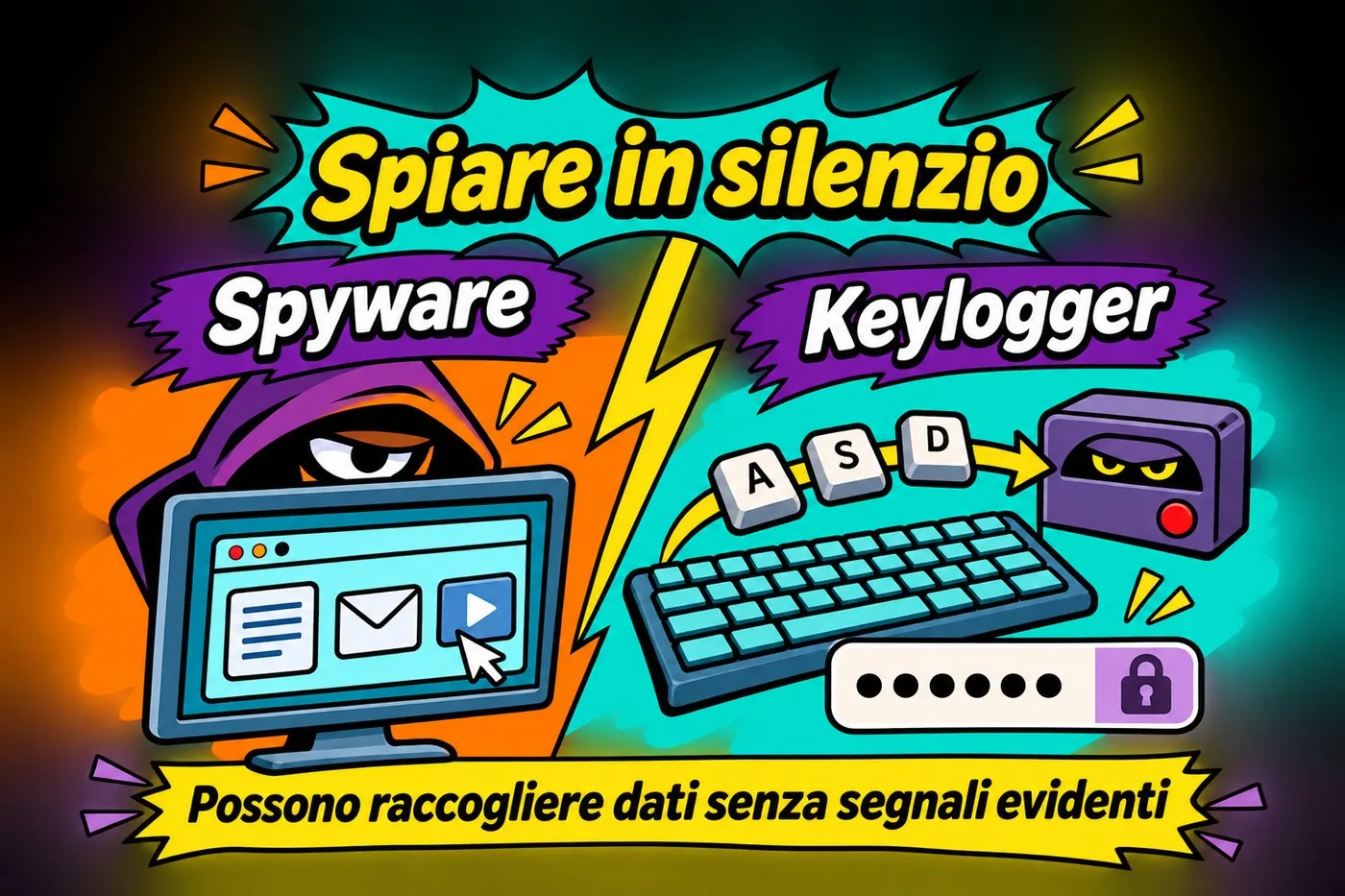
2.4 Spyware and keyloggers: someone watching you work
Spyware spies on what you do: the sites you visit, the documents you open. The keylogger (from key and logger, a recorder) is its more insidious cousin: it notes every key you press. If you type a password, it records it. If you type a card number, it records it.
What marks these two families is silence. They encrypt nothing, slow things down little, show no messages. Often you only notice when someone uses one of your accounts or charges a purchase you did not make.
SPYING IN SILENCE
Some malware collects information with no obvious signs
Some malware collects information with no obvious signs
2.5 A few signs that something is wrong
the computer has become very slow for no obvious reason;
programs or browser toolbars appear that you do not remember installing;
the browser home page changes by itself;
your accounts show logins or operations you do not recognise;
the malware).">antivirus has turned itself off and you cannot turn it back on.
Warning
These signs are not proof: they can have other causes. If you notice more than one, do not try to fix it alone and tell your IT contact.
3. Ransomware: the blackmail of encrypted files
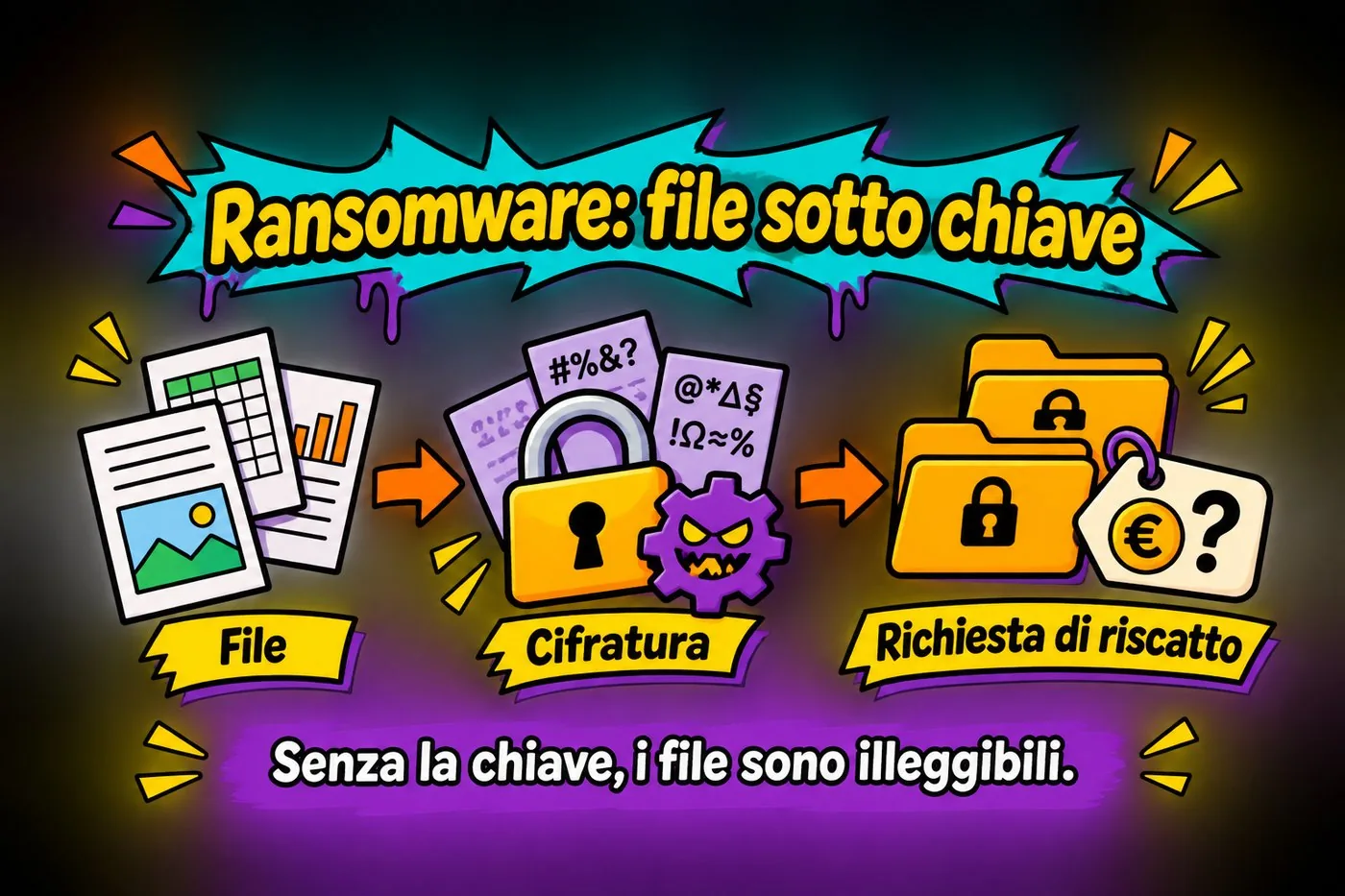
Malware that encrypts files and demands a ransom to give them back. Also called cryptolocker.">Ransomware does not steal your files: it locks them in a safe and asks you for money for the key.
The name combines ransom and software. Ransomware locks the computer or, more often, encrypts all your documents. To encrypt means to transform a file with a mathematical procedure so that it becomes unreadable without a key, a secret code.
When the encryption is done, a message appears. It says your files have been locked and demands a payment, usually in cryptocurrency (digital money that is hard to trace), in exchange for the key.
RANSOMWARE: FILES UNDER LOCK AND KEY
Ransomware encrypts files and demands a ransom
Ransomware encrypts files and demands a ransom
3.1 CryptoLocker, the name that stuck
CryptoLocker is one of the first widely spread ransomware programs, which appeared in 2013. It encrypted the documents of Windows computers and demanded a payment to unlock them. Its name became a synonym: today many people say «cryptolocker» to mean any ransomware.
Since then the phenomenon has grown and become organised. Today it hits hospitals, town councils, schools, professional firms and small businesses, because where there is important data there are people willing to pay.
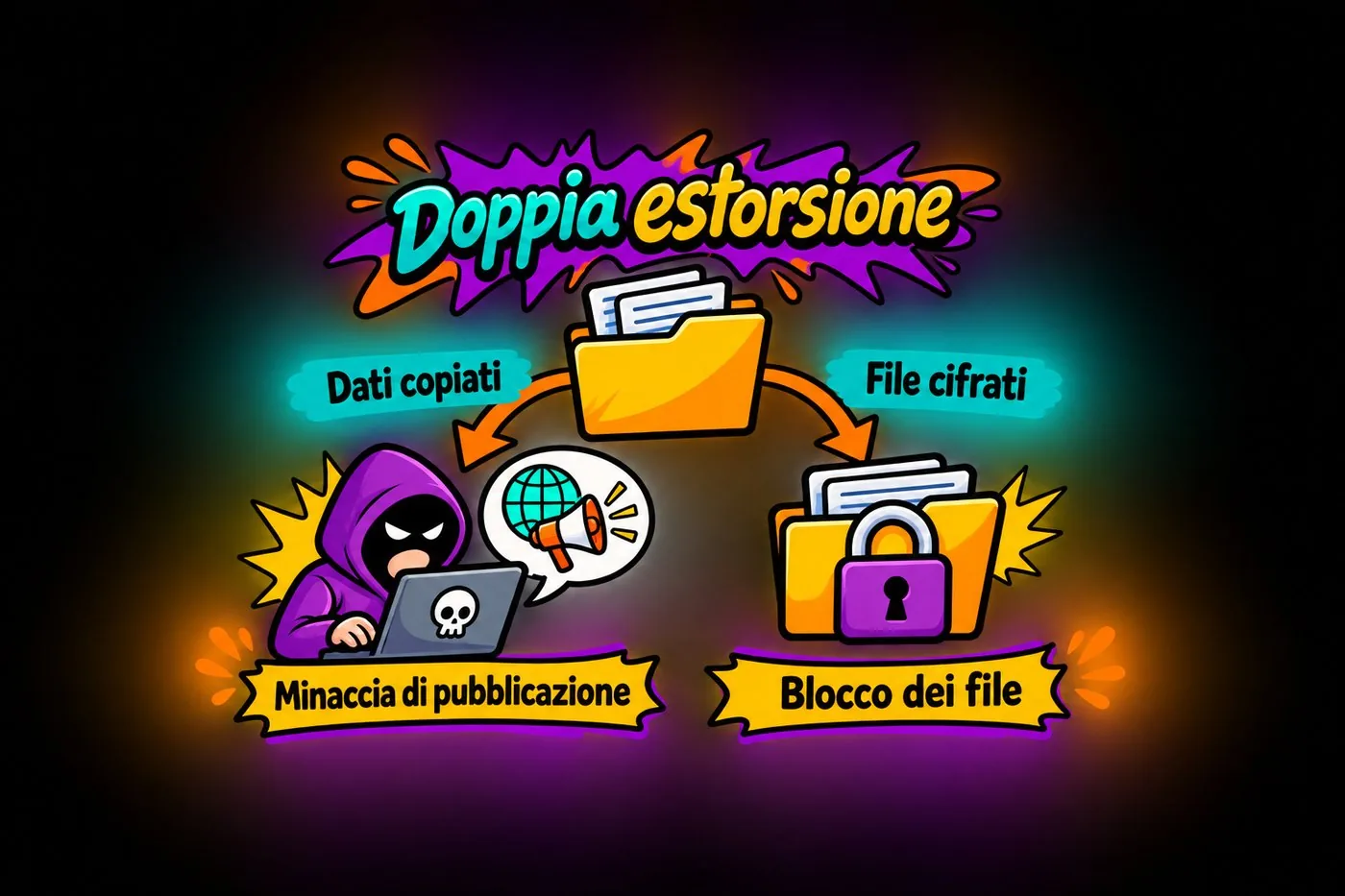
3.2 Double extortion
Many criminal groups copy an organisation's data before encrypting it. Then they ask for two payments: one for the key and one for not publishing the data. Even with a good backup, you are left with the problem of what has ended up in the wrong hands.
DOUBLE EXTORTION
Criminals can threaten both to lock the files and to publish the data
Criminals can threaten both to lock the files and to publish the data
That is why security is not just backup: you also need to keep intruders out and, for personal data, know what to do in case of a breach. We cover this in the lessons on privacy and on what to do when it happens.
Studio Esempio's Monday
On Friday evening a staff member at «Studio Esempio» (a made-up name) opens an attachment that looks like a supplier's invoice. Nothing visible happens.
On Monday morning all the shared folders have files with an unknown extension. On the desktop there is a text file with payment instructions. The firm has no recent backup outside the computer.
4. Why you do not pay, and what the real defence is
Faced with a ransom message, the temptation is to pay and make it all stop. I understand the pressure, but paying is almost always a bad idea.
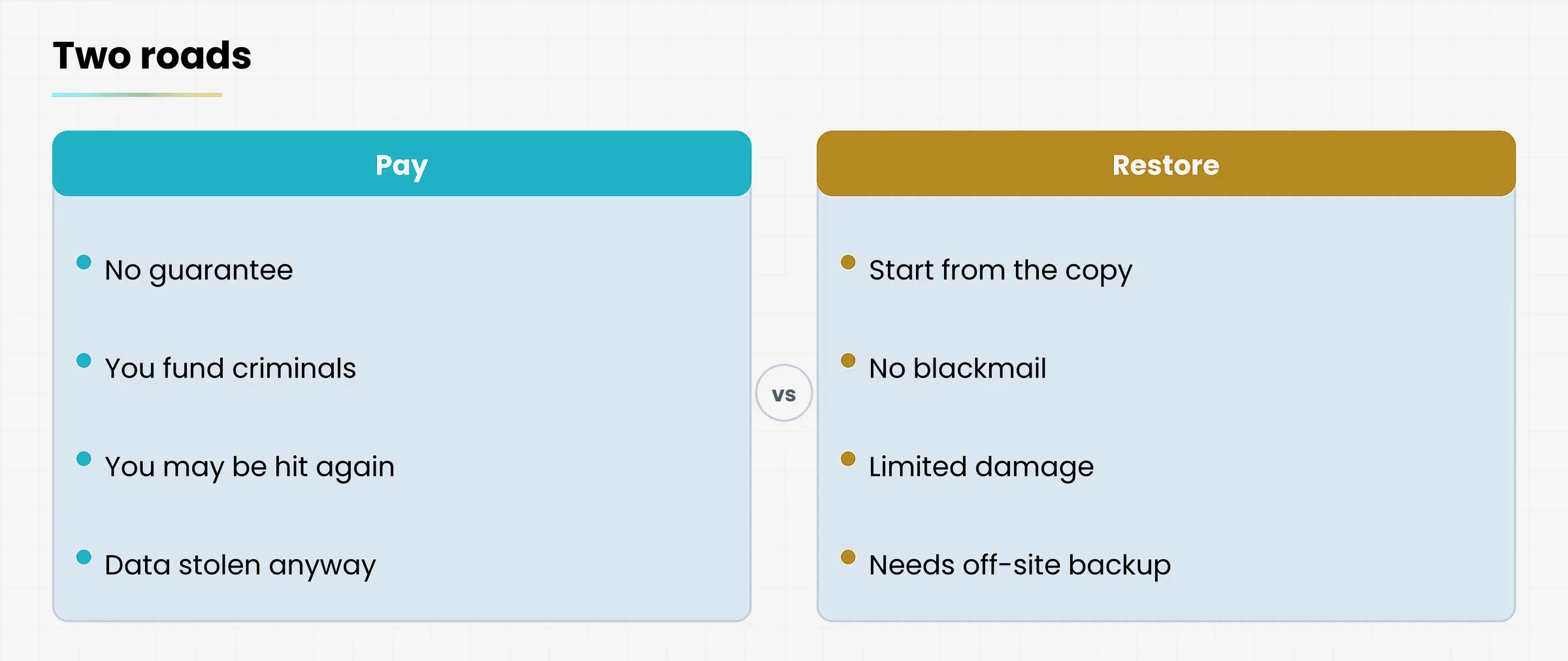
Diagram
Comparison between paying the ransom and restoring from the safety copy
Paying the ransom or restoring from backup
4.1 Why paying is not worth it
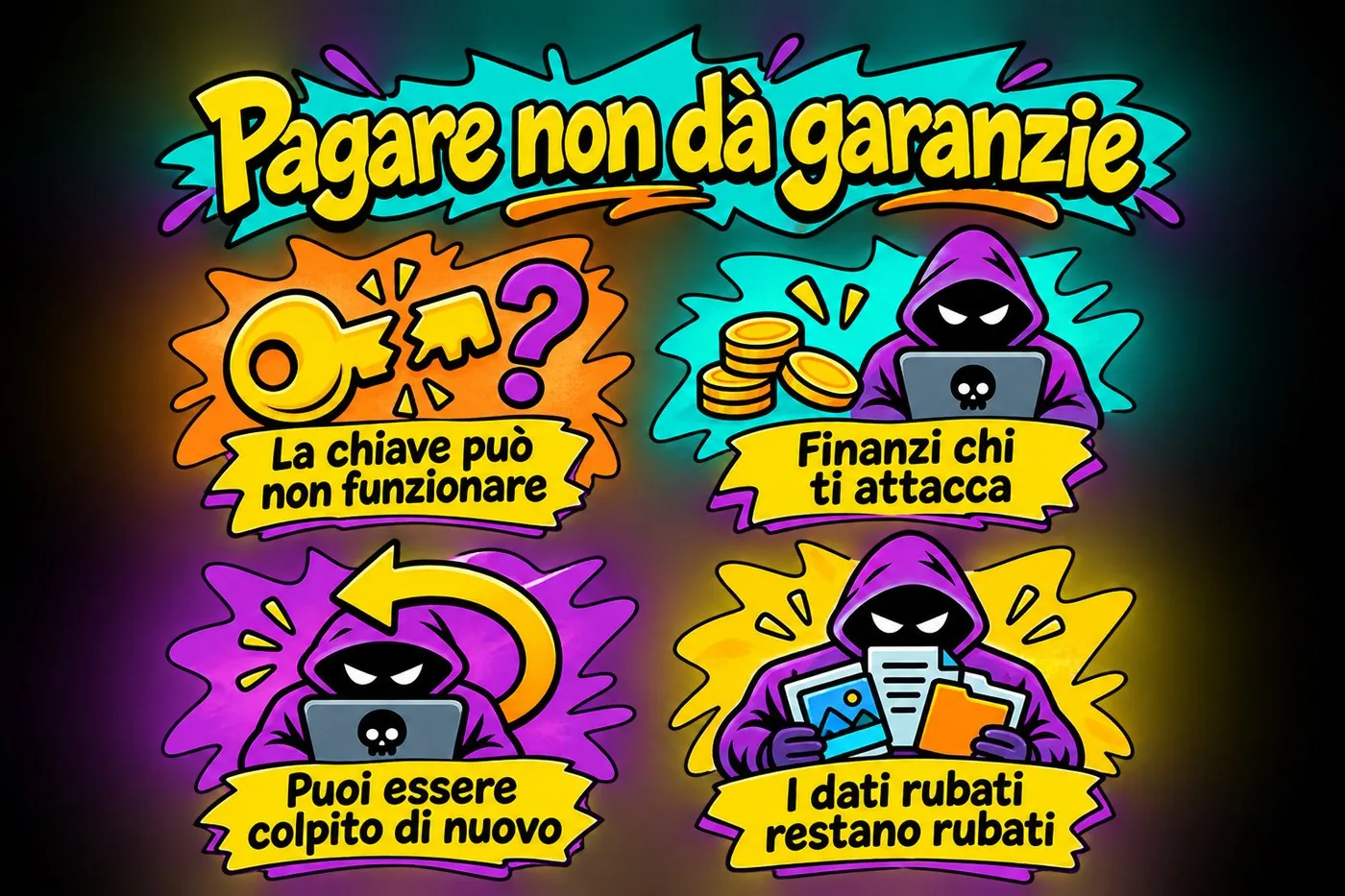
there is no guarantee: the blackmailer is not bound to keep their word; sometimes the key never arrives, sometimes it does not work, sometimes the files stay damaged;
you fund the attacker: every payment makes crime more profitable and encourages new attacks;
you can be hit again: whoever knows you paid may see you as an easy target;
stolen data stays stolen: paying does not delete the copy the attackers have already made.
That is why police authorities, in Italy as in Europe, advise against paying. The international project No More Ransom (nomoreransom.org), born from cooperation between police forces and security companies, offers free tools to unlock some types of Malware that encrypts files and demands a ransom to give them back. Also called cryptolocker.">ransomware. Not all of them, but it is always worth checking.
PAYING GIVES NO GUARANTEES
Paying does not guarantee recovery and does not remove the risks
Paying does not guarantee recovery and does not remove the risks
4.2 The real defence: a copy the ransomware cannot reach
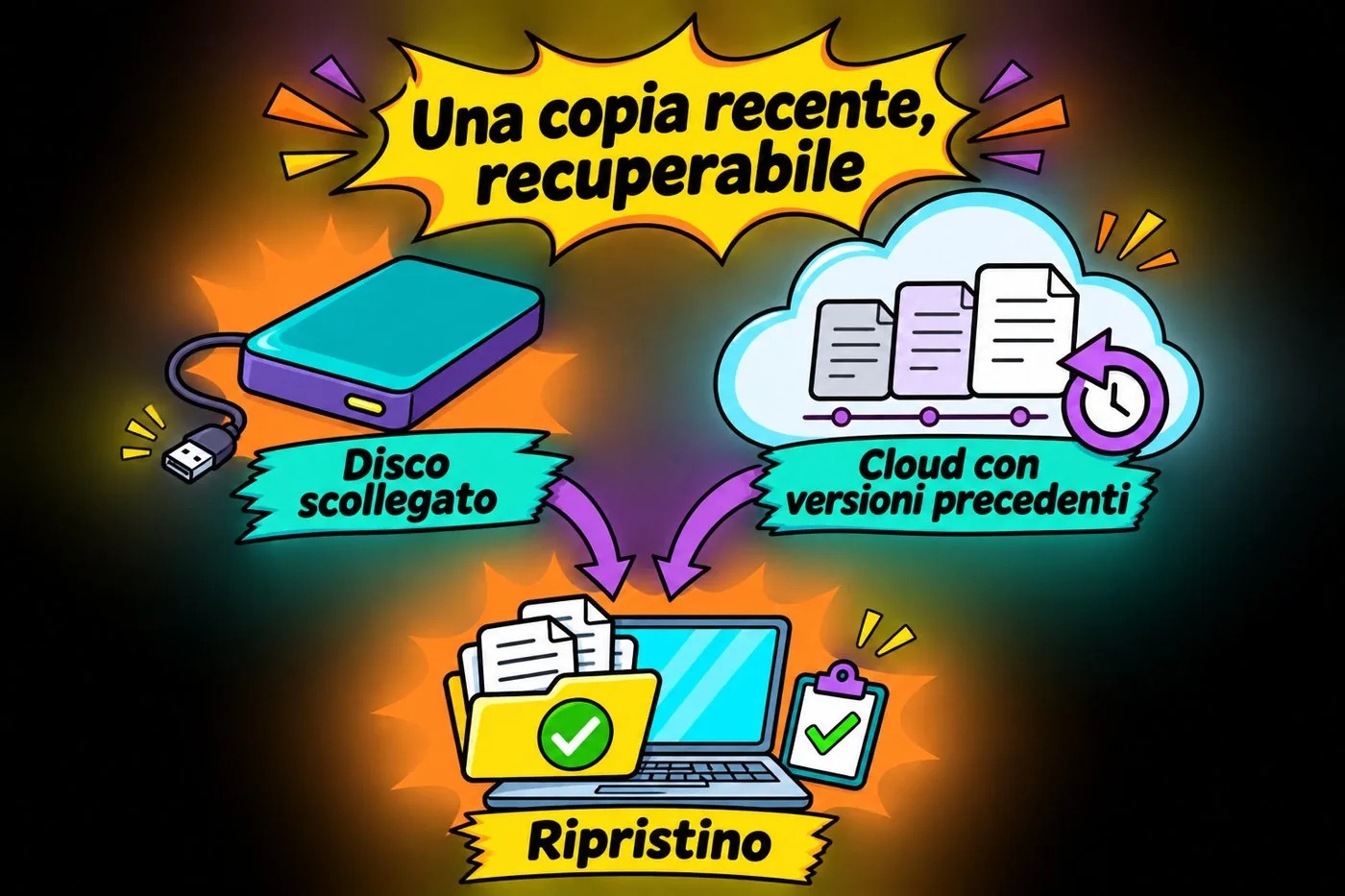
If you have a recent copy of your data, the blackmail loses its force: you wipe the computer, put the files back from the copy and start again. The damage is annoying, but limited.
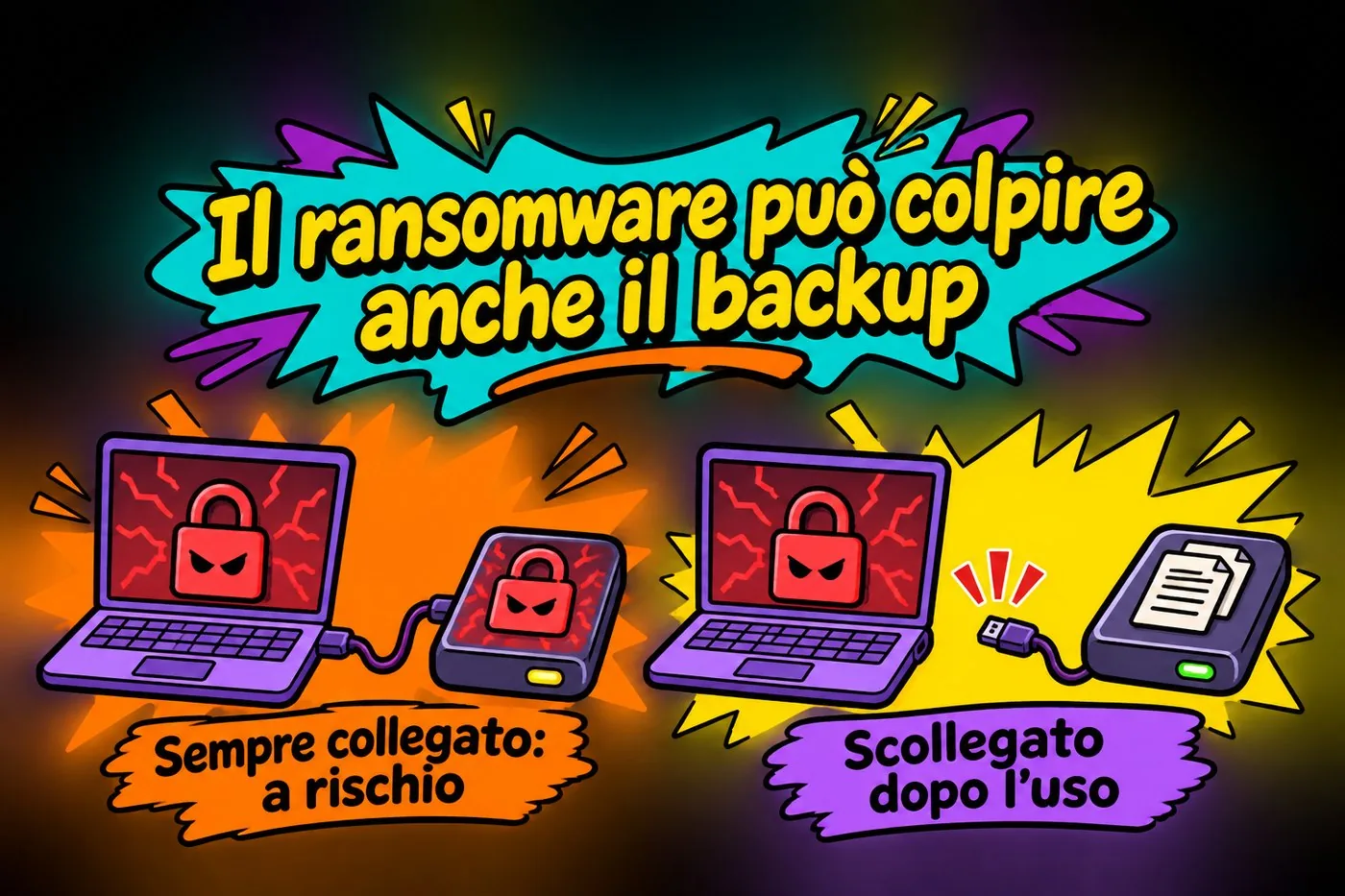
Beware, though: ransomware also encrypts the disks connected to the computer. A backup that stays plugged in all the time, or sits in a network folder that can be reached, can be encrypted along with everything else. The copy must live outside the computer: an external disk unplugged after use, or a cloud service (online storage) that keeps previous versions of your files.
RANSOMWARE CAN HIT THE BACKUP TOO
Even a connected backup can be hit
Even a connected backup can be hit
Warning
Paying the ransom does not guarantee you will get your data back and it funds the attacker. The real defence is to have recent safety copies kept outside the computer.
A RECENT COPY YOU CAN RECOVER
A recent copy must be recoverable
A recent copy must be recoverable
How to organise the copies, how many, where and how often is the subject of the lesson on backup and the 3-2-1 rule. Here it is enough to remember one principle: without a copy outside the computer, ransomware can turn into a permanent loss.
The idea in one line
Blackmail only works if your data exists in one place. With a copy safely stored, the blackmailer has nothing left to sell.
5. How malware gets in: fake files and unknown devices
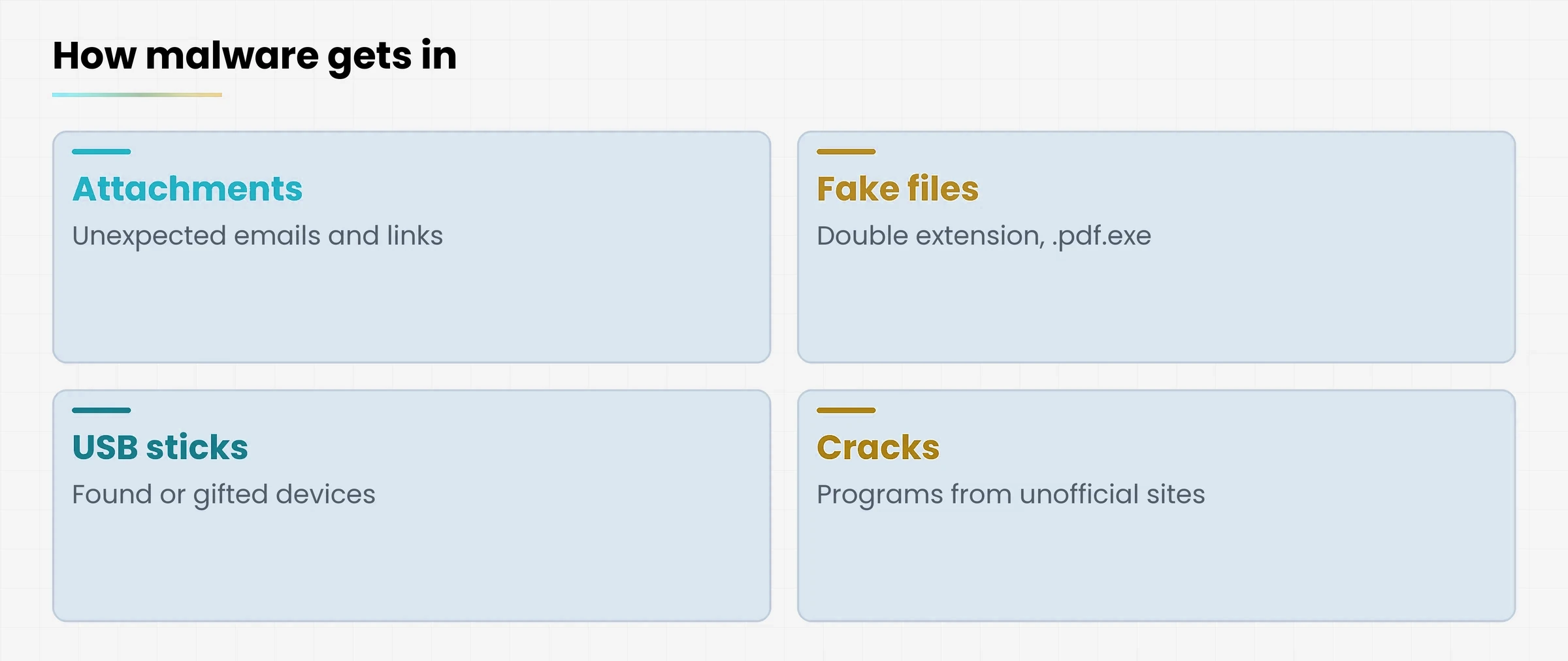
Malware does not come in by magic. Almost always someone lets it in, without knowing. The most frequent routes are few, and they are the same ones you will meet again in the next lessons.
Diagram
Four cards: attachments, fake files, USB sticks, unofficial programs
The most common routes for malware
5.1 Attachments and links in emails
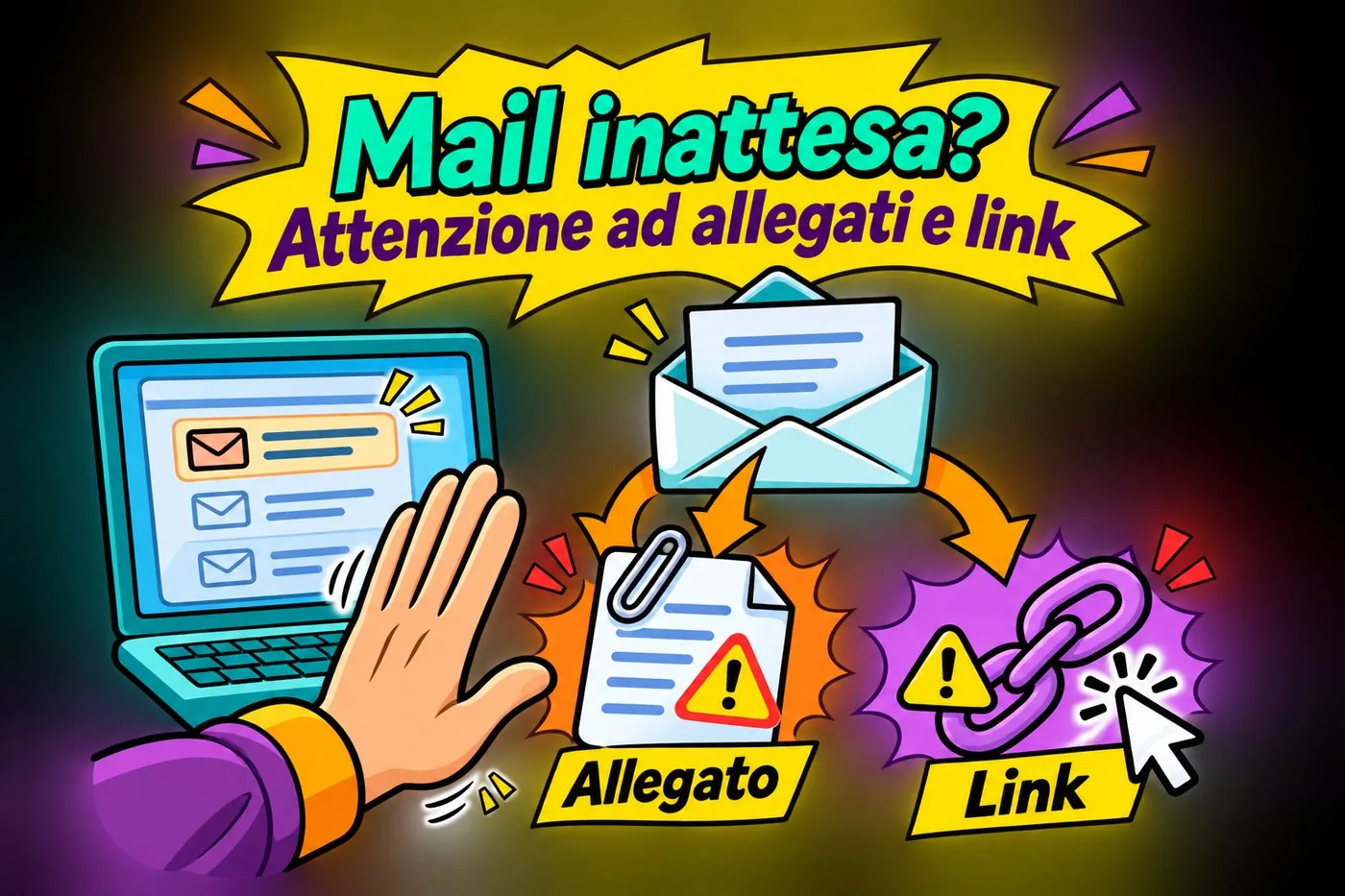
This is the most widespread method. Ransomware is usually caught by opening an infected attachment or clicking a link in an email. The message looks like an invoice, an order, a courier notice. How to recognise them is the topic of the lesson on phishing.
UNEXPECTED EMAIL? CAREFUL WITH ATTACHMENTS AND LINKS
An unexpected email calls for care before you open attachments or links
An unexpected email calls for care before you open attachments or links
5.2 The fake .pdf.exe
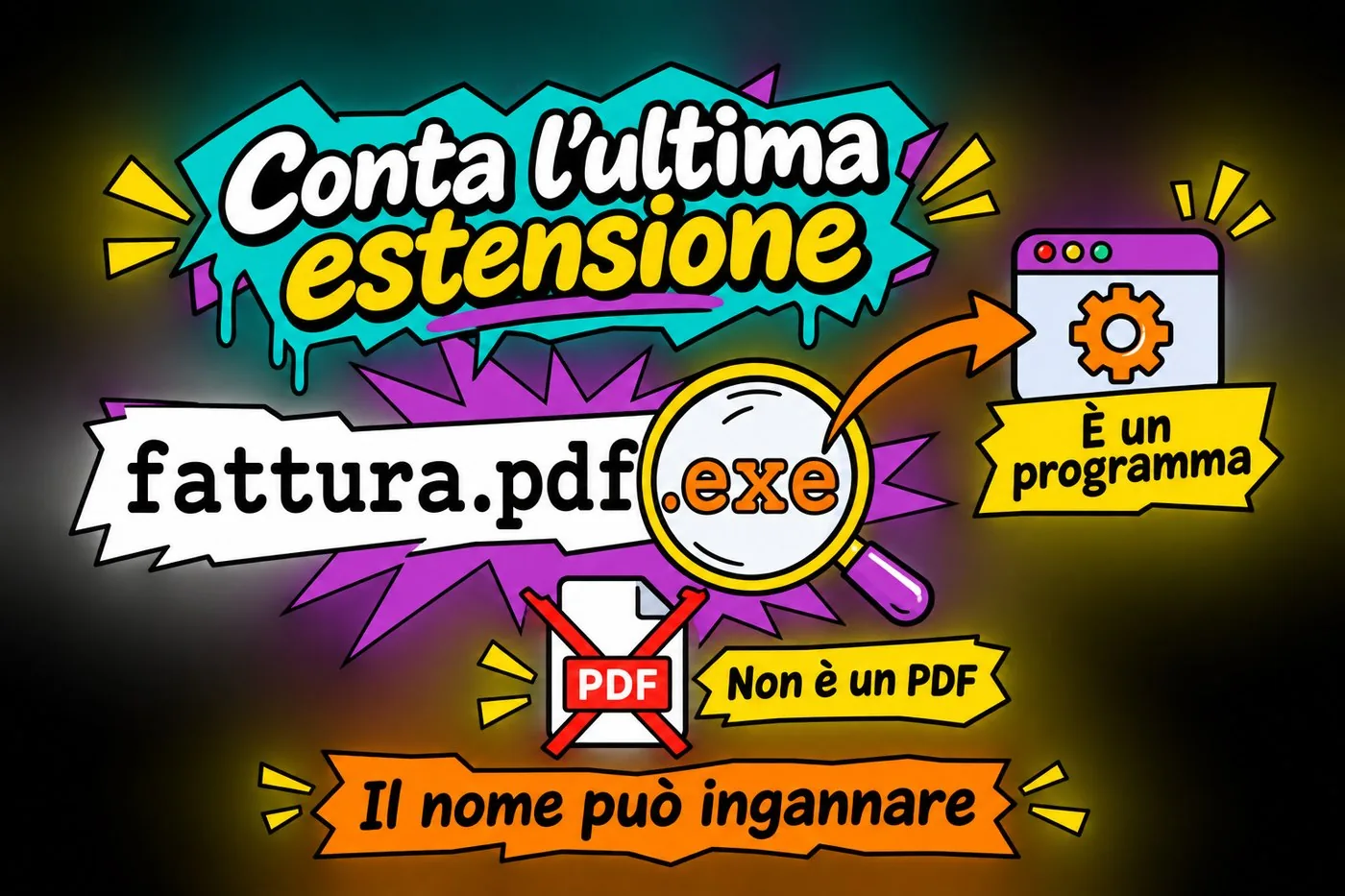
A classic trap is the file with a double extension. The extension is the final part of the name, after the dot, which tells the computer what kind of file it is. A file called invoice-october.pdf.exe looks like a PDF, but it really ends in .exe: it is an executable program, and if you open it, it runs.
THE LAST EXTENSION COUNTS
fattura.pdf.exe ends in .exe: it is a program, not a PDF
fattura.pdf.exe ends in .exe: it is a program, not a PDF
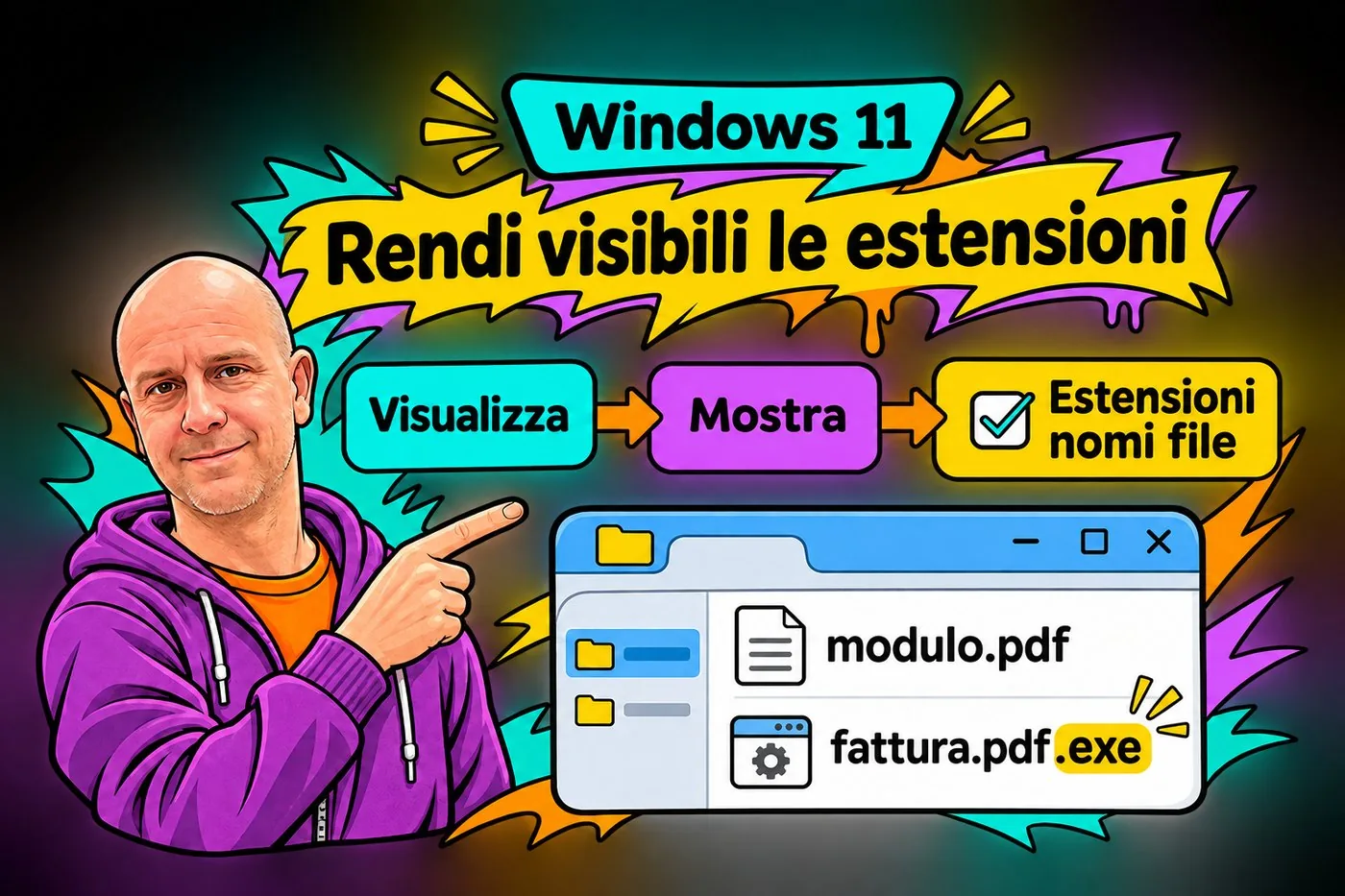
The problem is that Windows, by default, may hide the extensions of known file types. Then you see only invoice-october.pdf and you do not know there is more behind it. To see them all, open File Explorer, go to the View menu, choose Show and tick File name extensions.
MAKE EXTENSIONS VISIBLE
Windows 11: View, Show, File name extensions
Windows 11: View, Show, File name extensions
What counts is the last extension, the one furthest to the right.
File name
What it really is
invoice-october.pdf
A PDF document, if the extension really is .pdf.
invoice-october.pdf.exe
A program dressed up as a PDF.
new-pricelist.xlsx.js
A script dressed up as a spreadsheet.
event-photo.jpg.scr
A program dressed up as a photo.
5.3 USB sticks and unknown devices
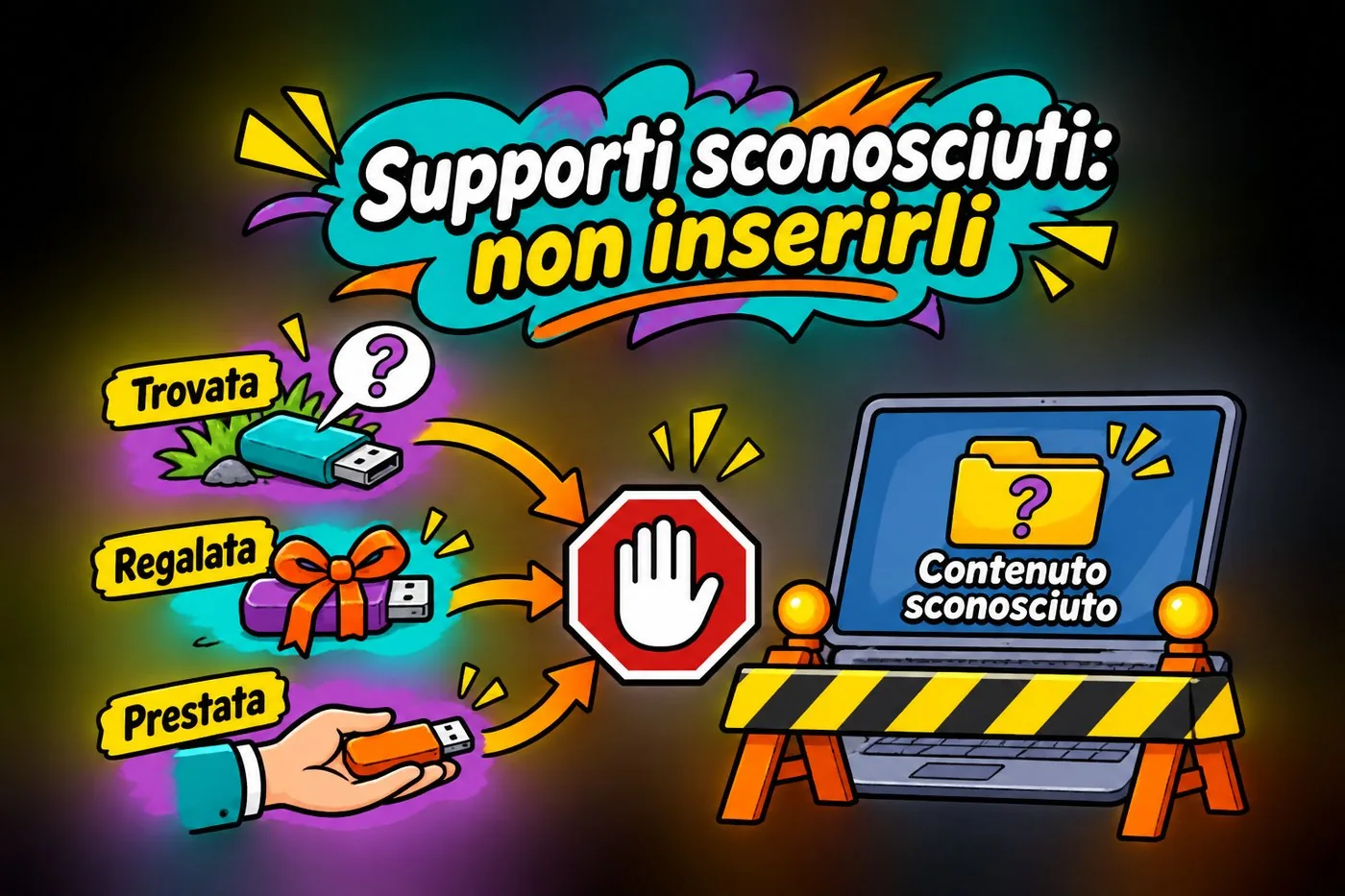
A USB stick (the small memory you plug into a computer) that you found, were given or borrowed can contain malware that starts as soon as you insert it. The same goes for external disks and memory cards of unknown origin.
The rule is simple: do not plug devices you do not know into a work computer. If you really must open the contents, ask your IT contact: they have tools to check it safely.
UNKNOWN MEDIA: DO NOT PLUG THEM IN
On your work computer, avoid media from unknown sources
On your work computer, avoid media from unknown sources
5.4 «Free» programs and cracks
The paid program given away on an unknown site, the free converter, the «special» document viewer. If it does not come from an official source, the price you pay may be yourself. Download only from the maker's site or from the system's official software stores.
5.5 Programs that are not updated
Some malware, like worms, gets in by exploiting known flaws in programs. Makers close them with updates: if you postpone them for months, you leave open a door everyone knows about.
A rule to remember
If you were not expecting it, do not open it. If you installed it from an unofficial source, do not trust it. If it comes from a device you do not know, do not plug it in.
DOUBT? STOP AND REPORT
If something looks odd, stop and ask your IT contact
If something looks odd, stop and ask your IT contact
Exercise: can you see the extensions?
A short exercise to do on your Windows 11 computer, with any folder of documents.
Open File Explorer and go to a folder that contains a few documents.
Look at the names: do you see the final part after the dot, such as .pdf or .docx? If not, open the View menu, choose Show and turn on File name extensions.
On a sheet of paper write three file names and next to each one what kind of file it really is according to its extension.
Imagine you receive an email with an attachment called «quote.pdf.exe». Write in one line what it is and what you would do.
Check whether there is a recent copy of your important documents outside the computer itself (external disk or cloud). Write down where it is, or note that it is missing.
Check your result
Can you see the full extension of your files?
Can you say why «quote.pdf.exe» is not a PDF?
Have you located your safety copy, or realised you need to create one?
Questions that come up in class
How do I know if my computer is infected?
You do not always know. Some malware, like spyware and keyloggers, is silent. The typical signs are unusual slowness, programs you never installed, changed settings, an antivirus that is off. If in doubt, tell your IT contact and run a full scan with firewall and other checks, based on Microsoft Defender.">Windows Security.
Are Macs and phones immune to malware?
No. Attackers target Windows most because it is so widespread, but malware exists for Mac, Android and, less often, iPhone. Careful habits apply to every device.
If I pay the ransom, will I get my files back?
There is no guarantee. Sometimes the key does not arrive, sometimes it does not work, sometimes the criminals ask again. Payment also funds new attacks. Authorities advise against paying.
Is antivirus enough to stop ransomware?
It helps a lot, but it is not guaranteed: criminals keep changing their programs. That is why you need several barriers together: attention to messages, updates and, above all, a backup outside the computer.
My backup is on a disk that is always plugged in: is that fine?
It is better than nothing, but not enough. Ransomware also encrypts connected disks. Keep a copy you unplug after use, or a cloud service that keeps previous versions of your files.
I opened a strange attachment and nothing happened. Am I safe?
Not necessarily. Some malware works silently for days before acting. Tell your IT contact right away: better a needless check than damage discovered too late.
Lesson glossary
The words you meet in this lesson, explained in one line.
Term
What it means
Backup
A safety copy of data, kept outside the computer, so it can be restored.
Encryption
A procedure that makes a file unreadable without the right key.
Extension
The final part of a file name, after the dot, which shows the file type (for example .pdf).
Keylogger
A program that records the keys pressed to steal passwords and card numbers.
Malware
From «malicious software»: a program created to damage a computer, steal data or take control of it.
Ransomware
Malware that encrypts files and demands a ransom to give them back. Also called cryptolocker.
Spyware
Malware that spies on what the user does.
Trojan
Malware that pretends to be a useful program to get itself installed.
Virus
Malware that attaches itself to a program or file and spreads when it is opened.
Worm
Malware that copies itself across the network, with no need for anyone to open anything.
Further reading
The sources used to build this handout: if a figure interests you, go to the source and check it.
No More Ransom
international project of police forces and security companies, nomoreransom.org
Agenzia per la cybersicurezza nazionale (ACN) and CSIRT Italia, Italy's national cybersecurity agency and incident response team
guides and alerts on ransomware, acn.gov.it
Polizia Postale e delle Comunicazioni, Italy's online-crime police unit (in the US, the FBI's IC3)
guidance and reporting, commissariatodips.it
Microsoft documentation on Windows Security
for the features of the antivirus included in Windows 11
Watch out
Information up to date as of October 2026. CryptoLocker is cited as one of the first widely spread ransomware programs (2013). Names of people, firms and domains in the examples are made up. Windows menu names may vary slightly with updates: if you cannot find an item, look for the function described. Italian bodies are explained in brackets for readers outside Italy.
How to spot a scam that arrives by email, text message, phone call or QR code
Lesson goal
Recognise phishing and its variants (spear phishing, smishing, vishing, QR code, for example on a sticker or leaflet.">quishing) and apply the "stop and check" list every time before you click, open or reply.
What you will be able to do
Explain what phishing is and why it works even on careful people.
Tell phishing, spear phishing, smishing, vishing and quishing apart by the channel they use.
Recognise the warning signs of a suspicious message.
Apply the "stop and check" list: sender, urgency, link, expected attachment.
Verify a doubtful request by calling the organisation's official number.
1. A scam that looks real
A criminal does not need to break into your computer if they can talk you into opening the door.
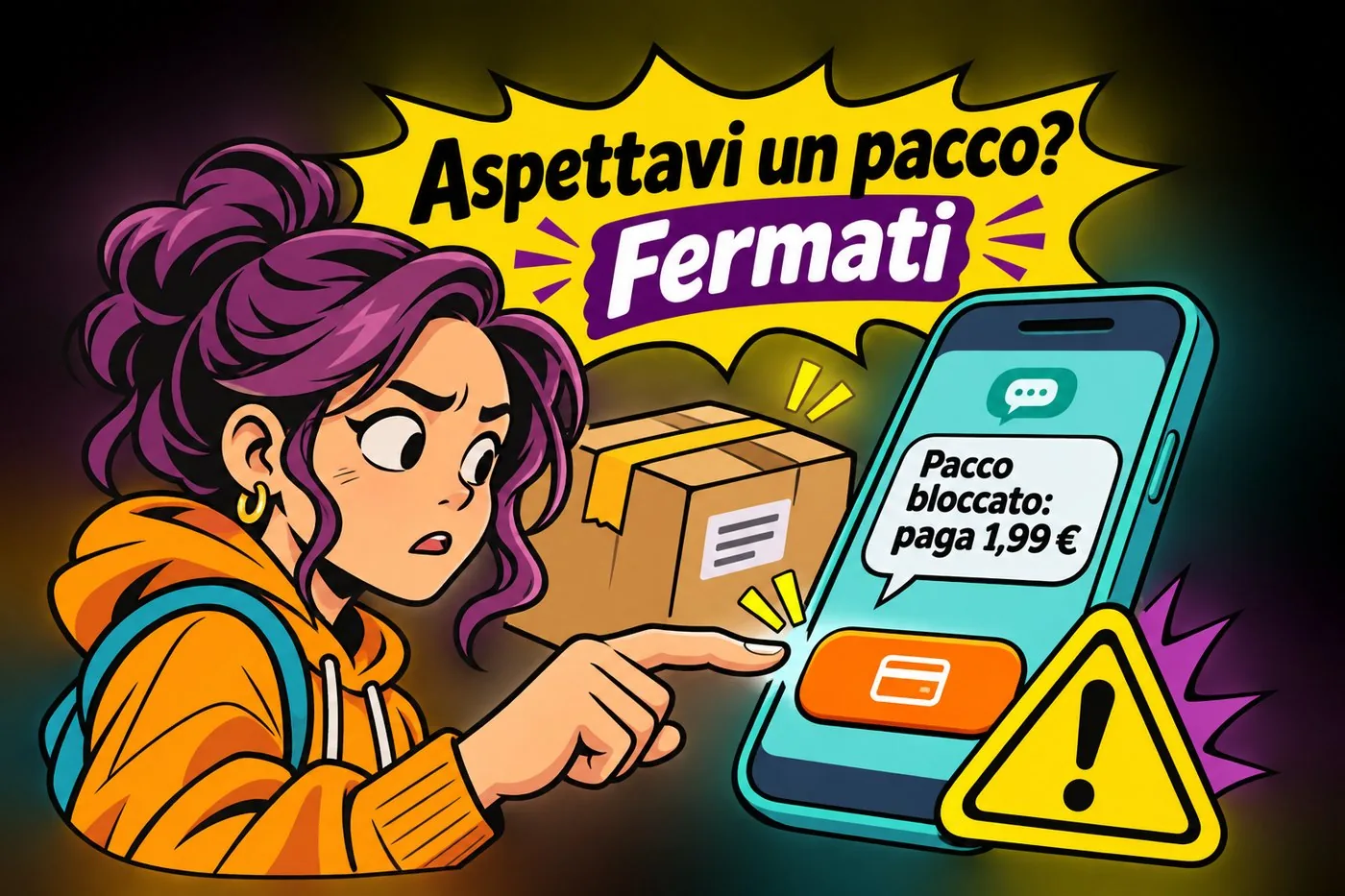
It is Monday morning in the office of Studio Esempio. Marta opens her mail and finds what looks like a message from a courier: "Your parcel is on hold, confirm your details today". She really was expecting a parcel. The logo is right, the tone is polite but firm. Her finger is already on the link.
WERE YOU EXPECTING A PARCEL? STOP
Were you expecting a parcel? Stop. An expected message can become bait.
An expected message can become bait.
That message is phishing. The word comes from fishing: the scammer throws out some bait and waits for someone to bite. They pretend to be a person or organisation you trust (a bank, a courier, the tax office, a colleague, the director) to get you to do one of three things: click a link, open an attachment, or hand over confidential information.
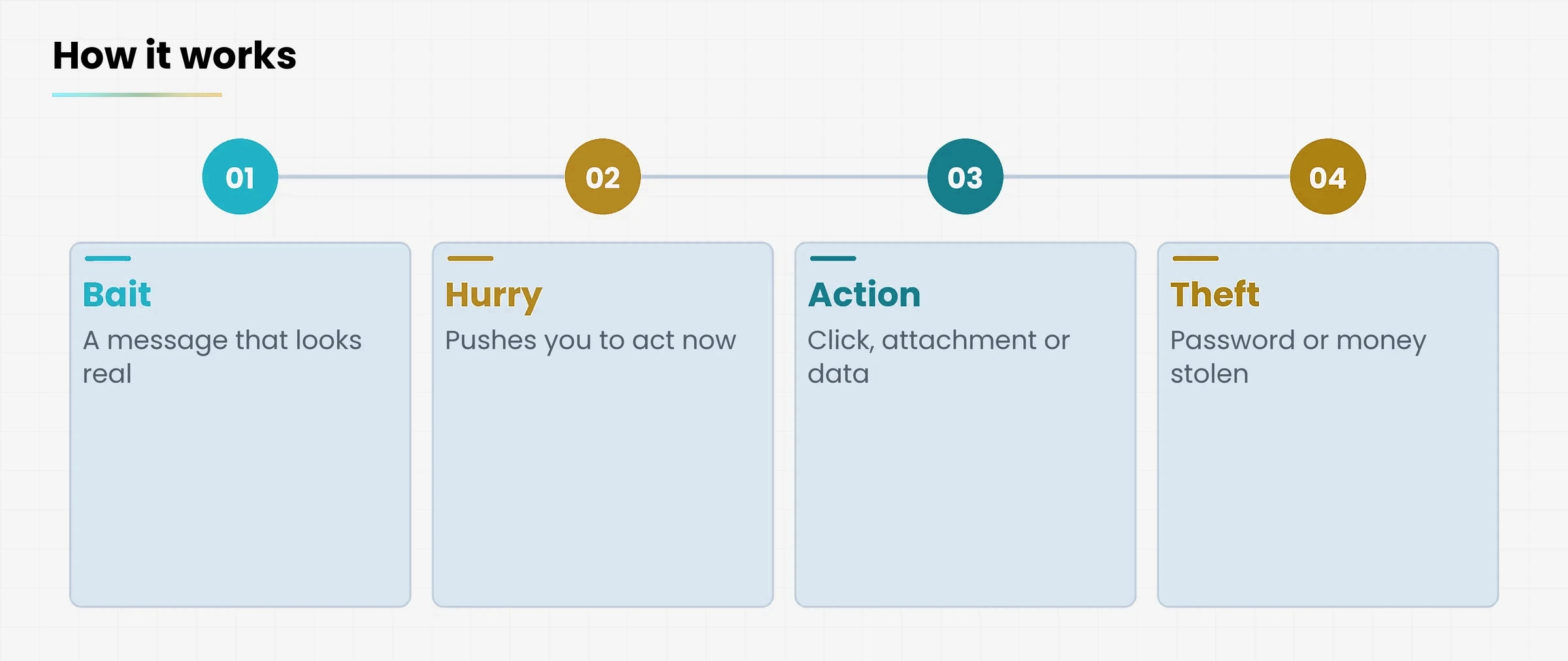
Diagram
Four steps in sequence: bait, hurry, action, theft.
How a phishing attack works, from bait to theft
1.1 Why it works, even on careful people
Phishing does not attack machines, it attacks people. There is no flaw to exploit in the computer: the flaw is hurry, trust, and the distraction of a Monday morning. That is why even skilled people fall for it.
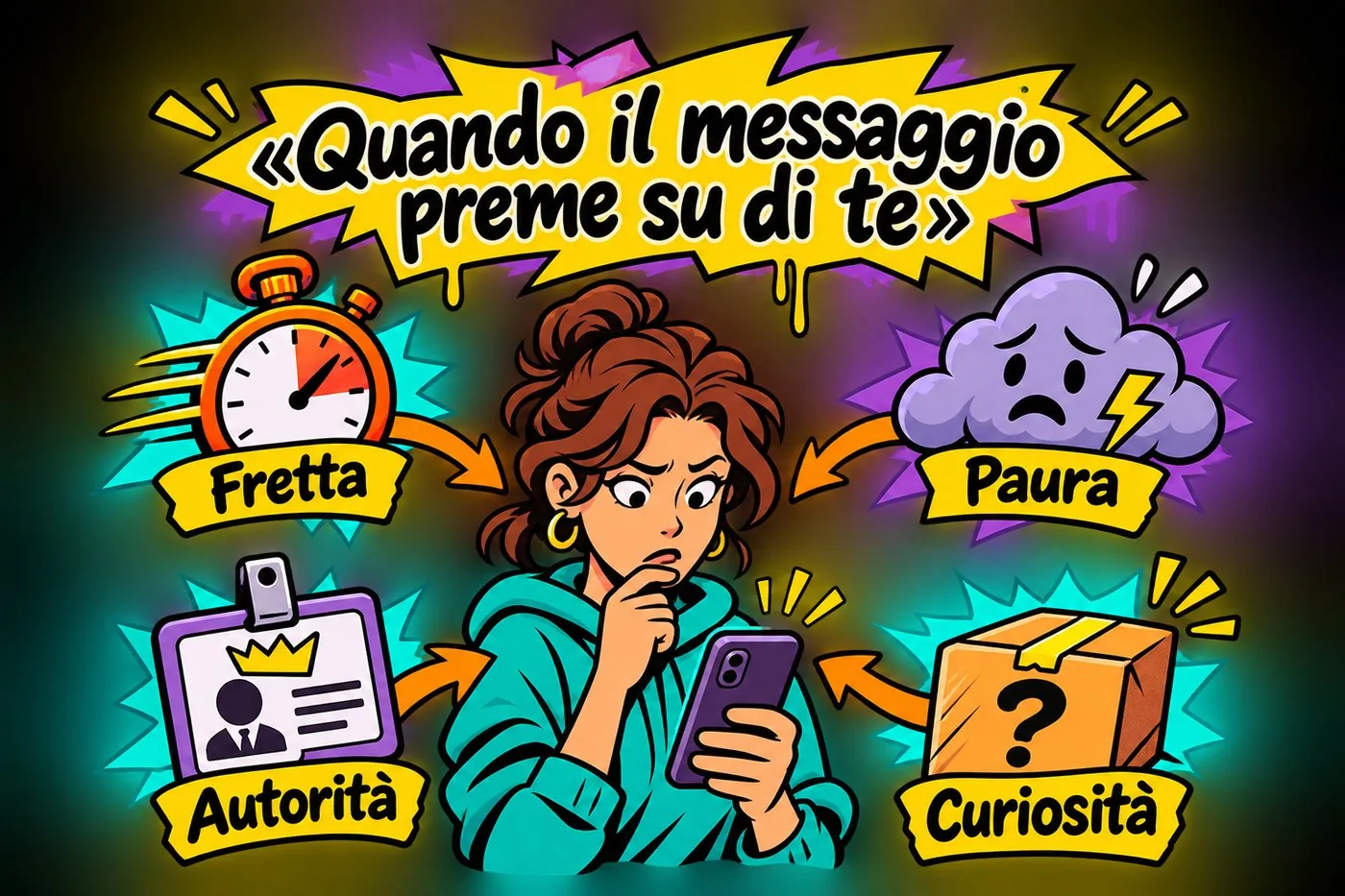
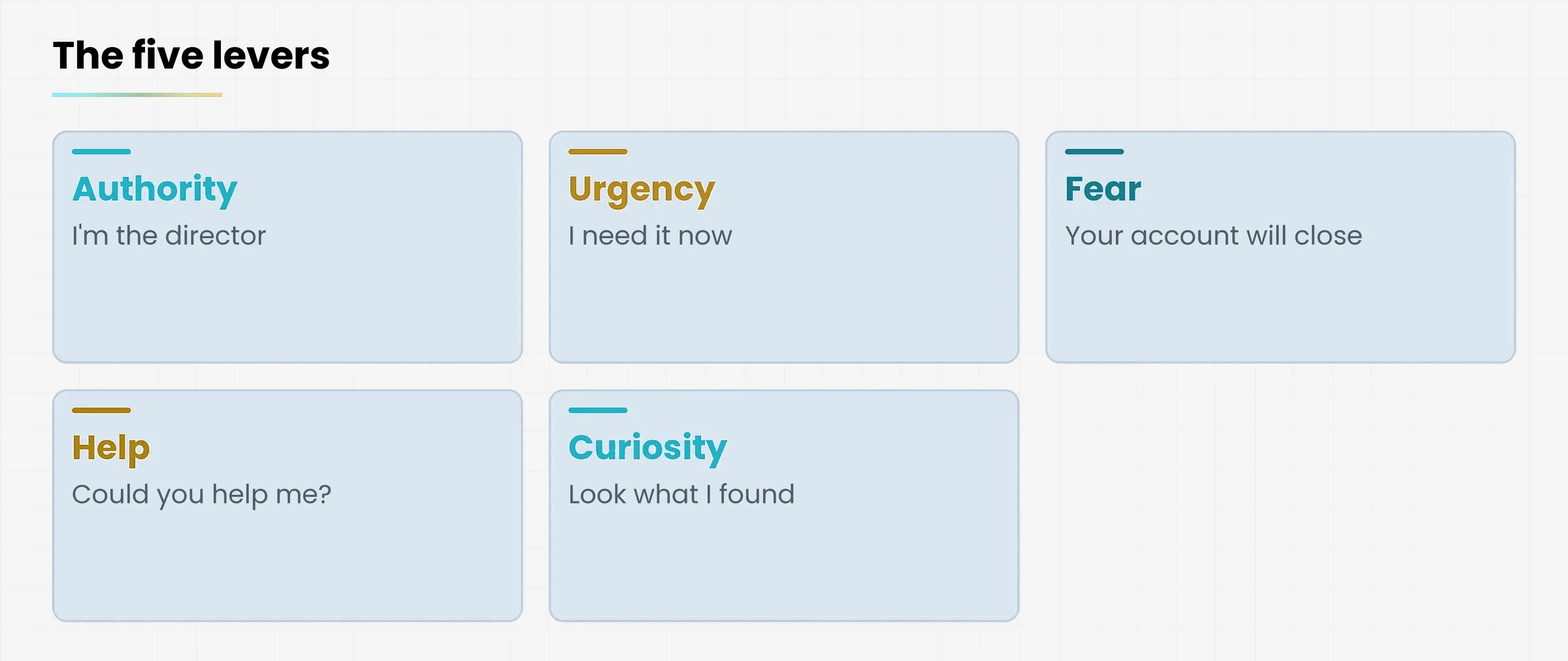
Scammers almost always pull the same levers. They play on urgency ("by today"), fear ("your account will be suspended"), authority ("this is the director"), curiosity ("a photo of you") or your wish to be helpful ("I need a hand"). If a message pushes you to act without thinking, that is already a warning sign.
WHEN THE MESSAGE PRESSURES YOU
When the message pressures you. Spotting the pressure helps you slow down.
Spotting the pressure helps you slow down.
The idea in one line
Phishing changes channel and disguise, but the goal is always the same: to make you act before you think.
1.2 What an office really stands to lose
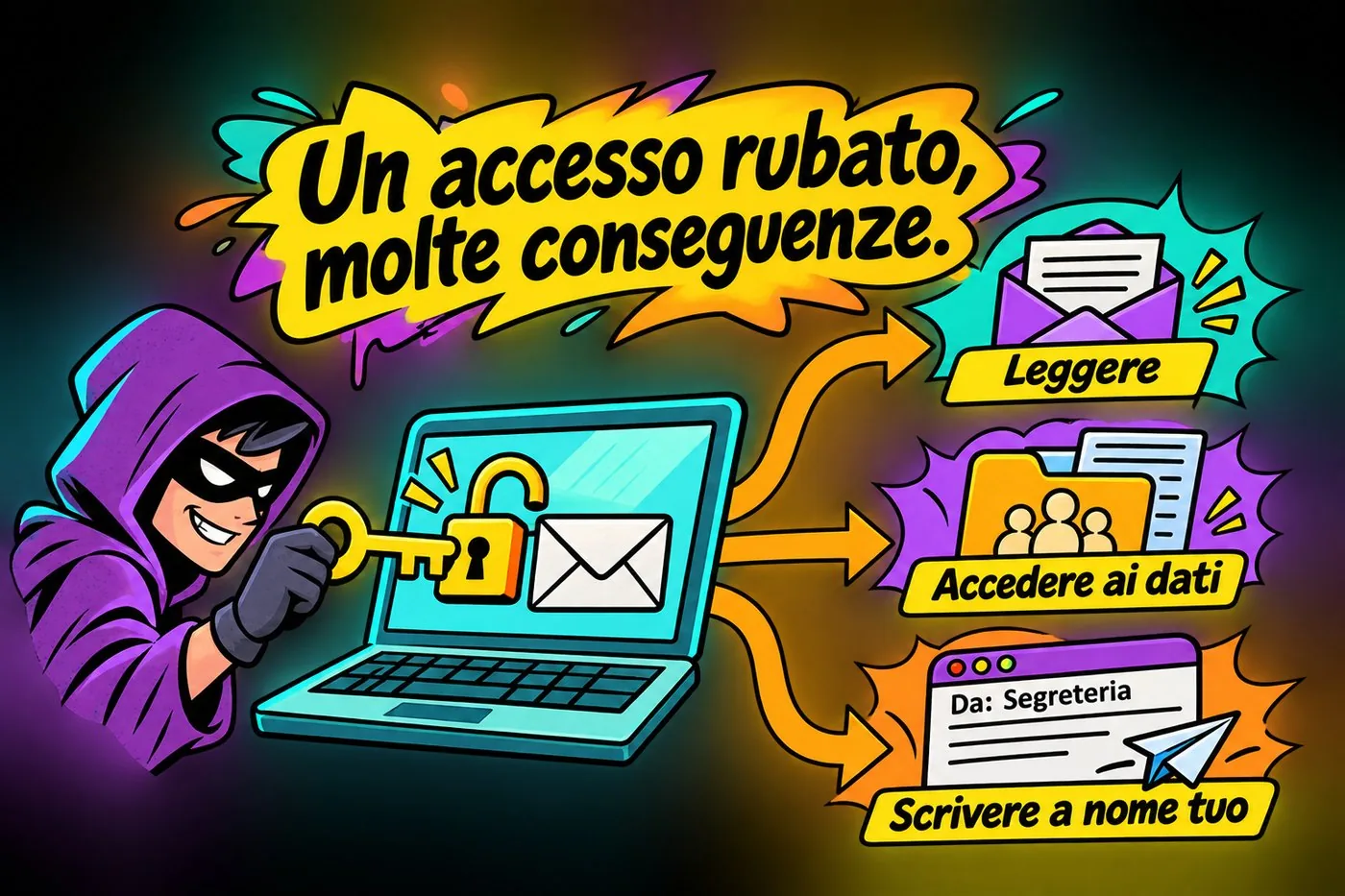
If Marta types her password into a fake page, the scammer can get into the office mailbox, read clients' messages, download lists with names and tax codes, and send more messages in Marta's name. One stolen password opens the door to everything else. That is why this lesson comes right after the one on malware: many attacks begin with a message just like this.
ONE STOLEN LOGIN, MANY CONSEQUENCES
One stolen login, many consequences. A stolen password can expose the mailbox and the contacts.
A stolen password can expose the mailbox and the contacts.
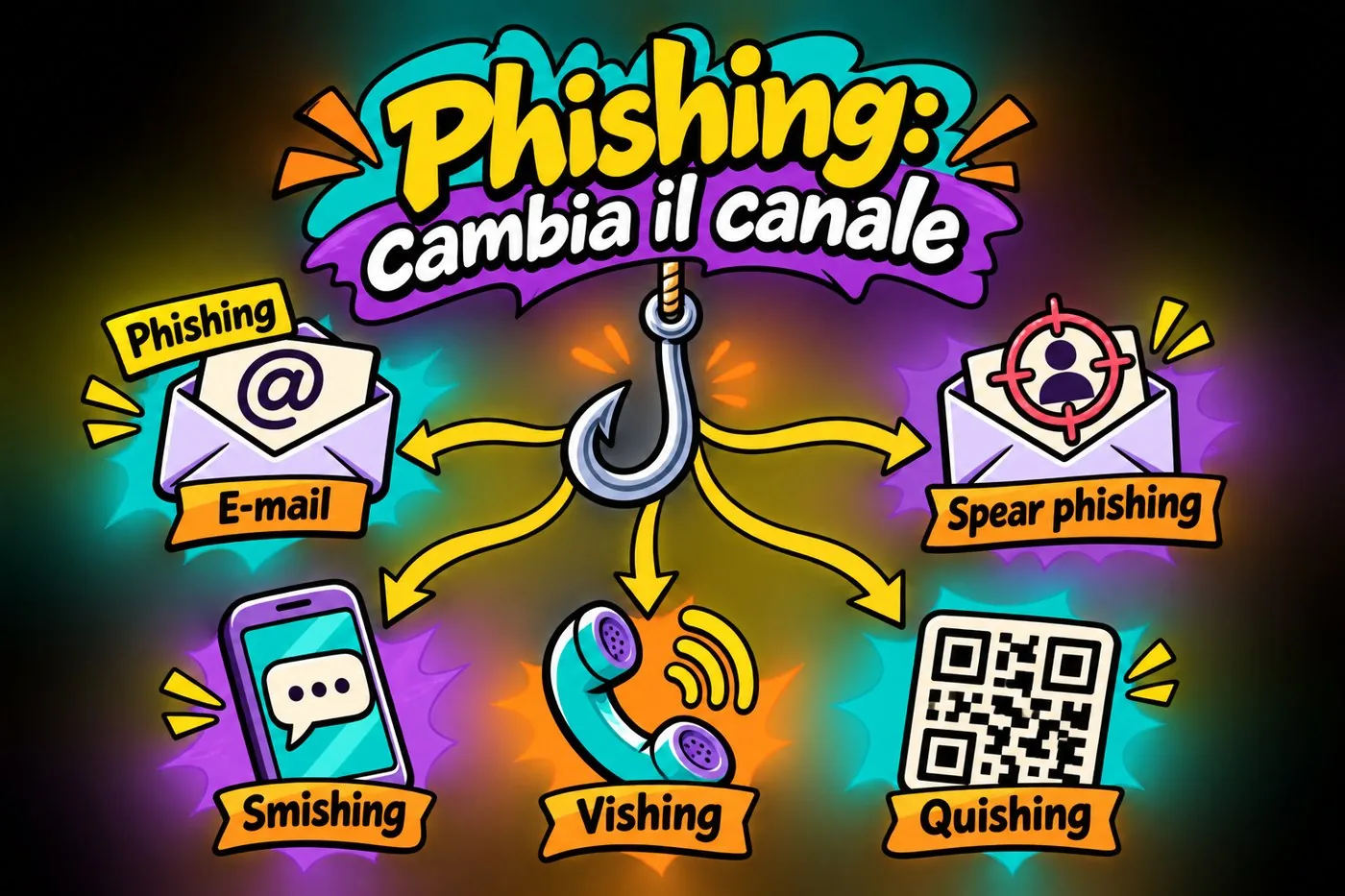
2. The variants: same goal, different channels
When fake emails became easier to spot, scammers did not give up: they changed route. Today the same trick can arrive by email, text message, phone call or QR code. The channel changes, the purpose does not.
Phishing changes channel, not goal.
Variant
Channel
Example
Phishing
Email
"Your account is suspended, log in now"
Spear phishing
Email aimed at one person
A fake message from the director to the office assistant: "Make this bank transfer right away"
Smishing
Text message (SMS)
"Parcel held, pay 1.99 euros handling fee"
Vishing
Phone call
A fake bank operator asking for the code you just received by text
Quishing
QR code
A fake QR code on a parking meter or leaflet that leads to a trap site
PHISHING: THE CHANNEL CHANGES
Phishing: the channel changes. The channel changes, the trick stays the same.
The channel changes, the trick stays the same.
2.1 Spear phishing: the message made to measure
A spear is a fishing harpoon: you do not cast a net at random, you aim at one particular fish. The scammer studies the victim. They look at the office website, public social media profiles, colleagues' names. Then they write a believable message with the right name and the right tone.
Case study: the director's bank transfer
A message that seems to come from the director, Mr Rossi, reaches the office of a small organisation: "I'm in a meeting, can't call. Make an urgent transfer to a new supplier right now, I'm sending the IBAN. I'll explain later".
The name is right and so is the tone. But the sender address is not the organisation's: it is a free email address with a similar name. And the request ticks every scam box: hurry, secrecy, money, no chance to phone.
What to do: do not reply. Call the director on the number you already know, or ask in person or through a colleague. For payments, adopt a simple office rule: no new bank transfer without a second confirmation on a different channel.
2.2 Smishing: the bait lands on your phone
The name joins SMS and phishing. The message seems to come from the courier, the bank, the post office or the phone company: "Parcel on hold, pay 1.99 euros delivery fee". The amount is small on purpose, so it does not make you suspicious. But the link leads to a page asking for your card details, and those details are worth far more than 1.99 euros.
On a phone it is harder to check the address, and we tend to trust more because a text feels personal. The advice is the same: do not tap the link, open the courier's official app or website yourself and check whether there really is a parcel.
2.3 Vishing: the voice that sounds sure
Vishing uses the voice (voice plus phishing). Someone calls and says they are from your bank: "We have spotted a suspicious transaction. To block it, please read me the code you are about to receive by text". The tone is professional and reassuring. The code, in fact, lets the scammer authorise an operation in your name.
Golden rule
A real bank never asks you by phone for passwords, codes received by text, or your PIN. If someone asks for a code, you are talking to a scammer. Hang up and call back yourself, on the number printed on the official website or on your card.
Sometimes the number on your display looks right, because scammers can fake it. So who is calling is not enough: what they ask for is what counts.
2.4 Quishing: the QR code that hides the link
A QR code is a square of dots that, when you point a camera at it, opens a web address. The problem is that you cannot read by eye where it leads. A scammer sticks a fake QR code on a parking meter, a car park post, a poster or a leaflet. Whoever scans it lands on a page that imitates the real one and asks for a card number.
The QR code can also arrive inside an email or a PDF. Often it is a way to move the attack onto your phone, where there are fewer controls. Before opening the address, read the preview your phone shows: if the domain is not the one you expect, close it. On stickers, check they have not been glued over something else.
3. The warning signs
No single sign proves a message is fake, and no fake message has them all. But the more you find, the more careful you should be. Here are the main ones, with what to look at.
The most common signs of a suspicious message.
Sign
What to look at
Odd sender
Read the address, not just the name. A name can be fake, the address tells you where the message really comes from. "Tax Office" written from a free address or a strange domain is a red flag.
Hurry or threat
"By today", "final notice", "your account will be closed". A serious organisation gives you time to check.
Generic greeting
"Dear customer" instead of your name. It is not decisive, but an organisation that knows you usually uses your name.
Suspicious link
The link text says one thing, the real address another. Hover the mouse over it, without clicking, and look at the bottom of the window.
Unexpected attachment
An invoice you were not waiting for, a "scanned document" from an unknown sender. Attachments with a double extension (such as .pdf.exe) are a classic.
Request for data
Passwords, PINs, codes, card numbers: no serious organisation asks for them by email, text or phone.
Mistakes and oddities
Clumsy sentences, blurry logo, odd translations. Useful, but not decisive: many fake messages today are written perfectly.
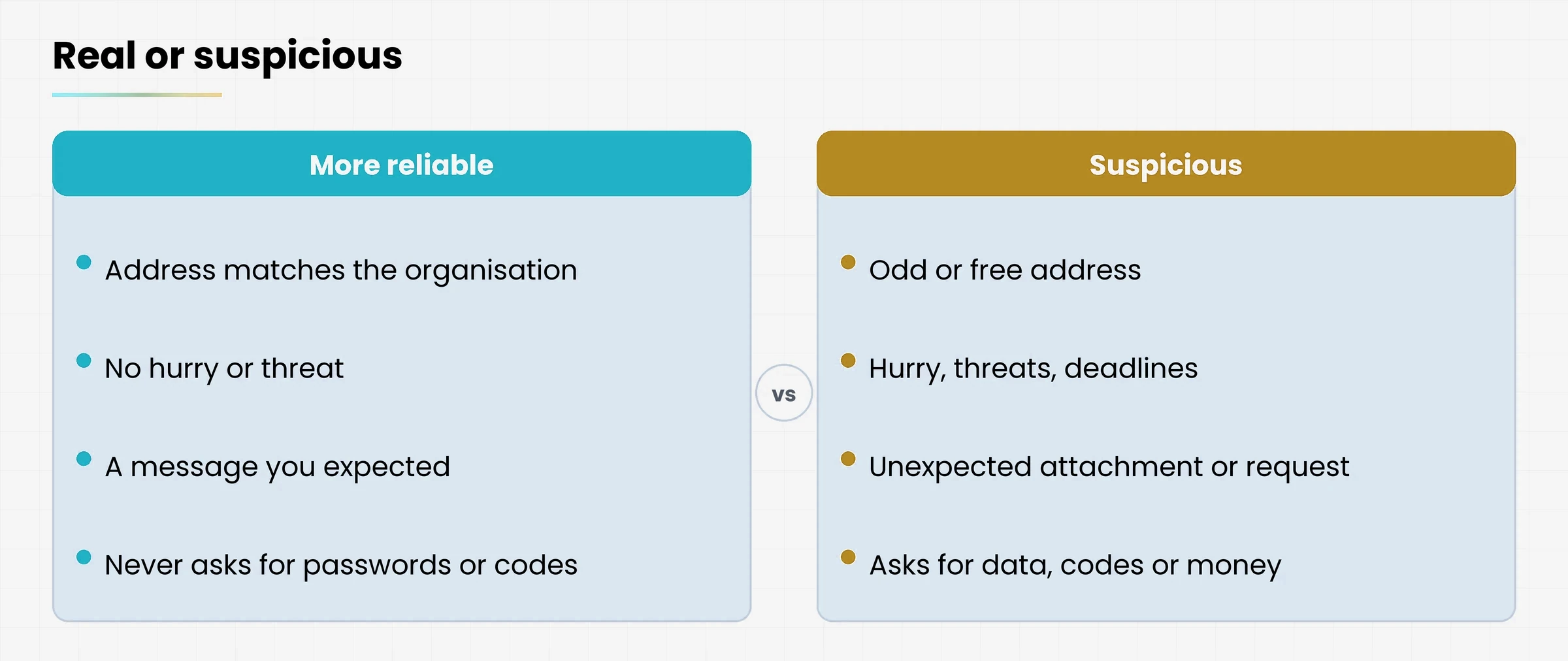
Diagram
Comparison of the features of a reliable message and a suspicious one.
A reliable message and a suspicious one compared
Do not trust "it looks well written"
Grammar mistakes used to give fake messages away. Today scammers can use translation and automatic writing tools, and the texts come out polished. A well-written message is not therefore a real one: look at the sender, the link and the request.
3.1 Case study: the fake tax office email
An email arrives with the header of the Agenzia delle Entrate (the Italian tax authority): "A refund in your favour has been found. Click here to enter your card details". The logo is right. But the sender's address is some random domain, the greeting is generic and the request is about a credit card.
A public body does not ask for your card details like this, and does not send you to outside pages through a link in a message. If you think there may be something real in it, log in yourself to the official site by typing the address by hand, or phone the office.
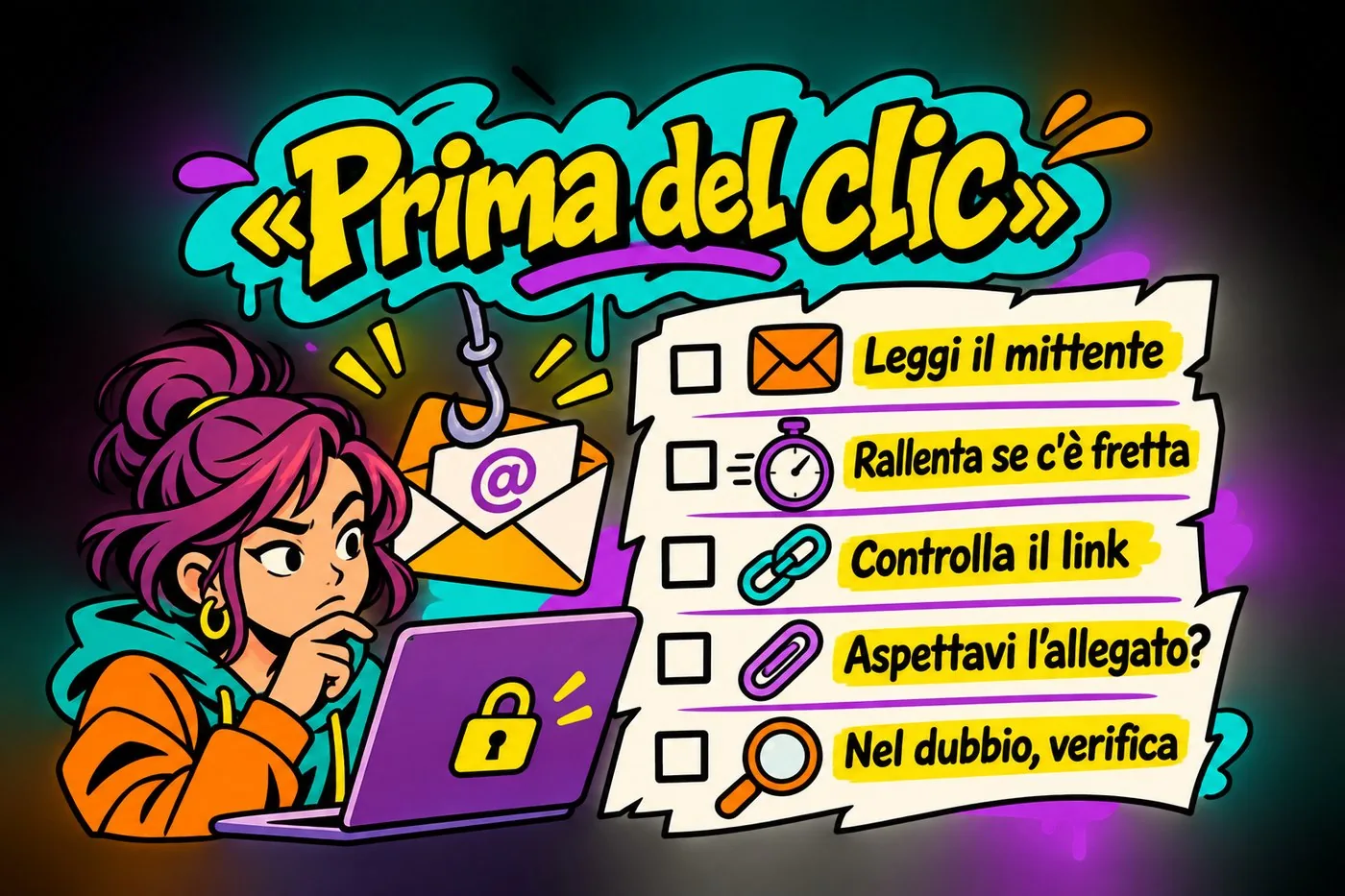
4. The "stop and check" list
Recognising every trick is impossible, because they keep changing. A habit, on the other hand, can be learned. Before you click, open or reply, stop for a moment and make four checks. Then, if you still have a doubt, one fifth move.
BEFORE THE CLICK
Before the click. Sender, pressure, link, attachments and a check on another channel.
Sender, pressure, link, attachments and a check on another channel.
Who is the sender, really? Read the address, not just the name. On a phone, tap the name to see the full address.
Is it rushing or threatening me? If so, slow down on purpose. Hurry is the scammer's weapon.
Where does the link go? Hover the mouse over it, without clicking, and read the address shown at the bottom. On a phone, press and hold the link to see the preview.
Was I expecting it? If you get an attachment or a request you were not waiting for, looking real is not enough.
When in doubt, check. Call the organisation on its official number, or ask whoever looks after IT.
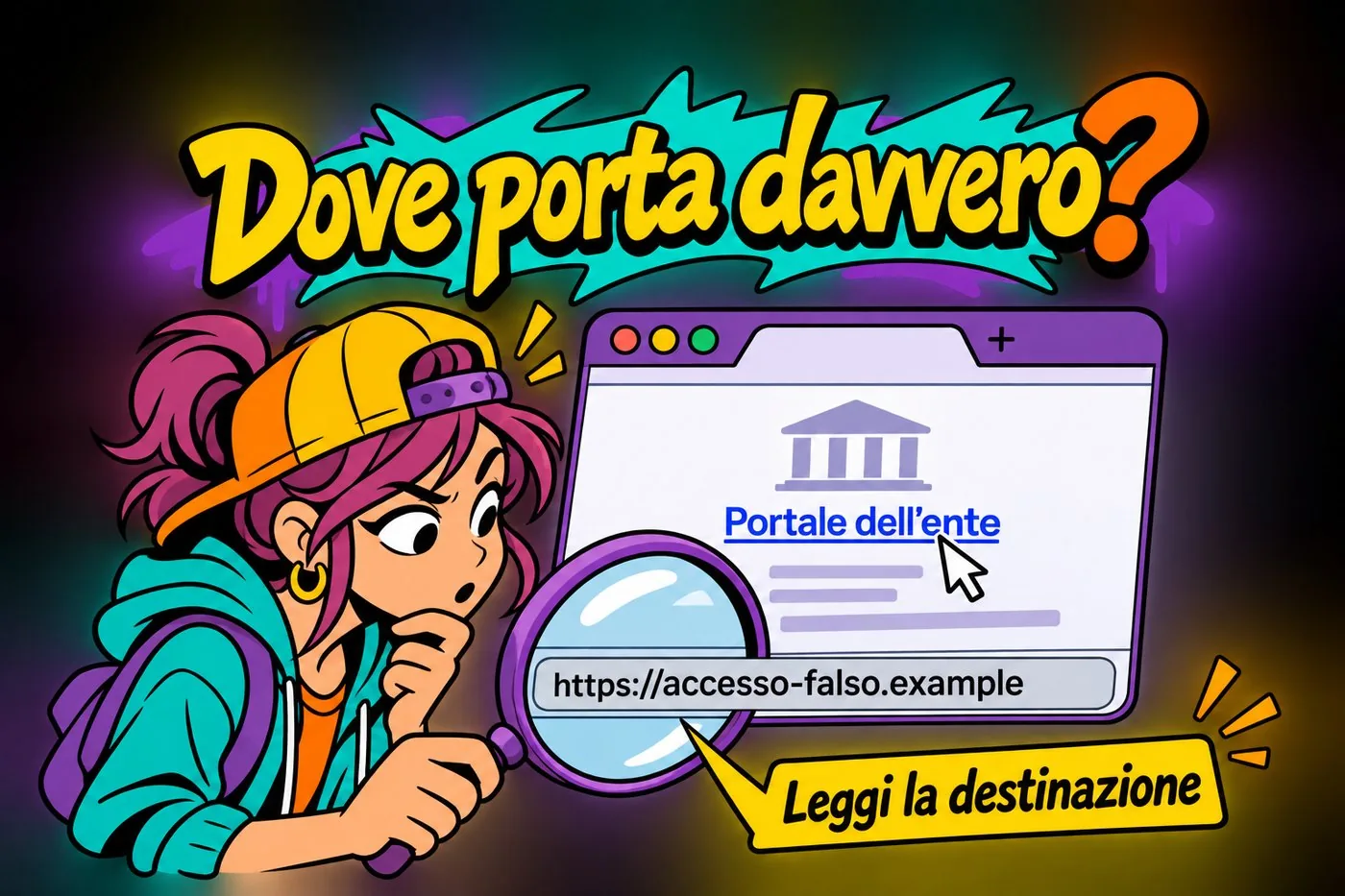
WHERE DOES IT REALLY LEAD?
Where does it really lead?. The visible text can hide a different destination.
The visible text can hide a different destination.
4.1 The official number: where to find it for real
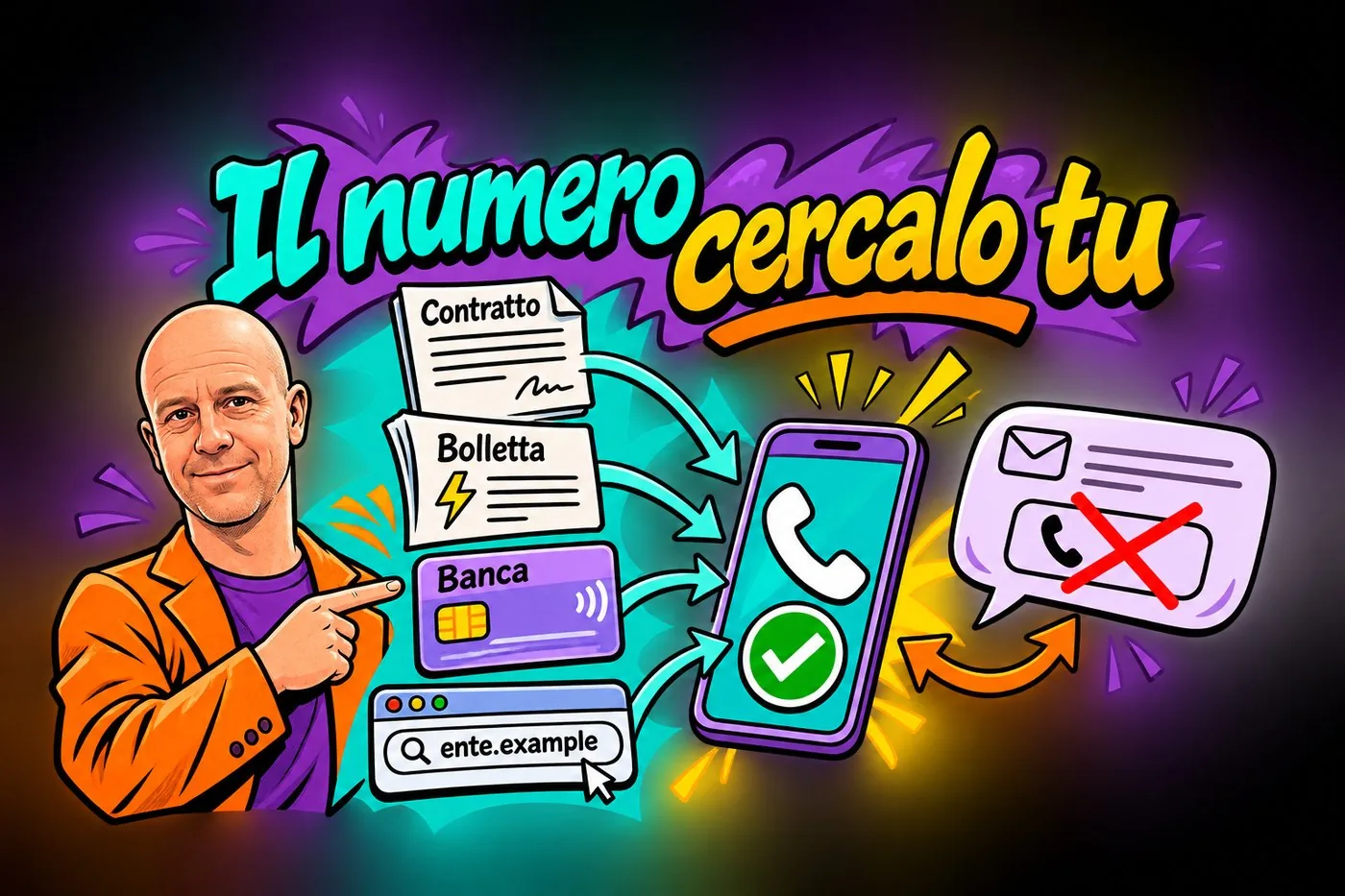
The number to call is not the one written in the suspicious message: that would be like asking the scammer whether they are a scammer. Look it up from a source of your own: the organisation's website typed by hand into the address bar, a bill, a contract, the bank card, a statement.
YOU LOOK UP THE NUMBER
You look up the number. Call back using a number found from an independent source.
Call back using a number found from an independent source.
4.2 Rules that apply to everyone
No new payment and no change of IBAN (bank account number) without a second confirmation on a channel different from the one the request came through, for example a call to a number you already know.
No password, no code is shared with anyone. Not with a colleague, not with the "technician". A real technician does not need them.
When in doubt, show it to someone. A second person looks with fresh eyes and does not have the hurry on their back.
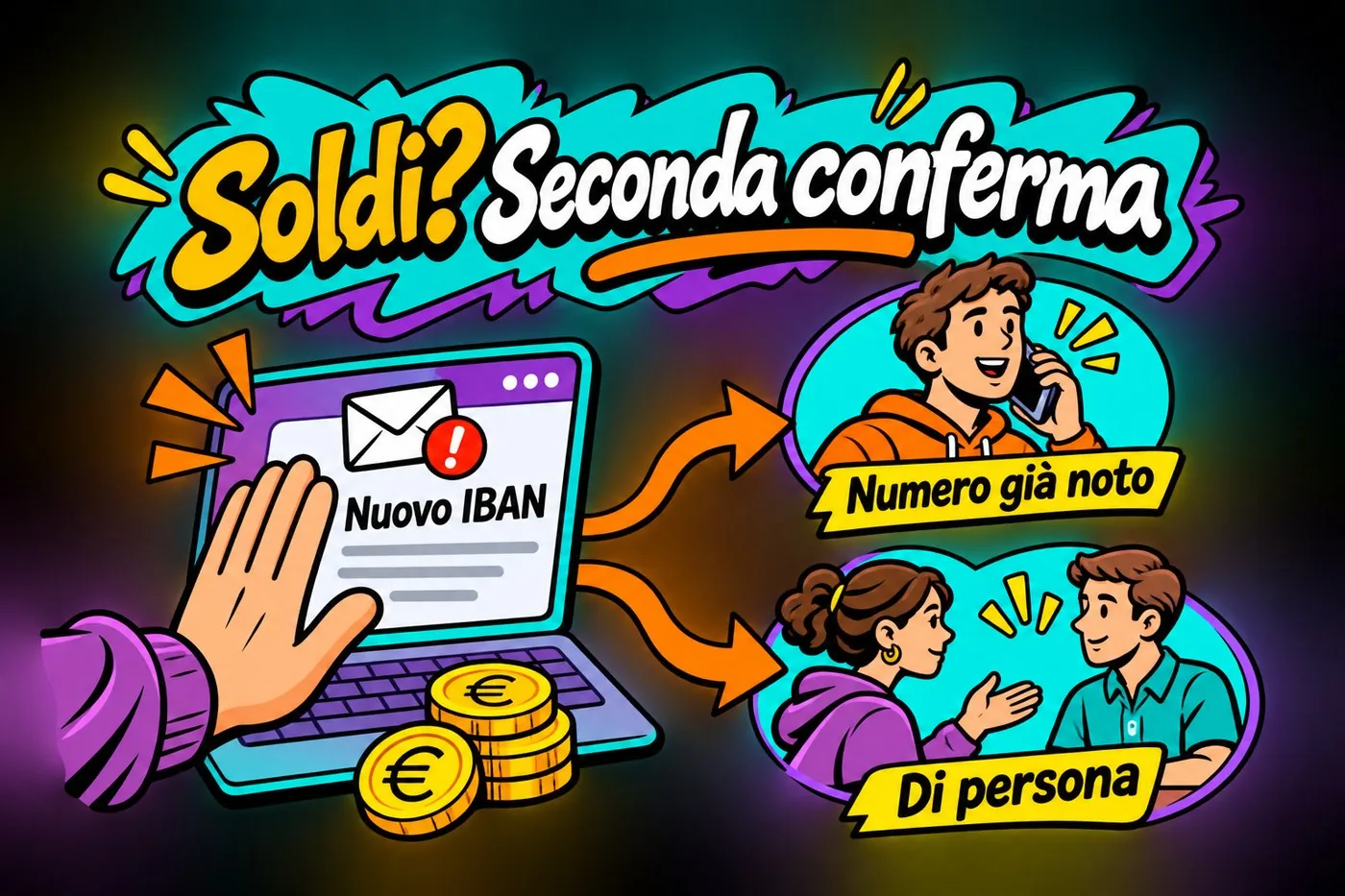
MONEY? SECOND CONFIRMATION
Money? Second confirmation. A new transfer or a change of IBAN needs independent confirmation.
A new transfer or a change of IBAN needs independent confirmation.
In plain words
Stopping is not wasting time. It is the one move scammers cannot exploit.
5. Three cases from everyday work
Let us put it into practice. For each case, try first to decide what you would do, then read the answer.
5.1 Case 1: the invoice you were not expecting
At a school an email arrives: "Attached is the overdue invoice, please settle it". The sender is unknown, the attachment is called invoice.pdf.exe. The school secretary has not ordered anything from that supplier.
What to do: do not open the attachment. A double extension reveals a program pretending to be a document: it could be malware, as you saw in the previous lesson. Check the order records to see whether that supplier really exists, tell the IT contact, and delete the message.
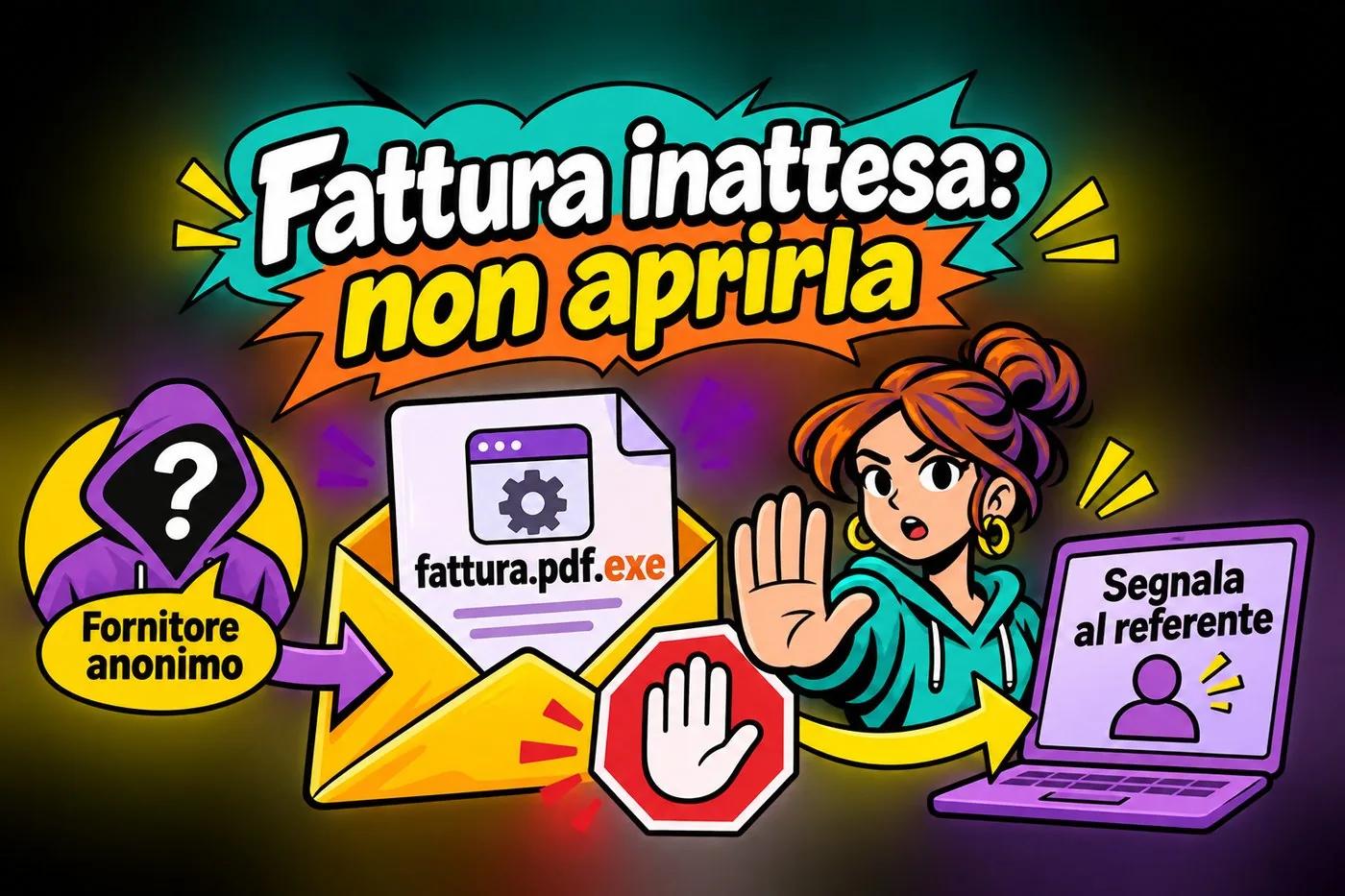
UNEXPECTED INVOICE: DO NOT OPEN IT
Unexpected invoice: do not open it. An unexpected attachment does not become safe because it looks like an invoice.
An unexpected attachment does not become safe because it looks like an invoice.
5.2 Case 2: the QR code on the car park notice
Outside a shop there is a notice: "Pay for parking, scan the QR code". It looks a bit crooked, stuck over the original notice. The QR code opens a site with a card payment form.
What to do: do not scan it. If the car park has an official app or a meter, use those. A sticker glued over the original notice is a warning sign. If you have already typed in your card, call the bank right away to block it and go to the lesson on what to do when it happens.
5.3 Case 3: the "technician" who calls
The phone rings: "Good morning, I am from your mail provider's support. We noticed an unusual login and I need the code that is about to reach your phone, to block it". The tone is polite and confident, and the code really does arrive while you are talking.
What to do: end the call. The code that arrives is exactly what the scammer needs, because at that very moment they are trying to get into your account. No serious service asks you for that code by voice. Then tell your IT contact and change your password from the real site, as you will see in the next lessons.
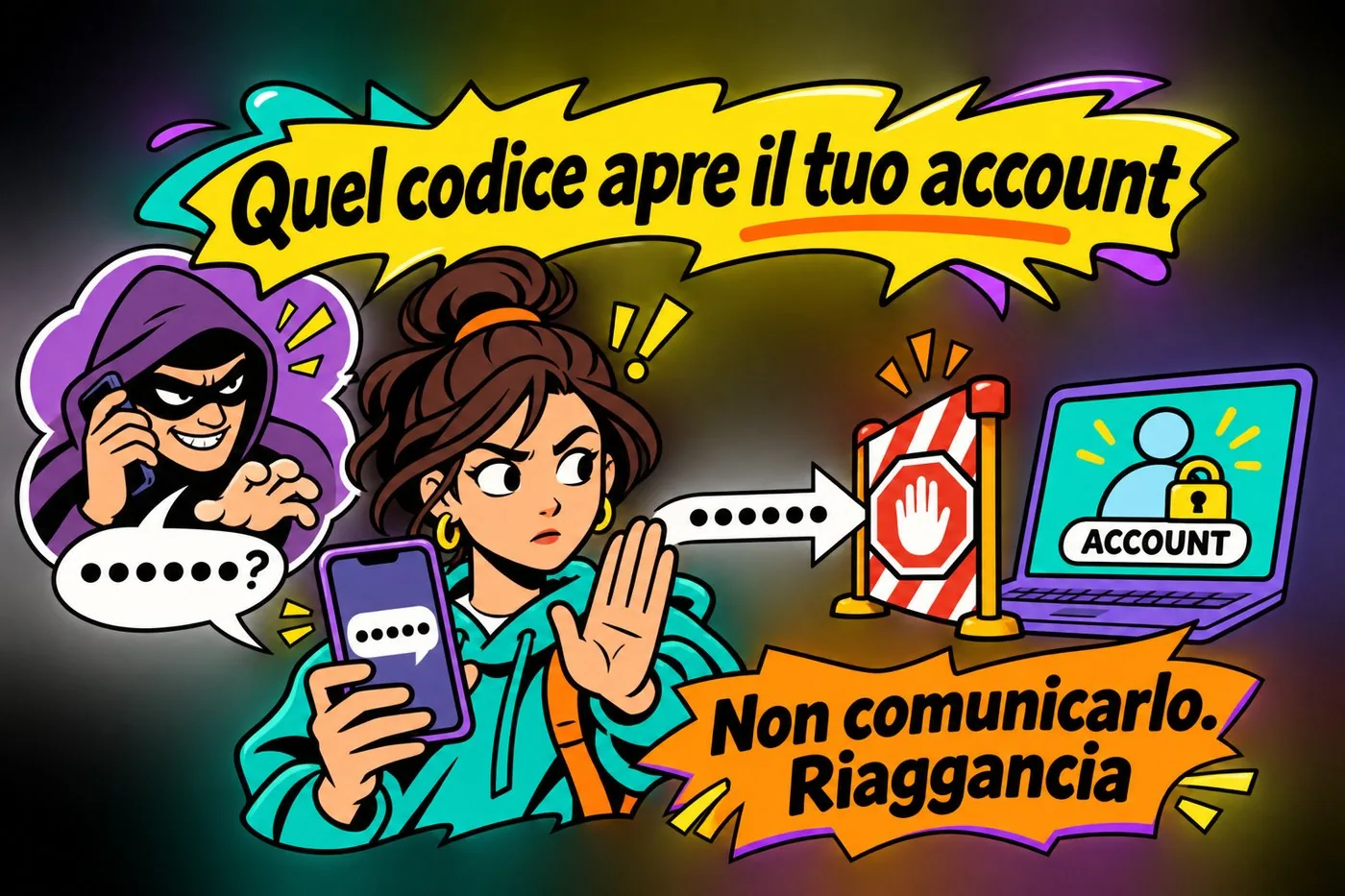
THAT CODE OPENS YOUR ACCOUNT
That code opens your account. A code that has just arrived must not be given to whoever calls.
A code that has just arrived must not be given to whoever calls.
If you have already clicked
Do not be embarrassed and do not hide it: speed matters more than awkwardness. Isolate the computer, tell the person in charge right away and change your passwords from the real site. The complete four steps are in the lesson "What to do when it happens".
STOP, CHECK, REPORT
Stop, check, report. Clicked by mistake? Tell someone straight away. To practise, observe without opening links or attachments.
Clicked by mistake? Tell someone straight away. To practise, observe without opening links or attachments.
Practical exercise
A short exercise, alone or in pairs, using the latest emails and messages you have really received.
Open your spam (junk mail) folder and pick three messages. If you have none, use an email from the last few days that seemed odd to you.
For each one write on a sheet: who the sender is (full address), what they ask for, which lever they use (hurry, fear, authority, curiosity).
Hover the mouse over each link, without clicking, and note the address that appears at the bottom: does it match what the text claims?
Apply the "stop and check" list and decide for each: delete, report, or check with the official number.
If you work in pairs, swap sheets and discuss the differences. Then write together your office rule for new bank transfers.
Self-check
What is the difference between phishing and spear phishing?
Why does a real bank never ask you for a code over the phone?
What are the four checks of the "stop and check" list?
Where do you find the official number to call when in doubt?
Questions that come up in class
Can I spot phishing from grammar mistakes?
Not any more. It used to be a good clue, but many fake messages today are carefully written. Trust the tone less and the facts more: sender, link, request for data or money.
If I hover over the link and it looks normal, can I click?
If the address matches what you expect, that is a good sign, but not a guarantee. If you have doubts about the message, still do not click: open the site by typing the address by hand or from the official app.
I clicked a suspicious link but typed nothing. Am I at risk?
Usually the main risk is in typing in data or downloading something. Close the page, download nothing and tell your IT contact. If you downloaded or opened a file, or entered data, go straight to the steps in the dedicated lesson.
The message seems to come from a colleague I know. Can I trust it?
Not always: the address can be forged or the colleague's account may have been stolen. If the request is unusual (money, passwords, confidential files), confirm with a phone call or in person.
Can I scan a QR code safely?
Scanning on its own will not harm you, but it takes you to a page you do not know. Look at the address in the preview before opening it, and never type passwords or card details into a page reached this way unless you are sure.
How do I report a phishing attempt?
Tell the IT contact of your office or school. If money or other people's data are involved, keep the messages and contact the Polizia Postale e delle Comunicazioni (Italy's online-crime police unit; in the US the nearest equivalent is the FBI's IC3), through commissariatodips.it.
Lesson glossary
The words you meet in this lesson, explained in one line.
Term
What it means
IBAN
The code that identifies a bank account and to which a bank transfer is addressed.
Phishing
A scam in which a criminal pretends to be a trusted organisation or person to make you click, open an attachment or give confidential data.
QR code
A square of dots that a camera reads and turns into a web address or text.
Quishing
Phishing through a fake QR code, for example on a sticker or leaflet.
Sender
Whoever sends the message; the real address matters more than the displayed name.
Smishing
Phishing by text message, often with fake alerts from couriers or banks.
Spear phishing
Targeted phishing: the message is made to measure for one specific person, using information about them.
Vishing
Phishing by phone: the caller pretends to be, for example, a bank operator.
Further reading
The sources used to build this handout: if a figure interests you, go to the source and check it.
Polizia Postale e delle Comunicazioni, online police station
commissariatodips.it, for reports and advice on online scams
National Cybersecurity Agency (ACN) and CSIRT Italia
alerts and guides on cyber threats in Italy
Garante per la protezione dei dati personali (the Italian Data Protection Authority)
garanteprivacy.it, information sheets on phishing and data security
Watch out
Information up to date as of October 2026. Examples, names and domains (such as ente-esempio.it) are invented. Italian bodies are explained in brackets; if you live elsewhere, use your country's equivalent (your national police cybercrime unit, tax office and data protection authority). Techniques change fast: the checking method matters more than any single example.
Almost-identical addresses, convincing calls and stolen identities
Lesson goal
Recognise a fake site by reading its domain, defend yourself with bookmarks and checks, and understand how social engineering and identity theft exploit people more than machines.
What you will be able to do
Explain what domain name identical or similar to that of a company or well-known person, to resell it or exploit its fame.">cybersquatting and typosquatting are.
Read a web address and find the real domain.
Check a site before entering passwords or payment details.
Recognise the levers of social engineering and answer with a procedure.
Reduce the risk of identity theft and know how to react.
1. The site that looks right
A single wrong character in an address can take you to a page identical to the real one, but run by someone else.
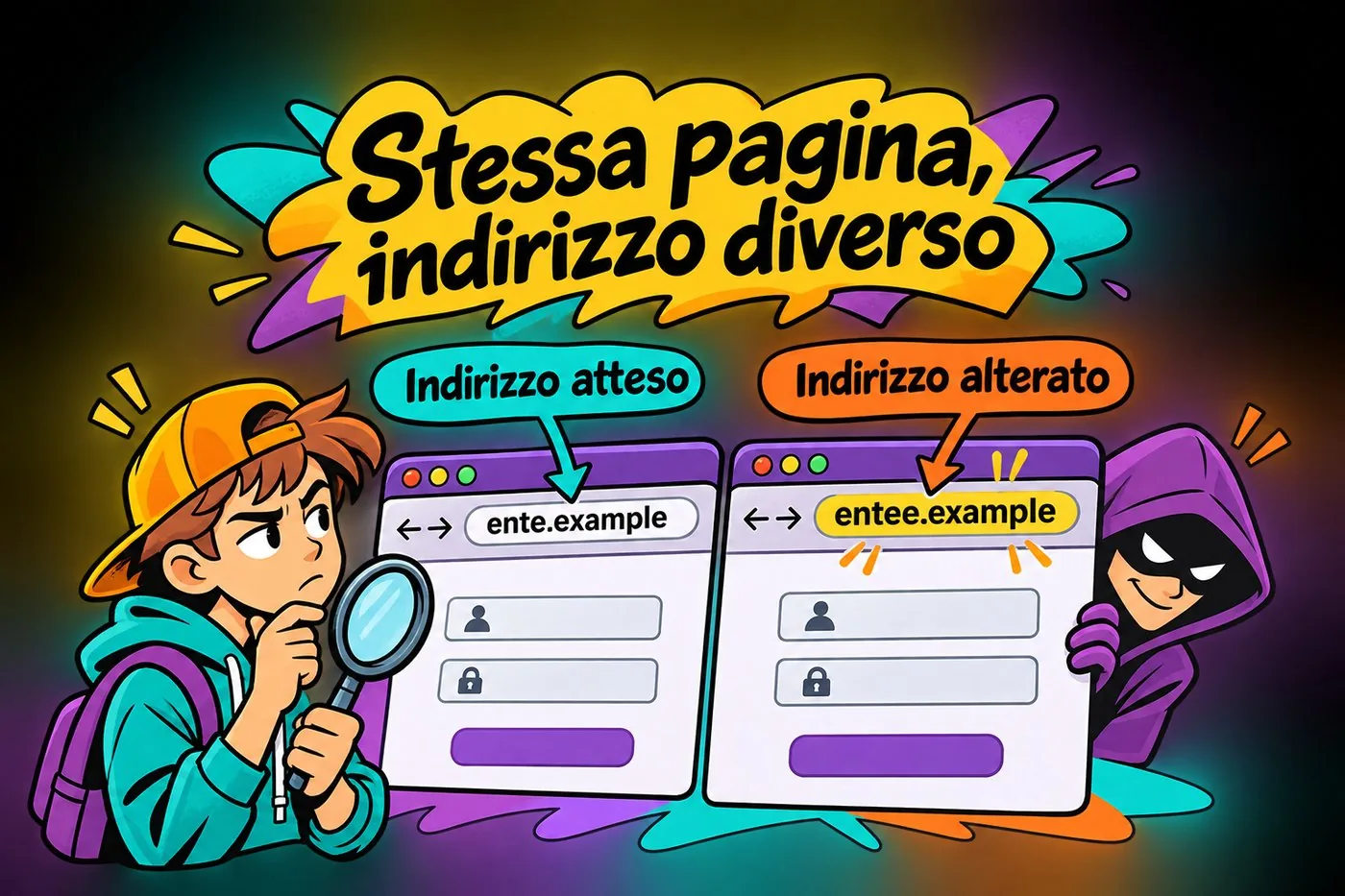
Giulia works in the office of a public body. She needs to open the services portal, whose address is www.ente-esempio.it. She is in a hurry, types the address from memory and presses enter. A page appears that looks identical: same logo, same colours, same password box. She enters her credentials. Then she notices that the address was www.ente-esenpio.it, with an "n" instead of an "m".
That page was a trap site. Whoever built it did not hack anything: they simply registered an almost identical name and waited for someone to make a typing mistake.
SAME PAGE, DIFFERENT ADDRESS
Two identical login pages: the expected address and the altered one differ by a single letter.
A page's look can be copied: check the address.
1.1 What a domain name is
The Domain name" data-def="The part of the address that identifies a site, for example ente-esempio.it.">domain name is the part of the address that identifies a site, for example ente-esempio.it. It is registered through authorised companies, and anyone can register a free name. There is no check on whether the name resembles someone else's.
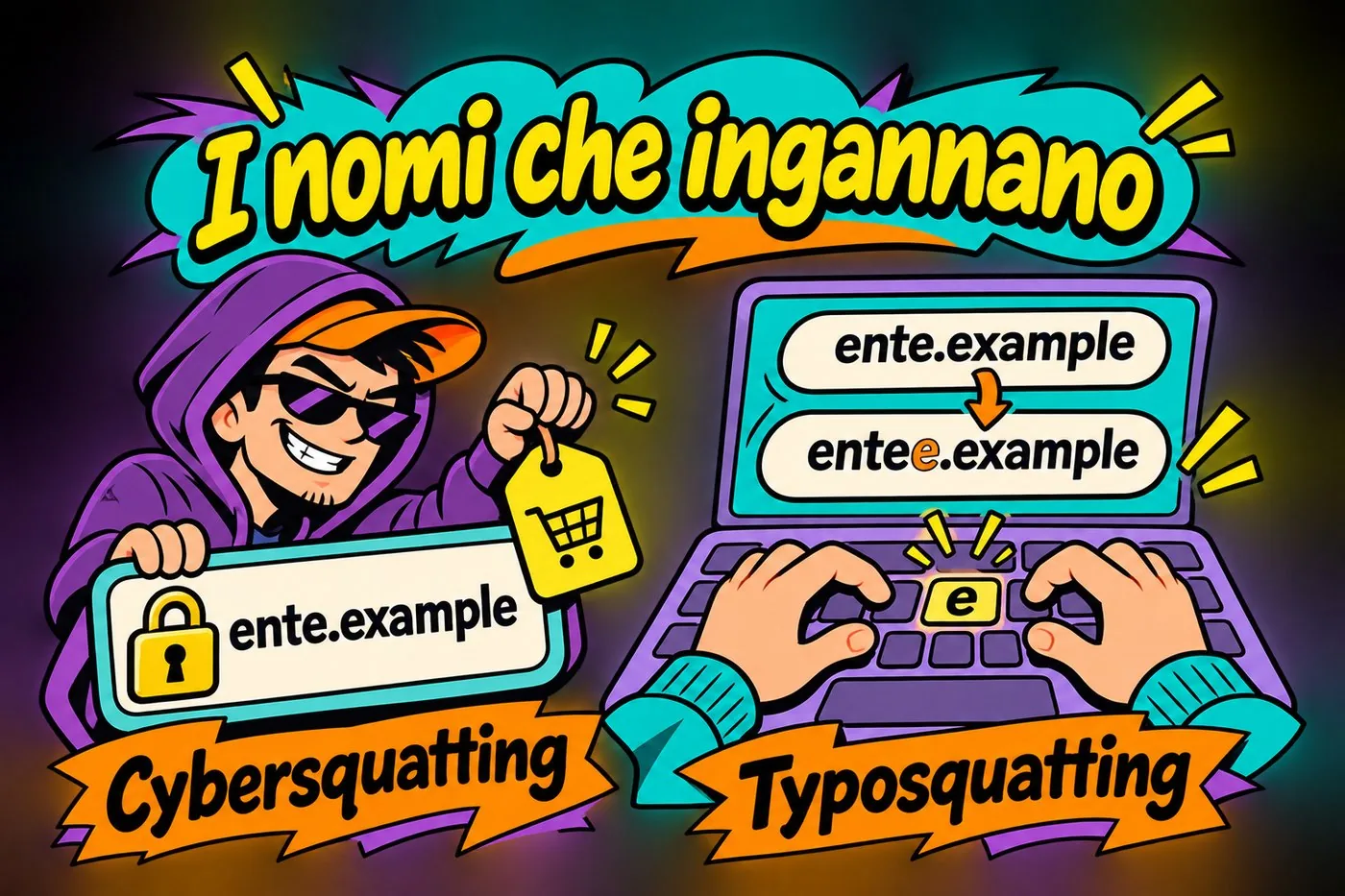
1.2 Cybersquatting and typosquatting
Cybersquatting means registering a domain name that is identical or very similar to the name of a company, an organisation or a well-known person, to resell it at a high price or exploit its fame. The term comes from to squat, to occupy a place without permission.
Typosquatting is a variant: you register domains with likely typing mistakes (a typo is a slip of the fingers), hoping the user will mistype. No need to trick anyone with an email: just wait.
Similar domains that fool the eye (invented examples).
Real site
Examples of trap sites
www.ente-esempio.it
www.ente-esempio.com (different ending)
www.ente-esempio.it
www.ente-esemp1o.it (the "i" replaced by the number one)
www.ente-esempio.it
www.ente-esempio-it.net (the dot turned into a hyphen)
www.ente-esempio.it
www.ente-esenpio.it (one letter changed)
NAMES THAT DECEIVE
Cybersquatting (a known name held back for resale) and typosquatting (one extra letter in the name).
Similar names and typing mistakes can be exploited to deceive.
What do these sites host? Pages that imitate the real ones to steal credentials, shops selling counterfeit goods or goods never shipped, sometimes pages that spread malware, the harmful software from the lesson on ransomware.
The idea in one line
The trap site does not attack you: it waits for you to slip, or sends you a link that looks right.
2. Reading an address without being fooled
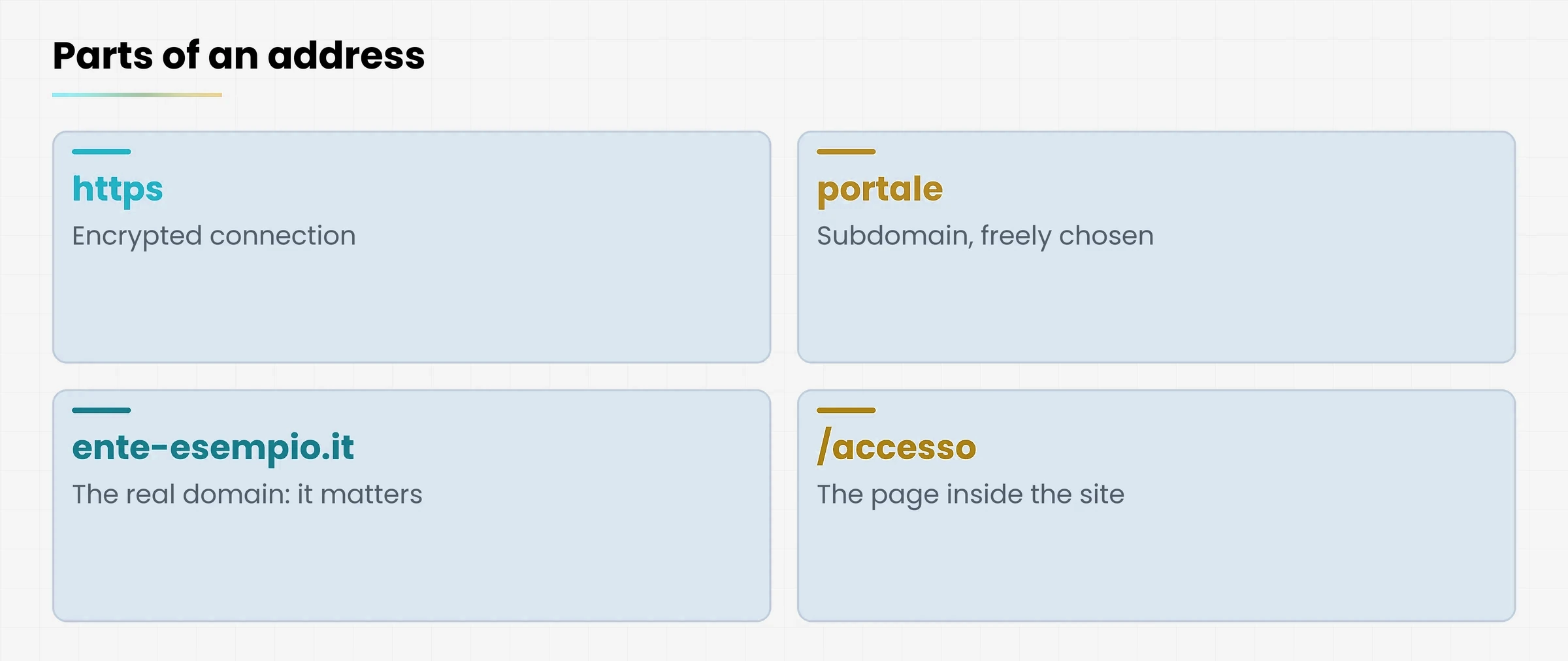
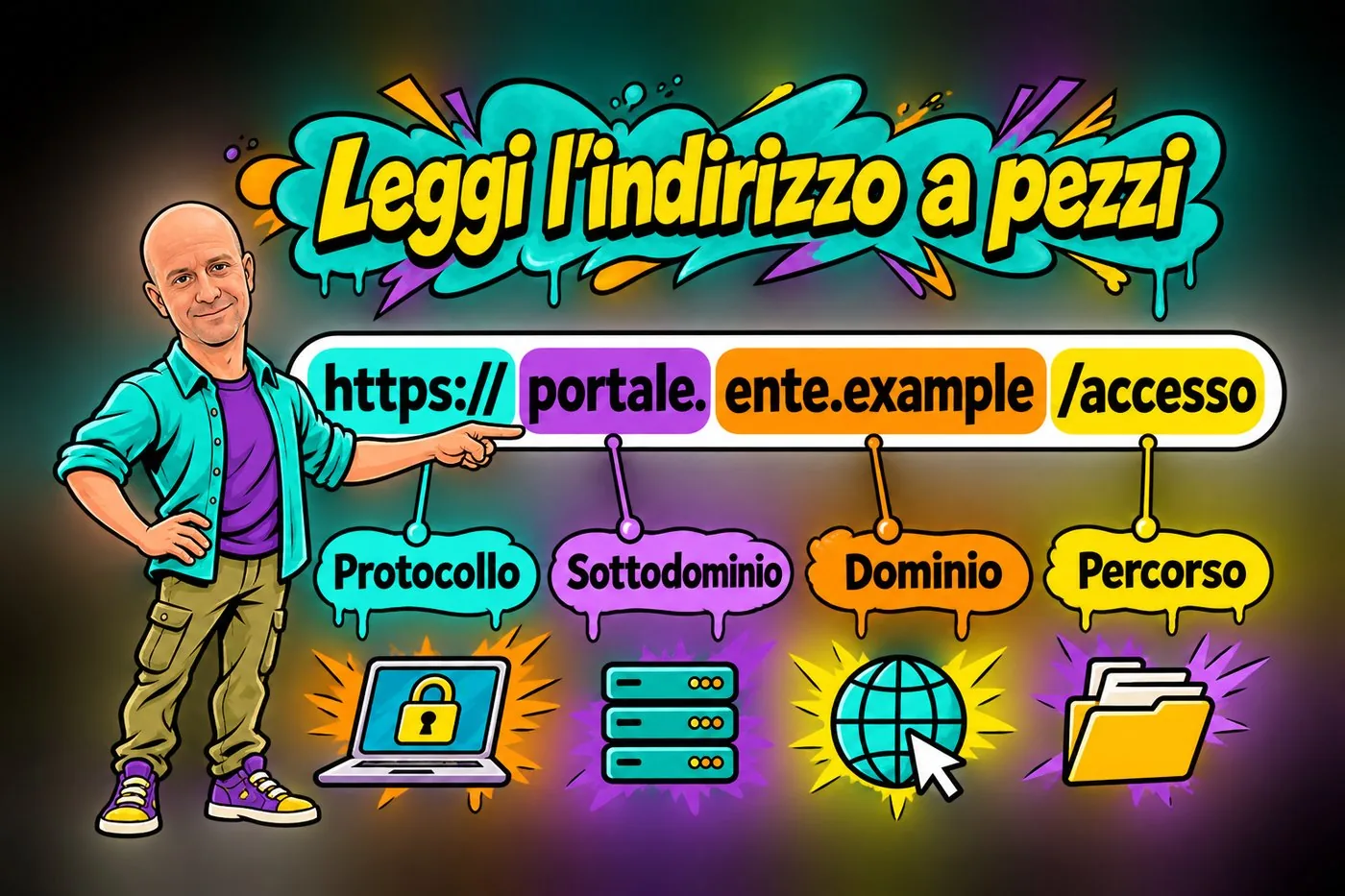
To spot a fake address you need to know how a real one is built. Take an invented one: https://portale.ente-esempio.it/accesso. It reads in pieces.
Diagram
Four cards: protocol, subdomain, domain, path.
The parts of a web address
https:// is the protocol: it means the connection is encrypted, that is, data on the way is made unreadable to anyone who intercepts it;
portale is the domain, which the owner chooses freely.">subdomain, a section chosen by whoever runs the site (it can be any word);
ente-esempio.it is the real domain, the part that matters, made of the name and the ending (.it, .com, .net...);
/accesso is the path, that is, the page inside the site.
READ THE ADDRESS PIECE BY PIECE
An address split into protocol, subdomain, domain and path, with Gianluca pointing at the parts.
Protocol, subdomain, domain and path each have a different job.
2.1 The rule for finding the real domain
Find the first slash (/) after https:// and look at the two words just before it, separated by a dot. Those are the real domain. Everything further to the left can be freely chosen by whoever owns the domain.
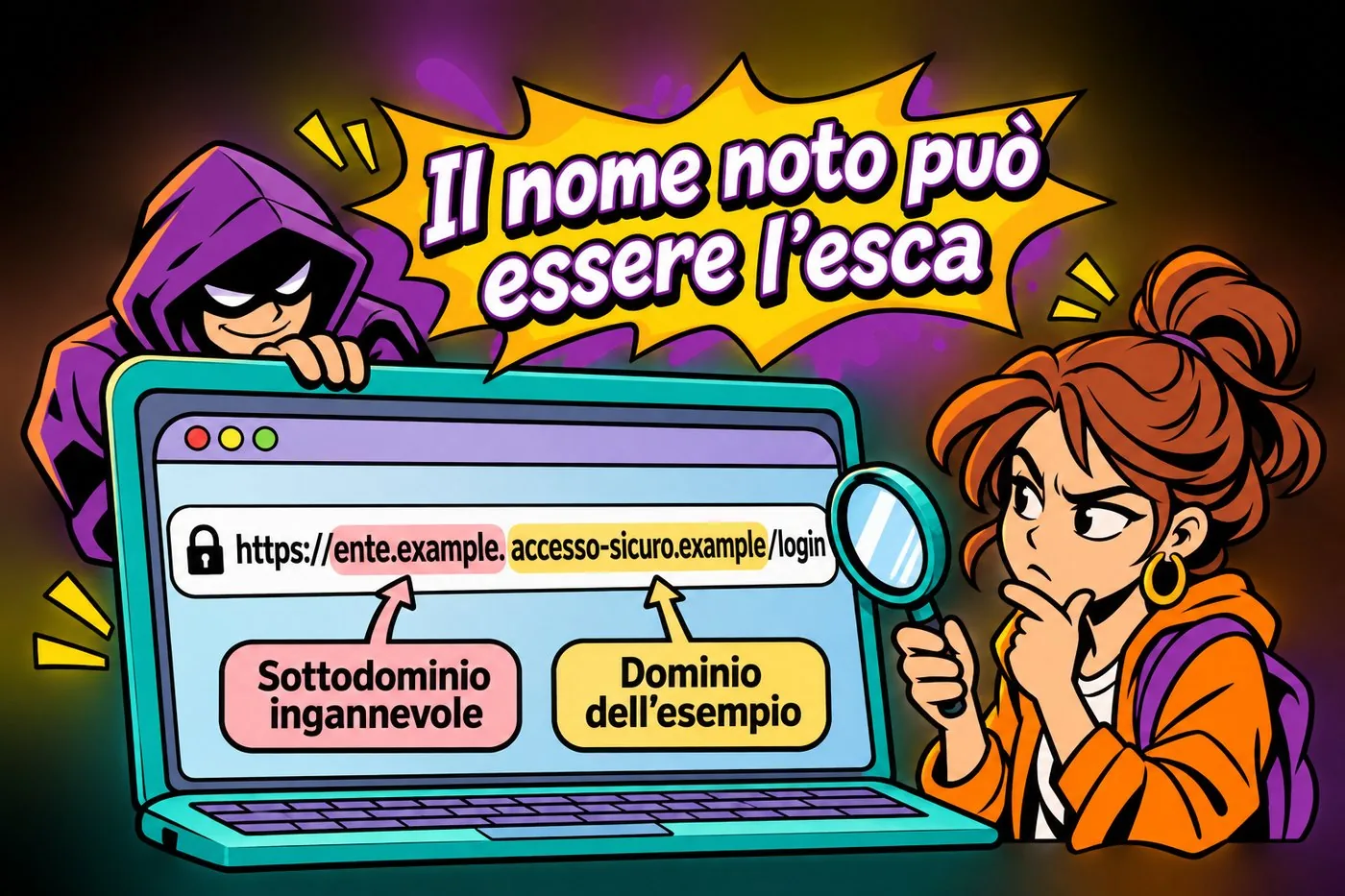
The subdomain trick
Look at this address: https://ente-esempio.it.accesso-sicuro.net/login
At first glance it seems to belong to the organisation, because "ente-esempio.it" comes first. But the real domain is accesso-sicuro.net: everything before it is just a subdomain chosen by the scammer.
Compare with https://servizi.ente-esempio.it/login: here the real domain is ente-esempio.it and "servizi" is a subdomain of the organisation. This address is trustworthy.
A FAMILIAR NAME CAN BE THE BAIT
An address with the organisation's name as a deceptive subdomain and a different domain as the real one.
The organisation's name at the start does not prove the site belongs to it.
2.2 Characters that look alike
Some characters are easily confused by eye. The number zero and the letter "o". The number one and a lowercase "l". Two letters side by side, like "r" and "n", that look like an "m". In some cases scammers also use letters from other alphabets that look identical to ours. The browser, the program you use to surf, sometimes shows such addresses in a different form to warn you, but you cannot count on it.
The padlock does not mean "honest site"
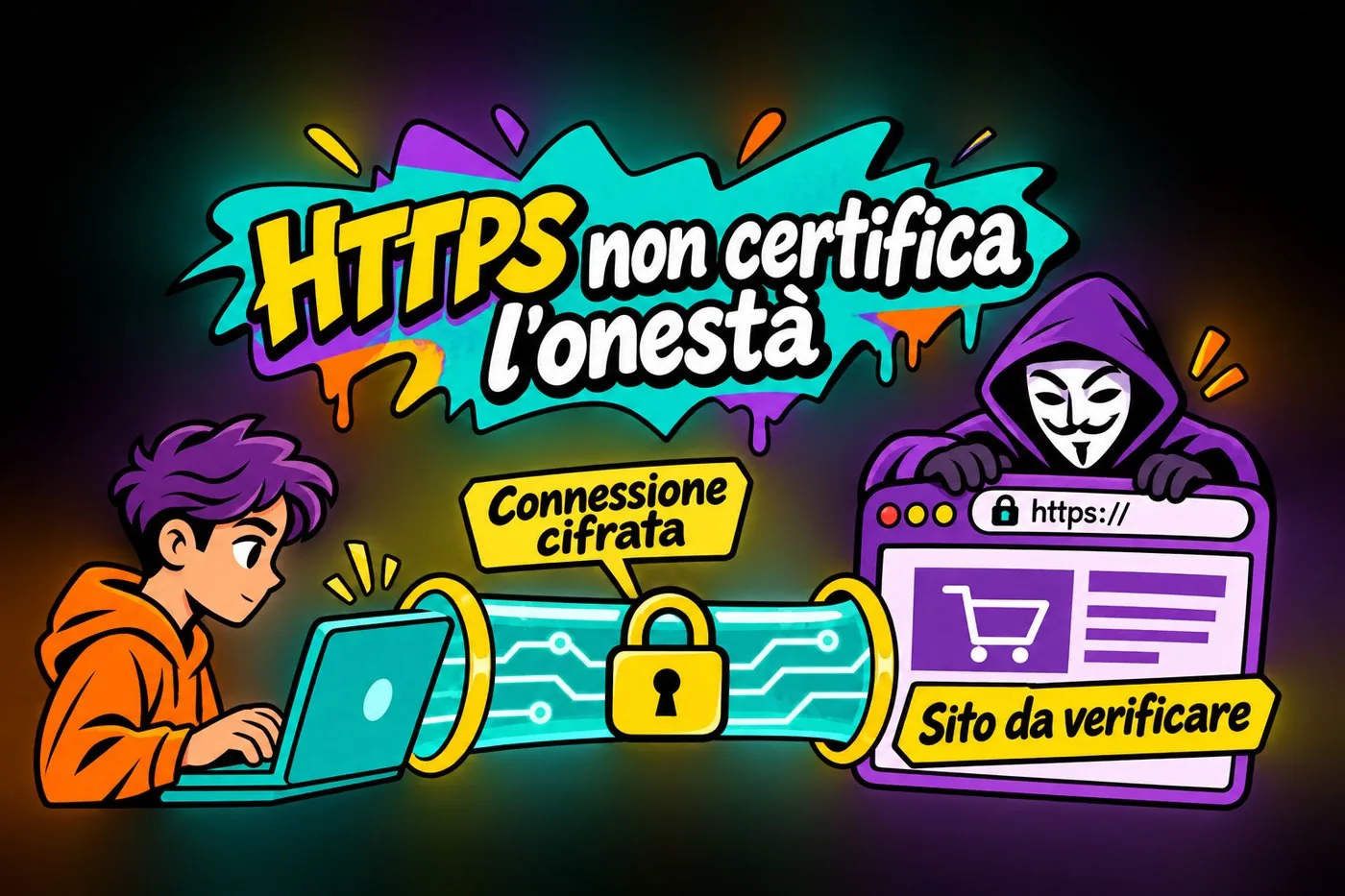
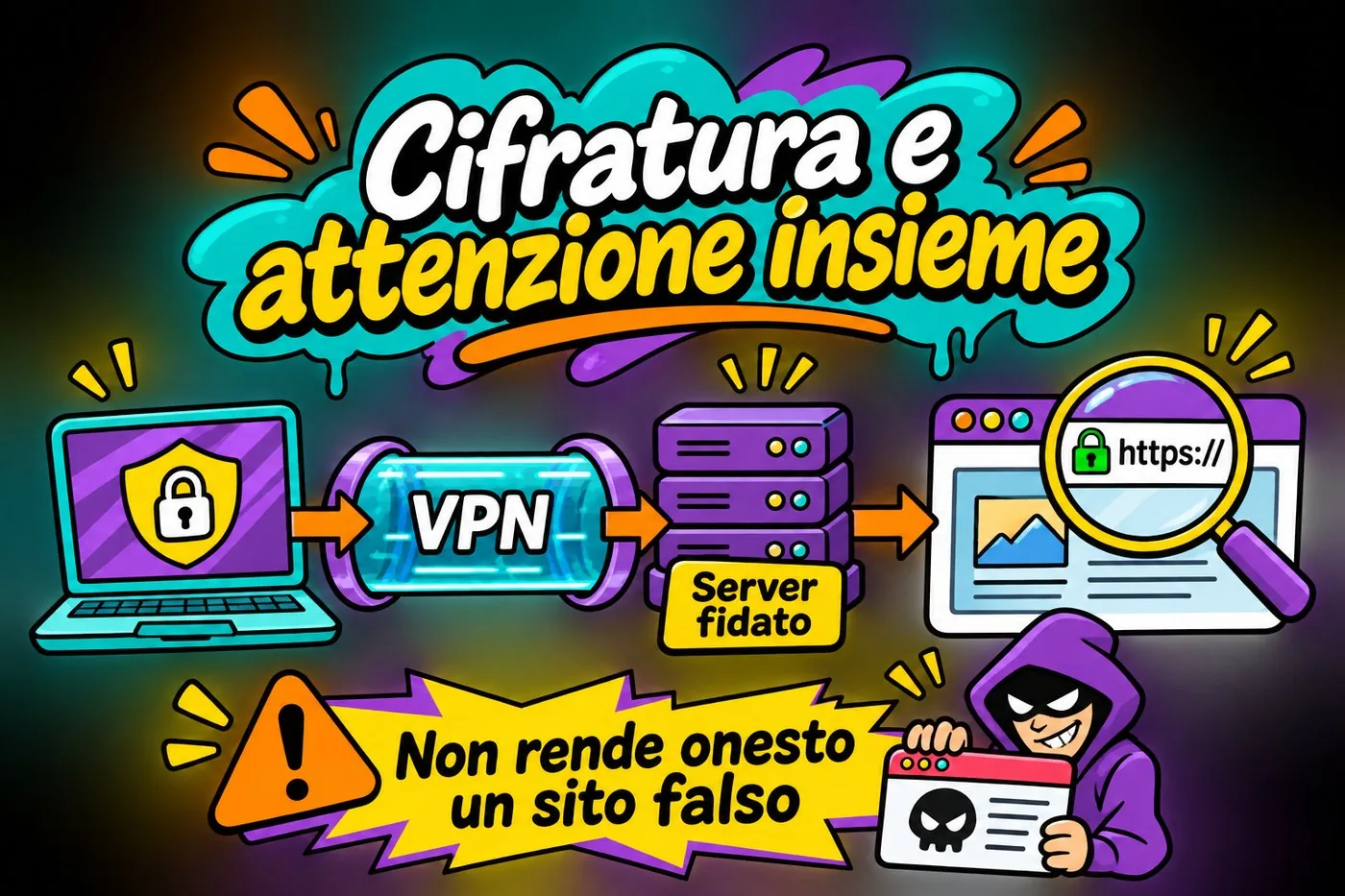
The padlock next to the address (in Chrome, the settings icon to the left of the address) only shows that the connection is encrypted. A trap site can have one too. It says nobody is spying on the data while it travels, not that the site is what it claims to be.
HTTPS DOES NOT CERTIFY HONESTY
An encrypted tunnel with a padlock between a person and a site to be verified, run by an impostor.
HTTPS protects the connection; it does not certify the site's honesty.
2.3 Shortened links
Sometimes a link is "shortened" by a dedicated service and you cannot see where it goes. It is handy, but in an unexpected message it is one more reason for suspicion. Better not to open it: go directly to the official site yourself.
3. How to check and how to defend yourself
The defences are few and simple. The hard part is turning them into a habit, especially when you are working in a hurry.
Diagram
Five steps to check a site before entering data.
Five habits to avoid the trap site
3.1 Five habits that save the day
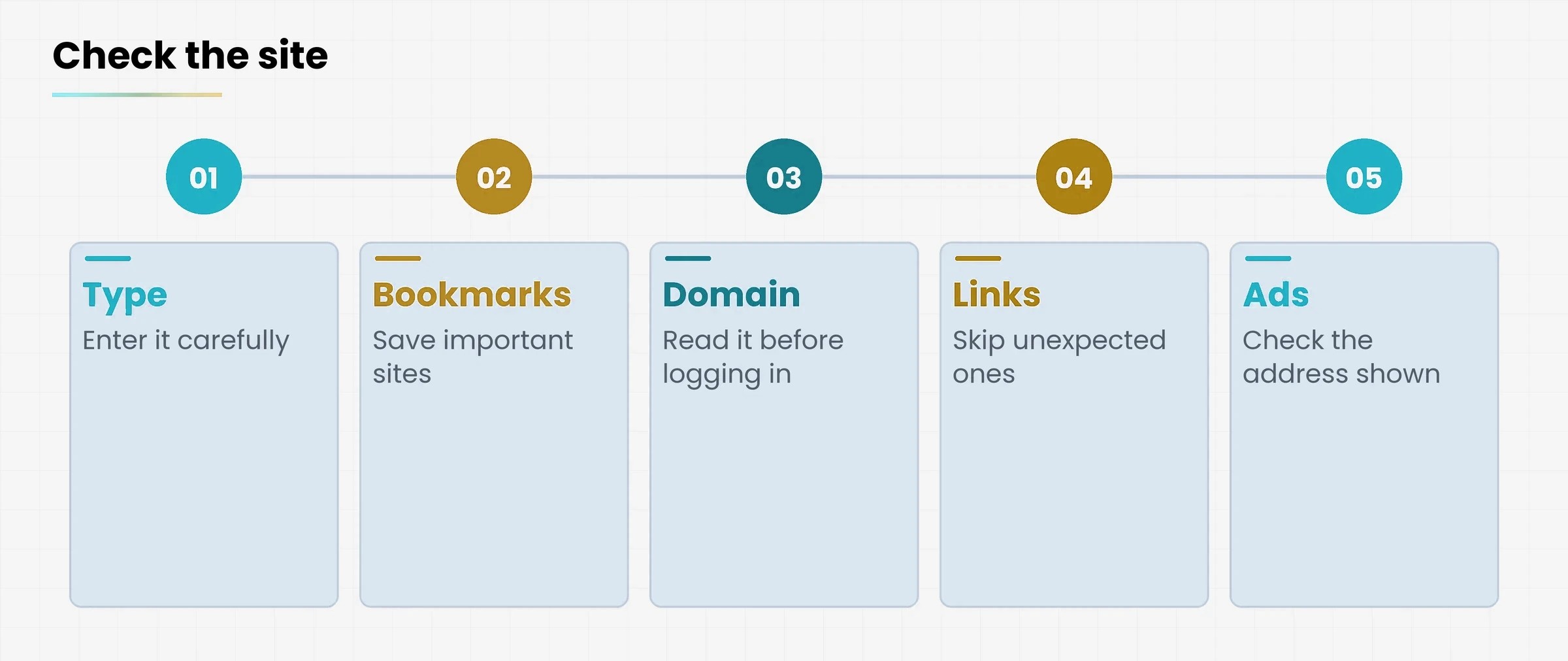
Type carefully the addresses you enter by hand and reread them before pressing enter.
Bookmark important sites (bank, mail, the organisation's portals): you reach them with one click, with no risk of a typing slip.
Always check the domain in the address bar before entering a password: read from the ending towards the left.
Do not follow links in unexpected messages: open the site from your bookmarks or by typing the address.
Distrust ads at the top of search results: they can be sponsored. Before clicking, check that the address shown is the right one.
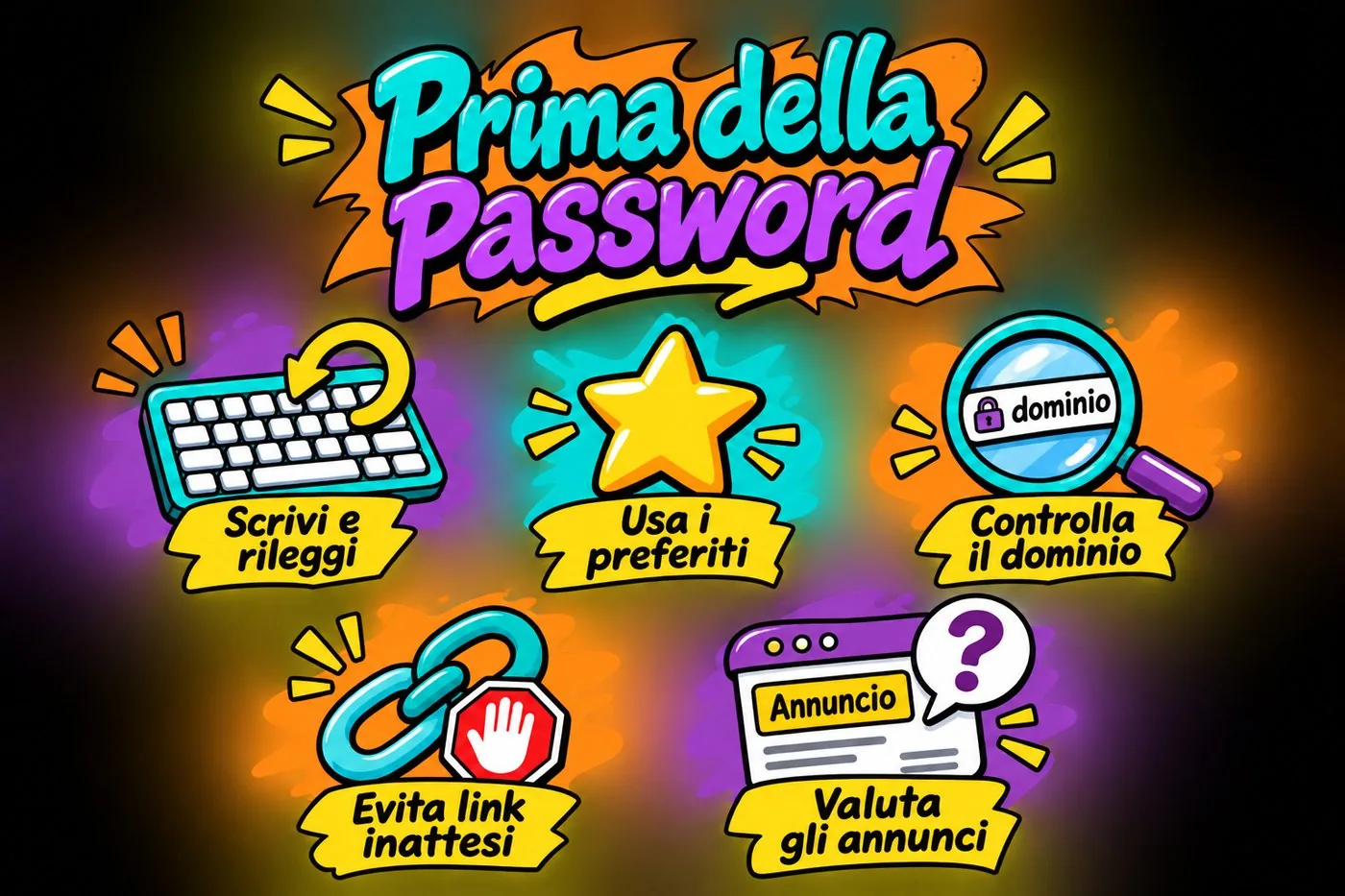
BEFORE THE PASSWORD
Five icons: type and reread, use bookmarks, check the domain, avoid unexpected links, assess ads.
Reread, use bookmarks and check before entering credentials.
One more help: a password manager (you will see it in the lesson on passwords) usually offers your credentials only on the site they were saved for. If it does not offer them, you may be on a different site from the real one. It is not infallible, but it is a good alarm bell.
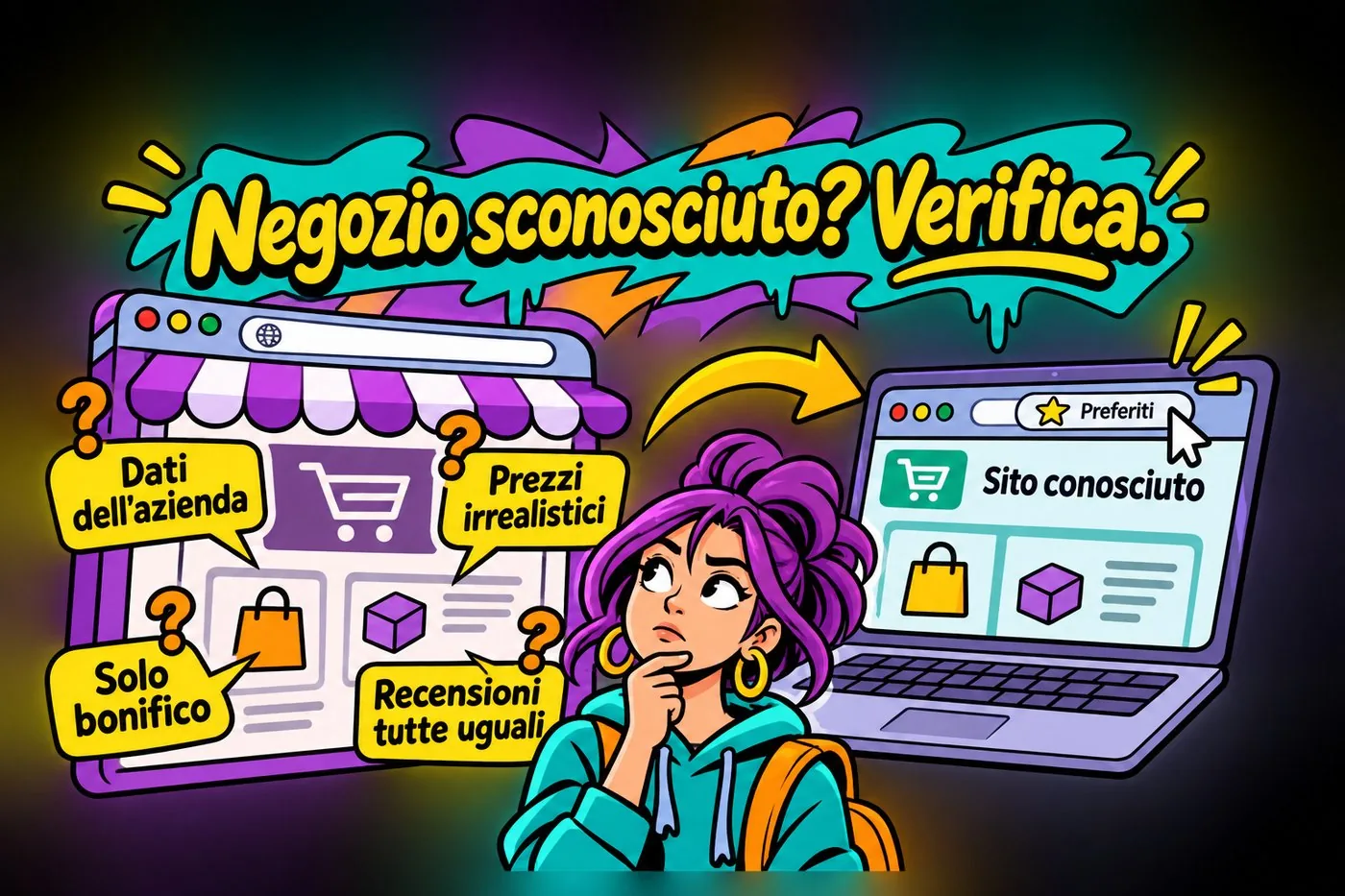
3.2 An unknown online shop: how to tell if it is serious
Trap sites are not only for stealing passwords. Many are fake shops, with prices that look like a bargain. Before buying from a site you do not know, look at a few signs.
Signs that make you suspect a fake online shop.
Sign
What it may mean
Prices far lower than everyone else
An offer too good to be true often is.
No company details (name, address, VAT number)
A serious shop shows them and you can check them.
Only payments you cannot reverse (bank transfer, top-up)
If something goes wrong, you cannot go back.
Reviews all alike and all enthusiastic
They may have been written by a single person.
Strange address or unusual ending
Check how long it has existed and what others say about it.
UNKNOWN SHOP? CHECK
A shop window with four clues to check, next to a known site opened from bookmarks.
Clues to check before buying.
Case study: half-price toner
The office of a small practice is looking for printer toner and finds a site with prices cut in half. The address is very close to that of a well-known big retailer, with one extra hyphen.
The site shows no company name, accepts only bank transfer and promises discounts "today only".
What to do: do not pay. Open the known retailer's site from your bookmarks, compare, and report the suspicious address to your IT contact.
4. Social engineering: manipulating people
Breaking into a computer is hard. Persuading a kind person to give you the password is much easier.
Social engineering is the art of manipulating people, more than machines, to obtain information or access. The phishing from the previous lesson is one form of it. But social engineering is wider: it can be a phone call, a fake badge, a person in a smart suit who walks in behind you.
4.1 The levers it uses
The stories change, the levers do not. Whoever is trying to fool you aims at one of these sensitive spots.
Diagram
Five cards: authority, urgency, fear, help, curiosity.
The five levers of social engineering
The five levers most used by social engineering.
Lever
How it sounds
What to do
Authority
"This is the director" or "this is the police"
Verify with a number you already know.
Urgency
"I need it now, it's an emergency"
Slow down: urgency is designed to stop you thinking.
Fear
"Your account will be closed"
Check from the real site, not from the message.
Help and likeability
"Could you help? I can't find the password"
Being kind does not mean handing out access.
Curiosity
A found USB stick, a "confidential" file
It is not yours and you do not know what is on it.
THE LEVERS OF DECEPTION
Five levers (authority, urgency, fear, help, curiosity) pressing on one person.
Authority, urgency, fear, help and curiosity can become levers of deception.
4.2 A few techniques, with examples
Pretext (pretexting): the scammer invents a believable story. Example: phones pretending to be technical support to get your password.
Bait (baiting): leaves a tempting object. Example: a USB stick labelled "Salaries" dropped in the car park. Whoever plugs it into a computer may install malware.
Physical access (tailgating): slips into an office behind you, perhaps with arms full of boxes, and you hold the door.
Information gathering: before attacking, the scammer looks at organisation charts, social media and sites to know who you are and who you work with.
Case study: the fake technician
A polite man phones: "I'm from IT support, we're updating the organisation's computers. I need your password to finish quickly; otherwise we risk locking your mail".
He knows your colleague's name and your manager's, which makes him believable. But he asks for the password, the mark of a scammer: a real technician does not need one.
What to do: refuse politely, ask for name and number, hang up and call the IT contact on the usual number. Then report the attempt, because the same man might phone another colleague.
A PASSWORD IS NEVER SHARED
A fake technician asks for a password by phone; the employee refuses, hangs up and calls the contact back.
A familiar name does not authorise a request for your password.
4.3 A procedure beats good will
Saying no to a kind person who says they need help is hard. That is why you need a written rule, valid for everyone, even the director: that way the "no" is not personal, it is the procedure. For example: no password is ever shared with anyone; every visitor has an escort; every strange request is checked on another channel.
5. Identity theft
Identity theft means using someone's data to open accounts, make purchases, sign contracts or apply for loans in their name. Victims may notice only months later, when a payment demand arrives for something they never bought.
5.1 Where the data comes from
Data can come from many routes, and you have met many of them in these lessons: a password stolen through phishing, a trap site, a data breach at a service, a document left in view, a public social media profile full of information (date of birth, town, pet names, places you visit).
Put together, these fragments say a lot. For a scammer, name, date of birth and address are already a good start to sound credible on the phone or to guess a security answer.
IDENTITY THEFT
A fake site, a stolen password, a document left in view and a public profile converge into a duplicated ID card, used for accounts, purchases and contracts.
Stolen data can be used to impersonate a person.
5.2 How to reduce the risk
Share the minimum. Do not post documents, tax codes, photos of tickets, cards or passes on social media.
Do not leave documents lying around. Photocopies of ID cards and passes must not stay on the desk or in the printer.
Check your passwords and accounts. A password reused on several services opens every door when one of them is breached (we cover this in the lesson on passwords).
Look at your statements. An unknown charge should be raised with the bank at once.
Destroy documents before throwing them away. A sheet with personal data does not belong in the bin as it is.
SHARE LITTLE, STORE WITH CARE
Three habits: share the minimum, store documents safely, check your transactions.
Share the minimum and look after other people's documents too.
Other people's documents
In an office, ID cards, tax codes and documents of members and clients pass through your hands. Identity theft can hit them too, and you are responsible for how you keep them. If you lose one, tell the person in charge at once (we cover this in the lesson on privacy and data protection).
5.3 If you think you have been hit
If you find that someone is using your data or a client's, do not wait. Tell the bank if there are payments, change the passwords of the accounts involved, keep the evidence and contact the Polizia Postale e delle Comunicazioni (Italy's online-crime police unit; commissariatodips.it). The complete steps are in the lesson "What to do when it happens".
SUSPECT IDENTITY THEFT?
Four actions: warn the bank, change your passwords, keep the evidence, contact the police; Gianluca points at them.
Warn, protect your access, keep the evidence and contact the authorities.
Practical exercise
A short exercise using the browser you use every day, with nothing to install.
Open the browser and type by hand the address of a site you use often (your bank, your mail, the organisation's portal). Check that it is the right one and bookmark it.
Take four invented addresses and write down the real domain of each: https:servizi.ente-esempio.it/login, https:ente-esempio.it.accesso-sicuro.net/login, https:www.ente-esemp1o.it, https:ente-esempio-it.net/accesso.
Search for the name of your bank or an organisation. See whether the first result is an ad, and compare its address with your bookmark.
Write on a sheet the office procedure for suspicious phone calls: what to answer, who to call, where to report.
Make an inventory of what is publicly known about you on social media: date of birth, workplace, family names. What would you remove?
Self-check
Why is www.ente-esemp1o.it dangerous?
What is the real domain of https://ente-esempio.it.accesso-sicuro.net/login?
What is the difference between domain name identical or similar to that of a company or well-known person, to resell it or exploit its fame.">cybersquatting and typosquatting?
What do you do if a "technician" phones and asks for your password?
Questions that come up in class
If the site has the padlock, is it safe?
Not necessarily. The padlock says the connection is encrypted, not that the site is honest. A trap site can have it too: always check the domain.
Is typing the address by hand enough to be safe?
It reduces the risk, but a typing slip can take you straight to a trap site. For important sites, bookmarks are safer than typing every time.
How do I know if an online shop is reliable?
Look at the company details (name, address, VAT number), the payment methods, prices that are too low, and look for opinions outside the site. If in doubt, pay with a method that lets you dispute the charge, not with a bank transfer.
How do I behave with someone who asks me for help and seems sincere?
Kindly, but following the procedure. A real colleague understands a check: "I'll call you back on a number I know" offends nobody.
Can I find out whether my data is already out there?
There are services that warn you if an email address appears in a known breach. They do not give a full guarantee, and you should use only reliable, official ones. In any case: a different password for every service.
Can I register a domain similar to mine to protect myself?
Yes, many organisations register the likeliest variants, such as the .com ending or the commonest typo. It does not protect against everything, but it lowers the risk. Owners of a trademark can also start procedures to recover a domain registered in bad faith, with a lawyer's help.
Lesson glossary
The words you meet in this lesson, explained in one line.
Term
What it means
Browser
The program used to surf websites.
Cybersquatting
Registering a domain name identical or similar to that of a company or well-known person, to resell it or exploit its fame.
Domain name
The part of the address that identifies a site, for example ente-esempio.it.
Identity theft
Using someone's data to open accounts, make purchases or sign contracts in their name.
Malware
Harmful software created to damage a computer or steal data.
Social engineering
Manipulating people, more than machines, to obtain information or access.
Subdomain
The part of the address to the left of the real domain, which the owner chooses freely.
Typosquatting
Registering domains with likely typing mistakes, hoping the user will mistype.
Further reading
The sources used to build this handout: if a figure interests you, go to the source and check it.
Registro .it
the registry of Italian domain names, with rules and information on registration
Polizia Postale e delle Comunicazioni
commissariatodips.it, for reports and advice on online scams and identity theft
National Cybersecurity Agency (ACN) and CSIRT Italia
alerts and guides on cyber threats
Garante per la protezione dei dati personali (the Italian Data Protection Authority)
garanteprivacy.it, guidance on identity theft and data protection
Watch out
Information up to date as of October 2026. Examples, names and domains (such as ente-esempio.it) are invented. Italian bodies are explained in brackets; elsewhere use your national equivalents (the police cybercrime unit, the domain registry of your country, the data protection authority). Domain registration rules and reporting procedures can change: always check the official channels listed.
How to lock the door on your accounts properly, without memorising anything
Lesson goal
Learn to build long passwords that are different for every service, keep them in a Password manager" data-def="A program that keeps all your passwords in an encrypted vault and fills them in for you.">password manager, and turn on two-step verification for the accounts that really matter.
What you will be able to do
Recognise why a short, predictable or reused password is a risk.
Build a long passphrase that is easy to remember and hard to guess.
Use a password manager to have a different password for every service.
Turn on two-step verification and choose the method that fits best.
Know how to get back into an account if you lose your phone.
1. Why the password is the weak spot
You can have the most up-to-date computer in the world: if your password is «office2024», the door is wide open.
A password is the key a service uses to work out that it really is you. Email, the school register, the invoicing software, online banking: every door has its own key. And the everyday problem is that there are many keys and only one memory.
So we do what almost everyone does: we pick an easy password and use it everywhere. Maybe with a number on the end, to satisfy the «at least one digit» rule. It is convenient. It is also the fastest way to get an account stolen.
ONE PASSWORD, MANY ACCOUNTS
One key opens a breached site and topples the linked accounts like dominoes, including email and cloud.
A reused password links the security of different accounts.
1.1 The case of Marta and the dance school
Marta works in the office of a small dance school. Years ago she signed up to a discount site for sportswear, using the same email address and the same password as the school's mailbox. One day that discount site is breached: thieves walk away with the list of subscribers' email addresses and passwords.
MARTA'S CHAIN
Three steps: the discount site is breached, an automatic program tries the same pair elsewhere, the school mailbox is exposed.
Credentials stolen from one site get tried on other services.
Nobody warns Marta. A few days later, though, an automated program tries that pair of details on hundreds of other services, one after another. On the school's mailbox the password works. From there, the thieves read the emails, see the lists of enrolled students and write to the parents pretending to be the school office.
Diagram
Four steps: a site is breached, passwords end up on a list, thieves try them elsewhere, the mailbox opens.
How a reused password opens accounts that have nothing to do with it
The idea in one line
A reused password is only as strong as the weakest site you have used it on.
1.2 How passwords get stolen
You do not need a computer genius. There are only a few methods, all very common:
theft from a breached site: lists of passwords end up for sale or online, and are tried on other services (this is called credential stuffing);
guessing at speed: a program tries the most common passwords in the world, and dictionary words with a few digits added;
phishing and fake sites: you type the password into a fake page yourself (lessons three and four of the course);
spy programs: a keylogger records the keys you press (lesson two);
prying eyes and sticky notes: the password written on a note under the keyboard, which anyone passing by can read.
Notice something: against four of these five methods, a more complicated password is not enough. That is why the second half of this lesson covers two-step verification.
2. How to build a good password
For years we were taught to write ugly, difficult passwords. The good news is that today the advice is the exact opposite.
A password like «Xk9#pL2!» is hard for you and fairly easy for a program, because it is short. What really counts is length: every extra character multiplies the work needed to guess it. So the practical rule is to reach at least twelve to fourteen characters, and better still to make it a phrase.
2.1 The long passphrase
A long phrase is a password you can remember because it makes sense, but nobody can guess because it is yours. An example like «Il-giovedi-porto-il-caffe-in-ufficio!» (in English: «On-thursdays-i-bring-coffee-to-the-office!»): seven words, six hyphens, one exclamation mark. Easy to remember, long, and not a dictionary word.
Do not copy the example
A phrase printed in a handout, on a website or on a slide is a phrase that everyone knows. Use it only to understand the method, and invent your own, one you have never read anywhere.
LONG, UNIQUE, YOURS
Gianluca presents a tram with three cats eating pizza and a dotted password field, with a warning not to copy the examples.
Pick a long, unique phrase and do not copy the examples.
How do you invent one? Think of a vivid, slightly absurd picture and write it as words separated by hyphens or spaces. For example: «three-cats-eat-a-pizza-on-the-tram». It is not a saying, it is not connected to you, but you can picture it instantly.
Diagram
Comparison between a short, predictable password and a long phrase made of unconnected words.
A weak password and a long passphrase compared
2.2 What to avoid
The most common choices and why they do not work.
Choice
Why it is a risk
What to do instead
Name, birthday, the dog's name
Found on social media or guessed with two questions
A phrase with no link to your life
A common word plus a number («Summer2026»)
It is the first thing programs try
Several unrelated words
Obvious swaps («p4ssw0rd»)
Programs know them and try them
Length, not disguises
The same password everywhere
One breached site opens all the others
A different password for every service
The note under the keyboard
Anyone passing the desk can read it
A password manager (see below)
DON'T USE WHAT EVERYONE KNOWS
The dog's name, a birthday and public profile data all point to a crossed-out key.
Names and public dates are predictable choices.
2.3 Change it every three months? Not any more
Maybe in some offices you are forced to change passwords all the time. The most recent digital identity guidelines from the US body NIST (National Institute of Standards and Technology, the institute that sets technical standards in the United States) no longer recommend this as a fixed rule: people forced to change often tend to make tiny changes («Summer1», «Summer2») that protect nothing.
The common-sense rule is this: change the password at once if you suspect it has been stolen, if a service warns you about a breach, or if you have given it to someone. Otherwise, a long and unique password can stay where it is.
WHEN TO CHANGE IT?
A suspected theft and a breach notice lead to the same action: change the password right away. The calendar is not the reason.
Change it if it is compromised or the service reports a breach.
Check whether you are already on a list
There is a free and well-known service, Have I Been Pwned (haveibeenpwned.com), where you enter your email address and see whether it appears in data breaches that are already public. If it does, it is not a tragedy: change the password for that service and for every other one where you reused it.
3. One password per service: the manager
You have twenty accounts and one memory. Let something that never forgets do the work.
A different password for each service is the only way to break Marta's chain. But nobody can remember twenty long, different phrases. This is where the password manager comes in: a program, or a browser feature, that keeps all your passwords in an encrypted vault.
You remember just one password, the master password, which opens the vault. The manager picks and fills in all the others, and they can be long and random, because you do not have to learn them.
A DIFFERENT ONE FOR EVERY SERVICE
A digital safe with different keys for email, cloud, bank and social, opened by a single main password; the laptop generates and fills in.
An encrypted vault keeps a different credential for every service.
3.1 What it does, in practice
creates long, random passwords when you sign up to a service;
remembers them and fills them in for you on the right site, on computer and phone;
warns you if a password is weak, reused or appears in a known breach;
also stores other sensitive items: recovery codes, notes, sometimes your card details.
There is a less obvious and very useful bonus: the manager fills in the password only on the right site. If you land on www.ente-esemp1o.it, a fake site like those in lesson four, the manager does not recognise the address and offers nothing. That silence is an alarm bell.
A SILENCE WORTH CHECKING
Two login pages: on the expected site the manager fills in, on the different domain the field stays empty and the magnifier shows an extra letter.
If the expected autofill does not appear, check the domain.
3.2 Which one to choose
Three possible routes: the best is the one you will actually use.
Type
Strengths
Limits
Browser manager (Edge, Chrome, Firefox)
Already installed, convenient, free
Works best inside that browser; protecting access to your profile matters a lot
Dedicated manager (app or extension)
Works everywhere, family or office sharing, fuller controls
Has to be installed and often costs money, especially for teams
System manager (phone, computer)
Integrated with fingerprint and face
May tie you to a single device maker
I will not give you a product name, because offers keep changing. I will give you the criterion: look for a manager from a well-known provider, with an encrypted vault, that works on the devices you use and can turn on two-step verification for its own login.
3.3 The case of Luca's office
In a small accounting firm, four people shared the login for the deadlines portal, with a note stuck on the monitor. When a colleague left, nobody changed anything: she still had access, and nobody could say who had done what.
With a password manager that supports sharing, each person has their own login. You decide who sees which credentials, and when someone leaves you change the shared password in a moment. For an office with several people, it is far better than any note.
The manager's limits
If you lose the master password, in most managers nobody can recover it for you: it is a consequence of encryption. Write a reminder and keep it somewhere safe, for example in a sealed envelope in a safe. And protect access to the manager with two-step verification.
4. Two-step verification
A password can be stolen. The second step makes it far less useful to whoever stole it.
Two-step verification (also called multi-factor authentication, abbreviated MFA) means that a password alone is not enough to get in: you need a second element, different from the first. Even if a thief knows your password, without the second element they stay out.
MORE THAN A PASSWORD
Three families of factors: the password (something you know), phone and physical key (something you have), fingerprint (something you are).
Something you know, something you have, something you are.
In practice you combine two things from different families, out of three: something you know (the password), something you have (the phone, a physical key), something you are (a fingerprint, your face).
Diagram
Three cards: something you know, something you have, something you are.
The three kinds of proof that show who you are
4.1 The methods, from weakest to strongest
Pick the most robust one the service offers.
Method
How it works
Strengths and weaknesses
Code by text message
You get a code on your phone and type it in
Better than nothing. But a text can be intercepted, and a fraudster can talk you into reading out the code
Authenticator app
An app on your phone generates a code that keeps changing
Safer than text, works without a signal. If you change phone it must be moved carefully
«Approve» notification
Your phone asks you to confirm the login
Very convenient. Be careful not to press «approve» if it was not you
Fingerprint or face
The device recognises you
Fast. Usually unlocks one device, not the account everywhere
Physical key or passkey
A small USB key, or an identity saved on the device, proves it is you
The most robust method, because fake sites cannot trick it. Takes a little getting used to
A passkey is a credential that replaces the password: instead of typing something, you confirm with your fingerprint, face or the device's unlock code. A fake site cannot steal it, because it only works with the real site. More and more services offer it: if you see it, try it.
PICK THE STRONGEST AVAILABLE METHOD
Three methods compared: SMS (better than password alone), authenticator app (temporary codes), passkey or security key (phishing resistance).
The methods do not all resist phishing equally.
Nobody will ever ask you for the code
A bank operator, a helpdesk colleague, a courier: nobody needs the code you receive on your phone. If someone asks for it, even in a friendly voice, they are a fraudster (vishing, the phone scam from lesson three). The code is not read out, not forwarded, not photographed.
4.2 When requests arrive that you did not make
If an approval request shows up on your phone when you did nothing, it means someone has your password and is trying to get in. Sometimes fraudsters send dozens, hoping you will press «approve» out of exhaustion. Decline, and change that account's password straight away.
DON'T APPROVE WHAT YOU DIDN'T ASK FOR
Two scenes: a fake assistant asks for the code and a woman refuses; an unexpected login request appears on the phone and the finger taps Decline.
Do not share codes and do not approve unexpected requests.
5. Where to turn it on first and how not to get locked out
You do not need to turn on everything today. You need to turn on the right things, in the right order.
Fraudsters' first target is email. The reason is simple: almost every service, when you forget the password, sends the reset link to your email address. Whoever controls your email controls, in a cascade, everything else.
Diagram
Priority pyramid: email, password manager, cloud and banking, social media and other services.
The order in which to protect your accounts
5.1 A practical order
Email, personal and work.
The password manager. If it is well protected, everything else is too.
The cloud and your documents (the online storage where you keep files and folders).
Banking, payments and public portals, such as the private area of the Agenzia delle Entrate (Italy's tax authority) or the services you use with your digital identity.
Social media and the rest. Even a stolen social profile helps fraudsters deceive your contacts.
START WITH THE IMPORTANT DOORS
Gianluca presents the path: email, manager, cloud and bank, social; email comes first because it lets you recover the other accounts.
Start with email, then protect your other important accounts.
The option is usually in the account settings, under an entry called «Security», «Two-step verification» or «Multi-factor authentication». The names vary from service to service, but the path is always similar: choose the method, scan a code with the app or confirm on your phone, and you are done.
5.2 Plan B: recovery codes
When you turn on two-step verification, the service almost always gives you recovery codes: a short series of single-use codes to use if you lose your phone. They matter more than they seem to.
print them or write them by hand and keep them away from the computer (a safe, a locked drawer);
or save them in your password manager, if you protect it with strong verification;
do not leave them in a random file on the desktop, and do not photograph them on your phone, where they end up in the automatic backup of everything else.
5.3 The case of the lost phone
Giulia, a secretary at a middle school, loses her phone on the bus. It holds the app that generates the codes for the school's email. If Giulia kept her recovery codes, she logs in with those, removes the lost phone from the list of trusted devices and links a new one. If she did not, she has to go through support, with delays and documents to provide.
PREPARE PLAN B
A girl has lost her phone on the bus; recovery codes kept in a locked drawer or encrypted vault let her regain access with a new phone.
Keep recovery codes in a safe place.
The lesson: two-step verification protects you, but you must prepare plan B beforehand. A few seconds of organisation today, whole working days saved tomorrow.
SECURE YOUR ACCOUNTS
Secure your accounts
Secure your accounts
In short
A long password, one per service, in a manager; two-step verification on email, cloud and banking; recovery codes somewhere safe.
Practical exercise
A short exercise to do at your own computer, with what you already have: your email and your phone.
On a sheet of paper, list (service names only, never the passwords) the five most important accounts you use: email, cloud, banking, work software, social media.
Open haveibeenpwned.com and check your email address. Note whether it appears in any breach.
Invent a new long phrase of your own, at least four words, and use it as the master password of a manager (the browser's one is perfectly fine to start with).
Go into your email settings, look for «Security» and turn on two-step verification, choosing the authenticator app if available.
When the service offers recovery codes, save them somewhere safe and away from the computer.
Pick a second account from your list and repeat: change the password to a long one and turn on the second step.
Check you did it like this
Is the master password a phrase you have never read elsewhere?
Are the recovery codes away from the computer?
Have you turned on the second step at least on your email?
Can you say what you do if you lose your phone?
Questions that come up in class
Isn't a password manager like putting all your eggs in one basket?
In part, yes, which is why the vault is encrypted and must be protected with a long master password and two-step verification. But the fair comparison is with the real alternative: weak, reused or handwritten passwords. For the vast majority of people, a manager is far safer than what they do today.
Is a text message useless as the second step?
No, it is much better than nothing. It is the weakest of the available methods, because it can be intercepted or talked out of you. If the service offers an authenticator app or a passkey, choose those. If only text is available, turn it on anyway.
How long should my password be?
At least twelve to fourteen characters; better, a phrase of four or five words. Passwords generated by the manager can be even longer, because you do not have to remember them.
Can I use the same phrase with a small variation for each site?
That is a bad idea: if a thief sees the variation on one site, they will guess it on the others. Every service deserves a different, independent password, and that is exactly the manager's job.
I lost the phone with the code app: am I locked out of everything?
If you saved the recovery codes, no: you use them to get in and link the new phone. If you did not, you must go through each service's recovery procedure, which can take time and checks. That is why it pays to prepare them right away.
Can I share my password with a colleague while I am on holiday?
Better not: a shared login no longer says who did what. If needed, use the sharing feature built into the manager, or ask your manager to create a dedicated login for her.
Lesson glossary
The words you meet in this lesson, explained in one line.
Term
What it means
Credential stuffing
An automated attempt to use passwords stolen from one site on many other services.
Keylogger
A spy program that records the keys you press to steal passwords and card numbers.
MFA (two-step verification)
Besides the password you need a second element: an app code, a fingerprint, a physical key.
Passkey
A credential that replaces the password: you confirm with fingerprint, face or the device unlock.
Passphrase
A password made of several words, easy to remember and hard to guess.
Password
The secret key a service uses to work out that it really is you.
Password manager
A program that keeps all your passwords in an encrypted vault and fills them in for you.
Recovery codes
Single-use codes supplied by the service to get back into the account if you lose your phone.
Further reading
The sources used to build this handout: if a figure interests you, go to the source and check it.
NIST, Digital Identity Guidelines (Special Publication 800-63B)
guidance on minimum length (at least 15 characters when the password is the only factor) and on changing only when necessary
Have I Been Pwned (haveibeenpwned.com)
free service to check whether an address appears in known breaches
FIDO Alliance, information on passkeys
description of how they work and their benefits
Agenzia per la cybersicurezza nazionale (acn.gov.it)
Italy's national cybersecurity agency: awareness materials on safe account use
Watch out
Information up to date as of October 2026. Menu names and security settings in online services change often: if you cannot find an option, search for «security» in the account settings. Italian references: the Agenzia delle Entrate is Italy's tax authority; the Agenzia per la cybersicurezza nazionale is Italy's national cybersecurity authority. The US body NIST is cited for its widely used guidelines.
Updates, Windows Security, screen lock, encryption and Wi-Fi
Lesson goal
Learn to keep your computer updated and protected with the tools already built into Windows 11, to protect your data if a device is left unattended or lost, and to be careful on public Wi-Fi and with unknown USB sticks.
What you will be able to do
Check that Windows and program updates are switched on.
Open malware).">antivirus, firewall and other checks, based on Microsoft Defender.">Windows Security and check antivirus and firewall.
Lock the screen and set up the computer so it is not left open by mistake.
Understand what disk encryption is for and how BitLocker works.
Behave carefully on public Wi-Fi networks and with unknown USB sticks.
1. Updates: closing the known holes
The doors attackers use most are not the new ones: they are the ones already known, which someone has not yet closed.
Every program, from the operating system to the PDF reader, is written by people, so it contains mistakes. Some are security vulnerabilities: weak points an attacker can exploit to get into the computer. When one is discovered, the maker of the program publishes a fix, which reaches you as an update.
KNOWN FLAWS
A digital wall with a hole labelled "Falla": an update seals it like a patch and the hooded attacker is kept out.
Updates close known vulnerabilities.
From that moment something unsettling happens: the vulnerability becomes public. Attackers know where to look, and hunt for computers that have not yet installed the fix. The risk is not so much the flaw itself as the time it stays open.
Diagram
Four steps: the flaw is discovered, the fix is published, attackers hunt for computers not updated, you update and the door closes.
The risk lies in the time between the fix and your update
1.1 The case everyone remembers: WannaCry
In May 2017 a Malware that encrypts files and demands a ransom to give them back. Also called cryptolocker.">ransomware called WannaCry hit hundreds of thousands of computers worldwide, even stopping hospitals and companies. It exploited a Windows flaw for which Microsoft had already published the fix almost two months earlier (March 2017). The computers hit were, to a large extent, those that had not been updated.
The same applies on a small scale. Imagine an office where an old computer in the front desk «must not be touched because it works». It works, sure. But every month that passes without updates, the list of known flaws grows.
1.2 How to keep everything updated
Windows Update: open Settings, choose Windows Update and leave automatic updates on. If you see «Check for updates» you can click it to check straight away;
really restart: many updates finish only on restart. A computer left on for weeks with a «restart pending» is not protected yet;
programs: browsers, PDF readers, video-conferencing and office programs usually update themselves. Let them, and do not ignore the notices;
phones and tablets: the same rules apply, from the system settings menu.
UPDATE AND RESTART
Sequence Settings, Windows Update, Restart required, with the browser and PDF reader updating too.
Update the system and programs; complete the restarts they ask for.
When the system is too old
Every version of Windows has a date after which it no longer receives security fixes. For Windows 10 that date has passed (14 October 2025): computers still using it without additional support programs remain exposed to new flaws, unless they are enrolled in Microsoft's Extended Security Updates (ESU) programme, which for consumers runs until 12 October 2027. It is a temporary bridge: plan the move to Windows 11. If you still have some in the office, talk to whoever looks after IT and plan the move to a supported version.
There is a related habit: install only programs you need, and remove the ones you no longer use. Every extra program is one more door to keep updated.
2. Windows Security: antivirus and firewall already included
In Windows 11 you need less than you think: the basic protection is already inside, you just have to check it is on.
Windows 11 includes malware).">antivirus, firewall and other checks, based on Microsoft Defender.">Windows Security, which uses the engine called Microsoft Defender. It contains two essential tools. The antivirus checks files and programs looking for harmful software (the malware of lesson two). The firewall controls network traffic going into and out of the computer, and blocks unauthorised connections.
TWO CHECKS
A magnifying glass over a malicious program (antivirus) and a gate that lets traffic through or blocks it (firewall) protect one computer together.
Antivirus and firewall check for different risks.
2.1 How to open it
Open the Start menu and choose Settings.
Go to Privacy & security and then Windows Security.
Click Open Windows Security. Alternatively, type «Windows Security» in the search box and open the program from the result.
The first screen shows an overview called «Security at a glance». Each area has an icon: a green tick means you need do nothing. A yellow exclamation mark or a red cross means something needs your attention.
Diagram
Four cards: virus and threats, firewall and network, app and browser control, device security.
The four main areas of Windows Security
2.2 The sections to know
The main areas of Windows Security.
Section
What it is for
What to check
Virus & threat protection
Antivirus and scans
That real-time protection is on; now and then run a scan
Account protection
Windows sign-in, Windows Hello, dynamic lock
That sign-in is protected by PIN, fingerprint or face
Firewall & network protection
The wall between the computer and the network
That the firewall is on for all networks
App & browser control
Protection against suspicious programs and sites
That reputation checks are on
Device security
Hardware security features
That no yellow warnings appear
The antivirus works by itself in the background: it analyses files as you download or open them. You can also start a quick scan by hand from the «Virus & threat protection» section, for example after opening an attachment you were not sure about.
CHECK-UP
Gianluca next to an illustrative Windows Security window with Virus & threats, Firewall & network and a Quick scan button.
Check the protections and pay attention to the warnings.
2.3 Do you need a paid antivirus?
For normal use in an office or at home, the protection included in Windows 11 is a solid base, provided you keep it on and updated. Paid products can add features (central management, protection for more devices), and larger companies choose them for that. It is not compulsory, and it does not fix human error: no antivirus stops someone typing a password into a fake page.
Only one antivirus at a time
If you install an antivirus from another maker, Windows usually switches its own off automatically. Do not install two together: they get in each other's way. And distrust fake alerts that pop up in the browser saying «Your computer is infected, download this program»: they are scams, not Windows alarms.
FAKE ALARM
A fake "Computer infetto!" alarm in a browser page with a mask hiding behind it; the hand avoids the button and checks from Windows Security instead.
A warning inside a web page can be bait.
3. Protecting the computer when you are away: lock and encryption
The safest computer in the world, left on and unlocked, is a computer open to anyone passing by.
So far we have talked about attacks from the network. But in an office plenty of risks are much more physical: a client walking behind the desk, a cleaner, a supplier left alone for a moment, a laptop forgotten on the train.
3.1 Locking the screen: a gesture to repeat
Every time you leave your desk, press the Windows key and the L key together. The screen locks and to get back in you need your password, PIN or fingerprint. It is a one-second gesture. Do it even if you are only stepping away briefly, because a few steps are enough for someone to read a screen.
Let automation help: in Windows sign-in settings you can make the computer ask for the password again after a period of inactivity, and set the screen saver to ask for sign-in on return. Windows Hello also offers dynamic lock: the computer locks when your phone, paired by Bluetooth, moves away.
3.2 Prying eyes and sticky notes
The sticky note with the password on the monitor is a classic. But the list of enrolments left next to the keyboard, or a screen facing the waiting room, are security holes too. A few simple measures:
turn the screen so that it cannot be seen by people coming in or waiting;
lock away documents with personal data when you do not need them;
use a password manager instead of notes (lesson five);
if you work on the train or in a café, consider a «privacy» film for the screen, which narrows the viewing angle.
LOCK THE SCREEN
A person gets up from the desk: the Windows plus L keys lock the monitor, documents are in a locked cabinet and the password sticky note is crossed out.
Lock the screen and keep papers and credentials safe.
3.3 A standard account for everyday work
Windows distinguishes between administrator accounts (which can install programs and change system settings) and standard accounts. For daily work a standard account is better: if malware sneaks in, it has fewer powers to do damage. When you need to install something, Windows asks for confirmation with the administrator password, and that moment of pause is precisely the advantage.
3.4 Encryption: if the computer is lost or stolen
Imagine a colleague's laptop, with lists of course participants, stolen from a car. If the disk is not encrypted, whoever steals it can remove it, connect it to another computer and read everything, even though Windows had a password. The sign-in password protects Windows, not the files on the disk.
Encryption turns data into an unreadable code that unlocks only with the right key. Whoever does not have the key sees only meaningless characters. In Windows the tool is called BitLocker and is available in Windows Pro (and higher) editions. Home editions have a similar feature, called device encryption, which depends on the computer's hardware.
ENCRYPTION
A thief with a stolen laptop: the sign-in password on one side, encryption on the other; the unencrypted disk shows documents, the encrypted one only symbols and a padlock.
Encryption protects the data on a stolen disk.
Do not lose the recovery key
When you turn on encryption, Windows gives you a recovery key: it is needed to unlock the disk if something goes wrong. Save it somewhere safe outside the computer (for example in your account, or printed and kept safe). Without the key and without access, encrypted data is lost even to you. That is why backup (lesson seven) remains essential.
RECOVERY KEY
An encrypted laptop with a padlock and, in an open safe, the recovery key sheet with a masked code, kept separately.
Keep the recovery key separate from the computer.
To find out whether your computer is already encrypted, look in the settings for the relevant entry (on Windows Pro, type «BitLocker» in search; on Home, check the device encryption section under Privacy & security). If you are not sure, ask whoever looks after IT: it is a decision to take calmly, because it changes how data is organised.
4. Public Wi-Fi and home and office networks
A free Wi-Fi network at the station is very handy. It is also a waiting room where you do not know who is sitting next to you.
When you connect to a public Wi-Fi network, your data travels on the same network as strangers. If the network is open, or badly managed, someone connected can try to intercept traffic or lure you onto a fake network with a name almost identical to the real one: for example «Station_Free_WiFi» in place of the official one.
4.1 What is sensible to do, in practice
A simple rule: the more sensitive the data, the less you trust the network.
Situation
What is reasonable
What to avoid
Reading the news, checking a timetable
Fine
Nothing in particular
Accessing email or work software
Better to use your phone as the access point (personal hotspot)
Signing in with passwords on an unknown network
Banking or payments
Your phone's mobile data or a trusted network
Any public Wi-Fi
Downloading or sending documents with people's data
Only from a trusted network, with a VPN if your organisation provides one
Doing it from a café on free Wi-Fi
THE NETWORK MATTERS
A station with two Wi-Fi networks with similar names ("Rete ospiti" and "Rete ospiti?") and three alternatives: personal hotspot for work, mobile network for payments, trusted network for personal data.
Choose a trusted network for sensitive work.
Two honest clarifications. Today most sites use an encrypted connection (the padlock next to the address, HTTPS), which makes it much harder to read traffic even on public networks. It is not, however, a guarantee against fake networks or fake sites. And a VPN (virtual private network: an encrypted tunnel between your device and a trusted server) helps, but only if it comes from a serious provider and you actually use it.
HTTPS AND VPN
A computer connected through a VPN tunnel to a trusted server and then to a site with an https padlock; an attacker holds up a fake site: "Non rende onesto un sito falso" (it does not make a fake site honest).
Encryption helps, but you still need to check the network and the destination.
4.2 Good habits when you are out
if Windows asks what type of network it is, choose public for any network that is not your home or office: the firewall will be stricter;
turn off automatic file and printer sharing on public networks;
ask staff for the exact name of the network and do not trust similar names;
after use, disconnect and «forget the network», so you do not reconnect on your own in future;
prefer your phone's data when you need to work on confidential things.
4.3 And your office network?
The router, the box that brings the internet into the office, is the front door of your network. Three checks that apply to both office and home: change the default administration password (the one printed on the label); set up the Wi-Fi with the latest encryption available (WPA3, or WPA2 if the device supports nothing else) and a long password; keep the router's software updated, asking your connection provider if you do not know how.
ROUTER IN ORDER
A router with four checks (admin password, protected Wi-Fi, updates, guest network) and two separate networks: the work network with the documents and the guest network with no access to them.
Secure the router and keep guests apart from the work network.
If you host clients or suppliers, use the router's guest network: it gives them internet without opening the door to the office computers.
5. USB sticks and unknown media
A USB stick found in the car park is a gift. The trouble is that nobody knows from whom.
A USB stick is a small memory device you plug into the computer. Precisely because it is so handy, it is also a classic vehicle for malware. People who want to attack an organisation sometimes leave sticks lying around, with tempting labels («Salaries», «Party photos»), counting on curiosity.
Some devices, moreover, look like sticks but behave like keyboards: as soon as you plug them in, they type fast commands by themselves on the computer. There is nothing to click. That is why the only safe rule is not to plug in media of unknown origin.
Diagram
Four steps: do not plug it in, hand it to the person in charge, have it analysed on an isolated computer, dispose of it.
What to do if you find an unknown USB stick
5.1 The case of the stick in the waiting room
In a small clinic, a nurse finds a stick in the waiting room. On the key ring it says «Reports». With the best intentions (to return it to the owner!) she plugs it into the reception computer to find out whose it is. That is exactly what the attacker hoped for.
The right behaviour is simple: do not plug it in, hand it to the person in charge, who sets it aside or has it analysed by someone who knows how, on a separate computer with no data and no network connection.
5.2 When you need to use your own sticks
use only sticks you know, bought by you or supplied by the organisation, not giveaways from fairs or promotions;
if you put people's data on them, encrypt the stick (BitLocker To Go, in Windows Pro, also protects USB media) and use a long password;
do not leave them lying around, and do not use the same stick between your home computer and the office one without a good reason;
a stick is not a backup: it gets lost and breaks easily (lesson seven);
to exchange a file with a client, prefer a password-protected sharing service.
USB
A found stick labelled "Referti" stays away from the port and goes to the IT contact; on the right, one's own encrypted stick with a padlock, with Gianluca pointing.
Do not plug in unknown media; protect the ones you are authorised to use.
In short
Update, check antivirus, firewall and other checks, based on Microsoft Defender.">Windows Security, lock the screen with Windows plus L, encrypt the disk, distrust public Wi-Fi and found USB sticks.
Practical exercise
A short exercise to do on the computer you use most: a small security check-up, with what Windows 11 already gives you.
Open Settings, go to Windows Update and check there are no updates waiting. If needed, restart the computer.
Go to Privacy & security, then Windows Security, and open the program.
Look at the «Security at a glance» screen: note which areas have a green tick and which do not.
In «Virus & threat protection» check that real-time protection is on and start a quick scan.
In «Firewall & network protection» check that the firewall is on.
Try the Windows plus L shortcut: lock the screen, then sign back in with your PIN or password.
Search for «BitLocker» or device encryption and note whether your disk appears encrypted or not, without changing anything until you have asked whoever looks after IT.
Write three lines of rules for your workstation: where you keep documents, when you lock the screen, what you do with an unknown USB stick.
Check you did it like this
Does Windows Update have no updates waiting?
Do antivirus and firewall show as on?
Can you lock the screen with one hand, without thinking?
Have you noted the encryption status, without touching anything unnecessary?
Questions that come up in class
Is Microsoft Defender enough or do I need to buy another antivirus?
For normal use the protection included in Windows 11 is a valid base, if it stays on and updated. A paid product can add features (central management, more devices) that mainly help larger organisations. No antivirus, in any case, replaces caution with links and attachments.
Updates slow down the computer: can I postpone them?
You can choose when, for example letting the restart happen at the end of the day. Postponing them for long is risky, though, because every uncorrected flaw stays open. A scheduled restart is better than weeks of exposure.
Does Windows Home have BitLocker?
BitLocker in its full form is in Windows Pro and higher. Many Home computers have device encryption, if the hardware allows it. Check in the settings or ask whoever looks after IT: it depends on the model.
Can I use the hotel Wi-Fi for work email?
Better to avoid it, or use your phone's mobile data. If you have no alternative, visit only sites with the padlock (HTTPS), turn on two-step verification and, if your organisation provides one, use the VPN.
I plugged in an unknown USB stick: what do I do?
Do not panic, but act at once: disconnect the computer from the network (unplug the cable or turn off Wi-Fi), tell the IT contact and do not keep working. See lesson nine for the steps to follow.
Is the screen lock enough, why encrypt the disk too?
They are two different protections. The lock stops whoever sits at your desk. Encryption stops whoever takes away the computer or the disk. For laptops, which get lost and stolen, both are recommended.
Lesson glossary
The words you meet in this lesson, explained in one line.
Term
What it means
Antivirus
A program that finds and blocks harmful software (malware).
BitLocker
The disk encryption tool included in Windows Pro and higher.
Encryption
Turning data into an unreadable code, unlockable only with the right key.
Firewall
The «wall» that controls network traffic into and out of the computer.
Public Wi-Fi
A wireless network open to anyone, like those in stations, cafés and hotels.
Update
A corrected version of a program that closes known flaws.
VPN
Virtual private network: an encrypted tunnel between your device and a trusted server.
Vulnerability
A mistake in a program that an attacker can exploit to get into the computer.
Windows Security
The Windows 11 application that gathers antivirus, firewall and other checks, based on Microsoft Defender.
Further reading
The sources used to build this handout: if a figure interests you, go to the source and check it.
Microsoft, documentation on Windows Security and Microsoft Defender
features and areas of the application
Microsoft, documentation on BitLocker and device encryption
Windows editions and the recovery key
Microsoft, Windows 10 lifecycle
end-of-support date of 14 October 2025
Agenzia per la cybersicurezza nazionale (acn.gov.it)
Italy's national cybersecurity agency: awareness materials on updates and safe use of devices
Watch out
Information up to date as of October 2026. Menu names are those of Windows 11 and may change slightly with updates: if you cannot find an option, use the Windows search box. Features (BitLocker, device encryption) depend on the Windows edition and the computer. The Agenzia per la cybersicurezza nazionale is Italy's national cybersecurity authority.
Understand what a real backup is, apply the 3-2-1 rule with tools you already have, and check that your copies really work, even after a Malware that encrypts files and demands a ransom to give them back. Also called cryptolocker.">ransomware attack.
What you will be able to do
Tell a real backup apart from a simple copy or a synchronisation.
Apply the 3-2-1 rule to an office or home computer.
Choose between an external drive, a local network drive and the cloud, depending on the data.
Decide what to save and how often.
Test a restore of a file to be sure the copy is usable.
1. Why a backup, and what it really is
Sooner or later a computer breaks, a file gets deleted or someone locks your data. The question is not if it will happen, but whether you will have a copy that day.
Picture the front office of a small firm, Studio Esempio. One morning the computer that holds the clients' files will not start. Ten years of work are inside: contracts, invoices, scans. With no copy, that work is gone.
A backup is a copy of your data kept in a place different from the original, with one purpose: letting you start again after a failure, a mistake or an attack.
Diagram
The four most common causes of data loss
The four most common causes of data loss
1.1 Four ways to lose your data
A failure: the disk breaks, often with no warning;
A mistake: you delete or overwrite a file by accident;
Theft or fire: the computer disappears with everything on it;
Malware that encrypts files and demands a ransom to give them back. Also called cryptolocker.">Ransomware: malicious software encrypts your files and demands a ransom.
None of these gives notice. That is why the copy must be made before you need it, not after.
COPY BEFORE YOU NEED IT
Four causes around the documents: broken disk, mistake, theft or fire, ransomware
Failure, mistakes, theft or attacks can all cause data loss.
1.2 Copy, synchronisation, backup: not the same thing
Many people think they have a backup because their files are also in the cloud or on a USB stick. That is not always true. Synchronisation keeps two places identical: if you delete a file in one, it disappears from the other. If ransomware encrypts your files, the encryption is synchronised too.
SYNC IS NOT ENOUGH
Two synced folders that replicate a deletion, compared with a copy that keeps recoverable versions
Syncing is not enough when deletions and changes are replicated.
Having files in two places is not enough: what counts is whether the attacker can reach the copy.
What you do
Protects from a failure?
Protects from a mistake or ransomware?
Keep files only on the computer
No
No
Synchronise a folder with the cloud
Partly
Often no: the mistake is copied there too
Copy to a USB stick that stays plugged in
Partly
No: ransomware encrypts that too
Make a backup with previous versions and a disconnected copy
Yes
Yes
The idea in one line
A backup only helps if it is separate from the original and if, on that day, you can really open it.
2. The 3-2-1 rule
Three numbers to remember: 3 copies, 2 different media, 1 copy far away.
The 3-2-1 rule is the scheme technicians have used for years because it is simple and survives almost anything. Let us take it one piece at a time.
THE 3-2-1 RULE
Gianluca presents the 3-2-1 rule: three copies in total, two different media, one copy off site
Three copies in total: the original and two backups, on two media, one off site.
3 copies of your data: the original on the computer plus two backup copies. If one goes wrong, two are left;
2 different media: for example the computer's internal disk and an external drive, or an external drive and the cloud. Different media fail for different reasons;
1 off-site copy: at least one copy away from the office, for example in the cloud or in another building. A fire, a flood or a theft cannot take everything.
2.1 An example for a school office
The office of Istituto Esempio, a fictional school, works on registers and enrolments. It applies the rule like this.
Three copies, two different media, one off-site.
Copy
Where it is
Medium
Copy 1
The working files on the office computer
Internal disk
Copy 2
An external drive, plugged in only while copying and then locked in a drawer
External drive
Copy 3
An encrypted cloud service, in another location
Cloud, off-site
THREE COPIES IN PRACTICE
Three copies in practice: the original on the computer, an unplugged disk in a drawer, a cloud copy with versions and a padlock
The computer, the unplugged disk and the off-site copy each play a different role.
When the rule saved the day
On a Monday a virus encrypts the computer's files. The external drive was unplugged in the drawer, so it is intact. The office cleans the computer, reloads the data from the copy and starts again. The cloud copy, in addition, kept the earlier versions of the documents safe.
2.2 The drive left plugged in is a common mistake
An external drive that is always connected can be reached by Malware that encrypts files and demands a ransom to give them back. Also called cryptolocker.">ransomware, which encrypts it along with the rest. The copy that is truly safe is the one that is disconnected, or the one the attack cannot modify.
Warning
If all your copies are connected to the computer, then for ransomware they are a single thing. At least one copy must stay physically disconnected or protected by previous versions.
3. Where to keep your copies: drive, network, cloud
There is no perfect medium: each has strengths and weaknesses, which is why you use two.
WHERE TO KEEP THE COPIES?
Comparison of external disk, NAS and cloud, with a strength and a limit for each
Each destination has strengths and limits to consider.
3.1 External drive
It is the simplest and cheapest choice: you plug it into the USB port (the standard socket on computers), copy, and unplug it. It works without Internet. The limit is that it is physical: it can break, get lost or stolen, and you have to remember to connect it.
3.2 Network drive
A small firm can use a NAS, a device with one or more disks connected to the office network, to which the computers send their copies automatically. It is handy, but if it stays on and reachable all the time it can be hit by Malware that encrypts files and demands a ransom to give them back. Also called cryptolocker.">ransomware like the computers. Ask your technician to set it up with copies that cannot be modified.
3.3 Cloud
The cloud means keeping files on a provider's computers, reachable over the Internet. It is the most convenient off-site copy: you do not have to carry it anywhere. Choose a service that keeps previous versions of files, so you can go back to yesterday if today everything was encrypted.
Diagram
External drive and cloud compared
External drive and cloud compared
Other people's data in the cloud
If the copies contain personal data of clients, pupils or patients, the cloud provider handles that data on your behalf. Choose a service that states it processes data in the European Union and have the head of your organisation assess the choice, as we will see in the lesson on privacy.
CLOUD: VERSIONS AND PROTECTED ACCESS
A cloud with three states of the same document and a return to the clean version, access protected by password and two-step verification
The cloud must keep recoverable copies and have protected access.
3.4 The copy built into Windows 11
Windows 11 has ready-made tools. Search for Windows Backup in the taskbar search box: it lets you save folders and settings to Microsoft's cloud service (OneDrive). To save to an external drive you can use File History, if it is available on your version. Exact menu names can change with updates: look for the feature by name.
In plain words
An unplugged external drive plus a cloud with previous versions: two media, one off-site copy. For an office, that is already an excellent start.
4. What to save and how often
You do not need to save everything: you need to save what you cannot redo.
Windows and programs can be reinstalled. Your documents, photos, databases and emails cannot. Start from a list of what would land you in trouble if it vanished tomorrow.
SAVE WHAT YOU CANNOT REDO
Documents, photos, mail and databases go into a protected copy, with the question: what if it vanished tomorrow?
Start from what you cannot easily recreate.
Start with the first column.
Always save
Save if needed
Usually can be redone
Documents, spreadsheets, contracts
Program settings
Windows
Mail archive and address book
List of installed programs
Programs you can download again
Photos and scans
Browser bookmarks
Temporary files
Management or accounting database
Custom templates
Downloads already archived
4.1 How often
The practical rule is one question: how much work can I afford to redo? If redoing one day is acceptable, copy every day. If losing a week would be a disaster, copy more often. For data that changes every day, such as accounting, a daily automatic copy is the safest choice.
HOW MUCH WORK CAN YOU REDO?
Timeline showing the work done between one copy and the next, and a reminder to automate
How often you copy depends on how much work you can afford to redo.
4.2 Full, incremental, versions
Full copy: copies everything again. It is the simplest to use but needs more space and time;
backup.">Incremental copy: saves only what has changed since the last copy. It is lighter;
Previous versions: the program remembers several versions of the same file, so you can recover the one from before a mistake or an attack.
FULL OR INCREMENTAL
Comparison of a full and an incremental copy, which also relies on the earlier copies
A full copy saves everything; an incremental one saves the changes.
A practical case: the shop
At Negozio Esempio, the till sends its data every evening to a computer. The owner leaves the automatic copy on the external drive and, on Fridays, takes a second drive home in rotation. If the shop is burgled, the last week of data is still safe.
Diagram
The cycle of a backup that works
The cycle of a backup that works
Automate it
A backup that depends on your memory will eventually be skipped. Schedule it, and check now and then that it is running.
5. Testing a restore, and the link with ransomware
A copy you have never tried to open is just a hope.
It happens that on the day of need you find the copy was empty, damaged or incomplete. That is why every so often you must test a backup.">restore: pick a few files at random from the copy and check that they open and are up to date.
pick three important files of different types (a document, a spreadsheet, a photo);
recover them from the copy into a test folder, not over the originals;
open them and check the content is right;
note the date of the test and what you checked.
A COPY MUST BE TESTED
Gianluca presents the four steps of a restore test: choose three files, restore into a test folder, open and check, note the date
Restore three files into a test folder and open them.
5.1 A backup is the real defence against ransomware
In the lesson on malware and ransomware we saw that whoever encrypts your files asks for a ransom. Paying gives no guarantee: you cannot be sure to get your data back, and you fund the attackers. With a recent, disconnected copy the blackmail loses its force: you do not need criminals to get your files back.
5.2 Backup and availability
Remember the three properties of security from the first lesson? Backup defends availability: having your data when you need it. But careful: copies contain the same personal data as the originals and must be protected in the same way.
encrypt the external drive and the copies (Windows Pro includes BitLocker, which we covered in the lesson on devices);
keep the drive in a locked place, not lying on the desk;
protect cloud access with a long password and two-step verification;
when you dispose of an old drive, wipe it securely or destroy it, do not throw it away.
PROTECT THE COPIES TOO
Three actions to protect the copies: encrypt, store safely, dispose of securely
The copies hold people's data too.
The honest limit
A backup does not stop the attack and does not prevent stolen data from being published: it only lets you start again. That is why all the other defences in this course remain necessary: updates, caution with emails, passwords.
Practical exercise
A short exercise with your computer and an external drive or cloud account you already have.
List on a sheet the folders you would never want to lose: documents, photos, mail.
Check where they are today: only on the computer, or elsewhere too?
Draw your own 3-2-1 rule: which is copy 1, 2 and 3, and which is off-site.
Make a manual copy of the important folders on an external drive, then unplug it.
Recover three files from the copy into a test folder and open them.
Note the date and set a reminder to repeat the test.
Final check
Do you have at least one copy disconnected from the computer?
Do you have an off-site copy?
Did the recovered files open correctly?
Is the external drive kept in a locked place?
Questions that come up in class
Is it enough to save files on OneDrive or Google Drive?
Not on its own. A synchronised cloud also copies your mistakes and, in some cases, files encrypted by ransomware. It works as an off-site copy if it keeps previous versions, but you also need another copy on a different medium.
Is the cloud safe?
It depends on the service and on how you use it. A serious provider protects its systems, but an account with a weak password and no two-step verification remains the weak point. Always turn it on.
How much space do I need?
Check how much the folders to save take up and choose a drive at least twice that size, so you have room for versions over time. A medium-sized external drive is enough for most offices.
Can I leave the external drive connected for convenience?
Better not. If it is always connected, ransomware reaches it and encrypts it. Connect it for the copy, then unplug it.
How often should I test a restore?
More often at the start, to be sure everything works, then at regular intervals you decide. What matters is doing it and writing it down.
Does the personal data in a backup fall under privacy rules?
Yes. Copies hold the same personal data as the originals, so they need the same protection: limited access, encryption and secure disposal.
Lesson glossary
The words you meet in this lesson, explained in one line.
Term
What it means
3-2-1 rule
A security scheme: 3 copies of the data, on 2 different media, 1 of them off-site.
Backup
A safety copy of your data, kept in a place different from the original, to use after a loss or failure.
Cloud
Storing files on a provider's computers, reachable over the Internet.
Incremental copy
A copy that saves only what has changed since the last backup.
NAS
A small device with disks connected to the office network, used to store files and copies.
Previous versions
Successive copies of the same file, which let you go back to an earlier one.
Ransomware
Malicious software that encrypts files and demands a ransom to return them.
Restore
The operation of recovering data from the backup.
Synchronisation
A feature that keeps two places identical: every change or deletion is repeated in the other. It is not a backup.
Further reading
The sources used to build this handout: if a figure interests you, go to the source and check it.
Agenzia per la Cybersicurezza Nazionale (ACN, Italy's National Cybersecurity Agency)
guidance and good practice on backups and defence from ransomware
Microsoft, Windows 11 documentation
Windows Backup, File History and Windows Security
Polizia Postale e delle Comunicazioni (Italy's online-crime police unit)
advice on data security
Watch out
Information up to date as of October 2026. Windows 11 menu names can change with updates: if you cannot find an item, search for it by name in the search box. Italian bodies are explained in brackets; in the US, similar guidance comes from CISA.
What personal data is and how to handle it well, every day
Lesson goal
Understand what the GDPR and the Italian Privacy Code say, recognise personal data, adopt everyday good practice in the office, and know what to do in case of a data breach, including notifying the Garante within 72 hours.
What you will be able to do
Recognise personal data and tell it apart from special-category data.
Explain the basic principles of the GDPR in plain words.
Apply good office practice: necessary data only, documents in view, printers, blind copy.
Recognise a personal data breach and immediately warn the person who must decide.
Know the 72-hour deadline for notifying the Garante and who is responsible for doing it.
1. What personal data is
In an office, names, phone numbers, addresses, grades and certificates pass through every day. Every sheet of paper tells something about a real person.
Imagine Marta, who works in the office of Istituto Esempio, a fictional school. A family asks her to email a pupil's record. Marta is in a hurry and types the wrong address. A file with a name, a class and notes about health lands with a stranger. There was no cyberattack, but it is still a privacy breach.
In Europe, privacy (the right to confidentiality) is protected by two texts. The first is Regulation (EU) 2016/679, known as the GDPR (General Data Protection Regulation), valid in every EU member state and applied since 25 May 2018. The second is Italy's Personal Data Protection Code, legislative decree 196 of 2003, updated in 2018 to align it with the GDPR. In Italy they apply together.
1.1 Personal data
Personal data is any information about an identified or identifiable natural person. A name is not needed: it is enough that the information lets you work out who the person is.
Diagram
Three levels of data sensitivity
Three levels of data sensitivity
The more sensitive the data, the stricter the rules.
Health, racial or ethnic origin, political opinions, religious or philosophical beliefs, trade-union membership, sex life or sexual orientation, genetic data and biometric data used to identify a person
Stricter rules: maximum attention
Criminal convictions and offences
Information on criminal convictions and offences
Handled only in cases the law allows
BEHIND EVERY DATA, A PERSON
Personal data and special categories, with icons for common and sensitive data
An identifiable piece of information is about a person.
The idea in one line
If a piece of information lets you tell who is being talked about, it is personal data and deserves care.
2. Who is who, and the basic rules
The law gives a name to each role. Knowing who is who tells you whom to turn to when something goes wrong.
Diagram
The roles set out by the law
The roles set out by the law
Data subject: the person the data refers to (the pupil, the client, the patient);
Controller: whoever decides why and how data is used, that is the school, the firm, the company. The controller answers before the law;
cloud service provider.">Processor: whoever handles data on the controller's behalf, for example the provider of the management software or the cloud;
Authorised person: you, when you work in the office and handle data following the instructions you received;
The Garante: Italy's independent Data Protection Authority (Garante per la protezione dei dati personali), which checks that the rules are followed.
WHO DOES WHAT WITH DATA
Map of the five roles: data subject, controller, processor, authorised person and Garante
Different roles, different responsibilities.
2.1 The principles in plain words
The GDPR (Article 5) sets a few principles that you can turn into daily habits.
The basic principles of the GDPR.
Principle
What it means in practice
Lawfulness, fairness, transparency
Data is used fairly and the person knows what you do with it (privacy notice)
Purpose limitation
You collect data for a specific purpose and do not use it for anything else
Data minimisation
You ask for and keep only the data that is really needed
Accuracy
Data is correct and up to date
Storage limitation
You do not keep it longer than necessary
Integrity and confidentiality
You protect it from unauthorised access, loss and misuse
PRINCIPLES BECOME HABITS
Five privacy principles shown as everyday habits
A precise purpose, only what is necessary, accuracy, storage time and security.
A practical case: the nosy form
A sports club has people fill in a sign-up form that also asks for the parents' jobs and income, for no reason. To enrol a teenager in a course that data is not needed: under the minimisation principle it should not be asked. Removing two lines from the form lowers the risk and the workload.
IS THIS DATA REALLY NEEDED?
Sports sign-up form with the parents' income field highlighted by a magnifying glass
Ask only for information that is relevant to the purpose.
2.2 Why the law matters
Anyone who ignores the rules risks administrative fines. For the most serious infringements, the GDPR (Article 83) allows fines of up to 20 million euros or, for companies, 4 percent of worldwide annual turnover, whichever is higher. For other infringements, such as those on security and notification duties, the ceiling is 10 million euros or 2 percent. But there is a more concrete reason: behind every piece of data there is a person who can be harmed.
3. Good practice in the office
Most privacy breaches do not come from an attack: they come from a moment of distraction.
3.1 Collect and use only the data you need
Before asking for a piece of data, ask yourself what it is for. If you cannot answer, you probably do not need it. The less data you hold, the less data you can lose.
3.2 Documents in view and printers
A file on the desk, seen by someone passing, is already a small breach. The same goes for sheets forgotten in the printer, which anyone can pick up and read.
at the end of the day put files away in locked cupboards or drawers;
when you stand up, lock your screen with the Windows key and L (we covered it in the lesson on devices);
after printing, collect the sheets at once; if the printer has secure printing with a code, use it;
for documents to throw away use the shredder, not the bin;
do not leave passwords on sticky notes and do not leave sheets with data on the desk during visits.
DATA PROTECTED EVEN ON THE DESK
Four habits: lock the cabinet, lock the screen, collect printouts, shred papers
Locked cabinets, locked screens, printouts collected and waste disposed of safely.
3.3 Blind copy (Bcc)
When you email many people who do not know each other, their addresses are personal data. If you put them in the "To" or "Cc" (carbon copy) field, everyone sees everyone's address. Use the Bcc field (blind carbon copy; Italian mail programs call it Ccn), which hides recipients from each other.
Before and after
Before: a notice sent to forty parents, with all addresses in the "To" field. Everyone sees everyone else's address.
After: the same addresses in the Bcc field. Everyone receives the message, nobody sees the others.
EMAIL TO MANY? USE BCC
Comparison between the To field, which shows the list to everyone, and the Bcc field, which hides it
Bcc avoids exposing the addresses of the other recipients.
3.4 Check before you send
Many breaches come from a wrong send: a similar-looking recipient, the wrong attachment. Before pressing send, reread recipient and attachment. For very sensitive documents, such as health records, consider protecting the file with a password, communicated separately by another channel.
BEFORE YOU SEND
Magnifying glass on recipient and attachment, padlocked file and key sent separately by phone
Re-read recipient and attachment; for sensitive data protect the file and send the password separately.
Warning
Taking a photo with your personal phone of a work document containing other people's data is itself handling data: do not do it unless the controller has explicitly allowed it.
4. Data breach and notifying the Garante
It can happen to anyone, even to the most careful. What matters is how you react.
The GDPR defines a Personal data breach" data-def="An incident leading to the loss, alteration, disclosure of or unauthorised access to people's data.">personal data breach as any breach of security leading, accidentally or unlawfully, to the destruction, loss, alteration, unauthorised disclosure of, or access to, personal data. You do not need a hacker.
a lost USB stick with lists of people;
an email with attachments sent to the wrong person;
a stolen computer or a laptop left in a car;
Malware that encrypts files and demands a ransom to give them back. Also called cryptolocker.">ransomware that encrypts the client archive;
an email account taken over after phishing;
a whole folder of files thrown into the bin.
YOU DON'T NEED A HACKER
Four events: wrong recipient, loss, theft and unavailability of personal data
A breach can also come from a mistake or a loss.
4.1 The 72 hours
Article 33 of the GDPR says the controller must notify the breach to the Garantewithout undue delay and, where feasible, within 72 hours of becoming aware of it. The duty applies unless the breach is unlikely to result in a risk to people's rights and freedoms. If the notification comes later, the reason for the delay must be given.
Diagram
What happens after a breach
What happens after a breach
The clock starts when the controller has reasonable certainty that a breach occurred. So your job is just one: tell them at once, the controller or whoever the controller has appointed. Every delay on your side takes time away from the person who has to decide.
4.2 What falls to you and what falls to the controller
Who does what in case of a breach.
Who
What they do
You, when you find the problem
Stop what you are doing, warn the responsible person at once, tell the facts accurately, delete nothing
The controller
Assesses the risk to people, decides whether to notify and notifies the Garante through the online procedure on the Garante's website
The cloud service provider.">processor (supplier)
If the breach happens on its side, informs the controller without undue delay
The people involved
If the risk to them is high, the controller informs them without undue delay (Article 34)
Even when it does not notify the Garante, the controller must document every breach in an internal register, with the facts, the effects and the measures taken. So even a small incident should be reported: it is for the controller to decide what to do with it.
BREACH: THE CONTROLLER ASSESSES
Checklist: document every breach, notify the Garante if required, inform data subjects if the risk is high
The controller assesses the risk and the obligations; every case must be documented.
A practical case: the wrong email
Marta realises she sent a pupil's record to a wrong address. She does not wait or hope nobody notices: she tells the head teacher at once and gives her the facts, address included. The head teacher, who is the controller for the school, assesses the risk and decides the next steps, including asking the recipient to delete the message and, if needed, notifying the Garante.
YOU ALERT THEM RIGHT AWAY
An operator hands the controller a sheet with what, when and which data, while Gianluca points at the contact plan
Alert the person in charge right away and report precise facts.
Warning
Hiding a breach is the worst mistake: it makes the harm worse and can aggravate the penalties. Reporting quickly and honestly protects you, the people and your organisation.
The link to the next lesson
When it happens, you need a method. In the final lesson you will see the steps to follow in any incident, including reporting to the Polizia Postale e delle Comunicazioni (Italy's online-crime police unit).
Practical exercise
A short exercise on your own desk and your own mail, with what you already have.
Look at your desk and your screen as a visitor would: what personal data is visible?
Pick a form you use (sign-up, request, record) and mark the data that is not really needed for its purpose.
Open your mail and find the last message sent to several people: were the addresses in To, Cc or Bcc?
Write in three lines what you would do if you noticed you had sent an attachment to the wrong person.
Ask the right person who the controller is in your office and whom to report a breach to, and write the name somewhere you will find it.
Final check
Do you know whom to warn in case of a breach?
Do you use Bcc when addresses must not be visible?
Are files locked away at the end of the day?
Do you ask only for the data you need?
Questions that come up in class
Are a name and a phone number also personal data?
Yes. Name, phone, email, address, a photo and even a number plate are personal data, because they allow you to trace a person.
Must I warn the Garante if I notice a breach?
No, that is for the controller, the organisation you work for. Your job is to warn them at once: they assess the risk and decide whether to notify the Garante within 72 hours.
Do the 72 hours count from when it happened?
They count from when the controller became aware of it. That is why warning at once matters so much.
Does the GDPR also apply to a small firm or an association?
Yes. It applies to anyone who handles people's data, whatever the size. In some cases the amount of paperwork changes, not the responsibility.
Can I send a client's documents over WhatsApp?
It depends on your organisation's rules and on how sensitive the data is. For special-category data, such as health, ask the controller which channel is authorised: do not decide alone.
What is the difference between the GDPR and the Privacy Code?
The GDPR is the European regulation, the same across the Union. The Code is the Italian law that completes it, updated in 2018 to align it with the regulation. They apply together.
Lesson glossary
The words you meet in this lesson, explained in one line.
Term
What it means
Bcc
Blind carbon copy (Ccn in Italian): the mail field that hides recipients from each other.
Controller
Whoever decides why and how data is used: the school, the firm, the company.
Data breach
An event causing loss, destruction, alteration, unauthorised disclosure of, or access to, personal data.
Data minimisation
The principle of collecting and keeping only the data necessary for the purpose.
Data subject
The person the data refers to.
Garante
Italy's independent authority for the protection of personal data.
GDPR
Regulation (EU) 2016/679 on the protection of personal data, applied since 25 May 2018.
Personal data
Any information about an identified or identifiable natural person: name, email, phone, tax code, photo, number plate.
Processor
Whoever handles data on the controller's behalf, for example a cloud service provider.
Special-category data
More sensitive data (health, racial or ethnic origin, political opinions, religious or philosophical beliefs, trade-union membership, sex life or sexual orientation, genetic data and biometric data used to identify a person) with stricter rules.
Further reading
The sources used to build this handout: if a figure interests you, go to the source and check it.
Regulation (EU) 2016/679 (GDPR)
official text on EUR-Lex; in particular Articles 4, 5, 33, 34 and 83
Italian Personal Data Protection Code, legislative decree 196/2003
as amended by legislative decree 101/2018
Garante per la protezione dei dati personali (Italian Data Protection Authority)
www.garanteprivacy.it: information sheets and the breach notification procedure
European Data Protection Board (EDPB)
guidelines on personal data breach notification
Watch out
Information up to date as of October 2026. This lesson is general training and not legal advice: rules are evolving, always check the Garante's website; for specific cases, ask your controller or your organisation's data protection officer. The GDPR applies across the EU; Italian bodies are explained in brackets, and in other countries the national data protection authority plays the role of the Garante.
Four steps to react calmly when the incident has already happened
Lesson goal
Know what to do, and in which order, when you suspect you have clicked a fake link, opened a dangerous file or lost data: isolate, alert, change passwords and password, to log in to a service.">two-step verification, keep the evidence and report.
What you will be able to do
Recognise the signs of an incident and stop instead of panicking.
Isolate a suspicious device from the network without losing evidence.
Alert the right people in the right order, including the bank when needed.
Change passwords and two-step verification from a clean device.
Tell a report from a formal complaint to the Polizia Postale and understand when a notification to the Garante is required.
1. The moment you realise
Sooner or later it happens to everyone: one click too many, an attachment opened in a hurry, a screen that behaves strangely.
Picture Marta, who works in the office of a school. She receives an email that looks like it comes from the school's bank, clicks the link, types in her credentials and only then notices the address of the page looked odd. Her heart races. What does she do?
The most common reactions are these two: pretending nothing happened and hoping it goes away, or doing many things at once, in no order. Both are wrong. In the first case the problem grows in silence; in the second you risk deleting the very traces needed to understand what happened.
The good news is that there is a simple sequence you only need to learn once. Four steps, always the same, whatever the incident.
IF IT HAPPENS: FOUR STEPS
Four steps in sequence: isolate, alert, protect your access, keep evidence and report.
If it happens: isolate, alert, protect access, keep evidence and report
The idea in one line
First stop the damage, then alert people, then secure your access, and finally keep the evidence and report.
1.1 Signs that something is wrong
An incident does not always announce itself with a threatening screen. Often the signs are small, and you should take them seriously.
you clicked a link or opened an attachment and something unusual happened right after;
files have changed name or extension, or no longer open;
a message demands a ransom;
the computer is suddenly very slow or acts on its own;
someone tells you that emails you never wrote are being sent from your address;
you get an alert about a login to your account from a place or device you do not recognise;
you see transactions on your account that you did not make.
Doubt is enough
You do not need to be one hundred percent sure to act. If you suspect an incident, behave as if it is real and speak up. A false alarm costs little; a hidden incident costs a lot.
2. The four steps, one at a time
Here is the full sequence. Then we go through it calmly, step by step.
The four steps to follow every time, in this order.
Step
What you do
Why
1. Isolate
Disconnect the device from the network.
The problem cannot spread to other computers.
2. Alert
Immediately tell the person in charge what happened.
Those with the tools can step in and protect others.
3. Change passwords and verification
Change passwords and check password, to log in to a service.">two-step verification, from a clean device.
Whoever stole your credentials can no longer use them.
4. Keep and report
Keep the evidence and report to the Polizia Postale.
It helps to understand, to protect yourself and for investigations.
2.1 Step one: isolate
To isolate means to take the device off the network. If the computer is connected with a cable, unplug it. If it uses Wi-Fi, switch Wi-Fi off from the Windows 11 quick settings or turn on airplane mode. This way a malicious program can neither spread to the other computers in the office nor talk to whoever created it.
If a USB stick or external drive is plugged in, unplug that as well: it could be the next target. And if you suspect Malware that encrypts files and demands a ransom to give them back. Also called cryptolocker.">ransomware (the program that locks your files and demands a ransom), disconnecting quickly can save backup copies that were plugged in.
Then leave the computer as it is. Do not reformat it, do not reinstall anything and do not delete files on your own initiative. If your office has an IT contact, they will decide how to proceed.
ISOLATE THE SUSPECT DEVICE
Laptop with Wi-Fi off and network cable unplugged, external drives set aside, a Do not format sign.
Disconnect the network and ask for help, without reformatting
2.2 Step two: alert
This is the step that costs most, because people feel embarrassed. Yet it is the most important. The longer you wait, the more the damage spreads: the attacker uses the access they obtained to move into other systems, write to your contacts or empty an account.
Alert people in the right order. First the office manager or the IT contact. Then, if an account or card is involved, the bank, using the official number from its website or the back of the card (not the one written in the suspicious email). If your mailbox was used to scam others, also warn your key contacts with a short message: «Ignore any strange emails that came from my address».
ALERT AT ONCE
A worried person is welcomed by the contact person; beside them, the branch with phone, bank and a card showing the official number.
Alert your manager; if money is involved, call the bank on its official number
It is not your fault
A good office rewards those who report at once and does not punish those who make a mistake. The real fault is staying silent.
2.3 Step three: change passwords and two-step verification
If you typed a password into a suspicious page, treat that password as compromised. Change it right away on the real site (by typing the address yourself or using a bookmark, never a link you received). Then change every other password that was the same or similar: whoever has one will immediately try it on other services.
Do this from a clean device, meaning one that is not the suspicious one: your phone, if it is not involved, or a colleague's computer. If spyware (a program that spies on you) is still on the computer, changing passwords from there would hand them over again to whoever is watching.
CHANGE FROM A CLEAN DEVICE
The suspect computer is stopped; the clean phone opens the real site and changes the key.
Change credentials from a trusted device and on the real site
Then check two-step verification (the second proof of identity, such as the code in an app). Make sure it is on for your important accounts: email, bank, the organisation's services. Also check that no unknown devices appear among the authorised ones and, if the service allows it, sign out of all open sessions.
CHECK WHO CAN STILL GET IN
Mail account screen with three areas to check and two warnings to verify with the contact person.
Check two-step verification, authorised devices and suspicious forwarding
2.4 Step four: keep the evidence and report
Before deleting the scam email, the message or the screen, keep a copy: save the email as a file, photograph the screen with your phone, note the day, the time and what you did. These are your own notes, written while it is fresh: a week later you will remember nothing.
BEFORE DELETING, KEEP
Gianluca points to a folder with the original email, a photo of the screen and the date and time, away from the bin.
Keep the message, a photo of the screen, and the date and time
Then report. In Italy the reference for computer crime is the Polizia Postale e delle Comunicazioni, the part of the State Police that deals with crimes committed online (roughly the equivalent of the FBI's IC3 in the US). Its portal, the online police station (commissariatodips.it), lets you choose between several routes.
REPORT AND COMPLAINT DIFFER
Two columns compared: a report is a message, a complaint is a formal document filed with the Police.
A report is not the same as a formal complaint
The three routes on the Polizia Postale portal.
Route
What it is for
Online report (segnalazione)
You bring to the police's attention conduct you think is unlawful so they can check it. It is not a formal complaint.
Formal complaint (denuncia)
The formal act in which you state the facts. For computer crimes the portal offers a dedicated service; you can also file in person at a police office.
Information request
If you only have a doubt, you can ask the experts for advice through the portal.
A report is not enough if you lost money
The online report does not replace a formal complaint and is not an emergency service. If there is immediate danger call 112 or 113 (Italy's emergency numbers). If you lost money, call the bank first and then file a complaint.
3. What not to do
In a panic people do things that seem helpful and only make matters worse.
Diagram
Comparison between the right and wrong actions after an incident.
What to do and what not to do
3.1 The most frequent mistakes
Pretending nothing happened. Silence is the costliest mistake, because it gives the attacker time.
Paying a ransom. There is no guarantee the files will come back, and the payment funds more attacks and marks you as a willing customer.
Replying to blackmailers or calling the number in the message. Every reply confirms that your address is active.
Deleting emails, files or history to «clean up». You destroy the evidence.
Reformatting the computer straight away. If you do it before understanding what happened, you will not know what was stolen.
Changing passwords from the infected computer. You hand them over again to whoever is spying on you.
Calling the number written in the email or message to «verify». Always look up the official number yourself.
AVOID MAKING IT WORSE
Four crossed-out icons: staying silent, paying the ransom, deleting evidence, reformatting alone.
Do not stay silent, pay, delete evidence or reformat on your own
Beware of fake rescuers
After an incident someone may offer to «recover everything» for money, often contacting you first. If you did not look for them, be suspicious.
4. Three practical cases
The theory is simple. Let us apply it to three office situations. The names are invented.
4.1 Case 1: the fake link in the school office
Marta, in the office of Istituto Esempio, clicks a link received by email and types in her mailbox credentials. She notices the domain was wrong: ente-esempio.it had become ente-esempio.com.
Isolate: she closes the page and disconnects the computer from Wi-Fi.
Alert: she immediately tells the head teacher and the IT contact, without waiting.
Change: from her phone she changes the mailbox password and checks that two-step verification is on; she also checks the forwarding rules, which attackers use to receive a copy of your mail.
Keep and report: she saves the scam email and notes the time; the school files a report with the Polizia Postale.
Result: the access is closed before the attacker uses it. Marta is not punished; on the contrary, the school warns the other colleagues that this email is going around.
4.2 Case 2: the ransomware at the firm
At the small consulting firm Rossi e Soci, one Monday morning the shared files no longer open and a message demands a payment. Giulia, the secretary, touches nothing and does not try to «fix it» herself.
Isolate: she unplugs the network cable and asks everyone to do the same; she also unplugs the external backup drive.
Alert: she calls the owner and the trusted technician.
Change: from a clean device, the email and online service passwords are changed.
Keep and report: the ransom message is photographed and a complaint is filed with the Polizia Postale.
The firm does not pay. The backup drive had been unplugged since the previous week, so the technician restores the data from the last healthy copy. A few days of work are lost, not everything. This is why the lesson on backup is the real insurance.
4.3 Case 3: the email to the wrong recipient
In an office, Luca mistakenly sends an outside address a list with names, tax codes and contact details of several people. There is no attacker, but it is still a Personal data breach" data-def="An incident leading to the loss, alteration, disclosure of or unauthorised access to people's data.">personal data breach.
What does he do? He immediately tells the controller" data-def="Whoever decides why and how personal data are used, for example the organisation, firm or company.">data controller (the person who decides how the organisation's data are used). He tries to recall the message and asks the recipient, in writing, to delete it without opening it. He notes what happened. It will be up to the controller to assess whether the breach must be notified to the Garante, as we see in the last section.
5. After the incident
When the emergency is over, the most useful work remains: understanding and improving. An incident handled well is a lesson that costs less than the one the next time would bring.
Diagram
Cycle of four stages after the incident: understand, restore, notify if needed, improve.
After the incident: from restoring to improving
5.1 Understand and restore
Together with the IT contact you reconstruct the facts: what was hit, what was seen or taken, where the attacker got in. Only then do you backup.">restore, from backups and onto a cleaned system. Restoring before you have closed the front door means being attacked the same way a second time.
RESTART WITHOUT REOPENING THE GAP
Four stages: understand, close the access, restore on a clean system, improve together.
Understand the cause, close the access, restore on a clean system, improve
5.2 When people's data are involved
When the incident concerns personal data, the GDPR (the European data protection regulation) comes into play, and there is a duty to assess the breach. The one who does it is the controller" data-def="Whoever decides why and how personal data are used, for example the organisation, firm or company.">data controller, not the individual employee: you alert at once, they decide.
the breach must be notified to the Garante per la protezione dei dati personali" data-def="The Italian independent authority that supervises compliance with privacy law.">Garante per la protezione dei dati personali (the Italian Data Protection Authority) without undue delay and, where feasible, within 72 hours of the controller becoming aware of it;
notification is not needed if the breach is unlikely to result in a risk to people's rights and freedoms;
a notification after 72 hours is possible, but the reasons for the delay must be explained;
today the notification is made through the online procedure on the Garante's website;
if the risk to people is high, the data subjects, meaning the people the data refer to, must be informed too;
every breach must in any case be recorded in an internal register, even when it is not notified.
PERSONAL DATA? ALERT THE CONTROLLER
Flow from operator to data controller to risk assessment, with notification to the regulator, informing people and documentation.
The data controller assesses the risk, notifies and informs people when needed
The clock starts at once
The 72 hours run from when the controller became aware. That is why it is so important that you alert them immediately: if you keep the problem to yourself, you waste precious time for the whole organisation.
5.3 Learn and improve
Close with a short discussion, without looking for culprits. What made the incident possible? A weak password, a postponed update, a backup never tested? Choose one or two concrete actions and decide who will do them. Then tell your colleagues what happened: an incident well told is worth more than a thousand generic warnings.
After the school case
After the fake email, Istituto Esempio turns on two-step verification for all the office mailboxes and prepares a sheet with the four steps to pin beside the phone.
PREPARE THE EMERGENCY SHEET
Gianluca points to a sheet with the four steps and a Who do I contact column, still blank.
Write the checklist and the contacts before you need them
Practical exercise
A short exercise to prepare, now and calmly, the plan you will need if one day you are in trouble.
Take a sheet of paper and write «If it happens» at the top. Below, list the four steps in your own words.
Next to the step «Alert», write the name and number of the person to call in your office or family.
On your bank's official website find the number to block cards and accounts and write it on the sheet.
Open commissariatodips.it and see where the online report and the complaint for computer crimes are; note the address.
In the Windows 11 quick settings, find the button to turn Wi-Fi off or enable airplane mode.
Pin the sheet near your desk or keep it in a safe place.
Check that you did this
Does the sheet have at least one name and number to call?
Do you know how to disconnect your computer from the network?
Does the bank's number come from the official website and not from an email?
Questions that come up in class
I clicked a link but nothing happened. Do I need to do anything?
Yes, at least alert and check. Some malicious programs are invisible. Disconnect the device, tell your IT contact, change the password if you typed it, and check recent logins to the account.
Can I switch the computer off straight away?
Disconnecting it from the network is the first thing. Switching it off depends on the case: ask your IT contact. The important thing is not to reformat or reinstall anything before understanding what happened.
Do I have to file a complaint with the Polizia Postale?
If you suffered damage, for example a scam with loss of money or identity theft, filing a complaint is advisable. In other cases you can send an online report. If in doubt, the portal lets you ask for information.
Is notifying the Garante my job?
No, it belongs to the data controller, the one who decides how the organisation's data are used. Your job is to alert them immediately, because the deadlines start from when they become aware.
Can I pay the ransom if I have no backup?
It is not recommended. There is no guarantee you will get the files back, and you fund further attacks. Before deciding, have a technician assess the case and consider filing a complaint.
How do I know whether my data were stolen?
You cannot always know at once. Check recent logins to your accounts, bank alerts and the forwarding rules of your mailbox. If in doubt, ask a technician for help.
Lesson glossary
The words you meet in this lesson, explained in one line.
Term
What it means
Data controller
Whoever decides why and how personal data are used, for example the organisation, firm or company.
Evidence
Emails, screenshots and notes that document what happened and help to understand it and to report it.
Formal complaint (denuncia)
The formal act of telling the authorities about a crime.
Garante per la protezione dei dati personali
The Italian independent authority that supervises compliance with privacy law.
Isolate
Disconnect a device from the network, by cable or by turning off Wi-Fi, to stop a problem spreading.
Personal data breach
An incident leading to the loss, alteration, disclosure of or unauthorised access to people's data.
Polizia Postale e delle Comunicazioni
The part of the Italian State Police that deals with computer crime. Its portal is commissariatodips.it.
Report (segnalazione)
A communication to the police about a fact that seems unlawful, so they can check it. It does not replace a formal complaint.
Security incident
An event that endangers the confidentiality, integrity or availability of data.
Further reading
The sources used to build this handout: if a figure interests you, go to the source and check it.
Commissariato di Polizia di Stato online (Polizia Postale e delle Comunicazioni), commissariatodips.it
online report, complaint for computer crimes, information; consulted in October 2026
Garante per la protezione dei dati personali, page on personal data breaches (data breach)
72-hour deadline, online procedure, internal register; consulted in October 2026
Regulation (EU) 2016/679 (GDPR), Articles 33 and 34
notification to the supervisory authority and communication to data subjects
Watch out
Information up to date as of October 2026. This lesson refers to Italian bodies: the Polizia Postale e delle Comunicazioni (Italy's online-crime police unit, comparable to the FBI's IC3 in the US) and the Garante (the Italian Data Protection Authority). The services on their websites may change, so always check the official pages. This lesson is a general guide and does not replace the advice of a technician or a lawyer.
What you have learned and where to restart tomorrow
Lesson goal
Review the path lesson by lesson, fix the ideas that stay, avoid the most common mistakes and leave with a concrete action plan.
What you will be able to do
Remember the key idea of each lesson.
Recognise the most frequent mistakes and how to avoid them.
Assess your own situation with a checklist.
Plan the first steps: the first week and the first month.
1. The path in brief
You have made it to the end. Let us line up what you have learned.
The path
Course map in three areas: understand the risks, build the defences, react
From threats to defences, all the way to incident response.
The path, lesson by lesson.
Lesson
Key idea
What you can do now
1. What is cybersecurity
Confidentiality, integrity and availability are protected; the main risk is human error
Explain what you must protect and why
2. Malware and ransomware
You do not pay the ransom: the defence is the backup
Recognise the types of malware and how they arrive
3. Phishing and its variants
The channel changes, the goal does not: stop and check
Unmask scam e-mails, SMS, phone calls and QR codes
4. Fake sites and social engineering
The address matters more than how the page looks
Check a domain and recognise social engineering
5. Passwords and password, to log in to a service.">two-step verification
Long phrase, one per service, second check
Create solid passwords and turn on the check
6. Protecting devices and networks
Updates, antivirus, firewall and other checks, based on Microsoft Defender.">Windows Security, screen lock, encryption
Secure your computer, USB sticks and Wi-Fi
7. Backup and the 3-2-1 rule
Three copies, two media, one off-site
Organise and test your backups
8. Privacy and data protection
Only the data you need; breaches reported in time
Apply good practice and handle a breach
9. What to do when it happens
Isolate, alert, change, report
React without improvising
There is a single thread: the threats (lessons 1 to 4) almost always exploit a distraction, the defences (5 to 8) are there to limit the damage when the distraction has happened, and the last lesson tells you what to do when the defences are not enough.
Diagram
The course path
The path travelled: from the threats to the defences, to the reaction
2. The conclusions
If you had to remember only four things, they would be these.
Human error is the main risk, so training is the best defence (lesson 1). You do not need to be technical, you need to stop for a moment.
Stop and check (lessons 3 and 4). Sender, rush, link and attachment: four questions are enough to stop most scams.
Defences add up (lessons 5, 6 and 7). Long passwords and password, to log in to a service.">two-step verification, updates, malware).">antivirus, firewall and other checks, based on Microsoft Defender.">Windows Security, backups with the 3-2-1 rule: none is perfect, together they work.
Data belongs to people (lessons 8 and 9). Treat it with care and, if something goes wrong, tell someone at once: time matters.
Four ideas
Four cards: learn, stop and check, add up the defences, report early when people's data is involved
Training, attention, complementary defences and care for people.
The idea in one line
Security is not a product you buy: it is a habit you build.
Habit
Daily cycle of four actions, stop, check, protect, report, with Gianluca waving
Stop, check, protect your data and report early.
3. The most common mistakes to avoid
These are the ones that come up most often in the questions of the lessons.
The most frequent mistakes.
Mistake
What to do instead
Clicking because the message rushes you
Stop, check the sender and call the organisation on its official number
Using the same password everywhere
A different long phrase for each service, in a password manager
Putting off updates
Leave them automatic
Having one backup, on the same computer
Apply the 3-2-1 rule and test the restore
Paying the Malware that encrypts files and demands a ransom to give them back. Also called cryptolocker.">ransomware ransom
Restore from your copies and report it
Trying to «fix it yourself» after an incident
Isolate the computer and tell the person in charge
Five mistakes
Five mistakes to avoid: clicking in a hurry, reusing passwords, a single copy, paying the ransom, improvising alone
Recognise the mistakes that can weaken your other defences.
4. And now?
A course is worth it if it changes what you do tomorrow. Here is a simple plan.
Diagram
First week, first month, always
The action plan
4.1 The first week
turn on password, to log in to a service.">two-step verification on your e-mail and cloud;
change your most important passwords to long, different phrases;
check that malware).">antivirus, firewall and other checks, based on Microsoft Defender.">Windows Security and automatic updates are on;
get into the habit of pressing Windows plus L when you leave your desk.
4.2 The first month
set up your backup with the 3-2-1 rule and try restoring a file;
review who can see which data in your work;
write on a sheet of paper the four steps to follow if an incident happens and whom to call;
tell your colleagues one thing you have learned.
The plan
Two columns with tick boxes: this week's actions and this month's actions
This week secure your accounts and update; this month test your backup and your plan.
4.3 How to keep learning
Threats change, principles do not. Re-read the handouts now and then, look at the official sites of the Garante (the Italian Data Protection Authority, www.gpdp.it) and of the Polizia Postale e delle Comunicazioni (Italy's online-crime police unit, www.commissariatodips.it), and write to info@gianlu.it if you have doubts or want a course on a topic that is missing.
Self-assessment
A checklist to see where you stand. Answer yes or no.
Have I turned on two-step verification on my e-mail?
Do I have a different, long password for important services?
Are Windows updates automatic and does Windows Security show green ticks?
Do I have at least three copies of my data, on two media, one off-site?
Have I tried restoring a file from the backup?
Do I know what to do and whom to tell if an incident happens?
Watch out
Wherever you answered no, that is your priority for the first week.
Questions that come up in class
Where do I start if I have little time?
With two-step verification on your e-mail and a long password for your most important service: they are the two moves that give the most protection for the least effort.
Is it enough to have followed the course to be safe?
No: total security does not exist. The course greatly reduces the risk and prepares you to react well when something happens.
How often should I review?
Re-read the handouts now and then, and check your backup and updates every month.
Can I recommend the course to colleagues?
Of course: the handouts are designed for that too. A team that follows the same rules is much harder to fool.
Lesson glossary
The words you meet in this lesson, explained in one line.
Term
What it means
3-2-1 rule
Three copies of the data, on two different media, one off-site.
Backup
A safety copy of the data, to use in case of loss or fault.
Cybersquatting
Registering domain names similar to other people's trademarks to take advantage of them.
Firewall
A system that filters network traffic and blocks unauthorised connections.
GDPR
The European regulation on personal data protection.
Malware
Harmful software created to damage a computer or steal data.
Phishing
A deception to obtain data or to make people click dangerous links and attachments.
Ransomware
Malware that encrypts files and demands a ransom.
Social engineering
Manipulating people, rather than machines, to obtain data or access.
Two-step verification
A second check, besides the password, to log in to a service.
Further reading
The sources used to build this handout: if a figure interests you, go to the source and check it.
Garante per la protezione dei dati personali (Italian Data Protection Authority)
www.gpdp.it
Polizia Postale e delle Comunicazioni (Italy's online-crime police unit)
www.commissariatodips.it
Windows Security
built-in guide in the app (Start, Windows Security)
Watch out
This lesson recaps the course and introduces no new topics. For rules and procedures always refer to the official sites.
Unified glossary
All the key concepts met in the course, in alphabetical order. Click a term to expand its explanation, or filter by initial letter.
73 concepts shown
3-2-1 ruleLesson 07
A security scheme: 3 copies of the data, on 2 different media, 1 of them off-site.
AntivirusLesson 06
A program that finds and blocks harmful software (malware).
AvailabilityLesson 01
The property whereby data is accessible when it is needed.
BackupIntroduction
A safety copy of the data, to use in case of loss or fault.
BccLesson 08
Blind carbon copy (Ccn in Italian): the mail field that hides recipients from each other.
BitLockerLesson 06
The disk encryption tool included in Windows Pro and higher.
BrowserLesson 04
The program used to surf websites.
CloudLesson 07
Storing files on a provider's computers, reachable over the Internet.
ConfidentialityLesson 01
The property whereby only those entitled to it can see the data.
ControllerLesson 08
Whoever decides why and how data is used: the school, the firm, the company.
Credential stuffingLesson 05
An automated attempt to use passwords stolen from one site on many other services.
CybersecurityLesson 01
The set of rules, habits and tools that protect information and the devices that hold it.
CybersquattingLesson 04
Registering a domain name identical or similar to that of a company or well-known person, to resell it or exploit its fame.
Data breachLesson 08
An event causing loss, destruction, alteration, unauthorised disclosure of, or access to, personal data.
Data controllerLesson 09
Whoever decides why and how personal data are used, for example the organisation, firm or company.
Data minimisationLesson 08
The principle of collecting and keeping only the data necessary for the purpose.
Data subjectLesson 08
The person the data refers to.
DomainLesson 01
The name of a website or email address, for example ente-esempio.it.
Domain nameLesson 04
The part of the address that identifies a site, for example ente-esempio.it.
EncryptionLesson 02
A procedure that makes a file unreadable without the right key.
EvidenceLesson 09
Emails, screenshots and notes that document what happened and help to understand it and to report it.
ExtensionLesson 02
The final part of a file name, after the dot, which shows the file type (for example .pdf).
FirewallLesson 06
The «wall» that controls network traffic into and out of the computer.
Formal complaint (denuncia)Lesson 09
The formal act of telling the authorities about a crime.
GaranteLesson 08
Italy's independent authority for the protection of personal data.
Garante per la protezione dei dati personaliLesson 09
The Italian independent authority that supervises compliance with privacy law.
GDPRLesson 08
Regulation (EU) 2016/679 on the protection of personal data, applied since 25 May 2018.
IBANLesson 03
The code that identifies a bank account and to which a bank transfer is addressed.
Identity theftLesson 04
Using someone's data to open accounts, make purchases or sign contracts in their name.
Incremental copyLesson 07
A copy that saves only what has changed since the last backup.
IntegrityLesson 01
The property whereby data is not altered without authorisation.
IsolateLesson 09
Disconnect a device from the network, by cable or by turning off Wi-Fi, to stop a problem spreading.
KeyloggerLesson 02
A program that records the keys pressed to steal passwords and card numbers.
MalwareIntroduction
Harmful software created to damage a computer or steal data.
MFA (two-step verification)Lesson 05
Besides the password you need a second element: an app code, a fingerprint, a physical key.
NASLesson 07
A small device with disks connected to the office network, used to store files and copies.
PasskeyLesson 05
A credential that replaces the password: you confirm with fingerprint, face or the device unlock.
PassphraseLesson 05
A password made of several words, easy to remember and hard to guess.
PasswordLesson 05
The secret key a service uses to work out that it really is you.
Password managerLesson 05
A program that keeps all your passwords in an encrypted vault and fills them in for you.
Personal dataIntroduction
Any information relating to an identified or identifiable person.
Personal data breachLesson 09
An incident leading to the loss, alteration, disclosure of or unauthorised access to people's data.
PhishingIntroduction
A deception to make you click a link, open an attachment or give confidential data.
Polizia Postale e delle ComunicazioniLesson 09
The part of the Italian State Police that deals with computer crime. Its portal is commissariatodips.it.
Previous versionsLesson 07
Successive copies of the same file, which let you go back to an earlier one.
ProcessorLesson 08
Whoever handles data on the controller's behalf, for example a cloud service provider.
Public Wi-FiLesson 06
A wireless network open to anyone, like those in stations, cafés and hotels.
QR codeLesson 03
A square of dots that a camera reads and turns into a web address or text.
QuishingLesson 03
Phishing through a fake QR code, for example on a sticker or leaflet.
RansomwareLesson 02
Malware that encrypts files and demands a ransom to give them back. Also called cryptolocker.
Recovery codesLesson 05
Single-use codes supplied by the service to get back into the account if you lose your phone.
Report (segnalazione)Lesson 09
A communication to the police about a fact that seems unlawful, so they can check it. It does not replace a formal complaint.
RestoreLesson 07
The operation of recovering data from the backup.
Security incidentLesson 09
An event that endangers the confidentiality, integrity or availability of data.
SenderLesson 03
Whoever sends the message; the real address matters more than the displayed name.
SmishingLesson 03
Phishing by text message, often with fake alerts from couriers or banks.
Social engineeringLesson 04
Manipulating people, more than machines, to obtain information or access.
Spear phishingLesson 03
Targeted phishing: the message is made to measure for one specific person, using information about them.
Special-category dataLesson 08
More sensitive data (health, racial or ethnic origin, political opinions, religious or philosophical beliefs, trade-union membership, sex life or sexual orientation, genetic data and biometric data used to identify a person) with stricter rules.
SpywareLesson 02
Malware that spies on what the user does.
SubdomainLesson 04
The part of the address to the left of the real domain, which the owner chooses freely.
SynchronisationLesson 07
A feature that keeps two places identical: every change or deletion is repeated in the other. It is not a backup.
ThreatLesson 01
Any event, technical or human, that can cause a loss of confidentiality, integrity or availability.
TrojanLesson 02
Malware that pretends to be a useful program to get itself installed.
Two-step verificationIntroduction
A second check, besides the password, to log in to a service.
TyposquattingLesson 04
Registering domains with likely typing mistakes, hoping the user will mistype.
UpdateLesson 06
A corrected version of a program that closes known flaws.
VirusLesson 02
Malware that attaches itself to a program or file and spreads when it is opened.
VishingLesson 03
Phishing by phone: the caller pretends to be, for example, a bank operator.
VPNLesson 06
Virtual private network: an encrypted tunnel between your device and a trusted server.
VulnerabilityLesson 06
A mistake in a program that an attacker can exploit to get into the computer.
Windows SecurityLesson 06
The Windows 11 application that gathers antivirus, firewall and other checks, based on Microsoft Defender.
WormLesson 02
Malware that copies itself across the network, with no need for anyone to open anything.