If you have already uploaded your documents to NotebookLM and started asking questions in the chat, the truly interesting part comes when you open the Study area. This is where your materials stop being simple sources and start becoming useful content to listen to, view, and review in much more practical ways.
Within this section, you will find several tools, but the three most immediate and surprising ones are: audio overview, video overview, and mind map. Each starts from the same documents but processes them into a different form depending on how you want to study or work.
Table of Contents
- 🎧 Audio overview: your documents become a podcast
- 🎬 Video overview: visual explanations from your documents
- 🧠 Mind map: the structure of topics at a glance
- ⏱️ What you should know before using them
- 🚀 Why this part of NotebookLM is so useful
- ❓ FAQ
🎧 Audio overview: your documents become a podcast
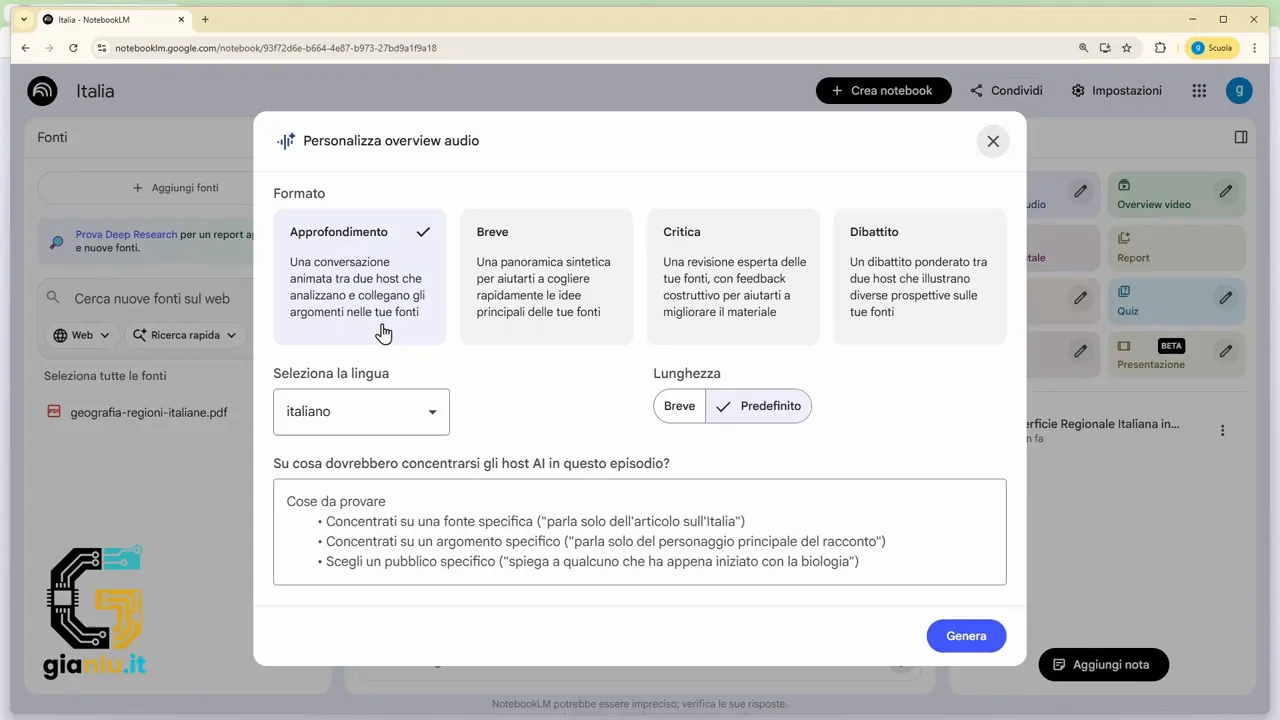
The audio overview is one of the most convenient tools in NotebookLM. With one click, you can generate a spoken explanation built on the sources you have selected. The result resembles a conversation between two voices—not a flat reading, but content closer to a short podcast.
If you press the button directly, the system automatically creates audio based on all active sources. If you open the settings with the pencil icon instead, you can guide the result much better.
The most useful options are:
- Detailed, if you want longer and more detailed content.
- Brief, if you need a concise review.
- Critical, to get a more analytical and reasoned tone.
- Debate, to highlight different points of view on the material.
- Language, to select the language for the generated audio.
- Custom prompt, to specify exactly what it should discuss.
This last point really makes a difference. Instead of asking for a general summary, you can narrow the scope to a specific topic. For example, if your material is about Italian regions, you can request audio only about Tuscany, only about Piedmont, or a comparison between Northern and Southern Italy. This way, you don't get a generic summary, but content focused on what you actually need.
An important detail concerns the timing. The audio is not created instantly. It usually takes a few minutes, so it is best to start it and continue with other work in the meantime.
Once generated, the audio overview is saved in the Study section, and you can:
- play it directly;
- rename it;
- download it in MP3 format;
- share it via a link or other channels;
- delete it if you no longer need it.
If you created it with a custom prompt, the option to review the request you used will also appear. This is useful because it helps you remember how you achieved that result and, if you wish, replicate it with minor variations.
In practice, it is a perfect tool for review, for listening to content while doing other things, or for transforming long materials into a much more digestible summary.
🎬 Video overview: visual explanations from your documents
The video overview works with the same logic as the audio, but adds a visual component. Here too, you can choose whether to automatically generate a video based on all sources or use more precise settings.
The available customizations are interesting, as they concern not only the content but also how it is presented.
You can decide:
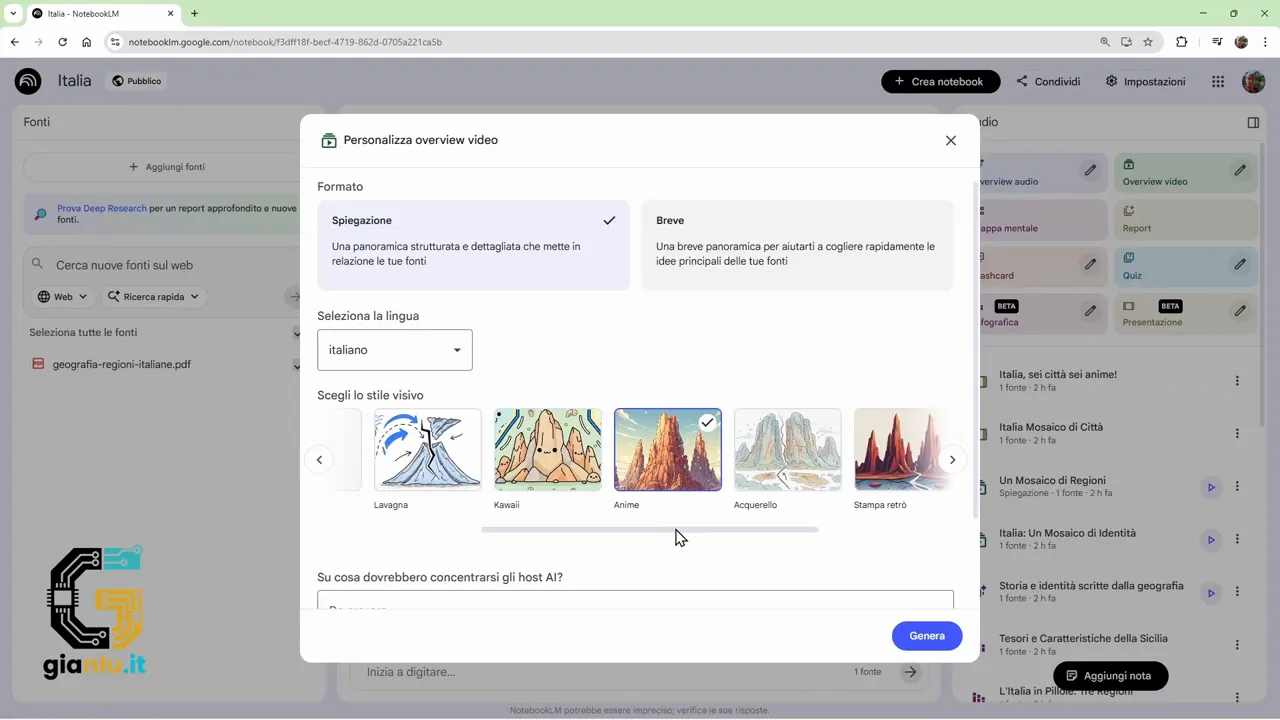
- whether to make a longer or shorter video;
- which language to generate it in;
- which topic to address;
- which visual style to use.
NotebookLM offers various possibilities for visual styles. It can handle everything automatically or use a specific setting, such as classic blackboard, kawaii style, anime, watercolor, and other graphic variations. There is also a custom mode, where you can describe the narrative atmosphere you want.
This part is very powerful because you don't just say what the video should explain, but also how it should look. For example, you can request content about Italian islands with a visual setup inspired by the Christmas season, featuring elements like trees, decorations, and themed images. Or you can ask for a realistic, illustrated, or cartoon style.
Just like with audio, here too the custom prompt changes everything. If you don't specify anything, the video tends to cover all content. If you give a clear direction instead, you can get a video centered only on the essential elements of a region, a group of cities, or a specific topic.
Once created, the video can be managed with the same main actions:
- playback;
- rename;
- download;
- share;
- delete.
If you used specific instructions, the option to view the custom prompt will also appear here.
The only real caution is to be patient. Videos require much more time than audio. In some cases, it can take 20, 30, or even 40 minutes. The good news is that generation continues even if you close the notebook and return later. So there is no need to wait around.
When the work is completed, you get a real automatic presentation built on your documents. For teaching, studying, or professional summaries, it is a feature that can save a great deal of time.
🧠 Mind map: the structure of topics at a glance
While audio and video are mainly useful for presentation, the mind map is the most useful tool for understanding the structure of a topic.
NotebookLM takes the sources and organizes them hierarchically. If the theme is, for example, Italian regions, you will find the main topic in the center, and from there, connected branches gradually open up.
The beautiful part is that the map is not static. It is navigable. By clicking on the arrows, you can expand the nodes and go down a level. Start with the regions, then move to individual characteristics, perhaps then to the economy, and from there even deeper into industry, agriculture, tourism, crafts, and so on.
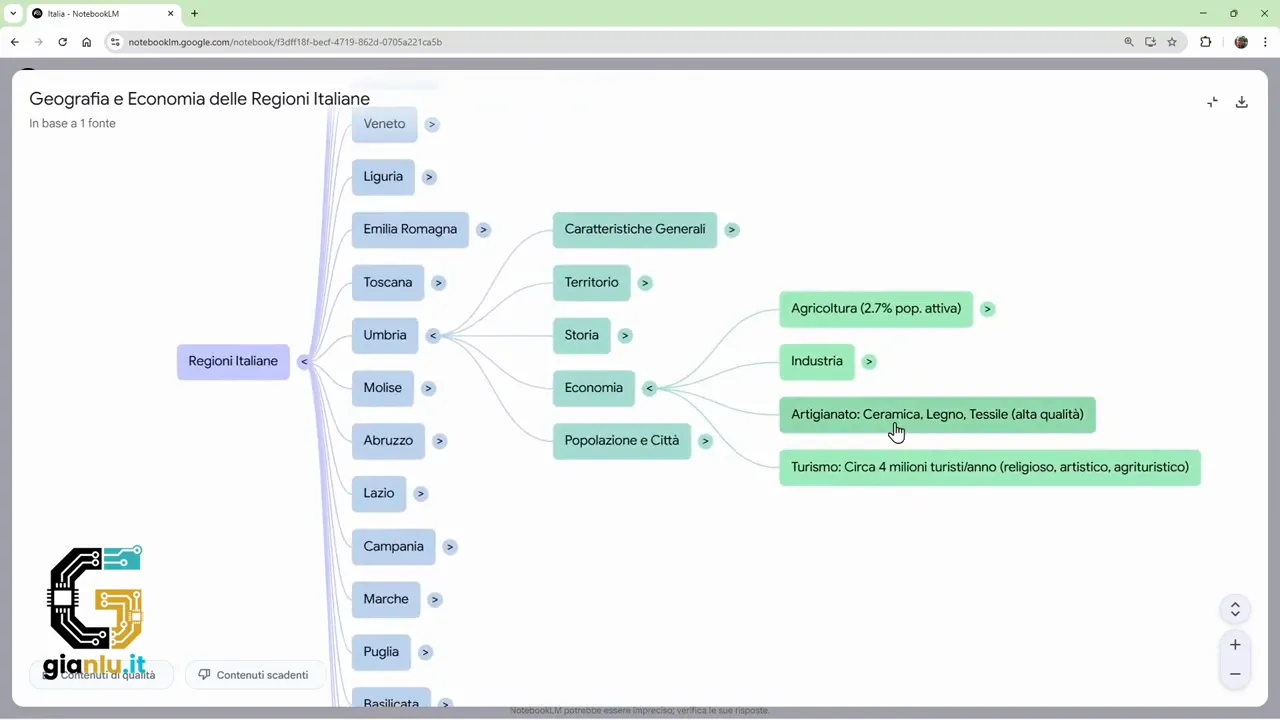
A very clear example is this: you look at a region like Umbria, open the economy branch, then agriculture, and then special products. At that point, you can reach a very specific entry, such as black truffle.
And this is where the map's smartest feature comes into play: it doesn't just show connections; it makes them searchable.
If you click directly on the name of a topic, NotebookLM opens the chat and starts a targeted search on that specific point, always using the uploaded sources. So from the map, you go straight to a deeper lookup, without having to manually rewrite the question.
This means the mind map becomes both an orientation tool and an operational tool. It helps you to:
- understand how the content is organized;
- identify important subtopics;
- quickly switch from the general view to details;
- open targeted searches in the chat starting from the nodes of the map.
For those who study, it is very useful because it makes building logical connections immediate. For those working with complex documents, it is a fast way to explore an information base without getting lost.
⏱️ What you should know before using them
These tools are very practical, but it is good to have realistic expectations about how they work.
- The quality of the result depends on the sources. If the documents are clear and well-organized, the outputs will also be more useful.
- Customization significantly improves the result. A precise prompt almost always leads to more focused content.
- Generation times are not immediate. Audio takes a few minutes, video much longer.
- No need to stay on the screen. You can start the process and return later.
- Each format has a different use. Audio is great for review, video for a more guided explanation, and the map for understanding structure.
The strength of NotebookLM is not just summarizing, but reorganizing information based on how you need to use it. And this is a huge difference.
🚀 Why this part of NotebookLM is so useful
When you have many PDFs, notes, or work materials, the problem is rarely just having the documents. The real problem is transforming them into something accessible quickly.
With the Study area, NotebookLM does exactly that. It allows you to transition from a collection of sources to three formats of content that are much easier to use:
- audio to listen to;
- a video to consult;
- a map to explore.
For students, teachers, and professionals, it is a significant step forward. The same material can become a support for review, a mini-presentation, or a conceptual outline for better orientation.
If you are starting to use NotebookLM, this is one of the areas you should try right away because it makes the tool's value very concrete. You don't just store documents; you transform them into truly useful resources to study, explain, and work better.
❓ FAQ
Can NotebookLM create audio only from all sources together?
No. You can also specify a target topic using a custom prompt, so the audio focuses only on a specific region, theme, or question.
In what format can audio overviews be saved?
Audio overviews can be downloaded as MP3 files, so you can listen to them offline.
Do video overviews take a lot of time?
Yes, generally more than audio. It can take 20 or 30 minutes, and in some cases longer. However, generation continues even if you exit the notebook.
Can you choose the language of the audio and video?
Yes. For both the audio overview and the video overview, you can select the language in which you want to get the content.
What is the purpose of NotebookLM's mind map?
It serves to visualize the structure of topics and the relationships between different levels of content. Also, by clicking on a node, you can instantly open a targeted search in the chat.