Welcome to this complete guide dedicated to Microsoft Excel, designed for those approaching this powerful tool for the first time or for those who have ever found themselves lost in front of all those bars, buttons, and functions. My name is Gianluca and I want to accompany you on a journey inside the Excel interface, explaining what all the main components of the program are for. After this reading, Excel will no longer hold secrets for you... or almost!
If you are curious to know every detail of the working environment and want to use Excel with more confidence right away, you are in the right place. Let's start immediately!
Table of Contents
- 🔍 The home screen and the title bar
- 📋 The ribbon: the heart of commands
- 📝 Name box and formula bar
- 📊 The worksheet and the scrollbars
- 🔎 The status bar and the zoom 🔍
- ⚙️ Customize the ribbon: hide or show icons
- ⌨️ Keyboard shortcuts to work faster
- 📌 Conclusion: mastering the Excel interface to work better
- ❓ FAQ on Excel: Interface and basic functions
🔍 The home screen and the title bar
When we open Excel, we find ourselves in front of a blank workbook, ready to be used. The first thing that catches the eye is the title bar, positioned at the top of the window. This bar may vary slightly depending on the Excel version, but in general, it contains a series of fundamental elements:
- AutoSave: a button on the left that allows you to activate or deactivate the automatic saving of files.
- Save button: to manually save the document.
- Undo and Redo arrows: to go back or restore changes.
- File name: initially set as “Book1” or similar.
- Microsoft Search box: to quickly search for information or functions within the program.
- Microsoft account icon: to manage login and profile settings.
- Three buttons on the right: minimize, maximize, and close the program.
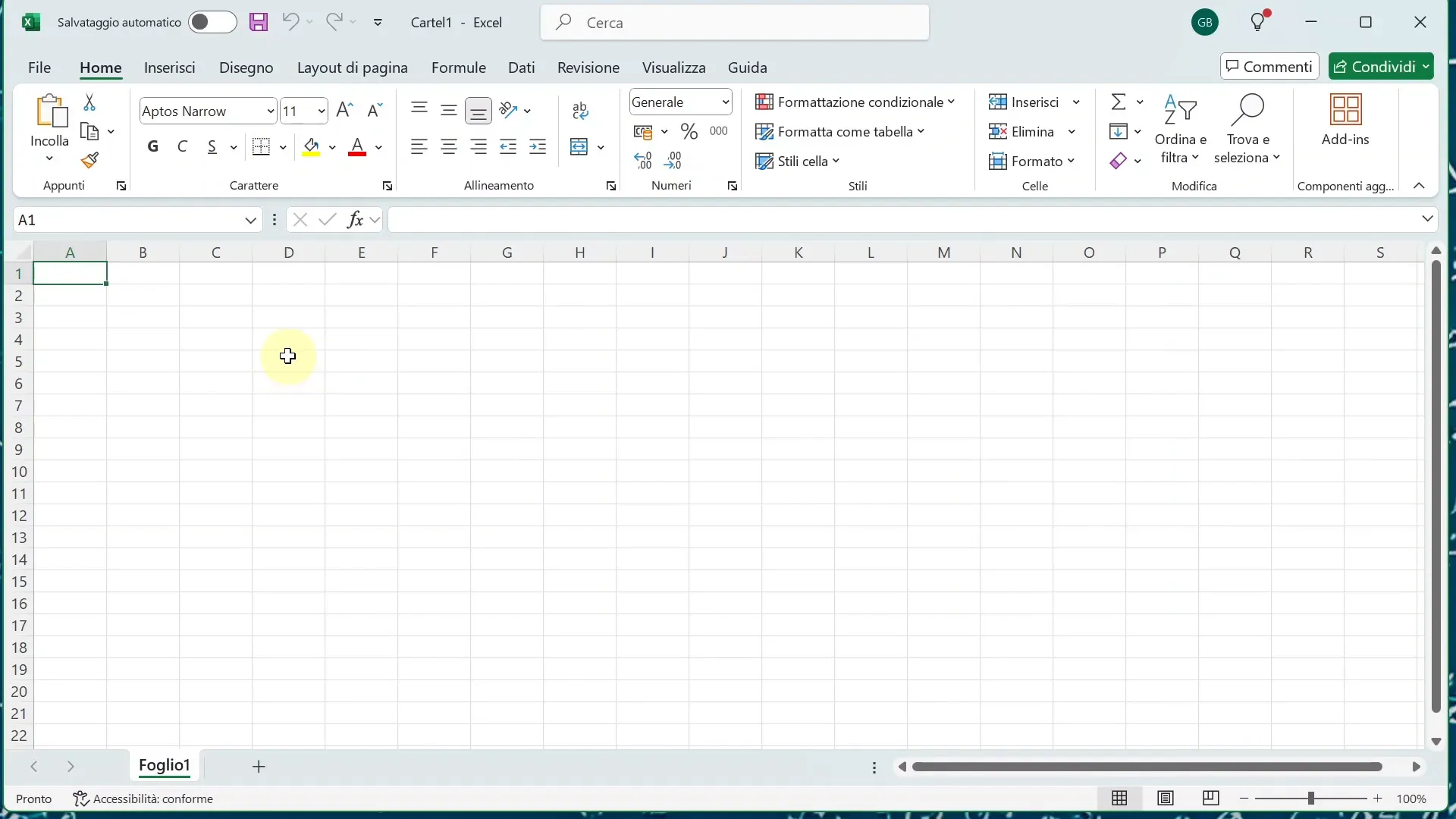
This bar is the first thing we see and allows us to manage the file and the program quickly and intuitively.
📋 The ribbon: the heart of commands
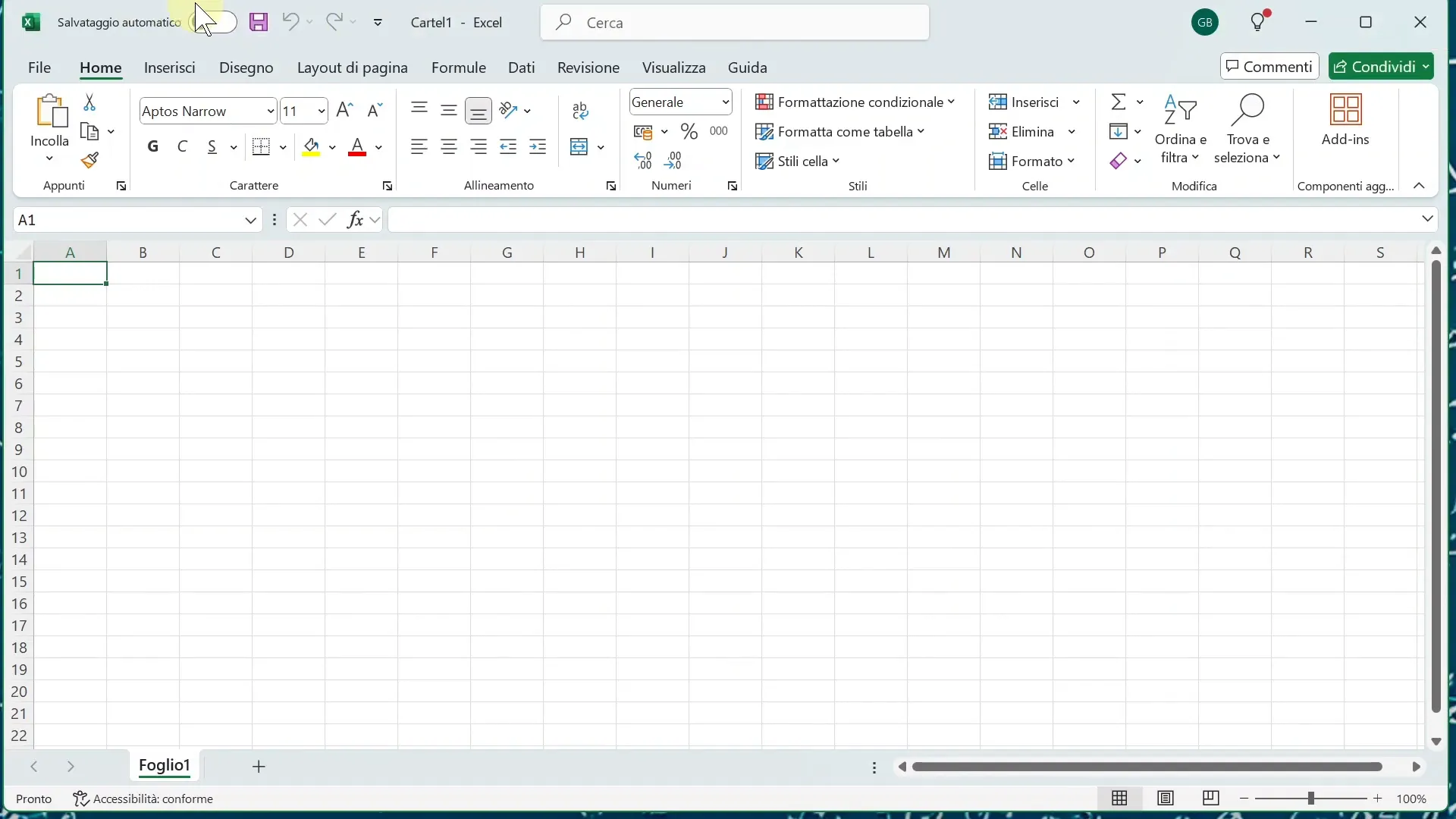
Below the title bar we find the ribbon, one of the most important innovations introduced in recent versions of Excel. This bar is organized into groups of icons and menus, divided by topics, which allow access to the main functions of the program.
The main tabs are:
- Home: the first tab we see upon opening, where we can modify settings of cells, font, alignment, and other fundamental aspects of formatting.
- Insert: to add tables, charts, images, and other elements to the worksheet.
- Draw: to use drawing tools and annotations.
- Page Layout: to manage margins, orientation, and other print settings.
- Formulas: to access mathematical, logical, and statistical functions.
- Data: to import, sort, and filter data.
- Review: for comments, spell checking, and file protection.
- View: to modify how we see the worksheet.
- Help: to access support and help resources.
It is important to note that the ribbon can be customized according to your needs: you can add or remove groups, so you always have the most useful tools for your work at hand.
An important exception is the File tab, which is on the left and does not contain icons but opens a screen dedicated to file management: creating new documents, opening, saving, printing, and closing the program.
📝 Name box and formula bar
Immediately below the ribbon we find two fundamental elements to work effectively on Excel:
- Name box: located on the left, it shows the active cell reference, for example “A1”. Here you can also assign custom names to cells or ranges to facilitate references in formulas.
- Formula bar: the longest one on the right, where you view and edit the contents of the selected cell, whether values, text, or complex formulas.
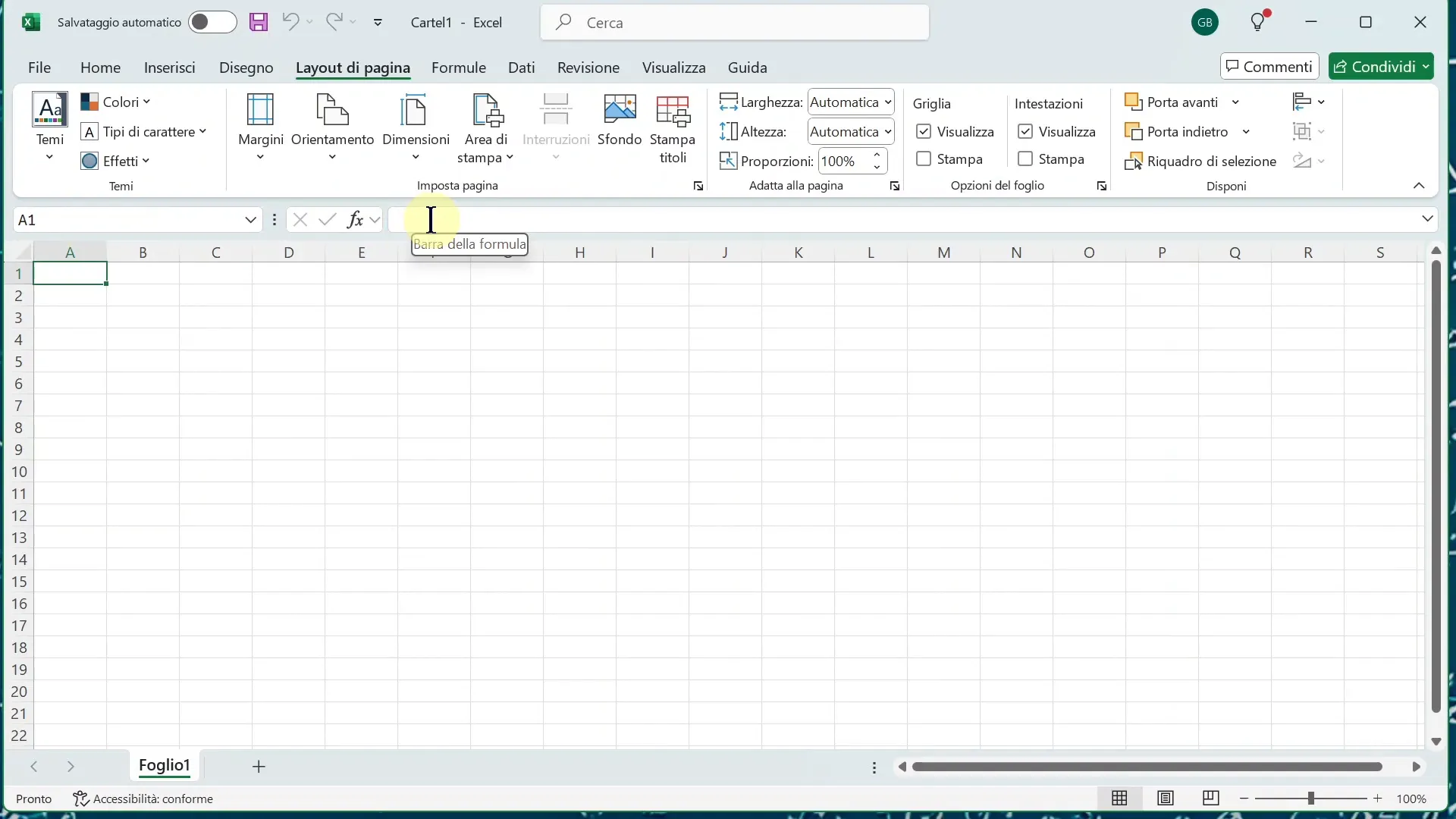
These two tools are essential for managing data and functions within the worksheet, especially when working with formulas or specific ranges of cells.
📊 The worksheet and the scrollbars
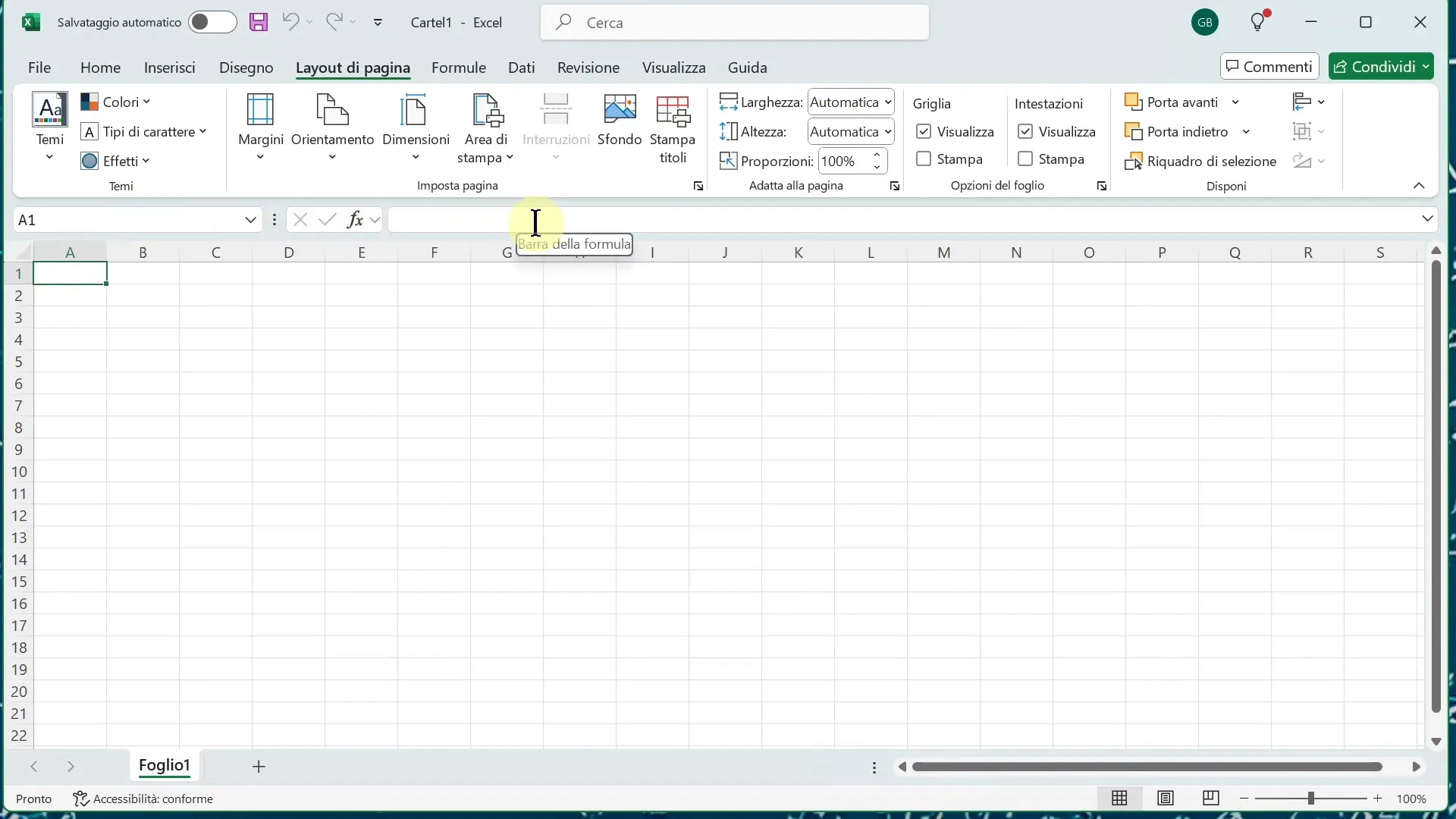
In the center of the screen we find the true heart of Excel: the worksheet. It is organized into columns (indicated by letters) and rows (indicated by numbers), creating a grid of cells where you can insert data, formulas, and charts.
At the sides and bottom of the sheet there are scrollbars:
- Vertical scrollbar: on the right, to move up and down the sheet.
- Horizontal scrollbar: at the bottom, to move right or left.
At the bottom, near the horizontal bar, we also see the active sheet name (for example “Sheet1”), which we can rename or add other sheets to organize the data better.
🔎 The status bar and the zoom 🔍
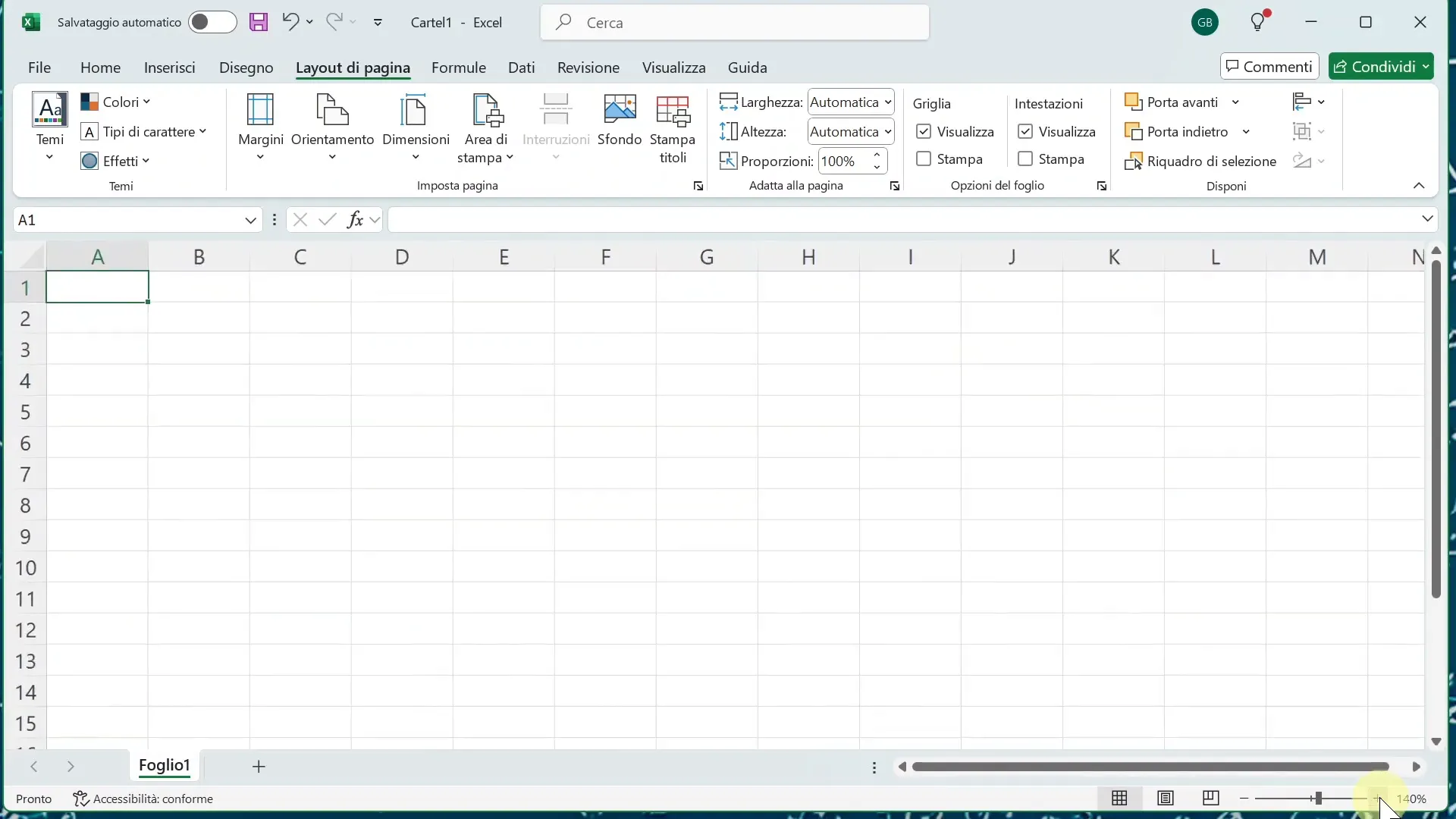
At the bottom of the Excel window is the status bar, which provides quick information and useful tools during work. Among its most important functions, we find the ability to modify the zoom of the worksheet.
Zoom allows you to zoom in or out of the worksheet view, making it easier to read or edit even on smaller screens or with a lot of data.
⚙️ Customize the ribbon: hide or show icons
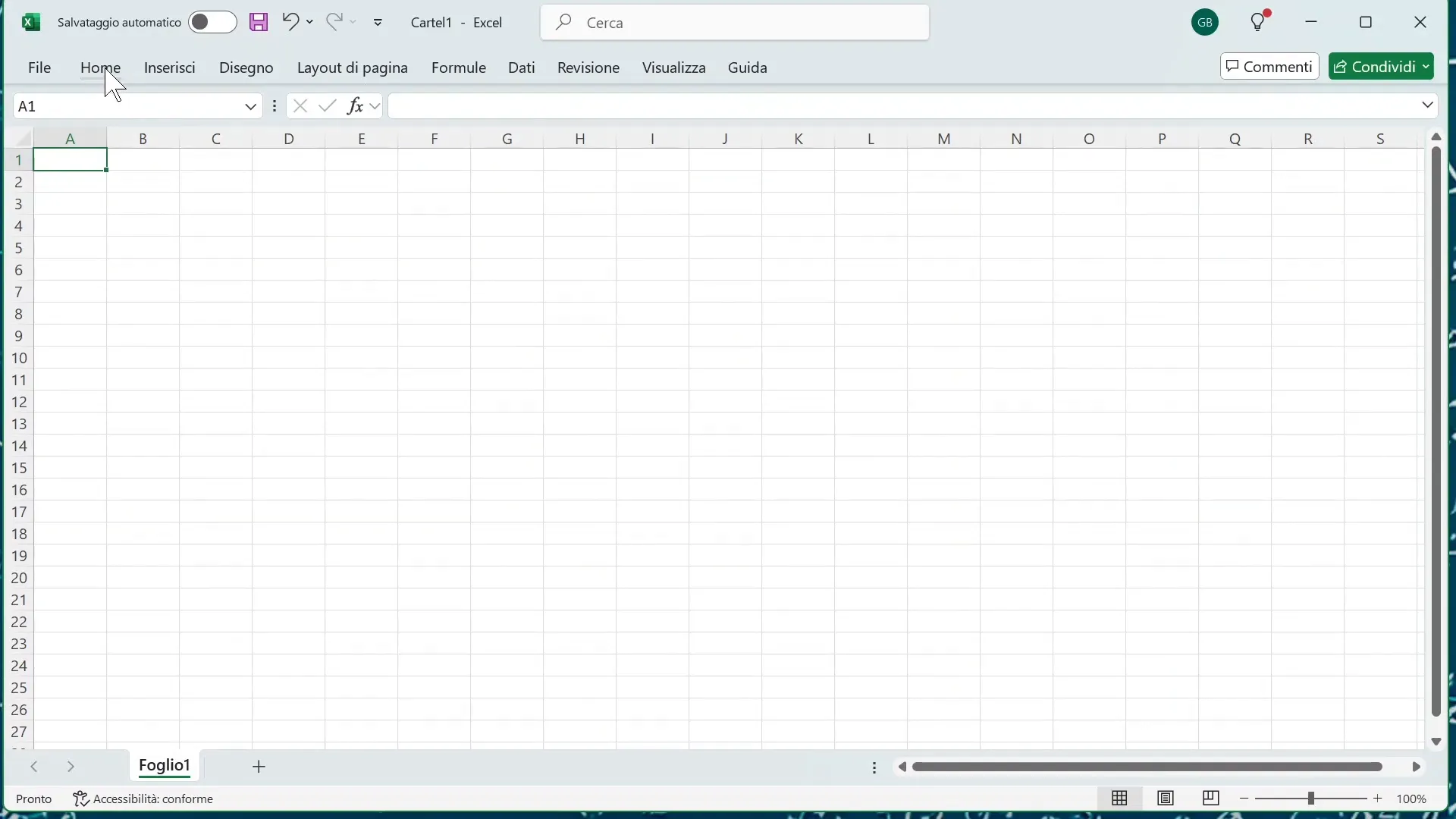
One of Excel's most practical features concerns the ability to customize the ribbon to suit your space and work needs. You can choose whether to display the bar with all icons or only with tab names.
To do this, just click on the small up arrow, located at the bottom right of the ribbon, where 'Collapse the Ribbon' appears.
- Clicking on this button collapses the ribbon and shows only tab names without icons.
- To reactivate it, just click on any menu and then on the button that reappears at the bottom right or press the key combination CTRL + F1.
This shortcut is very convenient for those who want more screen space or prefer a cleaner view.
⌨️ Keyboard shortcuts to work faster
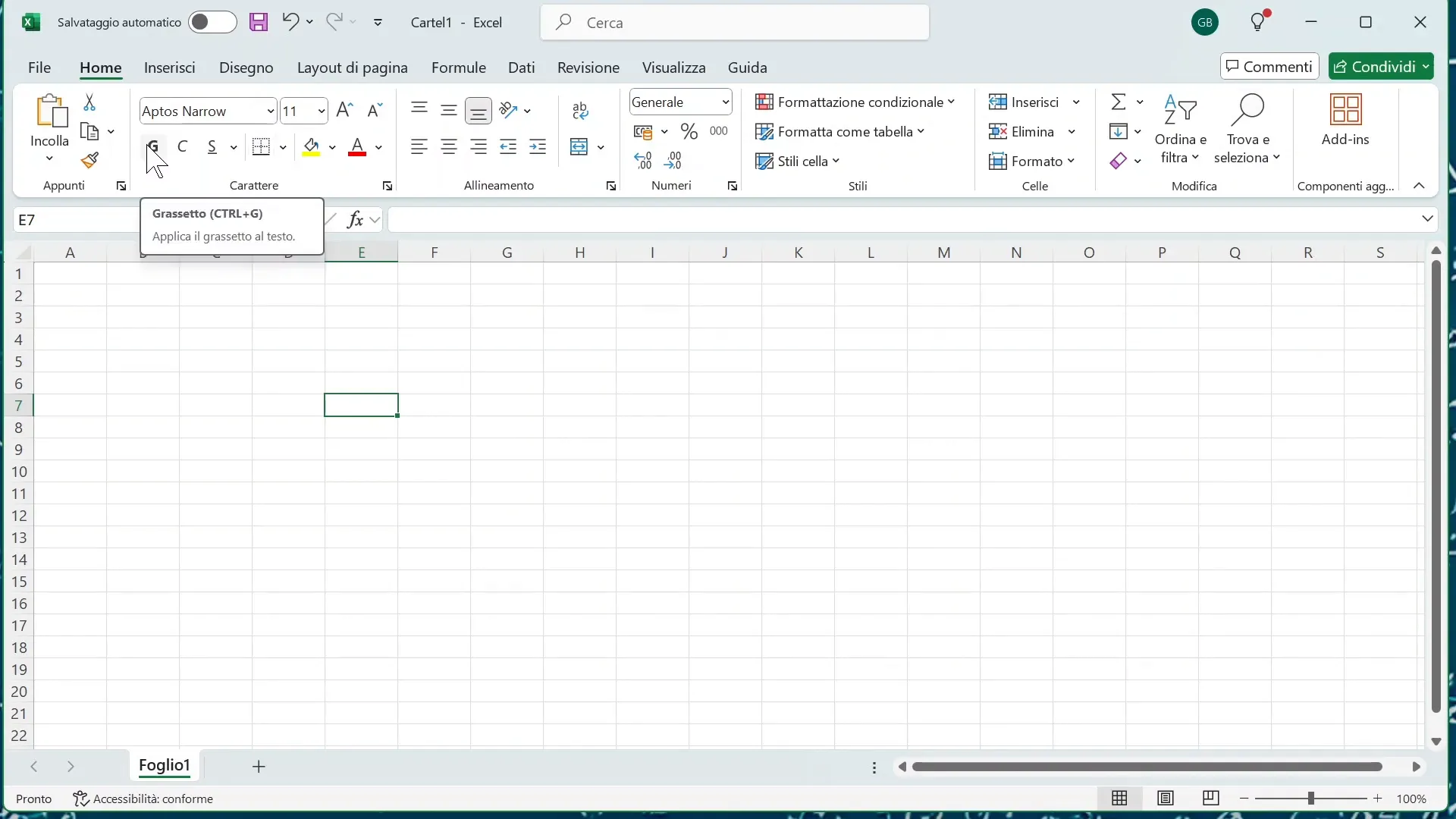
Another very useful aspect for improving productivity is the use of keyboard shortcuts. By hovering the mouse cursor over the icons on the ribbon, Excel often shows the key combination to use to quickly activate that command.
For example:
- Bold is activated with CTRL + B.
- Italic is activated with CTRL + I.
Not all functions have a shortcut, but many are available and can be viewed simply by positioning yourself on the icon with the mouse. Using quick keys can save you a lot of time and make your work smoother.
📌 Conclusion: mastering the Excel interface to work better
This complete overview has shown you all the main elements of the Excel interface, from basic tools like the title bar and the ribbon, to more practical tools like the status bar and keyboard shortcuts.
Remember that Excel is a very versatile and powerful tool, but to make the most of it, it is important to know the working environment well and know how to customize the interface according to your needs.
If you want to go deeper, there are customized courses that can help you achieve concrete results, designed specifically for you or your business. Analyzing your goals and creating a tailor-made training path is the key to effective and productive learning.
❓ FAQ on Excel: Interface and basic functions
What is the ribbon and how is it used?
The ribbon is a bar at the top that groups Excel commands and functions organized by categories (Home, Insert, Formulas, etc.). It allows quick access to the tools needed to work with data and formatting.
How can I hide or show the ribbon?
You can collapse or expand the ribbon by clicking the arrow at the bottom right of the bar or by using the key combination CTRL + F1.
What is the name box in Excel?
The name box shows the reference of the active cell and also allows you to assign custom names to cells or ranges, facilitating formula management.
How can I use keyboard shortcuts in Excel?
Many commands have keyboard shortcuts that appear when you hover the mouse over the icons in the ribbon. Using these key combinations speeds up work and improves productivity.
What is the function of the status bar in Excel?
The status bar, located at the bottom, provides quick information and tools like zoom control, which allows you to zoom in or out of the worksheet view.
If you want to discover more about Excel and improve your skills, do not hesitate to visit www.gianlu.it or contact me directly for a customized consultation.