If you are still copying a cell with CTRL+C in Excel, then selecting the area, then CTRL+V, and repeating it all over again dozens of times, there is a shortcut that really changes your work pace.
It is called dragging (or fill handle) and is one of those simple, immediate, and underrated features that save a lot of time. No complicated formulas needed, no need to be an expert. Just get to know that small square in the bottom-right corner of the selected cell.
When you learn to use it well, Excel doesn't just copy. It often understands what type of content you have written and tries to help you by completing series, months, days, dates, and even some pre-defined lists.
Table of contents
- 🪄 What dragging in Excel is
- 📋 Copying cell contents without copy and paste
- 🔢 When Excel creates a sequence on its own
- ⌨️ The CTRL key trick
- 🎨 Copying data, formats, or just a part
- 📅 Months, days, and dates: where Excel shines
- ↕️ Dragging doesn't only go downwards
- 🧠 Excel also knows some pre-made lists
- ⚠️ The most common mistake to avoid
- 🚀 Why this small gesture really increases productivity
- ❓ FAQ
🪄 What dragging in Excel is
Dragging is the operation that allows you to replicate cell contents simply by dragging it downwards, upwards, or sideways.
The key point is this: select a cell, hover the mouse over the bottom-right corner until the small black cross appears, hold down the left button, and drag.
At that point, Excel can do two things:
- Copy the initial content exactly
- Create an intelligent series based on what it recognizes
And that's exactly where the interesting part comes in.
📋 Copying cell contents without copy and paste
If you have simple text in a cell, for example a name, dragging downwards Excel replicates it in the subsequent cells.
It is the fastest way to repeat the same word, the same code, the same label, or the same description across multiple rows.
Compared to classic copy and paste, the advantage is immediate:
- you do not interrupt your workflow
- you do not have to switch commands every time
- you can quickly fill even many cells
However, pay attention to one important thing: if you drag over cells that already contain something, that content is overwritten. So before releasing the mouse, it is always a good idea to check where you are writing.

🔢 When Excel creates a sequence on its own
Dragging doesn't always just copy. Sometimes Excel tries to be clever.
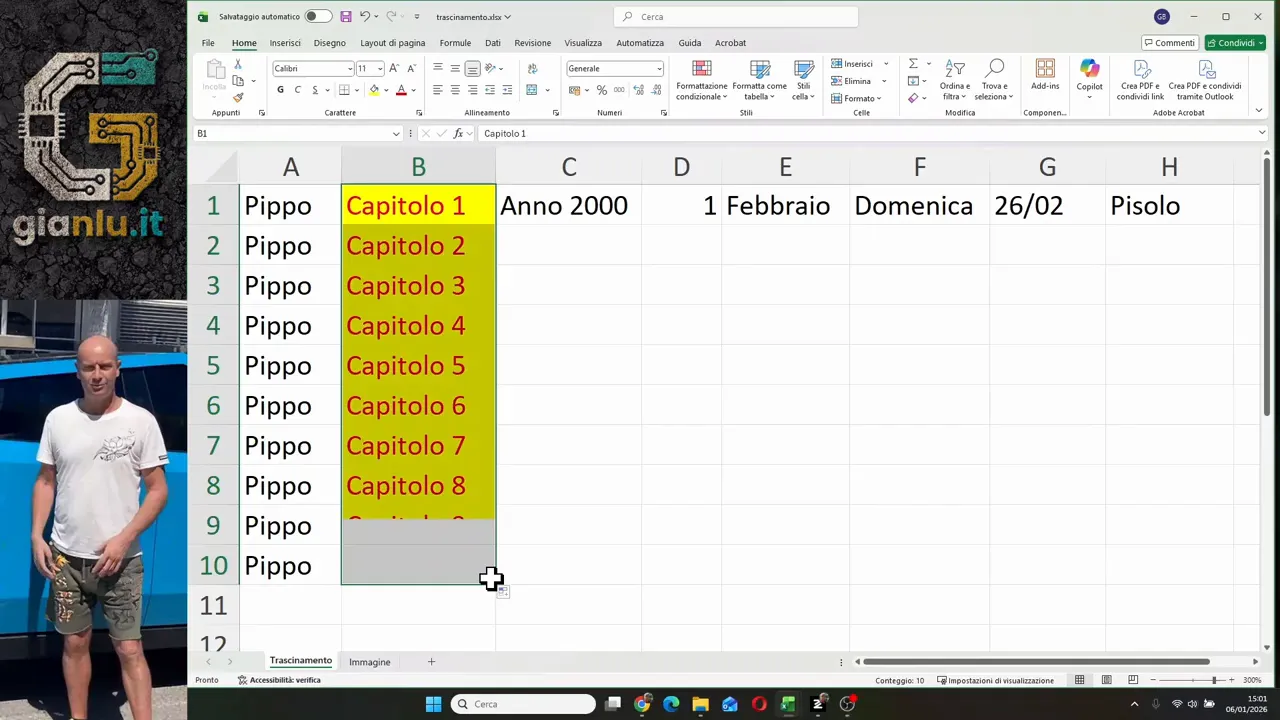
For example, if you write text ending with a number, such as Chapter 1, dragging normally does not repeat the same text. Excel tends to build a progression: Chapter 2, Chapter 3, Chapter 4, and so on.
The same goes for certain numerical values or elements that Excel recognizes as part of an ordered series.
This logic is very useful when you are preparing:
- numbered lists
- sections of a document
- consecutive years
- date progressions
In practice, Excel tries to understand the intention behind the starting data.
⌨️ The CTRL key trick
Here comes the detail that really makes the difference.
If you drag normally, Excel might propose a series. If, on the other hand, you hold down CTRL while dragging, the behavior changes.
With CTRL pressed, you can often force the exact copy of the content, preventing Excel from building the sequence.
For example:
- Chapter 1 without CTRL becomes Chapter 2, 3, 4
- Chapter 1 with CTRL remains Chapter 1 in all cells
With simple numbers, the opposite can also happen. Dragging a single number, Excel might copy it. With CTRL, however, it can transform it into a numerical progression.
Moral of the story: CTRL is the quick switch that helps you change from copy to series, or vice versa, depending on the content.
🎨 Copying data, formats, or just a part
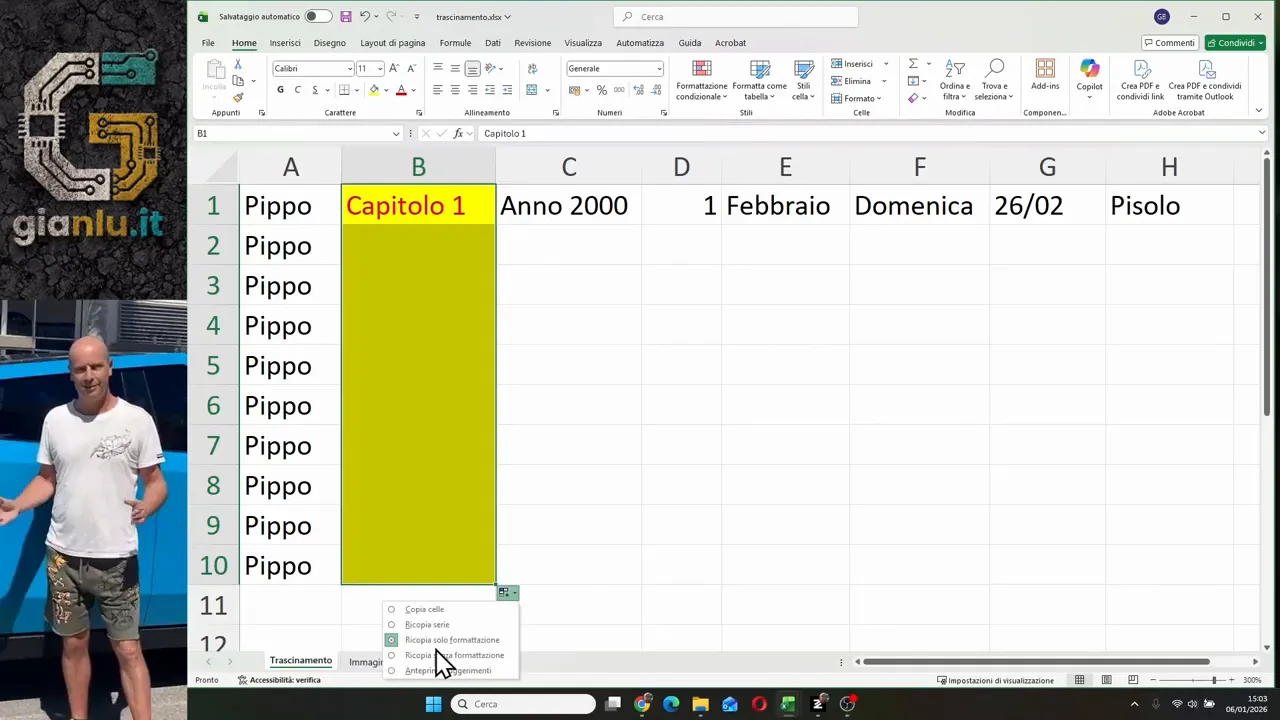
After dragging, a small button with the AutoFill options appears in the bottom-right. Many ignore it, but that is where real precision is unlocked.
From that menu, you can decide how to complete the operation. The most useful options are:
- Copy Cells to replicate everything identical
- Fill Series to obtain a progression
- Fill Formatting Only to transfer colors and styles without the content
- Fill Without Formatting to copy only the value or text
This part is very handy when you have cells with colored backgrounds, formatted text, or a style you want to distribute without touching the data.
📅 Months, days, and dates: where Excel shines
Dragging becomes even more powerful when working with temporal information.
Months
If you write a month, either in full or abbreviated, Excel recognizes the natural sequence. From February it can go to March, April, May, and so on.
The great thing is that it also works in reverse:
- dragging downwards or to the right moves forward
- dragging upwards or to the left moves backward
Days of the week
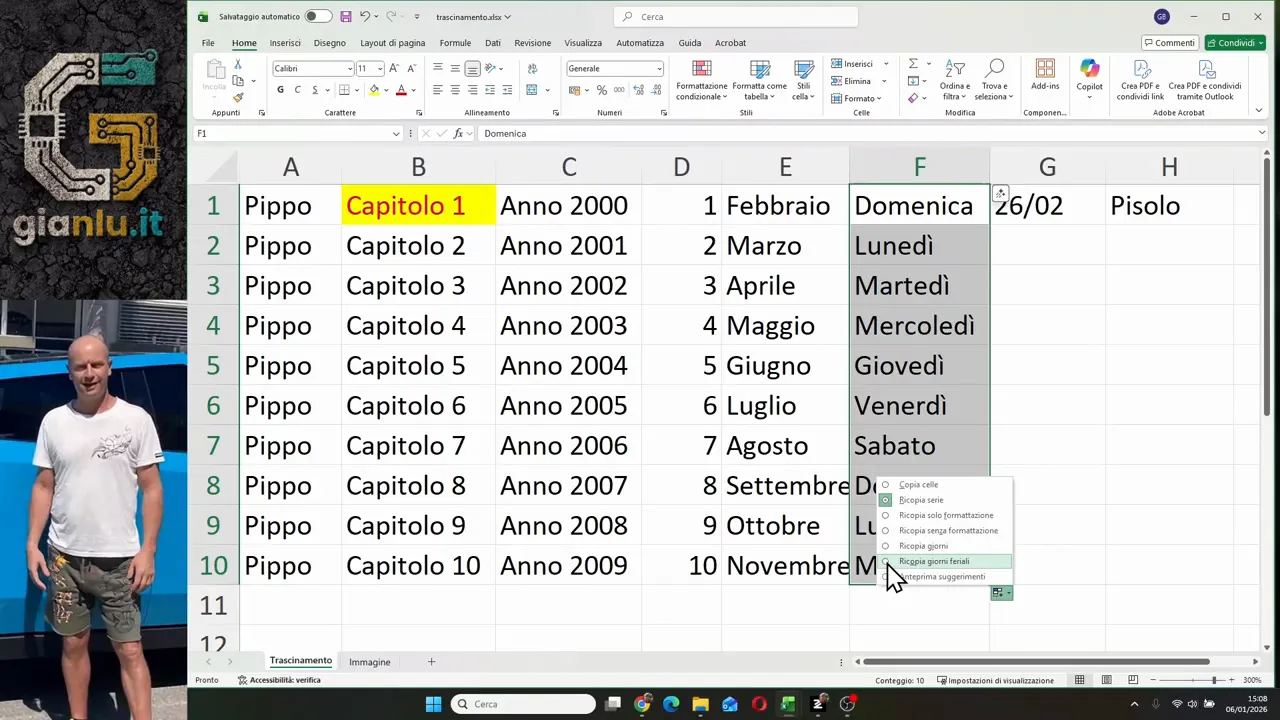
Same logic for days. If you start with Sunday, Excel can continue with Monday, Tuesday, and so on.
In the fill options, you also find a very useful choice: weekdays. In that case, Excel excludes Saturdays and Sundays, continuing only with working days.
Dates
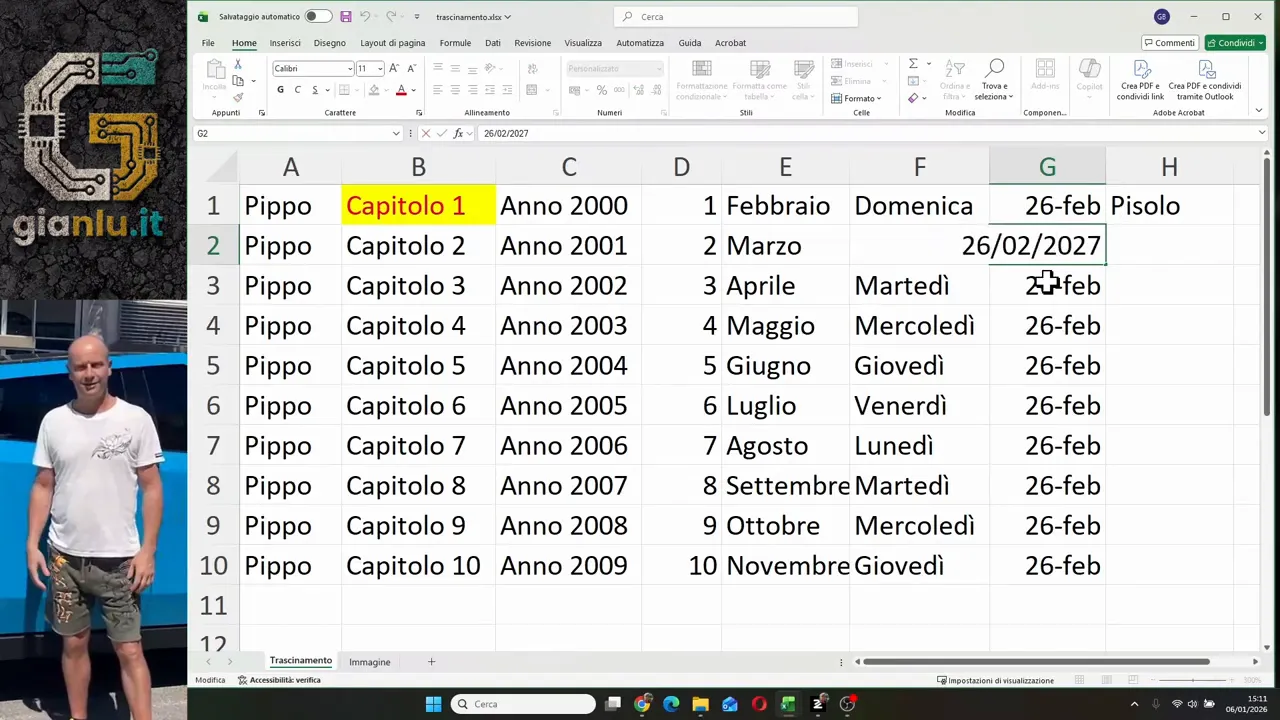
When you enter a date, Excel recognizes and treats it as such. If you write 26/02, for example, it interprets it as February 26th of the current year, unless you specify a different year.
From there, you can drag and get different fill logics:
- giorni consecutivi
- weekdays
- same day of subsequent months
- same day in subsequent years
This feature is perfect for plans, deadlines, calendars, shifts, and operational tables.
↕️ Dragging doesn't only go downwards
Many only use this feature vertically, but it is not limited to that.
You can drag:
- downwards
- upwards
- to the right
- to the left
This means you can quickly fill both rows and columns. If you are building a grid, a planning, or a tabular structure, it is a very useful freedom.
Direction also matters in the sequence. To the right or downwards, Excel advances. To the left or upwards, it goes backward.
🧠 Excel also knows some pre-made lists
Besides months and days, Excel also has some custom lists in memory. A curious example is the Seven Dwarfs.
If you start with one of those names, Excel can automatically complete the list in order. It is a peculiar case, of course, but it helps understand one very important thing: AutoFill doesn't only work with numbers and dates. In some cases, it also recognizes predefined text sequences.
This shows you how smart the mechanism behind a simple drag is.
⚠️ The most common mistake to avoid
The classic mistake is dragging in a hurry without checking the expected result.
When you drag, Excel shows a small preview of the content it will insert. That preview must always be watched, especially if:
- you are working with texts that end with numbers
- you have cells already filled below
- you are managing dates or working days
- you want to copy the format but not the value
In short, dragging is fast, but it should not be used automatically without thinking. It is fast precisely because you must know how to guide it.
🚀 Why this small gesture really increases productivity
Productivity in Excel does not only depend on macros, advanced formulas, or pivot tables. Often it comes from small gestures repeated well.
Dragging is one of these. It allows you to:
- reduce manual steps
- fill large areas in a few seconds
- maintain consistency in data
- work with more fluidity
It is a perfect feature both for beginners and for those who use Excel every day and want to shave off downtime.
Once you get into the habit, going back to continuous copy-pasting really feels like a step backward.
❓ FAQ
How is dragging activated in Excel?
Select the cell, bring the mouse to the bottom-right corner until the black cross appears, then click and drag in the desired direction.
Why does Excel sometimes not copy but create a sequence?
It happens when it recognizes content that can be interpreted as a series, for example texts with final numbers, months, days, or dates.
What is the CTRL key used for during dragging?
It is used to modify AutoFill behavior. In many cases, it allows switching from a series to an exact copy, or vice versa.
Can I copy only the formatting using dragging?
Yes. After dragging, use the AutoFill options button and choose the option that copies only the formatting.
Does dragging also work horizontally?
Yes. You can drag in all directions: down, up, right, and left.
What happens if I drag over cells that are already filled?
The new fill replaces the existing content. Therefore, it is advisable to pay attention before releasing the mouse.