Welcome to this complete guide on selection techniques in Excel, designed for anyone wishing to work more efficiently and professionally with this powerful tool. In this article, I will explain step-by-step how to best use the mouse and keyboard to select cells, rows, and columns, leveraging the CTRL and SHIFT keys to make multiple selections and save valuable time in your daily activities.
Mastering these techniques will allow you to modify, delete, format, and process data in Excel with ease and precision. Together we will discover all the tricks to navigate Excel like a true professional, improving productivity and optimizing the workflow.
Table of contents
- 📋 Single cell selection: the first step
- 🖱️ Multiple selection with the mouse: groups of cells, rows, and columns
- ↔️ Selecting rows and columns: how to do it and what it's for
- 🖱️+⌨️ Multiple selection with CTRL: how to select non-contiguous cells, rows, and columns
- ⌨️ Keyboard selection with SHIFT: moving and selecting without a mouse
- 🔄 Final recap: mastering selections in Excel
- ❓ FAQ – Frequently asked questions about selection techniques in Excel
- 📞 Customized courses to improve your Excel skills
📋 Single cell selection: the first step
Let's start with the basics: how to select a single cell in Excel. It's very simple, just click on the desired cell with the mouse. When you select a cell, you can see the exact reference of the selected cell in the name box, located in the upper left corner of the Excel window, for example, C3, I3, or C11.
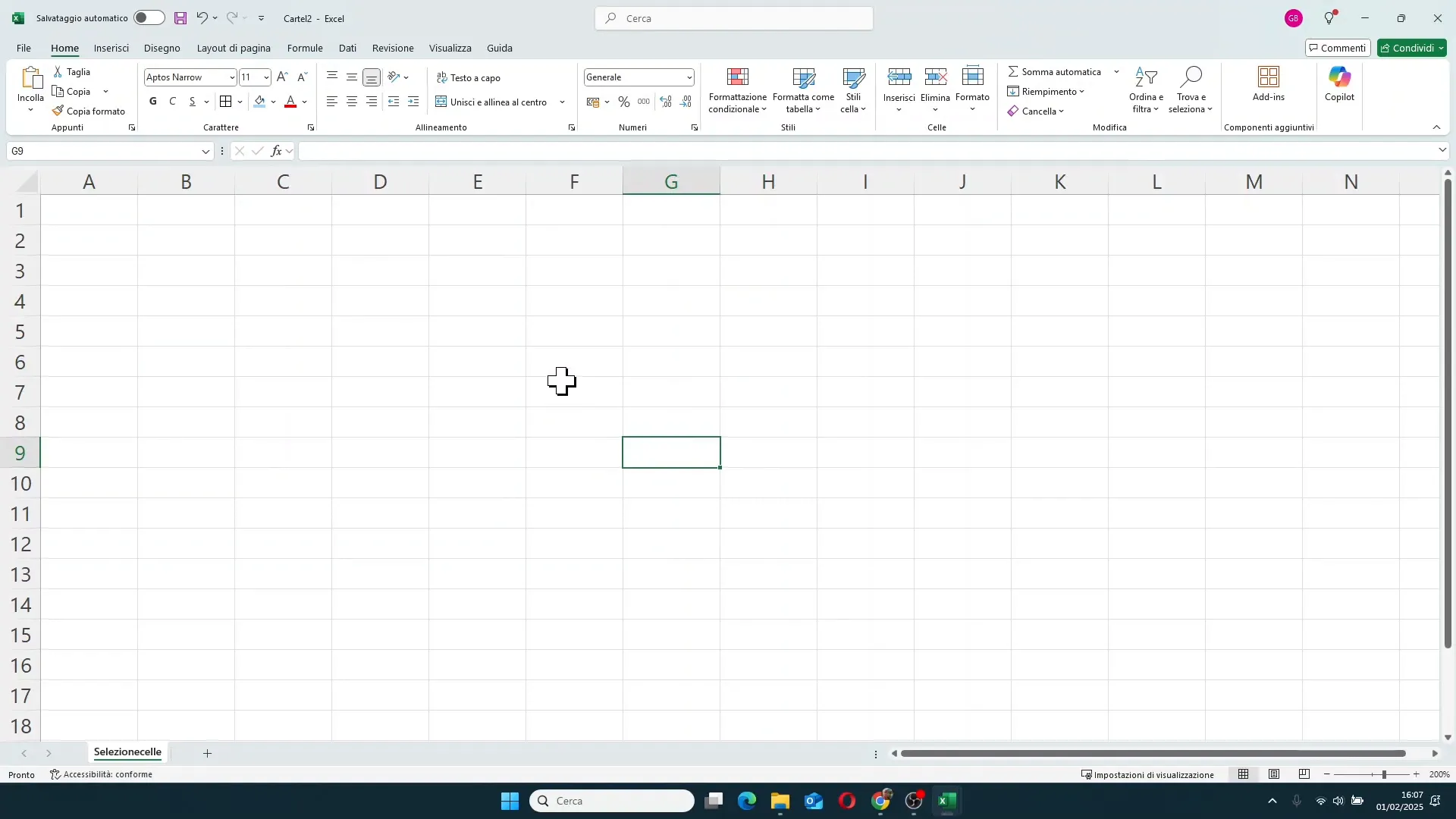
This feature is very useful for orienting yourself quickly in the worksheet and confirming exactly which cell is active, especially when working with large sheets.
🖱️ Multiple selection with the mouse: groups of cells, rows, and columns
In addition to single selection, Excel allows you to select groups of cells easily and intuitively using the mouse. To do this, click on the starting cell, hold down the left mouse button, and drag the pointer in the desired direction — down, up, right, or left — until you include all the cells that interest you.
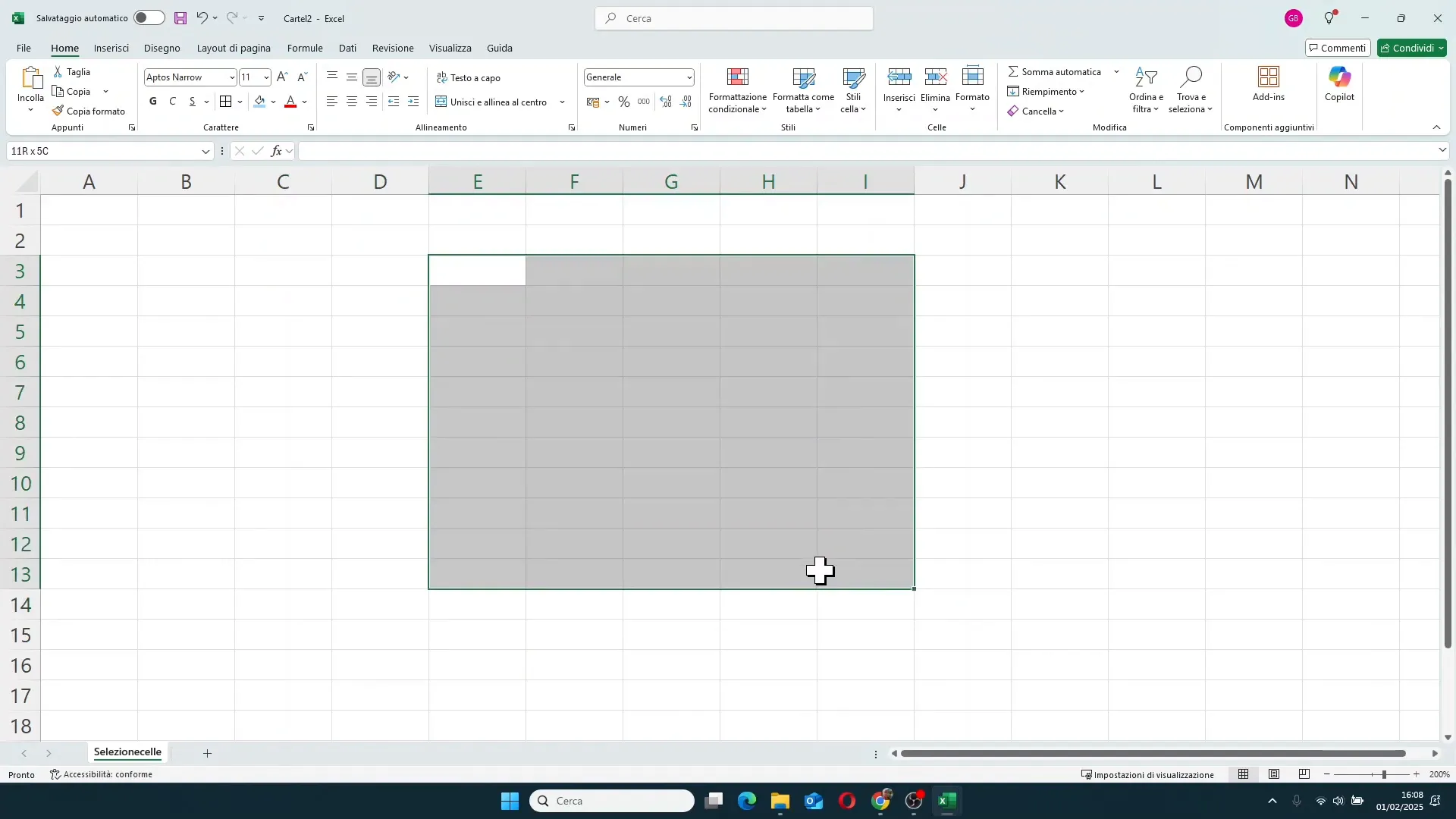
During selection, an indication showing how many rows and columns have been selected will appear in the name box, e.g., 10R x 5C means 10 rows by 5 columns.
When you release the mouse button, the selection is confirmed and you will notice a black border around the selected area, while the starting cell remains highlighted differently (not grayed out) to indicate the reference point of the selection.
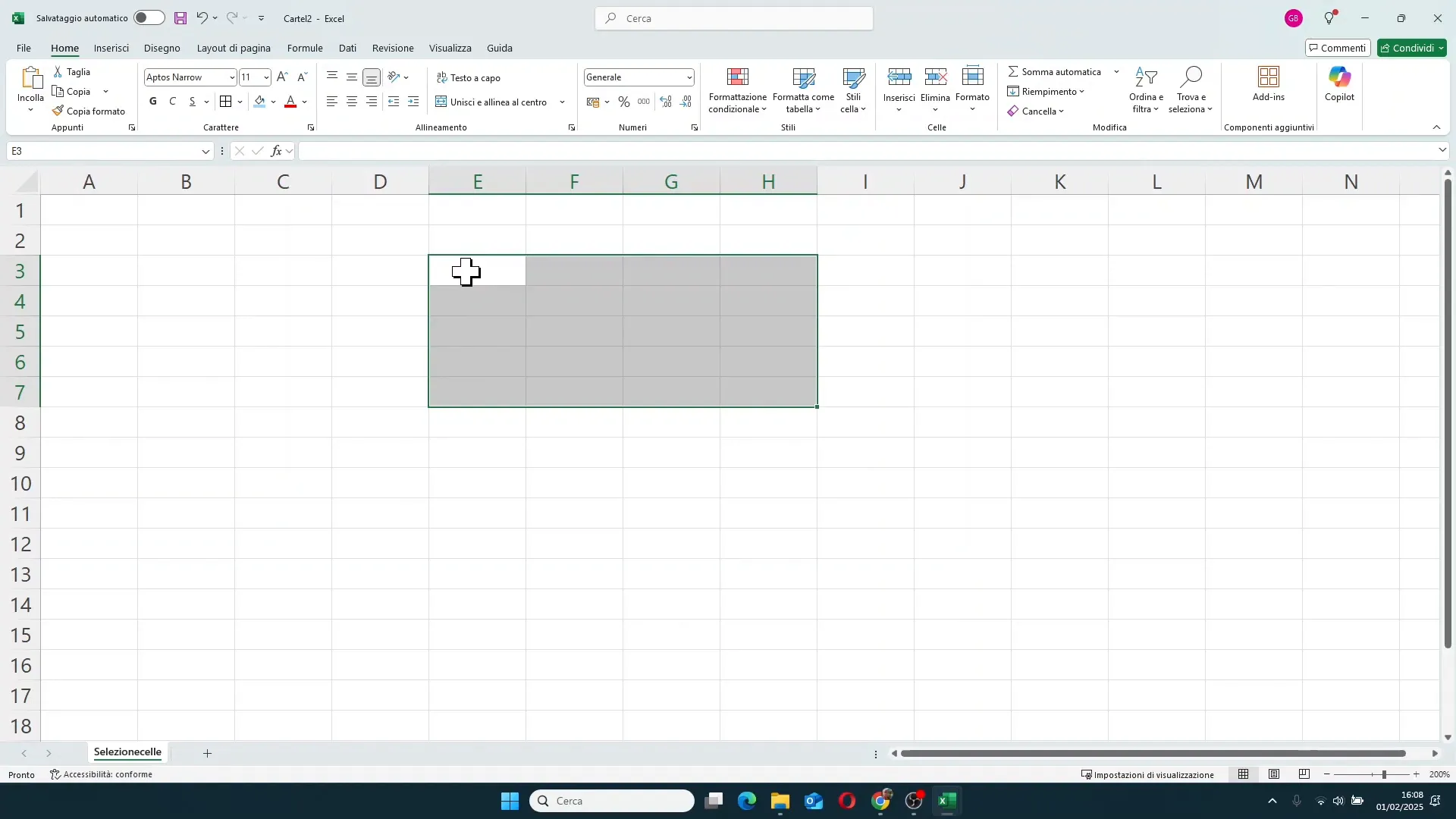
The selection can be made in any direction, you don't have to start from top to bottom or left to right. You can start from the bottom and go up, or move sideways, as long as the selection forms a rectangle of contiguous cells.
↔️ Selecting rows and columns: how to do it and what it's for
Selecting entire rows or columns is one of the most frequent operations in Excel. To select a column, position the mouse pointer over the letter at the top of the column until a black arrow pointing down appears. Clicking once will select the entire column.
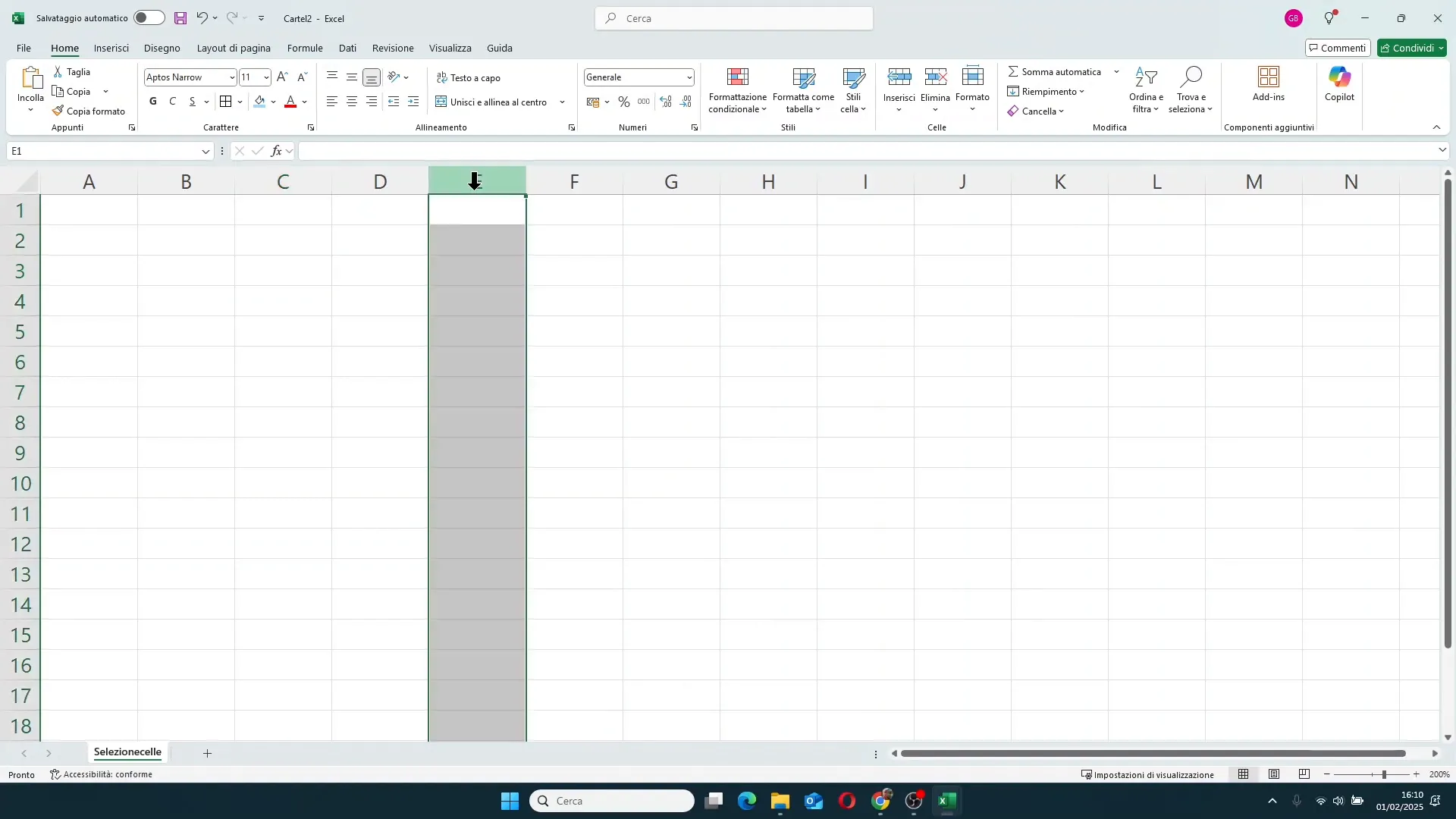
Similarly, to select a row, position the mouse over the number to the left of the row until a black arrow pointing right appears and click once.
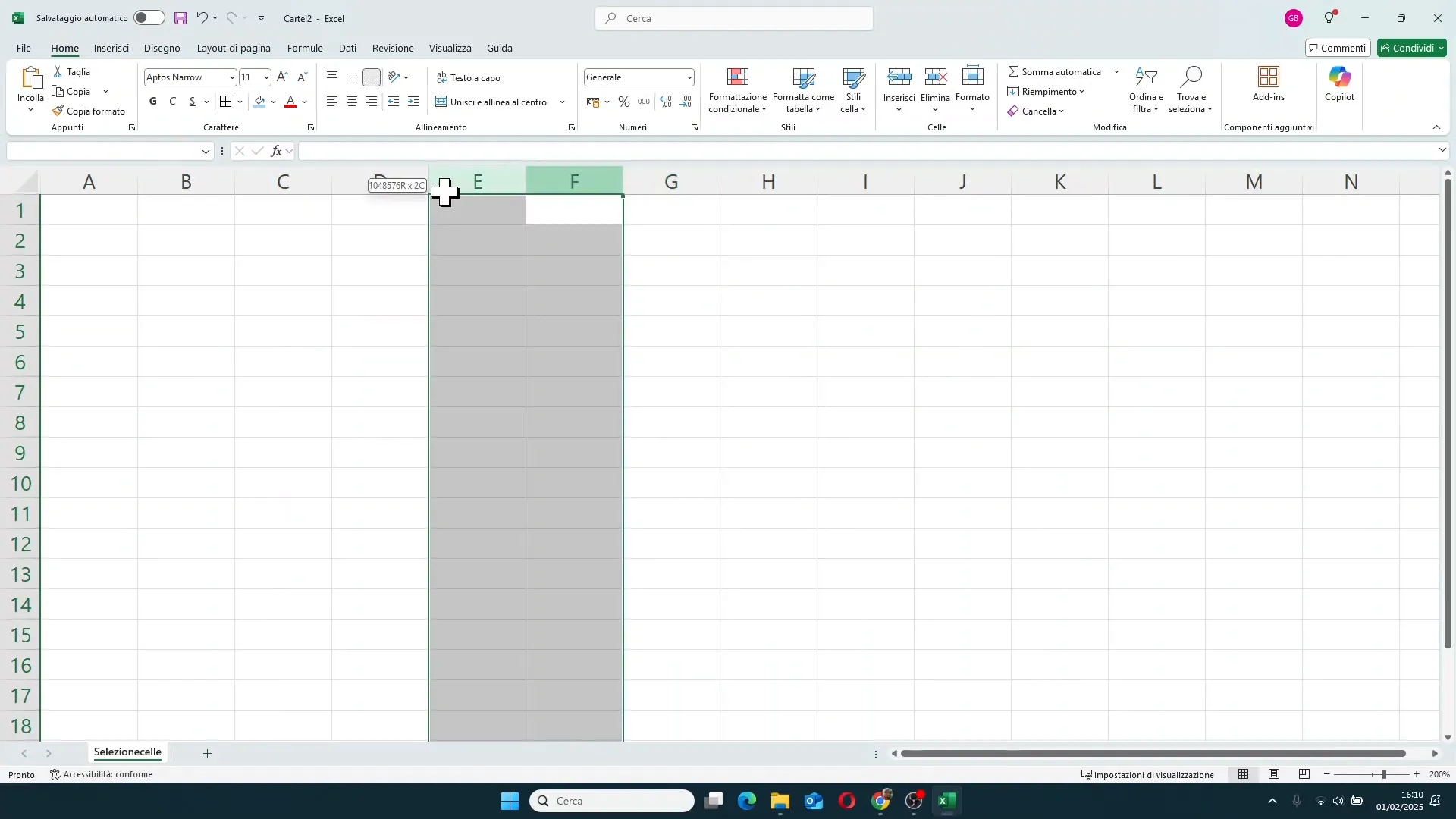
To select multiple contiguous columns or rows, click and drag while holding down the left mouse button: moving horizontally selects multiple columns, moving vertically selects multiple rows.
This technique is very useful not only for modifying or deleting data, but also for adjusting the size of multiple columns or rows at the same time. For example, by selecting a group of columns, you can change the width of a single column and automatically all selected columns will adjust to the new size.
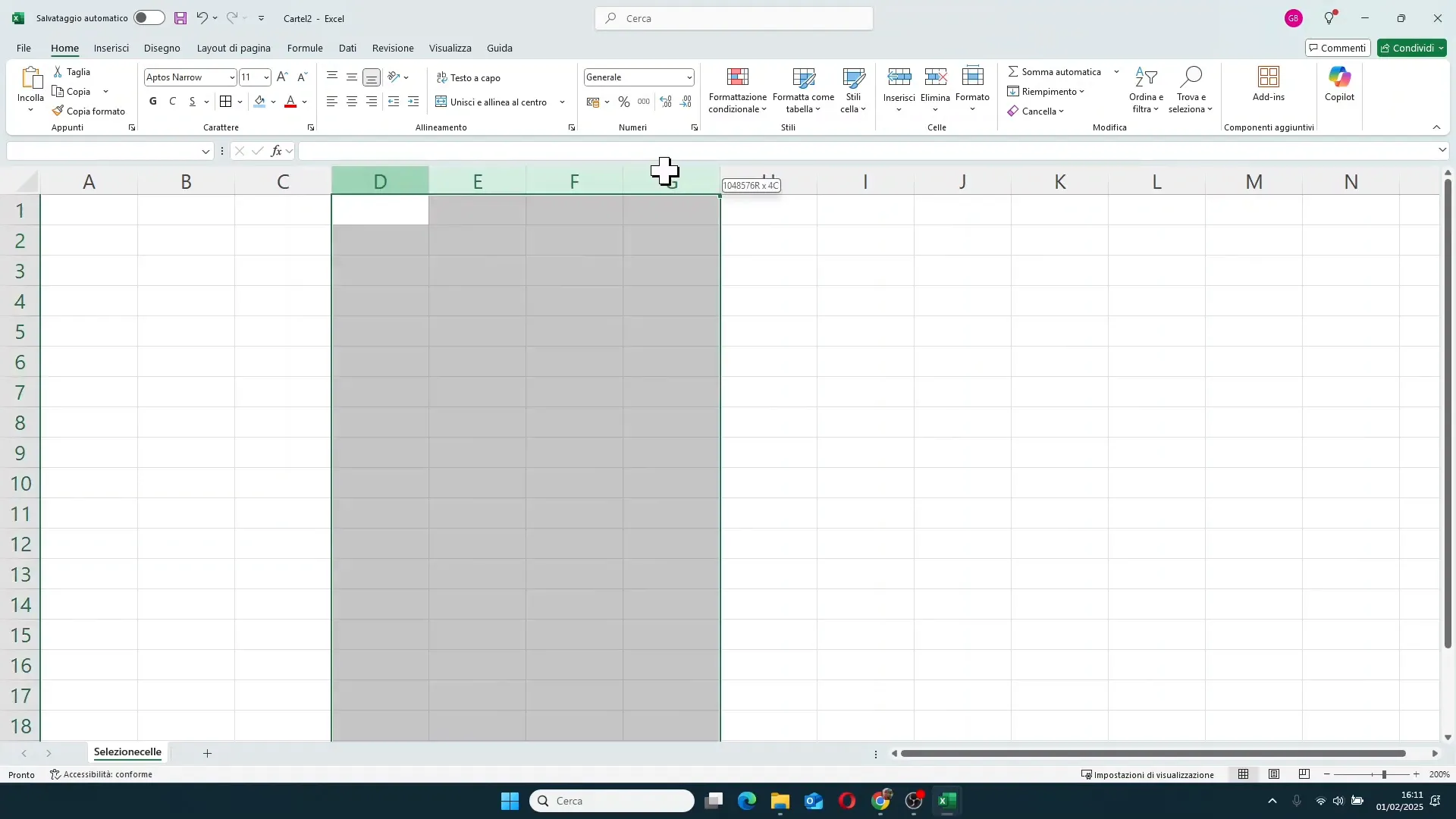
The same applies to rows: widening or narrowing a selected row will apply the same change to the other rows in the group. This helps maintain a uniform and neat appearance in the worksheet.
🖱️+⌨️ Multiple selection with CTRL: how to select non-contiguous cells, rows, and columns
Very often, when working on complex sheets, we need to select multiple groups of non-adjacent cells, rows, or columns. Excel helps us with the multiple selection feature using the CTRL key.
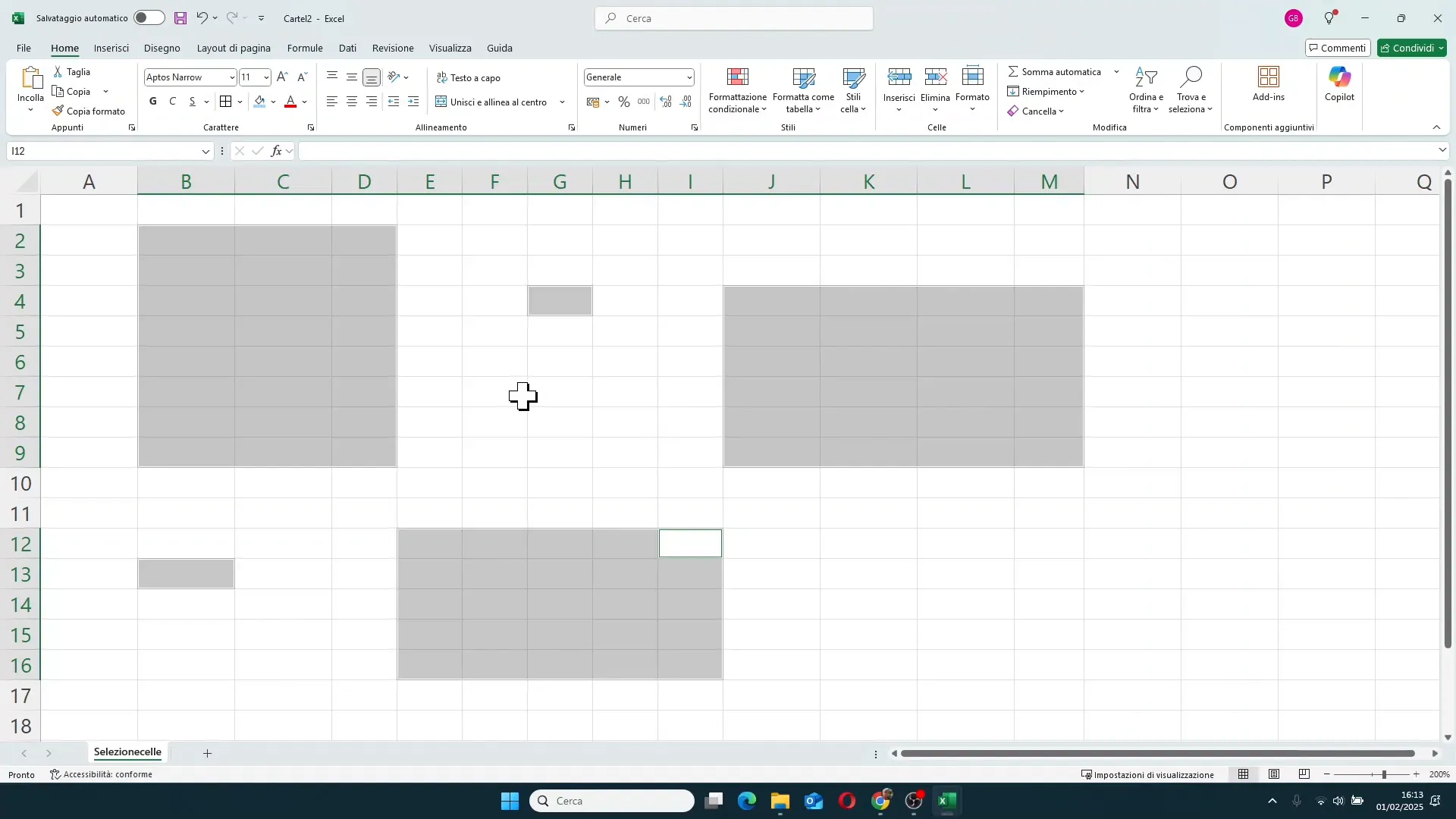
For example, you can select a group of cells, then hold down the CTRL key and select another group in a different part of the sheet. In this way, both selections remain active simultaneously.
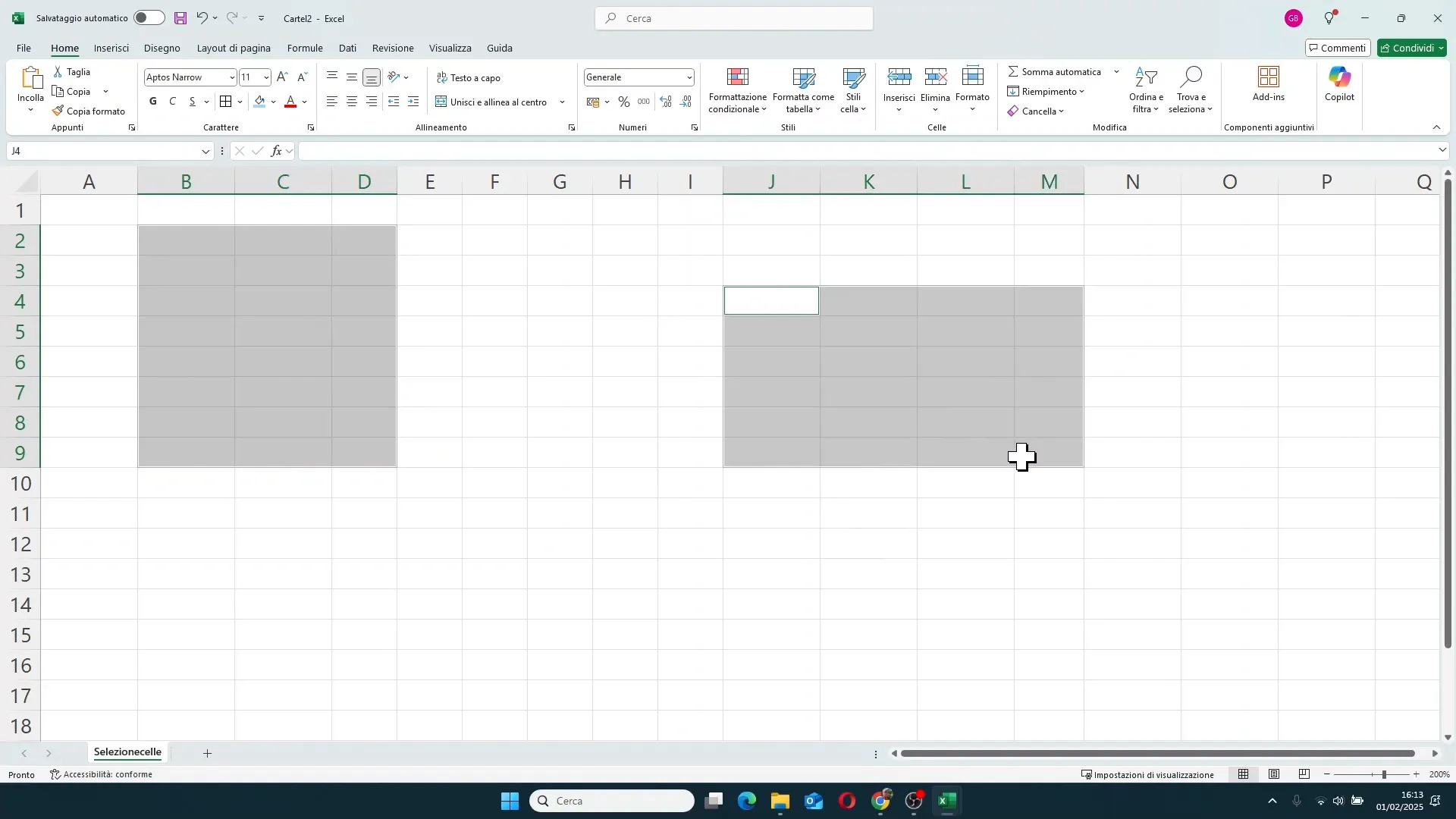
You can also add single cells to the selection by holding down CTRL and clicking on the desired single cells.
This feature is extremely practical for applying formatting, deleting data, or setting borders on multiple scattered areas of the sheet without having to select a single group of cells every time.
The same technique applies to rows and columns: holding down CTRL allows you to select multiple non-adjacent rows or columns, which would normally not be possible with a traditional selection.
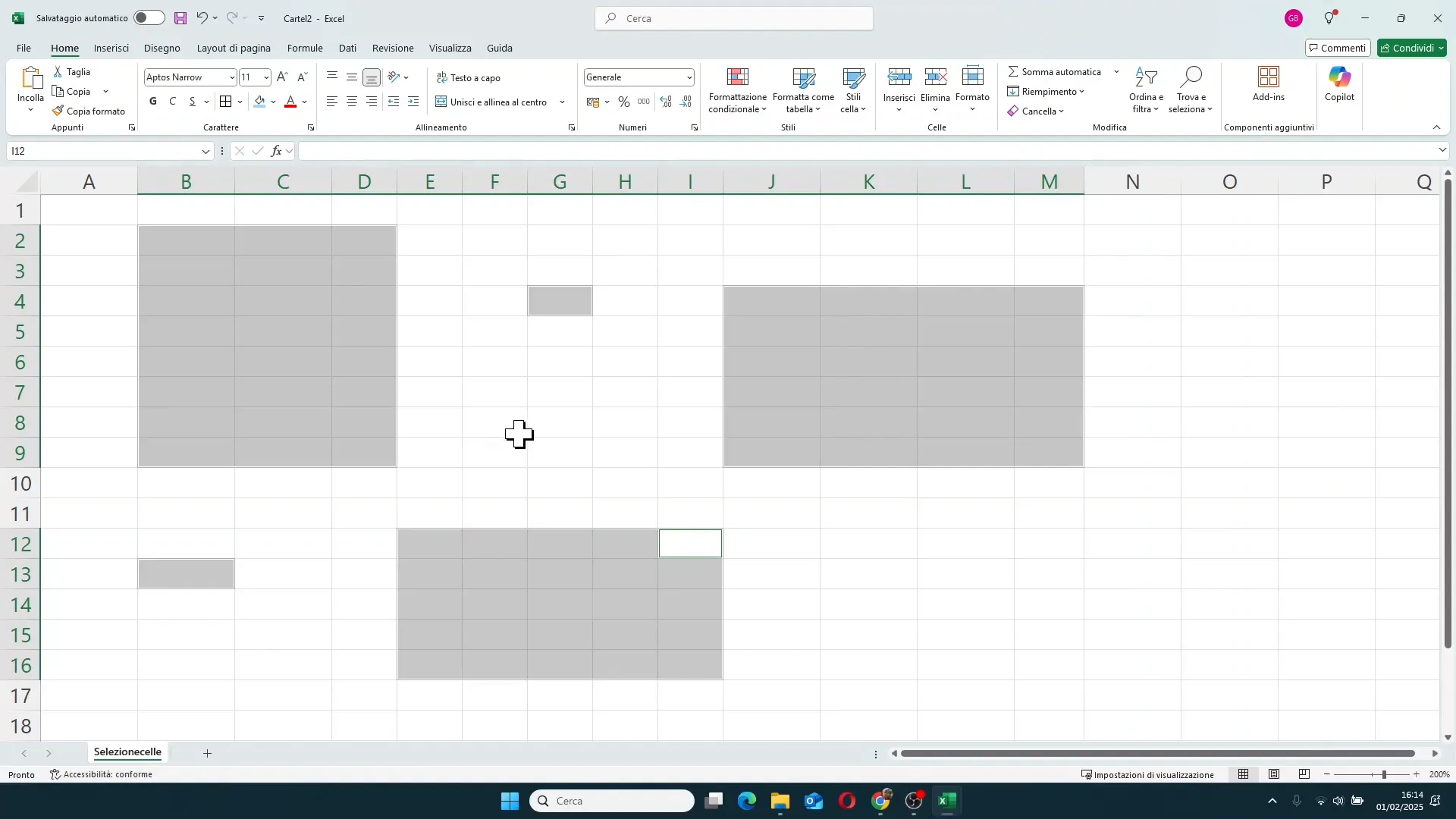
It is important to remember that if you release the CTRL key and try to select another area without holding it down, the previous selection will be lost. Therefore, to make multiple selections, you must hold down CTRL throughout the entire operation.
⌨️ Keyboard selection with SHIFT: moving and selecting without a mouse
If you prefer working without a mouse or want to increase your speed even further, Excel allows you to make selections using only the keyboard. To move between cells, use the arrow keys (up, down, right, left), moving one cell at a time.
To select a range of cells with the keyboard, hold down the SHIFT key while using the arrow keys. This way, in addition to moving, you will select all cells between the starting position and the new position.
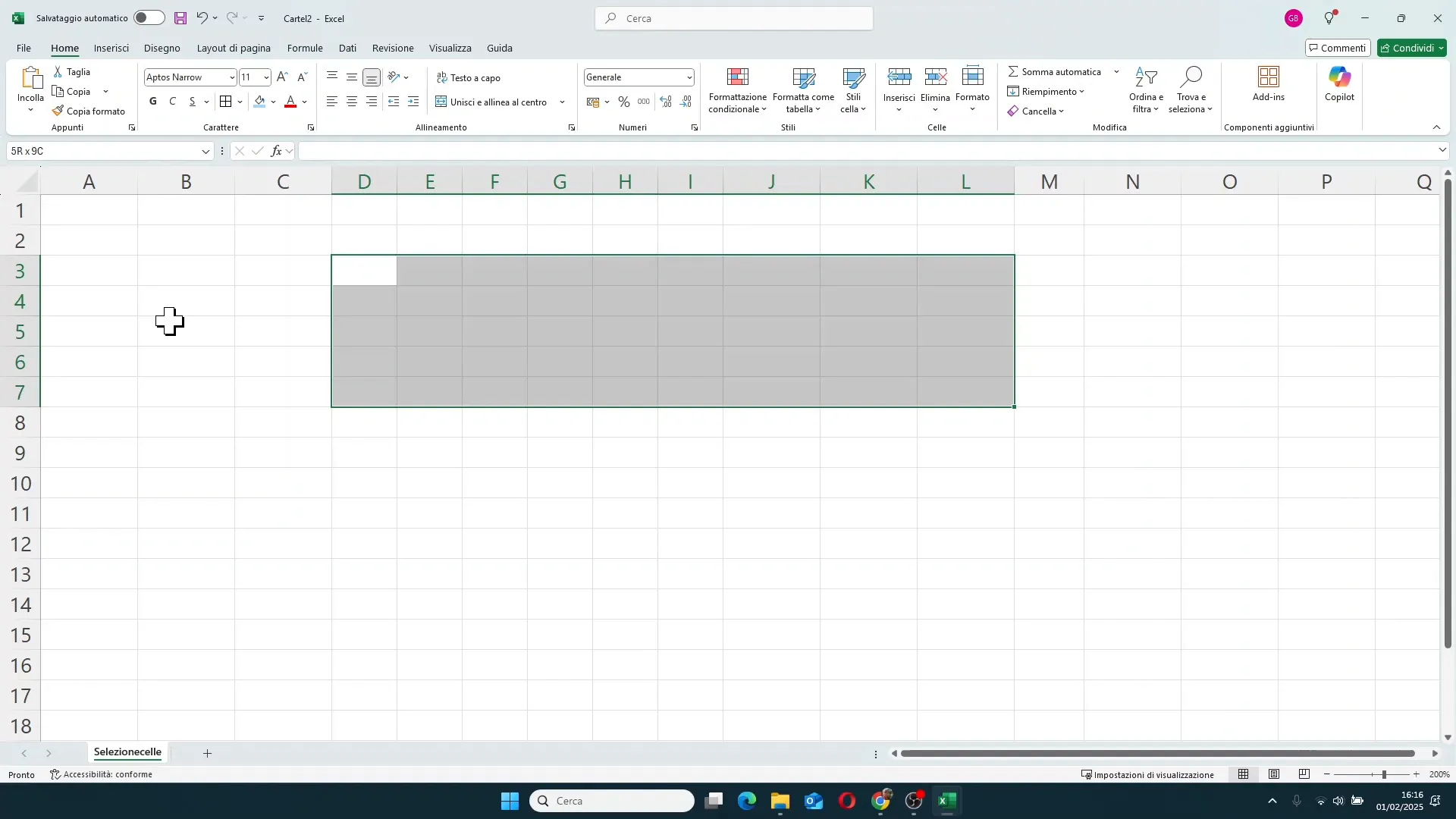
This technique is very useful for those who prefer not to take their hands off the keyboard or for making precise selections in large sheets.
🔄 Final recap: mastering selections in Excel
In summary, here are the fundamental techniques for selecting cells, rows, and columns in Excel quickly and efficiently:
- Single selection: click on the desired cell with the mouse.
- Multiple selection with mouse: click and drag to select contiguous groups of cells, rows, or columns.
- Non-contiguous multiple selection with CTRL: select a group, hold down CTRL, and select other groups or single cells.
- Keyboard selection with SHIFT: move with the arrow keys while holding down SHIFT to select ranges of cells.
- Simultaneous editing: select multiple columns or rows to change their width or height all together.
By applying these techniques in your daily work, you will be able to save time and work with greater precision and professionalism in Excel.
❓ FAQ – Frequently asked questions about selection techniques in Excel
How can I select multiple non-adjacent cells in Excel?
To select non-contiguous cells, first select a group of cells, then hold down the CTRL key and click or drag to select other cells or groups of cells in different positions. Remember to keep CTRL pressed throughout the operation.
Is it possible to change the width of multiple columns at the same time?
Yes, select multiple adjacent columns by clicking and dragging or using CTRL for multiple selections. Then place the cursor on the border of a selected column and drag to adjust the width: all selected columns will be modified simultaneously.
How do I select a range of cells using only the keyboard?
Position yourself on the starting cell, then hold down the SHIFT key and use the arrow keys to extend the selection to neighboring cells. You can move in all directions (up, down, right, left) to select the desired range.
Can I select rows and columns together?
Yes, by holding down the CTRL key, you can select non-contiguous rows and columns at the same time by clicking on row and column headers. This allows you to format or modify multiple sections of the sheet quickly.
How do I deselect a multiple selection?
To deselect, you can click on a single cell without pressing CTRL, or press ESC to clear all active selection. If you release CTRL and click elsewhere, the previous multiple selection is lost.
📞 Customized courses to improve your Excel skills
Not everyone has the same needs when it comes to Excel. For this reason, I offer customized courses on Excel and other applications, tailored for you or your business. Together we analyze your goals and build a training path that allows you to achieve concrete and measurable results.