Worksheets in Excel are, in practice, the pages that make up a workbook. Inside each file, you can have one or more sheets, and knowing how to manage them well makes a huge difference when you want to keep order, work faster, and not get lost among data, tables, formulas, and reports.
The fundamental operations are always the same: adding sheets, deleting them, renaming them, moving them, duplicating them, and, when needed, selecting multiple sheets at once. Once these functions become natural, managing any Excel file becomes much simpler.
Table of contents
- 📘 How worksheets are structured in Excel
- ➕ How to add new sheets
- 🗑️ How to delete a sheet
- ✏️ How to rename sheets
- ↔️ How to move sheets and change their order
- ⌨️ How to quickly switch between sheets
- 🎨 How to color sheet tabs
- 📄 How to duplicate an existing sheet
- 🧩 How to select multiple sheets at the same time
- 🧠 The most important criterion: organizing sheets logically
- ❓ FAQ
📘 How worksheets are structured in Excel
An Excel file can contain multiple sheets. Initially, you usually find only one, but you can add as many as you need.
Each sheet is organized into columns and rows, and the intersection of rows and columns creates cells. That is where you enter numbers, text, formulas, tables, charts, and everything else.
At the bottom of the Excel window, you will find the sheet tabs. If you haven't given them custom names yet, you will see labels like Sheet1, Sheet2, Sheet3, and so on.
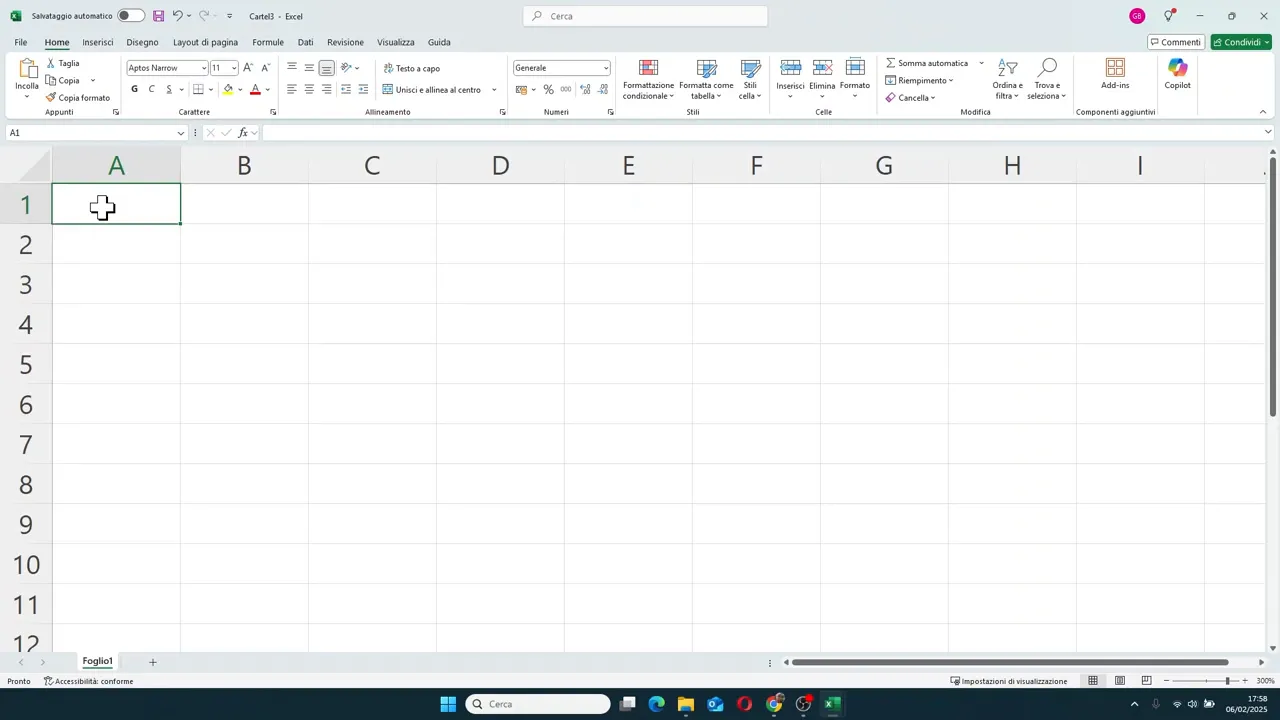
That area at the bottom is the sheet control center. This is where you perform almost all the most frequent operations.
➕ How to add new sheets
Excel offers several ways to create a new worksheet. The fastest is almost always the best.
The fastest method: the plus button
Next to the sheet tabs, there is a button with a + symbol. Simply click it to immediately create a new sheet.
It is the most convenient method when you are working and need a new page on the fly.
By right-clicking on the sheet tab
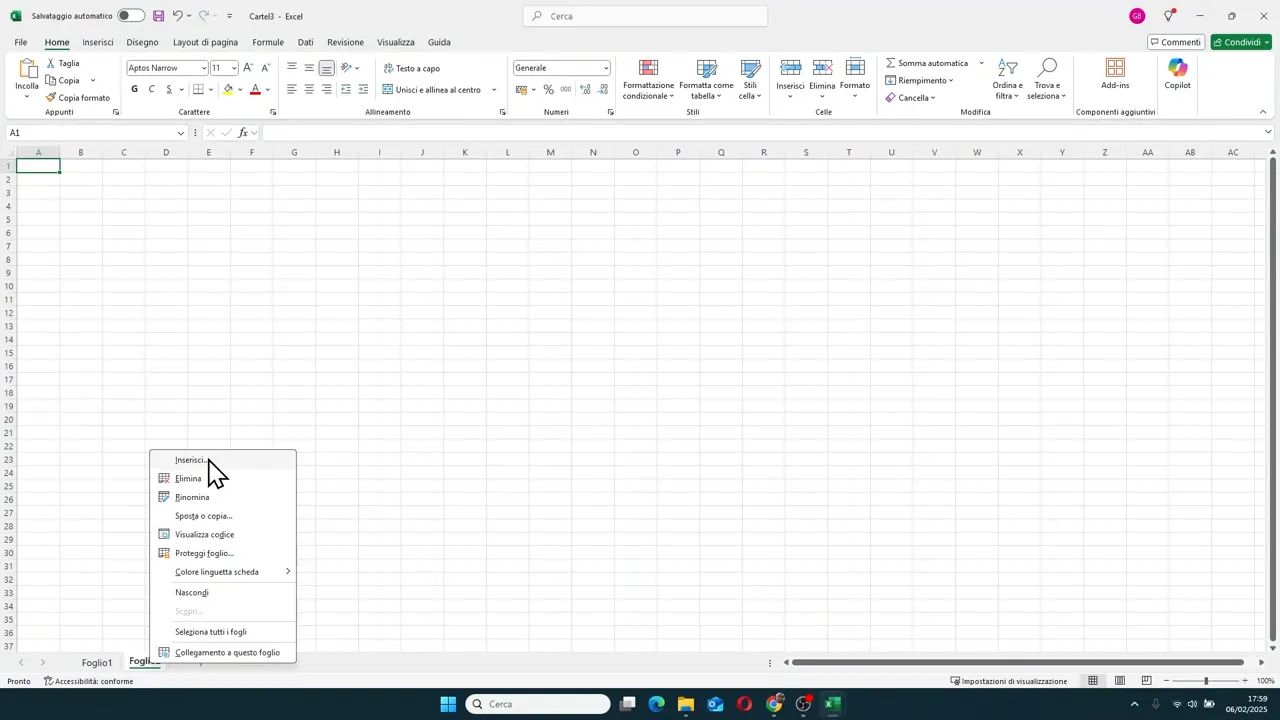
Another method consists of right-clicking on the sheet name and choosing Insert. A window opens from which you can add a new worksheet.
In this case, the new sheet is inserted before the sheet you clicked on.
From the Home menu
You can also go through the top menu:
- go to Home
- look for the Cells group
- click on Insert
- choose Insert Sheet
It is a slightly less direct way, but useful to know as it gets you used to seeing where commands related to sheets are grouped.
🗑️ How to delete a sheet
When a sheet is no longer needed, you can remove it in different ways.
From the Home menu
In the Cells group of the Home menu, you can open the Delete command and choose Delete Sheet.
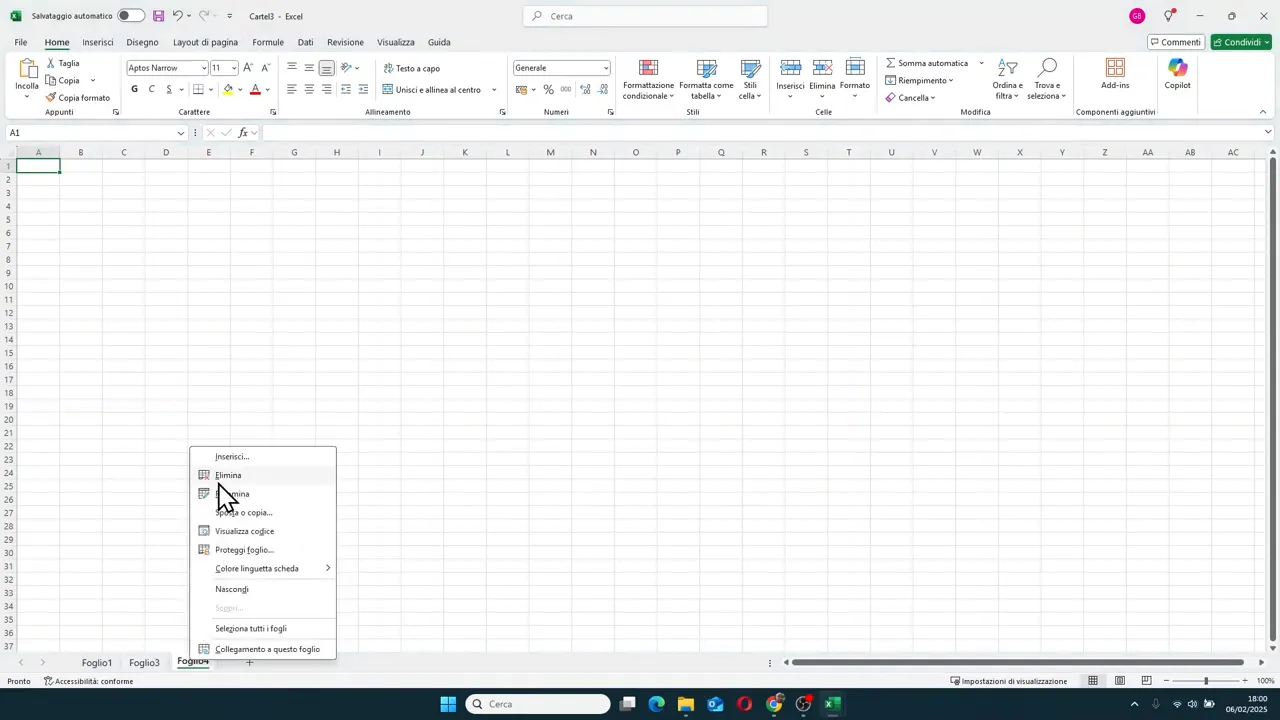
By right-clicking on the tab
The simplest method is almost always this:
- right-click on the sheet name
- choose the Delete command
When Excel asks for confirmation
Here is an important distinction.
If the sheet is empty and you have never really worked on it, Excel can delete it without asking for anything. If, on the other hand, there are data, text, formulas, or other information inside that sheet, a confirmation message appears warning you that the content will be permanently removed.
In essence, Excel is telling you: warning, if you proceed you will lose everything in that sheet.
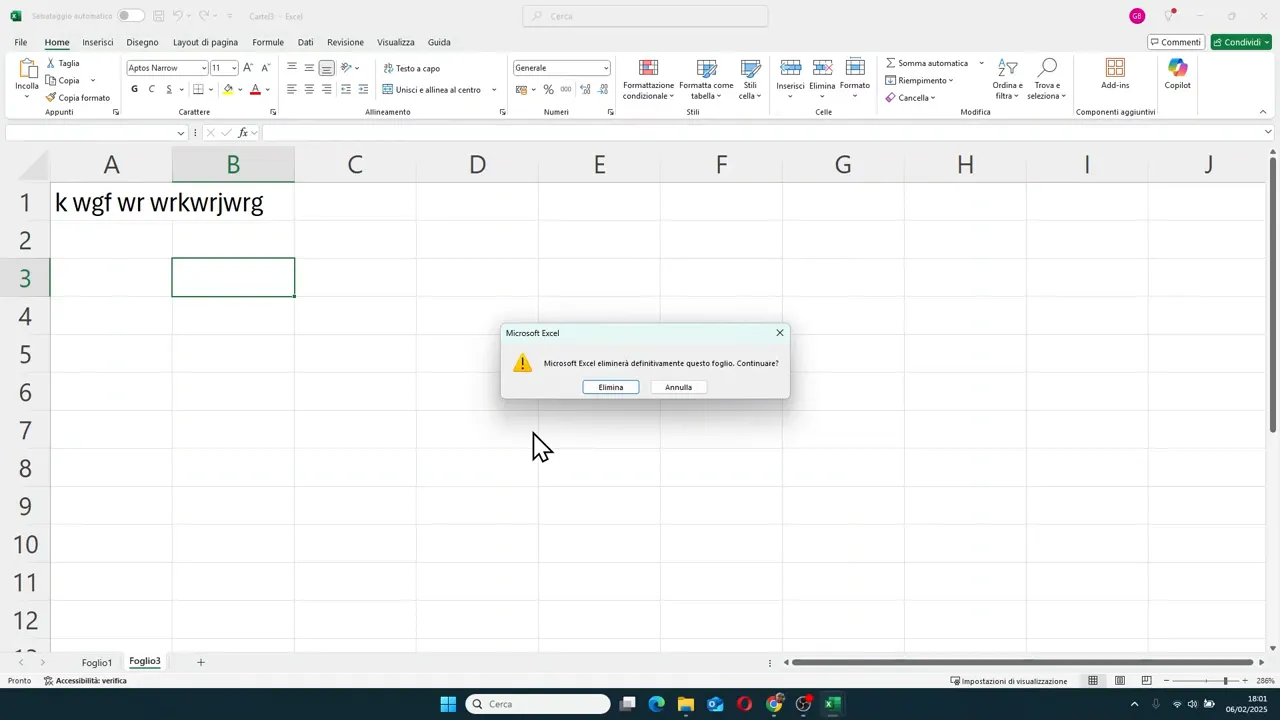
This confirmation is especially useful when you are cleaning up complex files with many sheets and risk deleting the wrong one.
✏️ How to rename sheets
Leaving default names like Sheet1, Sheet2, Sheet3 is one of the worst habits when a file begins to grow. In the beginning it seems harmless, then you find yourself with ten sheets and have to open them one by one to understand what they contain.
The most sensible thing to do is to give each sheet a clear name that describes its content.
Double-click on the sheet name
Double-click on the sheet tab, the name becomes editable, write the new text and press Enter to confirm.
Right-click and Rename
Alternatively:
- right-click on the tab
- choose Rename
- type the new name
- press Enter
From the Format menu
There is also a third path in the Home menu, going through Format and then Rename Sheet.
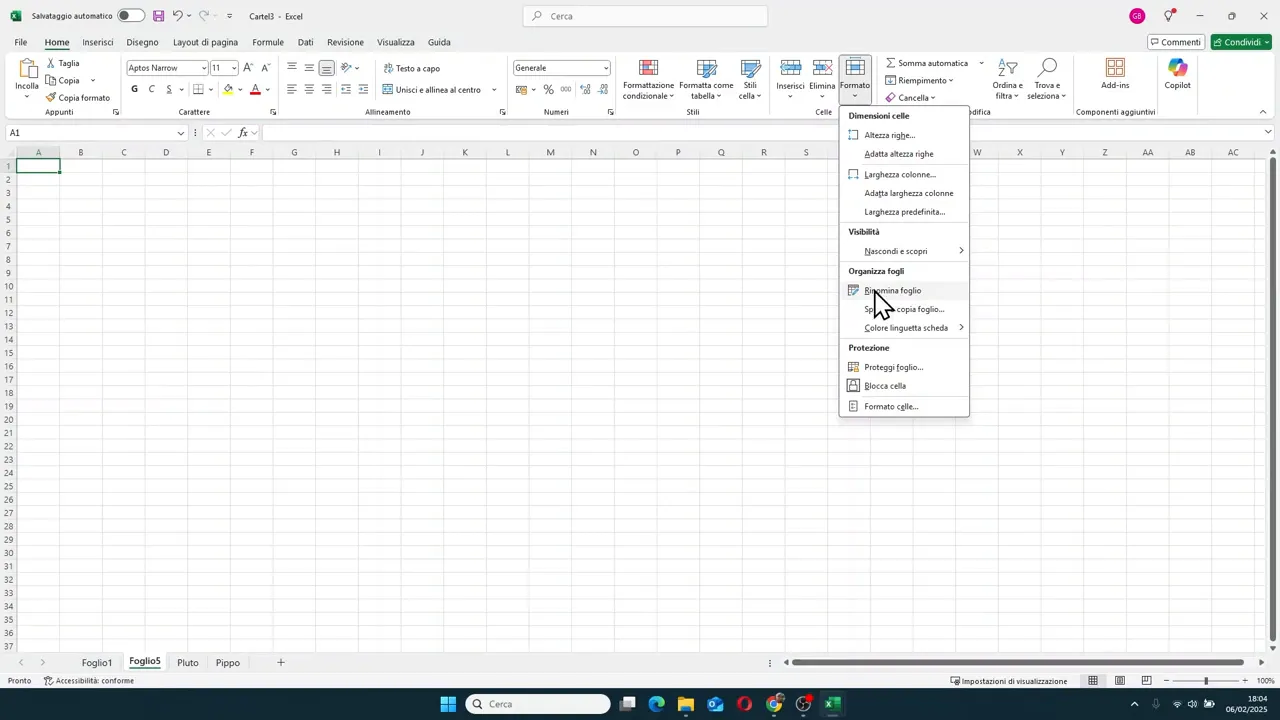
If you realize you made a mistake while typing, you don't have to confirm. Just press Esc to cancel the modification.
A useful criterion for names
It is best to use names that immediately make clear what is inside the sheet. For example:
- January Sales
- Budget 2025
- Active Customers
- Summary
The more the file grows, the more this small precaution saves you time.
↔️ How to move sheets and change their order
Sheets do not have to stay in the order you created them. You can reorganize them at any time.
To move a sheet, go to its tab, hold down the left mouse button, and drag it right or left. When the indicator for the new position appears, release the mouse.
The sheet will be inserted exactly at the point where you dragged it.
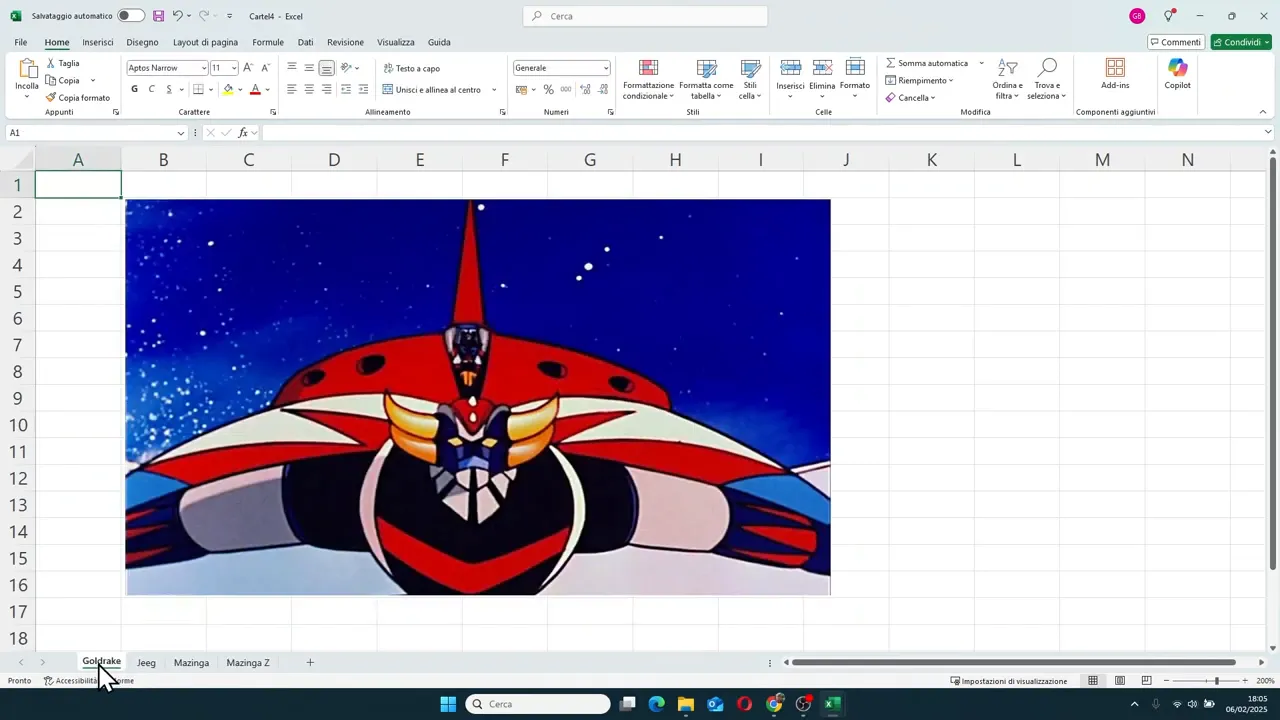
This function is very convenient when you want to put the most important sheets at the top, group similar ones, or keep the summary at the beginning and the detailed data later.
⌨️ How to quickly switch between sheets
The classic method is to click on the tab of the sheet you want to open.
But there is also a very useful keyboard shortcut:
- Ctrl + Page Down to go to the sheets on the right
- Ctrl + Page Up to go to the sheets on the left
If you often work with many sheets, this shortcut greatly elevates switching between tabs.
🎨 How to color sheet tabs
Each sheet can also have a color on its tab. It doesn't change the content or the functioning of the file, but from a visual point of view it helps a lot.
To assign a color:
- right-click on the sheet tab
- choose Tab Color
- select the color you prefer
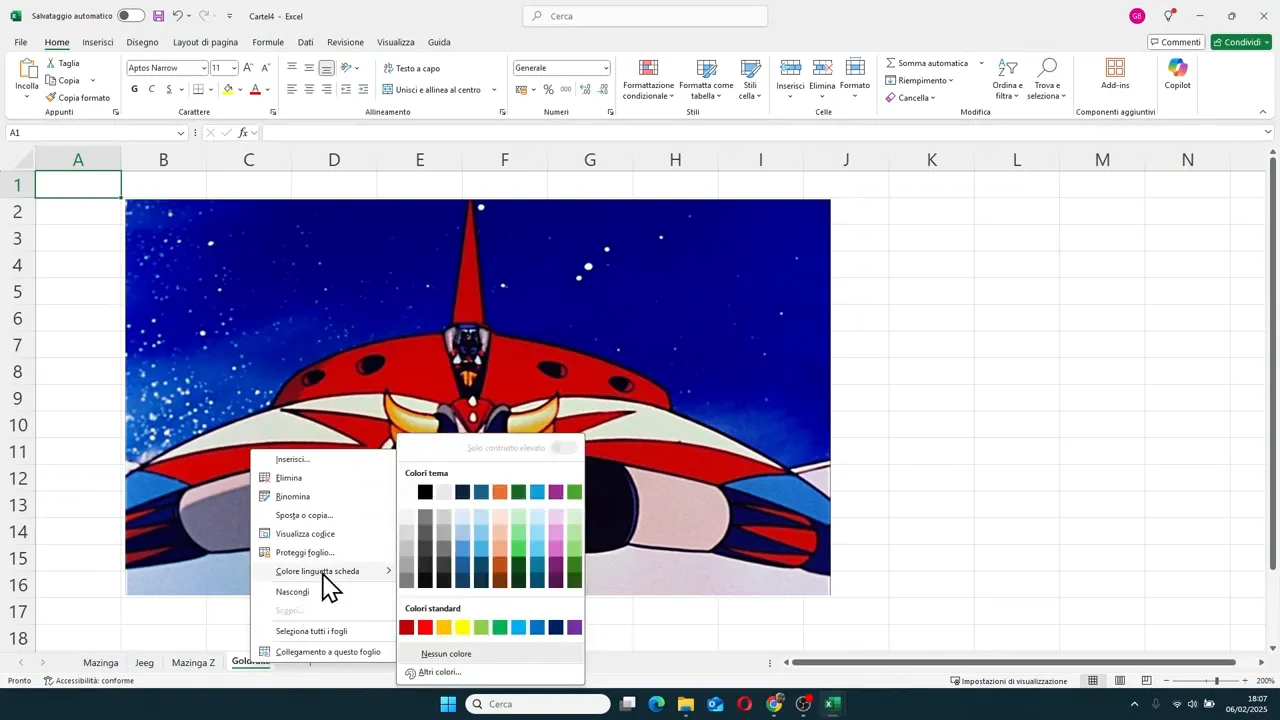
You can use colors to distinguish different categories. For example:
- green for operational sheets
- blue for summaries
- red for checks or sensitive data
- yellow for temporary sheets
It is not a mandatory function, but on detailed files it becomes a concrete help to orient yourself better.
📄 How to duplicate an existing sheet
If you have a sheet already set up with a structure, images, formulas, charts, or formatting and you want to create an identical one, you do not have to recreate everything from scratch.
You can create a complete copy.
Duplicate by dragging with Ctrl pressed
This is the most practical method:
- hold down Ctrl
- click on the sheet tab
- drag it right or left
- release the mouse in the desired position
Excel will create a new sheet identical to the original, with all the content copied.
If there were formulas, tables, charts, or images inside the sheet, they will be duplicated along with the rest.
With the Move or Copy command
You can do the same thing with a more guided method:
- right-click on the sheet to duplicate
- choose Move or Copy
- indicate the destination position
- enable the Create a copy option
- confirm with OK
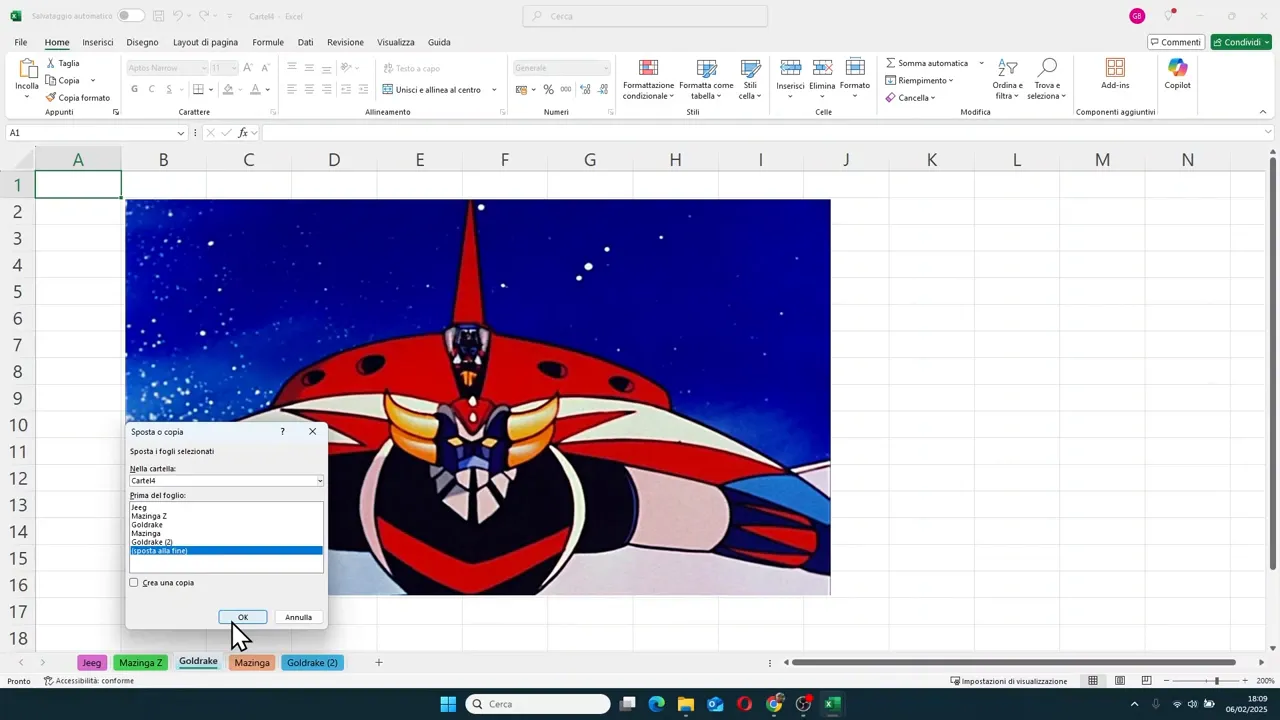
If you do not select the copy option in the same window, Excel does not duplicate the sheet but only moves it.
So the command is the same, but the result changes based on the checkbox you select.
🧩 How to select multiple sheets at the same time
You are not forced to work on just one sheet at a time. You can select more than one together.
To do so:
- click on the first sheet
- hold down Ctrl
- click on the other sheets you want to add to the selection
In this way, you can create a multiple selection of non-adjacent sheets.
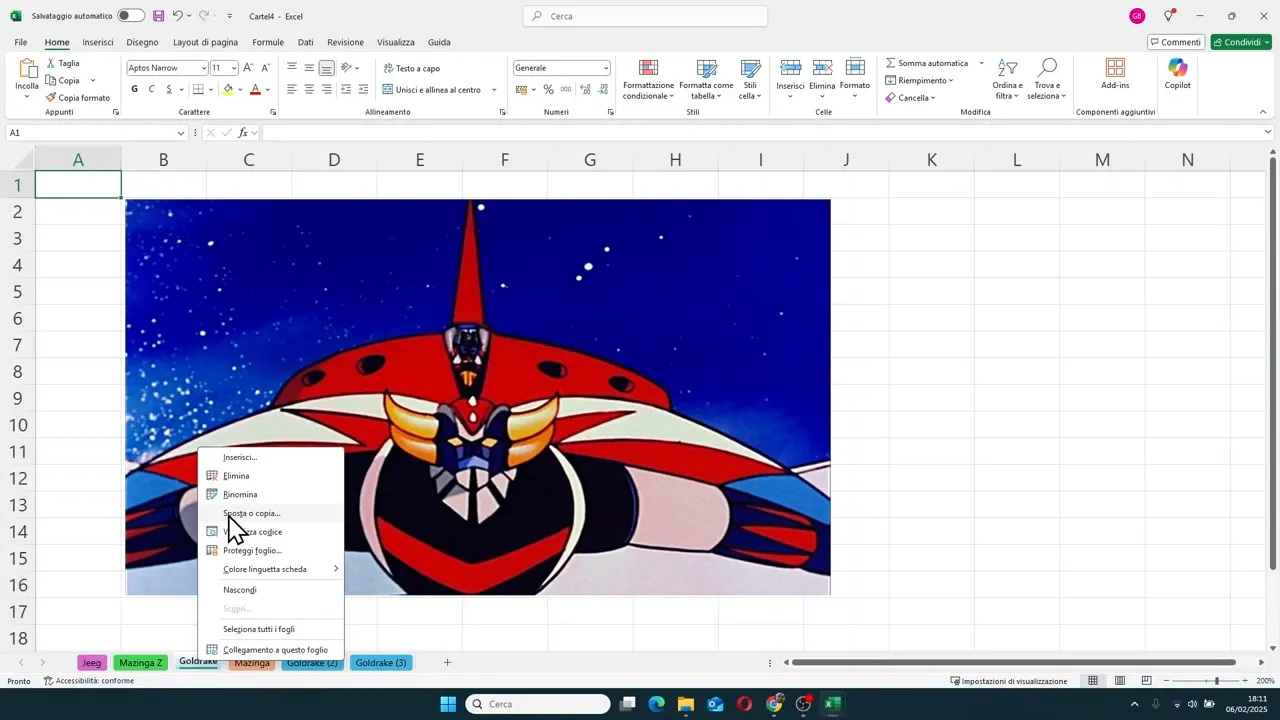
Then, when you click normally on any sheet without holding down Ctrl, the multiple selection is cancelled.
What selecting multiple sheets is used for
A practical use shown here is deleting multiple sheets at once. Once selected, you can right-click and choose Delete to remove them as a group instead of deleting them one by one.
It is a simple function, but very useful when you are cleaning up workbooks full of temporary sheets or tests.
🧠 The most important criterion: organizing sheets logically
The technical part is easy. The real leap in quality comes when you start using sheets with criteria.
The most useful good habits are:
- giving sheets clear names
- placing them in a sensible order
- using colors to distinguish them visually
- duplicating a sheet when you want to keep an already prepared structure
- deleting useless sheets so as not to clutter the file
If you open a workbook with ten or more sheets, these choices make the difference between an organized file and a chaotic one.
The point is simple: the name of the sheet should already tell you what you will find inside it. If you have to open one every time to understand it, it means the organization is not yet effective.
❓ FAQ
What is the fastest way to create a new sheet in Excel?
The fastest method is to click on the button with the plus symbol next to the sheet tabs at the bottom of the window.
Does Excel always ask for confirmation when I delete a sheet?
No. If the sheet is empty, it can delete it without warnings. If, however, it contains data or info, it shows a confirmation message before permanent deletion.
How do you change the name of a sheet?
Just double-click on the sheet tab and write the new name, or right-click and choose Rename.
How do I duplicate a sheet while keeping formulas and contents?
You can hold down Ctrl and drag the sheet tab, or use the Move or Copy command and check the Create a copy box. In both cases, you get a complete duplicate of the sheet.
Can I delete multiple sheets at once?
Yes. Select multiple sheets by holding down Ctrl while clicking on their tabs, then right-click and choose Delete.
What is the sheet tab color used for?
It is mainly used for visual organization. It helps you quickly recognize groups of sheets or different sections within the same workbook.