Hi everyone! I'm Gianluca from La Formula Magica Excel, and today I want to share an advanced trick that will save you a lot of time formatting your Excel sheets: multiple cell border formatting using the CTRL key. If you've ever had to apply thin and thick borders in a complex, professional way, this article is for you. You will learn how to select and format multiple cells simultaneously, achieving neat, professional results in a few seconds, cutting in half the time compared to the traditional method.
Table of contents
- 🔍 What is multiple border formatting in Excel?
- ⚙️ How does multiple border selection with CTRL work?
- 🚀 Step by step: applying thin and thick borders efficiently
- 📋 A second practical example of multiple selection
- 💡 Practical tips for advanced border formatting
- ❓ FAQ: Frequently asked questions about multiple border formatting in Excel
- 🎯 Conclusion: the secret to professional borders and saving time
🔍 What is multiple border formatting in Excel?
When working with tables in Excel, we often need to set different borders: thin borders to separate internal cells and thick borders to highlight important sections or outline specific areas. However, by default, Excel only allows you to apply one type of border at a time, so to achieve a complex effect, you have to go over the same table multiple times, selecting and applying different borders.
This process, in addition to being long, can become tedious and error-prone. Precisely for this reason, using multiple selection with the CTRL key becomes essential: it allows you to select multiple groups of cells at the same time and apply different formatting quickly and accurately.
⚙️ How does multiple border selection with CTRL work?
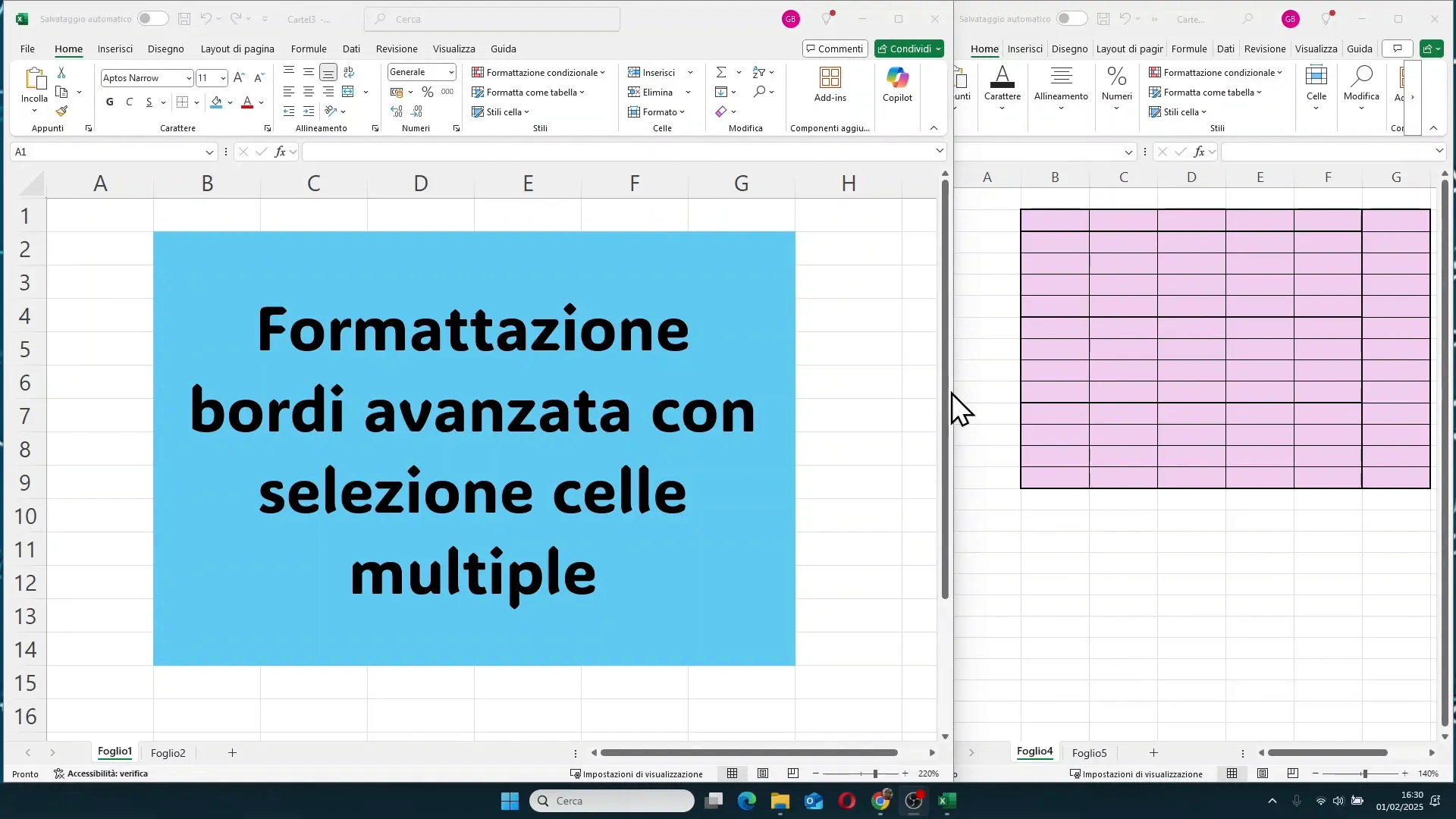
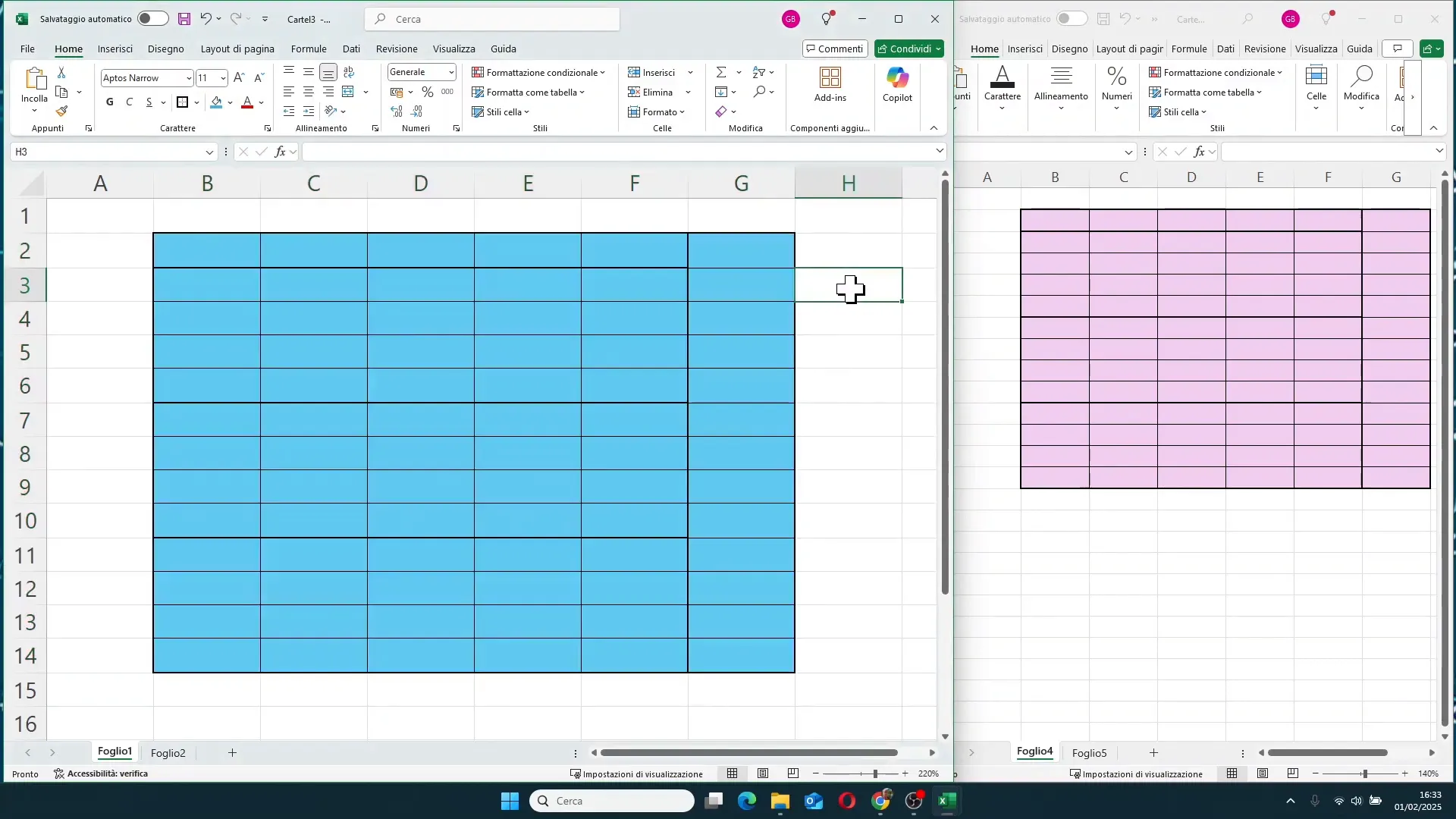
To understand this better, let's look at a practical example. Imagine you have a table with various areas to outline: at the top, five cells with a thick border; below, groups of four rows with thick borders around them; and on the right, a column with thin internal borders and a thick external border.
The traditional method involves:
- Selecting the entire table and applying thin borders to all cells.
- Selecting the table again to apply the thick outer border.
- Selecting the column on the right to apply the thick border.
- Selecting the first five cells at the top and applying the thick border.
- Selecting the groups of four rows and applying the thick border.
As you can imagine, even if done quickly, it still requires many selection and formatting steps.
With multiple selection, on the other hand, you simply hold down the CTRL key and select all the cell groups that should have the thick border. Once selected, you apply thick borders to all these areas at the same time, while the rest of the table retains thin borders.
🚀 Step by step: applying thin and thick borders efficiently
Let's look in detail at how to proceed to apply thin and thick borders using multiple selection:
- Reset the table with no borders: select the entire table and choose 'No Border' to start fresh.
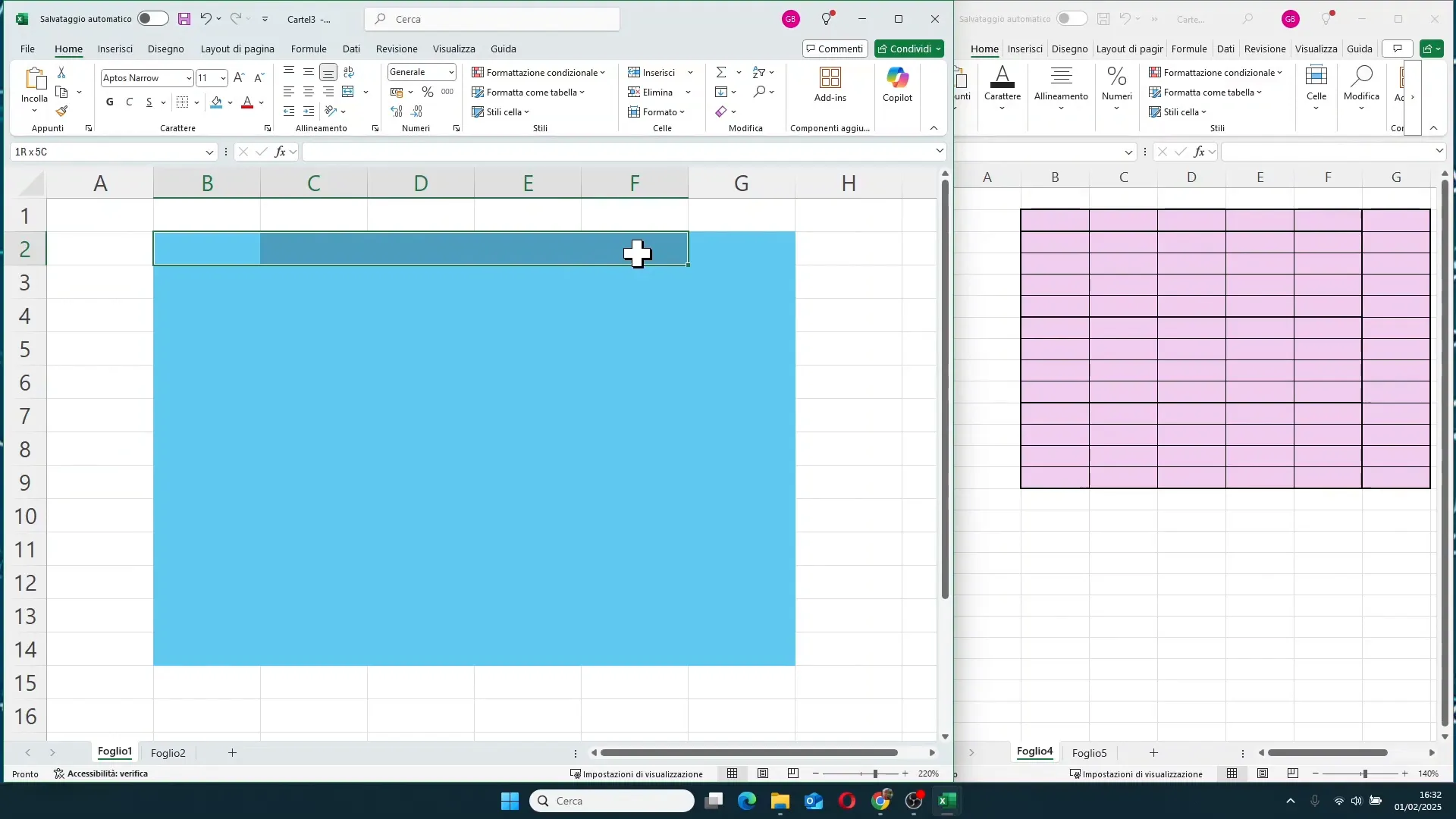
- Select the cell groups for thick borders: select the first group normally (e.g., the top five cells), then hold down CTRL and select the other groups (e.g., blocks of four rows by five columns, the right column, etc.).
- Apply thin borders: select the entire table and apply thin borders to outline all cells.
- Apply thick borders: with multiple selection still active on the chosen groups, apply thick outer borders. This way, thick borders will only be visible on the selected areas.
This method drastically reduces steps and gives you much more precise control over border formatting, making your Excel sheets look more professional and neat.
📋 A second practical example of multiple selection
To show you how the technique adapts to more complex tables as well, let's consider another example. Suppose we have a table with:
- A header at the top with six columns and a thick border.
- Multiple cell groups of variable sizes to outline with thick borders.
- A side column to outline with both thick and thin borders.
In this case, the procedure is similar:
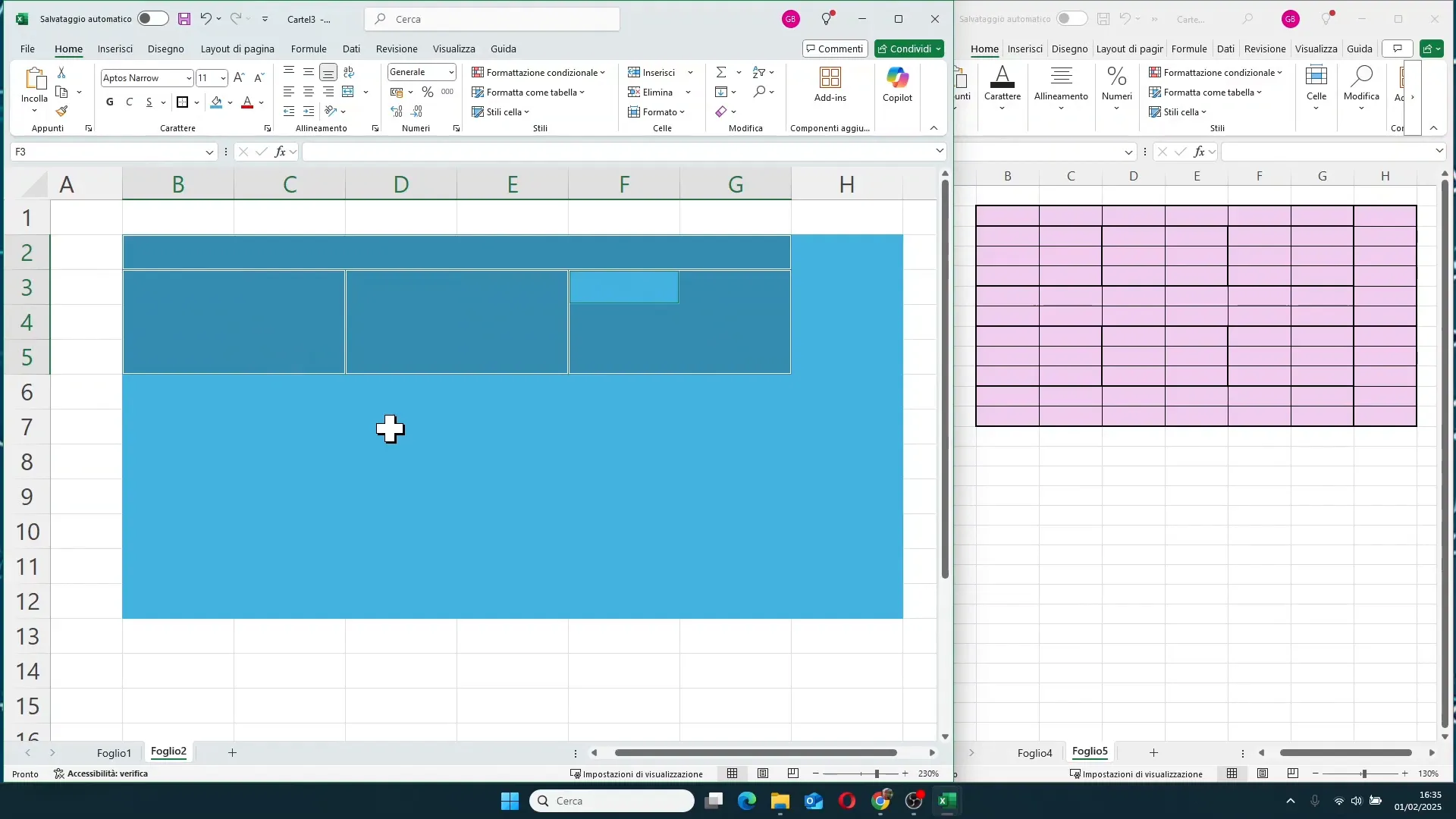
- Select the first row of the header.
- Holding down CTRL, select the various scattered cell groups in the table (for example, groups of two columns by three rows or groups of two rows by six columns).
- Continue selecting the side areas or other sections to border.
- Apply thin borders to the entire table.
- Apply thick borders only to the groups selected with CTRL.
This technique allows you to have complex and well-defined borders in just a few steps, without having to select each area individually and without risking forgetting any borders.
💡 Practical tips for advanced border formatting
- Always use the CTRL key to select multiple areas: it is the key to saving time and increasing accuracy.
- Start with a table with no borders: this prevents overlapping formatting and confusion.
- Apply thin borders first: they outline all cells.
- Then apply thick borders only to selected areas: this highlights important sections.
- Save your formatting templates: if you use these types of borders often, you can create Excel templates to speed up the work even further.
❓ FAQ: Frequently asked questions about multiple border formatting in Excel
How do I select multiple groups of non-contiguous cells?
Hold down the CTRL key while clicking and dragging to select the various cell areas you want to format. This allows you to select multiple non-adjacent blocks of cells at the same time.
Can I apply different border types in a single step?
Not exactly. You can apply one border type per selection. However, by using multiple selection with CTRL, you can select all the areas that should have the same border type and apply it in a single step for each type.
How do I remove all borders from a table?
Select the entire table and choose the 'No Border' option. This will restore it to the starting layout with no borders applied.
Is it possible to save border settings for reuse?
Excel does not allow you to directly save border settings as a style, but you can create templates or use macros to automate the application of complex borders.
Does multiple formatting work with other formats besides borders?
Yes, the CTRL key can be used to select multiple areas and apply formatting like background colors, fonts, alignments, but for borders, it is particularly useful to define well-demarcated areas.
🎯 Conclusion: the secret to professional borders and saving time
Multiple cell border formatting using the CTRL key is an advanced but easy-to-learn technique that can revolutionize the way you work with Excel. Not only will it save you valuable time, but it will also help you create professional and neat-looking spreadsheets.
Remember to always start with a table with no borders, carefully select the cell groups to border using CTRL, and apply thin borders first, followed by thick borders. With a little practice, this technique will become one of your favorites for advanced formatting.
If you want to go deeper and further customize your Excel skills, I offer customized courses tailored for you or your business. Together we analyze your goals and build a training path that allows you to achieve concrete and lasting results.
For more information, visit the website www.gianlu.it, send an email to info@gianlu.it, or call the number +39 339 221 9765 for a customized consultation.
Thanks for reading, and happy Excel designing!