Have you ever stared at your keyboard wondering what all those strange keys and mysterious symbols mean? Have you ever wondered how to make the most of those keys that seem to only complicate writing? I'm Gianluca from La Formula Magica di Excel, and today I will guide you on a journey to discover the special keys on the keyboard, those true allies that, if used correctly, can turn you into a real computer productivity ninja.
In this detailed guide, I will explain the purpose of modifier keys like Shift, Ctrl, Alt, function keys from F1 to F12, navigation keys like Home, End, Page Up, Page Down, and many others. You will learn how to use them to speed up your work, improve your Excel management, and much more. Ready to discover all the secrets? Let's get started!
Table of contents
- 🔑 Modifier keys: the key to shortcuts
- 🖥️ Special and navigation keys: move with agility
- 🔢 Numeric keypad and Num Lock: precision and speed
- 🎛️ Function keys: customize your experience
- 📸 The Print Screen key: capture the screen in one click
- 📝 Summary of special keys and how to best use them
- 🎯 Conclusion: become a true keyboard ninja
- ❓ FAQ: Frequently asked questions about keyboard special keys
🔑 Modifier keys: the key to shortcuts
Modifier keys are those that, when pressed in combination with other keys, allow you to execute quick and powerful commands. Let's see the main ones together:
- Shift: Used to write individual capital letters and to access the upper symbols on the number keys. It is essential for writing correctly and for many shortcuts.
- Ctrl: The most used key for keyboard shortcuts. For example, Ctrl + C to copy, Ctrl + V to paste, and many other combinations that speed up your work.
- Alt: Used in combination with other keys to perform specific operations or call up particular menus in programs.
- AltGr: Allows you to type the third symbol present on many keys, such as the at sign (@), the hash sign (#), and square brackets. By holding down AltGr and pressing the corresponding key, you will insert the desired symbol.
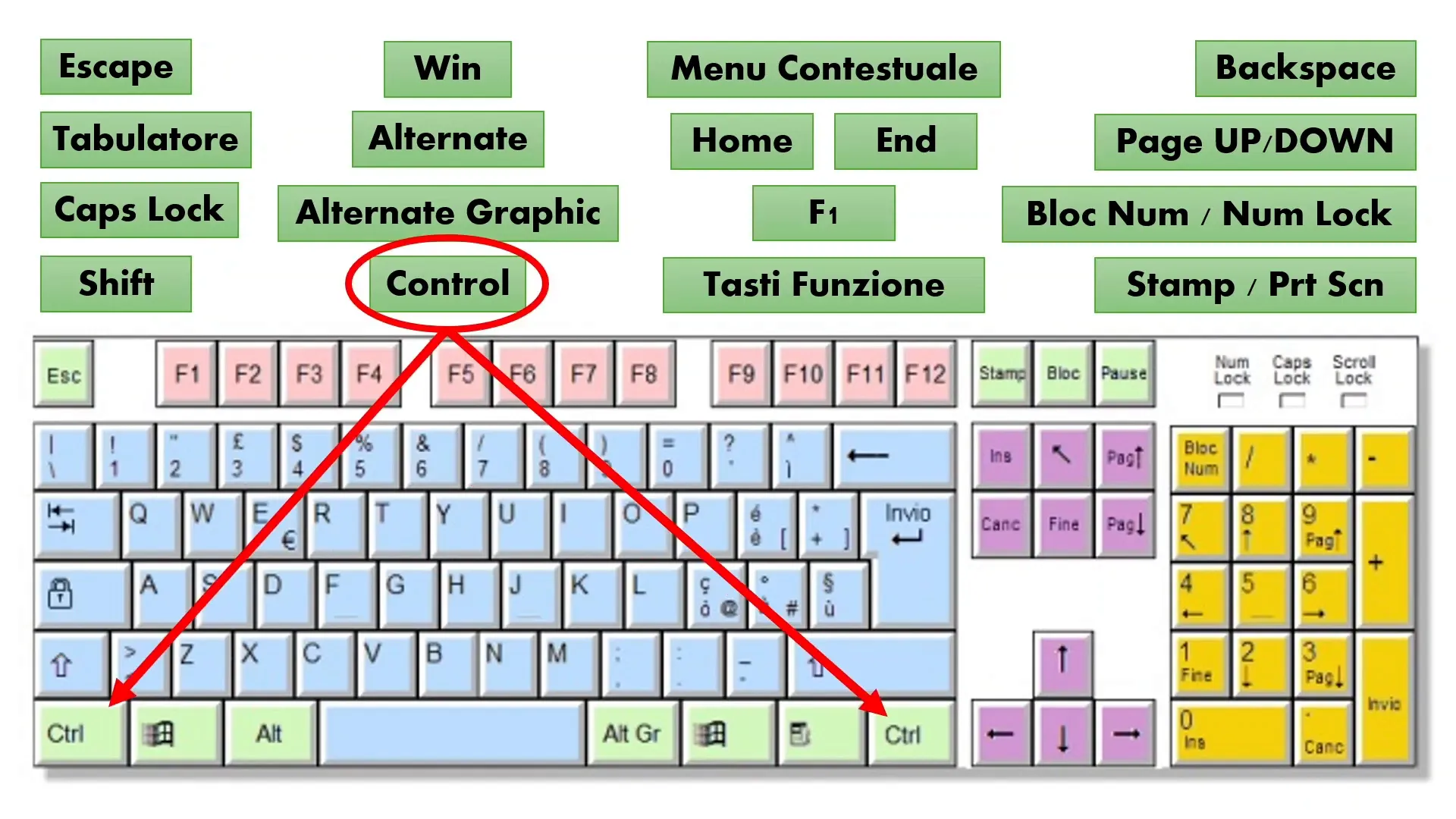
These keys are essential for becoming faster and more productive. For example, if you use Excel, many of the most useful functions are activated with combinations of these keys. Learning to use them is like having a magic wand for your computer!
🖥️ Special and navigation keys: move with agility
In addition to modifier keys, the keyboard is equipped with special keys that facilitate navigation and window or text management. Here is an overview:
- ESC (Escape): Used to cancel operations or close windows. It is the 'escape route' key when something does not go as planned.
- Tab (Tabulator): Used to move between fields or interactive elements, and to create indentations in the text.
- Caps Lock: Locks letters in uppercase. When active, a LED on the keyboard lights up to warn you.
- Backspace: Deletes the character to the left of the cursor in the text, useful for correcting errors quickly.
- Delete (Canc): Deletes the character to the right of the cursor, thus completing deletion management.
- Home and End: Move the cursor to the beginning or end of a line of text, respectively.
- Page Up and Page Down: Used to scroll up or down an entire screen, very useful for navigating long documents or web pages.
- Arrow keys: Allow you to move the cursor one character or line at a time, or to move between cells in Excel.
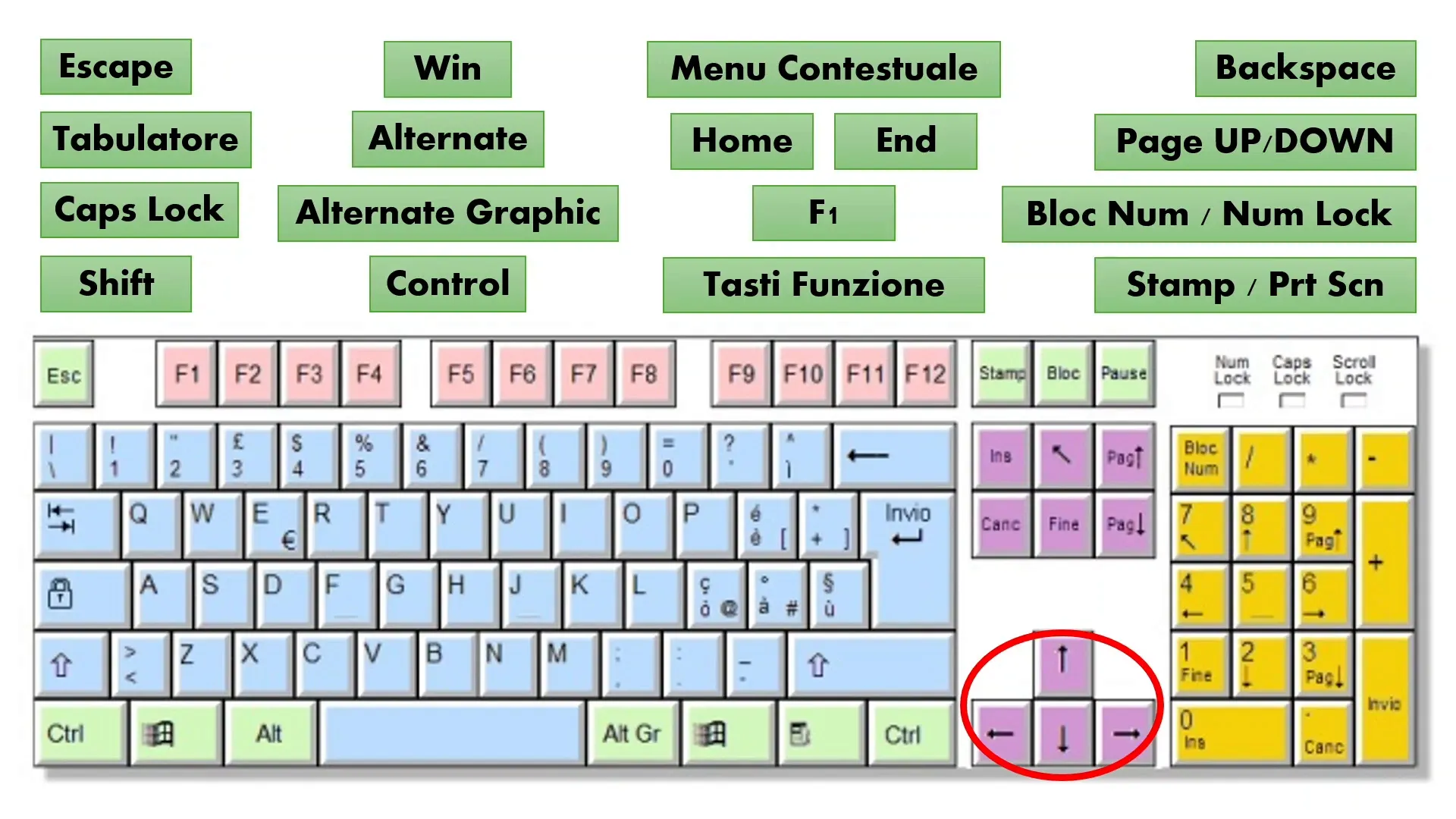
These keys are often overlooked, but once you learn to use them skillfully, working on the computer becomes much smoother and more enjoyable.
🔢 Numeric keypad and Num Lock: precision and speed
The numeric keypad, located on the right side of the keyboard, is a true ally for anyone who works with numbers, such as in Excel or for quick calculations.
- It allows you to type numbers quickly and comfortably.
- It also includes keys for the four basic arithmetic operations (+, -, *, /).
- The operation of the keypad is regulated by the Num Lock key. When active, the keys work as numbers. When deactivated, some keys can take on alternative functions such as directional arrows or Home and End keys.
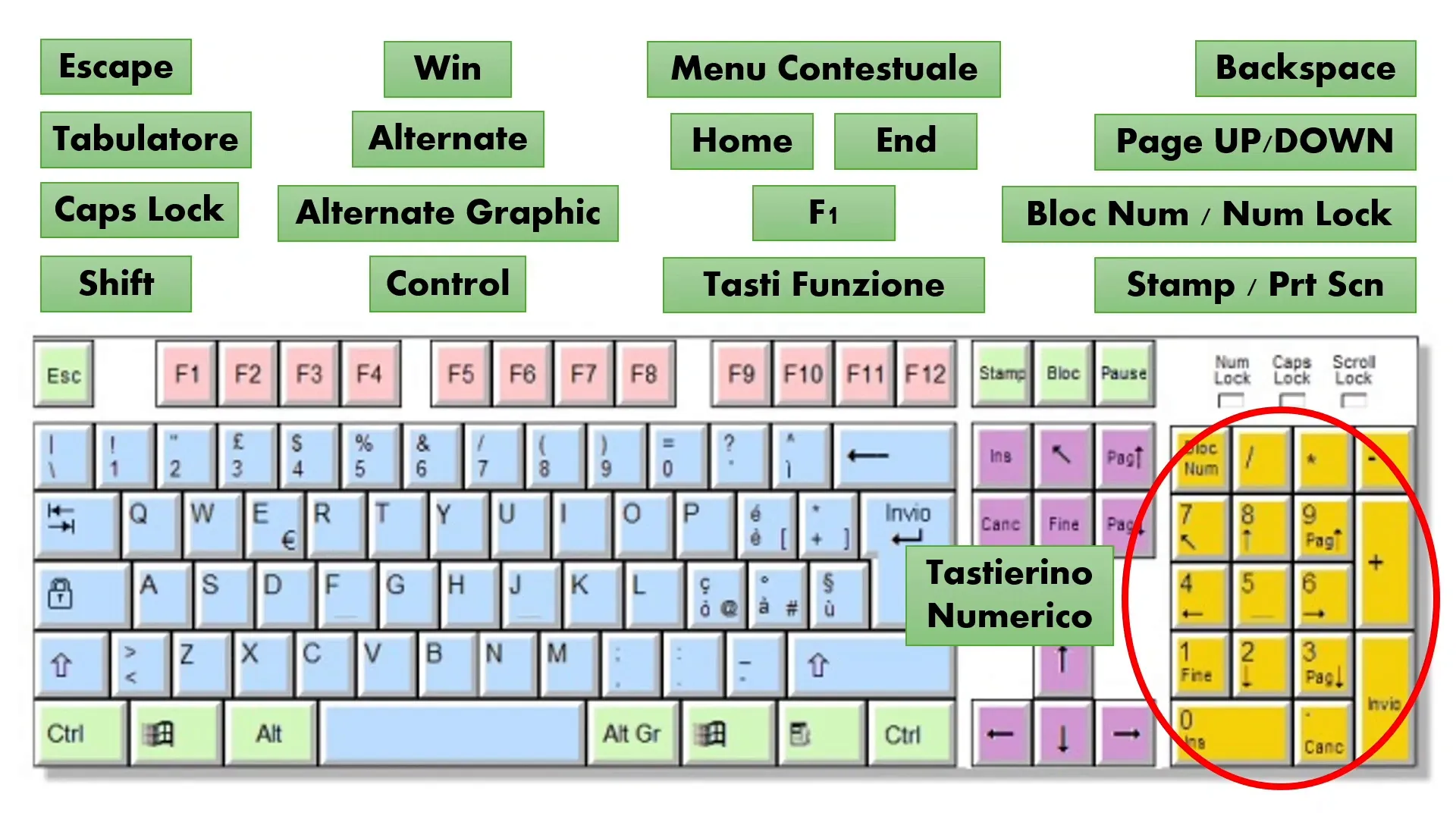
If you use Excel or work frequently with numbers, it is important to know the numeric keypad and the Num Lock key well to avoid errors and optimize typing.
🎛️ Function keys: customize your experience
Function keys, from F1 to F12, are often underestimated but can become powerful tools, especially if you know their specific use in various programs.
- F1: The most well-known key, opens the online help of the program you are using, a valuable aid to resolve doubts or problems.
- The other function keys (F2, F3,... F12) can have different functions depending on the software in use and can often be customized to perform quick commands.
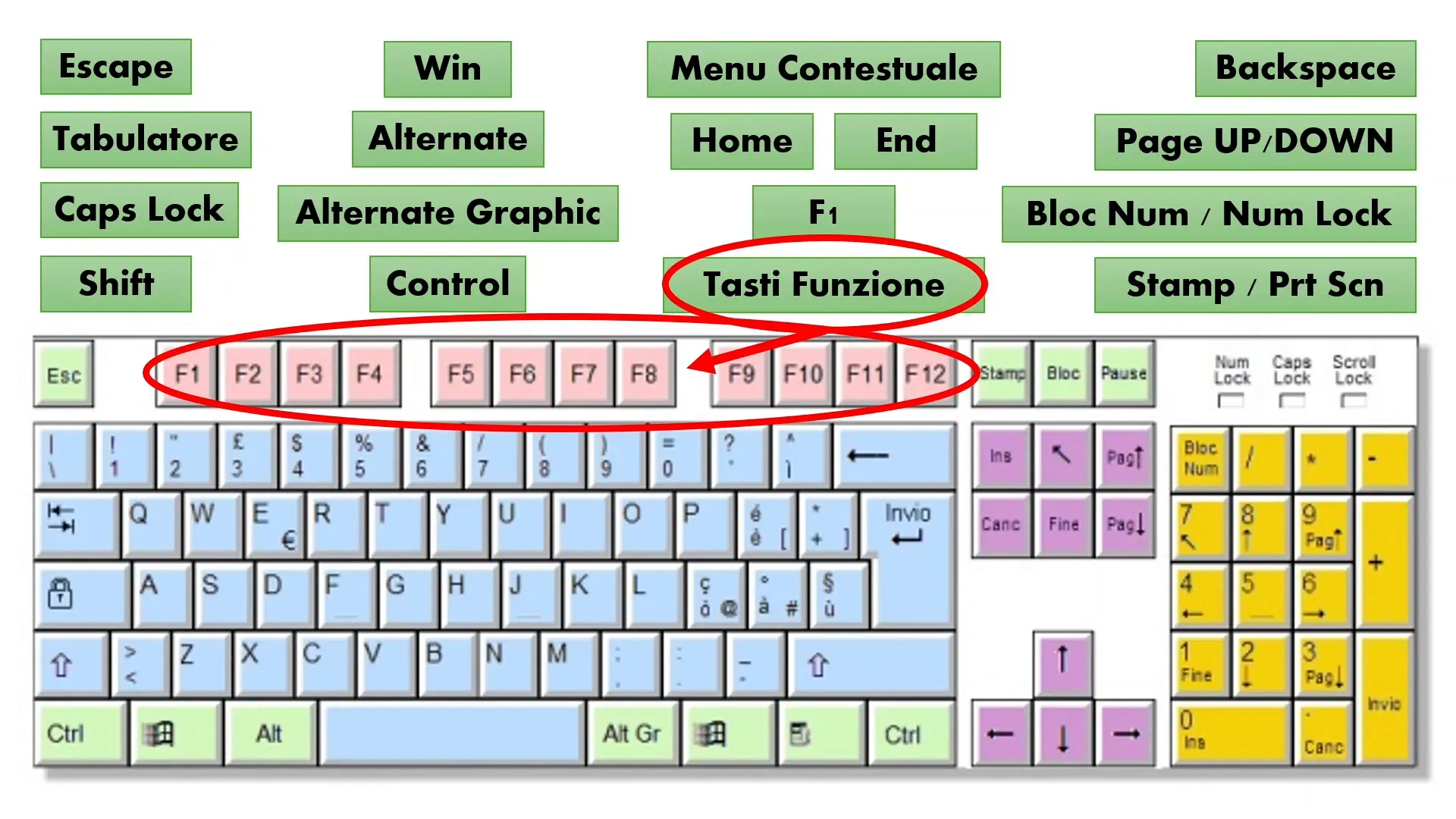
Learning to know and use function keys allows you to save precious time and work more effectively, especially in applications like Excel, where many operations can be sped up.
📸 The Print Screen key: capture the screen in one click
Another very useful key is Print Screen (or Stamp), which allows you to take a screenshot, meaning a photograph of your computer screen.
This function is particularly useful when you want to save or share what you see on the screen, for example to create documents, tutorials, or simply to store information.
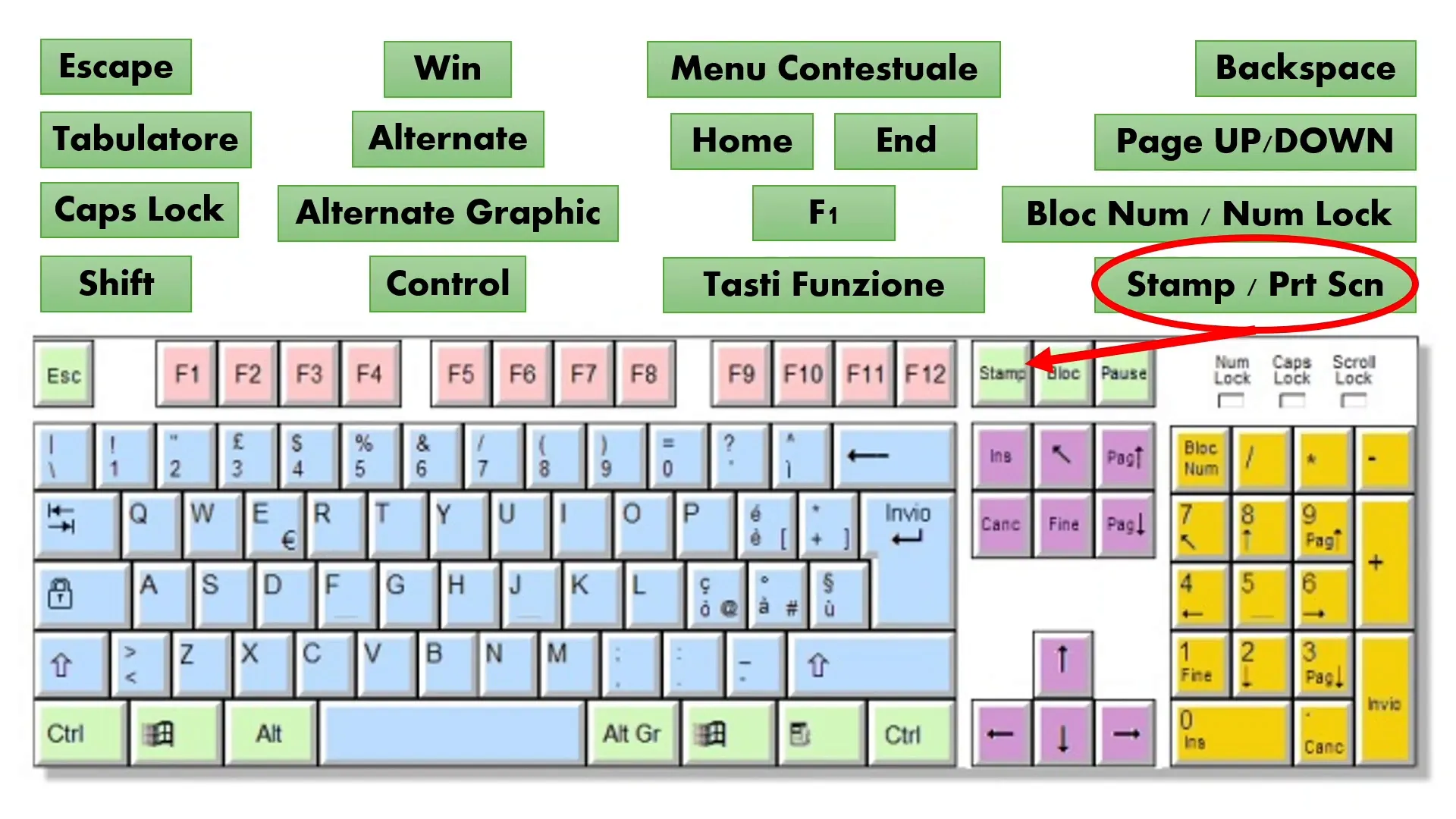
After pressing Print Screen, you can paste the image into an image editor or a document using Ctrl + V. A simple and immediate way to capture and share visual content.
📝 Summary of special keys and how to best use them
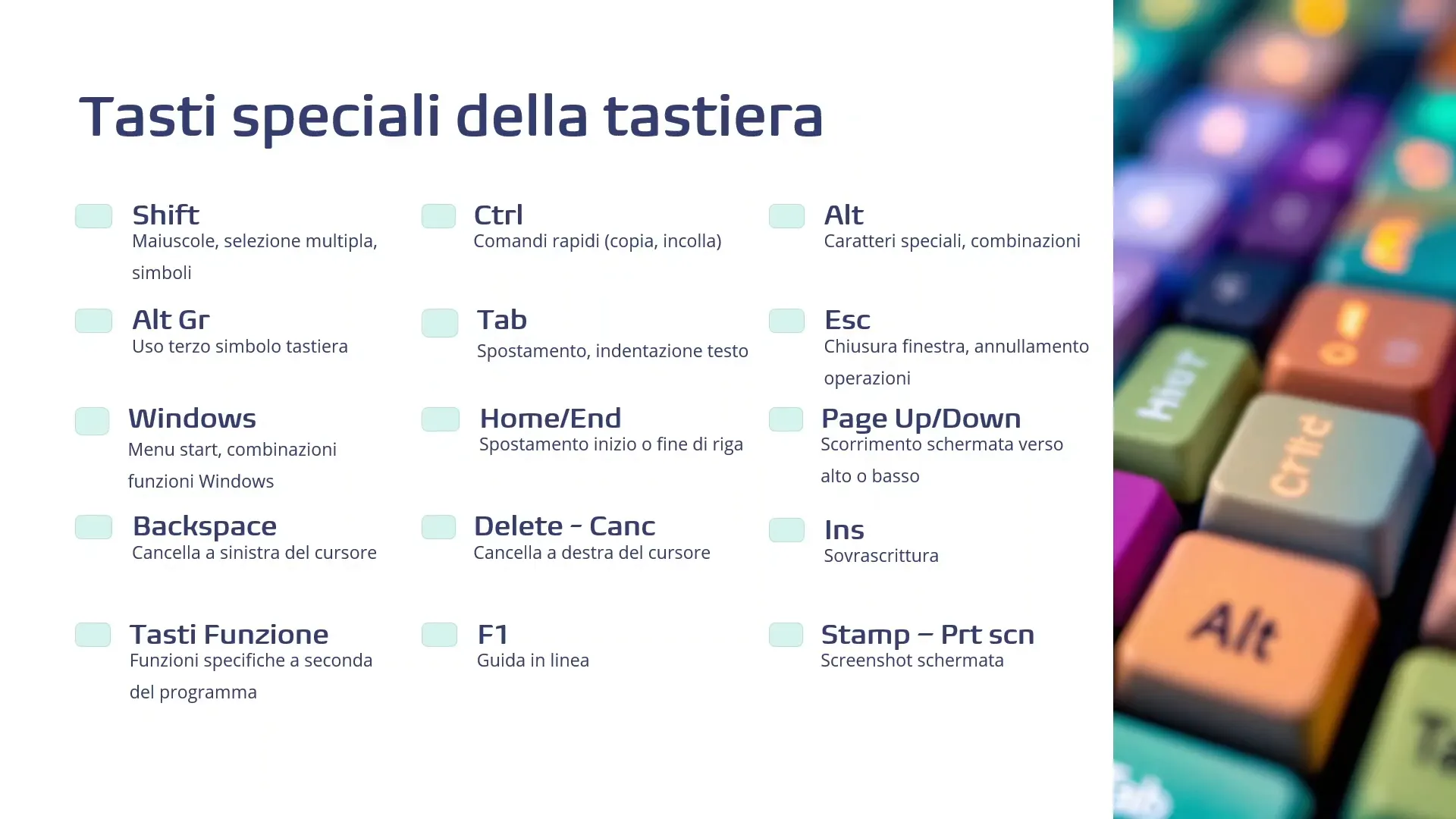
We have seen the most important keys together and how they can help you become faster, more precise, and more productive in your computer work, particularly with Excel. Here is a quick summary:
- ESC: Cancels operations and closes windows.
- Tab: Moves the cursor between fields or creates indentations.
- Caps Lock: Locks letters in uppercase.
- Shift, Ctrl, Alt, AltGr: Fundamental modifier keys for shortcuts and special symbols.
- Backspace and Delete: Delete text to the left and right of the cursor.
- Home, End: Move the cursor to the beginning or end of the line.
- Page Up, Page Down: Scroll the screen up and down.
- Arrow keys: Precise cursor movements or selection in Excel.
- Numeric keypad: Quick typing of numbers and mathematical operations.
- Function keys F1-F12: Quick and customizable commands depending on the program.
- Print Screen: Captures screenshots of the screen.
🎯 Conclusion: become a true keyboard ninja
A thorough understanding of the keyboard and its special keys is an essential skill for anyone who wants to improve their computer productivity. It is not just about typing, but knowing how to use the right tools to work more efficiently and professionally.
If you want to go deeper and customize your learning, I offer tailored courses for Excel and other applications, designed to help you achieve your goals with concrete and practical training paths.
Visit my website www.gianlu.it, write to me at info@gianlu.it, or call me at +39 339 221 9765 for a customized consultation. Start your professional growth path today and transform your digital experience!
❓ FAQ: Frequently asked questions about keyboard special keys
What is the difference between Backspace and Delete?
Backspace deletes the character to the left of the cursor, while Delete (Delete) deletes the character to the right of the cursor. Both are useful for correcting errors in the text.
How do you use the AltGr key?
AltGr is used to type the third symbol present on some keys of the keyboard, such as @, #, and square brackets. Just hold it down while pressing the corresponding key for the desired symbol.
What does the Windows key do?
The Windows key opens the Windows Start menu. It can also be used in combination with other keys to activate system shortcuts.
How can I use function keys in Excel?
Function keys from F1 to F12 have specific functions in Excel, such as opening help (F1), editing cells (F2), and more. They can also be customized to run macros or quick commands.
Why does the numeric keypad not type numbers?
If the numeric keypad does not type numbers, it is likely that the Num Lock key is disabled. Enable it to use the keypad as a numeric keypad.