Hello everyone, I'm Gianluca and today I will guide you step by step on how to open and close Microsoft Excel, one of the most powerful and widely used tools for data management and spreadsheet creation. If you are new to Excel or simply want to learn how to navigate the program with confidence, this guide is perfect for you.
In a few simple steps, you will discover how to launch Excel from the Windows Start menu, what to expect from the main screen, how to create a new spreadsheet from scratch, and finally, how to close the program correctly to avoid losing important data.
Table of contents
🖥️ How to open Excel from the Windows Start menu
The first step to start working with Excel is, of course, to open the program on your computer. The most common and intuitive way to do this is to use the Windows Start button, recognized by the icon with four small squares.
Here is how to do it:
- Click the Windows Start button at the bottom left of your screen.
- A window will open with the list of programs installed on the computer.
- You can scroll through the list of programs or, to speed up the search, use the **search** function next to the Start button.
- Type “Excel” in the search box and, as soon as the program icon appears, click it to launch it.
Alternatively, you can also click on *All programs* or *All* (depending on your Windows version) to view the complete list and scroll down to the letter “E”, where you will find Microsoft Excel.
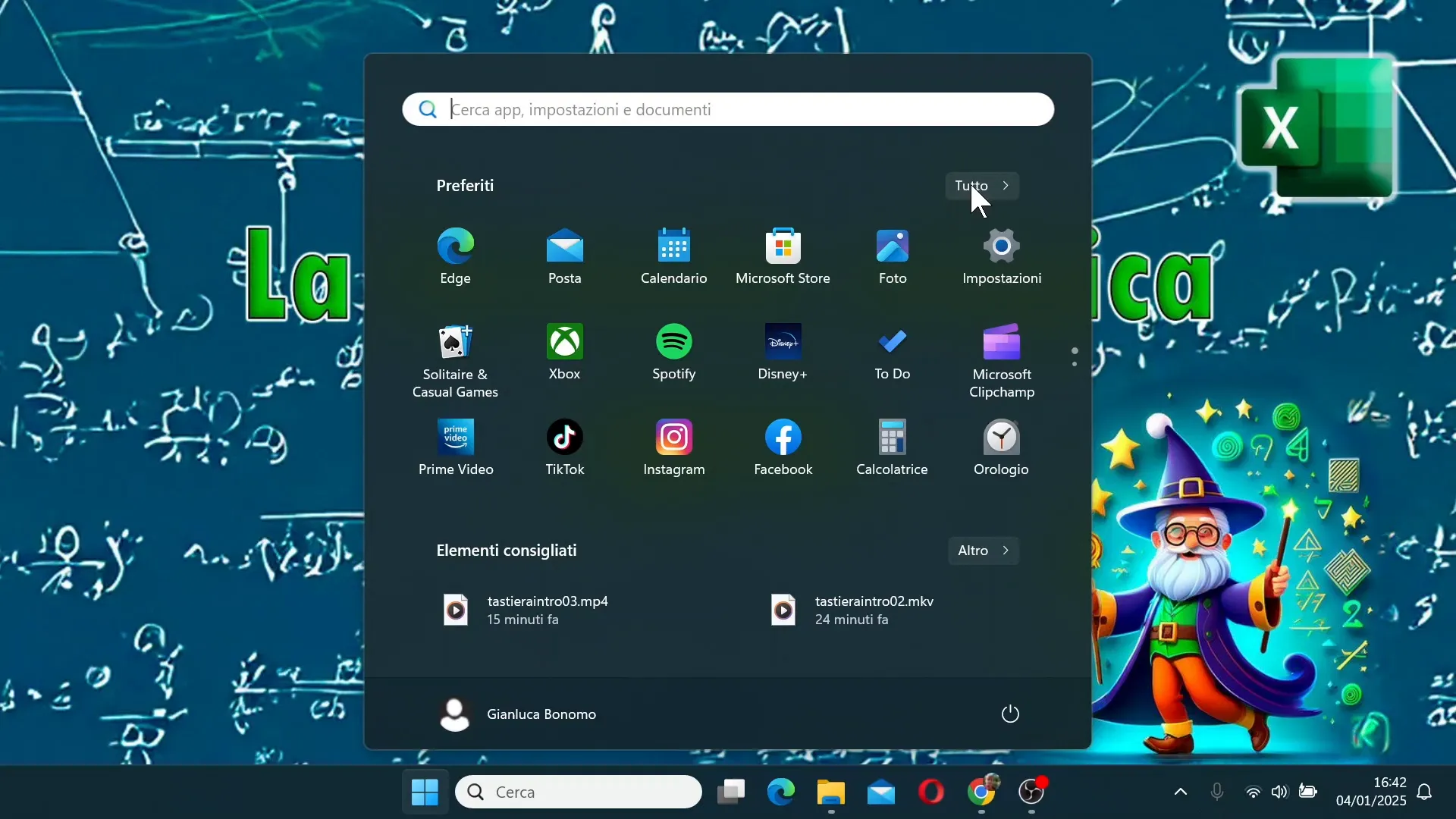
These methods are simple and fast, allowing you to start Excel even if you haven't added it to your favorites or the taskbar.
🖼️ What we find on the main screen of Excel
Once you open Excel, you will be in front of the main screen, which is your starting point for any activity. Let's see together what it contains:
- Menu on the left: Here you will find the items *Home*, *New*, *Open*, *Account*, and *Options*. These sections allow you to manage files, your Microsoft account, and the program settings.
- Central area: This is the area dedicated to creating and selecting new files. You can choose between a *blank workbook* to start from scratch, or various preset templates that Excel provides to make your work easier.
- Templates and guided tours: On the screen, you will also find options like the introductory guide to formulas, creating your first pivot table, and other useful tutorials to learn how to use the program.
- Recent files: Under the *Home* section, you can see the list of files you have opened recently, so you can quickly reopen them without having to search for them in folders.
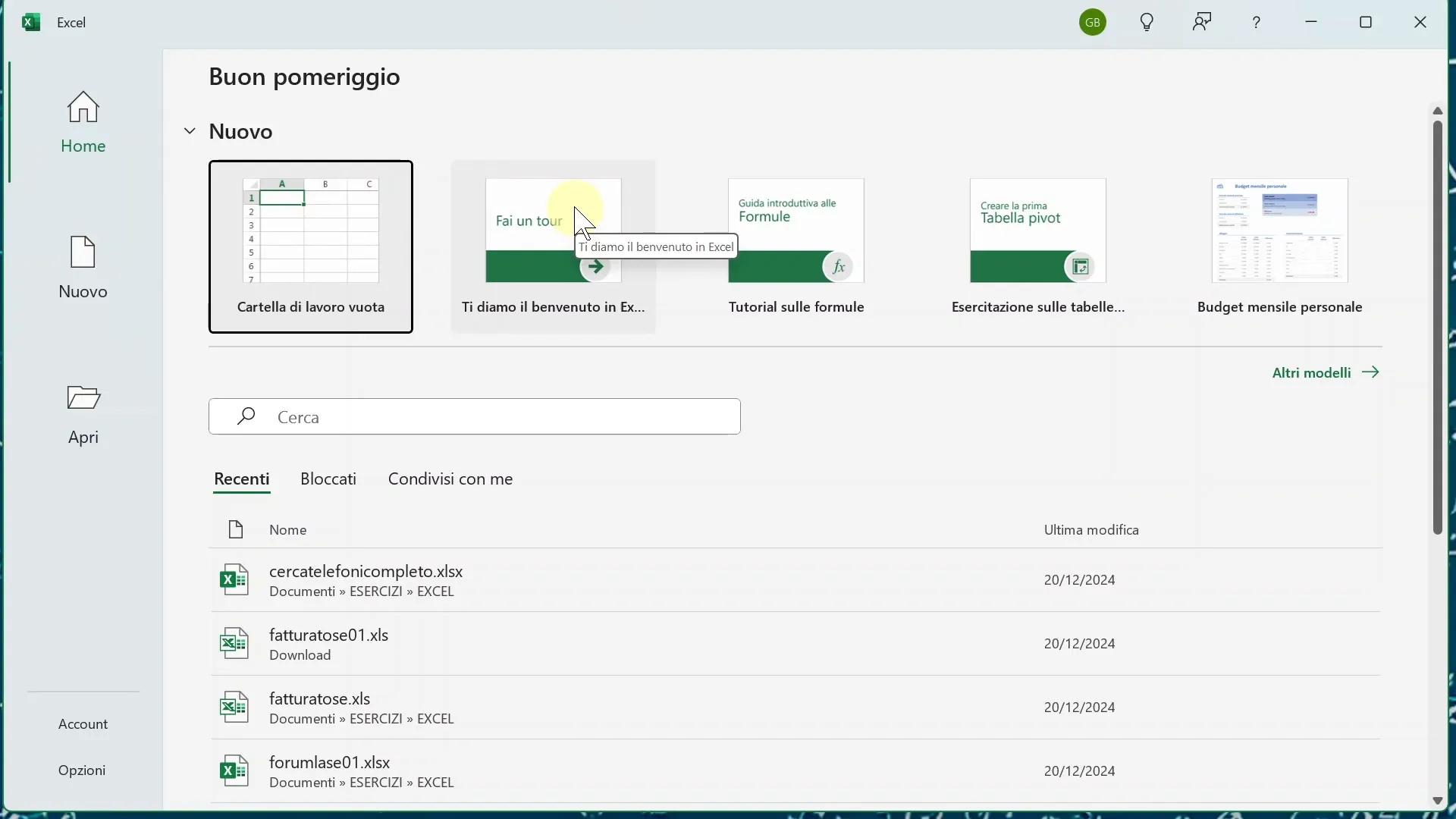
This screen is very intuitive and guides you in choosing what to do: create a new sheet, open an existing file, or explore Excel's features through the built-in tutorials.
📄 How to create a new spreadsheet
If you want to start working from scratch, the right choice is to create a blank workbook. This Excel file will be completely clean and ready to be customized with your data, formulas, tables, and charts.
To create a new spreadsheet, follow these steps:
- From the main screen, click on Blank workbook.
- Excel will open a new file ready to be used.
- You can immediately start entering data into the cells, creating formulas, or formatting the sheet to your liking.
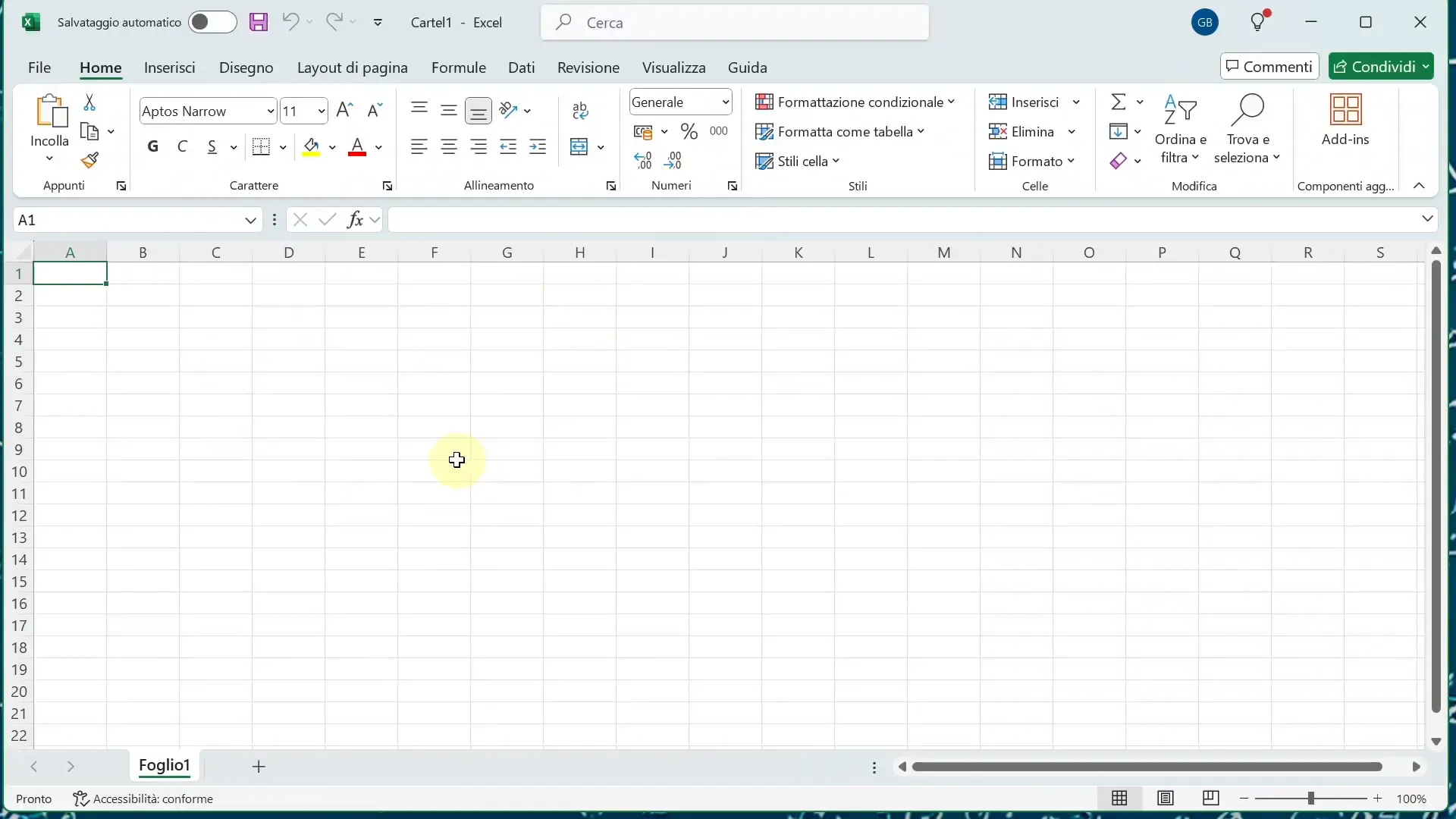
This is the base from which to start for any project or analysis you want to do with Excel. The flexibility of this program allows you to build simple or complex spreadsheets, depending on your needs.
❌ How to close Excel correctly
Closing Excel the right way is important to avoid losing data and to keep your computer running efficiently. There are several ways to close the program:
- Clicking the “X” in the top right corner: This is the most common and visible method. Just click the red cross to close the file and the application.
- Using the Alt + F4 keyboard shortcut: This combination closes the active window quickly and conveniently, without having to use the mouse.
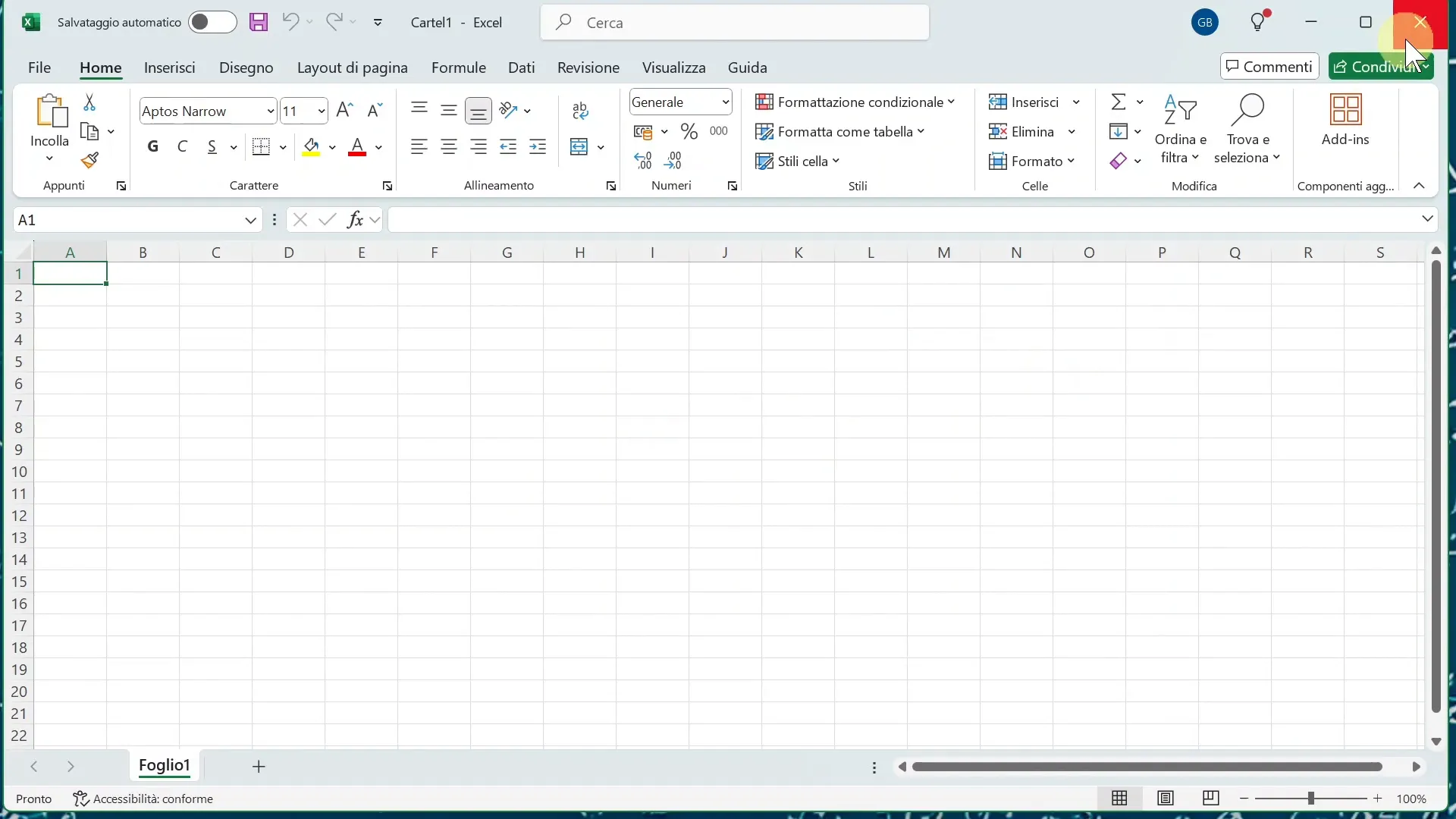
If you have made changes to an unsaved file, Excel will ask if you want to save the changes before exiting. Otherwise, the program will close immediately.
These methods are simple but essential for working efficiently and without risk of data loss.
💡 Tips for getting started with Excel
For those approaching Excel for the first time, here are some useful suggestions to start in the best way:
- Explore the main screen: take a moment to familiarize yourself with the available options, templates, and introductory tutorials.
- Start from a blank workbook: this way you will learn to build the sheet according to your needs, without depending on preset templates.
- Save your work frequently: to avoid losing important data, especially when you start entering information or formulas.
- Use keyboard shortcuts: like Alt + F4 to quickly close the program, saving you time and making work smoother.
❓ FAQ – Frequently asked questions on how to open and close Excel
How can I open Excel if I can't find it in the Start menu?
You can use the search bar next to the Start button by typing “Excel”. If the program is installed, it will appear in the results, and you just need to click on it to start it.
Is it possible to open an existing Excel file from the main screen?
Yes, in the Open section you can search for a file on your computer by clicking Browse and navigating through the folders to open any saved Excel file.
How can I avoid losing data when I close Excel?
Excel will automatically ask you to save changes if you have modified an unsaved file. Always remember to save your work frequently for safety.
Can I open multiple Excel files at the same time?
Yes, you can open multiple workbooks in separate windows and easily switch between them.
What is the fastest way to close Excel?
The keyboard shortcut Alt + F4 quickly closes the active Excel window, and is very convenient if you prefer not to use the mouse.