One of the most common challenges in teaching is this: you explain, give examples, answer questions, build arguments step by step... and after a few days, some of that work risks getting lost. Not because it was poorly done, but because a lesson lives in the moment it happens.
With NotebookLM, this changes significantly. When used well, it can become an intelligent memory of the course, capable of preserving what has been explained and making it searchable in a simple, fast, and consistent way with the syllabus.
The strong point is not just archiving materials. The real leap is being able to ask questions of the lessons themselves.
Table of Contents
- 📚 How to organize a class notebook
- 💬 Chat as a searchable lesson archive
- 🧠 Contextual answers and coherent explanations
- ⏱️ You can also ask for organizational details
- 🔎 What happens when a question goes beyond the sources
- 🗂️ Create automatic tables and summaries
- 🧾 How many sources you uploaded and how they are read
- 🛠️ Automatic reports, presentations, and overviews
- 🤝 The most powerful feature for teaching: sharing
- ✅ Why this approach really works
- ❓FAQ
📚 How to organize a class notebook
The most useful setup is to create a notebook dedicated to a specific class or subject. Inside, you upload the course sources, which can be audio recordings, video lessons, informational materials, and even links to relevant external tutorials, such as YouTube videos already published on related topics.
In the example shown, each lesson was uploaded with its date. This choice is very practical because it allows you to query the notebook by day. In addition to the date, it is also useful to add some details about the topics covered, so the material remains even more organized.
When a source is uploaded, NotebookLM automatically generates a short summary of the content. This helps you get your bearings right away, especially as the number of lessons starts to grow.
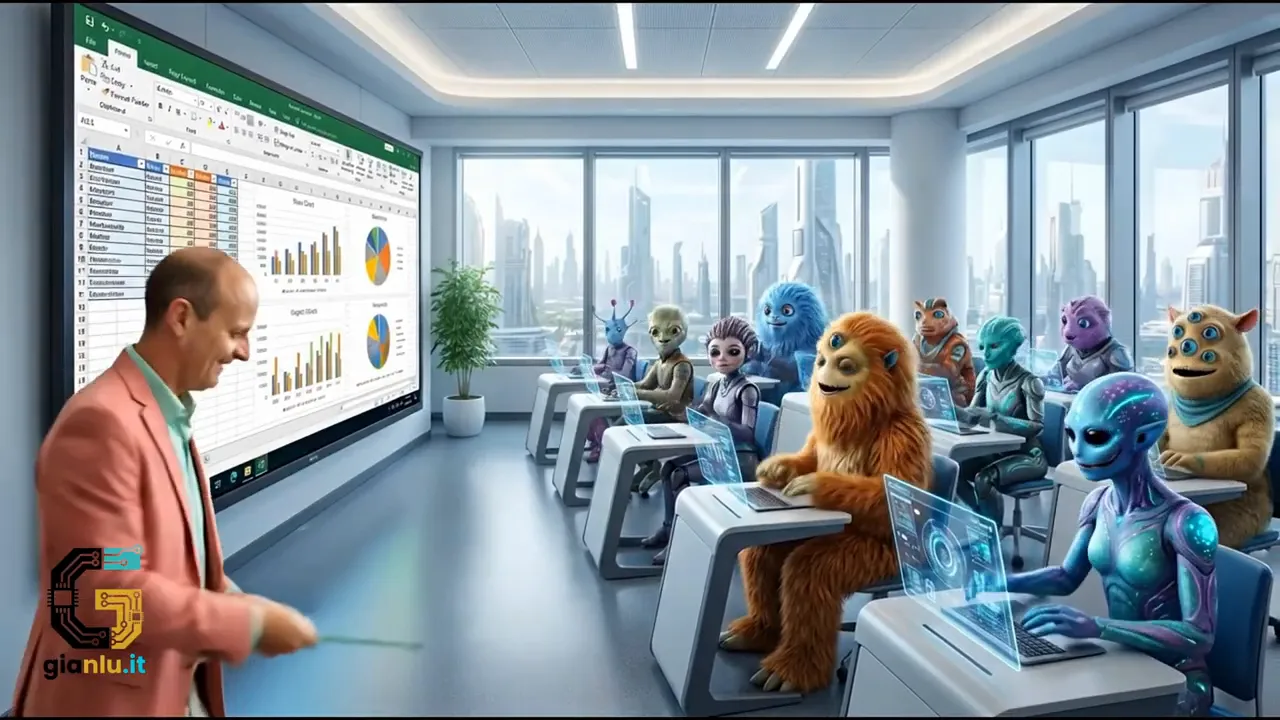
A very useful aspect is that if you upload a recording, the system also produces a text transcript. In practice, the base on which the AI operates becomes text. If you want, you could also directly upload a PDF transcript, but starting from audio and video makes the workflow much more convenient for teachers.
💬 Chat as a searchable lesson archive
The central part of the notebook is what really makes the difference: the chat. Here you can ask questions about everything explained during the course, and NotebookLM will search for the answer within the uploaded sources.
This means the notebook is not just a container, but a sort of teaching assistant built on your lessons.
The questions can be very concrete, for example:
- which topics were covered on a certain date
- on which days Excel was discussed
- what a certain command or tool explained in class means
- which keyboard shortcut is needed for a specific operation
If you ask about the topics covered on November 11, the system goes to the lesson with that date and returns the main topic of the day with a brief summary. If you ask on which days Excel was covered, it responds by grouping the information by date and summarizing what was done each time.
This is also incredibly convenient for the teacher. No need to memorize where you are in the syllabus. Just ask.
🧠 Contextual answers and coherent explanations
The benefit is not just retrieving information. NotebookLM is also able to connect concepts with each other.
For example, if geometry was used during lessons to help students understand the logic of formulas in Excel, the system can explain the connection between these two areas. It doesn't just extract a sentence; it reconstructs the educational reasoning that emerged during the course.
The same goes for very practical operational questions, such as the meaning of the small black cross mouse pointer in Excel or the shortcut key to undo an action. In these cases, it returns a direct answer and then expands it with the necessary context.
This approach is very useful for studying because it doesn't just deliver a dry definition, but helps students recover the meaning of what was explained.
⏱️ You can also ask for organizational details
Since the notebook works on what was said during the lessons, it can also answer questions that are not strictly subject-related, provided the information came up during the course.
For example, you can ask how long the lessons usually last. If the ending time, potential breaks, and the general structure of the meetings were mentioned in the recordings, the system will derive a plausible answer based on those clues.
Here, it is important to understand a key limitation: if a certain piece of information was never explicitly mentioned, NotebookLM can only infer it approximately from what it finds. So, it works very well as a course memory, but always within the limits of the available sources.
🔎 What happens when a question goes beyond the sources
One of the most interesting tests is asking a question that has nothing to do with the uploaded material. If you ask for information about the Sumerian civilization in a computer science notebook, the system first checks the sources and realizes there is nothing relevant.
In some cases, it may still try to provide a general answer using external knowledge. However, if you want to force it to work only on the notebook's material, it's best to specify this clearly in the question, for example by asking it to respond exclusively based on the cited sources.
This detail is very important from an educational standpoint. It allows you to use AI in a more controlled manner, preventing it from mixing what was actually taught with generic information taken from elsewhere.
🗂️ Create automatic tables and summaries
When you have uploaded many lessons, NotebookLM can become extremely useful for building a course overview. A very practical request is to generate a summary table with dates and topics covered.
The result is a clear timeline of the curriculum, with brief notes on each day. In one go you get:
- the sequence of lessons
- the main topics addressed
- a concise summary useful for review or reporting
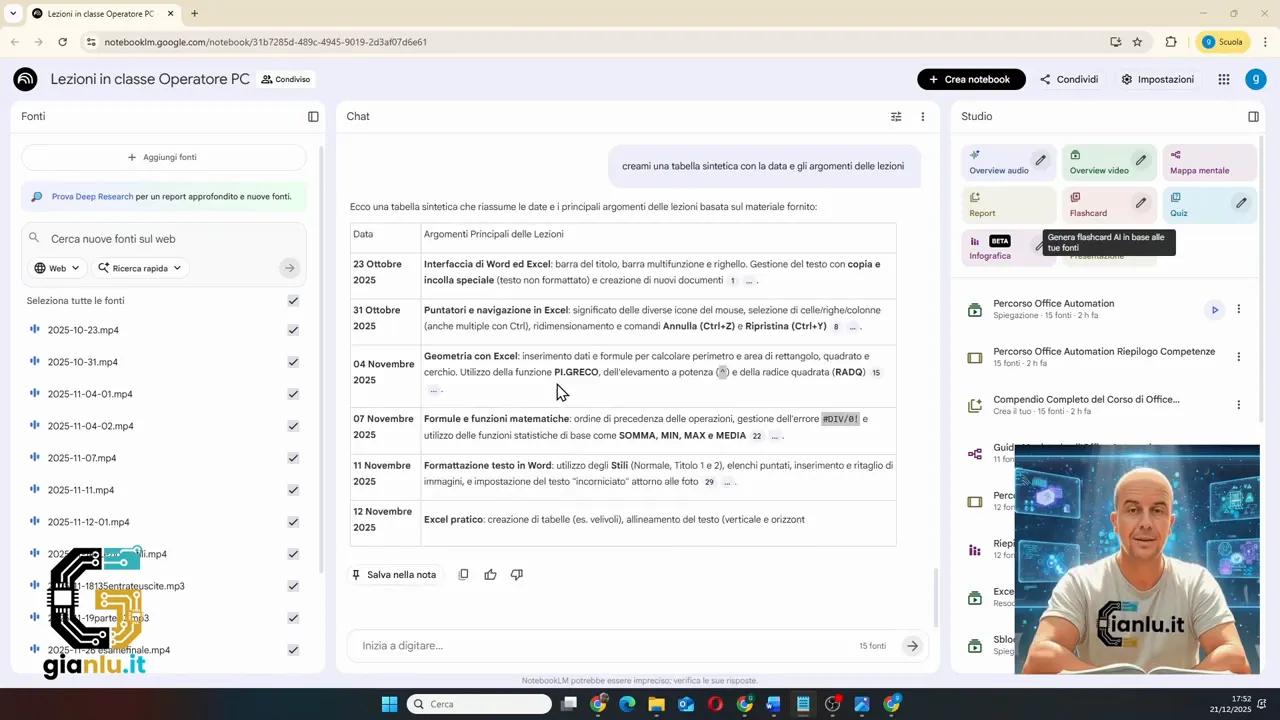
This type of output is perfect when you need to reconstruct the syllabus, prepare a final summary, or simply assess where you are.
🧾 How many sources you uploaded and how they are read
Another interesting feature is the ability to ask the notebook how many sources it contains. The system distinguishes between lesson recordings, external tutorials, and additional informational texts.
Indeed, audio and video become text via transcription. If you instead upload a YouTube link, NotebookLM uses the video's transcript as a base to respond, but also preserves the link to the original video. This is convenient because you get both the searchable text and the complete reference to the external content.
In a school or training context, this structure is very powerful: all course sources converge into a single consulting environment.
🛠️ Automatic reports, presentations, and overviews
NotebookLM doesn't stop at the chat. In the sidebar, there are tools that allow you to create materials derived from the sources, such as reports, mind maps, audio overviews, video overviews, and presentations.
For example, you can ask for a detailed day-by-day report, containing the context of the course and the content of each individual lesson. In practice, a structured document is generated that organizes the entire teaching journey in a narrative format.
You can also get a summary presentation with automatically created slides. Here, however, is a limitation to keep in mind: presentations are generated as PDFs. They are useful for consultation or sharing, but are not designed to be freely edited in PowerPoint or Google Slides.
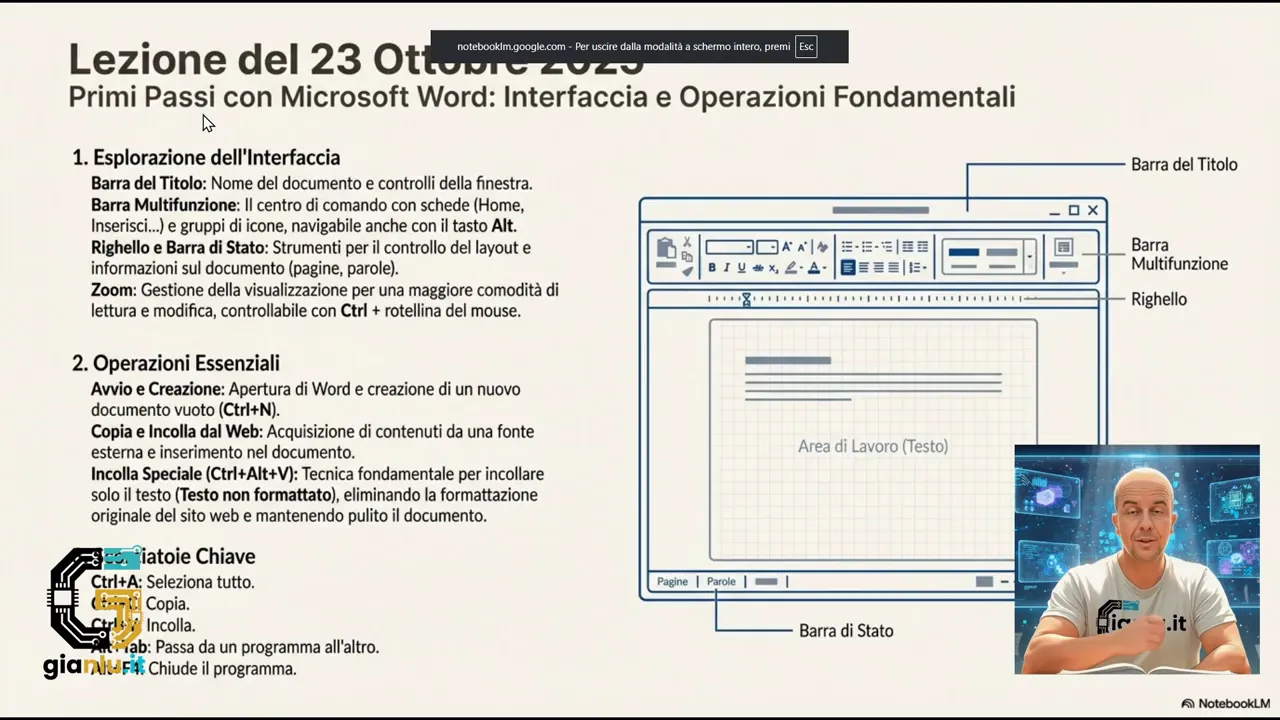
There is also the option to create a video overview, which is synthesized content that walks through the topics covered. Here too, the value lies in the ability to turn a collection of lessons into a structured review material.
🤝 The most powerful feature for teaching: sharing
In my opinion, this is where NotebookLM becomes truly interesting for teachers.
The notebook can be shared with other people via email. Those who receive the link can open it and use the chat to query the lessons. This means that an absent student, or anyone who needs to review a confusing point, can directly ask what was done on a certain day and get a summary consistent with the course.
If something is not clear, they can follow up with more specific questions. In this way, studying becomes more active and guided.
However, there is an important distinction:
- those who receive the shared notebook can use the chat
- the study section, which is used to generate new materials, remains private to the notebook owner
- the contents already created by the owner remain visible to those with access
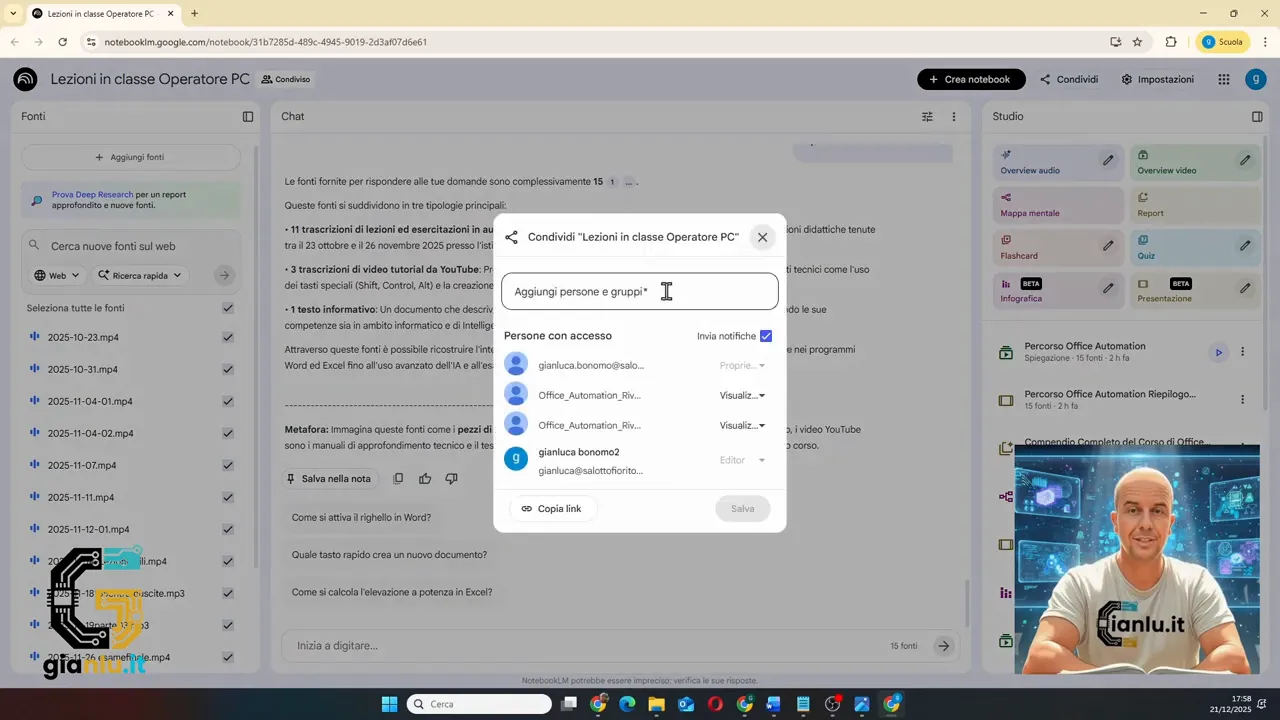
This balance is excellent: on the one hand, students can consult the material, on the other, editorial control remains in the teacher's hands.
✅ Why this approach really works
Using NotebookLM in a school or training environment means creating a stable bridge between classroom explanations and subsequent homework. It does not replace teaching; it extends it.
The main advantages are very concrete:
- historical memory of the course, because nothing gets lost
- consistency of answers, because the AI is based on what was actually taught
- support for review, with open questions and quick summaries
- makeup material for absent students, who can reconstruct what happened in a lesson
- organizational help for the teacher, who can easily find topics, dates, and syllabus progression
If you already teach and record lessons, or if you produce audio, video, or text materials, this tool allows you to give all that work a much more useful second life.
❓FAQ
Can NotebookLM work on lesson recordings?
Yes. Audio and video are converted into text through automatic transcription, and from there they become searchable in the chat.
Can I ask what was explained on a specific date?
Yes, especially if you named the sources well with the lesson date. This is one of the most practical uses of the notebook.
Does it answer using only information from the lessons?
It depends on how you ask the question. If you want answers based exclusively on the uploaded material, it is best to specify it explicitly.
Can notebooks be shared with students?
Yes. Students can use the chat of the shared notebook and consult materials already generated, while the creation of new content remains restricted to the owner.
Are presentations created by NotebookLM editable?
They are generated in PDF, so they are excellent for consultation and summary, but not for complete editing like in PowerPoint or Google Slides.